I help you use technology more effectively, giving you the confidence to do more, be more, and explore more of the world that today’s technology makes available to us all.
-Leo Notenboom
Hi! I’m Leo Notenboom
I’ve been playing with tech since I first touched a punch card in 1976. I spent 18 years at Microsoft, where I saw the sausage being made — I even made some of it myself! Since 2003, I’ve been using that experience and my love of technology to answer your tech questions here at Ask Leo!.
Frustrated by technology? Afraid to go online? Feeling left behind as your kids out-pace you in today’s digital revolution? Looking for a dose of sanity, clarity, and straight talk?
You’ve come to the right place.
Sign up for my weekly Confident Computing newsletter and get it all delivered directly to your inbox.
Each week I publish articles helping you solve problems, stay safe, and increase your confidence with technology. My strengths are Windows and PCs, but I cover many, many topics across all technology and using the internet safely and securely.
Check it out for yourself: here’s the latest issue.

Each week, Confident Computing gives you tools, tips, tricks, answers, and solutions to help you navigate today’s complex world of technology and do so while protecting your privacy, your time, and your money. It can even help you better connect with the people around you.
In other words, I’ll help you use technology with confidence.
Here are a few examples:
- My most important: Internet Safety: 7 Steps to Keeping Your Computer Safe on the Internet – It really is within your power to take steps to stay safe and secure. If you read nothing else, read this one! (And look below for a related, special free offer!)
- My most necessary: How to Back Up Windows 10 (& 11) – You know you want to. Let me show you how!
- My most popular: Can I Use a Charger With the Same Voltage but Different Amperage Rating? – Volts and amps combine to confuse you, but I can clarify what matters and what doesn’t.
- My most popular video: Lost Gmail Account Recovery With No Phone or Alternate Email – Your last-ditch option, why it might not work, and what to do/what not to do next.
- The articles I refer people too the most often: My Most Referenced Articles.
That’s just the tip of the iceberg! I have over 5,000 articles here on Ask Leo! (You can use the search box near the top of every page to find what you’re looking for.)
Each week Confident Computing adds even more answers, tips, and advice for what’s happening right now in the world of technology.
Bonus!
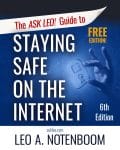
Subscribe for free today and claim your copy of The Ask Leo! Guide to Staying Safe on the Internet – FREE Edition. Culled from the articles published on Ask Leo! The Ask Leo! Guide to Staying Safe on the Internet – FREE Edition identifies the most important steps you can take right now to keep your yourself safe as you navigate today’s digital landscape.
It’s completely FREE.
♥
Subscribe today, and you’ll hear from me soon!