Not using Windows Explorer, no.
However it’s a snap using the Windows Command Prompt.
Become a Patron of Ask Leo! and go ad-free!
In Windows Explorer, when you drag and drop a file from one location to another, you must let the copy (or move) operation complete before you can then rename the file in its new location.
However, using the COPY command in the Windows Command Prompt, you can do it in one quick step.
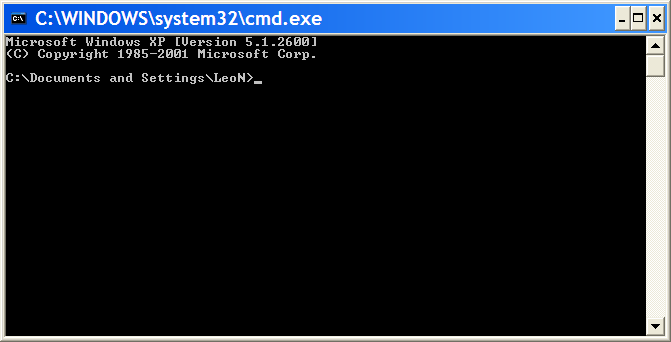
Start by firing up a command prompt – usually Start, All Programs, Accessories, Command Prompt. You’ll probably get something like this:
The COPY command has the following syntax:
COPY source destination
The “trick” here, if you want to call it that, is that the destination can either be the folder to receive the file, or it can include the new filename.
For example:
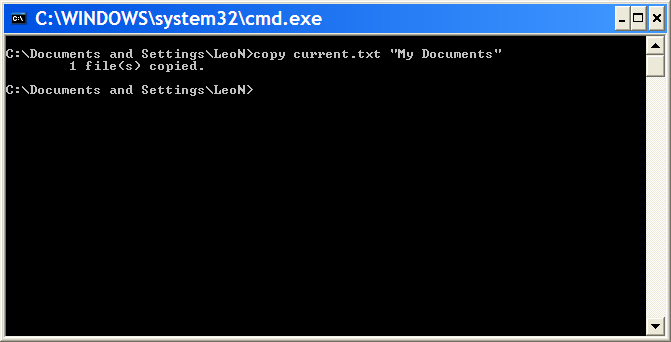
This command:
copy current.txt “My Documents”
Executed with “C:\Documents and Settings\LeoN” as the current directory, copied “C:\Documents and Settings\LeoN\current.txt” to “C:\Documents and Settings\LeoN\My Documents\current.txt”.
Now, this time we’ll specify a filename:
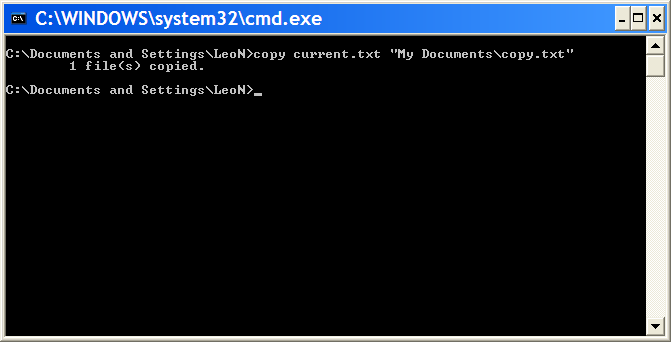
This time we copied “C:\Documents and Settings\LeoN\current.txt” to “C:\Documents and Settings\LeoN\My Documents\copy.txt“. In other words we copied the file, and gave the copy a new name in one operation.
These examples all assumed that the file you want to copy is in the “current directory” (or current folder), as listed in the command prompt itself. You can change directories with the “CD” command:
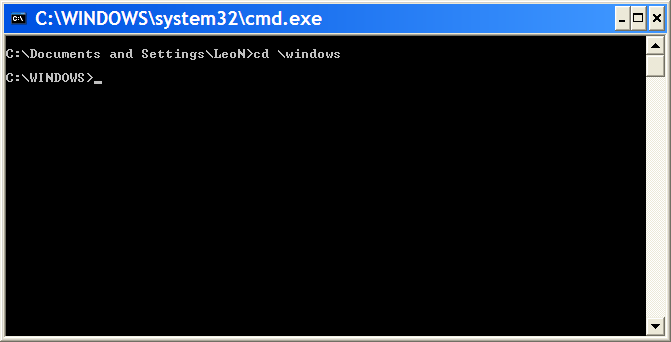
Now your COPY operations will be relative to the new current directory.
Alternatively the COPY command will work with full paths as well, eliminating any reliance on the current directory:
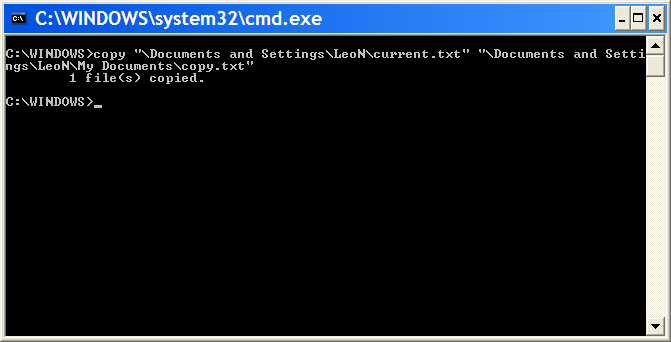
This example performed the same copy-and-rename we did earlier, but doesn’t rely on any assumptions about the current directory. It specifies a full path to both the source and destination.
As you can imagine, the Command Prompt, while somewhat arcane for the average user, is incredibly powerful. Depending on your plans, it could be well worth spending a little time learning more about.


For anyone interested, you can download the sucessor to cmd.exe, Windows Powershell, at http://www.microsoft.com/windowsserver2003/technologies/management/powershell/download.mspx (The Windows XP / Server 2003 versions are final, but the Vista version is still in RC2). It’s supposed to be incredibly powerful, and certaily overkill if all you want to do is copy files — but if you’re learning a CLI syntax from scratch anyway, you may as well learn the one that may end up being far more useful in future (i.e. if you ever need something more versatile than cmd.exe).
There’s a getting started guide and quick reference at http://www.microsoft.com/downloads/details.aspx?FamilyId=B4720B00-9A66-430F-BD56-EC48BFCA154F&displaylang=en.
In an OS long, long ago there was quite a performance difference between COPY and XCOPY.
COPY was part of the command interpreter that loaded very quickly and moved smaller files very well. XCOPY was a .EXE that took longer to load, but moved larger files quicker – due to a larger buffer.
These days it appears that the only real difference is the depth of features in XCOPY. Do you know if there is still a performance difference?
—–BEGIN PGP SIGNED MESSAGE—–
Hash: SHA1
I assume that any actual performance difference between the two has long
since been overshadowed by the increase in both media and processor
speed. I’m sure that the differences you mention are still there, but so
small as to be unnoticeable these days.
Leo
—–BEGIN PGP SIGNATURE—–
Version: GnuPG v1.4.6 (MingW32)
iD8DBQFF8ex/CMEe9B/8oqERAkP0AJ9U1Vq4Rp6VqHHG89ohXJBnUblc5ACeOBzq
jhejEqH5ppse9AWxaF7wP1Q=
=VGYr
—–END PGP SIGNATURE—–
I have a folder in My Documents that needs to be renamed. “C:Documents and SettingsJulia…” The folder is the Julia folder. When I right click to delete it there is a message that this folder cannot be deleted. How do I rename a name on this computer that is no longer related to the computer or the files in it?
01-Mar-2009
Can I copy a file to another folder and rename the file where I copy the current date into the file name? So for example I want to copy test.txt to another folder but have it saved with the name 13032009test.txt.
What I need to do is copy logfiles and rename them.
copy ex010101.log to ex010101a.log into another directory
I have an EXCEL template and I used 8 alpha-numeric characters to identify the data sheet after I fill it up. When I save it, I have to re-type the identification number as a filename. I tried to copy and paste to replace the filename but won’t accept it. Is there a way that I can just copy and paste the filename to avoid errors during retyping?
Try selecting and copying from the Excel edit bar rather than directly from a cell in the spreadsheet.
What if I know where the text file is, but don’t know what it is named. However, know it is the only text file in the folder and depending on the folder know what I want to call it. Can you use wildcards? Example: \ed\doc1\*.txt \docs\doc1.txt
I don’t believe so, no.