I’ve experienced the same thing, and it can definitely be annoying.
I would prefer that software we run regularly not require administrative access every time. Unfortunately not all software is written that cleanly. In those cases a workaround might well be a pragmatic solution.
You are correct: the workaround uses the Task Scheduler in an interesting way.
Become a Patron of Ask Leo! and go ad-free!
Running as administrator
As I’ve written before, logging in as a user with administrative privileges doesn’t mean you’re actually running as an administrator.
All that it means is you’re allowed to do so.
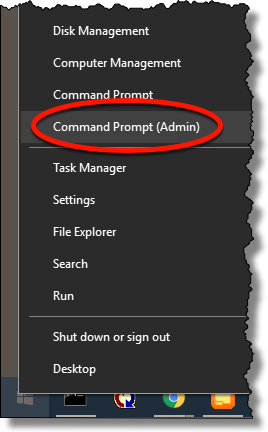
If I want to run Windows Command Prompt as an administrator, I right-click the icon or menu entry that launches it, and click “Run as administrator”, or right-click the Windows 10 Start menu and click on Command Prompt (Admin).
Then I get the familiar UAC prompt:
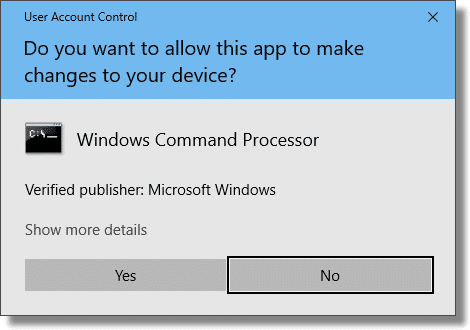
In other situations, programs attempt to do something that requires administrative access after they’ve been run normally. When that happens, the UAC prompt will appear automatically.
Either way, it’s an interruption, particularly if you trust the program and it happens every darned time you run it.
Create the Task Scheduler task
In Windows 10, click the Start menu and type “scheduler”. Click on Task Scheduler when it appears.
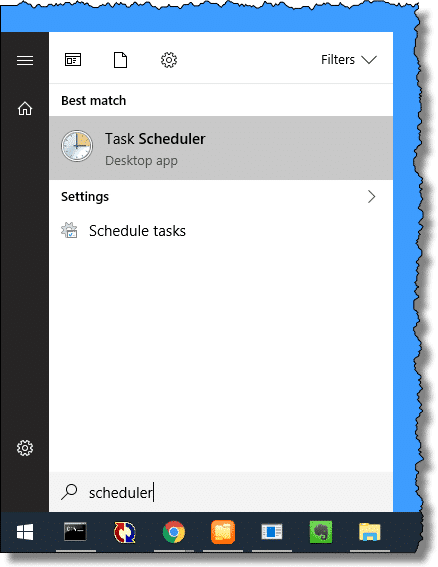
(In Windows 7, click the “Start” orb, All Programs, Accessories, System Tools, Task Scheduler.)
In the resulting window, click Create Task….
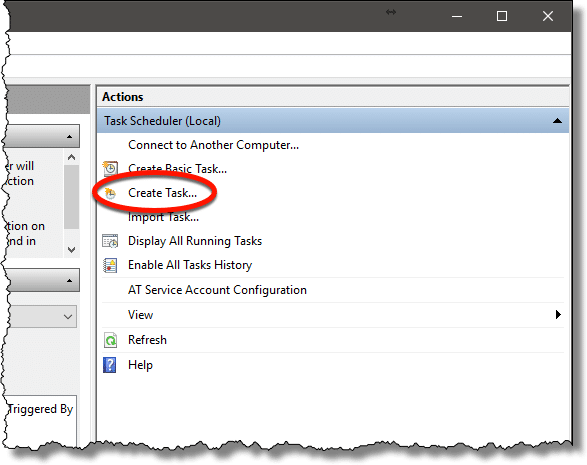
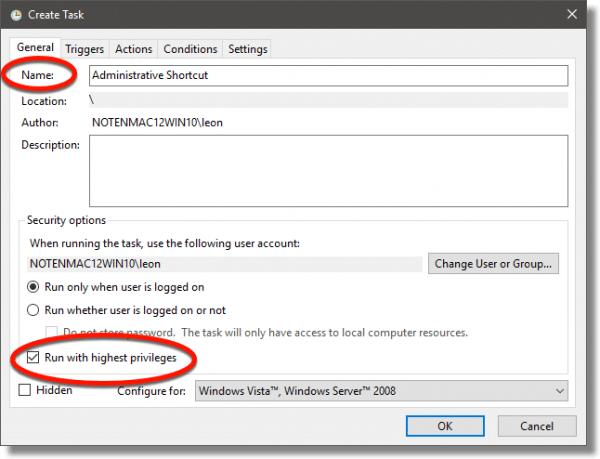
In the resulting screen, give the task a name; I’ve typed “Administrative Shortcut.” Make sure “Run with highest privileges” is checked — this is the “Run as administrator” option.
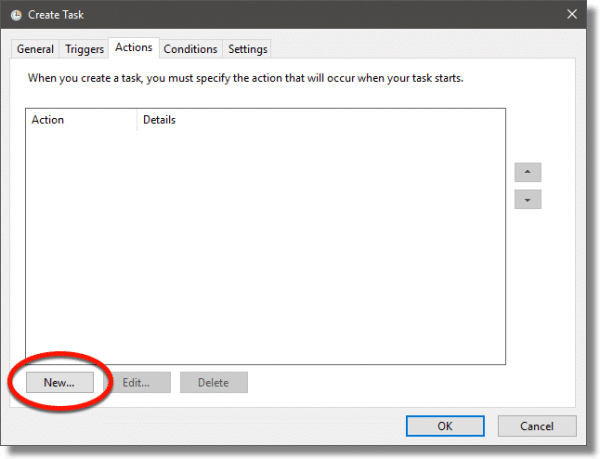
Click the Actions tab and then the New… button.
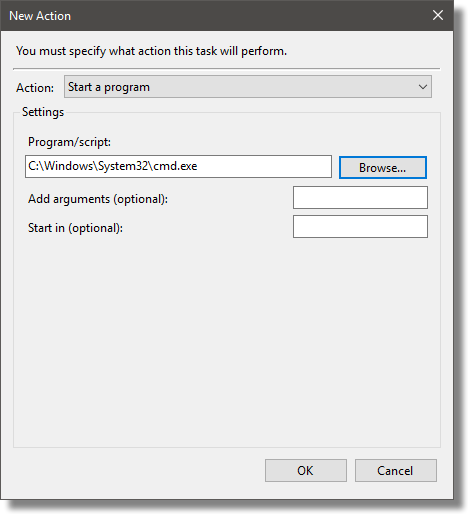
In the resulting dialog, enter the full path to the program you want to run. In this example, I’ve entered the full path to cmd.exe, the Windows Command Prompt. Click OK.
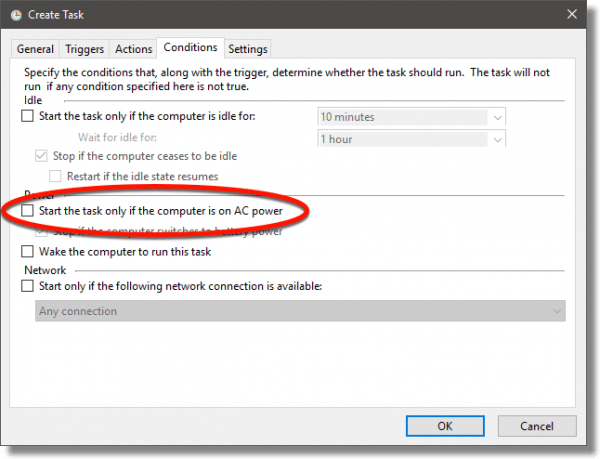
Click on the Conditions tab.
If checked, uncheck “Start the task only if the computer is on AC power”, which may be set by default. We want this to work even if our laptop is running on battery.
Click OK and close the Task Scheduler.
Create a shortcut to the task
Right-click an empty area of the desktop, click New, and click Shortcut.
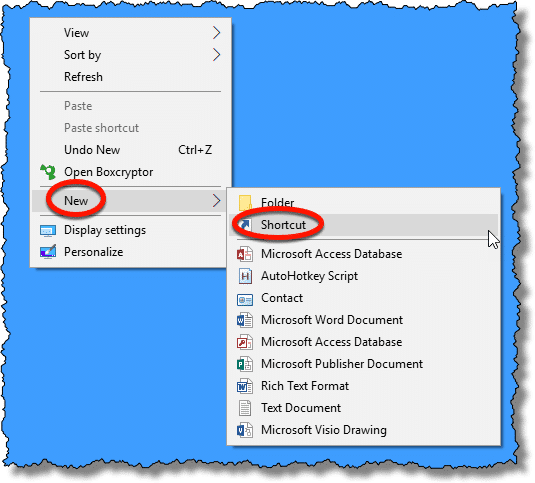
This will open the “create shortcut” wizard.
The “location of the item” in this example is:
C:\Windows\System32\schtasks.exe /run /tn "Administrative Shortcut"
Piece by piece, that’s:
- C:\Windows\System32\schtasks.exe – the full path to the Task Scheduler
- /run – indicates we’re asking Task Scheduler to run one of its tasks
- /tn – short for “task name”, this tells Task Scheduler we’ll identify the task to be run by its name
- “Administrative Shortcut” – the name we gave to the task earlier, in quotes.
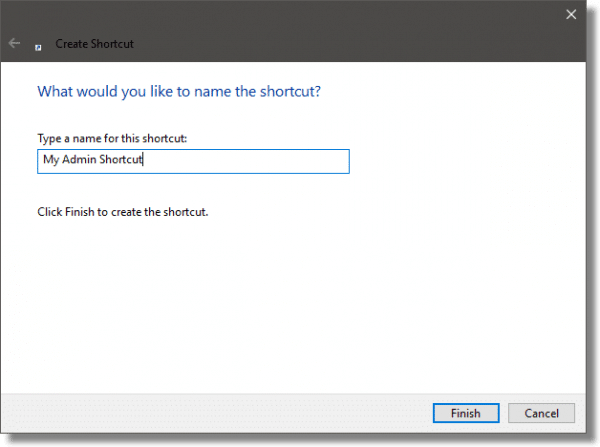
Click Next to move on to the name selection dialog. Give it a name — I chose “My Admin Shortcut” in this example — and click Finish.
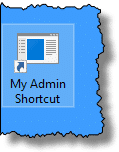
Double-click that icon, and the task will start: the program will run with administrative privileges, and the UAC prompt will not interrupt you.
There’s sometimes a catch
There’s one small possible catch: frequently the program will not come to the foreground as the current program when it starts.
This can be somewhat confusing, as we’re used to starting a program and being able to interact with it right away. When a program is started with this trick, you may need to click on it after it starts to be able to interact with it.
Do this
Subscribe to Confident Computing! Less frustration and more confidence, solutions, answers, and tips in your inbox every week.
I'll see you there!


Is there a way to use AutoHotkey for this?
I’ve just started using it and thought it might help. I know this may be too techie for the OP but I’d like to know because I also have programs that keep asking for UAC.
Thanks,
24-Feb-2012
Thanks Leo. That makes perfect sense! I’ve been getting carried away with AutoHotkey after your recommendation and momentarily forgot about security!
If you install windows 7 with SP1, there is much improvement in UAC behaviour now it do not prompts you while running number of programmes like winamp, vlc media player, nero etcetra…
If u have a secure pc, Do as I do and turn UAC off. I have never used it from day 1. Never liked it and never will. If u have safe surfing habits and know what ur installing, you’ll never have a problem. (I never have to date) Do you’re research before installing programs, it only takes a few minutes to do so.
I agree. If only they could add a whitelist option to it.
I subscribe to your newsletter. So why every time I click on a link, Do I get a pop-up asking me to subscribe? Very annoying.
{email address removed}
That pop-up places a cookie on your computer which instructs it not to pop up again for one month. If you clear cookies, the pop-up will happen the next time you go to Ask Leo! Unfortunately, the page can’t check if you are on the mailing list or not.
ok
ive read a few of your articles and you skirt the issue im here to address
i want to be THE admin peroid. not “admin capable”
i want to log in and operate as this. not line-item add, a “run as admin” for every exe on my harddrive
how do i BECOME THE admin?
You can turn off UAC. I believe the net effect is that you’re granted administrative privileges without being asked whenever needed.
If that doesn’t work you’ll need to unhide the normally hidden account actually called “Administrator” and login using that account instead. In an administrative command prompt enter:
net user administrator /active:yes
Is this risky ? In other terms : can malware take advantage of that, even though the program you have authorised in this way is legitimate and clean ?
Everything is risky. Life is risky. :-) But this doesn’t add significant risk in my opinion. Of course malware could take advantage of it — anything is possible — but it would have to be highly specifically targeted. I’m not aware of a single case of that happening.