It would make some things easier.
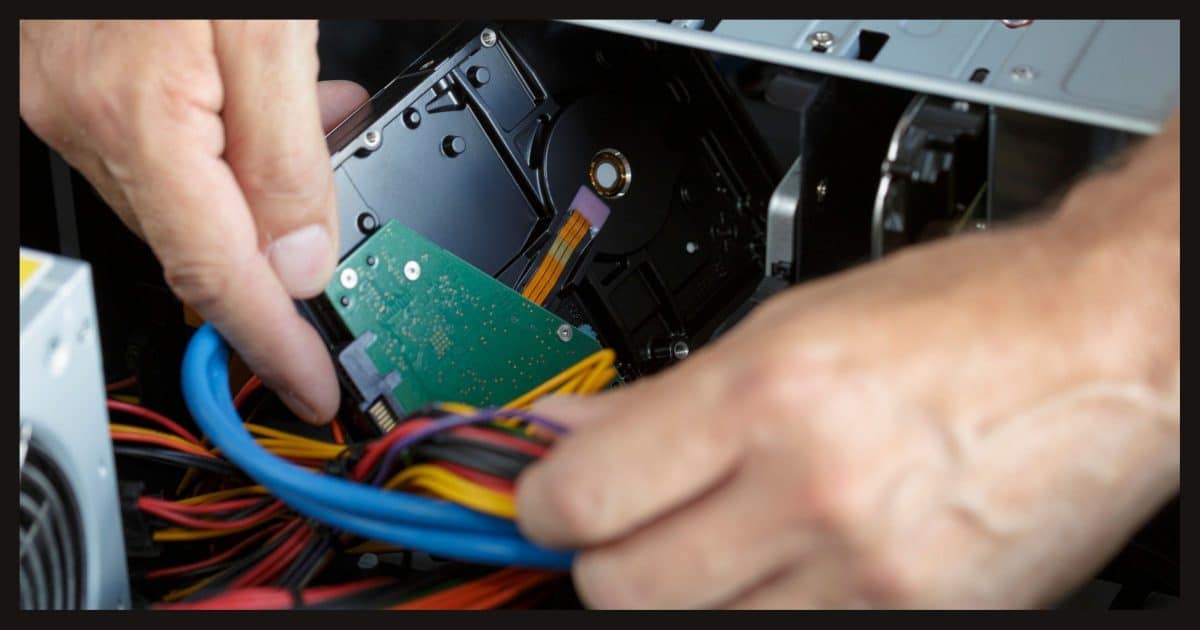
In general, the answer is no, it will not work. But sometimes it does. And sometimes it’s something in between.
It depends on how similar the two machines are.
Let’s just say it’s something I would not trust.
Become a Patron of Ask Leo! and go ad-free!

Can I move my hard drive?
Since Windows Setup configures Windows to the specific hardware on your machine, moving a hard disk from one machine to another and expecting Windows to work is risky. Windows will try to update itself in the face of what it sees as a massive change, but the results are not guaranteed. Your best approach with a new machine is to reinstall Windows from scratch and allow Windows Setup to do its job properly.
Setup configures Windows to the hardware
When you install Windows, the setup process configures Windows to the specific hardware configuration of that machine.
It installs the drivers and other software appropriate to the specific network card, audio hardware, hard disk interface, optical drive, and so on installed in the machine. This includes drivers and settings for things you don’t normally think of, like motherboard chipsets, CPUs, USB interfaces and hubs, and other low-level components.
Windows tries to re-configure to hardware changes
When you add new hardware, Windows notices, and either installs or prompts you for new drivers, with no or little action needed on your part.
The same is true when changing hardware. If you remove one graphic card and replace it with another, Windows treats that as new hardware and fetches the appropriate drivers.
It’s very convenient and works well when you’re adding or change one or two things.
Everything changes when you move a hard drive
However, when you move a system drive from one machine to another, to Windows it looks like everything has changed on that hard drive.1
EVERYTHING: the motherboard, the chipsets, the display, the audio . . . everything. And it’s right: it’s like you swapped every piece of hardware on the machine for something else.
Because you did.
Windows will try. It’ll try really hard to update itself in the face of this onslaught of changes.
Whether it’ll succeed is the question. And as with so many things, it depends.
Similar hardware has the best chance
If the machine you take your hard disk to is identical to the original machine, you stand a pretty good chance of having everything work.
You might have to deal with Windows activation, since it incorporates things like serial numbers to detect hardware changes, but that often just works or can be handled with a phone call.
You might still have issues with hardware that’s very different from the original machine. That too may just work, or may require extra steps in the form of manual driver installation.
Different hardware is riskier
If the new machine is dramatically different, I would not expect this to work.
I can’t point to a specific thing and say, “This will break it.” A different CPU? Maybe, maybe not. A different disk controller? Perhaps. Different amounts of RAM? Probably not an issue.
It’s difficult to say, but the more different the two machines are, the less I would expect it to work.
I also can’t tell you exactly how it’ll fail.
Failing hard, failing later, or failing not at all
How badly will it fail? In the worst case, things are so different that Windows simply can’t recover and won’t complete booting. The results are clear: it doesn’t work. You’ll need to install Windows from scratch to allow it to configure itself properly.
The more troubling results are less clear.
Your machine may initially appear to work but develop problems later. Or you may not realize that things aren’t working properly until you use a connected device for the first time. Or Windows updates might not work.
The list of things that can go wrong is lengthy. The probability for each? Completely unknown.
And of course, your machine could just run with no problem at all. There’s just no guarantee.
It’s not worth the risk
I would never rely on this approach to work.
There are too many pitfalls, too many ways that things could go wrong, and no way to know with any certainty which problems you’ll encounter, if any. I’d expect the result to be “half-baked” and prone to hardware issues.
The safest approach by far is to reinstall Windows from scratch. This will give Windows Setup a chance to do its job and properly configure Windows to the hardware you have.
Do this
Before you do anything — moving the hard disk or installing from scratch — back up the existing hard disk. That way you’ll always have the information stored on it should you ever need it.
Then subscribe to Confident Computing for more tips on how to accomplish your upgrades and changes with fewer hiccups! Less frustration and more confidence, solutions, answers, and tips in your inbox every week.
Podcast audio

Related Video


Footnotes & References
1: Well, except the hard drive itself, I suppose.


The contents of this article also apply to restoring a system image to a different machine.
I’ve replaced motherboards in Windows computers with a completely different make/model/type of motherboard than the old one. I’ve yet to have the system fail to boot to Windows with the new motherboard.
That said, it often takes numerous reboots as Windows goes through numerous “detecting new hardware” phases, and installing new drivers which require a reboot.
With that in mind, I always copy the contents of the Windows install disk into a subdirectory on the hard drive, prior to changing out the system. Otherwise, you may end up in a Catch-22 scenario where it needs to load the CD device driver from the CD. (BTDT)
I had to remove a guys hard drive from his old computer and put it in another machine after his power supply burned out. It would not boot up but a simple repair install and I was able to save the files he wanted saved on the hard drive. And got is second machine up and running.
Hi Leo
This article has really confused me. Are you saying that the image I made of my Windows XP operating system with Acronis True Image, would not be able to be installed on a new computer or even a new hard disk?
A backup serves two different, yet extremely important functions:
• Restoring to the original machine: an image that can be restored to your existing machine should it ever crash and simply be repaired. (Probably more common than failures requiring complete machine replacement)
• Moving data to a new machine: an image of your old machine that can be installed on a different hard drive on an different new machine – not as the boot drive for that new machine but as another drive from which you can then access all the old data from your old machine
While, as the article outlines, it may occasionally be possible to move a hard drive, or an image of a hard drive, to completely different hardware and have it boot and work, it’s not at all something I would rely on.
Hope that helps clarify.
-Leo
Just this week I tried moving a hard drive direct from a box with a 64-bit Asus board with a VIA chipset and 64-bit AMD Athlon 64 2.2GHz single-core CPU and 2GB DDR2 RAM to a box with 64-bit Asrock board with an nVidia chipset and 32-bit AMD Sempron 1.8GHz single-core CPU and 1GB DDR RAM. (Both of which I built myself.)
On powerup everything booted but it was so slow (1/2 hour to fully boot.) and clearly didn’t like its new situation. I spent quite a few hours trying to optimise it, installing the stsyem board’s nVidia drivers etc, but with little success. (Maybe it had something to do with the big difference in CPU architecture>) I ended up formatting the drive and installing Windows XP again. (+ all the drivers from the motherboard CD, then updating them.) It worked like a dream from then on.
This is the first time that I’ve actually tried swapping a loaded disk as primary disk between 2 boxes. I’d recommend, from my limited experience of this operation, taking Leo’s stance and reinstalling Windows in such a case. Had I done so in the first place it would have saved me hours of hassle. (Unless you’re moving the drive to an identically-built box perhaps?) I’ve heard elsewhere that a maintenance reinstall might do the trick; but I’ve yet to try that in this situation.
What about if I have the exact same hardware? Literally two copies of the same everything, except the boot drive?
However, what if I want to move this boot drive back-and-forth… 2 or 3 times a day, between my office computer and home computer. Being the boot drive for both copies of the computer hardware.
Is the activation going to screw with me?
14-Dec-2009
Leo… thanks for the article. I want to report that I moved my XP Pro boot drive from a 4 year old single cpu board to a new board (different mfg) with a multi core processor and newer DDR memory. My initial experience was that it was not going to work as the FIRST repair alternative resulted in immediate crash. I finally resigned myself to a complete install along with all my apps but during the install process via the CD after moving to the next and final choice screen for install I noticed that “repair” was again an option. I chose this and it worked. Took quite a while, like a normal install, and required reactivation, but I have my old system now running on the new equipment. Had to load the new LAN and chipset drivers to get back on line, but it looks like I am home free and saved HOURS!
I did this once with a Windows98 – moved it from a Pentium II system to a Pentium III system. The hardware was definitely not identical, but it might not have been all that different either. All I know is it worked brilliantly – it sat there for 10 minutes re-detecting everything the first time I started it and then it worked just as well as it always had (taking into account the general quality of Win98).
I expect at least the same behaviour from the much superior WinXP, so I will definitely try the same move tomorrow – this time from an AMD Duron system to a platform with an Intel (Single-)Core-Celeron. Worst-case, I will still have to do a complete reinstall, but if there’s a remote possibility of not having to do that, I’ll take it.
I recently upgraded my sons Windows 7 PC, replacing the psu, motherboard, processor, ram and graphics card, from Intel core 2 duo to AMD Phenom II x4, using the original system hard-drive without any problems. No one was more surprised than me that it went so smoothly – didn’t even need re-activation.
I started by housekeeping the old system and creating a system image onto an external hard-drive, and a win7 repair disk just in case I needed to completely revert. I also made a Windows easy transfer file in case I had to do a clean install and reload the data/settings.
The system image was 120gb+ with a lot of apps, games and data my son would prefer not to lose or have to reinstall – hence trying the upgrade rather than the clean install that I would normally do. The original system had been previously been upgraded from Vista home premium to Win 7 professional, which had required a clean install – and took 2 days!
For the actual upgrade I installed the new psu, mobo, cpu and ram with the old system HD, DVD ROM and graphics card – leaving all other components disconnected (extra HD, DVD, PCI network card). Booted up the PC and Win 7 simply installed everything for the mobo very quickly and easily. I then added each old component (HD and DVD, then network card) and rebooted each time. When I connected the network card, Windows update downloaded a few more updates, which I installed before finally swapping the graphics card (from nVidia 9400GT to Radeon HD5770).
Finally I added some extra system fans so that my son can play his games at impressive resolutions.
The whole process took less than a day including half a day to housekeep and create backups.
The new system has been running like a dream for over a week. Result – one happy son (and dad)!
This is the third system I have built/upgraded involving Windows 7 and I have to say it seems far, far better than XP ever was at handling hardware installation/changes.
So my recommendation would be to normally go for a clean install as the first choice, but don’t be afraid of trying an upgrade if you are using Windows 7 – just make sure you have a backup plan in place. Taking on any major upgrade without backing up your precious data is a disaster waiting to happen – it usually takes longer than the actual upgrade and may seem like a waste of time, but it’s a mistake you only ever make once!
RE: the question about Acronis- there is an additional program called Acronis Universal Restore that is supposed to allow restoring to a different hardware configuration. Otherwise a restore to a changed ot different PC can be wrought with all the problems mentioned and more. It has been a while since I bought my copy of the True Image back-up software, but the Universal Restore was an additional purchase. It interfaces right in with True Image. I don’t know if it’s bundled these days or still a separate purchase..
Concernig the topic, I believe XP took a fingerprint of the computer it was installed on as protection from multiple installs of the same OS on multiple machines. I had a combination of XP Pro and XP Home installed across my home network. Initially, some of the Pro were upgrades from Home. As I converted some PCs to full Pro from Home and got away from the PC manufacturer’s “recovery disc” packages I once hit a lock out screen that required me to call Microsoft and explain there was only one registered copy of the program and that it wasn’t installed on multiple machines. It was easy enough, but I was told the hardware signature is what tripped the lock out.
I know since Windows has the software authorization that’s done over the Internet so maybe the hardware signature isn’t used anymore. Since computers routinely get upgrades it always seemed a silly idea to me to use hardware as an identifier.
When attempting to move an existing operating system on a drive to a new computer I have always booted into ‘safe mode with networking’ to start. Then you have a chance to install/update drivers with the least chance of conflicts. It has worked for me more than once…
Actually, I moved drives from machine to machine DOZENS of times and NEVER, EVER had a problem with Windows 95 or Windows 98. Those were TRULY Plug’n’Play operating systems.
The problem of Windows blowing up while booting if one moves a hard disk from one machine to another or one changes the motherboard began with Windows 2000 and I assume it to be a “design feature” to deal with piracy (drive cloning). RARELY can you change the motherboard and expect Windows XP to run without problems. Fortuntely, one CAN boot from the Windows XP installation CD and select the (second) repair option (not the Repair Console one, the NEXT offer to repair the existing Windows installation). That reinstallation preserves all programs and settings and has always worked for me.
I had to move over to a new PC several times in the last years (Windows 10 Pro). And I did it always by restoring a recent full system backup to the new machine and its empty SSD. Of course the device manager showed some new items on its list after booting. But it found drivers for 9 new elements within a few minutes. No Question marks left. And it worked. Better than the old PC that I had to give up because my favourite Photo app crashed every time even after a clean reinstall.
just curious, couldn`t the hard drive be adapted to a USB port?
Yes, it can work like a normal external drive. You can keep the system on it as a backup until you find you don’t need anything on it. When I do this, I erase everything because I have system image backups of that drive.
Thanks Mark.
Yes, of course, but that’s not what the question is about. The question is about swapping it in as the primary hard drive for the system.
I researched this extensively on the net and elsewhere and found the majority of advise agreed with Leo.
I’m just about to do a machine transfer myself from an old machine with an gigabyte MB and an old AMD 6300 processer to a new machine with an ASUS MB and a Ryzen 7 processor. I have elected to install Windows 10 on the new machine from Scratch, having bought a new copy already. I realize this is going to take a while and probably be a source of aggravation for days or weeks but I feel that’s the only way I know it’s going to be really clean. I do plan on keeping the old machine running and on the network so I can access personal files and any other things I need.
Gary, it’s probably too late for this information to be of use for you (but perhaps it will help others). I recently built a new machine. The way I did things was:
1. I generated a full system backup, just in case.
2. I made sure I was syncing the old system with OneDrive.
3. I completed a fresh install of Windows 10 on the new machine, using the same Microsoft Account I used on the old machine, so I could access my files on OneDrive from the new machine.
4. I repeatedly ran Windows Update until I was informed that I was up to date after checking for updates. In my experience, there have been times when it seemed that Windows Update would do updates in stages, so I check for updates repeatedly as a matter of course, and I often find that it was good that I did.
5. I re-organize the shortcuts on my new machine’s desktop because they are never set up the way I had them on the old machine. While I’m at it, I install any missing software I still want that I had on my old machine (Most of this software is usually installed from the Internet and does not come with Windows).
It takes a while to complete all five steps, but when I’m done, my new machine feels very familiar, and I’m pretty much ready to go. Over the next few weeks after switching to the new machine, I usually find a few applications I missed, and install them as needed.
After a few machine builds, I started keeping a text file on OneDrive containing a list of such applications and the web addresses for the installers. For this last build, that list was invaluable.
This procedure should work O.K. when switching to a store-bought computer too with a few adaptations, such as the additional need to get rid of the crapware that often comes pre-installed on such machines.
I hope this helps someone,
Ernie
good program to install is the Ninite installer It a program that lets you choose from about 100 of the most popular freeware programs on the web. You set up the Ninite installer by ticking the boxes of the files you want to install and Ninite creates a custom installer that will install all the programs you’ve chosen. Every time you run that installer program, it will update all the programs that need to be updated and ignore any programs that are up to date. If you run that Ninite installer on another computer, it will install all those programs on the new computer. Very likely, that will include most of the programs you have on your list. Ninite also strips out any foistware and P.U.P.s before installing the software.
FYI and question for Mac OSX users:
This novice computer user has swapped cloned hard drives between different Mac computers of various vintages. I’ve done the swap maybe five times and always a success.
For example: a 2007 Mac-Mini to an eight core 2009 Mac Pro.
Is this dumb luck or due to the design of Mac computers’ hardware, etc?
I’d say a bit of both. Macs don’t have nearly the diversity of hardware that Windows has to be able to deal with.
What if you don’t have the install disk for some of the programs and can’t install onto the new hard drive? Is there a way to move the programs from the old pc to the new one?
Generally not unless the programs are portable programs. If you don’t have the installation files, many, probably most, software websites have a link to download the programs and if you have the activation key, you can activate the programs.
There are tools that purport to do that, but it’s an error-prone somewhat fragile process. The problem is programs install things in SO MANY different locations.
What is the Best/easiest way to make a backup of the old harddrive? I am trying to make sure I don’t loose any programs I have purchased over the years, or client files of work I have done. Most of the programs I will be able to reinstall from their websites.
Last time I got a new computer, I allowed my cousin to set it up. I think he used migrating software. It never worked very well, and didn’t last long. After following your videos, and newsletter. I am wondering if that would be because all the junk and the old data would have been migrated along with the stuff I really wanted to bring over. Thank You.. You are amazingly helpful.
I’d perform a system image backup of the old drive. That won’t preserve your programs or settings, but it’s the only way to be sure you don’t lose any data. Then install all the programs from their installation media or download the programs from the Web and install them. You’ll need the activations keys to activate them.
I’d take a complete image backup using the free versions of either Macrium Reflect or EaseUS Todo.
After retiring as a federal I.T. Specialist with almost 40 years experience, I’d say absolutely not… never take a hard drive out of one machine and put it in another and expect it to work flawlessly, even if the systems appear identical (there’s always something different). Why? We’ll, over time operating systems do get corrupted in ways that are barely noticeable, and sometimes not noticeable at all. You don’t notice a problem until Word or Excel starts acting squirrelly. It’s always best to start with a fresh install on a different system and then move user files over, and reinstall specialized applications. A professional, if doing this for a customer, would seek a fresh install… it helps to keep the customer from coming back later with weird issues.
P.S. For those who may not understand why I referred to Word or Excel (or any application for that matter… I can’t tell you the number of times I’ve seen apps act squirrelly when the real issue was the underlying operating system. Yes, try and reload the application first, but my experience has been 90% of the time that won’t fix the problem. That’s why I like to start fresh… it helps to keep things in order and working 100%.
Hi Leo,
On a simmilar question, I intend to buy a Mac laptop and use it instead of my primary Win10 desktop.
In my desktop there are 3 Hard Drives with data files.
Which way you recommend me to use in order to use those files in the new Mac ?
I’d pop them into external drive enclosures and connect them to the laptop using USB. The Mac should be able to read them.
No problem copying (“moving”) Win-10 from one hard disk to another. I’ve done it lots of times, usually from a big brick with whirling platters inside of it, to a small solid SSD.
I have even moved my SSD from laptop#1 to laptop #2 to laptop#3 when the first two had problems.
I currently have a laptop in my recycling bin. Without RAM or a disk in it of course. Its SSD has been moved twice as per above. Want my old laptop? The screen and keyboard are still good.
My big problem is converting C: from the old obsolete BIOS format to the new (2010) GPS/UEFI. Microsoft now want two – or three partitions. And when you attempt to install Linux afterwards, it gets even MORE confusing as to where the boot partition is!
I’m still working on this one- my current laptop and I are taking a month-long sabbatical when I got too frustrated with all the conflicting “experts’ suggestions” on the internet on how to dual-boot Linux and Windows when you’re using GPS & UEFI.
Interesting article but must confess when I upgraded my motherboard and cpu, from H61 to Z77 pro, (both ASRock), and i3 2100 to i5 2500k (boosted to 4GHz), all because I wanted USB 3, I encountered no problems at all.
I guess the difference between the two setups wasn’t big enough to warrant any hassles.
Of course I backed up all my software first and had my Win 7 pro disc handy as well, but in the end wasn’t required.
Upon first boot, the machine located and loaded all the required drivers for the new motherboard and setup and has been running fine ever since.
I am a member of a group of volunteers who refurbish donated laptops and pass them on to members of the community all for no charge. We regularly use a cloned drive and find it a speedy and efficient technique. Modern laptops tend to have the license in firmware and older laptops we take the license number from the laptop before replacing the hdd with a Windows clone. We then use a suitable program to completely erase the old hdd and then clone it ready for another laptop. With a new cloned drive in place it is important to make sure that all the drivers are up to date. Saves a lot of time resetting Windows and wiping free space.
With Windows systems earlier than Windows 7 I wouldn’t even try it, I have and it’s been problematic and will typically end up with a reinstall required. Since Windows 10 on the other hand, I’ve done this many times and it’s worked every single time. As someone else stated it may require a few reboots for Windows to finish sorting itself out and correctly recognizing all the hardware (as opposed to using less capable generic bootstrap drivers) but it does work. I would not do it switching from an AMD to Intel CPU, or vice versa, but otherwise it’s worked flawlessly for me, in fact I just did it last week.