A valuable salvage with many uses.

Yes. Yes, you can. In fact, using old HDDs as external drives is a great way to salvage some value from older machines you might otherwise discard.
You can take the drives out of old machines and use them as external drives on other systems. It’s also a common and easy way to perform some data recovery. As long as those drives aren’t the cause of the system failure in the first place, the data on them should still be accessible.
Getting the right external enclosure is important.
And yes, size matters.
Become a Patron of Ask Leo! and go ad-free!

Using Old HDDs as External Drives
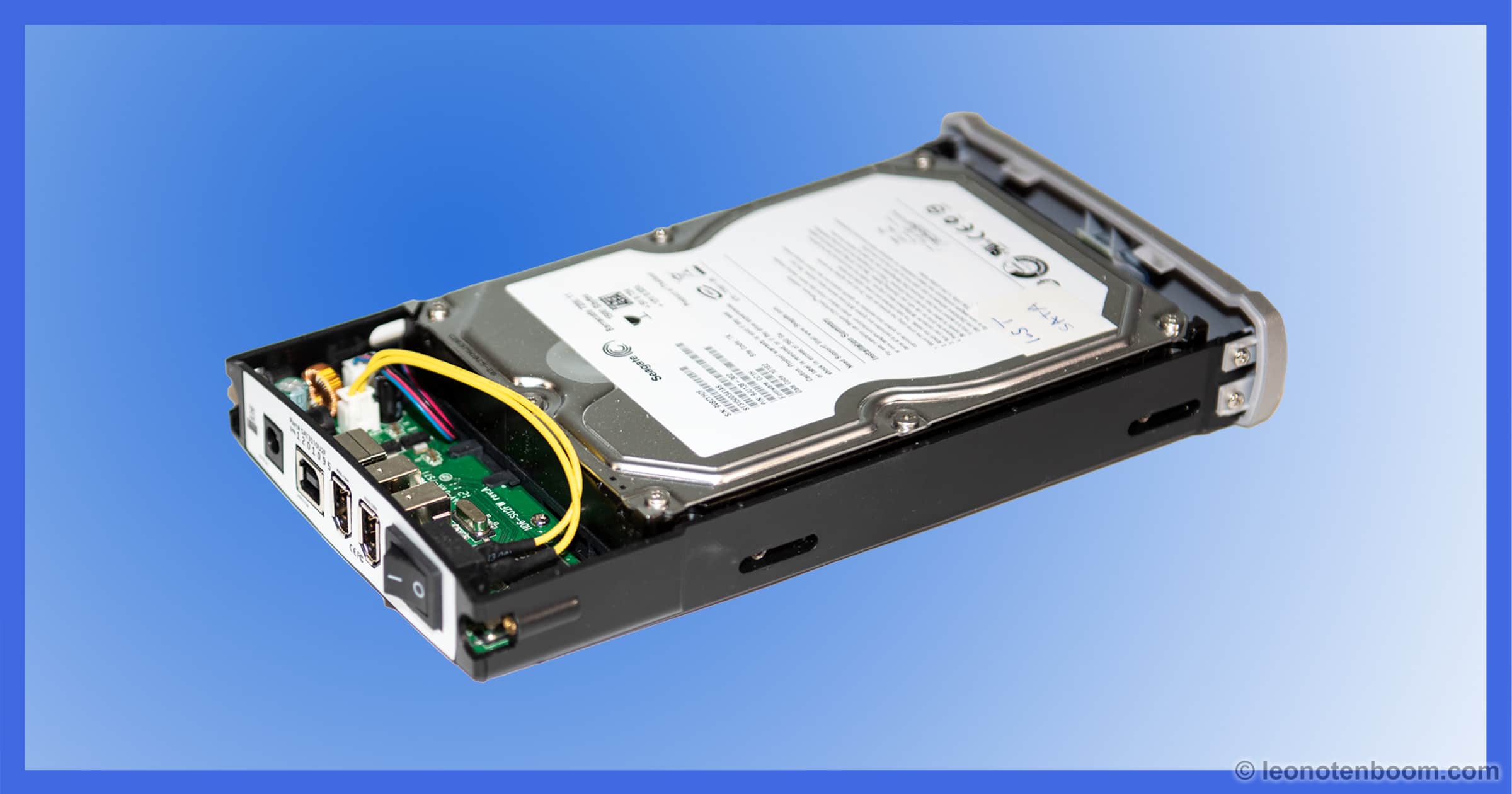
Using an external enclosure that matches the size of your old hard drive (typically 3.5 or 2.5 inches), and provides the appropriate interface (typically SATA, or “m.2” for newer SSDs), you can convert your old internal drive into an external USB drive. Installation is typically very simple, and once complete gives you access to all the data already on the drive for recovery, or you can erase the drive to start with a new, empty, external hard drive.
Physical drive sizes
You’re most likely to encounter one of two different sizes of hard drives, 3.5 or 2.5 inch, shown at the top of the page.
You often find the larger drives inside desktop PCs, and the smaller ones are used in laptops and other portable devices. While the images above are of traditional rotating platter HDDs, you may also encounter SSDs in the 2-inch size.
Naturally, the external hard drive enclosure that get needs to accommodate the size of drive you have.
Interface
It used to be that we also had to worry about the interface to the drives. That’s much less of a worry these days, as HDDs use the SATA (Serial Advanced Technology Attachment) interface almost exclusively.
However…
If your “old” machine happens to have SSDs using the newer “m.2” interface, then you’ll need a completely different enclosure. Fortunately, “m.2” is easy to distinguish visually, as it looks more like a single, simple circuit board.

Traditional SATA drives look more like the boxes with circuit boards attached, as shown earlier.
The external drive enclosure
Here are some examples of external drive enclosures.
- 3.5 inch SATA external enclosure
- 2.5 inch SATA external enclosure
- m.2 external enclosure
Please note: these are examples selected at the time this article was updated. The availability of each is subject to change, and there may be other appropriate alternatives. When in doubt, search your favorite online store for the description in the list above.
Besides providing a place to house the drive, an external enclosure does two things:
- Provides power: When a drive is installed inside a computer, that computer provides the power to run the drive. That power is not always available via external interfaces (though it can be), so many external drive enclosures include a separate power supply that is plugged into the wall or a power strip.
- Converts to USB: The circuitry included in an external drive enclosure is simply a conversion from USB to the internal interface — SATA or m.2 — of the drive.
Note the absence of any cooling. While some external drive enclosures include fans, most do not. This can be an important consideration because hard drives can run hot. Without a fan of its own, the external drive enclosure is relying on ambient airflow to keep the drive cool. Make sure it’s used in an open and unobstructed location.
Installation
The installation process varies dramatically based on the specific enclosure you happen to purchase. In general, the process is simple.
- Remove the hard drive from the old machine, if you have not already. (Make sure the machine is off and unplugged before you do so.)
- Open the new external enclosure.
- Attach the drive to the interface provided with the enclosure.
- Attach the drive to a mounting board, if the enclosure provides one.
- Slide the drive and board into the enclosure case, or otherwise close the case.
- Connect the USB cable and power if required.
- Connect the USB cable to your computer and access the drive.
Data on external drives
For the most part, an external drive is just another hard disk on your system.
If the drive already has data on it — say data from the old system — once it’s connected, its contents should simply appear and be accessible from whatever system you’re connecting it to. (With a few caveats.)
While external drives are commonly used for backup, you can use them for almost anything you would use an additional internal drive for.
Almost.
- I don’t recommend installing software to an external drive. By that, I mean any program that uses a setup program. External drives may see their drive letters re-assigned occasionally. While annoying for any number of reasons, it’s particularly problematic if a program installed as being on the “G:” drive is suddenly on “H:”.
- In your case, because the drives used to be internal drives, software previously installed via some kind of setup will not work. That software will need to be set up again from the original setup media. On the other hand, portable applications not requiring setup will usually work.
- An external drive is likely to be slower than an internal drive. That means depending on how you’re using it, you may not want to put files you use a lot on it.
- An external drive is, as far as the operating system is concerned, ephemeral. They can be removed at any time. The operating system shouldn’t allow you to place the paging file on an external drive, for example. (If it would allow it, don’t, for the speed reasons I just mentioned.) Similarly, I would not recommend moving My Documents, the system temporary folder, or any system-defined folders to an external drive. Should the external drive ever be removed, your system will be very, very confused.
I find external drives the perfect way to keep large quantities of accumulated data I’ don’t constantly access. Backups, for example, as well as photos, videos, documents, and more.
Do this
Subscribe to Confident Computing! Less frustration and more confidence, solutions, answers, and tips in your inbox every week.
I'll see you there!
Podcast audio

Related Video


Id like to mention that portable applications (that means with no installer) will (well, should) work on external drives just fine.
About recovering/using data from old Hard Drives. Where do I find housings for old HDs? Old computers? How do I determine whether they are IDE/PATA or SATA?
I have four HDs from old computers that were Win 98 machines (or older). Can I capture their data using a Vista or Win 7 machine? Will I be able to just access/read that data with Windows Explorer? Thanks.
24-Mar-2011
Even with drives that are wrong interface or just too small to worry about ( I have some 8G IDE), before you trash them you may want to take them apart and salvage the rare earth metal magnets and the shiny disks. The magnets are all over the fridge (suggestion – loop a small cable tie through one of the holes cause they are VERY strong. And the disks make mirrors, mobiles, reflectors, etc. Don’t think they would work on the spokes of a bike, but maybe they are read/write heads for those ‘neat’ sounds. Harbor Freight offers a small case with the many screwheads that you will come across, but many are just small torx heads. FYI many small drives (2.5″) will actually have a detachable interface strip to match up to the laptop, but it usually can be removed and you have a standard sata interface.
I’ve tried hooking old Hd’s with those goodies and i found if you lay them edgewise on a desk, or something, they will keep cool and work – if they cooperate.
Re. comment about trying to put the paging file on external drives. I went through the motions of trying to do this on XP. In fact, I was trying to split (stripe?) the paging file over all my drives, as I have four externals and saw this recommended elsewhere, as Windows is supposed to use the fastest drive (or so the article said) for the page file. I did all this in the “virtual memory” section of System Properties, as you might expect, setting everything and re-booting. No warning at all that it couldn’t be done and everything showed as it should in the properties. When I looked at the individual drives’ contents however, only the “C” drive and the additional internal drive had “pagefile.sys” on them. Nothing on the others. This obviously kicks into touch the folk who say you can put the page file on a USB memory stick. I would have thought some sort of warning that it can’t be done would be in order, unless Windows doesn’t know an external drive from an internal! Unlikely I would think.
Seems to me to be an awful lot of trouble to go to when a new 1 terabyte Verbatim Hard Drive just cost me $68.00 – on sale of course, but I didn’t have to reach for a screwdriver!!
24-Mar-2011
Just to add another suggestion to what others have said, CompUSA (Tigerdirect) Sells a Diablotek kit for about $23 that includes it’s own power supply and allows you to connect 2.5″ or 3.5″ and either SATA or IDE and is the only kit I’ve found that allows ‘hot swapping’ of hard drives. (Which means you don’t have to reboot your computer to change drives, just unplug one and plug in another – it also can be used to connect virtually any CD or DVD drive). It works on any computer with a 2.0 USB port.
Why not install the old one internally in a master-slave config instead?
24-Mar-2011
I’ve got a couple of 250 GB IDE hard drives, and it’s unlikely that I will ever again buy a computer which supports IDE for internal hard drives. Why would I throw them away, when I can use them?
For example, I can install a version of Linux that I want to test, without disturbing what is on my internal drive.
I have converted and internal Samsung SV6003H 60MB IDE into an external drive by the use of an enclosure made by A-byte. Seems to work BUT:
1. Better do NOT plug the drive while the system is off unless you have disabled USB Reboot capability in your BIOS or you have not had any operating system on the disk nor anything which may “Autorun”.
2. I have a problem when I want to open the old “Documents” folder. I get a message the folder is locked and cannot be accessed.
There was a piece of software which would delete directories of Windows forcefully, I do not know whether this would help reading the directories or whether these would be put in the “Recycle Bin” where to read them from.
Changing the attributes did not seem to help.
Does anyone know any way to read the folders?
28-May-2011
I’ve followed your instructions and used the Command Prompt trying to get access to a hard drive I took out of my old Win XP PC which I installed in an external drive enclosure but I’m still getting ‘Access is denied’. The drive is recognized in my new Win 7 as Microsoft Office Click-to-Run 2010. Any advice on this one, please?
Another option is the hard drive drawer (which I have used for IDE drives; haven’t checked availability for USB). Think of this as having external drives that can be slipped into an empty bay. Its main advantages are speed and that you can cold-swap your boot (C) drive. So you can have your own boot drive and another for the grandkids – now the kids can have fun on your computer without endangering your hard drive. The original installation requires opening your computer. Perhaps someone will fill in the blanks for us.
Does the converted external drive need a OS. If possible I would like to empty the drive.
@Robert
Your converted external doesn’t need an OS. You can safely format or delete all of the files on it.
Hi. I have similar qustion. My old laptop Dell E 1405 dont startup. I want to install the Hard drive from that in to my newer Dell N4110 computer. The latter has windows 7 and the old windows Vista. Can this be done. I have obtion as my wife has Dell with Windows vista with also SATA Drive.
@Valdimar
Maybe, but there’s no simple answer to that question. When you move the hard drive from one computer to another you often have driver problems. Whenever I’ve moved a hard drive with Windows into another computer, I’ve had do do quite a bit of tweaking to get it to work properly.
Can I move my system drive to another computer and have it work?
I took the harddrive from an old laptop and put a casing around it. My new laptop can see it, that’s okay. The thing I don’t like that I need Admin rights to copy a ‘file counting’.bat file to the root. And then that file won’t run (probably because of those same admin rights). In “properties” I’ve given all entities ‘full rights’, to no avail. It also seems to be indexing everything, I try to open ‘My Documents’ and it takes a while. Fine if it’s only once – I’m not sure that that will be the case. I’m afraid I won’t be able to delete all the stuff I don’t want to keep (like software)
Bottom line question: how do I get this internal-became-external drive to behave like a “normal” external drive?
I’d start you here: How Do I Gain Access to Files Windows Says I Don’t Have Permission to Access? that should give you blanket permission for everything on the drive.
Great video, thanks for this! I wanted to ask about enclosures for my hard drives.
I currently have a number of loose 3.5” drives from a RAID debacle, which I’d love to throw into housings to be able to use again. I have a few 10TB drives, 6TB drives, and 4TB, 7 drives totaling about 40TB. Each needs to be formatted.
Do you know of any good housings for those drives I could look into? I’m not looking to do RAID, just mirroring. This would be for my archive, to add files to at the end of every year. FYI, I’m a photographer, I create 4-5TB/annually and keep 2-3TB each year long-term.
I’d check Newegg’s website. They sell computer components and have a good selection of external hard drive enclosures at reasonable cost.
In general, 3.5″ HD enclosures require an external power source, which is included with the enclosure. 2.5″ and NVME enclosures are powered by USB, making them useful as portable drives.
Amazon’s another good source. Here’s the one from the video: https://go.askleo.com/ama/B0037ECAP4 . While it’s “currently unavailable” a search on amazon for “3.5in USB SATA External Hard Drive Enclosure” returns many possibilities.
It is advisable to check the SMART attributes of a transplanted drive. It is quite likely that drive with many hours on it has some errors and may be nearing EOL.
Spend the money and clone it to a new drive in a USB enclosure and then put it in the trash (after disabling it with a hammer!).
And a word about USB, move to USB3.0, you be won’t be disappointed.
Leo;
A fun thing to do with an old dead HHD is to open it up and remove the magnets that are used to control the read/write arm. These magnets are super strong.
They can be great for home projects.
They can be toys for jr/sr high school kids.
They should be kept away from young kids because you can seriously pinch your finger between a magnet and a piece of steel.
Hi,
I still have the old hdd from a 2005 Philips Iqon xp desktop, also one from a 2008 Dell Vista laptop. Can I install one or both internally on my 2016 Asus desktop? I can do the actual work, although I have never yet opened my Asus PC, however I’m just worried in case the voltage is wrong would it damage anything?
Thank you
As long as the desktop supports the hard drive interface (SATA or IDE — it’ll be a different connector on the drive), then there won’t be a voltage issue.