
Fair enough. It’s easy for us computer geeks to take things for granted that we shouldn’t.
CHKDSK is a command line tool that checks disks.
I’ll talk about what I mean by command line, and what it means to check a disk.
I’ll also show you how to run CHKDSK step by step.
Become a Patron of Ask Leo! and go ad-free!
Checking a disk
Files on your hard disk live in folders; folders can live in other folders; the whole mess lives in your disk, which might actually be a partition on a larger hard disk. On top of that, there may be security information about who is allowed to access what and in what ways they’re allowed to access it.
As you can imagine, things get pretty confusing. All you probably care about is that you get what you expect when you access a file.
There’s a lot of information on the hard disk to help keep track of all of the data being stored there. CHKDSK’s primary job is to make sure all of the administrative information about the files, folders, and other stuff stored on the disk is correct.
Normally, all of that information is correct. The system is designed to keep it correct from startup to shutdown.
Unfortunately, a variety of errors can cause it to be incorrect — things like not shutting down your computer properly, removing USB devices without using Safely Remove, malware, or just flat out hardware errors can cause problems in the administrative information on the hard disk.
CHKDSK’s job is to try to repair those errors.
What’s a ‘command line’ tool?
Most programs in Windows appear as … well, as (or in) a window.
Command line tools do not. They don’t know about on-screen windows and don’t display their results in them. They rely on the Windows “Command Prompt”, which is nothing more than a non-windowed environment that mimics the days before Windows, when all programs were “command line” tools under MS-DOS.
To run CHKDSK, we start with a Command Prompt.
Running CHKDSK
You’ll find Command Prompt in your Start menu. In Windows 10, right-click the Start menu, and it should be listed right there. You’ll want the “(Admin)” version so it runs with full administrative privileges.
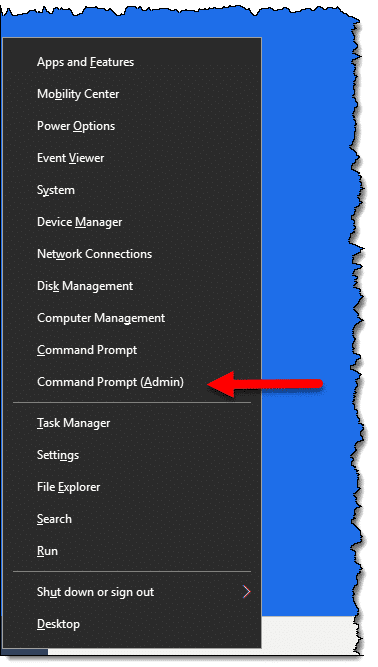
You may instead see “Windows PowerShell” instead of Command Prompt. PowerShell will do for our purposes. Once again, be sure to run the “(Admin)” version.
In prior versions of Windows, you’ll find Command Prompt under All Programs – Accessories, or by searching for “Command”. Make sure to right-click on the entry and select “Run as Administrator”.
Running Command Prompt will open a new window that looks like this:
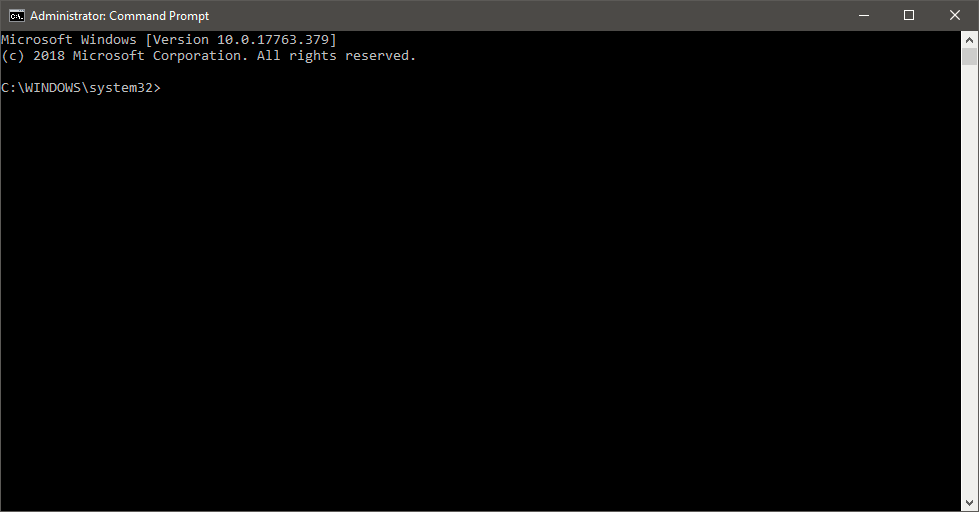
Command line tools are run by typing the command and pressing the Return or Enter key. Any output the tool generates shows up in the window below your typing.
Running CHKDSK
Try it now: after opening a Command Prompt window or clicking it to make it active, type CHKDSK followed by the Enter key.
If you see something like this:
C:\WINDOWS\system32>CHKDSK
Access Denied as you do not have sufficient privileges.
You have to invoke this utility running in elevated mode.
you’ve not run Windows Command Prompt as administrator. Close Command Prompt (either by clicking the “x” in the upper-right of the Window, or typing “exit” followed by the Enter key), and start it again, this time being sure to select the “(Admin)” version listed, or right-clicking on the Command Prompt menu item and selecting “Run as administrator”.
Without any parameters (I’ll describe a few in a moment), CHKDSK does nothing more than check the disk. It won’t try to fix anything; it’ll simply report any problems it finds.
After displaying a fair amount of technical information about its progress, CHKDSK will finish with a report similar to this:
Windows has scanned the file system and found no problems.
No further action is required.

 132860751 KB total disk space.
  20781384 KB in 129757 files.
    116860 KB in 45988 indexes.
         0 KB in bad sectors.
    575159 KB in use by the system.
     65536 KB occupied by the log file.
 111387348 KB available on disk.

      4096 bytes in each allocation unit.
  33215187 total allocation units on disk.
  27846837 allocation units available on disk.
That first line is good news. If you want to see what (if anything) precedes that, you can use the scroll bar to the right in the Command Prompt window.
CHKDSK parameters
By default, CHKDSK operates on the “current” disk, which in almost all cases would be C:. To have CHKDSK check a different drive, simply follow the CHKDSK command with a space and then the drive designator.
CHKDSK D:
Would check your D: drive.
To have CHKDSK fix any problems it finds, you’d include the “/F” (Fix) parameter:
CHKDSK D: /F
This would check the D: drive, and if any errors were found, CHKDSK would attempt to repair them. The results would be included in the on-screen output.
Finally, the next most common action for CHKDSK is to actually check for bad sectors. That’s the “/R” (Repair) option:
CHKDSK D: /R
When running /R, CHKDSK checks the entire disk surface for bad sectors and attempts once again to repair or work around any that it finds, if it can. Running /R accomplishes /F as well.
The special case of C:
C: is special. (More correctly, your system drive is special, but in most cases, that’s C:.) The problem is that your system is using C:, and CHKDSK can’t repair things that are in use. Run CHKDSK /F on drive C: and you’re likely to see this:
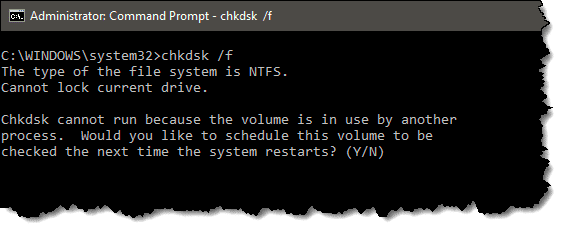
Answer Y for Yes and then reboot your system. CHKDSK will run before Windows starts so it can repair the drive before Windows starts using it.
Common usage
The most common ways to use CHKDSK are:
- CHKDSK /F – to check and fix the current drive (a reboot might be required)
- CHKDSK D: /F – to check and fix a specific drive (in this case, D:)
- CHKDSK D: /R – to check, fix, and look for bad sectors on a specific drive
You can also run CHKDSK /? to get a list of additional options.
More for Patrons of Ask Leo!
Silver-level patrons have access to this related video from The Ask Leo! Video Library.
 Two Ways to Run CHKDSK

Is chkdsk useful (or harmful) for SSDs? Supposedly (maybe I learned this on your site), SSDs wear down faster than HDDs and you are supposed to avoid doing things like defragmenting. So, should I also avoid chkdsk?
19-May-2011
Any benefit or difference running chkdsk via command prompt vs gui? (Start > Computer > right click on drive to be checked > Properties > Tools tab > Check now… button.)
19-May-2011
I believe a recent windows 7
update forced a “chkdsk” as one started automatically for me a couple of weeks ago after an update. What da think Leo, possible?
24-May-2011
I notice you are using both ‘Return’ and ‘Enter’ to refer to the same key on the keyboard.
In my experience this can confuse beginners when they read instructions.
Probably best to stick to one or the other.
ENTER key & RETURN key mean the same thing *now*, as in *today*
I’m old enough to remember when the term was CARRIAGE RETURN & LINE FEED. Even the key was labeled CRLF. This harkens back to when terminals were more like typewriters (actually teletype machines). This predates PCs by decades.
If you look carefully at the ENTER key on most keyboards you will see an arrow and the tail of the arrow actually has a vertical component; which represents “go down and to the left”; just like the function on a typewriter.
CR and LF were actually different keys on the old teletypes. Each did their own part of the operation. If somone sent a message with only CRs and no LFs, you ended up with a very dark mess from one line being typed over many times.
Back in the DOS days, I had to work with various kinds of text files from multiple programs. Some didn’t realize that the two codes for CR and LF could be swapped and others sent them as LF CR and got ignored.
I still have Hex 0D0A (what your computer translates into CR LF) engraved on my brain. I sometimes had to manually insert that into programs I was coding.
I have some interesting news for you: CRLF is still around! You can’t see it (well, not directly) but every single line you type in Notepad, Wordpad, or in Word, ends in the ASCII characters for CR (carriage return) and LF (line feed) — hence, the designation CRLF. (If you program text output in VBcript, you may already know this, because “vbCRLF” is the command to go to a new line.)
Download a textfile produced on a Macintosh (or even a Commodore-64!) and it will display strangely in Windows, because the EOF (end-of-line) terminator on those systems is a simple CR — with no LF. :o
And on Linux it’s LF without the CR. Compatibility? Nah!
Running CHKDSK /R may take some time. I have several computers. One is a desktop running Windows XP Pro w/ SP3 — I use some legacy peripherials — with a 1.9 GHz processor and two sticks totalling 2 GB of RAM, and having a C: drive consisting of a 80+ GB hard drive (60% full) and a D: drive consisting of an “old” IBM 18 GB hard drive with SCSI interface (80% full). I recently have run CHKDSK /R on both drives. NOTE: given my system, to check and repair all sectors on the C: took 11 hours. I was surprized. So, if your system seems to run “slowly” using CHKDSK /R it nevertheless is probably doing its job. Just enjoy a movie or two.
Another useful utility from that era is CHKLINKS.
Jim,
I won’t speak for Leo and I’ve personally not worked with Win7 yet but I can say that XP will spring a chkdsk on you from time-to-time. I can’t say I’ve seen it after an update, but it’s always after a reboot. It boots to a cartoonish looking light-blue screen with a simple looking Windows logo and simple text that explains breifly what it’s doing and it’s progress. Furthermore, after it’s done you won’t see it’s results until you go into Control Panel > Administrative Tools > Event Viewer and look up the scan results (I forget right now what the event source/ID is)
HTH,
Gabe
I have tried this method several times, but instead of asking the question; “Chkdsk cannot run because the volume is in use by another
process. Would you like to schedule this volume to be
checked the next time the system restarts? (Y/N)”, it just states that the drive is locked and that is all. I’ve looked on different sites and can’t seem to find anyone else with this problem. I’m not sure how to proceed.
If it displays such information, continue and click Y then enter button
That wouldn’t work in that case because the error message says the drive is locked without giving an option to click Y to proceed.
You can force the issue manually, but you must be EXTREMELY careful — the command you need to use is an very dangerous one.
Call up an Aministrator version of CMD.EXE (it won’t work with the normal version), and carefully enter the following command:
FSUTIL DIRTY SET C:
…and press ENTER.
CHKDSK will now run automatically in it’s “/F” form the next time you reboot, before loading Windows.
Hope this helps!
From my years of experience fixing other peoples computers, chkdsk from the Windows recovery consul or other boot disc, best way to fix a BSOD.
Can CHKDSK also be run from left clicking on the ‘C’ icon in Windows Explorer, selecting ‘Properties’, then the ‘Tools’ tag? If we’re on the same page, I’ve run the utility this way , although I’ve not tried it thru Command Prompt. Thanks for your insights again, Leo, you’re the best!!
Mike
28-May-2011
One of responses refers to BSOD
What is that acronym for?
BSOD=Blue Screen Of Death
BSOD = “Blue Screen Of Death.”
Technically called a “stop screen;” it happens when Windows crashes (and I really do mean crashes!) for some reason.
Fortunately (at least in my experience), BSODs are quite rare, and tend to be harmless. Just reboot — if your system asks how it should reboot, select “normally” (or the equivalent) and you should boot back into Windows without any further difficulty.
(Windows might notice that it crashed, and throw a dialog box about it in your face. But other than that it should be fine.)
[coff]
A few years ago, I had a file that I wanted to get rid of, but couldn’t delete under Windows. It was at the end of a long path, and I had deleted or moved all the other files and folders along that path, but this file WOULD NOT GO !
Eventually, in DOS, I managed to kill it – probably by using Norton !
I then discovered that my entire “My Pictures” folder had disappeared !
Well, I knew all the files were still there, and that I just (!) needed to re-establish the directory structure.
CHKDSK presented me with SEVENTY THOUSAND files, named FILE0001.CHK, etc…. (in seven folders). I have that hard disk still, untampered with since….
ANY ideas how I might re-assemble the pictures ? No, of COURSE I didn’t have a back-up ! Silly question !
This GUI can complement CHKDSK https://sites.google.com/a/obxcompguy.com/foolish-it/vb6-projects/checkdisk
Thank you for this wonderfully clear and thorough explanation of a very useful process.
Sorry I was away . I followed your instructions on CHKDSK. Worked as a charm. Thanks. Regards
Yours was the best explanation anywhere online of what CHKDSK is and how to use it, in my opinion. Congratulations!
Two suggestions:
1. If CHKDSK: /F and CHKDSK: /R both fix problems, but the latter fixes more, why shouldn’t we always opt for CHKDSK: /R in every case? Tell us the difference in your article.
2. What is the difference between CHKDSK: /F and CHKDSK C: /F? You used D as an example, but not C.
2) If C: is your system drive running it on C: will not run immediately but rather prompt you for permission to run automatically the next time you boot before Windows is fully loaded. Not specifying a drive runs it on the current drive.
01-May-2012
I just found out on another site, that CHKDSK: /R sometimes takes many hours to accomplish. I had already typed in the command line, however. How can I undo the command, so that I can rather do the check tonight when I go to bed, so that it will not interrupt my work by day?
01-May-2012
when hit CTRL+C, its not aborted.
Thanks, now I understand what is happening. That always makes life so much easier!
I have followed every detail that you have given… I am not sure however if it worked to restore my files… pls contact me… pls!! thanks!
Thank you for this useful article.
However, is there any way I could access the Command Prompt if my laptop has crashed (my windows 7 crashed) , like as soon as I turn on my laptop before the windows screen so that I could try and find out the problem and repair it without losing all my data? Thank you!
13-Nov-2012
awesome explanation i had no i dea how to do this before reading this article! thanks to you and your great way of explaining this it has helped me out a ton, i was not able to change fat32 to ntfs but i am running the /R on my external hard drive letter F and hopefully i will be able to format back to ntfs once repair is done thanks alot ill let you know how it goes!!!
How do I run chkdsk/f when windows has been
Shut down to prevent damage to my computer it’s on
A blue screen and I know nothing about computers
@Glenn,
You might want to check out this article on how to boot with a Linux Live CD:
http://ask-leo.com/whats_a_live_cd_and_why_would_i_want_one.html
maybe a weird question but why do i need to put a space between chkdsk and the parameter. it works okay without it for me… just saying, because a lot of some people stress the point of putting a space in between without feeling the need to further explain that.
thx
26-Jan-2013
I’ll probably find the answer long after writing this, but I’ve started a chkdsk /f/r in safemode to happen during a reboot.
it’s been half an hour and it’s only 12% through, but in stage 4 of 5.
It has a 500 gig drive.
So the question is really about the other drive, I have a 500 gig USB drive that I left plugged in.
Is this dragging out all this time for the main 500 gig drive? or is it wasting all this time while also checking the storage drive?
(which is probably a good thing but I hate the waiting) I’m posting this from another notebook I have running (yea 1 computer being checked and I’m impatient with a 2nd one live and online haha)
thanks!
I started running chkdsk /r from recovery console after my computer shut down after a power failure and would not restart (windows xp) – I get a blue screen with the error unmountable_boot_volume displayed; I booted from a recovery disk and ran chkdsk /r from recovery console; this has been running for over 4 days now with the same message displayed on the screen:
C:chkdsk r
CHKDSK is checking the volume…
CHKDSK is performing additional checking or recovery…
Is this something I should stop or let it go? I have read comments online of chkdsk taking days to run but that was with drives much larger than mine; is there any hope that my hard drive is salvagable?
30-Mar-2013
Sorry, should have mentioned in my previous comment that the drive in question is a 60 gig drive.
Thanks for the feedback; yes, I do have backups, but not a recent as I would like…I may have to take it to a tech to see if some recent items (mostly photos) can be recovered.
I was recently helping someone who had a problem with chkdsk running on every boot-up, despite the fact that the computer had been shut down properly and having let the scan run multiple times each time the computer was turned back on. Through some searching online, I discovered that it could be disabled by typing chkntfs /xc: which worked perfectly. Will having it disabled lead to a more severe problem down the road?
Thanks!
In regard to your reply below to Jeff, I am not clear on the answer to his question. Is chkdsk useful (or harmful) for SSDs? Please clarify.
T/Y,
Pat
p.s. Thanks for all of your help. I always look forward to reading your article each week, and truly enjoy reading your comments.
Jeff 18 May 2011 Reply
Is chkdsk useful (or harmful) for SSDs? Supposedly (maybe I learned this on your site), SSDs wear down faster than HDDs and you are supposed to avoid doing things like defragmenting. So, should I also avoid chkdsk?
The wear on SSDs comes from writing, which defrag does lots of but chkdsk does only when fixing things.
Leo
19-May-2011
It’s writing to the SSD which contributes to its wearing out. CHKDSK is more read intensive, so it shouldn’t be a problem.
CHKDSK is not harmful to SSDs. Defrag can be.
Leo,
Wouldn’t it be easier to right click on your chosen hard drive,click properties,click Tools and choose Error Checking and then Check now and let it do it’s thing ???
BTW,I don’t have a Command Prompt in my Accessories in All Programs on my Windows 7 Pro.
If you don’t have a shortcut to the command prompt in the Start menu, you can press the Windows key+r then type in cmd.exe to bring it up.
You can also type “cmd” at the bottom of the start menu and right click the result to run as admin
Great tip!
My check disk refers to windows system32, I am running windows 7, 64 bit. are these different in check disk?
Same chkdsk in both systems. Not to worry.
Running Windows 7 home pre. and I. E. 11
Wouldn’t going to computer, right click C, properties, tools, to run error checking be simpler and have the same results?
ChKdisk been running fortwo days. its been stuck on 12% in stage 4 of 5. how can I shut it off without messing my files up more?
CTRL+C or CTRL+Break typically do it.
I found that Ctrl+C doesn’t abort chkdsk /r while it is already in progress. I have yet to try Ctrl/Fn+Break, closing the command prompt window, or forcibly switching off the PC (as suggested by a user elsewhere).
My concern is: Is forcibly aborting either the chkdsk /r or chkdsk /f process harmful to the internal/ external HDD in question ? Is there a risk of data loss &/or compromise to the file system ?
From an internet search, it appears that opinions differ somewhat as to whether terminating the said process is harmful, although it seems that many users (including the helpers at the Microsoft Help forum) advise against it.
It should not harm anything. By that I mean CHKDSK is supposed to handle CTRL+C or CTRL+Break gracefully. Do either of those and you should be just fine. Turn off the machine, however, and there’s no telling what might happen. I would advise running CHKDSK only when you know you can run it to completion, and never turning the machine off to forcibly stop it.
Dear Mr Leo,
I am running chkdsk /r/f to an external drive, and now I am trying to CTRL C and CTRL-Break, but none happened.
What should i do next? Thanks in advance.
I’d let it run to completion.
hi I have been running check disk via properties -> tools on my c drive window 7 to try to repair bad sectors on a 400gb hdd and it took about 5hr to do 80% and that was 2 days ago. it is still running very slowly and it is now at about 90%. I would like to cancel it.
my question is if I cancel it now without it finishing will any bad sectors that may have been identified by check disk and would be marked as bad for the OS to recognize be retained by the system or will all that be lost due to canceling?
I understand that the HDD has probably gone bad, but if you know the answer to the above question and let me know it, that would be much appreciated.
thanks
I believe it updates as it goes, so no I don;’t think you’ll lose the work so far. HOWEVER, as you say the hard disk is almost certainly having difficulty. At a minimum the very first thing I would do after cancelling is to back up completely.
chkdsk cannot run because volume in use by another process – schedule next time restart – Y – when restart it just cancels chkdsk
Did you reboot? The CHKDSK program exits at that time because it can’t run **at that time**. Reboot and it should run.
My HP media center shut down after loading Windows 8.1 desktop. Now it goes into “automatic repair” and fails to fix problem.
From Advanced options I can bring up command promote and try to run chkdsk with switchs /r and /f but the computer just shuts down as soon as it starts running chkdsk. Booted for USB recovery image and same thing. Trying it from x: “chkdsk c:/f or chkdsk c:/r but it just shuts down. It stays up out side windows, but running anything against the HD it shuts down. Will not boot into safe mode, but sometimes can boot into safe mode with command promote. Do you and suggestions? Thanks
Help. My DATA disc with about 600 g has become corrupted and won’t open. It is recognised in BIOS and ‘this PC’ (I am running 8.1 Pro X 64).
I bought a new drive and using a programme called ‘Backupper’ from AOMEI I got it to read the corrupted drive and run a backup which suggests that something was working. I then ran the RESTORE part of the programme onto the new formatted replacement drive and it restores OK. Trouble is I now have 2 discs with the same corrupted data which wont open, I suppose that is not unreasonable. CHKDSK running as an Administrator says File System is NTFS and data structure is corrupted and unreadable. Any helpful suggestions please?
This article may help: http://ask-leo.com/spinrite_repair_hard_disk_failures_and_recover_your_data.html
Spinrite is great at recovering data.
Yes, spinrite, written by Steve Gibson Is the best program that I have ever come upon.
It is only at version 6.0 after many years since first version. that’s as good an indicator
as any thing that the person that was writing the program. know what he was doing.
also its programed in machine code called assembly. it doesn’t need the be translated
into the PC Machines code, so it runs very fast. I have version 6.0 and I have used it to
check some USB Flash type drive that were saying can not write to disk as disk is read only.
The cost is not very much, I don’t remember how much it cost so it was not very much.
You also get the next updated version free I think. but you should check on that as it may
have changed. So just go to that the web-site link that will put
you right on the spinrite download and payment page, lots of luck Getting Your Data and
possible Fixing your Hard Disk Drive back up and running, so you can make a backup .
Also I have been using PC’s since way back to the Radio Shack Brand Days, in the 1980’s.
Marcus
chkdsk /r command helped me many times on Windows XP Pro installations. Today I had situation to get DELL machine with blue screen error and I manage to repair it with Recovery Console chkdsk /r command
here is my article on that subject, hope you don’t mind
http://it-technology-geek.blogspot.com/2014/10/windows-xp-and-recovery-console-chkdsk.html
Hello,
I have a situation where the contents of several files have mysteriously disappeared from the back up section of my external hard drive (a plug & play Hitachi, that I bought about 4 years ago. It still has plenty of capacity on it.
I have seen the chkdsk remedy recommended by other users to solve my problem, and then I have followed you instructions to the letter, several times but I still get presented with the words “Cannot open volume for direct access”….this is despite having ensured I went for the Administrator selection…..(I am running a new laptop with Windows 8.1).
I would appreciate your help asap…..to recover the contents of the files, the folders of which are named with their capacity in terms of bytes.
Thanks.
Hello Leo!
How long does it take to run chkdsk /f? Does it need to reach 100% because currently I’m at 10% and it’s been 24 hours. My external hard drive is 1TB but used space is only around 200GB. Is this normal?
Oops, I’m sorry it’s chkdsk /r not /f
/R is checking the entire surface, so it can take a long time, yes.
Hi. I am running the CHKDSK /R on an external disk I use for backup. The backup is sheduled in about 2 hours and as it looks, the CHKDSK won’t be finished by then. Does this matter?
And is it ok to keep on working on the computer as long as I do not try to access the external hard disk?
Btw: thanks for the post. Very helpful when getting messages from the system telling you “do this” without telling how :).
If it’s checking an external disk, there should be no problem using your computer.
Should be OK. The backup may fail – so just run it again later if that happens.
Hmmm, tried CHKDSK/R using command prompt in XP SP3 and got the locked message.
Said yes to do it on reboot.
Rebooted, but thought about Safe Mode with Command Prompt and did that on boot (F8).
Drivers loaded, but then nothing after the list (last one is Mup.SYS)
Problem is, HD light is still flashing, but no status on screen.
Is it possible my interference has hidden CHKDSK?
LED stopped. Rebooted normally and CHKDSK started.
Stopped at Stage 2 with an un-specified error.
System is booting very slowly and getting video playback lags occasionally.
Any other ideas?
This sounds to me like your hard disk is on the verge of failure. Back it up immediately. Then consider taking into a technician for diagnosis and possible repair.
Hi,
Windows is not able to boot up. I am using Windows 8.1.I have tried using system restore Option and tried a different date but system restore popped up with an error code and it stated that drive on C: is corrupted.. I have used chksk D: and chkdsk e: and it showed no issues. However I have not tried chkdsk \R \F .Will this fix the whole issue and will I be able to reboot windows normally.
Is there any other options other than formatting as I wanted to troubleshoot with alternative ways.
Please advise.
Thanks
Shriram
hi,,
my external HD , i connected to the laptop then i used chkdsk G: /R then i wait for 3 hours its going on but stopped in one step then i decide to cancel it. i remove the HD then connected again . then i couldn’t see my HD on drivers or (my computer) .i can see on the device manager a mass storage that i tried to use different drivers to install with no luck.
please help me to repair my HD as i have very important information on that.
1. Is CHKDSK D: /R same as CHKDSK /R D: ?
2. If my disk have 2 partitions C: and D: on the same disk. In Command Prompt I am in C: now, I type CHKDSK /R , will it do chkdsk for C: , or will it do chkdsk for the whole disk both partitions C: and D:?
3. If my disk have 2 partitions C: and D:, In Command Prompt what is the command to run chkdsk /r to scan both partitions C: and D:?
4. My disk is faulty, I still cannot access a file on my disk after running CHKDSK D: /R (it hangs halfway), would I be able to access the file if I run CHKDSK D: /F ?
Thanks
1. Should be
2. Only the current disk
3. You have to run it twice – once for C: and once for D:
4. Hard to say, but unlikely. If your disk is faulty it depends on the fault.
Cancelling Disk Check
If chkdsk has started and for some reason (most likely taking too long, and you need access to your computer) you can stop it by running a command prompt. Open up an administrator mode command prompt by searching in the Start menu or screen for “cmd” and then right-clicking on the item and choosing “Run as Administrator”. Type in the following command, substituting the drive letter if necessary: chkntfs /x c:
I used that command last week and it worked without causing me more problems with that external drive. I have since used another (seldom used) computer to re-run chkdsk on the error-ridden drive. The process took almost three days! However, the drive now runs without problems
Your help on CHKDSK was on-the-spot and it’s a reason why I really respect “techies.” Techies? That’s good! It’s a compliment.
A popup ad blocks part of your program so I can’t read it. This renders your instructions useless. How can I get rid of the popup?
Claude
Are you talking about the Newsletter popup? All you have to do is click the “X” in the upper right.
It depends on exactly what you’re seeing, but there should be an ‘X’ in one of the upper corners to close the ad. You should also be able to simply press the escape key.
I was successful right up to the reboot. However, it then said I could cancel, but it recommends that I continue. Then says it has been cancelled, though I touched nothing. What next?
Hello,pls how does chkdsk works on phone especially Blackberry?
It doesn’t. CHKDSK is a Microsoft Windows program.
Leo,
Since Windows 7 no longer boots on my computer, I used your article to run the CHKDSK command from the Windows Recovery Environment, which I accessed via my Windows installation DVD. But I ran into a problem.
My Windows drive is C, so at the X:> command prompt I entered
chkdsk c: /r
The message I got was
“The type of the file system is RAW. CHKDSK is not available for RAW drives.”
While disturbing, that message doesn’t seem inconsistent with other symptoms and messages I’ve seen when I try to boot and/or repair Windows (not related to CHKDSK so not appropriate to go into here). I thought I’d mention it here, though, since the message was generated after using CHKDSK.
Any advice would be highly appreciated. At any rate, thanks for the clearest and most thorough explanation of CHKDSK I could find online. I had forgotten the parameters I used to use back in the DOS days, and needed a refresher.
I’ve been getting the BSOD since October (about sixty times), which I’ve managed to suppress it by logging out/back in every few days.
I’ve tried just now to defragment my main drive and received a notice that “chkdsk” is scheduled and told me to run it. Not knowing what chkdsk is, I searched and came here.
This command prompt is what my computer does before Windows starts, unless I cancel it, it does nothing that I’ve noticed. How do I unschedule chkdsk so I can run the defragmenter.
Much appreciated, Leo!
If Windows wants you to run CHKDSK before running Defrag, it’s probably a good idea to let it run. Windows might be telling you that there is a chance you might run into problems if you run Defrag without repairing disk errors.
Can CHKDSK fix or repair bad sectors? example output below:
—
Usn Journal verification completed.
Windows has checked the file system and found no problems.
473597727 KB total disk space.
121251972 KB in 405245 files.
235704 KB in 77780 indexes.
768 KB in bad sectors.
684747 KB in use by the system.
65536 KB occupied by the log file.
351424536 KB available on disk.
—
what is the difference in fix and repair? ca I run them at the same time? example below:
CHKDSK D: /R /F
chkdsk /f /r C:
There is nothing to fix here. That there are bad sectors is being reported, and they’re marked as such, but there are no problems. “/R /F” is actually redundant, since /R implies /F. You can run them both if you like. No real harm.
/f fixes the index
/r repairs bad sectors or marks bad sectors it can’t repair and also fixes the index
Hi
I have a 2TB SATA HDD with two partitions C: and D:.
Win7 will not start at all.
DOS prompt pops up in the beginning, but I dont know how to stop it and stay there, it just scrolling until a flashing _ apeard and then it’s too late to enter any DOS commands as chkdsk /r.
NOTHING CAN BE ENTERED IN THAT MODE!
Pls. help a.s.a.p.
Thank you for a very clear and valuable article. When I got the ““Chkdsk cannot run because the volume is in use by another
process. Would you like to schedule this volume to be checked the next time the system restarts? (Y/N)”, I closed the file manager and for whatever reason it seemed to work.
A silly question, perhaps, but do I need to maintain an internet connection while running chkdsk?
I gather from the comments that it is not unusual for chkdsk to take days to run on a 300Gig disk. What are the chances that after spending days it will actually finish the job?
Thanks very much for your help.
CHKDSK doesn’t need an internet connection. 3 days is excessive, but on a large disk with errors it’s conceivable.
Chkdsk doesn’t need an internet connection to run. The chances of it finishing the job is anybody’s guess. If there are very serious errors, there’s no guarantee. The more errors it tries to fix, the longer it will usually take.
I have a 2TB iomega was going good until we had a power cut then it kept saying i needed to format but i didn’t want to risk losing all my family photos and my files so i tryed the chkdsk g: /f/r it was going good but it seems to be still on stage 4 of 5 10%, it has been like this for the past 5 hours and not moved yet. Was this the right thing to do? I will leave it going while im at work hopefully it might be finished by then. if not is there anything i can do to make it move or have i done something wrong?
The only thing you did wrong was to have valuable information in exactly and only one place. You don’t have that information backed up. CHKDSK is a fine start. Depending on the value of the data you may end up needing a data recovery service. Good luck!
wifes XP running slow, tried to defrag but I keep getting this message… this has already been scheduled using Chkdsk/F. run that first When I checked scheduled events I change the defrag time when I hit Next it shows administrator pomp and ask for a password I typed in every password I could have used but with no luck. How did I loose control of doing defrag anytime when I want to?
Thank you for you advice. I have replied Y to scheduling a chkdsk then next startup however on restart nothing happen. Is there any reason this might be?
Hi Leo, what’s the difference between the CHKDSK operation and the error check offered if you go to C/Properties/Tools/check?
They’re the same.
hi leo,
Yesterday i have run this command on my win 7, using command like “chkdsk d: /f”
And windows tell that the disk is used by another process/program so its tell to unmount first, so i did it. But when process in on the way, my computer is hang/no respon, so i force to restart. After that, i cant access drive d: again, its always process when i open it.
I try to open in other computer and its show the same result.
How to fix it? Or another way to access my data ono that drive d: again.
We’d have to understand what’s open on D:. You might try using Process Explorer to see who has something open on D:. Use “D:” in place of the file name in this article: https://askleo.com/how_can_i_find_out_who_is_using_a_file_in_use/
i have dell 1 TB external drive and when i connect to the laptop having windows 7 it read K drive and wants me to format it
when i try to solve that problem using chkdsk /r/f it comes to usn jounal complete and the cursor blinks continously
Hi Leo,
Can chkdsk solve problems related to the Master Boot Record, the system partition’s boot sector and the Boot Configuration Data?
It only solves problems related with bad sectors?
Thanks in advance.
CHKDSK’s primary function is to resolve data issues within partitions, so no, it’s not typically a tool used for the MBR and such. I don’t know if the /R option for a surface scan touches those areas, but I would guess not.
I remove files, then chkdsk, then defrag (if necessary). All this can be found in one place,
File Explorer (whatever name it has now.)
Rt-Click the drive
Properties
midway down you see Drive Cleanup – click
next tab Tools
There are chkdsk, defrag – click each in sequence.
No elevated prompt, less preparation, more familiar Window, same results.
Do you have directions for running chkdsk /r with Windows 10? I am unsure how to run it if I am the administrator but cannot figure out how to run as administrator as I realize these are 2 different items. Thank you for your help.
Right click on the start menu and then there’s a Command Prompt (Admin) item to run command prompt. Just run CHKDSK in there.
i’m having the same issue, or maybe not. i am having some issue and i thought i would try your fix. i have a toshiba portable hard drive when alot of movies on it. suddenly, computer wouldn’t read it and gave me the message to reformat it. i’m running the chkdsk j:/r right now. it seemed to be running fine. it got to 33 of 2560 file records without a problem now each one is “unreadable” i’m at 103 now. this seems like it will be a long process. is my hard drive toast? am i wasting my time?
side note: the usb wire has had a little bit of a short for some time. coulde that be the cause of my problem? also, is there a chance that the actual hard drive is fine, but the connector electronics inside the case are the problem.
it just skiped from file 115 to 120. does that mean 5 files were good?
If your USB cable has an intermittent short then ABSOLUTELY this could cause all sorts of problems. I would replace it immediately.
Whenever I run /r process on my laptop during stage 4 of 5 CHK gets stuck on one file. Ran it again and again, same result. Last time I left it running for 16+ hours, but no further progress.
Any suggestions?
That typically means your hard disk has a bad sector on it. BACK UP FIRST. The only solution I’m aware of are tools like SpinRite.
Do you know if it can be stopped?
I saw some tutorials on youtube how to hack database of a website using cmd? Is that really possible? I myself are little sceptical when i watch “how to hack” youtube video because why would someone want to get in a trouble if it really works…but i am curious if this is possible.
Hacking databases is possible… but it’s unlikely your Youtube video is useful. If it is, then the only proper thing to do is to report it to Youtube so they can take it down. Most important to understand is that something would have to be wrong with the database’s security in order for it to be hacked. As Leo often says, all software has bugs, and it’s quite common for a vulnerability that can be used to hack a database to be found in software.
Here’s an article you may find interesting: https://askleo.com/whats-zero-day-attack/
I have a 2TB external hard drive that has been running chkdsk F: /f for two DAYS. How long can I expect this to take. What does the “ETA” number mean–it keeps increasing>
Thanks
There’s no way to know how long it will take. It depends on the speed of the drive and the USB interface. However, particularly when the ETA keeps changing upward, that may (I have to stress MAY) indicate that CHKDSK is fighting a bad sector or section on the disk. If you have the patience I would let it complete.
How much time it took you? Or how did you solve the problem? After 18 hours I shut my pc down seems like it can’t be stopped
My laptop crashed a few days ago while writing to an 8Tb external HD that had about 540Gb used. At the time I ran chkdsk from Windows Explorer, but the progress bar showed no progress or action even after many hours so I canceled it. After reading this posting I doubt that it stopped chkdsk, probably the cancel button was just to close the window as if one had decided to not start it. I have since shut the computer off several times. I can now read, but not write to the external HD (says it is dirty). I am now running chkdsk D: /r /v from the command line window. I noticed that the HD is now showing as exFAT, which probably just means it’s not FAT, but I am pretty sure that before it showed as NTSF. Should that be a concern? I also am concerned that is will take a month to complete. It is been “verifying files and folders…” for about an hour with no updates.
exFAT is a newer version of FAT32 (which was a newer version of FAT). Yes, if you’re certain that it was NTFS, and it’s now saying exFAT, that does concern me. I would let the CHKDSK complete, though, and see what the results turn out to be.
Hi Leo,
Could I have some advice please. I have removed Mcafee a/virus from two laptops and replaced with Total Av, on one laptop this has worked well on the second laptop, I installed Total Av, without realising that I had not fully deinstalled the Mcafee version. Total Av deinstalled, then Mcafee removed, laptop rebooted, Total Av reinstalled, but noticed the realtime a/v feature was not enabled. I got a message saying that ‘intel storage device has to be disabled’ before realtime protection would work. Followed steps, went into Device Manager and ‘IDE ATA/ATAPI controllers’ and removed using a driver utility removed the ‘Intel driver’ which was replaced with the ‘Standard SATA AHCI Controller’
I have done a CHKDSK check via Command Prompt (Admin) and these checks across the drives have stated ‘ zero bad sectors’, assuming now that sectors are ok, what could be stopping the Total Av realtime protection from working, as I am still getting the message ‘intel storage device has to be disabled’. Any thoughts? ( advice appreciated) …thx
Not offhand … other than contacting the folks at Total AV for assistance.
It works. Thanks
Thanks for the instructions for running CHKDSK as administrator. It fixed errors on my card and I got my data back. Much appreciated.
Hi, can the “dskchk /f” reboot process be stopped or aborted?
CTRL+C should stop it while it’s running.
I remember from the pre-MS DOS days when CTRL+C was the universal way to stop programs on most OSes. Then it was ported over to MS DOS. I was surprised when CTRL+C became the copy command as CTRL+C was so associated with aborting a program. Leave it to MS to take something everybody is used to and use it for something else like the 3 different incarnations of Outlook.
you saved my xternal hard drive, thanks
i used chkdsk but it seems the hard drive was formarted
chkdsk /F /R /X H:
I don’t understand what you’re asking but chkdsk /F /R is exactly the same as chkdsk /R as /R includes /F. /F fixes index errors, while /R repairs index errors and bad sectors. That’s explained in the article.
A very thorough and quite comprhensive article, Leo. I am glad that I took the time to fully read through it- even the boring stuff I already knew.
However, you did fail to mention an important point re the agenda of Command Prompt.
First, be it known that I have my CP on the top level of my Start screen aps (I run an HP Pavilion 110-220 desktop PC w/ an HPw1907 19″ monitor screen using Windows 8.1 OS) so it is always handy for easy use. I always right click, hit Run as Administrator and then hit the OK for permission to run as you have said as administrator. Next I left click CP and get the cool black w/ white text DOS screen.
I next input all the crapola CHKDSK whatever I am gonna run and hit Enter.
This tells me that CHKDSK cannot run any checks while it is in use and would I care to srt up a CP run for the next time I reboot/restart my Henrietta, my PC?
Next part confused the devil outta me. At the end of this line appears and no other explanation. When running CP the mouse cannot be used so one must place a Capital Y or N at the end of that line and hit Enter.
Presto! You get a pleasant message from old CP that he/she (One must be politically correct) that your CHKDSK task will be performed the next time your Henrietta (Or whatever name you have given your PC) is rebooted/restarted.
To check Memory, I usually have to wait for a prompt to use CP for a memory check from the PC itself. However, to run one yourself the next time you reboot/restart your PC, the instructions are easily found amongst your Control Panel goodies. Just search ‘memory test’ there or Google or Yahoo it to find the correct procedures.
A word of warning for any CHKDSK ops- They can seem to take forever and you cannot use your PC at all while CP is running those tests for ya! Memory Tests and there are 3 usually take about 2-3 hours depending on ‘how much junk you have stored in your memory banks, Pilgrim’ as my own fanfictional OC ‘CC’ is wont to say to folks. He is quite obnoxious.
Hey Leo, a quickie for ya. The CP screen is a DOS which predated Mac and Windows and the other OS goodies by many years. What does ‘DOS’ stand for. It could not be as simple as ‘Digital Operating System’ or could it? Have I perhaps just answered my own query? Thanks for listening to me rant and rave, my friends abd Leo. The Keiman of Anime is very grateful for your assistance all these years, sir. Sayonara for now and have a swell week!
Command Prompt isn’t DOS, but it’s definitely modelled after the DOS interface. DOS stands for Disk Operating System. (MS-DOS Being Microsoft Disk Operating System, and IBM’s PC-DOS being Personal Computer Disk Operating System). In this context the “disk” being referred to was the original floppy disk.
FWIW: Memory (RAM) tests shouldn’t be impacted by what you have “in” memory at the time, particularly if it’s performed at reboot. It’ll depend on how much RAM is installed in the machine. CHKDSK will be impacted by how much you have stored on disk.
I remember on the old IBM mainframes, the job control language we used was IBM DOS-JCL. The DOS name came from way back. Or at least as way back as computers go.
Thanks for the clear explanation on how to run chkdsk.
I have Windows 7 running on 1TB Samsung SSD on a MacBook under Boot Camp.
The disk got corrupted. Recovery, startup repair says it is fine.
CHKDSK /F returns unfixable security descriptor error (due to lack of space) and volume bit map error is also not fixed for lack of space. CHKDSK exits with code 50.
The disk has 350 gig free.
Bootrec rebuild find OS and adds to the BCD but Boorec /ScanOS does not find any OS.
Any help appreciated.
Thank you so much
When running CHKDSK /R and into Stage 4 after checking about 60,000 files of 515,000 the system shuts off (powers off).
I have run CHKDSK /R three times with this same result.
What is going on?
Related Issue: Before running CHKDSK /R, I cloned this 500GB internal HD to a 500GB SSD. Would you recommend installing the SSD as the main boot drive?
My guess, and it’s only a guess, is that the HD has a serious flaw that CHKDSK either can’t fix, OR the system is overheating and shut down due to that. I would, indeed, be tempted to swap in the SSD and see how that performs. Alternatively I’d take that internal HD, throw it into an external enclosure, and see if CHKDSK will complete on another machine.
Hi Leo – thanks for the article which prompted me to try it. CHKDSK /F found and fixed an error. But when I tried CHKDSK /R I got the expected “run on restart” message, restarted, and it got as far as 15% then stayed there for over 6 hours. I see other messages that it can take some time, but sticking on the same number that long – is that usual? I didn’t know what to do, as I needed to use my PC, so I’m afraid I resorted to switching it off, wait a minute, switch back on (having read other responses I can see that what I needed was Cntrl C !) I’m now reluctant to run it again in case it hangs again.
Any thoughts? Thanks, Helen.
This is expected behavior if you have a bad sector on the hard disk — exactly what /R is attempting to fix for you. I would a) BACK UP COMPLETELY and then b) choose a time where you can let it run — perhaps overnight — and see if it can resolve the issue.
Great advice – thanks Leo! (and best wishes from across the pond in the UK).
You are a legend. Got home from uni and my hard drive was “corrupt and unreadable”. Followed your tips and now i have access to all my PhD data. Thank-you Leo. Lesson learnt – backup your ****
Start backing up today. You might not be so lucky next time and your data might not be recoverable. You mentioned backing up so I’m writing this more for the benefit other readers.
Hi Leo – I have a dropped 1Tb external WD drive. I am running chkdsk /f and it has been 6 days now and that’s what i got:
progress 65230 0f 290304 done, stage 23%, total 7%. ETA:999:00:00
is this normal ?? any advice?
If you dropped the drive, the damage could cause that to happen. There are no guarantees it is repairable. Chkdsk /r is the better choice when a drive is dropped as it repairs repairable sectors.
After a drop? Definitely. As Mark suggested, though, I’d run CHKDSK /R and hope for the best. I also hope that you had your data backed up.
I decided to run a CHKDSK (ScanDisk), but when the computer rebooted I got an error message. It went by so quickly I never got the actual number of the error. It said the CHKDSK couldn’t run because some “recently installed software” was preventing it from doing so. It wanted me to go through a system restore to get it back to a point where the scan could be free to run.
Well, I don’t know what the message meant by “recent.” Since I haven’t run the scan in 8 months+, maybe it means “since the last scan.” I don’t want to put the two user accounts on the PC through the inconvenience of however many system restores it would take to finally just to allow for the scan. Is there a safe, reliable, free alternative to the (Windows 7 Pro) built-in Scandisk feature that would do the same thing, including making any repairs?
Btw, I don’t know what software the error message could be referring to. A Palemoon update? A Vivaldi update? CCleaner update? A Windows update? I don’t really have any brand-spanking-new software that I’ve gotten in the last few months.
Any suggestions, including, as I say, any alternative scan to run, would be most appreciated.
Thanks!
can we recover data from a cmd promt formetted memory card.
Depends on how you formatted it. If it was a “Quick” format, quite possibly. Try a utility like Recuva.
Chkdsk about my Seagate Expansion Drive, after its hour-long scan: “Windows has checked the file system and found no problems.”
Nice. So I get roughly twenty “You Need to Format the Disk” error messages daily (while this 3Gig external HD works, but randomly disappears & reappears)… just for fun, I guess?
Well, it means it’s not disk surface problem. This sounds like there’s a problem in the hardware connection to the drive — as in it’s intermittent or flakey. If it’s an external drive try a different port and a different cable. Try a different computer. If it’s internal you (or a tech) will need to check the physical connections to the drive.
Hi also,
I ran a cmd prompt.
Typed: chkdsk e: /f /r
(e:) is my external HD
The message I got was:
Corruption is due to bad sectors was found while examining files in directory \soft\.
Entries 0 to 4095 were affected.
The bad sector will only be repaired if the “/r” option is specified.
I don’t know what to do from here.
Please help
Try running it without the “/f” parameter. “/f” is included in “/r” and specifying the “/f” parameter might somehow cause the sector repair not to happen.
a) BACK UP THE DATA ON THE DRIVE
b) Don’t specify “/F”. “/R” includes that. Just specify /R.
Hi,
I have a laptop that is going through CHKDSK on startup, reporting many errors but has not finished before the laptop crashed to BSOD. Can I mount the C: drive on my other PC, assign a drive letter and let CHKDSK do what it needs to there and then return it to my laptop?
Yes, that’s a good approach.
Thanks for a great article! It was a long time ago I had to use Windows computers so this guide helped me fix my daughters old crappy Windows laptop :)
I have been a follower of your advice for 10+ years. Once again your information solved a problem. My Macrium Reflect log showed bad sectors in 2 clusters. Your chkdsk article gave clear instructions and Macrium was able to make a successful backup overnight. Thank you very much.
Leo –
Hi. In Windows 7, when I access Error Checking via the GUI (and not Command Prompt), there is a Check Disk Options box that allows me to choose whether I want the utility to (1) automatically fix file system errors and (2) scan for and attempt recovery of bad sectors. However, in Windows 10, when I access Error Checking via the GUI, there is no such Check Disk Options box.
My questions are:
1. In Windows 10, when I run Error Checking via the GUI, will it automatically fix/repair any error it finds?
2. If the answer to question #1 is yes, what type of fix/repair is it: /F or /R?
Thanks.
I can’t seem to find confirmation but I would assume:
1) yes.
2) /F. (/R is the MUCH slower scan of the entire disk surface.)
Hi i’m running CHKDSK /R and it is saying “a disk read error occuredc0000483”
the disk does not have enough space to replace bad clusters detected in file 1DF of name ……
does this mean i’m wasting my time or should i let the program run it’s course
thankyou for your time
Let the program run to identify and perhaps repair other sectors, but then immediately BACK UP that disk, and replace it.
I have been a tech support person for over 40 years and I just got a message from chkdsk /f that I have never seen before and don’t know what to do about it!
The program says: examining file name linkage and reports 2 errors like: An unspecified error occurred (696e5478689b2e 532).
A google search provided no assistance.
Sounds like an error on the disk that even CHKDSK can’t understand or recover from. I hope you’re backed up.
Fortunately, everything is backed up. The real question is whether this 500G SSD is toast or whether it just needs to be reformatted.
You can try reformatting it, although, even if it works, there still might be an underlying problem which is causing it that could cause more errors in the future. So, I wouldn’t use that for system critical work.