Get help, give help, or access that computer in the basement with this free remote-access tool.
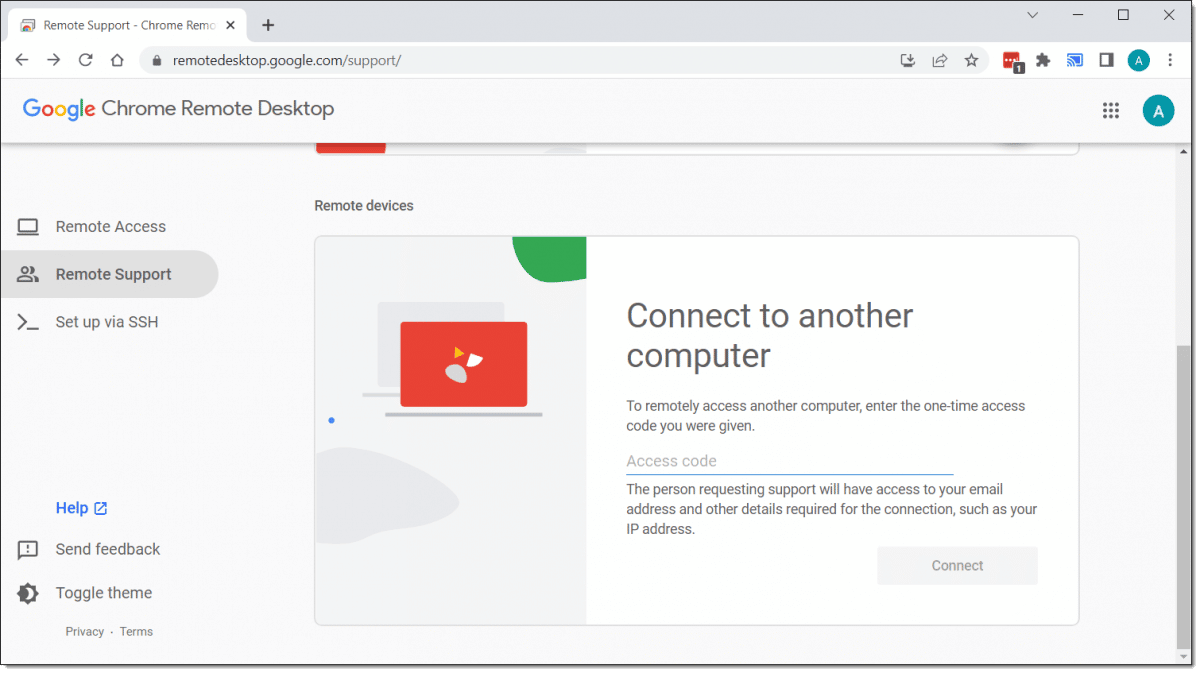
Chrome Remote Desktop from Google is a free tool that lets you connect to another computer remotely or allow someone remote to connect to yours.
When attempting to help someone with a computer problem, it can be a lifesaver. If a picture is worth a thousand words, a live connection is worth a million pictures.
Become a Patron of Ask Leo! and go ad-free!

Chrome Remote Desktop
Use or install Chrome Remote Desktop by visiting remotedesktop.google.com. There you can choose to give someone access to your computer by sharing your screen or access someone else’s computer remotely. These connections are secure, temporary, and require that individuals be present at both ends.
Two computers
The scenario we’ll discuss here involves two computers:
- One computer belongs to someone asking for help. Perhaps a program is misbehaving or they don’t know how to accomplish a task. They would like the help of someone more knowledgeable.
- The other computer belongs to someone qualified to give that help.
Both computers can be any version of Windows or MacOS on which Google Chrome is supported. I use this regularly between different versions of Windows as well as to access my MacPro (currently in my basement).1
Both computers need to have Google Chrome installed, even if it’s not your day-to-day browser. Both need to be signed in to a Google account.
Preparing to get help
Begin by visiting remotedesktop.google.com in Google Chrome.2
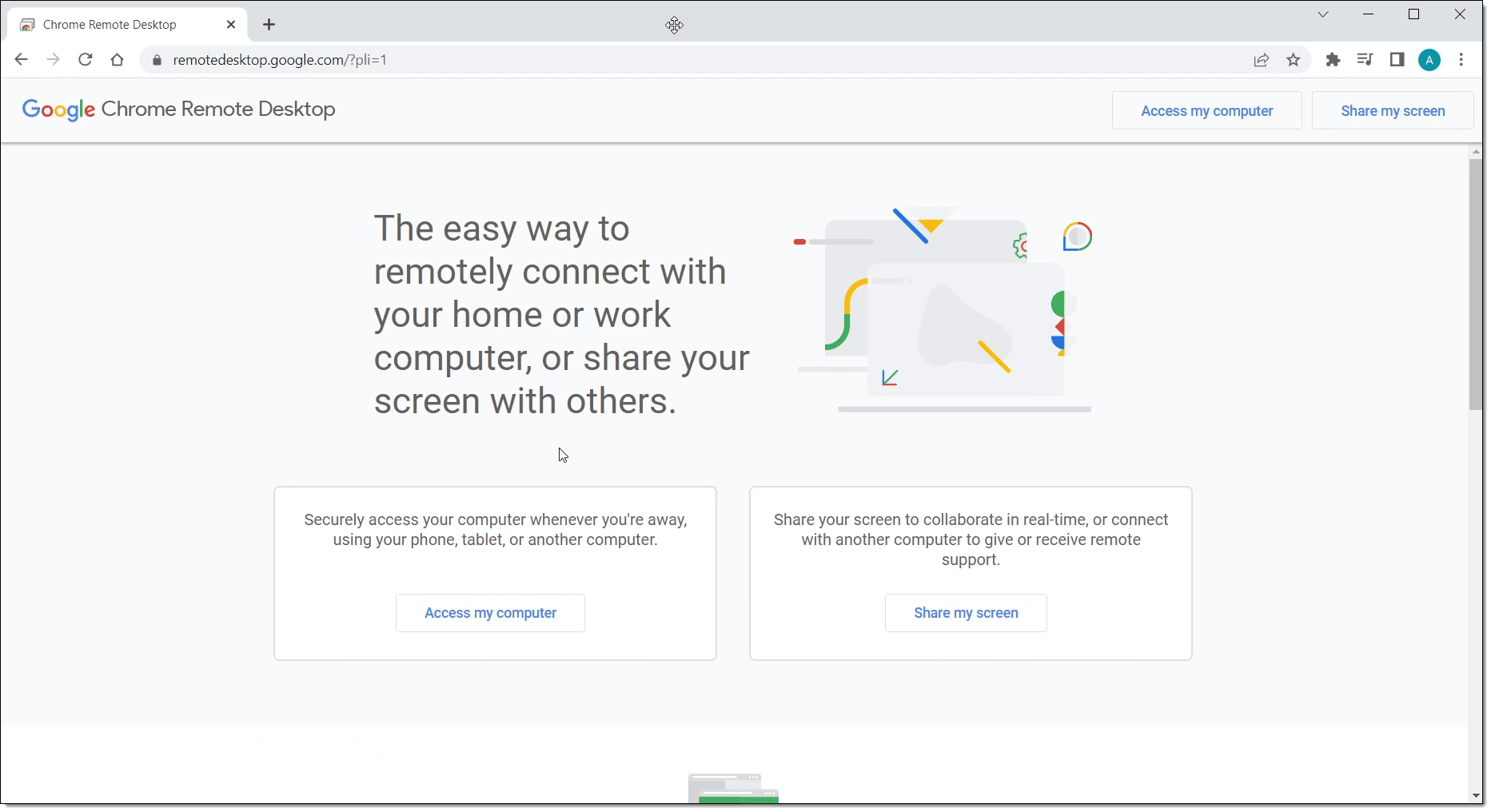
If prompted to do so, sign in to your Google account.
The webpage presents two options:
- Access my computer allows you to set up unattended remote access. This allows you to connect to computers of your own remotely with no one present. Only machines signed in to your Google account can access the machine remotely. This is not what we’ll be looking at in this article.
- Share my screen allows you to grant temporary access to your computer to someone else. To establish the connection, you must be at your computer and the person who will be helping needs to be at theirs. The rest of this article focuses on this process.
Click on Share my screen.
You may be prompted to install the Chrome Remote Desktop app.
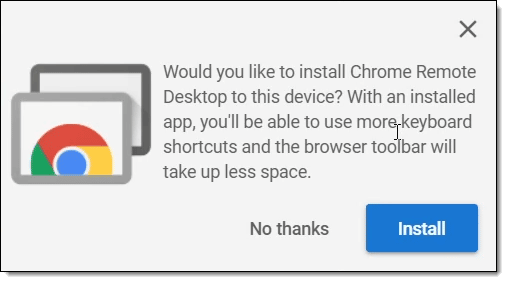
I recommend installing it. Once you do, you’ll find a shortcut on the Start menu for Chrome Remote Desktop, treating it as a separate app you can run at will. Once installed, the app is launched.
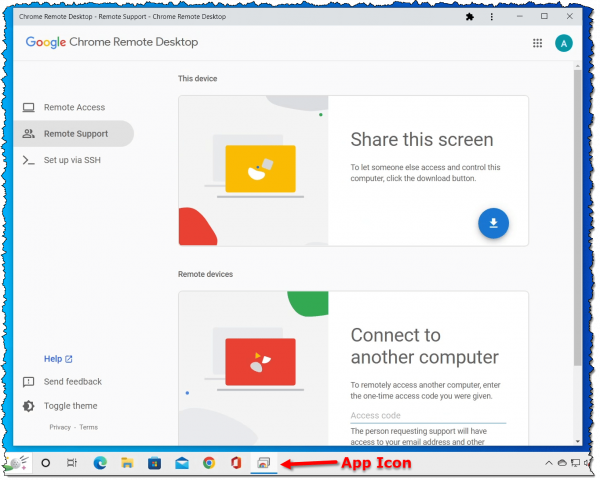
You can see it now has its own icon in the taskbar.
The first time you click on the download icon in the “Share this screen” section, you’ll be prompted to install “Chrome Remote Desktop”. This is the software actually enabling remote access to your machine.
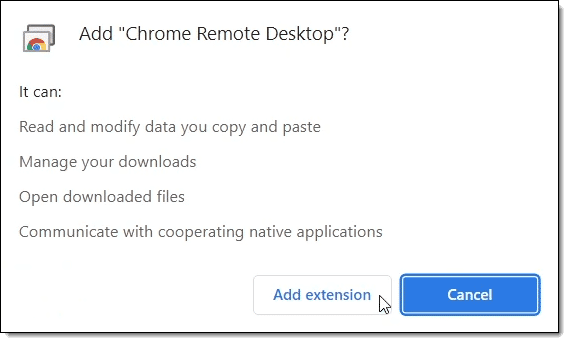
Once installed, the download button will change to a “Generate Code” button.

Now it’s time to set up the other side of the connection.
Preparing to give help
Begin by visiting remotedesktop.google.com/support in Google Chrome. (You can also install the Chrome Remote Desktop app as we did above, if you haven’t already, and run the Chrome Remote Desktop app.)
You’ll be presented with options to either “Share this screen” or “Connect to another computer”, similar to what we saw above. “Connect to another computer” is what we’re interested in here.
You’re now ready to connect.
Making the connection
On the machine to be shared — that of the person requesting help — click on Generate Code. The button will be replaced with a 12 digit code.
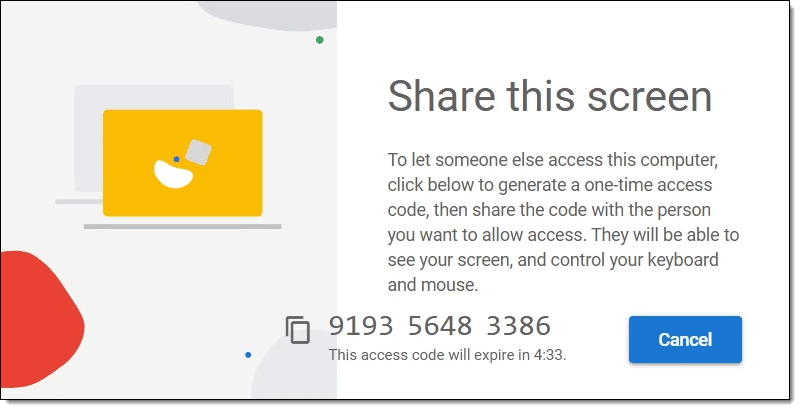
Note that you have five minutes before the code expires.
Give this code to the person who’ll be helping. You can do this any way you like — instant messaging, texting, a phone call — whatever works for you.
Enter that code into the “Connect to another computer” box on the machine of the person helping.

Click Connect.
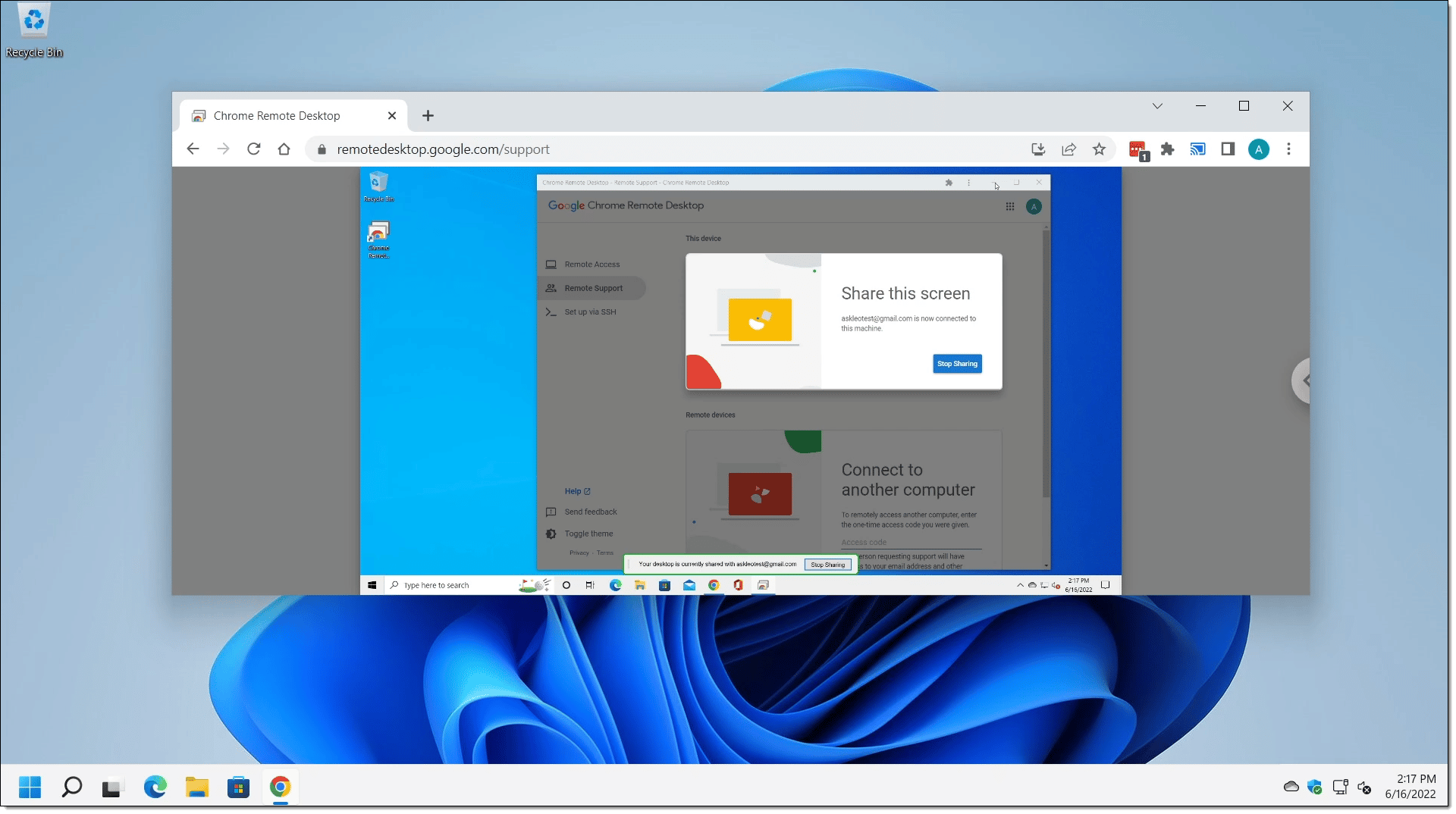
After a few seconds, an image of the remotely connected computer will appear in a window.
Using Remote Desktop
Note that the shared machine of the person requesting help displays a message warning that their machine is being accessed remotely.

You can drag that message around so it’s not in your way. You can click Stop Sharing at any time to sever the connection.
While you’re sharing:
- Anything you do on the machine being shared — that of the person asking for help, in our scenario — will be visible to the person who’s accessing it remotely.
- The person accessing remotely — the person giving help, in our scenario — can also interact with your machine by clicking in, typing in, and otherwise interacting with the remote machine displayed in its window.
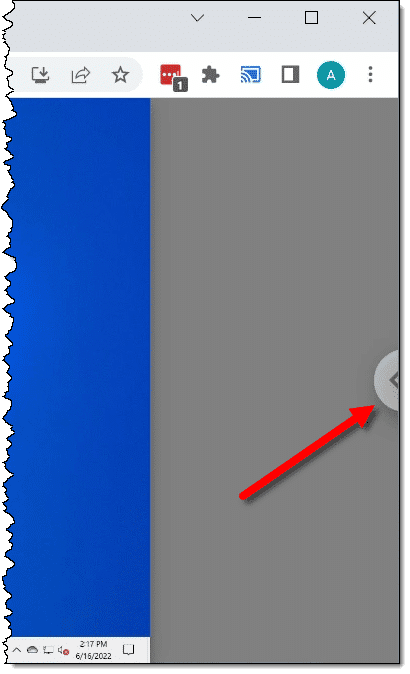
There is an option panel for the person accessing remotely to make their window larger, what to do if the screen resolution on one machine is different than that of the other, and more. Check the “<” item on the far right of the sharing window.
Finally, leave the Chrome browser or Remote Desktop App running while you’re connected. Depending on how you’ve installed the app, closing either may close the connection.
Do this
You now have a handy tool to either get or give help to and from others who may not be able to physically come to your location. Use it wisely. 
Important: do not let random people access your machine remotely! Put another way, grant remote access only to people you know and trust. There are many remote access scams where hackers try to trick you into using legitimate remote access tools like Chrome Remote Desktop to give them access to your machine. Once they have access, they can install malware, steal information, or worse.
No remote access required: subscribe to Confident Computing! Less frustration and more confidence, solutions, answers, and tips in your inbox every week.
Podcast audio

Related Video


How does it compare with TeamViewer for routine remote assistance? (Which may have been addressed, but I confess I stopped reading early on.)
TeamViewer works great for me. Should I abandon it for CRD?
If teamviewer works, keep using it. I’d use it more myself, but they flagged me as using it commercially, and their licenses for paid subscriptions are outrageous for small businesses such as mine.
My first impression of Google Remote Desktop is not great. I went onto an older Windows 7 laptop and browsed (Chrome) to http://remotedesktop.google.com/. I selected “Share Screen” and accepted the Remote Desktop Extension. Then I sat for the next 20 minutes watching the popup say “Downloading Chrome Remote Desktop Extension” while absolutely nothing happened. I would have selected the “share but don’t download” option but I was not presented with this.
After shutting down, clearing my cache, and trying again I was able to get to the point where I generated a code to allow remote access. I went to my main laptop and installed the extension. After selecting “connect” and entering the code (and accepting the connection request on the other laptop) I was presented with a completely black window. Repeated attempts yielded the same result.
I have found, far too often, that when something is touted as “easy”, it usually is not. And when I ask for clarification from the provider I usually get reams of techo-babble as to why it’s probably a problem on my end.
I have used many remote access packages over the years, such as PC-Anywhere, VNC (various flavours), Windows Remote Desktop (on a Windows domain), and more recently, the free version of TeamViewer. I used to love TeamViewer until they decided I was a commercial user. I use it to help three family members, and in spite of signing multiple declarations that I am not a commercial user they have refused to let me continue using the software. Now I am using the free version of AnyDesk.
But I’ll give Google Remote Desktop a bigb pass.
So the advantage of this tool is that it allows connections between different operating systems?
I’ve used the built-in Windows Remote Desktop tools to connect computers in my household. There is one tool, Windows Remote Assistance, that works almost exactly the same way as the Google Tool does. In Windows 10 or 11, open settings, type “Remote Desktop” into the search box and it will show a list of settings.
Few members of my family use Apple products, so differences in operating systems hasn’t been an obstacle. All are using either Windows 10 or 11.
Always good to know that there are alternatives.
BTW the disclaimer of “The person requesting support will have access to your email address and other details required for the connection, such as your IP address.” is a serious shortcoming that should give anyone pause.
Really? If you don’t trust them, then don’t give them access. If you do, then … so what? Seriously? Your IP address is pretty meaningless, and your email address is often public anyway.
TeamViewer is great until they unilaterally decide that you are a commercial user. I’ve chatted with their staff and signed/return multiple affidavits swearing I am not a commercial user, all in vain. I am no longer allowed to provide remote support to my father-in-law and two sons.
That’s my situation as well. ¯\_(ツ)_/¯
A highly recommended FREE remote program that I found and now use instead of the current irritating and unfriendly TeamViewer is a program called Distant Desktop.
It runs just as TeamViewer and it is fantastic.
Try it, I am sure you will love it.
This looks like a handy program if you both use Chrome but personally I find Quick Assist the most user-friendly way to help other people these days. It’s a Microsoft app in Windows 10 and 11 so there’s no need to sign into a Google account or install anything. Everybody already has it more or less. I often help older people so it’s easier for me to generate the code on my side (you just need a Microsoft account to do this) and give it to them on the phone. They type the code in and click on Share screen. Another click on my end and then they click on Allow. Then I’m looking at their screen. It’s a great tool. There’s no timing out like with TeamViewer and you can use it all day if you like. Ideal for helping out family members, friends or clients.
My mistake. I read “email address” as just “email”. BTW I went to google help for remote desk and followed THEIR instructions. I went to remotedesktop.google.com/support one one computer, then remotedesktop.google.com/access on the other. This time, no matter how carefully I typed the PIN I just kept getting INVALID PIN.
I also tried connecting to the remote computer using VNC, then copy/pasted the generated PIN. That didn’t work either.
easy?
You covered the windows situation. Will this also work Windows to android or Windows to Iphone?
No. Though it’ll work iPhone/Android TO Windows.
I have excellent experience with Teamviewer and Anydesk.
Chrome Remote Desktop is fine because it is free. My problem with it is remote printing. Any solution for this?
Thanks Leo. I have used Chrome Remote Desktop previously and found it to work ok. I also moved away from Teamviewer but I found RemotePC also good and although not free relatively inexpensive. Thanks.
I also have a RemotePC subscription. I find it places a higher CPU load on the computer being viewed, though.
A few options to try, thanks everyone!
As others have experienced, TeamViewer kicked me out years ago (or rather after 3-5 minutes of use) and hence I am no longer able to easily provide support for elderly mother back in Europe. Reached out to TeamViewer number of times, sent them their own T&Cs, etc, but all to no avail.
I would love to pay for a (private use) license (one link at a time, even time limited if so be), but as a home user, their current fees are just horrible.
My son and I have been using TeamViewer for several years to transmit files between our PCs for off-site backup. Any thoughts on whether this would be a better alternative in terms of increasing the speed of transmission? TeamViewer works fine but we would like something faster, if possible.
Hi Leo, thanks for a great source of info for people like me that are barely PC literate.
I have used Teamviewer many times with professional helpers, no problems,even with longer time frames? What I would like to know is with 3 PC’s(which I have come into my possession accidentally), I often need to copy over files etc & putting the info on a USB then transferring to another PC is awkward & time consuming. Is it possible to use TV or one of the other ones mentioned above to do this more easily please?
They all generally have file copying ability yes. TV specifically does. HOWEVER if the machines are all on the same local network, you can just use Windows File Sharing to access files from one computer on another.
Another option is to use cloud sync services like OneDrive, Dropbox, or Google Drive to synchronize your computers. Everything you place in the cloud service folder will be synchronized to all your computers. If there is not enough allocated storage in one service, you can run more free cloud services.
I still use TeamViewer for remote access, but I prefer to look and give instructions instead to taking over their computer. This will, eventually, avoid having to deal with the same problem over and over as the person I am helping will learn to solve that problem on their own. It’s worked as I get much fewer frantic calls.
like, uh, leo
isn’t there an american idiom: the devil is in the details
this article was a lot of fluff
because it doesn’t address key points, which are:
1. chrome remote desktop will not allow the host to run ‘control panel’, or any of the control panel applets. so this crd is basically useless for troubleshooting on the remote pc
2. crd times out, and there’s no way to set the timeout to ‘never’
the recommendations in other comments can also be classified as fluff, as there is no mention (like teamviewer only allows 20 hr / month) of restrictions
Have no idea where the control panel thing comes from. I run control panel remotely all the time.