Keeping private things private.
There are several approaches to keeping your private data private: some good, some bad, and many in between.
Let’s look at the list.
Become a Patron of Ask Leo! and go ad-free!

Password-protecting documents
To secure a document created by a tool that includes encryption, such as Microsoft Word, use built-in encryption. Otherwise, zip files with password protection are equally secure. For multiple files, VeraCrypt or Cryptomator vaults make sense. Of course, strong passwords or passphrases are essential, as are regular unencrypted backups.
But first, back up
Whatever you do, regularly back up your uncompressed document in a safe and secure place — by that I mean a place that is also either encrypted using a different technology such as a password-protected Zip file or password-protected image backup, or is otherwise physically secure, like a lockbox or safe.
Many of the techniques I’ll discuss below have no recovery option should you lose your password or the file become corrupted for some reason.
I stress using a different, perhaps less convenient, backup approach, to cover the case where whatever it is that’s rendering the original, working copy also affects anything using the same technology.
As with all things: back up early, back up often.
Application encryption
This is probably the most pragmatic solution for Word. With the document open, hit the File menu, Info item, click on Protect Document, and then Encrypt with Password. Follow the prompts to set the password (and then don’t forget it).
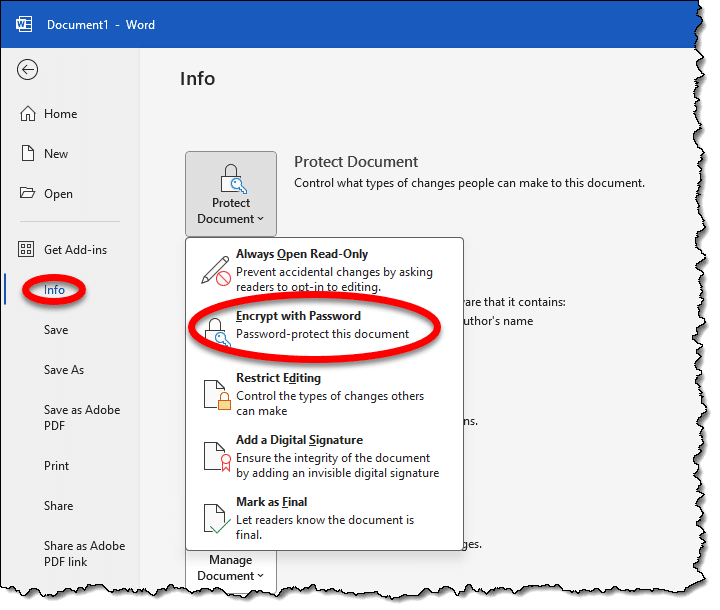
Unlike early versions of Microsoft Office apps, the encryption used today is strong and secure.
If you’re using a different application, do two things:
- Check to see if that application has a password protection / encryption option.
- Do a little research to see if it’s any good. “<Application name> encryption crack” might be a good search to start with.
Zip it
Many programs that create compressed archives also support password protection, the most ubiquitous being the “zip” file. While Windows itself seems to only be able to create unprotected zip files, tools like WinZip, 7-Zip, and others can.
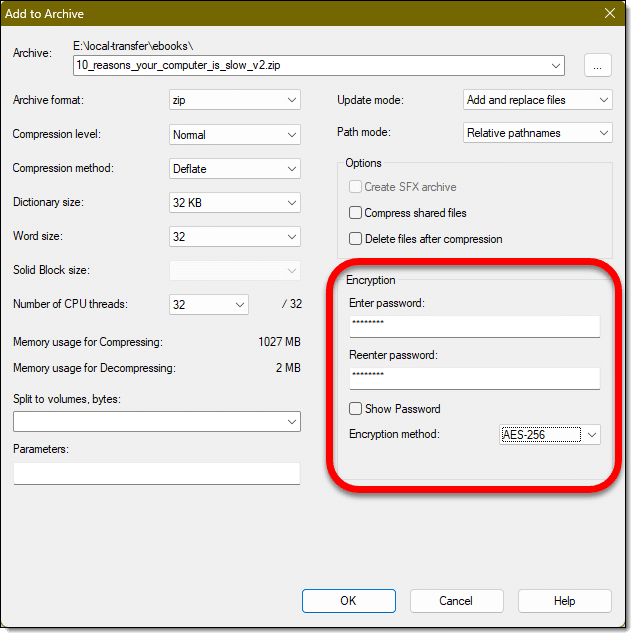
Much like Microsoft Office, early versions of the zip format encryption were less than secure. Using a current zip utility to password-protect a zip file will be.
The only “catch” is that while the data in a zip file will be encrypted, the filenames will still be visible. If that’s an issue, then encrypting the zip file a second time will hide that as well.
The good news is that decrypting zip files that have a password can be done natively in Windows without a third-party tool.
Related

Can I Password Protect a Folder?
Keeping data secure is important. Being able to password-protect a folder seems an obvious approach. Unfortunately, it's not that simple.More files, more power
In addition to zip files, another approach, particularly if you have multiple files to protect, is to use a VeraCrypt or Cryptomator vault.
In both cases, the data is stored encrypted on disk and is accessible only when the appropriate passphrase is provided. The files are made available in their unencrypted form by mounting a “virtual drive”. While your VeraCrypt vault might be named “mysecretstuff.hc”, once mounted, the unencrypted contents might appear as drive “E:”.
This is the technique I recommend for encrypting entire folders.
Gold standard?
So far, everything I’ve covered is password-based, and therefore highly dependent on the password or passphrase you choose. Choose a weak password, and no technology can keep someone from guessing it.
Another approach is to use public key encryption. Using a utility such as GPG (Gnu Privacy Guard), you can create public and private keys, and encrypt your files with a public key such that can only be decrypted by someone holding the matching private key. This is industrial strength encryption — it’s the basis of security on the internet — but might perhaps be overkill for common use. It’s one approach to encrypting email messages, for example, and I cover it in a little more detail in How Do I Send Encrypted Email?
Do this
- If the application you’re using, like Word, supports strong encryption, I’d start there if you have only a few documents.
- If you have more documents, or the application you’re using doesn’t have encryption, then zip files are my next recommendation.
- If you have lots of documents or folders of documents, then solutions such as VeraCrypt and BoxCryptor are most appropriate.
As you can see, there are several approaches to choose from depending on your needs.
Something else to choose: Subscribe to Confident Computing! Less frustration and more confidence, solutions, answers, and tips in your inbox every week.
Podcast audio

Related Video


The article mentions encrypting the encrypted .zip files to hide the name. Technically, you can, first, zip the files in unencrypted form and then Zip encrypt the unencrypted .zip file. That will save a little time.
…Or, you can assign the file a harmless “fake” filename — e.g., “recipies.txt” instead of “financial data.doc.”
Does anyone know why VeraCrypt containers default to an extension of “*.hc”?
(P.S. DALL-E makes great images, but it’s not nearly so good at text, which it often if not usually misspells. You’ll notice, for example that in the image that heads this article, both of the words “Password” and “Protected” are both misspelled. In this case, it’s easy to imagine that the words were simply abbreviated, but they’re not: they’re misspelled.)
TrueCrypt was .tc and I suspect .vc (the logical replacement) conflicts with some existing program’s default.
I, too, find the handling of text in DALL-E generated images confusing. I have occasionally taken images(not this one) into Photoshop, used its AI feature to cleanly remove the text, and then replace it with something better.
I backup the Windows Document folder every week to a USB thumb drive. I keep an extra copy of the backup in my car, incase my apartment building burns down I don’t loose all my data. Some of the files have information that would help in identity theft. So I use 7-Zip to encrypt those files to keep me safe, if someone should steal stuff from my car. 7-Zip is fast and easy.