I get variations of this question a lot.
There are a lot of misunderstandings of exactly what email is, where it lives, and what it means to have an email address. Clearing up some of that should help you understand what’s happening here, and also help you decide how you want to handle it.
Become a Patron of Ask Leo! and go ad-free!
Where email comes from
Email comes from everywhere: from all of your correspondents and potentially from people all over the globe.
When they send you email, it is placed in a central location provided by your email service provider (ESP).
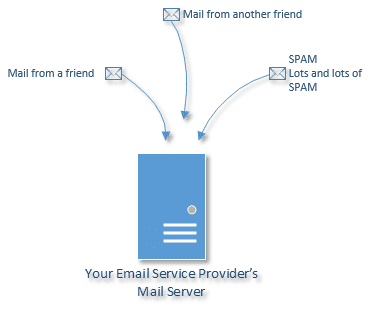
If your email address is @hotmail.com, then that mail server is run by the folks at Microsoft who own Hotmail. If you’re @gmail.com, then it’s Google. If your email address is provided by your ISP, then it’s their server. You get the idea. Email that is destined for you is collected on a server that’s run by your email provider.
When you get your email, that’s where it comes from.
Where email goes
So, what happens when you read your email?
As my most common response goes, it depends.
There are three basic approaches:
Reading email on the web
Web-based email is any email that you read using your web browser. Reading your email is really just like reading any other web page on the internet, except that you must log in to be identified. For example, to read your Gmail, you go to http://gmail.com (or http://mail.google.com). To read your Hotmail, you go to http://outlook.com. To read your Yahoo! mail, you visit http://mail.yahoo.com, and so on.
The key is that other than providing the browser that you use to access your email, your PC is not involved. Your email remains on the email provider’s mail server and is not downloaded to your machine2.
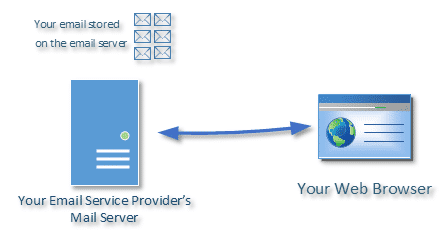
The email never leaves the server and remains stored there. Your inbox, folders, and whatever else that you choose to keep as part of your email, including perhaps even your contacts, is all kept on that server.
The convenience is that you can access it from any computer at any time as long as you can connect to the internet and log in to your account.
The downsides are that it requires an active internet connection to read your email and you’re subject to the speed of that connection. Also, if you lose access to your account, you lose access to everything in it, perhaps forever in the case of most free accounts.
Reading email on your PC using POP3
With a PC email program configured to use the POP3 protocol, you actually move your email from the server to your own PC when you download your email:
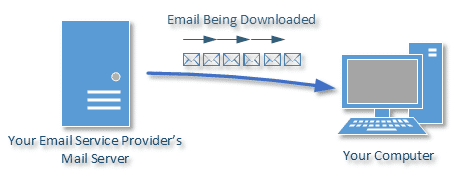
Once downloaded, the email resides only on your machine.
Because it’s on your machine, you’ll need to make sure that you’re backing up properly so as not to lose everything should your hard disk die. You should be doing that for more than just your email anyway, so this shouldn’t be an extra step.
[The benefit is that your email is on your machine and you can do with it what you will. It’s typically faster to access, edit, or change, and there’s no real storage limit other than the size of your own hard disk. And you don’t have to be connected to the internet to read it.
The downside is that it’s on your PC and only your PC. You need access to that PC to deal with it.
POP3 makes a basic assumption that you may not be continuously connected to the internet. It was designed during the days of dial-up modems where you would dial in, download your email, and then disconnect. You would read and compose email offline and then when ready, reconnect to the network to send and receive.
Reading email on your PC using IMAP
With a PC email program configured to use the IMAP protocol, email is copied from the server to your PC, leaving the original on the server:
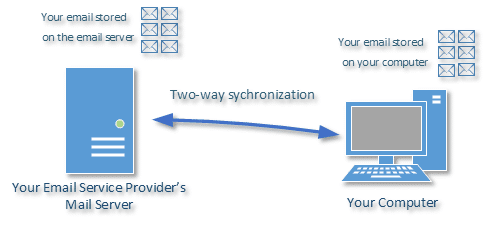
In addition, the actions that you take on your PC (like deleting a message, managing folders, and reading messages) are automatically synchronized and reflected on the server’s copy of your email.
While IMAP can work relatively well with intermittent internet connections, it really makes the assumption that you have a continuous connection and works best when you do.
One email – Multiple places
So what we struggle with is how best to access the same email from more than one PC. Once again, there are three approaches:
- Web-based
- PC-based using POP3
- PC-based using IMAP
Multi-access using webmail
By far, this is the easiest approach.
Don’t download your mail.
Simply, and always, leave your email on the mail server and view it using the provider’s web-based access.
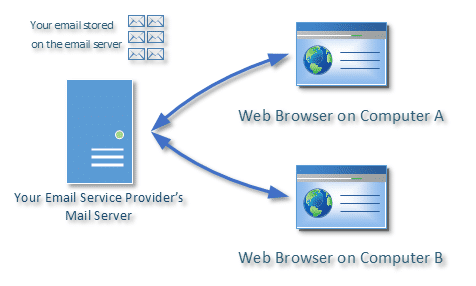
Aside from security concerns, the benefit to this approach is that it doesn’t matter what computer or device you use. If it has a web browser, you can access your mail. This is a very common approach to managing email.
The biggest issue with this approach is that all of your eggs are in a single basket. If you lose access to the email service for any reason, all of your email and everything else that might be associated with it is lost.
Multi-access using PCs configured to use POP3
In the past, most computer email programs have been configured to use POP3 by default. That means that it was at least difficult (and often very confusing) to have more than one computer accessing the same email account. Messages would get downloaded to whichever PC happened to get mail first.
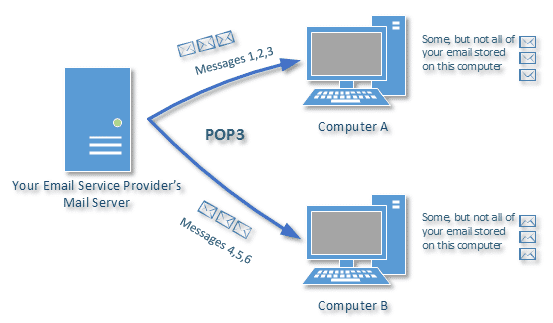
The confusion happens because after computer A in the example above downloads messages 1, 2, and 3, they are removed from the server. When computer B comes along, all that it sees are messages that have arrived after computer A downloaded the mail.
One solution to this problem is to instruct computer A, and possibly computer B, to not delete messages after downloading. That’s typically a Leave Messages on Server setting in the advanced account configuration settings of the email account. This way, the messages are left on the server and are downloaded to both computers A and B.
Unfortunately, this exposes another annoyance. When you delete a message on computer A, it remains on computer B and on the mail server. To truly remove it, you’d want to delete it on each. That’s something that you would need to do explicitly.
It can work, but it’s easy for the computers – and you and I – to quickly get confused.
Multi-access using PCs configured to use IMAP
IMAP handles multiple computer access very well. In fact, it’s the protocol used by many email apps on mobile devices.
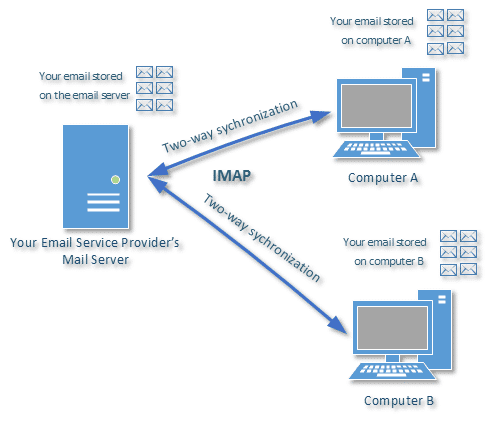
Each computer that you have configured to use IMAP gets its own copy of, and view onto, your email. Delete a message on computer A? It’s deleted from the server and computer B. Get new mail? It appears on the server and on computers A and B. In fact, because the email continues to live on the server as well as any IMAP-connected computer, another scenario is possible:
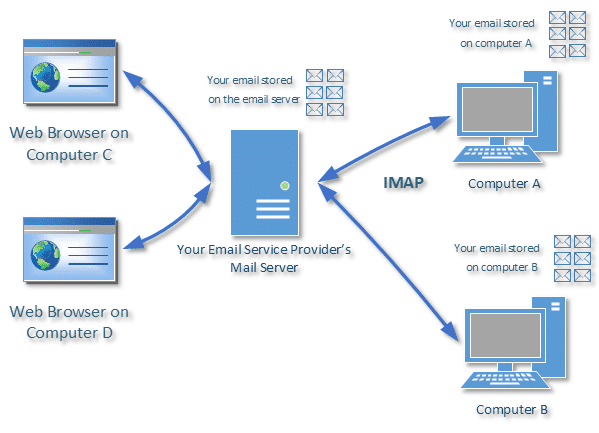
In addition to accessing your email via a PC-based email program, you can also access your email via a web browser, assuming your email provider has a web-based interface. It’s basically the best of all worlds.
Unfortunately, there are a couple of issues that can make the transition to using IMAP a little difficult:
- As I mentioned before, IMAP more-or-less assumes a continuous internet connection to work smoothly.
- Email is actually downloaded once for each computer that you have configured to access the account. This means that more data is transferred across your internet connection, a consideration if your internet is metered or slow.
- There is typically no way to convert an existing account configured in an email program from POP3 to IMAP. The typical way to transition to IMAP is to create a new account configuration in your email program that uses IMAP and then disable the account configuration using POP3.
- If, after using IMAP for a while, you need to reinstall your email program and start over, or you add a new computer to access the email via IMAP, typically all of the email on the server will be copied down as the program synchronizes for the first time.
Keeping email on the server
There’s one final issue with any of the solutions that keep all of your email on the email provider’s server.
Quotas.
This varies dramatically from provider to provider, but many will allocate you only so much space in which to store all of your email. If the amount of email that you keep on the server exceeds this amount, called a quota, then the service will typically stop accepting new mail for you. Messages sent to you will usually be bounced back to the sender with some kind of “over quota” error.
Leaving all of your email on a server in “the cloud” is a very handy approach. I do it myself, but it’s important to understand what limitations may be imposed by the service that you’re using.
Whose email is it, anyway?
Lastly, one comment in your question leads me to this closing thought.
As we’ve seen, “machines” don’t have email addresses. You can choose to access email from a particular machine, but that doesn’t really tie it to that machine in any meaningful way other than that access.
People have email addresses.
Now, it’s not that uncommon for some folks to share an email address. You may want to consider separate email addresses and share (by forwarding) only those emails that make sense to share.
Just a thought. I know my wife doesn’t want to see 90% of my email and vice versa.

My wife and I have shared an email account for years. Until a year and a half or so ago our email was on our ISP’s server and it allocated a very low capacity for our email. We couldn’t leave much email on the server. We solved the dual access between two computers by setting up the account to leave email on the server for a limited amount of time, like 3 days. That ensured that the email would be on the server long enough for both computers to get it and download it via a POP3 interface. Now, our email has been shifted to a web based server which has a much larger capacity. However, we still use the same approach and download our email, using our email clients of choice on each computer. But now, we can leave much more on the server as well.
I have the same issue running Outlook as my e-mail. The kitchen has Outlook 2010 and the downstairs computer uses Outlook 2003. They are both on my Homegroup (Windows 7) connected through a router. What I did was to put my mail file (.pst) on my kitchen computer. Then I run the downstairs computer to point to the kitchen file. As long as the kitchen computer is on the downstairs one works fine. This way the mail is synchronized with both PCs. The one interesting thing was when I switched to Outlook 2010, I thought this would not work because the other downstairs computer runs Outlook 2003. It does.
I have clients who do this, or something similar. One caveat is that both computers should not, and generally cannot, run Outlook at the same time. The PST is not designed as a multi-user file. If somehow both do open it at the same time, there is a good chance it will be corrupted.
There seem to be as many ways of solving this problem as there are of skinning a cat.
Given a similar situation, but using Thunderbird and POP3 to the mail server at my ISP, I had the same problem on desktop (XP) and laptop (Vista). I found the solution to be to keep my Thunderbird profile in my Dropbox. Works a treat, as long as I close Thunderbird on one computer before opening it on the other; subject to that, it doesn’t matter whether both computers are running or not.
10-Sep-2010
To make matters more complex, maybe a tool like “POP Peeper” can be useful. It can automatically download emails from a net based account (e.g. Yahoo, hotmail and so on)onto your own PC and keep a copy there. It can even handle multiple accounts.
I use PopPeeper and it works well for me. I access my mail on any one of: cell phone, two tablets(kindle & Galaxy), or any of three PCs.
My wife and I use POP Peeper as well, and it’s worked well for us for several years now. We share an Earthlink email account with 300MB of storage, which isn’t much but we discourage our friends and families from sending us multiple photos and other large email attachments, and so we find we can use POP Peeper to collect on both our PCs about six months’ worth of emails-that-are-worth-saving, and we automatically synchronize with each other and with the Earthlink server every few minutes throughout the day (assuming that both our machines are continuously Internet-connected). Other than the storage limit, we have nothing to complain about and are happy. When we travel, we pull out a laptop that also has POP Peeper installed, and when we reach our destination and turn it on, that device synchronizes with the others as well.
This issue was a challenge when my wife asked how to sync Outlook email folders between the laptop (Outlook 2003) on the first floor and the primary desktop (Outlook 2007) PC on the second floor. Rather than syncing up the pst files between both machines, it was easier to use Remote Desktop Connection from the laptop (Vista) and connect to the desktop machine (XP). Since you can save the configuration parameters and save it to the desktop, my wife now runs it without thinking about it. The other advantage is that she can also minimize the remote connection Window on the laptop and run local programs without closing the remote connection.
I found using IMAP is the best solution. Your email is automatically synchronized with all the email clients you use… And you can mix and match email clients as you like… i.e. use both Outlook 2003 and Outlook 2010 to access your email.
I tried the Dropbox approach too, but there are technical problems with that… just search on the dropbox forum and you will see…
To set this up I got an easy to follow guide from http://www.Easy-Email.net and it did not take me long to get working…
Once working you don’t have to do anything else…
Worked a treat for me… hope this will help other people too… It’s a major pain when it is not working right…
I am curious why there is not a browser equivalent to web-based vs PC-based email? I am envisioning a very simple browser on the PC which downloads only simple images (or whatever) from the web-based browser site (i.e. insert a middle man between the HTML web content and my PC).
Here where truely simple eMail clients like Thunderbird shine.
(1) The problem of the Sent eMails being only in the computer from which they were sent can be solved as follows. Because Thunderbird’s file system is very simple, you can selectively copy eMails across machines!! You can create a folder called, for example, “Shuttle”, and move all recently sent eMail to it. (You sort the Sent folder to descending order by date then select only the eMails you sent that you need to have in the other computer.
Now copy that folder’s associated files (Shuttle and Shuttle.msf) to the receiving machine (using the network, a diskette, or even a CD). When you start Thunderbird in the receiving machine, you will automatically see a “Shuttle” folder and you can move every eMail in it to that machine’s Sent folder.
Back in the original machine, you can now move everything in “Shuttle” back to the Sent folder.
Another great feature in Thunderbird simplifies the above: you can tell it where you want it to put its files. Yes, create you own profile and tell it to put its data in a really easy to find directory, like “Thunderbird data”, right off a drive’s root.
(2) The matter of space on the server can be handled by telling Thunderbird just for how long to “leave files on server”. If both machines are used every day, you can tell Thunderbird to leave them on the server for just one day.
(3) If the machines are in anyway connected, you can also very simply synchronize them by just copying the entire directory where you told Thunderbird to put its data across machines. But be sure Thundebird is NOT running on either machine. (If both access the Internet thru a router, the machines ARE connected and can exchange files.) DON’T DO THIS UNLESS THE receiving machine does not have anything the sending machine doesn’t, like a recently sent eMail.
It is even better if you use the portable Thunderbird, and use a sync tool with it.
Thank you for elaborating so well on the subject.
I am one of those ‘die-hards’ who is, still, using OE and find it extremely satisfactory. Unfortunately, I will need to change to Thunderbird or similar if and when I am forced to relinquish Win XP. (I, still, use Win2000 occasionally.)
But, until that time, I have more-or-less identical arrangements on three computes/laptops and ‘Leave Messages on the Server’ for 10 days. So, that is my method of ‘backing up’ my e-mails, and it has worked for many years very successfully.
I can see from your article that IMAP has advantages similar to my method and I will have to look into this further at some point to see if it is a suitable alternative.
Keep up the good work. I find reading your articles very satisfying.
Thanks for this great article! I finally understand the difference between POP3 and IMAP.
With free email accounts available from so many places, as mentioned in the article, I simply don’t understand why folks would share email addresses any more than share a toothbrush. But the issue of viewing on multiple devices is one I’ve dealt with for years having devices in the office, at two homes, a tablet and in my pocket. Since I have several email addresses I prefer to use an email client to gather them all at once without having to log in to different websites.
Outlook Express is still my favorite but, alas, only remains on my lone XP machine. On my Win7 machine I use Postbox (almost an OE clone) and on my Android devices I use AquaMail. I’ve used both IMAP and POP3 and, with the “Leave Messages on Server” option selected on each device, have found POP3 to work best for me. It does require multiple deletions on each device but that works best for me as I might want to retain some messages on only some devices.
As far as which free email to use, I’ve found that Gmail has an almost uncanny ability to filter spam with almost no errors.
Actually since email addresses are free and easy to set up, it could make sense for a couple to have a shared email in addition to each one’s individual email addresses. I’ve even set up email accounts shared by a working group, where we all could respond to questions etc. So email account sharing has a few valid applications.
There is a simple way to convert POP3 to IMAP.
In my case, using the same Yahoo e-mail address, I created a new IMAP Yahoo account and added it to my mali program. [In this case Yahoo supports either email protocol to be used on the same account. I think G-Mail does too.].
If you were using the “Leave Mail on the Server” setting, turn it off beforehand and get that mail straightened out first.
I disabled the POP3 Account in the setting to not to read the mail automatically. One could also disable the POP3 password to prevent accidentally manually downloading mail. [recommended because you never plan to use it again but save the password just in case. all goes south and you can resume POP3 access. ]
For the next steps, I disabled the automatic reading of the IMAP mail.
On a folder by folder basis, I then selected all the mail from a folder and dragged this batch to the inbox of the IMAP account to transfer this local-only mail back on to the IMAP server. Use web-mail to verify that the mail has been transferred. The select all the POP3 mail in this folder and delete it (you done have a backup right?}. Don’t delete the your folder. Now read the IMAP account manually and you folder rules/filters will populate your just vacated folder. Rise, wash, repeat with another folder. include the Sent folder (the sent messages will have to be manually moved back to your Sent folder.
Using a folder by folder basis let’s you verify that the transfers are working (before deleting the POP3 local-only messages) and you can resend the messages if need be.
It sounds daunting but start with the smallest folder you have to get the process down. On large folders, you might have to move the mail in small batches to prevent any throttling that the ISP may impose on what appears to be a bulk transfer.
HTH. Mike
What I meant was you can’t convert an account configuration. You do need to create a new account config in your email program – as you have done – to perform the conversion.
I run the same email account on three computers and one cell phone. On my main computer, I run POP3, but since I’m using Gmail, I don’t remove any mail from the server. So the server is my main repository. My main computer, running POP3, is my backup, since it downloads all my mail. I can access all my mail from all my computers.
Hi Leo,
Finally! A clear and useful description of POP3 and IMAP. Would you go into what an HTTP server does for and to email? This type of server is used for Hotmail (Outlook.com)
That http is just a private protocol that Hotmail uses. With POP3 and IMAP available I expect it’ll go away some day. HTTP is the protocol used to serve web pages, so they’re basically abusing that protocol to deliver mail.
I use POP3 server at home for Outlook 2007 mail. When I go to relatives in Oregon I can receive email into Outlook just fine but am unable to reply or otherwise send new mail. How can I correct the situation?
It may be that your SMTP settings on your Outlook are set to use your ISPs SMTP settings. You should check and see that Outlook is using the SMTP settings of your email service provider (ESP). Failing this, you might have to use your ESP’s Web interface to send emails.
Typically that’s because their ISP is not allowing you to connect to a different SMTP (mail sending) server, in an effort to thwart spam. This article discusses: Why can’t I send mail from my hotel room?
I do not understand why nobody has mentioned Windows Live Mail. I find this program to be the easiest to use. It can set up multiple accounts, is easy to configure, supports POP3 as well as IMAP access. It can be loaded in Win XP, Vista, Win 7, and Win 8. It doesn’t care if its a 32 bit OS or a 64 bit OS. You can leave retrieved mail on the server, or delete them – your choice. Using this program on multiple computers will automatically keep them all synchronized, and there is even a version for any android device. I use it on 3 computers, 2 phones, and 2 tablets. No Problems. I guess if you’re an Apple fan, you are just out of luck.
A discussion of Cached Exchange Mode might be useful – it works great for me when I cannot be connected all the time, but has a good backup on the server built in. Thanks for the continuing great info!
At work we’ve changed from ISP accounts with 50MG limits, to a new hosted domain allowing 2GB as an individual limit. To get my ISP mail on two computers and a BlackBerry, I set POP3 on Microsoft Outlook to “Leave a copy of messages on the server” and “Remove from server after 7 days”.
Now with the new larger quota I use IMAP but I still need to delete eventually. As deleting mail from anywhere in IMAP would cause a duplication of the action everywhere else, I found the solution to be to Archive mail older than a certain set period of time, which saves to Archive folders while deleting from the regular folders. This deletes a portion of mail from the server each time, and keeps the account within its quota.
I still haven’t found a way to Archive on both computers as the deletion which occurs at the time of archiving effectively clears the messages from the second machine. A proper backup of the .pst files is therefore necessary to ensure the archived messages are never lost.
Thanks for this article. I work with an organization that uses email to keep in touch with a large volunteer base who use every conceivable device to read their email. This is a good explanation of some of their basic email choices.
I use POP3 pretty happily on multiple machines because long ago I got used to configuring the machines as outlined by several of your other readers. For organizational records, we keep virtually all old email (not spam, of course); the archives amount to several GB of data, which stays pretty comfortably on the master machine and is backed up along with everything else.
I’ve thought of switching to IMAP for my personal email account but have been held up by inadequate explanations of the differences. Yours is excellent. Thanks.
Leo. Thanks for a great article. It was clear and easy to understand, even for a novice user.
Oops, Tony. I forgot I need to change my user name to differentiate between me and you. Propose to become TonyB or Tony2. Not sure which of us started using this forum first.
I have a slightly, and I think better, solution using two computers and outlook 2003. The solution was to designate one computer (the desktop) as the main computer and to move the associated outlook.pst file from the desktop to a network hard disk. On my laptop I kept the normal outlook.pst file. The desktop is used for all admin work, including setting up of folders and subfolders for organising mails. The desktop is set to delete downloaded mails after 1 day and the laptop after 10. You can vary this to suit.
I then made a simple batchfile on the laptop using “xcopy” to copy the network pst file to the laptop. The laptop can then easily be synchronised with the master file at any time with the proviso that outlook on the desktop must not be open while so doing – a small inconvenience. (You can also do this using explorer). The only other downside is that there will be a certain amount of duplicate downloading of mails, but these are relatively easily deleted particularly if you set up a shortcut to show all unread mail ( a standard outlook feature).
Of course you could make both machines access the same pst file on the network server. The downside of this is that you can only open outlook on one machine at a time so if your partner is using oulook you cannot refer to it on the other machine at all. Whereas on the solution above both machines can be fully up to date, easily synced and used together.
If I am away from home I treat the laptop as the master (having synced before leaving) and simply copy the laptop pst file to the network hard drive when I return. I usually set the laptop to delete downloaded files while I am away to avoid a large number of duplicates on the desktop.
Not difficult to set up and works really well
I use yahoo mail for all of my email. I can read or reply to all messages
and create and send. without any problem I use a Samsung Galaxy note 3 phone a laptop and several other computers. I use ymail.com to get directly to the server, sign in , and instant access from anywhere
including public system’s. be sure that you DO NOT use the “keep me logged on” or saved password options.
A number of years ago I used POP3 to get business email from Exchange, both on my office computer, home computer, as well as a very slow smartphone. I just set them to not delete. But there were always time consuming issues. I later changed to using IMAP in Outlook at home, as well as newer smartphones and a tablet. Now that I use two email address from different sources, it’s easy to configure both on smartphone and tablet email programs, and optionally display them “combined” if you want. Going forward, with today’s fast internet connections and sophisticated on-line email websites, I’m starting to switch to browser based email except on mobile devices. It’s simpler and eliminates the problems that occur if your email client program crashes or locks-up. It even removes the problem if your PC dies. Just use another one. I also suggest using a program such as LastPass for website log-in. You won’t forget your log-in data or password, and multiple devices can share the same data.
A great article on emails. I have recently had a battle with my EMP. I have a desktop and a laptop. My laptop failed and I bought a new one running W8 and office 2010. I wanted to set up my Microsoft Outlook 2010 on my new laptop. I knew what I had previously.
My old laptop would download emails without deleting them of the server, my Desktop would download emails and delete them from the server. This suited me well. My ESP tried to force me to set up IMAP on both computers. This did nor give me what I wanted and after several phone calls I requested the set up info for POP3. MY laptop downloads my emails but leaves a copy on the server and my desktop allows me to download and delete. My desktop is hooked up to my printer and scanner. This allows me to print items that I receive. My ESP could not provide me with a method using IMAP that would suit my needs. Was POP3 the only way?
Thanks for the great service that you provide.
David
In my opinion, POP3 is only useful if you have one computer. Since you have more than one, I think you should use IMAP. IMAP synchronizes your email across all machines and the server.
Like you, I don’t want to keep all my email on my ISPs server (mainly due to quota limit). What I do is on my desktop computer use Thunderbird’s Local Folders account and set up my ISP email account as a second account in Thunderbird — set up for IMAP. My laptop runs Thunderbird with only the ISP email account set up for IMAP. On the desktop, any emails that I want to actually take off the server and save are moved to a folder in the Local Folders account. This removes it from the server, but saves a copy on my desktop computer.
This I think is what you want to do.
I use yet another method. In the part of my Thunderbird profile, I define a subfolder which holds all my active mail. (I happen to call it _XFER. There is, in the appropriate place in the profile, a directory of that name and a pair of files, one with a .msf extension and one with no extension. When I’m done running Thunderbird, I shut the program down and copy that directory and pair of files on a directory to a thumb drive. To resume on a different computer, before starting Thunderbird, I replace the versions of the directory (and its contents) and the pair of files with the newer versions on the thumb drive. Voila, I have my not-yet-dealt-with email on the other computer. Every so often, I save the email that’s worth saving to another subfolder in my Desktop’s version of my Thunderbird profile. And I back that up every so often with Mozbackup.
This method has the advantage that I’m not storing anything on anyone’s servers, It has the disadvantage that occasionally my POP3 accounts will send duplicates of the same email to two or more computers and I have to manually de-duplicate them when this happens.
I don’t know if there is a similar technique for Outlook or any other email program. (I seem vaguely to recall that what passes for Outlook these days is now a form of webmail, and, frankly, at this point, I couldn’t name another extant full-function non-webmail email program to save my life.)
The beginning of my prior post should have read “In the part of my Thunderbird profile where the software stores email, I define a subfolder. . .”.
BTW, the underscore is just to make the relevant entities easy to distinguish visually.
We have a simple Netgear ReadyNas unit where we store all our files, music, pictures, and video (separate drives) that each computer can access on the home network. I use Outlook on my laptop for my email and my wife uses Thunderbird and Windows Mail for her personal/business accounts on her laptop. The desktop does not have a local client. I don’t know how to set it up, but it should be possible to store the .pst files for outlook, as well as the Thunderbird profiles and Windows Mail on one of the drives on the ReadyNas. By installing the clients on each computer pointed to the shared drive folder, each computer should have local access. The RAID mirror combined with the daily backup should provide full access and protection. I do that with my accounting software (QuickBooks) where the program is on each computer but the files are all on the documents drive on the ReadyNas. If that would work, I’d appreciate someone explaining to me how to move the Outlook, Thunderbird, and Windows Mail folders. Unless one or all of the email clients requires that all folders be on the same drive as the basic program (ie. if you install Thunderbird to your “D” drive, then all the folders must also be on the “D” drive), it should work. It may be that only one client can be open at a time, but the basic issue of access to all the emails from each computer would be resolved.
I would like to know how many computers uses one email account, can i?
Thanking you in advance for your advise.
Ahmed Mustafa
An email account can be shared by virtually any number of computers. In most cases, it’s not advisable to share it with more than one person though, as they might delete an email you need or worse, steal your account.
If you’re asking how many CAN use one email account: many. Pretty much as many as network bandwidth and server capacity might allow.
If you’re asking how many ARE using one email account: I know of no way to determine.
All good stuff, however the elephant in the room is sent mail treatment – assuming use of SMTP to send email on computer A the other devices wont see a copy of that sent mail on their devices. Dealing with that is a massive headache. Even IMAP doesn’t solve this. Of course it also depends on the type of email server being connected to and what it’s capabilities are.
Actually GMail handles this quite nicely. “Sent Mail” is just another folder that’s synchronized using IMAP as well.
Hi Leo nice article ,
But I am having a problem .My manager is using outlook 2013 configured in laptop and desktop but when he read mails in one device was not showing in another . i have already remove his account via POP3 and add account via IMAP and in more setting -checked checkbox in outgoing server and in advanced setting 993 , SSL and 587 ,auto in advanced tab and got both success full message before finish but still one device not getting mail and sent item not showing as much mail as in account .
Just an obvious suggestion – but you made sure that both computers are set to access the email via IMAP, yes? Just having one set to IMAP won’t work.
You did not answer the question. You mentioned IMAP however that is not practical due to quotas as you have stated. What is needed is a solution to provide an IMAP style of service from the prime POP3 home PC to other devices. I am not aware of this solution. Due to the advent of people having multiple devices such as phones and tablets and laptops etc this would be a valuable tool.
We just purchased two new 8.1 computers and are using imap on both. We use one e-mail address for both computers. Both computers receive the same mail but any action like delete or movement to a folder on one computer is duplicated by the other computer. In olden times with XP we were able to segregate actions and folder management individually after receipt of mail to the one address. Is it possible to do the same now with 8.1?
It could be that the difference isn’t really between XP and 8, but between IMAP and POP3. More than likely on that old XP, especially at first, you were getting your email using POP3 – which downloads a full copy to your computer and does not sync. This article by Leo may help you sort it out: http://ask-leo.com/what_is_imap_and_how_can_it_help_me_manage_my_email.html
Hi Leo,
I’m using Thunderbird to get my emails,
“Server Type”:POP3 Mail Server(which has postfix 2.3.3 under RHEL 5.5)
My question is :Where are these emails will be stored if I choose “Leave messages on server for at most 14 days” ?(As I know,POP3 will not keep mails under mail server)
Thanks a lot in advance,
Depends on the server configuration, there are several possibilities.
Thank you Leo.
We are using postfix 2.3.3 under RHEL 5.5 and when there is new email,you will see file uder :/home/username/Maildir/new/
click “get email” under thunderbird,this file under /home/username/Maildir/new/ will disappear(download to thunderbird as I understand).
But when click “get mail” under Outlook,you still get the email,where is this email coming from?
/new/ is only the “new” mail. Check out the /cur/ folder as well.
When you tell it to leave messages on the server for at most 14 day, the messages stay on your email service provider’s server (ESP). It can also be instructed to keep the emails indefinitely on the ESP’s server. It would be Thunderbird itself, not the ESP, which either keeps or deletes the emails.
Thank you Mark.
But why I can still get these emails when I switch to use outlook (POP3 will not keep mails under mail server)?
Excellent explanation, thanks for sharing it!
i thought that you can make a gmail account two times a day but the coumputer sayed that you couldnt cause i looked it up
thinking about synching emails with 2 computers
One problem with wanting to use IMAP: Many of my clients use Verizon FiOS as their ISP, and use a Verizon.net email address, thus also using Verizon as their ESP. In its infinite disregard for its customers needs, Verizon doesn’t support IMAP. This is not just that they haven’t gotten around to it. It is a conscious decision to make it easier for Verizon at the cost of making it easier for their customers.
We just upgraded to Windows 7 and Outlook 2010. Using IMAP, I have the same e-mail account set-up on two computers, using the same Outlook.pst file on the server. Before the upgrade, both computers could have Outlook open at the same time. Now, they can’t. When trying to open on the second computer, I get an error “Cannot start Microsoft Outlook. Cannot open the Outlook window. The set of folders cannot be opened. The file XXX\Outlook.pst cannot be opened.” What do I need to do so they can use the e-mail account at the same time?
Outlook was never designed to allow for two instances to open the same PST or OST file at the same time. You’re risking data corruption as well. With IMAP each Outlook can and should have its own PST or OST on its own hard drive.
If we put the pst file on each computer, will changes made to the inbox or sent folder be made on both computers? And can they share the same address book and changes be made on both?
If they are both set up to access the account through IMAP, the emails will be synchronized on both Outlook .pst files. You can also mix and match and use Thunderbird or any email program you prefer and they all will be synchronized.
email: if they’re both using IMAP then changes will be reflected in both.
Address book: not that I’m aware of.
When using IMAP with a single email account on two or more computers, if you edit an email in the inbox by say adding a category or flag will this change be synced and reflected on the others.
I am using Windows Mail on a Windows 8.1 computer and a Windows 7 computer – one e-mail account – IMAP protocol.
It syncs as it is supposed to, but I don’t know how to expand the IMAP root folder to accept 12-15 manually created “Storage Folders” and consequently have them sync and access from both machines. Can you help??
Thank you, very helpful information for someone who is nearly computer illiterate.
An excellent article clearly explained. Thanks!
I’m using both mobile phone and computer to access to same email account (POP/SMTP). when I send a email by phone it is not updated in folder “Sent Items” in computer, And when I send a email by computer it is not updated in folder “Sent Mails” in phone as same as. Any solution??
Switch to using IMAP. MOST email programs will update sent mail that way.
Yes; just send yourself a copy of anything you want to show up on the other computer. It will appear in the INbox when you check for new mail on that other unit.
You have explained this very well!
i would like to know how to use to use the same email with my PC and phone please?
I do have two computers but same account which mean it only has one account.
so I want to remain one account one computer and the other computer I want to make a new account.
if I am going shutting the account on one computer does the other computer will be affect???
Im having problems synching my phone and pc with emails. Im using yahoo mail and on my phone i can only synch up to a certain date. The sent and recieve folders on my phone are not up to date compared to my pc.
Thank you.
Leo. Can you spell verbal diarrhea ?
Re : the question of email on two computers.
I use Windows Mail and simply stop it from downloading email at start up.
I go to Tools, and untick the option to check for email every “so often”
Now I can check my email form any machine by clicking Send/Receive.
That sounds crazily complicated. Do you have one email address going to the XP machine, and one going to the Win 7 machine? Like Mark says, IMAP would take care of all that. Please read the section of the article titled “Reading email on your PC using IMAP”
Re : Question about email on different PC’s
I have two email accounts and two PC’s running windows 7 & XP
I have configured my Windows Mail not to download at start up.
If I want to transfer an email from one PC to the other I simply email it using the other email addy.
Then I go to the other PC and D/Load it.
Simple and effective.
Why not use IMAP. That way you have all of your emails on all of your computers and devices automatically with no need to do anything further.
I have configured a mail id on my cell phone and in my laptop also. Now everything is working fine but one day i have seen a mail in phone but when i search the same mail in my laptop i cannot find it.
Did you delete the email from your phone? That would remove it from the server and therefore from your computer.
Question about .OST files. In my current Outlook Pro+ 2010 O365 setup I have local folders and Rules setup to process incoming emails. Those seem to get filtered first and don’t show up in my Thunderbird mail.
Is there a way to use both Outlook *and* Thunderbird with the local folders sync’d? I’m thinking not.
I’ve seen an article about converting .OST files to .mbox, so I could drop the Outlook and just use Thunderbird. I could remove all the Rules first. I’m thinking that’s the way to go.
I also have a need to use Calendar in O365. I found an add-on for that and it seemed to work some, but with some issues. I think I can get around it with webmail though.
Thanks.
FYI, I *can* see these folders on webmail. And just one giant .OST on my AppData/Local/Microsoft/Outlook folder.
To paraphrase Obama, Yes you can. I have Thunderbird, Outlook and WLM syncing some of the same accounts.
This has to be the most useful, well explained and simplest explanation of how emails work I’ve ever seen. No unnecessary tech words, nice plain simple English that anyone can understand. Thank you
I have two laptops. I want to access my email from both. I have checked “leave a copy on the server” but one computer does not send or receive from that account. ( I have another account on that computer as well but it works). I noticed on the computer that does not send or receive email from the account I mentioned it is set up as an exchange account. Should I delete that account and add a new account using the same settings as the original account?
I download email from the server on to my home computer (a Mac) and then the messages are deleted from the server. My android phone is set to read messages, but not to delete them from the server. I sometimes have to reply to messages from my phone, and there doesn’t seem to be any way for me to keep a copy. My android app doesn’t seem to have a folder for ‘sent’ emails, and there doesn’t seem to be a way to download anything but incoming mail from the server. I run a small business, and it’s really important for me to keep a copy of emails. I don’t want to keep my email in the cloud due to security concerns. What are the options for having a copy of emails I’ve sent from my phone?
The way you are doing it is going to totally confuse things. It sounds like you have the Mac downloading with POP3 and then deleting. The other devices are using IMAP. IMAP assumes that the main copy of your email is on the server. So every time the Mac downloads and deletes everything the Android apps will comply by deleting everything off your phone. The only way to have one email account accessed by several devices is to use IMAP all around. This article explains how to do that.
I have a quite similar problem:
1. Until now I used a POP3 account on my PC.
2. Recently a part the PC, a bought a laptop and an Android phone
3. I want to be able to access my e-mail from all these devices
4. I want to keep a copy of all my in and out e-mails on the PC.
What I think to implement is:
1. to keep my POP3 acount on the PC
2. to use IMAP on all the devices, including the old PC
In this way, the received messages are saved on the POP3 acount and in order to save also the sent messages I intend to make periodical copies from the sent items of the IMAP account to the POP3 account of the PC.
What is your opinion about this procedure?
Thank you in advance
Having one computer access the account via PO3 sounds like a good idea. It would provide a backup against accidentally deleting emails on one of the SMTP connected devices, since it downloads rather than synchronizing.
Thank you very much and congratulations for the crystal clear explanations on the way that e-mail transmissions work.
I have a PC and a laptop with the same email address. I read the PC emails daily and routinely delete them. My laptop is only used monthly, so when it’s turned on I receive hundreds of emails which I’ve already read and deleted on the PC. How can I stop this doubling up of emails, can I disable my account periodically?
I have Outlook 2010 on my work computer and my laptop with one email address. Incomming emails are received on both computers. But when i send an email it is only displayed on that specific computer that i send from and not on the other. I want to be able to see all sent items on both computers.
Are they both set up to manage the email account via IMAP? If you use POP3 the sent emails are not uploaded to the mail server.
So in my situation, I have 1 email address that is shared with an entire team (they all have their own private email addresses also but they also have access to the team email account
We are using Office365 and IMAP for this account.
Our problem comes when an email is finished and ready to be filed away. It is moved to a folder under within the inbox. As long as it is only that single folder lever all works fine and everyone no matter which computer can still see the folder and the email.
However, if we also have sub folders within that main folder and we move the email into that sub folder, only the original person who created that sub sub folder on their computer can see that folder and those emails on other computers.
Is there a way around this? Is it something we’ve setup incorrectly in the setup causing this? Any suggestions?
This is just a guess, but it seems to me that if the sub-sub folder is created on the website of the email service provider, it should show up for all. Somehow that fact that creating it in the email program doesn’t work suggests to me that it’s a bug in the email program.
Email programs sometimes also allow you to check which folders should and should not be mirrored on the local pc. As may the email provider itself – gmail, for example, has a “make visible in IMAP” option for every label you create.
In the my device leo isn’t sign up showing that this device has been linked to the another username please help me ….
I have a PC and a laptop with the same email address. I read the PC emails daily and routinely delete them. My laptop is only used monthly, so when it’s turned on I receive hundreds of emails which I’ve already read and deleted on the PC. How can I stop this doubling up of emails, can I disable my account periodically?
If you use IMAP on both computers to manage the accounts, deleting the emails on one should delete them on the server and from the other computer.
Great explanation.
Here is my situation. I use Outlook 2010 and the email is POP3. I leave it on the server for 14days as a precaution. I use a sync software to make sure both my laptop and my desktop are the same and that I have two identical backups.
Now the issue, I want to be able to use email, contacts and calendar on my Android device and have it sync. I am at a complete loss. Everything I read tells me I have to purchase more software or upgrade to office 365. I don’t want to do this.
How can I get my email, calendar and contacts on my android phone and also have it come into my main computer. The contact list and calendars are all done in Outlook 2010. Please help, I have just spent a ton of money on my first smartphone and am now wishing I had never done it as it is not getting me what I bought it for.
how can i come to know that from which of my Device has send an email using same email account
If you view the whole header of the email you can get some clues. For example, here’s the User agent line from the header of an email I recently sent
Mozilla/5.0 (Windows NT 10.0; WOW64; rv:52.0) Gecko/20100101 Thunderbird/52.0.1
It says that it was sent from Thunderbird 52.0.1 on a Windows 10 64 bit machine. Gecko is a Mozilla platform, and rv:52.0 refers again to the Thunderbird version.
Not all email headers contain the same kind of information such as a user agent line, so it’s not possible to say “Look at this line and this means that.” but if you view the full header of message source, you can get some idea of the sender.
If I understand you correctly, with IMAP there’s no way of stopping emails on multi-user accounts being lost from all of them, if they’re deleted from one. This is a real bind for family accounts. Is there any way of getting round the problem, so that my wife doesn’t lose all her emails when I remove them from my computers?
Nope. That’s how IMAP is designed to work. Rather than deleting, perhaps you want to move them to a folder so they’re out of your way, but still accessible. Only alternative is to move to POP3, which has its own set of issues when using multiple machines.
Hi,
I have set up imap so as to use multiple locations ie. laptop and android, I am setting up the default android email as the gmail app does not allow resizing images easily as does the default email client, so I have set the default app to gmail server settings, it sends and receives perfectly however it is showing my gmail account not the alternative set in gmail settings.
Leo, your articles are always so clear and so helpful, thank you! My problem seems to be the opposite of most here in that I had a gmail account in my desktop with one email address, one password and one nickname or username. Desktop is now in repair, so I bought a laptop and opened an account in gmail with a different email address, different password, and nickname. YET, Google is mixing them ad not even in an orderly way. If someone could let me know (1) if it’s possible to keep them separate as described here, and (2) how to fix this so they won’t be mixed in again? Will be very grateful for any ideas. 🙂
You didn’t need to — you could have continued to use the single account on any computer. It’s not tied to the computer in any way. That’s the beauty of web mail.
But, yes, if you create a new account, it is a new and separate account and there should be automatically handled separately. Now sure what you mean by “mixing them”.
I have been downloading my email from Yahoo to Outlook on two different machines. I am using the IMAP setting to get the email from Yahoo. Both Outlook programs are set to leave the emails on Yahoo. I deleted over 2000 emails on Outlook on one pc and when I logged into the other pc the emails were also gone from that Outlook inbox. What did I do wrong?
I thought that once the email was loaded into each pc Outlook inbox that deleting the email from one inbox would not delete it from the other PC Outlook inbox.
Thanks
That’s how IMAP works. It syncs your email accounts between your computers, devices and the server. Whatever you do in one place is reflected in all of the others. If you want to be able to delete in one place and leave it on the others, you can use POP3 and set it to leave downloaded emails on the server. This is less dynamic than IMAP as you would have to manually delete and/or move emails to different folders, but it would be safer against accidental deletion and allows you to handle the accounts differently on each machine and the server.
You did nothing wrong, other than misunderstanding IMAP. IMAP, by definition, mirrors all changes to all computers. So when you delete an email on computer 1, it’s deleted online and on computer 2.
Dear Leo,
Thanks for the wonderful service you are running.
I have two laptops, but one email ID (POP, SMTP). To have all the receiving emails on both the laptops is no problem. The problem is when I send emails from, say Laptop A and copy is not sync’d in Laptop B and vice versa. I need all the sent mails to be on both the Laptops. Do you have a solution for it please?
Thanks and best regards,
Subash S D
Yes: use IMAP instead of POP3. (and if that doesn’t work, talk to your email provider)
Leo said if your email provider doesn’t support IMAP, you should contact them. Another option is to use POP3 and set your email programs to leave the mail on the server after downloading. This has the drawback of not allowing you delete the mail from the server for any emails you want delete. But it also has the advantage of not deleting the email from the server if you accidentally delete an email in your email program.
I don’t believe POP3 will solve the Sent Mail problem.
Dear Leo
Please i have problem with three machines 2 Desktop and 1 laptop, i want to go on imap for one mail on all computers because of synchronization, my biggest problem is organization, i have use outlook with pop3 and many folders in side with dedicate rules for every important mail to put in right folder , with receiving mails was never a problem but my rules are also for sending mails to put copies to specific folder inside outlook, whit 1 computer there is no problem and i work with pop3 protocol, but now i have 3 computers and i want to see on every what i send , and imap is great for that but than i hit to wall because i cant sync sent emails to specific folder even if i have same rules on every computer, imap sync sent folder but not from sent copy to another folder, is there solution for this?
I newer use web mail clients , any advice which program is the safest to use and have possibility to use rules for copying sent emails. Thank you for help
Hi Leo,
I use two computers for IMAP email and I put the small amount of email that I want to download and save on my own machines, along with email that I send, into sub-folders of Thunderbird’s Local Folders. I want to sync these two versions of Local Folders so that my important saved and sent email is available to both machines, so I tried moving the local directory for the Local Folders accounts onto network storage, so Thunderbird on both computers would write to and read from the same directory, but Thunderbird (or Windows) won’t allow me to do so, either failing to see the NAS or saying that the location is not valid.
Other than manually synching the two sets of Local Folders as I do at present with SyncToy, can you suggest any other way of doing this within Thunderbird (or any alternative)?
Email programs will generally not allow you to have their stores placed on network devices. To much potential for data corruption should the connection break.
Honestly, this is kinda what IMAP is for … could you not just have a separate folder in the email account and let IMAP syncronize between the machines for you?
I have desktop and two laptops and Outlook2016 w/ ATT email. I have successfully reset settings on one laptop to have Outlook2016 work w/ ATTemail using POP. But I cannot get Outlook on the destop and other laptop to hook up w/ ATT email.
Is this because I used POP vs IMAP on first laptop? Or does Outlook not support receiving ATT email on other two computers …desktop and other laptop?
While I recommend IMAP, POP should work, and what you describe seems like a scenario that should work. Can you share what error messages or other information about how it’s not working? What Information Should I Provide When Asking for Help?
Not sure how to continue the thread here so will just respond here. So…my main goal is to simply get my ATT email (long time good address) to connect w/ new 2016 Outlook on new desktop where I have already loaded my contacts from old Outlook 2007. ATT (after many hours on phone) cannot get the connection to work on either POP3 or IMAP. They contend is a Microsoft / Outlook issue…which I find hard to believe..but is it possible there is some setting on Outlook2016 that is causing the problem?