As you might guess, that question reflects many different people asking roughly the same question in different ways.
How do I locate a file I know is on my computer?
There are a couple of ways to do so quickly, and there are a couple of “gotcha’s” as well, so let’s look at three common ways to track down that file you’re looking for: Windows Search, Windows File Explorer, and using the command prompt.
Become a Patron of Ask Leo! and go ad-free!
Windows Search
The traditional way to locate a file in Windows is the Search item on the Start menu. Windows 10 and 11 makes this simple.
Click on the Start button and just start typing the name of the file, or some portion thereof.
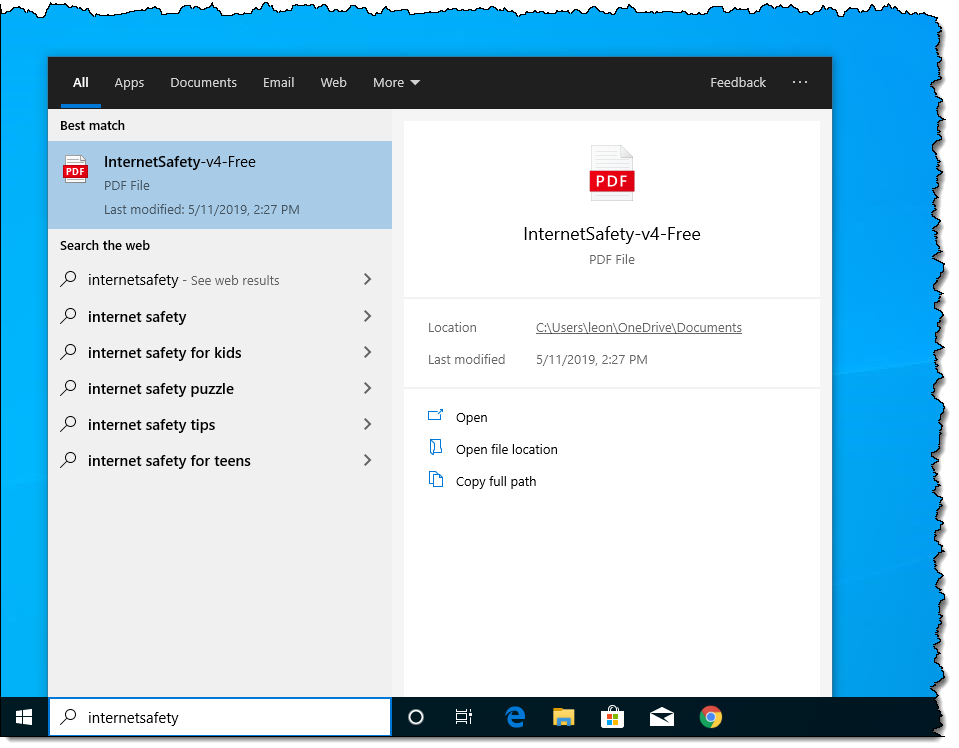
What you type will be displayed in a search box (which may or may not already have been present on the taskbar), and results will begin to appear. Once you stop typing and Windows catches up, you’ll see a list of results, as shown above. If you don’t see what you’re looking for right away, type more of the name.
In my example above, the “Best match” is the file I was looking for. Information about the file is displayed at the right, including its location on the hard disk, along with links to open the file or the folder in which it’s contained.
Searching your entire computer
By default, Windows Search searches only a predefined set of locations. Those include your desktop and the Libraries (such as Documents, Music, and Pictures) shown in the left-hand pane of Windows File Explorer.
You can instruct Windows Search to search your entire computer by changing a setting.1 Run the Settings app and search for “search”. Click on Windows Search settings when it appears.
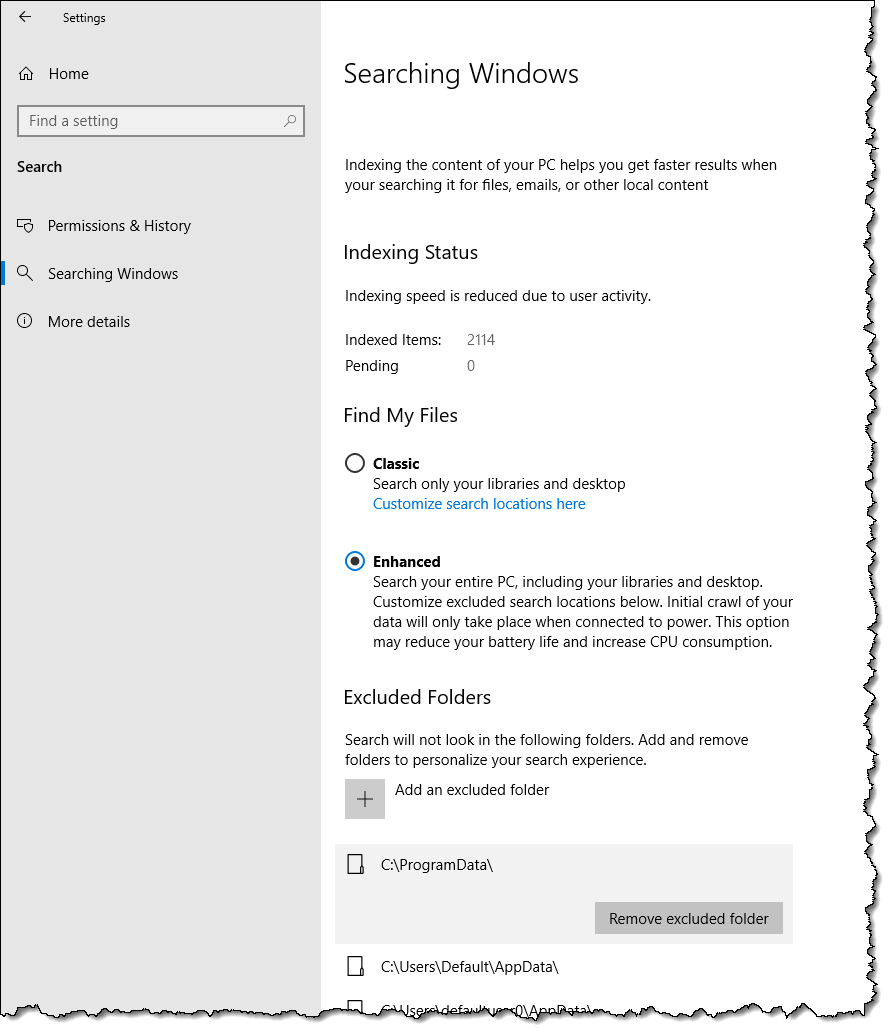
Click on Enhanced to add the rest of your computer’s hard disk, with the exception of excluded folders, to the search.
If there are excluded folders that you want included in searches, click on them and then on Remove excluded folder.
Windows File Explorer Search
A second way to search is through File Explorer. Open Windows File Explorer, click on This PC, and the search box near the upper right will indicate “Search This PC”.

Type the name (or partial name) of the file into this search box.
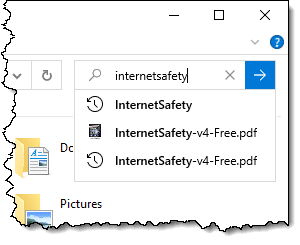
Quickly available results may be displayed — if any of those are what you need, just click on it to open the document listed. If not, click the right-pointing arrow to the right of the search box.
The search may take some time.
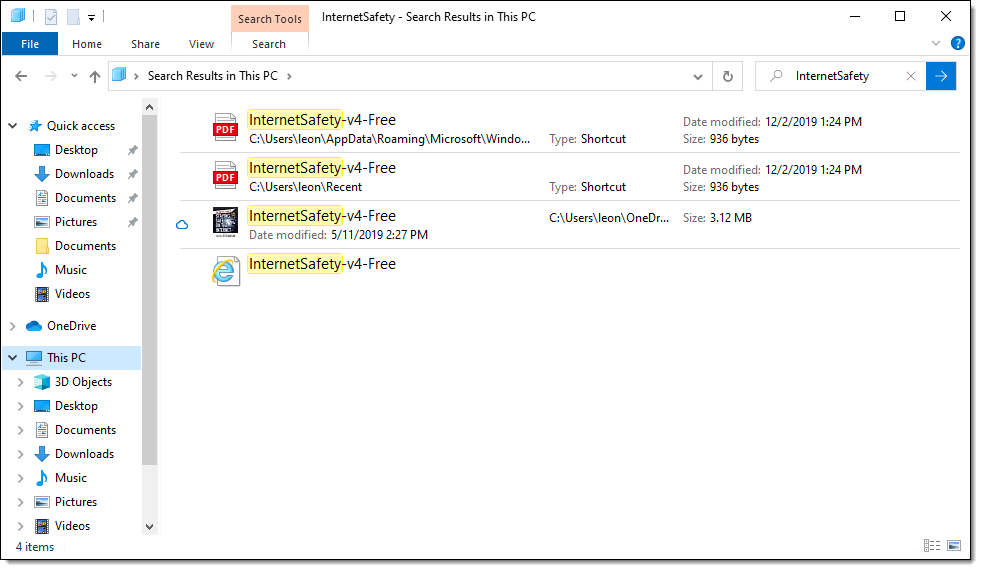
You can open a document directly from the search results by double-clicking on it; open the folder containing the file by right-clicking on it and clicking on Open file location; or copy or move the file as you like.
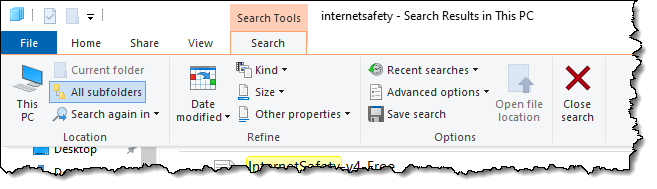
Windows File Explorer includes several additional ways of tailoring your search. Click on Search Tools, a tab that appears at the top of the window when you type into the search box, for a selection of additional ways to customize what will be found. (Windows 11 may look different.)
Searching in Command Prompt
Since I’m an old-school command-line kinda guy, I often turn to the Windows Command Prompt.
To fire up a Windows Command Prompt, right-click on the Start button and click on either Command Prompt or Command Prompt (Admin) to search administrator-only locations. Enter:
cd \
(followed by the Enter key) to make the current directory the root of the drive. Now enter:
dir /s /a filename
Where “filename” is the full name of the file you’re looking for. “/s” means to check all subfolders, and “a” means to show all files, including hidden and system files.
The asterisk character (“*”) is a useful addition when you don’t know the full filename.
For example, searching for “internetsafety*” begins a search for any file whose name begins with “internetsafety”.
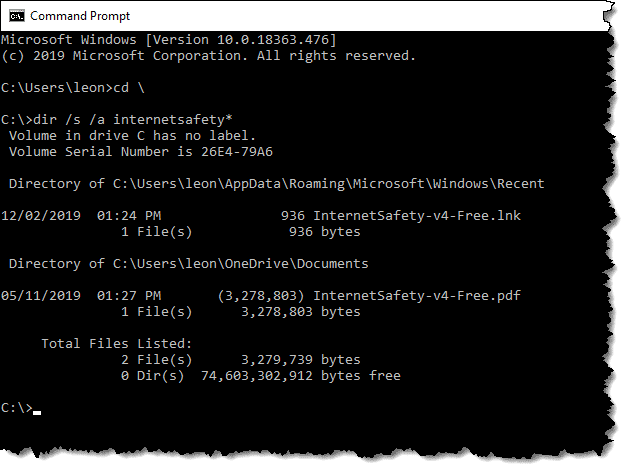
The asterisk, called a wild card, can appear elsewhere, including at the front of what you’re searching for. For example, a search for “*.pdf” would return all PDF files on your computer. This comes in handy when you can’t remember the name of the file but are pretty sure of one word in it.
Do this
Subscribe to Confident Computing! Less frustration and more confidence, solutions, answers, and tips in your inbox every week.
I'll see you there!
Podcast audio

Related Video


Footnotes & References
1: This setting was introduced in the Windows 10 1903 update.


It also searches programs which is how I often run programs. For example, I’ll type “word” without the quotes and MS Word will come up as one of the search results. Clicking on that or scrolling down to it and pressing “Enter” will run the program. If the desired program is at the top of the list, no need to scroll or click; just press “Enter” and it will run.
That’s my preferred way to run programs. I have my frequently used programs pinned to the Taskbar and for everything else I Press the Windows key and start typing the program name.
I spent a lot of time nicely setting up my Start menu, but I mainly use the Start Menu to search files and run programs. The search also returns relevant websites which, of course, are opened in Edge when you click on them. Unfortunately, this is one situation you can’t avoid Bing and Edge.
With Vista the Search world turns all upside down. The Search engine runs in the background all of the time as a low-level processes. It searches not only file names, but inside of files and e-mail too. For example, I recently wanted to find a PDF version of my wife’s resume. I tapped the Windows key once, then typed “resume”. Vista showed me all of the files in the machine that included “resume” in their file name, inside a document, or even in my Outlook e-mail. One whack at the Enter key launched to complete results in a new windows. Pretty nifty… can I say, “nifty?” Is that out of vogue? I suppose it’s better than, “far out!”
I’m a 75 year old NEW user. My buddy, who’s much more experienced at this stuff ran a couple of “System Restores” after I managed to screw things up. Now every time I download something from M/S of Hp,and they have to shut down and restart, I get an error message that this thing can’t locate 3 (or 4) DLL’s. It seems to have renamed them amd I have no idea what the hell a Dll is, or how to locate them. I was able to print where they are and what their new names are. I just click OK, and go from there. I also get another Error message telling me that Vista some damn thing or another can’t be located. I’m not running Vista. I have Win XP Svc. Pack 2. I’ve heard too many horror stories about Vista that has been loaded on a computer that’s been running XP. This thing was “Vista Ready” when I bought it back in Nov. ’06. Some people tell me that if Vista is alreaqdy installed on a new computer, it works fine. Any help you can give me with those DLL’s will be greatly appredciated. I’ll spring for a case of your favorite breakfast food. (How the hell does Pay Pal work? Is it reliable, secure etc?) I read the article and it sounds like this may be the answer to my problem, but I’d hate like to hell to completely destroy my OS. My “buddy” was suposed to show me how to make a set of backup discs, but hasn’t had the time. I’ve been trying to get a set from HP, but so far all I get is the runaround and no positive answers. Any help will be GREATLY appreciated. Thank you. Your humble petitioner, Al. )Don’t let the techie talk confuse you. I know Jack Shit, bit I’ve got a halfway decent memeory.)
My issue is that my Windows Admin profile folder is corrupted and cannot be accessed. I want to find my emails and remove them from this hard-drive so I can put them in the new computer. Once I FIND the file, how do I copy it? Is there a way to put that file into the Shared folder so I can access it from another account/profile. Or copy to a flash drive?
I actually learned how to do this YEARS ago, but I’ve forgotten most of it.
Thanks for being AWESOME and creating this site for us!
14-Sep-2011
I use XYplorer. Much much faster than Windows Explorer and I have been able to find many files!
Search Everything is a very quick file finder…Have been using it over a year with no problems.
Leo – I’m still on Win 7. I currently have words within my pdf’s indexed. When I get to Win 10 in a few weeks, will “search” need to use an index file (for words within a pdf) just like I do in Win 7?
I’m not really sure what specifically “words within my pdf’s indexed.” means. If it’s Windows search that finds them now, it should find them in Windows 10 as well. If there’s something specific you’re doing for PDFs yourself, you may need to replicate that in Windows 10, but without knowing exactly what you mean I’m just guessing.
In Windows 7, when you use the search box in Windows Explorer at the top right, Windows Explorer will not find pdf files that contain the search word IN a pdf unless a “PDF IFilter” has been registered with your “Windows Indexing Service”. In Windows Explorer, I find it quite useful to locate a pdf that contains my search word. Most of my pdf’s have been OCR’d.
Where did your previous PDF iFilter come from?
Anyway, sounds like you can install a new one from here: https://answers.acrobatusers.com/pdf-ifilter-q204570.aspx
I run fully updated Windows 10 on the 6 computers in my household. Some time ago, I was dismayed that the Search function was not turning up files I knew existed. Eventually, I discovered that I needed to rebuild the index. Happy once again!
I’d like to know how one “saves” a search, and how one makes use of it once it’s been saved? (Using 64-bit Win7 Home Premium.)
As a search is happening, and presumably after it completes, there’s a “Save search” button in Explorer’s ribbon.
Is there a way to search the desktop for a file recently saved there? I have a lot of older users that save files to their desktop, and then can’t find the icon. Yes, I know they can search using “Search Box” techniques you offer in your video. I mean is there something simple like while on the desktop, type the name and that file icon gets highlighted, so they can locate it visually on their desktop…in other words…”take me to the Desktop icon”? This is the most common issue my users have when they have dozens of icons, and when they save, it gets placed in the middle somewhere and they can’t find it. The “Arrange Icons” ability almost never fits their needs…they already have icons in places they want…it’s the new ones that get pushed into “no man’s (or woman’s) land”. Just want to locate those icons, so they can place them wherever they like. This is even more important with multiple screens being implemented expanding the desktop area size.
If the files are on the Desktop, if you right-click on an empty space on the Desktop and click “Sort by”, you can click “Date modified” and they will be sorted by Date. Doing this a second time will reverse the sort order.
If they are in another folder, open File Explorer, you can click the view tab, click the “View” tab and click “Group by”. then click “Date Modified”. You can change the order to ascending or descending by clicking on “Sort by”
Just because Windows OS has a feature called “Search” it doesn’t mean it works or works as you might expect or want. Windows Search broke badly after Windows XP. I use dedicated search applications that do exactly what I tell them and don’t make decisions for me as to what I may want to search for or where. Example: Agent Racksack Search.