If you’re looking for a complete list, the answer is simple: you don’t. “Scattered and confusing” doesn’t even begin to cover it.
However, if you’ll settle for most of what’s installed on your machine, you can get pretty close.
Become a Patron of Ask Leo! and go ad-free!
There’s no standard
As surprising as this might be, there is no standard way to install an application on a Windows machine. There’s supposed to be, but the reality is that doing it right requires extra and often complex work. Many application vendors simply don’t bother, and do things their own way.
As a result, there’s no central repository of information about what’s on your machine.
Instead, we need to look in a few standard and semi-standard places.
Settings, Apps & features
In Windows Settings, go to the Apps & features page.
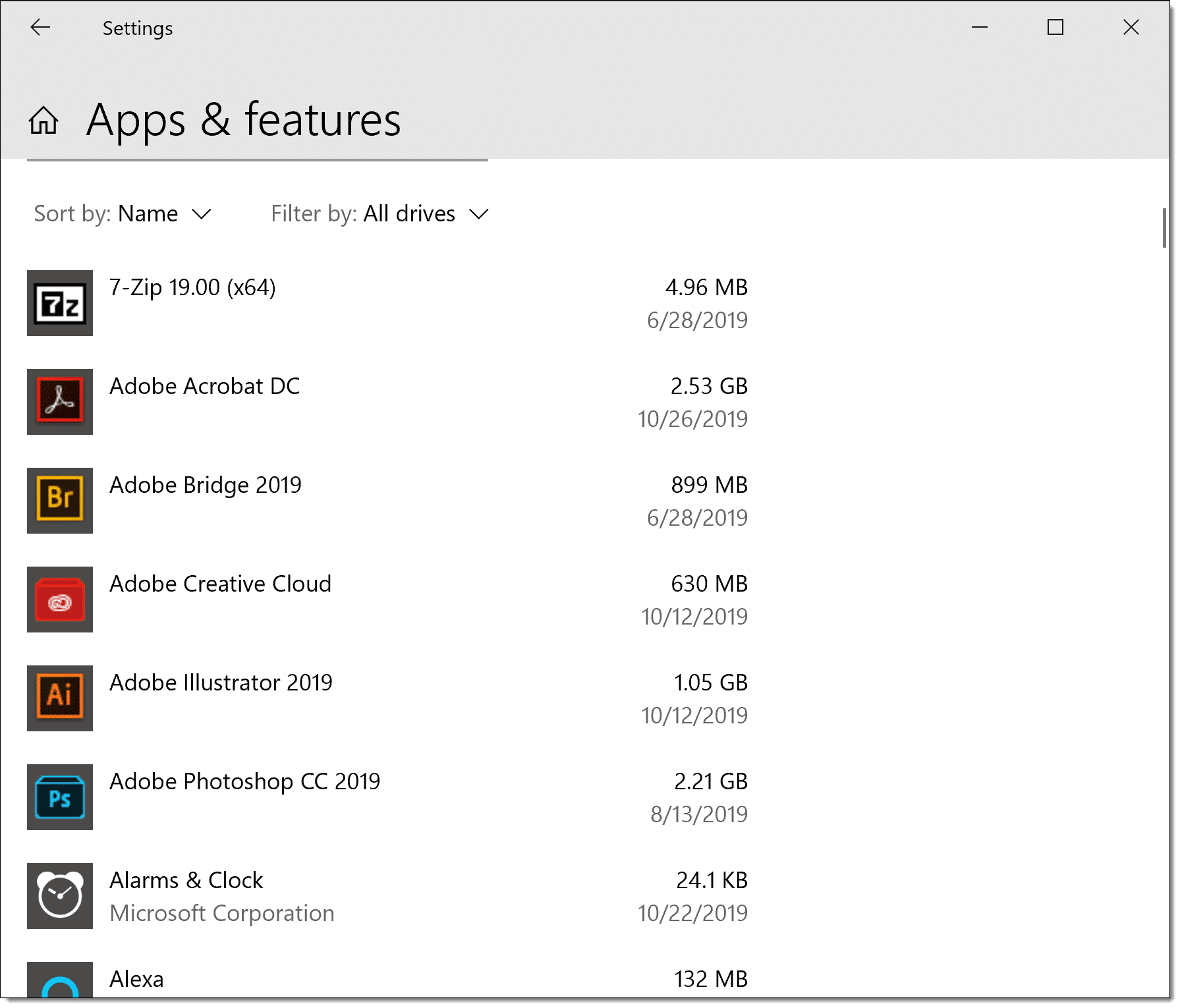
Scroll down, and you’ll get a fairly comprehensive list of the applications installed on your machine.
In a perfect world, that list would be enough. But this is far from a perfect world.
Start menu
Click your Start menu, and you’ll get a long list of installed programs.
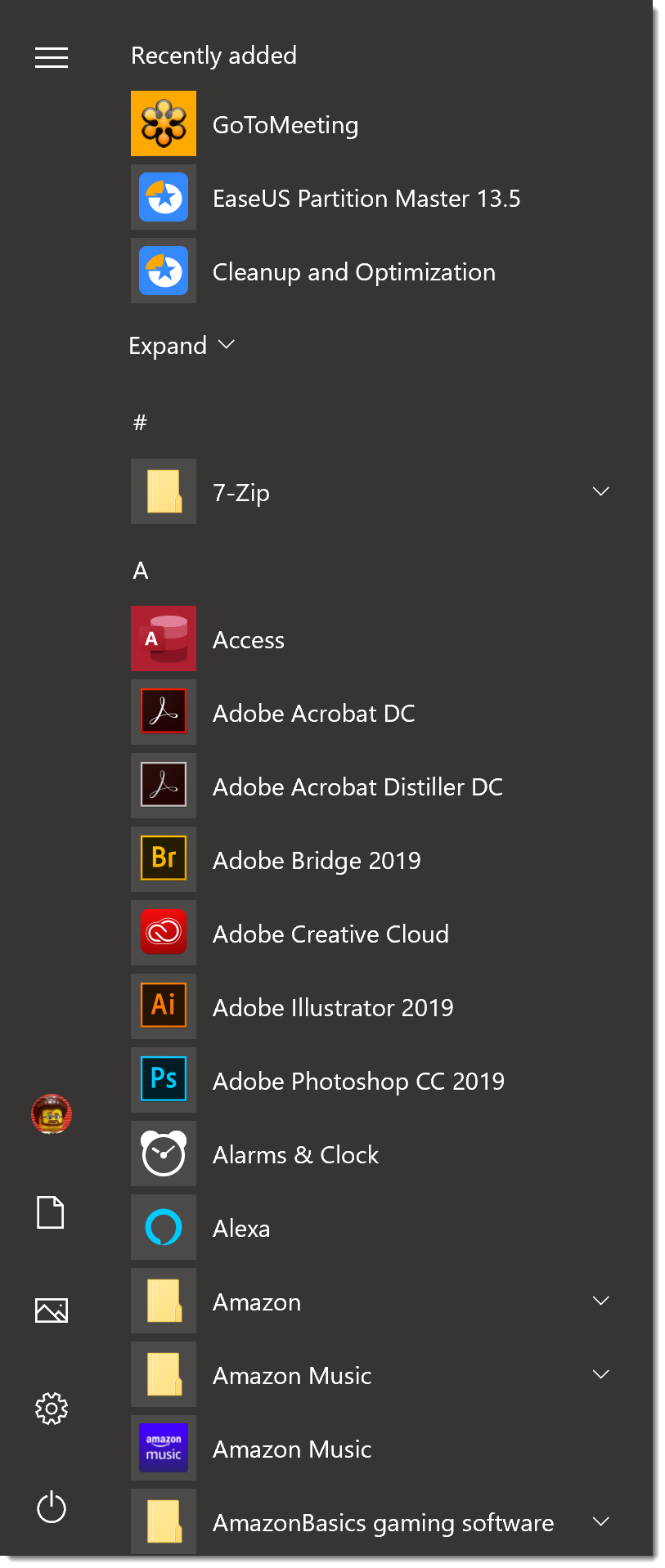
Scroll through to view the complete list; be sure to examine any sub-folders that appear as well.
Applications that don’t follow the rules to install properly into Apps & features, above, may install into the Start menu. This is also often where they’ll put their custom uninstall link.
This serves as an additional list of applications installed on your machine.
C:\Program Files and C:\Program Files (x86)
Additional locations to examine are the C:\Program Files and C:\Program Files (x86) folders. These are the folders into which programs are most often installed by default.
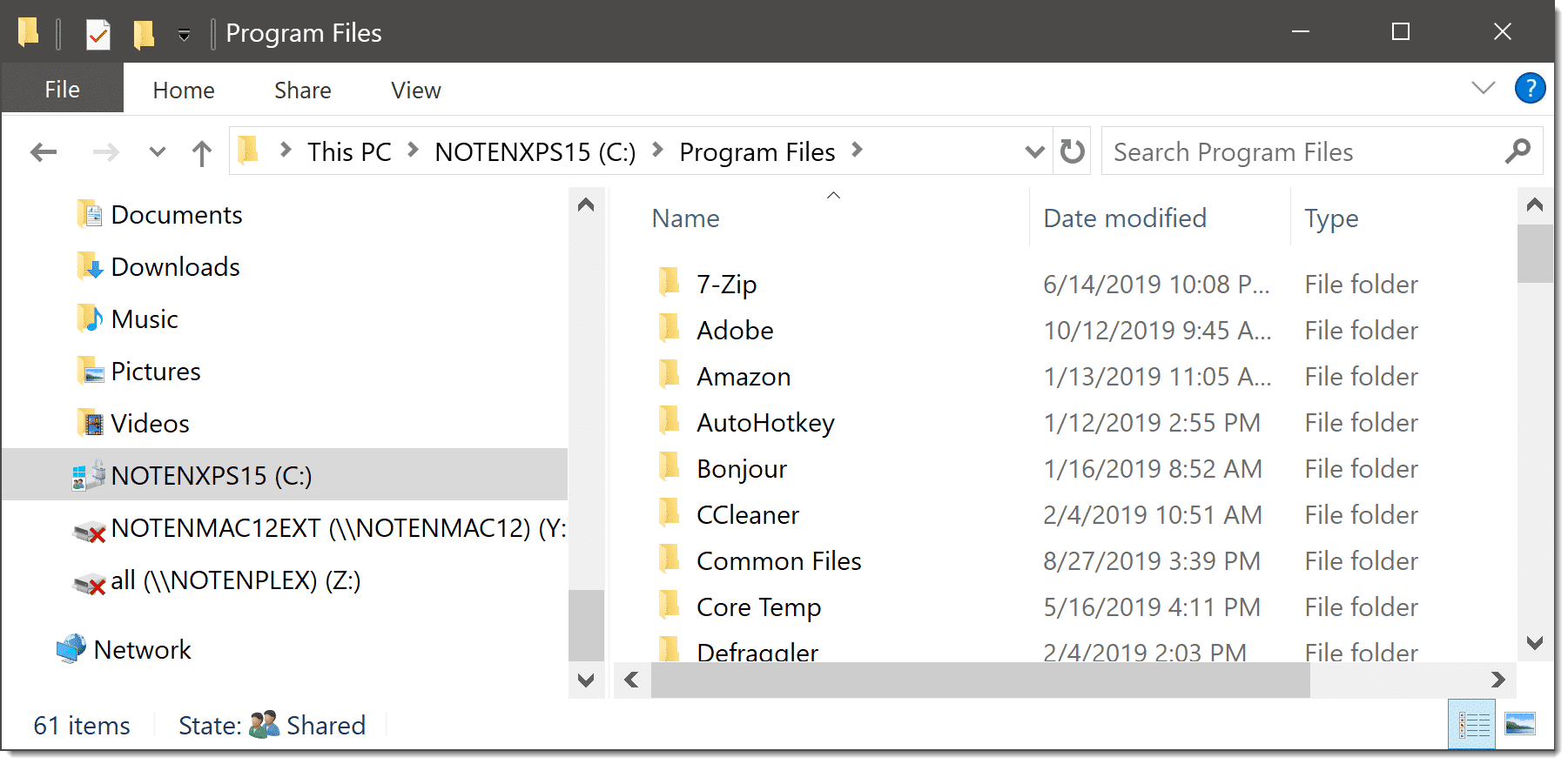
Here you’ll see a long list, often sorted by vendor name rather than program name. You may need to look inside sub-folders to get a sense of what applications are present.
There is one “gotcha” with this particular approach: uninstall. Many programs, when uninstalled, leave their subfolders here behind. Normally the folder will be empty, or have very few files.
The PATH
Run a Windows Command Prompt, and type in “PATH” followed by Return to display the contents of the PATH environment variable.
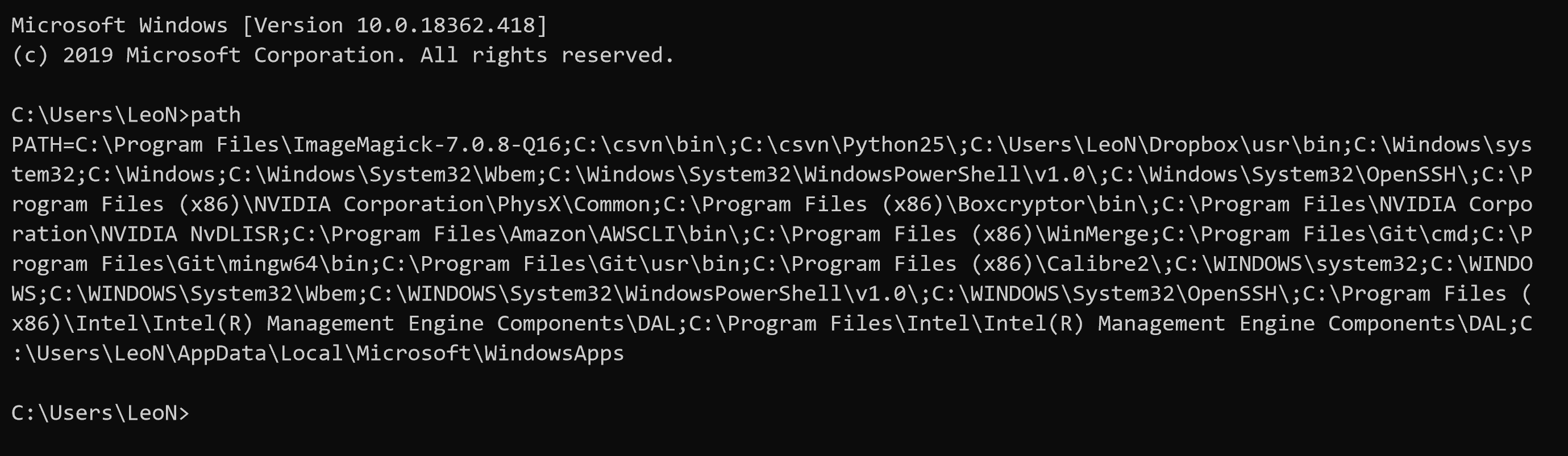
This is a list of folders on your machine where Windows looks when instructed to run a program. For example, if you launch Notepad, Windows looks through these folders until it finds notepad.exe in C:\Windows\System32, and then runs it.
My PATH list is quite long, and yours will be quite different.
Some application installations like to add things to the PATH, so the list of folders may include additional clues as to what is installed on your machine.
One problem here is that Windows is in the PATH. That means you will find many .EXE files that are not installed programs at all; they’re part of Windows itself.
The registry
I need to mention the registry for completeness, but I’d avoid it for this particular problem.
Many installed programs do place information into the registry. However, the better behaved ones will have been found by the steps above, and the others — well, there’s no telling where in the registry they may have placed their information, or even what it might look like.
Other places
In reality, a program could be installed anywhere on your hard disk, could place information anywhere in the registry (or not at all), and could store configuration files in your user directory, the Windows directory, or anywhere else it wants.
In short, an installed program doesn’t have to follow any rules at all.
That’s why tools like malware scanners don’t even try to use rules to locate what’s installed on your machine; they simply scan the entire hard disk looking for problems.
Depending on how exhaustive you want to get, the first two or three ideas here — Apps & features, the Start menu, and the Program Files folders — should get you 99% of what you’re looking for.
Do this
Subscribe to Confident Computing! Less frustration and more confidence, solutions, answers, and tips in your inbox every week.
I'll see you there!


You can try Belarc Advisor. It’s free for personal user. It gets a list of installed software, product key, patches, hardware… You could say “A Complete System Profile”. For more info goto http://www.belarc.com/free_download.html
James ,
Is it possible to see passwords with this program ?
Thank you for your time ,
You can use Password Security Scanner by NirSoft https://www.nirsoft.net/utils/password_security_scanner.html
Been using Belarc for years and find it an excellent produce, though it’s not always accurate or complete For example it thinks I’m still using Windows 8 even though I upgraded to Windows 10 long ago.
I use Belarc and find it good for giving me an inventory of whats on my machine but if it ever told me I was using Windows 8 instead of Windows 10, I wouldn’t trust any of the other information it gave.
Leo,
I have a freeware program called “System Information for Windows (SIW) that seems to do a good job of indication of “what’s installed on my machine?”. The URl is http://www.gtopala.com/. The program also gives more than you ever wanted to know about your computer. :)
BTW, Thanks for all the good info.
Dave
Couple things:
Control Panel>Programs and Features
Free PC Audit by MIS Utilities
HTH
Well, the article did mention the first — quite clearly I believe, and also why that list — and any list — is by definition incomplete.
How about just viewing what is displayed by Revo Uninstaller?
Yeah, it doesn’t miss much. Wouldn’t be without it. :)
Uninstaller Pro lists programs, apps, and browser extensions, plug-ins etc.
The problem, and one of the points of the article that I apparently didn’t make clearly, is that there is no list, there is no single place or tool that will tell you everything. While Revo’s might be a great list (and, indeed, it makes sense that it would be) it simply cannot list absolutely everything, since it can’t know about absolutely everything.
In particular, Revo Uninstaller (of which I’m a happy user) cannot locate portable programs, since they are not… installed.
I thought about portable or standalone programs when I first read this article. They are a whole other category in a way. They are not installed as they have no other files outside of their own folders but simply copying them to your hard drive is fully installing them. And it’s true that an installer or installed program locator app wouldn’t detect them.
Because it’s an incomplete list. See the article.
My favorite Go-To to find anything and everything on my machine (all drives) is the free application called Everything. First launch takes a few seconds while it indexes all volumes. After that it is as instantaneous as my aging brain can discern. Once it displays everything you can sort the columns by Path, Size, Extension etc to get a complete list (as far as I can tell) of what’s there. Size is a great way to find which big files are hogging the drives. You can of course search specifics via the search bar (eg exe and other executable apps, and it seems to be about a trillion times faster that the Windows search function. Hope this helps someone.
Could you pretty please very kindly give the rest of us a wisp of an inkling of a thought of a notion of an idea if a concept of a realization of where we might find this “Anything” program?
My guess is that he meant “everything”, which if correct is here: https://www.voidtools.com/ (not a recommendation, use at your own risk, yadda yadda….)
Yes, thanks Leo. That is the one. I wasn’t sure if I should include links. I’m also puzzled why TheGrandRascal thought the app was called Anything. Did my comment get changed somehow? It still shows “Everything” here.
It could have been misread. No worries.
It is a good way to find what you’re looking for when you know what you’re looking for. But can it answer the question: “what programs are installed on my machine” in any way that’s useful?
I’ve used Everything but it’s just a powerful search engine to find files on your computer. It can’t produce a list of installed programs. It can list all executable files which is a great clue but it will find and list any executable files whether they are installed or not.
particular, Revo Uninstaller (of which I’m a happy user) cannot locate portable programs, since they are not… installed.
{link removed}
This Powershell script enables you to retrieve installed software from remote computers and saves in CSV format {Excel}:
https://www.slideshare.net/ElihuEl/ps-installedsoftware-234044257
By definition no script can know, absolutely, what all is installed on your machine. It just pulls from common databases that may, or may not, be used.
Bunch of searches and several hours… and your site finally found where the program is installed that I was looking for! Yay. Thank you.