Plus the one setting you MUST change for security
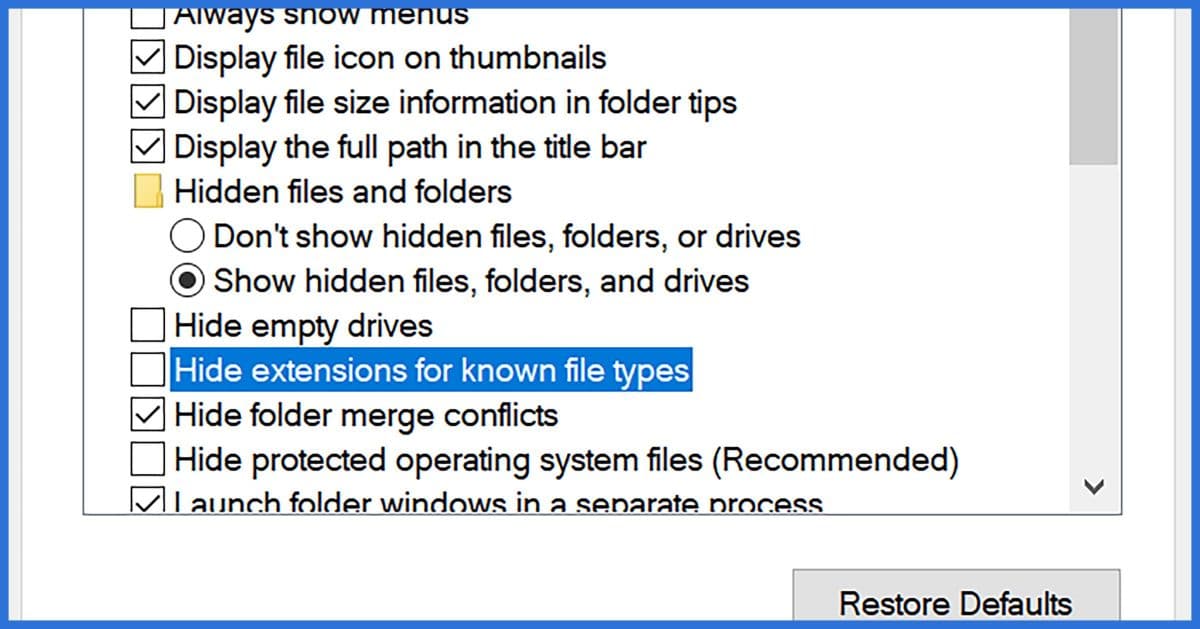

File Explorer (previously known as Windows Explorer in Windows versions prior to 8) defaults to show files as icons and to hide some files from you.
That’s not what I want.
Not only am I a control freak who wants to see all the files and display details by default, but even after all this time, there remain real security issues associated with File Explorer’s default settings.
There are several options you can manipulate, and it’s fairly easy to make them the default.
Become a Patron of Ask Leo! and go ad-free!

- In Windows File Explorer, in the View menu/ribbon, in Layout, click on Details.
- On the far right of the ribbon, click on Options, then Change folder and search options.
- In the resulting dialog click on the View tab.
- Check Always show menus.
- Check Show hidden files, folders and drives.
- Uncheck Hide empty drives in the Computer folder.
- Uncheck Hide protected operating system files (Recommended).
- Uncheck Hide extensions for known file types.
- Click Apply.
- Click Apply to all Folders.
Change the view
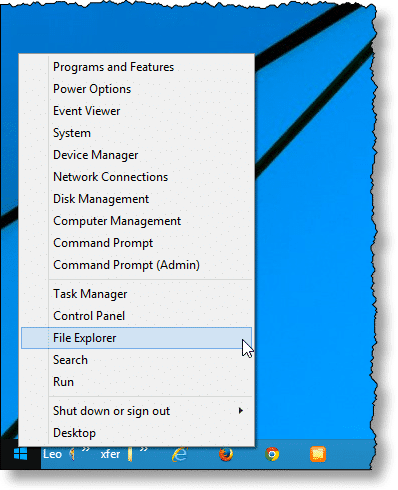
Open File Explorer either by right-clicking on the Windows Start menu and clicking on File Explorer, or holding down the Windows Key ( ) and typing E (for Explorer).
Begin by changing the view to what you want it to be. In this example, click the View tab and then click Details.
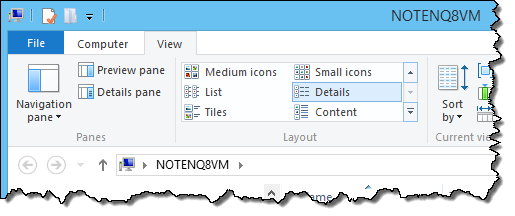
This is my preferred view, and what I want to see as the default at all times.
Change other options
Before we go further, I want to suggest you change a couple of other options and make them the new default view as well.
On the far right of the File Explorer window, click on the Options button.
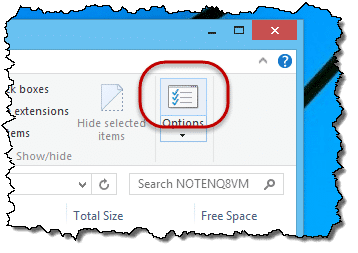
Click on Change folder and search options.
In the resulting dialog, click the View tab.
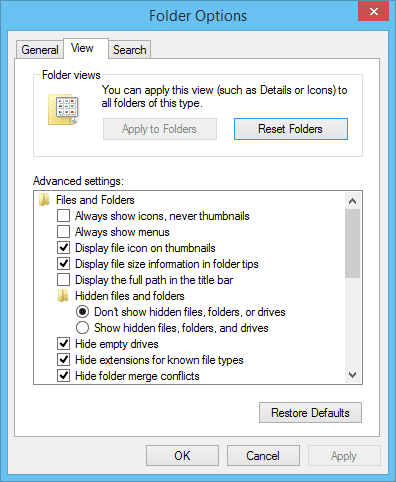
As you can see, there is a list of options, some checked, some not. My recommendations for these options include:
- Always show menus. Check this if you prefer to see the menu bar at all times. This may have little effect in Windows 8 and beyond, since menus appear no matter how it’s set, but since the setting remains, I assume it controls something, and whatever that is, I’d like it to be menu-based.
- Show hidden files, folders and drives. I prefer to have this selected over its counterpart, “Don’t show…”. You will see more files and folders on your machine, most of which you typically should not need to use. However, it’s often very helpful to be able to see everything, particularly when trying to diagnose a problem. There’s no real harm in leaving this as “Don’t show…” if seeing those extra files only annoys or confuses you.
- Hide empty drives in the Computer folder. This removes drives like floppy drives or memory card readers that don’t currently have anything inserted from view. As you might guess, I prefer to see everything always, so I uncheck this option.
- Hide protected operating system files (Recommended). I have no idea why this is “recommended”, other than to protect you from yourself. Once again, I uncheck this, because I want to see everything on my machine. Doing so causes an additional warning message to appear as well. (They really want to protect you from yourself, apparently.) If you prefer not to see these files, it’s okay to leave this at its default setting.
Peruse the list and you may see other things you might want to change or at least know about. In my opinion, however, they can all be left at their default values, with one very important exception.
[Don’t!] Hide extensions for known file types
This option is important enough to warrant some discussion.
The default setting — to hide extensions for known file types — is not secure and should be changed. UNcheck this option.
Here’s the problem. A “known file type” is something like a “.exe” or “.doc” file type that the system has been configured to know what to do with. Instead of displaying “resume.doc”, for example, File Explorer just displays “resume”, and relies on the “Type” column of the display to alert you to the fact that this is a Word document.
Malware authors try to fool people by placing system files with names like “resume.doc.exe” on your machine. “.exe” is a known file type, so when File Explorer displays this, it displays “resume.doc”. Even though the “Type” column may say “executable program”, reflecting the fact that the full filename ends in “.exe”, you see “resume.doc”, and are very likely to think that this is indeed a document that is safe to open.
The problem is it is not a document, and it is not safe to open. It ends in “.exe” and is an executable program.
You may think that you’re opening “resume.doc”, but you’ll only end up running malware that is packaged in the executable file resume.doc.exe.
Even if you do nothing else, UNcheck this option.
Make it all the default
My steps might be redundant, for all I know, but this is what I do to make things “stick” and display details by default.
- Click Apply. You should see the File Explorer window refresh to reflect the new settings.
- If it’s enabled, click “Apply to Folders” to set these defaults for all folders of this type. (If it’s not enabled, the defaults have been set.)
All folders of “this type” is somewhat confusing. There are different folder types. My Pictures, primarily a folder for images, might be a different “type” than a plain old folder underneath your computer’s name in the left-hand pane. Similarly, “Libraries” are a different beast altogether in Windows 7 and later.
If you stumble into folders of a different type than the one in which you made these settings, you may need to change the view again, and then come back to Tools, Folder options… and Apply to Folders again to make the change for those folder types.
Do this
Subscribe to Confident Computing! Less frustration and more confidence, solutions, answers, and tips in your inbox every week.
I'll see you there!
Podcast audio

Related Video


Thank you! I didn’t know about the Alt key and have been baffled about how to set folder options.
I totally agree with Don’t! Hide extensions for known file types. This is something that should be on for all new users.
One typo, macine should be machine. It’s not one out of 50 articles of yours where I find a typo so this was a special. jk :)
Thanks,
I have been looking for a solution to this problem since I got a new computer, that uses windows 7. This will be a great help to me . I never would have tried the alt key.
Thanks for the tip on the Alt key – I, too would not have found that. However, in your further tips, you have me go into Explorer and then Tools and Folder Options to change settings. I now have IE 9 and under Tools the Folder Options choice is not there. How do I find that menu for checking the folder options?
26-Jul-2011
The «Change the view» procedure does not work for image folders. Any way to display details by default in ALL folders regardless of the type ?
26-Jul-2011
I just wish MS would take care of my pet peeve regarding Explorer folder defaults. My default is Details view, however, the file name column is never sized big enough to display the entire file name. I wish MS would include a setting to autofit one or more (or all) columns in details view.
You are right about an “autofit” option, but you can set the column widths in Windows 7, and probably other versions but I can’t try them. Menu → View → Choose Details → Width of selected column (in pixels) [for each column] → OK, then Menu → Tools → Folder Options → View → Apply to Folders. (Typical is the confusing way “View” shows up twice in this procedure.)
To change the width of the various headers in an Explorer window, position your mouse cursor at the boundary between any two headers (you might need to slide it back & forth a bit to find it) until the mouse cursor changes its appearance to a vertical bar with crossbeams at top and bottom — something like “][“, but with one vertical, not two); once the cursor changes, click-&-hold, and drag left or right, to lengthen or shorten the width of the left-hand header.
Once that header is the desired size, release the mouse.
Repeat for the other headers; the boundary for the last (rightmost) header is near the right-hand edge of the window.
The changes SHOULD stick, but if not try again and hold down SHIFT when closing the window.
Hi Leo, thank you for your answer.
It still didn’t work for me though, so I kept looking and found this.
Right click on a folder, go in Properties, select Customize, in Customize this folder for, select General Items (it defaults to Images if the folder contains images). Then click Apply this template to all subfolders if you have image subfolders.
But as far as I can tell, this can’t be applied to an entire drive, so it still isn’t the perfect solution.
Cheers
Hi Pierre,
Your solution can work for an entire drive, provided you do it from the root folder, e.g. C:\, D:\, etc.
At least that is what I found in Windows 7.
The steps have to be tweaked a bit.
Open windows explorer and go to C:\.
Select menu ‘Organize’, ‘Properties’, ‘Customize’ tab, ‘Optimize this folder for’ set to ‘General Items’.
Tick checkbox ‘Also apply this template to all subfolders’. Click ‘Apply’ button.
Unfortunately, sometimes a genuine .doc file isn’t a document but a Word macro that can infect your PC just as easily as a .exe. Not that Leo implied otherwise, I just wouldn’t want anyone to make the assumption.
Also, even if you show extension for known file types and widen the file name column watch out for ellipses (…) in the rightmost side of the column, for they indicate the file name is continued – someone could have named the file something like FLUFFYKITTIES.JPG .exe. (In case that doesn’t display correctly there’s a couple hundred spaces after the .JPG but before the .exe)
So, follow Leo’s guidelines for PC security and remain ever vigilant, for the person poses the biggest threat to your computer, even if you’re pretty durn good with the things, is you.
Good article! As far as the pet peev in Windows Explorer type “ctrl+” when you are in Windows Explorer and it will autofit your columns.
Just an addition to mkstallings1’s comment — that’s the numpad ‘+’ with the Ctrl+ autofit tip.
Thanks for this info, but what is the equivalent for a Flash Drive. I keep a copy of my Personal documents in folders on my home and work computers and on my Flash Drive in a folder called Home. At home in Windows 7 I snap-fit the My Documents folder next to the Flash Drive folder to update the contents of the Home sub-folders, and they both open in Details view. On the work Windows XP computer the same Flash Drive annoyingly opens in List view, although I managed to get the XP My Documents folder to default to Details. Why this inconsistency??
I used to get infuriated with Windows Explorer until I discovered xplorer² lite (http://www.zabkat.com/) a couple of years ago. Now I see my files the same way in WinXP and Vista and hardly ever see Windows Explorer, and can do so many things so much more easily that I couldn’t begin to list them. And that’s just the free version! Definitely worth a look.
04-Aug-2011
thanks for this, works very well on my works pc. massively helping me navigate. Is there a way to default order by date modified? Icing on the cake…
@Chris
Here’s some icing for your cake.
You can set the view to Details View as explained in the article. Then click on the Date Modified in the title bar and it will sort your folder by date until you change it again. You can toggle (switch) the order from latest to earliest and vice versa by clicking again on the Date Modified in the title bar. You can then change the view back to anything you like.
Very happy to hear that Win Explorer has a rational name now of File Explorer. BTW, I run Win 7 and have a gripe about expanding folders. If I start expanding folders in the left pane view, and expand/scroll down so that I’m somewhere well down a tree (but haven’t yet selected a folder to view in the right pane), my Windows Explorer will snap back to the root folder. You then have to scroll down again to where you were (the folders are all still expanded). Is this something I can fix or is it yet another “feature?”
You are a GOD!
I have had this computer for two days and was ready to throw it off down the hill. All my documents were either showing with details or as large icons.
Hi there; is there anybody that can tell or show me how to change the bitrate in all folder and on my hdd, ive massive collection of music, but i cant seem to change that,, i wanna try change the mayor folder so it apply to all sub folders too,, Thank you kindly, been fighting with this almost 2 months now,,,
Marlon1968;;;))
You can’t change the bitrate of a music file in Explorer, that is a fundamental characteristic of the music file itself.
There are, however, third-party programs that will convert music files from one type or bitrate to another. For example, you might try:
https://www.nch.com.au/switch
…This is a program that I use myself, and I highly recommend it. (NOTE, it’s not free; it costs ~$30 as of Thu., 24-Dec-2020. You can, however, download and use it on a trial basis.)
And there are plenty of other such programs “Out There.”
Good luck! :)
Thank you so much for this post – I have wanted to have the “detailed” view as default for so long.
Keep up the great work!
It’s ridiculous that there isn’t a box to tick that says “I’M OLD ONLY SHOW ME DEFAULT VIEW ALWAYS” and you never ever ever have to ever see a folder not in default view ever again
doesn’t matter if it’s full of music, or videos, or pictures, or is a new drive you just setup, or is a usb drive, or a floppy disk, or is some fluffy cloud drive, it always, 100% of the time, will show you your files in Detail view.
i know, i know, i’m old.
Why would anyone WANT to hide file extensions? If checking this option increases risk of getting hacked, why is this set as default?
We wish we knew.
Even worse: Why does Microsoft think we’d should hide file extensions? It’s one thing to make a judgement error when designing a program but to continue with this dangerous design for 25 years of articles warning the necessity of changing the default takes special kind of obstinance.
Hi,
I have a huge amount of photos to review etc & I need to see the Dimensions option as default on all photos. The Default shows Name / Date / Type / Size.
I know I can right click on the top bar & check the dimensions box to view but I would like this as default !. Any ideas ?
Thanks in advance,
Huw.
It worked. 2018 Win 10. I had given up using the “Apply to all folders” button since it did not seem to work.
Now I understand the “Folders of this type” nonsense.
Thanks a lot!
There is no “Apply to all folders” button, but many people read it that way (even Leo referred to it that way in the article) because it’s what’s logically expected and desired. It’s fine that Microsoft allows for all kinds of different views, but they should have provided better tools to make global changes to the views. Until they do, we have to make our own tools. I developed a tool (a Powershell script with a user-friendly HTA interface) to globally set Explorer folder views. You can find it here: https://github.com/brake4bots/WinSetView. It’s also announced and discussed on tenforums.com.
I recognized what a serious security hole “hide file extensions” was the first time I saw it (Win95, as I recall). One of the first things I do any time I get ahold of another computer is turn it off. Every time I see it I wonder what the programmers at Micro$oft SMOKING when they came up with that one.
Recently I developed a batch file that will fix it not only for the current user, but for ALL users, including .DEFAULT, so that any newly-created users will get it too. My batch file has been growing over the past few months as I find more things to add to it, but in the interest of brevity I will include only the parts relevant to this topic. Feel free to add your favorite additional tweaks.
Save this to a disk file somewhere, then right-click on it and select “Run as Administrator”. (The tweaks to HKLM won’t work if you don’t).
REM Global tweaks:
REM Turn “hide file extensions” OFF and “show hidden files” ON.
REG ADD HKEY_LOCAL_MACHINE\SOFTWARE\Microsoft\Windows\CurrentVersion\Explorer\Advanced\Folder\HideFileExt /v DefaultValue /t REG_DWORD /d 0 /f
REG ADD HKEY_LOCAL_MACHINE\SOFTWARE\Microsoft\Windows\CurrentVersion\Explorer\Advanced\Folder\Hidden\SHOWALL /v DefaultValue /t REG_DWORD /d 1 /f
REG ADD HKEY_LOCAL_MACHINE\SOFTWARE\Microsoft\Windows\CurrentVersion\Explorer\Advanced /v HideFileExt /t REG_DWORD /d 0 /f
REG ADD HKEY_LOCAL_MACHINE\SOFTWARE\Microsoft\Windows\CurrentVersion\Explorer\Advanced /v Hidden /t REG_DWORD /d 1 /f
REG ADD HKEY_LOCAL_MACHINE\SOFTWARE\Microsoft\Windows\CurrentVersion\Explorer\Advanced /v ShowSuperHidden /t REG_DWORD /d 1 /f
REG ADD HKEY_LOCAL_MACHINE\SOFTWARE\Microsoft\Windows\CurrentVersion\Explorer\Advanced /v DontPrettyPath /t REG_DWORD /d 1 /f
REM Get path to “Users” or “Documents and Settings” dir.
echo WScript.Echo CreateObject(“WScript.Shell”).RegRead(“HKLM\Software\Microsoft\Windows NT\CurrentVersion\ProfileList\ProfilesDirectory”) >”%temp%\profpath.vbs”
for /f “tokens=*” %%i in (‘cscript //nologo “%temp%\profpath.vbs”‘) do set ProfPath=%%i
del /q “%temp%\profpath.vbs”
REM Modifies registry keys for all users
REM Also modify it in the .DEFAULT hive so future users get it.
@REM This section Copyright Jared Barneck
@REM Modified by Ken Carlilep0 and Sam Hills
CaLL :modkey .DEFAULT
FOR /F “tokens=7* delims=\” %%a IN (‘REG QUERY “HKLM\software\Microsoft\Windows NT\CurrentVersion\ProfileList”‘) DO CALL :modkey %%a
FOR /F “tokens=*” %%A IN (‘dir /B /A:D-H “%ProfPath%\*” 2^>nul’) DO call :modlokey “%ProfPath%\%%~A”
FOR /F “tokens=*” %%A IN (‘dir /B /A:DH “%ProfPath%\*” 2^>nul’) DO call :modlokey “%ProfPath%\%%~A”
REM Going to :eof here ends the whole batch file.
PAUSE
GOTO :eof
REM Modify logged-out users
:modlokey
REG LOAD HKU\TempHive “%~1\ntuser.dat” >NUL 2>&1
if %ERRORLEVEL% == 0 (
call :modkey TempHive
REG UNLOAD HKU\TempHive >NUL 2>&1
)
EXIT /B 0
REM Modifications to HKEY_USERS go here:
:modkey
REM Turns “hide file extensions” OFF and “show hidden files” ON.
REG ADD “HKU\%1\Software\Microsoft\Windows\CurrentVersion\Explorer\Advanced” /v “HideFileExt” /t REG_DWORD /d “0” /f
REG ADD “HKU\%1\Software\Microsoft\Windows\CurrentVersion\Explorer\Advanced” /v “Hidden” /t REG_DWORD /d “1” /f
REG ADD “HKU\%1\Software\Microsoft\Windows\CurrentVersion\Explorer\Advanced” /v “ShowSuperHidden” /t REG_DWORD /d “1” /f
REG ADD “HKU\%1\Software\Microsoft\Windows\CurrentVersion\Explorer\Advanced” /v “DontPrettyPath” /t REG_DWORD /d “1” /f
REM Add your user-specific tweaks here. Don’t forget “HKU\%1” to apply them to all users!
EXIT /B 0
Yeek, Registry hacks! Dangerous!!!
Thanks, you explanations were right on target.
The question of how make explorer default to showing details for all folders of any type is never answered. Others have the same issue. Icons are have no value to me. I use names, dates, file sizes, etc. Icons are at most a distraction. Icons prevent getting anything done!
I would be happy to be able to permanently disable icons and permanently enable details.
You can do that using the free tool WinSetView. It’s home is on GitHub. I’m the developer.
This looks very interesting, Less. For those who want to try: https://github.com/LesFerch/WinSetView (I’ve not tried it yet myself). Would love to hear any feedback, positive or negative.
WORKS! Awesome, that’s what I needed. The article is just what we can find all over the internet, but I thank the author for leading me to this comment. Now, what a s#!$$% work by Microsoft devs. Ffs, not even the Finder’s color tags those well-payed-people can implement. What is new in Windows 11? Nothing. Centering icons on the task bars. Great. Whats is missing? Well, for instance: dragging a file to the taskbar and call the application, or at least focus when its already open; freaking TABS for Explorer; setting a default size/position for the Explorer window. I won’t even dive into the whole instalation thing with all the hardware bulls#!$ extra security. Like I can’t have a computer just to study without any security needs whatsoever.
Are many Windows users still on Explorer?
Windows File Explorer is different than Internet Explorer.
Windows File Explorer (what this article is about) is the utility in every copy of Windows to view and manage the files on your disk. Everyone has it.
Internet Explorer is the old web browser that’s now been replaced by Edge.
When I go to Explorer/view/options I cannot click on the options button because it is greyed out. How do I activate this?
You may need to be running “as” administrator. How varies, depending on what version of Windows you’re running.
Is this a personal or company-supplied computer? If the latter, it could have a group policy object (GPO) applied that prevents changing those options.
Good article. Minor correction: The instructions say “Click Apply to all Folders.” That should be “Click Apply to Folders.” (Remove the word “all”). I also suggest rewording “If you stumble into folders of a different type than the one in which you made these settings, you may need to change the view again” to “When you encounter folder views of a different type (e.g. open/save dialogs), than the one in which you made these settings, you will need to change the view again”.
Is there a way to make the name field default to show the entire file name instead of cutting it off? I constantly have to double click on the line between name and date modified to move the line to allow the entire file name to display.
Yes. Right-click the “Name” column and select “Size column to fit”.
Here I am ten years later and this webpage set my pc straight. THANK YOU!!!
Thank you I agree