Using the magic of the keyboard.
This seems to have changed a lot in Windows 10 (and probably 8 before it).
What’s called the “System Menu” is available from the task bar; it’s just not obvious.
Become a Patron of Ask Leo! and go ad-free!

Viewing the System Menu
The System Menu can let you control the position and size of a window, even when initially not visible. ALT+Space will make the menu appear in some applications; CTRL+Click in the very upper left of some windows will make it appear in others. If the window is not visible, typing SHIFT+Right-click on the running application’s taskbar icon can also make it appear. Then click on “Move” to bring it back into view.
The System Menu
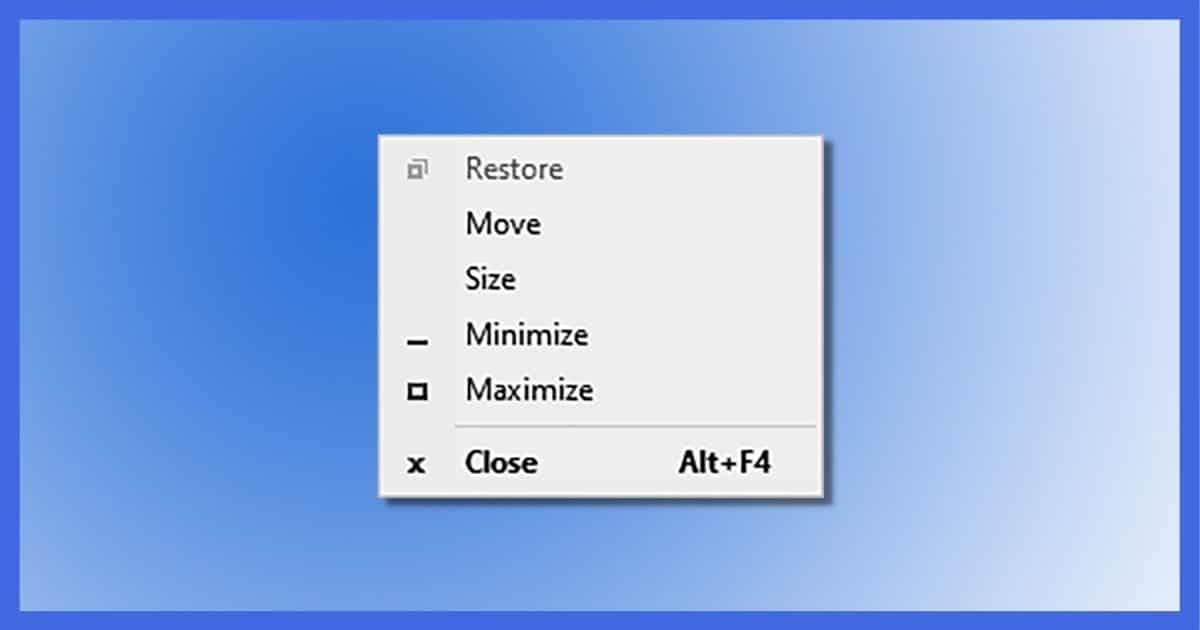
Almost every window has what’s called a “System Menu”. You’ve probably seen it at some point. It looks similar to this:
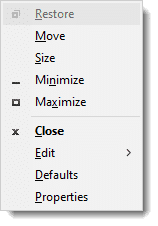
That’s the menu that pops up in the upper left of a window when you type ALT+Space in many applications.
You can click on Move and then use your keyboard arrows to move the program’s window around the screen. Give it a try sometime. I don’t know if it’s really useful (unless you have no mouse), but it is kinda cool.
In some applications — mostly older ones — you can click on an icon in the upper left to cause the System Menu to appear, or, if you’re very careful, in some apps you can right click on the (usually very small) space immediately to the left of whatever is in the application’s title bar.
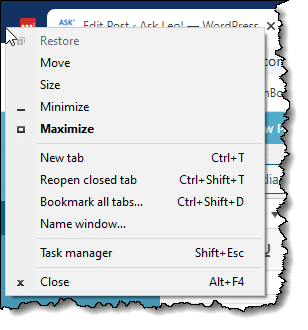
In this example, I’ve right-clicked in the space immediately to the left of my left-most tab in the Chrome browser to reveal its System Menu.
A) this doesn’t always work, and B) it assumes you can see the top of the window.
Hidden window, special keystroke
If the window is off-screen — meaning that you can’t click in any magical corner — and ALT-Space isn’t working either, then another approach is called for.
SHIFT+Right-click on the program’s icon in the taskbar to reveal the System Menu.
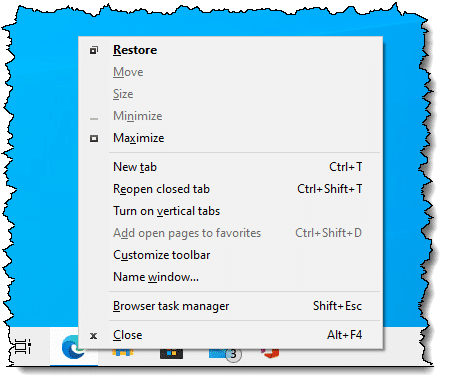
In the example above, I SHIFT+Right-clicked on the Edge icon in the taskbar. The System Menu for Edge appears.
Once again, you can click on Move and use the keyboard arrow keys to move the window around — whether it’s off-screen or on.
Do this
Subscribe to Confident Computing! Less frustration and more confidence, solutions, answers, and tips in your inbox every week.
I'll see you there!
Podcast audio

Related Video


These solutions will probably fix the immediate problem of being able to resize the window, however when the full screen mode is re entered you will be faced with the same problem again, It sounds like this problem may be occuring due to an incorrect display resolution. Check the Display resolution for both your monitor and please be aware there are seperate display resolution settings within media centre, when you make the inital display resolution settings, make sure theat media centre is in full screen mode on your preffered monitor,
I personally feel that the “new” labelless icons are disgusting and the lack of text makes identification slow.
Setting the taskbar options to either “combine when full” or “never combine” can solve the problem.
If it recurs often, as do one of my programs since installing Windows 7, then there’s a freeware program that may help: Shove-it. (www.phord.com)
This program makes it impossible to move a window off-screen.
There is a much easier method in Windows 7. Give the window focus, by clicking on it in the Task Bar, and then press Windows Key + Right Arrow. That will snap the window to the right side of the screen.
Thanks Andree
The Windows 7 trick of Windows Key + Right Arrow key does not always work. One way to get the old (XP, Vista behavoir) is to hold down the shift key whilst right mouse clicking. Check it out.
one thing related to this that might help.
I used the trick to shift+right click and then get the move cursor, but the window I wanted to move was completely off screen, and the move cursor would disappear. INSTEAD OF USING THE MOUSE WHEN YOU GET THE MOVE CURSOR, USE THE ARROW KEYS IN THE DIRECTION YOU WANT.
All good suggestions, the only thing I can add, is that after you have clicked “move” you only have to tap an arrow key (say left for example) to “bind” the mouse to the movement of the window, then you can move the mouse to reposition with window without having to move it entirely with the keyboard.
Windows 7 does not always like the shift-right click to activate a move, I usually change the display properties to a smaller view setting, select the item that is newly visible, then change the display back to your liking.
Windows Key + Right Arrow. thing worked then I had to go to display settings and change monitor settings . Windows are back .In Windows 7 To change display settings go to control panel and click the display icon . then on the left change display settings choose display # 1 and save settings . Everthing should be back to normal.
thank you for the write up. MS yet managed to take something super simple and make a mess out of it. Such a stupid design.
I have an off-screen dialog window that i can’t access in Adobe Illustrator. No matter what I do, I can’t get it back on the screen, I’ve tried everything, help! I’m using Windows 7
Thanks for the tip – this has been driving me crazy for months.
All I can say is thank you! The disappearing window problem has been plaguing me for days and I am glad you gave me a workable solution.
thank you. win7 gave “Alt+Space” option also for missing Google Chrome window, but i did not know, that i have to use arrow keys, instead of mouse.
“Shift+right click” worked also.
but i hoped that win7 is smarter, and understands, when the second screen is disconnected or laptop undocked and then switched on.
You can just use windows+left/right arrow to dock the application window to the side of your visible desktop.
Hop over to the icon on the task bar and the snapshot of your application will show up. Move you mouse cursor to the small snapshot screen and right click the screen, choose move option, then use your left/right to move the application back to your display desktop. If “Move” was not an option, choose “Restore” first.
thank you , yo have been a big help , i had a video game that popped up off the side of my screen as if it was in the center of another screen to the left, i thought it may be because i was fooling around with my duel monitor positions,..so i messed with that all day yesterday and could never get it back on screen. that is now fixed
Thank you so much! You’re a life saver!
Thanks man! Shift Right click! I shouda thought of that!
I’m using Windows 7, and I’ve tried every trick and key combination listed here. Nothing works. My Google Talk window remains off the screen and only a fleeting moment of motion animation occurs (as if it is zooming “into” its button on the taskbar) every other time I click it. I have pressed shift-right click. I see the menu that says restore/minimize/maximize/close, but the move option never appears on that list–Yes, even if I have chosen “restore” first. In addition, the Windows+arrow button combo does absolutely nothing, in any mode. The only way to get my window back is to restart the computer each time this happens (and it usually happens when going from the laptop’s higher native resolution (1920 x 1080), to the desk monitor’s (1280 x 1024) (Yes, fewer pixels, but they’re larger, and thus easier to read, and thus docking is worthwhile).
Found this page with a Google search. Famtastic. Helped me out.
Thanks so much!
Thanks, this was very helpfull!
OMG. Thank you!!!
That’s doing it the hard way.
Click on the item in the task bar, then press Windows Key + Shift + Left Arrow key. It will move your window from the right monitor back to the left monitor.
To move the opposite way, use Win + Shift + Right Arrow.
Hover over the program’s icon in the taskbar, then right-click the Thumbnail of the window you wish to move.
Select Maximize, now click the window’s title bar and drag it.
The window should resize to what it was before and you can place it anywhere (but best keep it on the screen this time :P)
Holy crap. I’ve been using Windows since 3.x and have this problem at least once a year.
THANK YOU!
Thanks a lot. solved my problem
one of the many examples when MS make the things more difficult that needed…
Even worst some of the good functionality in Xp is lost in 7.
This hint on moving off-screen windows in Windows 7 really saved my bacon – I just started a new job and used XP previously. Somehow repeatedly trying the old way to move the window just wasn’t working!
Thanks a lot Leo, you solved one hell of problem for me.
Great info, saved my day… you do wonder why so many useful features from XP have become such a hassle in 7 …maybe they want us to switch to Mac?
Thank you so, so much for this article and the related ones! My iTunes window was so tall that I couldn’t see the bottom and couldn’t grab a corner to re-size it. Seems like a small thing, but it was driving me nuts. Now it’s fixed. Thanks so much…
ohhhhhhhhhh thankssss a looooooooot , i needed notepad and its justt HIDEEE’s but after thiss its got FIXED thank you a looooooot Leo :) ….
Thanks, worked a treat
Cheers
You can use WinExplorer. This little freeware utility from NirSoft will show and allow you to modify the coordinates of any window. It works on Windows 7 even if not said so. I’m using it daily on software development on Windows 7:
http://www.nirsoft.net/utils/winexp.html
This bears repeating because nothing in this article or any other article I’ve read did the trick for me. It’s from the comments section above, posted by Randy (Thanks Randy!):
June 14, 2010 at 8:59 am
one thing related to this that might help.
I used the trick to shift+right click and then get the move cursor, but the window I wanted to move was completely off screen, and the move cursor would disappear. INSTEAD OF USING THE MOUSE WHEN YOU GET THE MOVE CURSOR, USE THE ARROW KEYS IN THE DIRECTION YOU WANT.
Just do windows button and then left or right arrow, it’ll snap the window to one side of the screen.
thank you. thank you. thank you. have been on so many sites for so many hours. you are a genius .
Thank you!! Why on earth they keep changing things so that people can no longer quickly and easily carry out the simple tasks that are probably in bone memory, beats me. You’d almost think they were trying to annoy everyone.
Thanks! I’m a long time Windows user but never had an occasion where I needed the Move command even on XP. So you helped me doubly over :-)
Tnx a lot. It helped me! I was really confused and now it’s solved. Thank you very very so much. God bless you.
Hi I am using windows 7 64 bit have a 24lcd tv via hdmi all been workinf great for 9 months when the top part of the screen about 60mm can not be seen on the desk top or when i play game or watch films . I have tryed all the resize options but stil no joy can yue Help PLEASE..
This is for Windows 7
If other monitor is off/dead, with things on that monitor…
…. Alt Tab to find what’s on the other screen,…
…. using arrows stop on the window of your choice and hit ENTER.
…. That window is now highlighted. Then
…. Alt Space, Then – move Arrow down once quickly and hit ENTER (now mouse Move is on the window),
…. Click down and hold and move — to the other screen.
One person mentioned setting screen resolution too high. I had it happen to me once. On a new computer and an older (wonderful) CRT monitor I set screen resolution higher than the monitor could handle. No warning, no error message, just strange stuff happening. The mouse and edges of the application windows could move off screen and disappear. I don’t think that is an option any more. If I recall correctly, Windows can now sense what resolutions the screen supports and only shows those options.
.
There is another option for bringing “stuff” back on screen. Sometimes the problem is not the main application window, it is a dialog box. If you right click on the task bar there are several options that will bring everything back on screen. You can pick from “Cascade Windows” (my choice), “Stack Windows”, “Show Windows Side by Side” and “Show the desktop” (obviously not the option to pick for this problem).