To reformat and reinstall is the computer equivalent of erasing the chalkboard and starting over with a completely blank slate.
To a computer, that means erasing the hard disk and starting over with nothing.
That phrase “erasing the hard disk” is exceptionally important, and important to understand fully.
Become a Patron of Ask Leo! and go ad-free!
This article applies mostly to Windows 10, though Windows 8 is similar. I have an older article covering Windows XP and Vista, which can be used to extrapolate what needs to be done for Windows 7. In all cases, the concepts are very similar.
Reformat and reinstall
Reformatting a machine and reinstalling everything to start over is typically a five-step process.
- Back Up
Take an image of the existing machine, if possible. This saves all current content in case you want it later.
- Reformat the hard disk
While “reformatting” refers to a specific operation, in this situation, it refers to any technique used to erase or overwrite everything on the hard disk.
- Reinstall Windows from scratch
This typically means booting from a Windows setup disk and letting the setup program do its thing.
- Reinstall applications
Windows on its own isn’t enough; you’ll want to reinstall additional software. We won’t cover that step here, since it varies dramatically depending on what applications you use.
- Recover your data
You can do this either from the backup image we started with in Step 1, or from other sources, depending on how you organize your data.
I can’t stress the importance of Step 1: backing up enough. We’re about to erase everything on your hard disk. Unless you know for certain there’s nothing there you need, an image backup is the right way to be prepared when you remember some weeks from now that you forgot to save a specific file.
Formatting isn’t always formatting
The term “formatting” goes back to days when hard disks had to be physically prepared before data could be written on them. Formatting set up the underlying magnetic information so the disk could be used. The term also referred to the next step: setting up the initial data that would organize the files and folders to be added later.
Coincidentally, just that last step — setting up the initial data on the disk — has the side effect of making anything that might have been on the disk inaccessible. As a result, “reformatting” has come to mean exactly that: erasing the disk by setting up those initial data structures.
For the purposes of reinstalling Windows from scratch, all we really care about is that the disk be erased before we start. There are two approaches.
- Use a utility like DBAN to erase the disk before running Windows Setup. This is only useful if you want to erase all traces of data on the disk completely and securely.
- Let Windows Setup erase the disk for you. This is appropriate for most situations.
The “trick”, if you want to call it that, is that it’s not always obvious what to do in Windows Setup.
So I’ll show you.
Reformat
The first step is to boot from your installation media.

Exactly how you do that1 will vary dramatically depending on your specific computer. If your computer has the UEFI BIOS, which includes things like “secure boot”, this article applies. If your computer is older and has a traditional BIOS, check out this article.
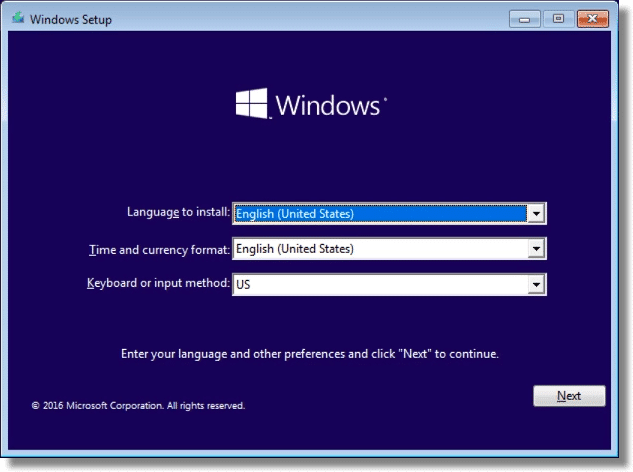
Once you boot, you’ll be asked to choose your language and keyboard; then click Next.
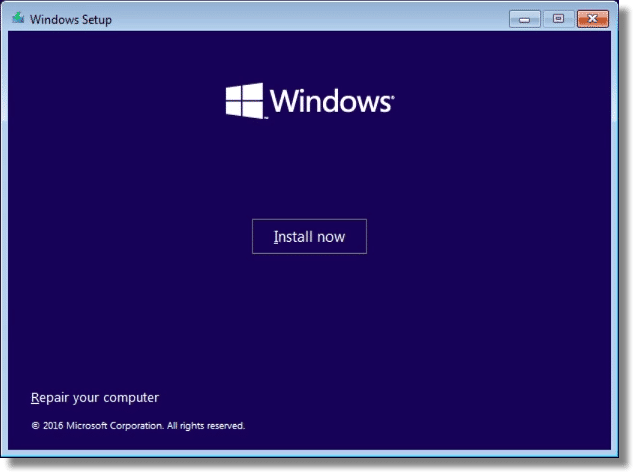
Click on Install Now to begin the setup process.
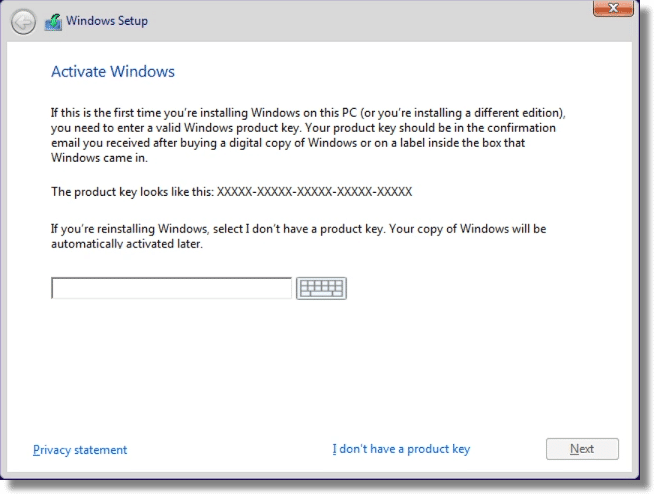
If you have a product key, you can enter it at this time, or click on I don’t have a product key to do so later. Click on Next.
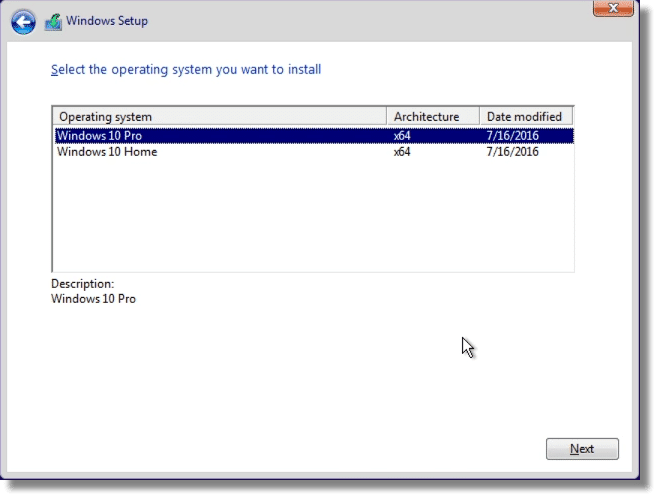
This particular set-up disk applies to Windows 10 Home and Pro both; yours may not. If it does, make your selection here, and click Next.
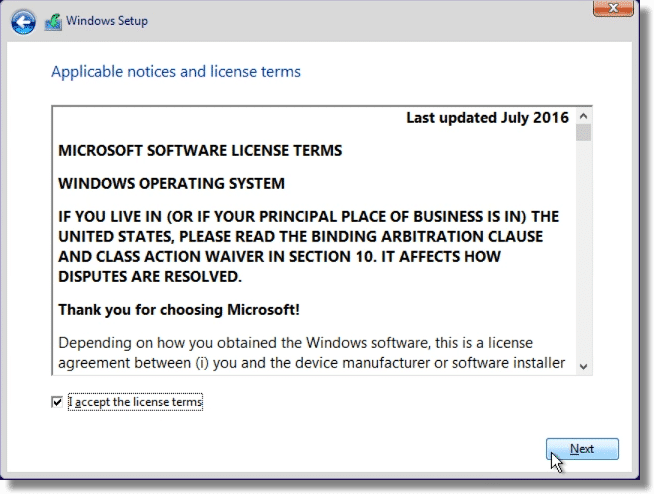
Naturally, you’ll need to accept the product license. Click the “I accept the license terms” checkbox, and click on Next.
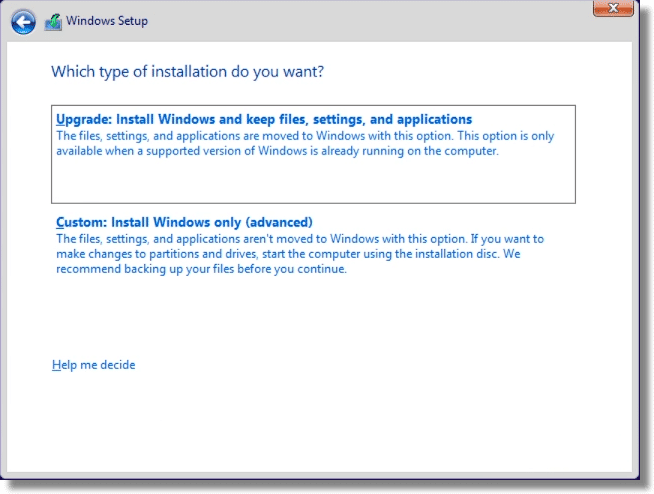
When asked to choose the type of installation to perform, click on Custom.
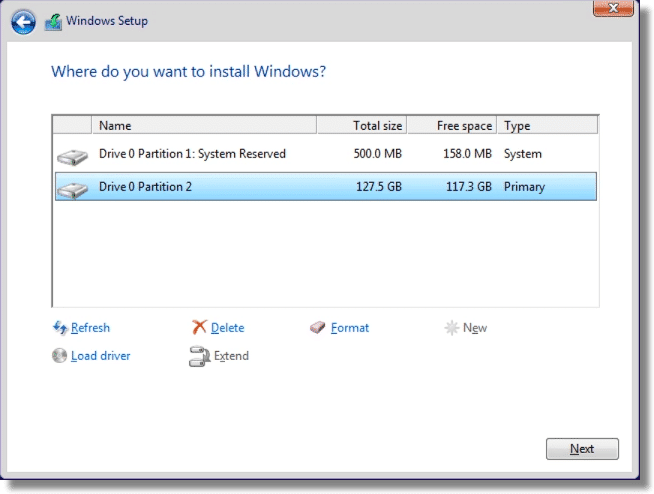
Windows Setup asks where you want to put your new installation. This is where the reformatting magic happens. In order to “reformat” the disk, you will delete the existing partition(s) on the disk and let Windows Setup create new ones.
The dialog box lists all existing partitions on the hard disk. In this example, you can see that there are two: System Reserved, and a primary partition.
There are two approaches you can take.
- Delete only the partition you know contained the previous installation. Typically, this is the largest partition on the hard drive, and is marked “Primary”. If you’re not certain, this is likely your best option, so as not to delete important UEFI or manufacturer’s recovery partitions.
- Delete all the partitions on the hard drive. This will allow Windows Setup to make maximum use of the hard drive, and is typically safe in older, pre-UEFI machines.
To delete a partition, simply click on the partition in the list and click on Delete. The partition should either become “unallocated space” or be merged with any adjacent unallocated space.

Once you’re done deleting partitions, click on the unallocated space item into which you want Windows installed. (Typically the largest, if there’s more than one.)
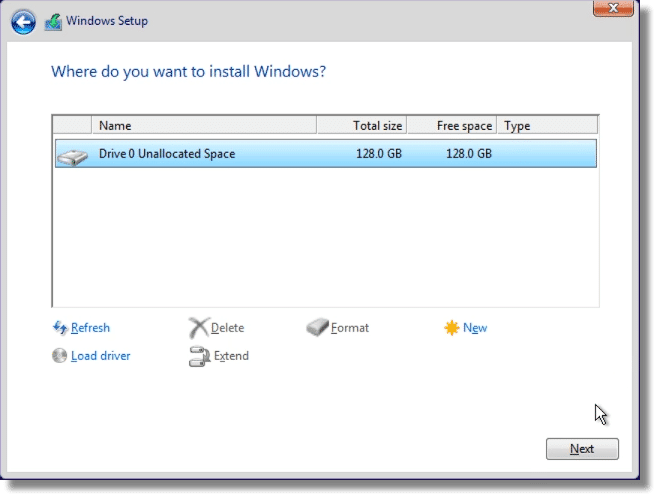
Ironically, you do not need to format the space into a partition, even though the option is there. Windows Setup will take care of the rest. Click Next.
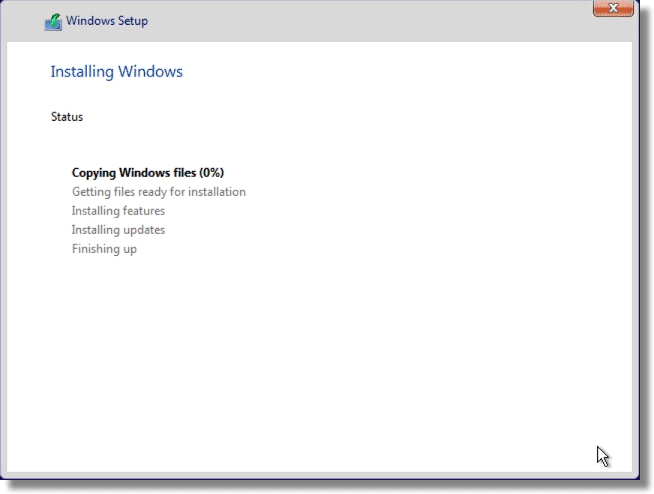
At this point, Windows Setup proceeds to install Windows normally.
Do this
Subscribe to Confident Computing! Less frustration and more confidence, solutions, answers, and tips in your inbox every week.
I'll see you there!


I thought it interesting that even Leo did not recommend reading the Microsoft license terms.
I’m a pragmatist. While you “should” read them, in reality very few people do, and even when they do it has zero impact on their ultimate decision on whether or not to install the OS.
Does anyone ever? It is just like the insurance and credit card fine print. Let the lawyers read them. I have no time or the inclination!
Great “Pearls Before Swine” comic strip a couple of weeks ago. Pig was introducing his new, sad looking friend. Friend spends his days writing and publishing his works but nobody in the world has ever read a word of anything he had ever written. When Goat asked what he writes that nobody ever reads, Friend replied that he writes the License Agreements for Apple. I’m sure he has an equivalent at Microsoft.
Most people will not abuse the software anyways, so there is no real reason to read it
It’s not so much a question of abusing the software, it’s a question of how much you’re allowing them to abuse your privacy :-)
They are invading mine as we speak
I want to do this. I have Windows 10 now. But I got Windows 10 by upgrading from Windows 8.0. Can I reformat and use my Windows 8.0 key to go straight to Windows 10?
If you upgraded from Windows 8 to Windows 10, then yes.
In theory, yes. Backup what you have completely first, just in case.
The up grade from Windows 7 to Windows 10 has messed up my Mozilla Firefox, BBC home page.
Overnight the computer upgrades itself and in the morning, no home page, instead I’m into something like inmaps or something. How do I get back to my original BBC Firefox home page? Anyone know?
Click on the hamburger (3 horizontal line icon). Click Options. Where it says Home Page, type in the url of the page you want. In your case it would be something like bbc.co.uk.
I’m a bit confused. Does this wipe all files from the drive and reinstall win10, or does it leave files and folders in place after windows has been reinstalled?
Windows 10 gives you 3 installations options:
1. Keep all data, programs and settings
2. Keep all data but not programs and settings
3. Install Windows 10 but keep nothing from the previous installation
This article discusses the third option, but the other 2 are still available if you choose.
A reformat and reinstall will wipe everything from your computer. An upgrade and/or repair will leave files and programs in place.
Reformat – by definition – means erase everything.
Strictly speaking, the old files are still there, but they are no longer referenced from anywhere anymore and the place they are using is set as unused.
Next, while you actually install the new OS, most of those will be overwritten, totally or partially, effectively destroying them in the process.
From this point on, recovering anything from those old files is both a gamble and very difficult. The sole attempt at recovering something may actually destroy it.
Yes, a reformat wipes it all. Note that Leo includes the step to back up first, and then restore data / reinstall apps later.
Some backups will also allow you to restore everything after, like the Zinstall kit, but they usually are expensive.
Hi there, my problem is I’ve lost my administrator password and I can’t do anothing to my notebook, even to reboot or format it. Everytime a window opens ask me “do you allow this program to make etc. etc….” the option YES is disabled. I can only run my notebook via my microsoft account but not as admninistrator. Is there a solution?
Best Regards
Apostolos
Googles yields many approaches to solve this, including three on askleo. However, my favorite is:
http://www.howtogeek.com/96630/how-to-reset-your-forgotten-windows-password-the-easy-way/
I’d love to get some direction on reinstallation using an OEM CD. I venture to say a good portion of those with installation media have, like myself, OEM versions. There are a couple of critical differences in this type of install, just enough to make the install fail unless you know the tricks. When I tried to follow the standard instructions for separately-purchased Windows CD’s on the Dell website, it did not work. Dell had to lead me through using my OEM CD. Unfortunately I failed to take notes. I think it would be very helpful to a lot of us if these special instructions could be made known. After all, we paid for our CD’s along with our computers.
I recently re-installed W7 on my wife’s machine. What is the easiest way to bring it up to date from the original W7 that I made the discs from probably 6 or 7 years ago?
With Windows 7, unfortunately you are in for a world of hurt& waiting while you do the updates. Maybe someone else here knows of a way to speed this up, but I don’t. There are just too many updates that take far too much time to reinstall unfortunately.
You just have to be patient. Any way you look at it, you will have to install everything that has happened since your discs were made.
Let Windows Update do its thing.
Would the Win7 Convenience Rollup be applicable in Glen’s situation?
Cloning would be the best solution for all OS especially Win7. Once upon a time Win8 was the must have OS because of it’s 18 sec start-up. I obtained the cd, installed (after backup of Win7) but then was horrified by the endless incompatibilities, crashes and errors. I tried to stick it out for three weeks. Eventually I reinstalled Win7 and it took forever to update, after installing all the prog’s I had before, I made a clone on a separate 250Gb Hard drive. Never reinstalled the 8 version, not even the 8.1. I’m biding my time till the majority of users are working with the Win10, then I will upgrade to this OS. For now Win7 is still the best OS since XP and Win98 sp3.
I use the clone with every new HD or instead of reinstalling Win7.
So all I need to do is:
copy my docs ect (Almost instant)
install the programs I’ve been using after I made the clone (only a few updates there)
If there are recent updates for windows, it’ll only be a few Mb.
Call me a dinosaur, but I deal with so many problems with friends pc’s. The only one’s I really enjoy working on are the Win7’s
I have seen the Win10, I also have it on my LT (to locate certain problems with friends pc’s).
Why do we need two sets of list in the explorer and still need to click on the C: drive to access certain files or folders. What is the purpose of “Quick access”? Does it save milliseconds instead of moving you finger or mouse further down (like 1cm) to “This PC”. Or has this been altered since my last update from Win10?
Best tip ever was to use ALT-F4 to shut the damn thing down.
I’m glad I only use it for problem solving (like once a month).
Have fun!!
I suggest it’s a good idea to find your Windows license key in Computer Properties and write it down on a couple of pieces of paper which are not stored together. You might not need it, but it only takes a minute.
Also: if all you have is one image, and you erase your hard drive, at that moment you have no backup.
Leo, would you kindly write a brief procedure that will do a similar general clean-up on a Linux/Ubuntu p.c. please?
Unfortunately Ask Leo!’s expertise is primarily in PCs, Windows, and general Internet or computing-related questions. We just don’t have the expertise to do justice to most Linux or Apple questions. But actually, the process for a fresh Linux installation is similar to the instructions given in this article except for the details of the installation.
Back up.
Reformat the machine.
Reinstall Linux from scratch.
Reinstall applications from scratch.
Recover your data.
In most cases steps 2&3 are combined as you can simply tell Linux to reformat the hard drive during the installation.
Requiem Recovery is another way to clean the HD/SSD. It offers the option to delete partitions. This has the same effect as formatting in that everything is deleted.
I have two computers that were originally running Win 7. One was upgraded to Win 8, then 8.1, and finally to Win 10. It had only one partition with Win 7. Win 8 added a second partition that Windows wouldn’t let me delete. I used my Requiem Recovery disk up to the option to delete partitions. Once I deleted the extra partition, I closed the recovery disk. Win 8 worked without the extra partition, which I learned contained the information to roll back to Win 7. Win 10 also added this partition, which I deleted the same way. So, Win 10 now has the entire drive as one partition.
NOTE: Windows Tech people said Win 10 wouldn’t work without this partition. They were wrong. That only applies to the System Reserved partition, not the Recovery partition.
When I tried to upgrade the other computer, it would not upgrade for some unknown reason. I reloaded Win 7 and finally to Win 10. Checking, I found three partitions – two of which I could not delete. Also, the Win 10 installation was not activated. I again used the Requiem Recovery disk to delete all three partitions and started over. Win 7 installed using only one partition and was properly registered. I had to download SP1 because Windows Update said I didn’t need it – which was required for Win 10. Then I used my ISO disk to upgrade to Win 10. It gave me the option to re-install Win 10, which I chose. This time Win 10 installed properly and was activated. I used Requiem again to remove the unnecessary recovery partition.
Now both computers are running activated Win 10 using only one partition. Of course, once each was set up, I made an image of it before adding anything else – and again after everything was re-installed.
Leo, I really appreciate your telling us about Requiem. I use the Free version, which is pretty straight forward with easy to follow instructions.
I don’t believe Leo ever recommended Requiem (neither does Google). It may be that you’re confusing an add with a recommendation. Leo has little or no control over the ads that appear on Ask Leo!.
http://ask-leo.com/whats_the_difference_between_an_ad_and_your_recommendation.html
I didn’t say he recommended it. I just said he was the one that let me know about it.
He had an article describing how to use the paid version, which was my guide to the free one. Later he gave the same information for another backup program.
Leo does not make recommendations regarding any particular product – he just lets us know about them. That is one thing I appreciate and respect.
NOTE: I am not recommending it, either. Just providing information on how it can be used to clean a drive.
Actually Leo does make some recommendations, but only when he’s fully convinced of a product. I didn’t make that comment so much for your sake, but more for anyone reading your comment who might get the idea that Leo recommended it.
Team Leo:
I tried reverting back to Windows 7 from 10 due to some optional hardware that no longer had drivers. Since I was well past the thirty-day revert option I decided to delete partitions and reinstall Windows 7 from the DVD. I’ve done this many times as I’ve built systems for myself in years past; that said, this install is non a laptop, a Dell Latitude E6520.
So, I deleted the partitions and did a clean install. Windows went through all the steps of selecting a partition, etc. During final reboot I get a message: “Windows Setup could not configure Windows to run on this computer’s hardware.” In the hopes that it was a software glitch, I retried the install … twice, but received the same message. This was originally a Windows 7 computer. Any idea what is going on and how I might fix it?
I don’t think I deleted the wrong partition as mentioned above since I can still access the BIOS. This is a UEFI machine, though I have no knowledge of what that really means or if it would affect my Windows installation … which I assume it would not.
Team Leo:
So, I had a thought almost as soon as I posted my above question. For clarification, I should say that the laptop I am using was a work computer for a company that upgraded. I received one of the discards. Historically, I’ve never tampered with laptops; I’ve only owned one other.
So, here’s my question: should I have used the original Dell installation discs with Dell-specific drivers for this laptop–which I do not have? I am wondering if the issue is the fact that the standard Windows 7 installation program does not have the drivers necessary for this machine, which is prompting it to give me the above message. If so, how do I go about loading in the drivers for a Windows install? I know how to download them from the Dell website once Windows is up and running, but I’ve never experienced this roadblock during an install before.
Thanks again.
If I understand you correctly, you don’t have the original laptop installation disks and you’re trying to load from a generic Windows 7 CD.
– See this link which may be helpful resolving your problem.
https://support.microsoft.com/en-us/kb/2466753
Otherwise:
– Try booting into safe mode to see if it’ll work. Try booting into command line.
– Try using a boot/rescue disk or flash drive to boot into your computer.
– If you can boot into your computer, you should be able to install the drivers on this laptop (they are .exe files). Of course, first you would need to download the drivers using another computer.
http://www.dell.com/support/home/us/en/04/product-support/product/latitude-e6520/drivers/advanced
Thank you for your detailed response. I really appreciate the direction you given me. I’ll be downloading the drivers via another computer and using a flash drive. Fingers are crossed!
M.
As long as you have the drivers sufficient to run Windows and get on the Internet, you should be able to download the necessary drivers from the laptop manufacturer’s website. I once had a case where I could get into Windows, but I didn’t have a network interface driver to get on the Internet, so I downloaded the drivers on another computer and copied them using a USB stick.
Thank you for your quick response. As I mentioned above, I’ll be downloading the drivers via another computer and using a flash drive. Fingers are crossed!
M.
Hi Leo,
I built my machine about 6 years ago with Windows 7 and I upgraded to Windows 10 Pro last year. I now want to build a new machine and donate the old one to my local school if they want it (after I DBAN the hard drive of-course).
My question is: Can I transfer the Windows 10 Pro license to the new machine or will I have to buy a new license?
Thanks for the advise.
I believe that the free upgrade cannot be transferred.
Not on a new/different machine, as I understand it.
Does that mean you can’t install a purchased license (not OEM) to another computer. Wouldn’t that policy violate the terms of the original purchase contract? Or is there specific language in the EULA that when you upgrade, you choose to give up the portability you were previously entitled to? Or can you simply install the original Windows 7 or 8?
OEM licenses as I understand it are not portable to begin with. I haven’t read the license, but my understanding is that the free upgrade applies only to the machine on which the upgrade occurred.
I know OEM licenses have never been portable, but what I’m wondering about is a purchased license which was upgraded to 10
As I said, the free upgrade can’t be transferred, to the best of my knowledge.
I lost patience yesterday with Windows 10 when I was told that certain software would not work with the version of Windows. It was past the thirty days after installing a Windows 10, not an upgrade. I have built computers and always included a Windows disk. I went into recovery in Windows 10 and found the option to go back to the last operating system when available. I inserted the Windows 7 Professional system disk and turned off the computer and restarted and the familiar hit any key on the keyboard came up and the Windows 7 proceeded to install. I only use or have one partition on my computer. I don’t do any backing up because I can always reinstall software later. I put anything I want to save on DVD. I was surprised to find out that this was possible, to go back to an earlier version of Windows. For some time I have been googling the problem. I don’t mind the inconvenience of reinstalling Windows 7.
Hi Leo:
Under C/Windows/Software Distribution/Download there is this file since 9/14/2016: f2eff5727ab037870b27da7827e51e81 Size 2.89 GB (3,112,802,570 bytes) in 3 Files 0 Folders. It contains this: BIT5710.tmp with 3,021,465 KB, another file named “State” with 1 KB and another Application with 18382 KB with a green arrow pointing from top into a blue rectangular named WindowsUpdateBox.
Google can´t tell me what that is. I made in June the free upgrade from Win7 to 10 and cancelled the Win Old soon thereafter manually because I was glad to get rid of Win7 and it´s 250 Updates.
On Win7 I always deleted the contents of this Download folder and as far as I remember I also continued to delete the contents sometimes after changing to Win10.
My question is: Is that something like a rescue thing since it has the size of Win10 OS? Can I use it for something or can it be deleted since it uses nearly 3 GB on C? Ccleaner did not remove this .tmp-file. Is it advisable to continuing removing the contents of this folder?
I can’t tell you what it is, but with a .tmp extension, it is some kind of a temporary file. I’d try renaming it to something like .tmpx or move the files to another folder and work with the computer for a while to see if it is necessary or not. After a while, you can delete it.
I’d back it up and remove it.
Help leo.I upgraded Vista to win 10 .I have a repair disk for the vista.my hard drive crashed .I don’t care about any files on the system.should I clean install 10 are start with7
If you’re looking at a clean install, I’d go with Windows 10.
Thank you. Your very clear post helped me save my computer.
WIndows installation gives you the option to install either the Home or the Professional version. Be sure you install the version that you have a license for. If you only have a Home license and install the Professional version, it will not activate.
There are two kinds of formatting in Windows.
1. Full format which re-writes underlying magnetic information, ie. the original kind of formatting.
2. Quick format which re-writes only the file table information and leaves the rest of the drive untouched.
The install Windows only, ie. the reformat and install option performs a Quick format and doesn’t overwrite any of the rest of the disk other than the portion on which it places the operating system files.
Which, if important to you, can be dealt with by running a free space wiper after the install has completed.
That’s good advice if you’re selling a machine. I used DBAN for that, but this would work as well with a bit less work.
Hi! If you wanted to do a clean install to remove potential malware, would you need to run DBAN or would a windows format be sufficient?
A format and reinstallation of Windows is sufficient for removing malware.
Is any action necessary for OneDrive before starting the reinstall
For example, to unlink it?
It is worth mentioning that DBAN should NOT be used with an SSD it is likely to destroy it ( as I found to my cost a few years back!)
How many passes did you set it to run? If DBAN is set to run one pass, it will only write one time to each cell. One pass is as effective as 35 on an SSD because there’s no spill-over like there is in a magnetic drive.