Gmail is a great spam filter. In fact, I’d go so far as to say that as I write this, it is perhaps the best. Only a small amount of spam makes it through, and very few false positives are thrown. It’s not perfect, but no solution is.
What many people don’t realize is that you can use Gmail to handle email from almost any email address you have. I use Gmail almost exclusively these days to handle my @askleo.com email, my other business related emails, and my personal email as well. My wife does the same.
I’ll show you how to use Gmail for any email account supporting POP3 and SMTP access.
Become a Patron of Ask Leo! and go ad-free!
Definitions and assumptions
You need to start with a working email account at some provider that is not Google. The point of this exercise is to access your non-Google email using Google’s Gmail service. That existing account can be on a free provider, like Outlook.com or Yahoo!, it can be a paid account, or it can be an account configured on a domain you own.
You will need to know the POP3 settings to access the email in that account, and you will need to know the SMTP settings to send mail from that account. This is the same information you get from your provider to configure a desktop program such as Microsoft Office Outlook, Windows Live Mail, or Thunderbird.
I’ll use “somerandomservice.com” as an example of a domain that you have purchased and own. Purchasing a domain is perhaps the best way to get an email address that you can keep pretty much forever. (I happen to own “somerandomservice.com”, so I know I’m not abusing someone else’s domain for example purposes.) I’ll use leo@somerandomservice.com as an example of an email address already set up on that domain.

First: Set Up Gmail
Create a Gmail account if you don’t already have one. Just go to Gmail.com and follow the steps to create an account. Make sure to set up a strong password, and set up all the recovery information you can.
Once you have a Gmail account, there are a couple of configuration changes you’ll want to make in order to have this work seamlessly for you.
Enable POP and IMAP Access in Gmail
If you plan to use a desktop email program, you’ll need to tell Gmail to allow POP3 and/or IMAP access to your mail.
In Gmail, click on the Settings link in the upper right, and then the Forwarding and POP/IMAP tab.
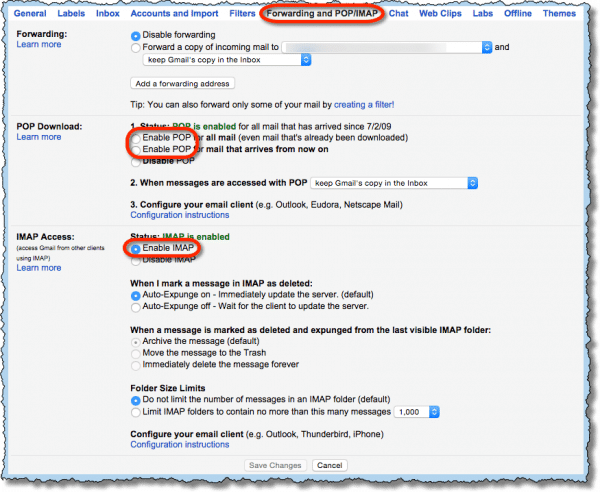
Enable POP, either for all mail (your first download will include all email that’s in your Gmail account), or for all mail from now on (your first download will include only mail that arrives after you make this change). Choose what you’d like to do with email on Gmail after you’ve downloaded it. I prefer “archive Gmail’s copy”, as it allows me to use the Gmail interface to review all my email, even if I’m not at my computer. That’s handy when I’m using a mobile device like my phone.
I recommend you enable IMAP as well. This is most useful when you might access your Gmail account from multiple different locations – perhaps multiple PCs, mobile devices, and the Gmail web interface. IMAP access allows you to keep them all in sync. (More on IMAP.)
Configure “Send Mail As” to send email through Gmail
Since we’re setting Gmail up to use with an email address that is not actually a Gmail address, we need to be able to send “as” that other email address.
Once again in Gmail Settings, this time on the Accounts and Import tab, look at the “Send mail as:” section:
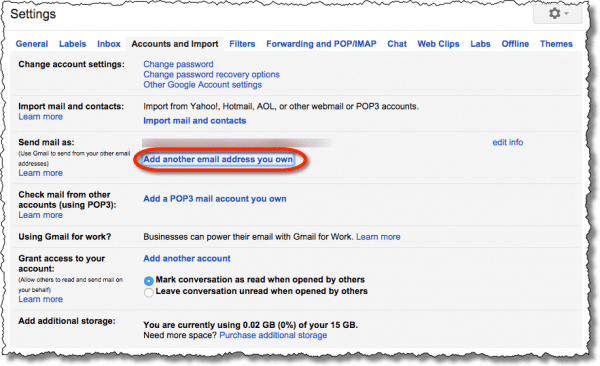
Click on Add another email address you own to add the email address you want to be able to send from.
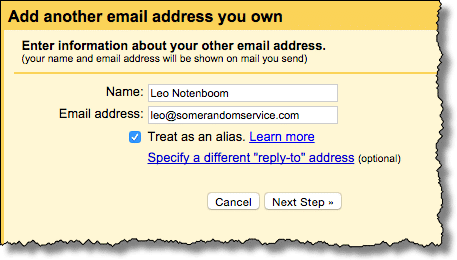
The “From:” address of email consists of two parts: the display name, and an email address. Enter those for the address you’ll be sending from, and click Next Step.
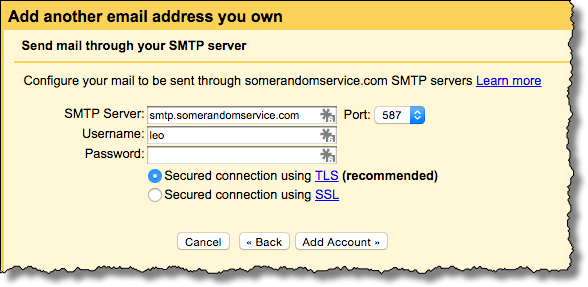
Enter the SMTP information given by the provider of your non-Google email address. For example, the SMTP configuration for somerandomservice.com.
When sending email “as” your other email address, Google actually sends it through that email provider’s service rather than sending directly. There are several reasons for this, but the most practical is that, according to email standards, if Google sends it directly, many email recipients will display the Google email address as sending “on behalf of” the non-Google email address, which can confuse them. Sending through the other service’s server side-steps this issue.
Once you’ve set up the ability to send email from Gmail through your non-Google email address, make sure the correct address is the default. This is the address your email will appear to come “From:” when you compose a new mail in Gmail.
Get your email through Gmail using POP3
Much like a desktop email program, Gmail can be instructed to periodically reach out to your non-Google email account and pick up any new email it finds there.
Once again in Gmail Settings, Accounts and Import tab, this time look at the “Check mail from other accounts (using POP3):” section:
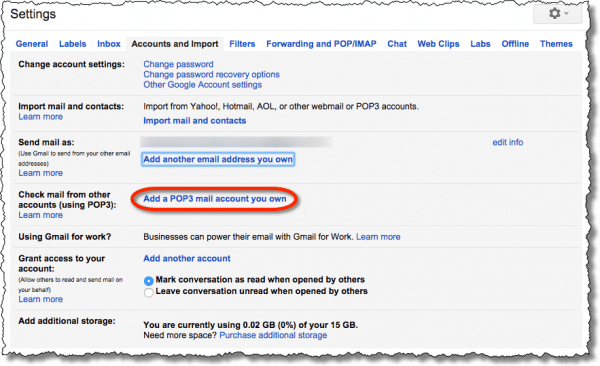
Click on Add a POP3 mail account you own.
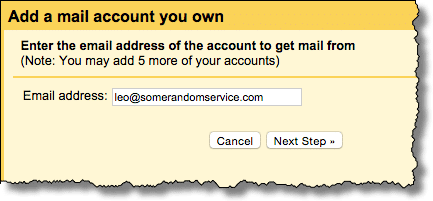
Enter your non-Google email address and click Next Step.
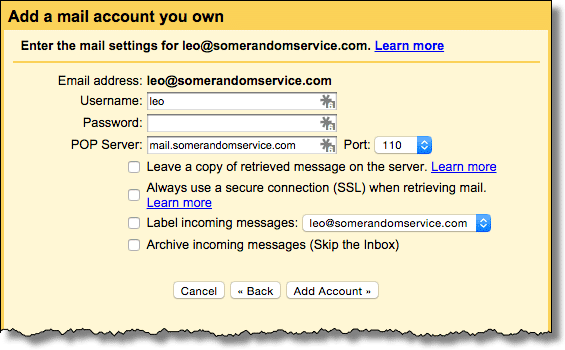
Enter the POP3 information from the provider of your non-Google email address.
There are several options as well:
- Leave a copy of retrieved messages on the server. This typically need not be set; in fact, if your service provider has space limitations, you probably don’t want it to be set. On the other hand, it can provide a nice backup of your email, since your messages will be stored in two places: on your non-Google email service and on Gmail.
- Always use a secure connection (SSL) when retrieving mail. If your provider supports SSL connections, as most do, there’s no harm in setting this, as it prevents intermediaries from being able to see your unencrypted email. On the other hand, since the connection is server-to-server, the chances of that happening are much lower, so the need for an SSL connection isn’t as great.
- Label incoming messages: This is purely personal preference. Particularly if you access mail from several different accounts, this is a quick and easy way to see which account a message is associated with.
- Archive incoming messages (Skip the Inbox). When using Gmail as your primary interface for email, you don’t want this. You want your incoming email to appear in your Inbox normally.
How often does POP3 pick up?
When you use a traditional desktop email program like Microsoft Office Outlook or Thunderbird, you can configure that program to check for new email on a schedule – say every 15 minutes or so. Alternatively, you can hit a “Send/Receive” button or similar command to have the program check for new mail right away.
When picking up email using POP3, Gmail doesn’t quite work that way.
Gmail will check for new mail on its own schedule, which is not configurable. I have heard that it’s dynamic based on how much email you get. The more email you get, the more often Gmail checks for new email. But that’s not really documented anywhere, and could be subject to change.
The Refresh button above your inbox
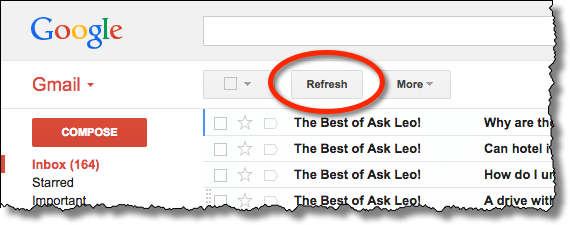
may cause Gmail to check for new mail at your remote non-Google POP3 account. Unfortunately, some email providers also limit how often you can check for new email this way, and may return an error.
Email on the web only: you could stop here
At this point, after setting up Gmail and account forwarding, you might be done.
For example, my email sent to leo@somerandomservice.com automatically shows up in my Gmail account, and I’ve configured Gmail to send “From:” leo@somerandomservice.com. Gmail is my “web interface” to leo@somerandomservice.com email.
Try your setup. You can send and receive email here, now, using your own email address.
If you’re at all confused about what we’ve accomplished so far, I suggest you pause here and try out your email. Have someone send email to your private email address (your equivalent of leo@somerandomservice.com) and it should arrive in your Gmail inbox. Send email from Gmail and it should appear to be “From:” whichever address you chose to be the default “send from” address earlier.
As I said, you now have a working web-only scenario.
And as it turns out, this is how I run most of my email these days: using Google’s Gmail web interface to send and receive email through perhaps a dozen different non-Google email addresses.
But if you prefer a desktop email program, we can do that too.
Configure your desktop email program for Gmail
All you need to do is configure your favorite desktop email program to access email through your Google account, albeit with one little twist.
Normally they’re the same, or at least related, but this is a case where your email address and your email account will be two different things. We’re going to configure your desktop program to send and receive email from your personal email address (your equivalent to leo@somerandomservice.com), but to do, so we’re going to connect to the servers associated with your Gmail account.
In almost every case, if offered, you will need to use a “manual” configuration for your email:
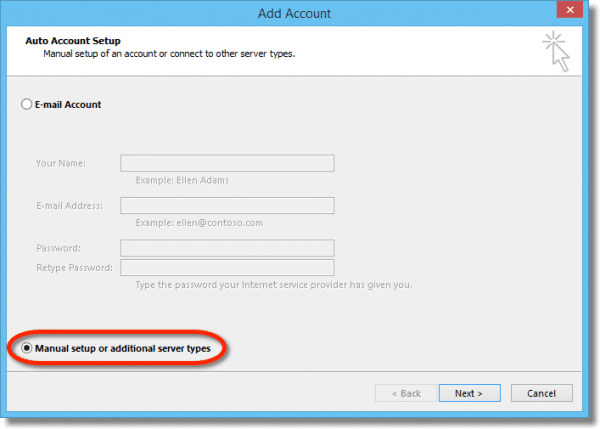
POP3 account configuration will require several pieces of information:
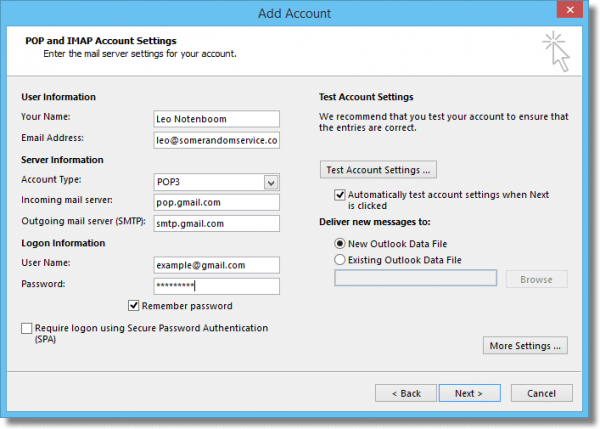
This will include:
- Your name: The name that will be used as the display name on the From: line of email you send.
- Email Address: The email address that will be used on the From: line of email you send. In our examples, we’d use you@somerandomservice.com, but you would use whatever non-Google email address you’ve been setting this up for.
- Account Type: POP3
- Incoming mail server: pop.gmail.com
- Outgoing mail server: smtp.gmail.com
- User Name: Your Gmail user name – typically your Gmail email address. This is important: even though you’re not using your Gmail email address in your correspondence, it’s still the identifier that allows you to login to your Gmail account to access the email collected there.
- Password: The password to your Gmail account.
Additional settings specified by Google include:
- The connection to the POP3 server should use SSL on port 995.
- The connection to the SMTP server should use either SSL on port 465, or TLS/STARTTLS on port 587.
- The connection to the SMTP server requires basic authentication.
These settings are often in an “Advanced” or “More Settings …” section in the account configuration in your email program.
Once successfully configured, you can send and receive email on your own private non-Google email address, >using Gmail’s servers.
Important tips, tricks and trip-ups
In no particular order, some important things to note about what we have set up:
- The fact that you’re sending your email through Gmail is not hidden. If you look at the email headers (typically not displayed), you’ll see that your email was sent via Gmail and what your Gmail account name is. Most email programs don’t display this information by default, but it is there.
- If you fail to configure Gmail’s “Send mail from another address” as described above, the “From:” address on email you send may not be set to your private domain. Be sure that’s configured properly.
- Once you download your email to your PC, make sure it’s backed up regularly, just like the rest of the important information on your PC.
- By choosing “archive Gmail’s copy” as the action to perform when email has been downloaded to your desktop email program, it remains accessible via the Gmail web interface. I find this very valuable for searching and other quick references when I’m away from my PC.
- I’ve used an email address on a domain you’ve purchased as my example because it’s the best way to get and keep an email address for life – you can change how the email’s handled at any time without losing the actual email address. However, the technique I’ve outlined above works for almost any email address that supports POP3 access.
- The email downloaded from Gmail has been spam-filtered. (This is why I use this technique myself.) Since no spam filters are perfect, you’ll occasionally want to log in to your Gmail account on the web and check the spam folder for any false-positive errors. You can also help train Gmail’s spam filter by checking your “All Mail” folder and marking any spam that Gmail failed to detect.
- Gmail is your web interface to your email. Even though you’re downloading your email, it’s great to consider Gmail your web interface, just like many mail service providers have. The difference is that it’s Gmail, which most people find fast, powerful, and easy to use.
What’s the cost?
Well, Gmail’s free. If you’ve purchased a domain, you’re paying for that, and hopefully that includes POP3 email as well (some do, some don’t). There are plenty of free desktop email programs.
What’s the catch?
Aside from a little complexity in setting things up, I can’t really find one. I suppose you could point out that by routing your email through Gmail you’re allowing Google to “see” it, but that would be the case if you were using a Gmail email address directly as well, so I’m not particularly concerned about that.
All in all, I find it a very powerful and useful way to control spam, as well as an easy way to enable email access to accounts on personal domains without potential additional costs.
Do this
Subscribe to Confident Computing! Less frustration and more confidence, solutions, answers, and tips in your inbox every week.
I'll see you there!


It seems to me, if you’re just going to use a desktop client, you only need to route the incoming (POP3, IMAP) through google’s servers. All the email programs I’ve encountered allow you to specify different incoming/outgoing servers. Thus, you leave the outgoing configured for your registrar but route incoming through gmail. This gives you spam filtering, but no “xxx@gmail.com on behalf of you@somerandomservice.com. The only problems are that your “sent” email is not in gmail, and your registrar may not back up sent mail. However, there are solutions around this, such as using your registrar’s web interface to view sent mail, and enabling some type of Archive Sent option on your registrar’s configuration page.
02-Sep-2010
The only other minor down side to this is that in my email server the “account” column used to show the separate email accounts that it had retrieved the email from – now it all comes from my gmail account.
Hi Leo,
You say “Gmail’s a great spam filter. In fact, I’d go so far as to say that as I write this they are perhaps the best – a small amount of spam makes it through, and very few false positives are thrown”?
My ISP is Virgin Media, and they have just recently migrated all our email to Google apps. The spam box certainly catches almost all of the spam messages but I’m finding that it also thows up quite a number of false positives and I’m frequently finding ‘good’ mail dumped in spam?
Virgin Media’s answer to this is to be constantly white-listing contacts and setting up filters for individual contacts, which seems way of beam to me?
Is this a common Google issue, or is it perculiar to this Virgin Media version?
Gmail learns what to do with messages that are questionable. If (using the web interface) you mark something as spam or not spam, it uses that to improve for your mail. In most cases no white or black lists are needed but it takes some time for it to get everything tuned in.
Of your IP doesn’t give you the report spam and not spam buttons, to
let it learn, you are stuck with just a white list. Black lists are not very effective.
Hey, Leo! What a great service you provide to the computing masses … Thank you!
Related to the topic, is your goal to do this free-of-charge? I mean, any commericial security suite today, such as McAfee or Norton, contain built-in spam filters. Are you suggesting that using what you have described related to using GMail as a spam filter is better than using a commercial spam filter?
-jhs
04-Sep-2010
I am the association manager for all women bowlers in my area. How do I set up an account to send an e-mail blast of information to my lady bowlers. There are appx 1000 bowlers
@Shirley
First of all, the term email blast leaves a bad taste in many people’s mouths. You probably want to call it a newsletter or informational email.
http://ask-leo.com/whats_wrong_with_an_email_blast.html
Now that we have the terminology straight, you can refer to these articles for advice:
http://ask-leo.com/how_do_i_send_periodic_email_to_a_large_number_of_people.html
http://ask-leo.com/how_do_i_set_up_an_email_newsletter.html
Another alternative is an email newsletter sending service like MailChimp which is free for non-commercial use and up to 2000 recipients.
mailchimp.com
@Mark Jacobs
Thank You Mark for sharing. Some of your replies help goes beyond the intended persons!
Thanks for this guide.
I actually edited an existing (in Thunderbird) Pop account (with thousands of emails in it) to the gmail settings, and it worked perfectly :)
Thanks!
I’m getting 550 550 Loop detected (state 18),
and with State 17 with some emails, but not all.
I have other gmail addresses that forward to this same email address, can that be the cause?
If I have, say, 4 email addresses outside gmail, can I reroute them all through gmail?
18-Jun-2012
Ugh…
I’m lost, can I hire you? I’m sure you could resolve it in a half hour or less. I’ll pay!! Stopped receiving email yesterday and I cannot find or get it. Have my own server and an IT person who just can’t get me fixed. I have been using Thunderbird for years now and am tired of it, want to go web based. The issue is, when adding another email address through Google I cannot get my confirmation code for the email address because I am not able to see my email anymore!! How about it, do you work for money? No telling how much business I’m missing. Again, I will pay!
This is a very nice article and provides insight into some of the Gmail settings that I wasn’t aware of. While this technique works well for sending critical emails. It does provide one big caveat. When Gmail sends the message, they include your gmail account email address (you {at} gmail.com) in message headers using the ‘sender’ item. This has an undesirable affect on many mail clients, such as outlook. The from address will read: you {at} gmail.com on behalf of John Doe . Even with that said, this technique offers some value. Thanks :-)
I have used this technique for friends and family who have email accounts with substandard web-based email UI’s or to consolidate multiple email accounts in one interface. The only downside I have seen is that email clients on the receiving side may not trust the configuration. Sometimes they display messages indicating that they have detected a setup that is frequently used by spammers. My sister does not want her friends to think they are spamming them! Also, the notification facility on some smartphones (iPhone definitely, I don’t know about Android phones) will not display the content of messages in pop-up notifications of these message as they do for messages that are not configured this way. I understand why this happens when I get a message from my sister (and know she’s not spamming me) but she worries that her friends and clients will distrust her messages because they are treated differently from the others.
I don’t think these are show-stoppers and I will continue to use the technique, but it’s important to understand all the implications of the choice.
this is a very good and informative article…GOOD JOB
Enjoyed reading your article and think it might be a solution for me. I have had a juno e-mail account for years and have used the “block sender” feature often but lately it seems like the block sender file might be full as I am getting a lot of unwanted mail, sometimes 40 a day. I think your article about using Gmail to forward email to would help me but I don’t think I am technical enough to implement it. Do you have a “trick” where I might expand the max in the block sender file in Juno or reset it to zero and start over again as I think some of the blocked senders may be duplicated.
Every email provider will have their own interface – so you’ll have to figure out Juno through their help systems. More than likely, if they have a way to add to the blocked senders list they also have a way to remove names from the list. Expanding the size of your list will also be something you have to either read through their help files or contact them about.
One question,
Can I put more than one email address through the same gmail email aact? I have two website addresses I would like to do this with but am unsure if I can put both through my gmail address.
Thank you for the excellent post!
Yes. I actually route something like three or four different POP accounts through my primary Gmail account.
I believe a Gmail account allows you to route up to 5 accounts. To get around this limitation, I route my emails to 2 different Gmail accounts and route the second email account through my main account.
Sir,
I tried to configure my gmail account in outlook desktop email program.I did all the settings as you have mentioned in your article but when I Test Account Settings it gives me the error “Log onto incoming mail server (POP3): Your e-mail server rejected your login. Verify your user name and password in your account properties.”
and it keeps asking me network password.So please help me to resolve this issue.
Thank you.
If I route my outlook account through gmail, can I also sync my outlook.com and gmail calendars?
Calendars are another beast entirely. I’ve not yet come up with a good solution. (Ditto for contacts.)
Thanks for this, Leo! One small issue resulted, though. I am using Outlook, and now after following your instructions, when I send/receive messages from Outlook, it not only downloads my email from Scott@somerandomservice (for example), it also downloads all of the other emails that were in the inbox for my standard gmail account, whichi I use for other purposes. Which I don’t necessarily want to download with Outlook. Any suggestions?
I’m confused – you have it configured to pull from two accounts? So configure it to pull from only one. I’m clearly missing something. :-)
Thanks so much Leo! You’ve helped my hair pulling to stop. One question, I’m using AppleMail and its working with the way you’ve instructed on setting up. We’ve set this up as a POP and i wonder then if making changes on one computer through AppleMail will then be reflected on my other mac the way that an IMAP account would. If not is there a way to make that happen? Thanks so much!
Nope. POP3 is one-way. That’s what IMAP is for.
You can make it work by switching to IMAP. You can set an email program to access your emails using IMAP and it will begin synchronizing your folders. I’m not sure if you have to activate IMAP with you email provider, most simply allow it by default. GMail makes you go to their website to activate it.
Thanks for the tutorial. I have a question similar to the above Apple Mail/IMAP. I do use IMAP instead of POP3 for my emails because I want them to sync. Is it necessary to select the POP (as well as IMAP) method in Gmail and the POP3 email retrieval if I am using IMAP only in both Apple Mail and Gmail? I didn’t know if this was an ‘either or’ instance or if POP3 is required to retrieve the emails to the Gmail account. Your instructions say ‘and/or’ which could mean if you are choosing to setup an IMAP and a POP3 account or one or the other. Please clarify. Thank you!
I think there might be some confusion.
Use POP3 (in Gmail) to pick up your whatever.com email into Gmail. Then use IMAP to access your Gmail account.
Our company recently applied new rules on our email filters to block messages where the from address doesn’t match the domain that sent the message to prevent email spoofing attacks. This had effectively blocks messages from people who use Gmail in the manner described above.
There are a number of legitimate reasons why an email may have the from and domain address not matching. So that points out how tricky spam filtering can be.
to do this do you have to pay to subscribe to Google Apps or can you just do this through my regular Gmail account?
My main domain is {url removed} and I want the two emails I use from that domain to go through this way?
I also use Apple Mail on my MacBook and would need to configure that as well.
THanks,
Skip
You do not need to Google apps. I do this with a regular Gmail account.
How do I do this if my service provider is roadrunner IMAP? Thanks
Thank you so much!
Hi Leo,
Great article! I followed the instructions and in Gmail all my messages have loaded. However I keep getting this error message: POP3: Unable to Fetch Email.
Did I miss a step? Any assistance would be greatly appreciated.
It should give you a reason … if there’s a “more information” link, click that.
I already have a gmail account and get volumes of spam daily, what can I do?
Here’s an article on Ask Leo! with some tips on reducing the amount of spam that makes it into your inbox:
https://askleo.com/how_do_i_stop_all_this_spam/
Mark it as spam and get on with your life. (That there might be mountains of spam in the spam folder is completely normal, and exactly how things should operate.)
Leo, does the configuration you’ve outlined function like an IMAP or Microsoft Exchange account. I have a verizon pop3 account and i’m tired of deleting emails on my phone only to have to delete the same ones on my home computer. Also, does the outlook calendar also become synced or interface with the gmail calendar. Thanks . . . . Scott
That system Leo describes in the article uses IMAP. It doesn’t sync calendars.
You can access your Gmail account with IMAP. It picks up from whatever other account using POP. Calendar is not included, sorry. I know of no way…
Leo it sounds good but complicated for me. I was in CA and used 2 different computers to go on my gmail and now everyone in CA has my address and send hundreds of e mails that go to spam but I am scared is my e mail address still on my friends in CA how to get rid of this problem.
You can prevent this from ever happening again by remembering to log out of Gmail when ever you use someone else’s computer. Meanwhile your cure right now is very simple – just change your password and all security information associated with your account. This article will help with that: https://askleo.com/email_hacked_7_things_you_need_to_do_now/
It’s probably good to be aware that the people who have been using your computer could have downloaded, and even sold, your entire contact list. So you may not be able to stop the spam.
I’m afraid I don’t understand the problem you’re describing. Everyone gets spam…. If you logged in from someone else’s computer and that scares you – change your password is all you need to do.
Hello Leo, great article, and thanks for posting it. I have a related but somewhat more complicated issue, and wonder if you could give me advice. I have an email address at a state university. It’s actually powered by gmail, but the address doesn’t include any reference to gmail. Because the university system was hacked, I’m now getting 50-100 spam emails every day. I’ve contacted the university IT office, and they have been absolutely no help. I would have assumed since the incoming mail is brought in via gmail, the spam would have been filtered out, but such is not the case. Would it be possible to route my incoming mail (to the university) through a new gmail account I set up, and then have it forwarded again to my Outlook for mac 2011 client? BTW, I’ve tried the junk mail options in Outlook, and they have had no effect, given that my mail is also routed through my department’s exchange server. Thanks! David
You should be able to use another Gmail account to do a POP3 pickup, and then with that do whatever you like. :-)
Every flippin time I click on Receive mail using Outlook express on my PC and it says 308 messages as I usually just view on my blackberry phone. Then it does not give this month’s messages on PC
…so I click on receive messages again through outlook express and gmail.com reloads the 308 messages excluding this month!!!????
Outlook Express is no longer supported by Microsoft and has many bugs which will never be fixed. Windows Live Mail and Thunderbird are better alternatives.
Why Outlook Express Must Die
Ditto to Mark. Get rid of Outlook Express.
Leo:
I have been plagued with spam in my Verizon email account for a couple of years on my smartphone, and I tried all sorts of ways to minimize it, with no success. Outlook did a good job of catching spam on my pc, but I was never able to fix the problem on email on my phone. I tried your suggestion of running my email account through Gmail to take advantage of the Gmail spam filter, and it’s working great! Just wanted to thank you for your advice, and I will be checking your site for other helpful hints.
Great article. But one clarification, please.
If I set this up routing 4 POP3 accounts through my gmail account I would also like to reply each mail with a sender-/account name equal to the acclunt name I received the mail in. As I read the instructions I set up one and only one sender account name. Or have I misunderstood. In Outlook I just press reply, and the communication goes via the same account of mine.
You can setup multiple sending accounts, and I believe Google will reply to the correct one by default. (It’s how I run.)
Thank you for your help but I have an iPad right now and they do not remember my and my E-mail address, but when I try to sign up for a new one they keep telling me it is in use. God Bless.
Bonnie K. Harmon
The email address is probably in use by you already! You don’t sign up for it again since it already exists, you simply need to access it. You can use the mail app on your iPad to get your email from Gmail. Simple click on settings, and then find “Mail, Contacts, Calendars” and you can set it up there. You will need your username and password.
If you are wanting to route another email address through your Gmail, you can do that from the regular Gmail interface using a browser. You’ll then be able to access it easily with your iPad.
I don’t see why not. The heavy lifting is done by Google’s servers and not on your computer over the internet.
I have 15 emails for my Business and brought hosting service from non goole, and wanted to use gmail for email as explain by you.
pls. guide me how i can achieve this.
The article you’re commenting on explains the basics of how to do it. With 15 email accounts, you might see if you can set your account up to forward the emails to your GMail account, as I believe you can only have your GMail retrieve from up to 5 accounts. That’s how I do it.
Dear Leo: I thought I had followed your instructions above. I wanted to send my Harvard Medical School email through Gmail while giving the appearance of Harvard email in all my messages. When I was done, Gmail retrieved thousands of Harvard Med School messages. I am successfully receiving new email from people sending with my Harvard email address. But I am seeing that all my outgoing messages are simply Gmail messages with my Gmail address with no Harvard signature. It is confusing because folks send to my Harvard address and get back Gmail messages.
Do you know what I did wrong? I would appreciate any advice. Thanks.
P.S. At one point I got a message that something wasn’t saved in settings if that is a help. Best, Steve
The solution is simple. You need to set emails to send as the Harvard account. Exactly how to do that will depend on if you are using the Gmail interface to send and receive, or if you are using an email client such as Thunderbird. If you are using the Gmail online interface, then click on Tools > Settings > Accounts and import > and “Send mail as.” There are a number of steps you will need to do there, so please read the online instructions carefully.
Own a domain and created an alias for my existing gmail account but after too many hours wasted…. Gmail will still not allow me to “ADD another email address” when I go under settings.
All I keep getting is an error message (below) every time I enter the user name and password (for gmail acct, then even tried password for domain registry)… so something is causing this because I was able to do this so EASILY for all the older domains I owned…
>>>Does Gmail have a glitch because I am following the right steps… it let me add the email to the “reply as fiend” but I was unsuccessful in going the “Add another email address” option
>>>If not, what am I missing?
[Server response: DNS Error: 103343527 DNS type ‘aaaa’ lookup of smtp.mydomain.com responded with code NXDOMAIN 103343527 DNS type ‘a’ lookup ofsmtp.mydomain.com responded with code NXDOMAIN code(0) ]
Ok, so I did all this and when logged in to gmail from a pc, it works flawlessly.
However, one flaw maybe you have an answer for. When I add gmail account to my iphone 6s, it won’t reply from the original account even though I chose “When replying to a message: Reply from the same address the message was sent to” in the gmail settings. Which means any emails sent from my phone will now use/expose my new gmail email address. When I go into iphone settings my only option is icloud or gmail for default email address.
My accounts: linked a yahoo and live account to new gmail. Would like the live account to be the default on my phone without having to add it to the email accounts. It is inundated with spam which is why I liked your work around to use gmail spam filer as server.
That’s not a Gmail setting – it’s a setting somewhere in your iPhone. IT chooses what email address to reply as. If there’s no setting, then there’s no setting. (It also depends on what app you’re using – the Gmail app – at least for Android phones – does the right thing).
I am using Apple’s Mail App. If I use the Gmail App, Safari and iPhotos does not recognize it for emailing photos or links. Thanks for the help!
I access Gmail through my web browser as well as through Thunderbird. When I create mail filters:
– Do I create one on the web?
– One in Thunderbird?
– Or duplicate them in both?
Create them in the web interface and they should be reflected in both as long as you’re accessing Gmail using IMAP in Thunderbird.
Hi Leo, your article has been very helpful, I would like to thank you for solving a big problem I was facing.
I have now re – routed my email@random.com (for example) through a gmail account, and it works perfectly to send and receive email through the designated email address I own.
The issue I am having now is to now use this email address on Macbook Mail, iPhone and iPad. How do I use these programs to send a receive emails from my email@random.com through the gmail server?
Please could you help!
Many Thanks
In short:
Email address is your random.com address.
Account name is your gmail address.
Account password is yoru gmail password.
Email servers are those used by Gmail.
So it’s as if you’re setting up to connect to yoru gmail account – which you are – except that you just set the “email address” to be something else. This Ask Leo! article actually walks through it: https://askleo.com/how_do_i_route_my_email_through_gmail/
Hi Leo. This is a great article and I appreciate the questions and answers as well. I’m still a little confused about the ideal set-up for multiple accounts, so I’m going to describe my current email set-up and maybe you or someone else can suggest the best way to route my accounts through gmail.
My wife and I each have individual gmail accounts for our personal mail. We run a small business and have a business email account on our domain hosting service and we have a “household” email account on a domain hosting service. We both access these two accounts from multiple devices: a pc laptop, mac desktop, 2 iPhones and a shared iPad. We also already have a gmail email account set up for the business, primarily for the business google plus account, it’s used very rarely for email.
Ideally, I’d like the two domain hosted emails to run through gmail for spam filtering and to be accessible to both my wife and I and synced on our various devices. I think I can follow your steps to set up the business email to pass through the existing business gmail address. And access it from our devices using IMAP, so they are synced. Would it be easier to set up another gmail account to run the “household” domain-based email through, or can I also run it through the business gmail, as a second “sending” account?
My biggest question is, how do I distinguish which individual emails are coming from which email account if they are all coming through one gmail account?
Thanks for any help you can provide.
Michael
I am presently using gmail… I previously used Outlook Express/Windows 10 … I am having a difficult time in trying to forward messages that I have received without revealing the previous sender…. With OE all I had to do was click “forward” which afforded me the opportunity of editing the original message before onforwarding to recipents… It also provided the option of removing any reference to previous sender … Can you please provide some guidance of the steps that I have to take in order to accomplish this in gmail …. Tks in advance
You can do the same in Gmail. Gmail hides the message for you when you forward – click on the three little dots in a box at the bottom of the message after you hit forward – that should expose the message you’re forwarding, and allow you to edit it.
Hey there Leo,
Thanks for this,
Is there a way to accept google calendar invitations sent to your POP 3 e-mail address,
I am having troble with this
Hi!
Is it possible to do this between web mail services?
For example, if I have Office365 through godaddy but find the user interface for gmail to be more user freindly, and would prefer to use it as my business email interface. Can I pop3 my {email address removed} emails over to a purpose- set gmail inbox?
Also- what is the difference between “imap” and “Exchange” email?
The people trying to sell me office365 were trying to convince me that POP and IMAP were some archaic neanderthal versions, where an “EXCHANGE” email (lik Office 365) was the only way to go for synching data, calendars, etc. There was no mention of pop3.
Can you help shed some light on this?
Thanks!
Exchange is a paid service, and works very well. If your email is important, and you don’t mind the small charge, it does have a lot of services – including syncing calendars, which regular email does not. I wouldn’t say the difference is between “archaic” or not. It’s more along the lines that you get what you pay for.
It sounds like your server is Godaddy. The way email works is that it goes first through your server, and can then be picked up via POP3 or IMAP using any interface that you wish. You can use one, and then later use another. If you pick it up via POP3 the email can be copied and deleted from the server. If you pick up with IMAP it is synced with the server and the main copy stays on the server.
If you use Gmail as your interface, then Gmail will grab your email from your server (Godaddy) and keep the main copy on the Gmail servers. Gmail then can operate as your IMAP server.
Exchange, on the other hand, re-routes the entire system, so that all email is pointed, via DNS, through the Exchange servers. As you can see, in the end that is a bit easier for syncing because the middle server is left out of the mix.
Here is a good article on IMAP that may help sort it all out. https://askleo.com/what_is_imap_and_how_can_it_help_me_manage_my_email/
Connie answered most of your question, but here ae a couple of extra points. When people refer to POP the are actually referring to POP3. IMAP is not archaic (use of that term was probably just aggressive marketing). Although POP3 is probably somewhat archaic, it is still preferable in some situations. I use GMail to handle several webmail email addresses.
And Exchange itself has been around for over 20 years as well. So the term “archaic” is somewhat interesting.
Leo, will that map the contacts and calendar as weill without a calDav or CardDav? Can I then set it up on an iPhone as a gmail account?
Hello! I’ve also done this to my domain’s email. However, I found out that the emails that I send using my domain email address through Gmail is tagged as spam in other email platforms (e.g. Yahoo). Also, it says that “Google can’t verify if domain.com actually sent this message , and not a spammer” when I send to other Gmail accounts. What could be the problem, and is there a workaround for this? Thank you.
It sounds like those email services consider an email sent from an account with a different return address potential spam. Since the spam filtering is done by the recipients email program or email service provider, they would have to white list those emails or mark then as not spam..
The solution I use is to send my domain’s email from Gmail VIA my email server. That’s the “Send mail through your SMTP server” discussed above. Then, in a very real sense, Gmail’s not sending your mail, but your email server at your domain is.
Two things, Leo, please:
1- The Mail desktop on my iMac first autofilled the account as imap and I changed to POP. There is no POP3 offered. Problem?
2- Perhaps related, once I configured the new mail account to Gmail, I received an email from Gmail saying that that my “Google account is no longer protected by modern security standards; that it’s now easier for an attacker to break into your account.” I have Mail 6.6 (1510) dated til 2013 on my iMac…Problem?
THANKS!!! :)
POP3 is the current version of POP, so if your email program says POP, it is using POP3.
https://askleo.com/what_is_pop_or_pop3_or_a_pop_account_and_what_about_smtp/
Google now uses state of the art SSL encryption. That message is probably no longer true.
POP is the same as POP3. I can’t be certain without all the specifics, but Google is someone overly sensitive to certain types of remote configurations. I generally don’t think it’s a problem.
Hi, thank you for the great guide! I would like to do this because the webmail provided through my domain host lets in so much spam. Unfortunately, it also rejects useful mail from people I know (my host’s answer is the white list, but of course, I don’t always know a person is going to write me. I give out a business card!). I find out later that email is sent back to people because it “matches a spam profile” and I never see it.
My question is…does following the above guide still route the email through my host before routing through gmail? In other words, are those useful emails from people I know still going to be rejected by my host before gmail even sees them, do you know? Having trouble finding the best solution here! Thank you!
Unfortunately, the mail is first received by your email service provider’s (ESP’s) server before it is forwarded to Gmail or picked up by Gmail. Isn’t there any way to turn off filtering at your ESP?
Thank you for the response. Unfortunately, it doesn’t seem like my ESP can offer a better suggestion than to add all potential emailers to a safe list, so I don’t think I can turn off the filtering that is rejecting some senders. Do you know if the new Gmail for business service (“Get custom email (@yourcompany.com) and more”) is still routing through my ESP, or if it could solve my problem by routing straight through gmail, using my alias somehow?
Yes, incoming email goes to your domain’s email server first, where Google picks it up. Outgoing email is sent by Google through your domain’s outgoing server.
Thank you for this excellent article. I used it to route my personal BT mail and work mail through Gmail as I was getting far too much spam getting through to my personal BT mail address.
However, recently I’ve been having problems with sending mails from my personal BT email address. After sending an email, 24hrs later I would receive another email with an error message as below:
This is an automatically generated Delivery Status Notification
THIS IS A WARNING MESSAGE ONLY.
YOU DO NOT NEED TO RESEND YOUR MESSAGE.
Delivery to the following recipient has been delayed:
xxxxxxxxxxxxxx@gmail.com
Message will be retried for 1 more day(s)
Technical details of temporary failure:
Google tried to deliver your message, but it was rejected by the relay mail.btinternet.com [xx.xx.x.xx].
The error that the other server returned was:
421 Too many messages (1.3.5.3) from xxx.xx.xxx.xxx
I’ve removed IP/addresses for security reasons. Just to be clear I am receiving emails fine on the problem address, its only sending I have a problem. If I use the default BT webmail service (without being routed through Gmail) I can send emails fine.
Sending and Receiving is also working perfectly for the other email account I’m routing through Gmail (my own domain).
Any help would be appreciated.
Thanks.
Andy
Hi Leo…Great Work…this solved quite a few issues for me….started with one email identity….but since I added the second identity, I am having trouble seeing which email identity the incoming email is from. I also have not yet found how to send mail from either identity….Can you help me…..
Many Thanks again….Bill
The easiest way to answer this question is to plow through settings in your main gmail account. Look for > Settings > Accounts and Import > and Send mail as. What you need to do is work slowly through the section, reading the instructions as you go. You will need SMTP information for your accounts, and will need to verify that you own the account. Make sure you do all the steps.
Yes…Good suggestion….Made a minor change in “Send Mail As” and that allowed me to see which mail account was coming into the Inbox….Also found drop downs in reply and forward which provides a a choice from which account to send……Thanks for helping me…..Bill
I definitely see the advantage to using Gmail as a spam filter for incoming mail (POP3). What is the advantage of using Gmail as my SMTP server? As opposed to continue to send directly through my hosted email SMTP server?
Thanks very much!
Marc
Maybe its outgoing reputation (GMail may have a better reputation than your domain, and thus your mail may be less likely to be marked as spam). But there’s not a lot.
I’ve been using SMTP2GO.com as my outgoing server for a couple of years. Since their business is sending email, they are very concerned about their reputation and I’ve had no issues with having my sent emails bounced because of RBLs or other reasons. They offer 1,000 sent emails/month for free – over that you have to pay. I’ve also have a Socketlabs.com account which offers a similar service with 2,000 emails/month for free.
As far as running my incoming email through GMail, after only 2 days I am so sold on this, it’s great. I do notice a delay but if I really need to I can access my email via Webmail.
I’m also going to turn off SPAMAssassin at my web host – it never really did a great job.
Thanks again for a very good and helpful article.
Marc
I just created an IMAP account for my host based email in my email client, Thunderbird. This account is set to manual, i.e., it will not check for new email unless I force it to. So now if I’m expecting an email and want it as fast as possible I’ll use the IMAP account. The POP3 account that uses GMAIL will still get the email in the normal course of events.
Hi Leo, how does this process differ from the “Gmailify” option that Gmail offers. I have just successfully used this feature to route my old hotmail address, now inundated with spam, through Gmail. It seams to work seamlessly.
I actually haven’t investigated it, but suspect it’s VERY similar.
I had gmail to process my pop mail account for some time, successfully. However the emails stopped coming in and I couldn’t locate the problem, so I removed the pop mail set up from my gmail account, then re-added it. I’m assuming that in order to get the gmail processed, outside email account mail to the correct or associated inbox on my desktop client I would need to create a filter to do so in that client, correct? I mean I obviously had to disable the auto check and download from this account in my email client as gmail was now doing it for me. It really is a great option, as I located thousands of SPAM messages to this added account in gmail online that I had not seen on my desktop.
Thanks
Help! I’m using gmail to backup ISP emails which have historically been IMAP accessed via Outlook 2003. We are transfering our domain to a new ISP on Friday of this week, so last week I setup gmail accounts for each user and then set them up to access the ISP email accounts via POP3 and download into gmail. I also set gmail up to leave a copy of the msg on the server so as not to interrupt the IMAP to Outlook that comes in this week until the switch over. The problem is that now when Outlook goes out to sync to the ISP account, it brings down the email as already read which I can see presenting problems this week as far as emails being overlooked.
Once the domain transfer takes place we will be setting up IMAP accounts with the new ISP and will be using Outlook to access and will no longer have a need to backup through gmail, however, if I can trouble shoot away this issue where emails come into Outlook as read I’d like to continue to use gmail to back up the accounts as gmail provides plenty of storage as well as an easy and convenient access when away from the office… I may even follow your suggestion and use gmail as spam filter and storage and set Outlook up to download from gmail (which may eliminate the issue since the emails will be coming from gmail and not the ISP server which is marking emails as read.
I hope my message isn’t confusing, any input is much appreciated. I know there are likely better fixes to our problem but this particular fix has the benefit of being free which is always appreciated :)
If you have a few non gmail based email addreses – and you want a mail app like Thunderbird to keep each of them separated, then you would need to set up intermediary gmail addresses/account for each of them, correct?
You could, or you could route them all to one.
Leo,
I could really use some of your expert knowledge. (my situation at the moment has me a little overwhelmed)
Apologies up front… this might get long winded – sorry)
To clarify:
My email client is Win Live mail.
My ISP & email server is EE.com.
I also have a pay-as-you-go dial acc with supanet.com which I haven’t connected to for years but I use the email service, actually I’ve used that as my primary email address for many years.
I also have a Gmail acc & a yahoo acc. I have mail from these forwarded to my WLM inbox.
In WLM I have my incoming mail set to POP.supanet.com and outgoing set to SMTP.com. That works just fine and I receive all my mail no problem. But (problem) I’ve received notice that my ISP (EE.com) is shutting down its email service on 31 May 2017 so I will lose my EE email addresses and also the webmail page will be gone. In light of that info I’ve made some experimental changes. I changed my outgoing mail to SMTP.supanet.com. I made a few port changes and added SSL & Authentication. Sent some test mails and I seem to have things working. However, each time I start WLM I get a Internet Security Warning pop up, I click the Yes button and it goes away and all works fine. (I can live with that)
BTW, the message reads “The server you are connected to is using a security certificate that could not be verified”
OK, When my EE server pulls the plug will I still be able to retrieve my mail from supanet,Gmail & Yahoo as normal using my settings outlined above? I hope that’s a ‘Yes’.
Also if my supanet server goes south would I be able to substitute Gmail.com in the SMTP/POP3 fields and apply the correct Ports etc and still be able to send/receive email?
This is the first time in 20yrs I’ve ever had a need to did into the workings of smtp/pop & port settings. So I appreciate any help on offer. Phew!
Regards
Tony
Yes and yes. :-) (Though the Gmail change, should you ever need it, may take a few additional steps, as outlined in the article you just commented on.)
Hi Leo,
Sorry I can’t see an edit button.
***In WLM I have my incoming mail set to POP.supanet.com and outgoing set to SMTP.com.***
The above should read – SMTP.EE.com
Thanks
T
Hi Leo,
I have a @gmail and trying to make an alias where my email appears as coming from myname@mywebsite.com. It was fine for years, until I wanted to change how my name was displayed and had to start over. No matter how many times I try (on my 3rd hour now) I can’t get my alias gmail to look as if it is coming from myname@website.com and I get this kick back email every time I send a test.
Message not delivered
You’re sending this from another Google account using the ‘Send mail as’ feature. To send this message, please log in: https://accounts.google.com/signin/continue?sarp=1&scc=1&plt=AKgnsbs3KOANxBaqPzyFRZKYW70ociQ-n6y-MCXFXCZHs1NJL5COKNz-EICGdEshJ7_pDr-AdLhZv8HmT6EN2YyzBnk9EgvajnowTrRuz7Wi9lp7cJfvVKTzdBnNh93RPjqtUKPzmI2FTYF7FEWkiqOOk5z–af3gK5_tijaSt4O41yCuJ46z8ObQTi95hwnEWZo_8an7sfpymfhjmPQ4-f1Q_AO9QGOy41i_4FXzeRRIbHikjykyDc
LEARN MORE
Please help! Thanks Leah
I just wanted to thank you for your article on using Gmail as a spam filter. I was receiving up to 900,000 spam emails a day through Outlook. I don’t know if someone was trying to ebomb my inbox but it was working. I was getting emails from domains like .men, .gdn, .top, etc. I would go to Whois to find out who owned these sites, but it ended up the addresses, names, phone numbers, email addresses were all fake. I found your article and directed everything through Gmail and things are much better now. Thank you!! Do you have any thoughts on how to track down these people so they can be reported to their servers as spammers??
Sidney Jeffrey
Hello Leo:
I have the spam problem and have read all your previous articles. My problem is that all of a sudden every day, I get about 120 emails that are gross. I’m 84 years old and can’t remember the name of a mail program that checked using a filter, that I could build. It went something like checking each address in my contact list and if the incoming email address was not there, then it dumped it. (I think it was an email [Outlook maybe? from early Microsoft.) It was really good in stopping spam. Have you heard of this email program ?
Several email programs have options like that. My recommendation, though, would be to simply mark those emails as spam and eventually they should automatically get filtered as spam. (I assume you’re using Gmail since you’re commenting on a Gmail article.)
I work in a very small office with no server and our email provider does not provide an “out of office” message option on their webmail end. Could I temporarily route my work email address through my gmail account as you’ve stated above and then use Gmail’s “out of office” message option for a vacation message on my work (non-gmail) email address?
Thank you!
Yes you could… but don’t. Out of office notifications fail miserably for a number of reasons. Not only do you run the risk of seriously alienating clients, but you may come back home to a huge mess that takes hours to work through… including Gmail marking you as a spammer. More in this article: https://askleo.com/out_of_office_replies_are_evil/
Hi Leo
I just wanted to thank you for a fantastic article. I worked through it in an attempt to overcome chronic spam and I have got it working in the gmail web interface as well as in Outlook on my desktop both as POP3 andIMAP4.
However like Jessica of April 2, 2016 the issue I am having is how to use this email address on my Windows Phone Lumia. I can read email fine but when I reply from the gmail view of my “email@random.com” address, it shows that I am sending from my gmail address, not from my “email@random.com” address. By contrast this works perfectly in Outlook on my desktop).
On the Windows Phone Lumia I tried going into Sync settings, Advanced and unticking ‘Use the same username and password for sending email” but it kept saying there was a problem with the password.
Have you any suggestions please?
Thanks again!
Cheers
Glen
Hello, I had a number of issues with my Gmail account that feeds my Outlook 13 mail system. My IT fellow, suggested a private email address, shown below. It has virtually stopped my issues, but for 18 months now ,He has a monthly reoccurring fee of $11 for this solution. Does this sound fair and right?
Thank you
Sounds on the expensive side. I pay $11 a year for my domain registration, and $30 a year for a website which is also my mail server. There are even cheaper solutions. The $11 a year for domain registration is standard.
Really helpful, thanks for posting
Hi Leo, I believe I understand that there is a Gmail limit of retrieval from no more than 5 non-Gmail addresses and likewise these 5 are the only ones to be used as sent from addresses. I have a Yahoo account, say Stevesomethingoranother@Yahoo.com but Yahoo also allows a nifty feature associated with this email address that lets one choose alternative email alias? addresses (400 of them) that have a fixed root portion, a hyphen, and a variable portion. So 2 examples could be CARROT-AMAZIN@yahoo.com and CARROT-MOVIEBIZ@yahoo.com. I can send/receive from the “real” address and from either of these root-variable addresses, all seemingly independently. Since mail to/from appears together in a single inbox or outbox is it likely gmail would receive only from whichever 5 I set up or might they all flow through as associated with the “real” address. I feel more confident in saying I think the only addresses of outgoing mail would be those 5 I set up. I have literally dozens of these root-variable addresses I use with various online accounts and memberships and for logins using unique passwords. So, any suggestions for incorporating these addresses into the Gmail structure or do I just have to bail out on these dozens and consolidate them into 5? Could one set up 5 Gmail addresses each collecting mail from say 25 of these aliases then have a 6th Gmail collecting from the other 5 Gmail addresses. Sort of a “pyramid scheme” distribution? Or is that just as ridiculous as it now sounds? As always, great to have your wisdom shared so willingly.
Steve
If you have 5 aliases with your Yahoo account, Gmail would import from all of those accounts, and they would not count against Gmail’s limit of 5 emails, because the 5 account limit is the number of addresses registered with Gmail to download from. I don’t believe Gmail has any way of seeing the aliases Yahoo uses. I use 2 Gmail accounts to download email from other accounts to get around the 5 accounts Gmail limit. I then use my main Gmail account to download from my secondary email account so I can get all my emails in one Gmail account.
Can I download just the emails that Gmail has picked up from my external account, or do I have to download all my gmail since it puts it all into one Inbox on gmail? I monitor various email addresses on my phone, and would like to keep the inboxes (on the phone) separate. If I pull the email from several accounts into gmail, how will my phone know which emails to download from gmail? I just want to pick up, say, mail to me@somedomain.com and put it in one inbox on my phone, and me2@somedomain.com into a separate inbox on the phone and not pick up anything else from the gmail account. Currently the phone’s email client picks up mail from the accounts directly, but some of them are getting too much spam. My previous solution to this was to delete the accounts and create new ones every year or two (once the spammers have found them). I’m hoping gmail may provide a more permanent solution – updating email addresses is not terribly practical.
I’m not aware of a way to download only a subset of your mails. I suppose you could use labels & filters, then use IMAP to access your Gmail, and only make some of those labels visible to IMAP. But that’s a tad complex.
Leo, I have two i7 laptops and two i7 desktops Windows 10 running happily using Outlook in Office professional 2010 processing business and personal emails all using Norton Security premium which extracts 60+ spam emails every day without any problems. I have a rarely used emergency Gmail account which is also on my windows phone. Before Christmas I bought an Amazon Fire 10 HD and installed the emergency Gmail account which worked perfectly, I then installed a personal Pop 3 account and was inundated with all with all the spam emails.
With your solution is it possible to set it up on the Fire only? I shall be 83 shortly and do not wish to mess about on the Windows PCs which are running as smoothly as a Gates system can, I started with CPM and progressed to Xenix with VPIX loaded on top which in many ways was superior to the current offerings on much more powerful computers.
If it is not possible to just use your solution on the Fire HD I shall have to cut my losses and return it.
Many thanks.
I’m not sure what you mean by “a persnal pop3”. You should be able to access your gmail account via pop3 or imap from the fire device, and that will be spam filtered by gmail.
Great instructions and it works good too! Only thing that confuses me is setting this up in Thunderbird I can successfully send from my domain email address through Google, but my domain email still seems to come through to my default gmail account desktop account. Why did I configure a pop mail account just for those emails? Is Google sending them before my desktop client has a chance to check for them and download to the correct inbox?
Hi Leo
I have always wondered if it would be possible to do this, as I LOVE Outlook and would not think of changing to a different client. But the issue when on a trip and working through someone else’s Wifi is “What the H SMTP do I use”. Now with your article I can still use Outlook, but not worry about what SMTP address to use, no matter where in the world I am.
Thanks so so much for the article
Dave Kloot. Cape Town S Africa
Trouble with doing this is that some email servers / spam filtering services (that you’re sending to) will see that the email address you’re sending from does not match the sender – in this case gmail (the info to determine this is all in the email header) and greylist your email before the recipent sees it, possibly sending you a 451 Please try later error bounce back. A lot of spam emails are sent this way espeically those ones where it appear to have come from you’re email address. Consquently a lot of spam filters will block these type of messages – at least initally until it has established you’re genuine.
Hi Leo,
I have been using gmail to rid my own email account of spam (using live mail) for ?years now.
Recently, gmail has not allowed this process to go forward.
I like Live Mail, I am used to it and don’t want to change that but can’t find a way around it.
I looked at some other desktop programs (thunderbird, and some others) but there is too much clutter on those programs for me.
I liked Eudora before I went to Live Mail and even tried the last version I could find but it has the same problem as Live Mail.
Any help would be appreciated.
Wayne
I haven’t experimented with it for a while but OE Classic looks promising. It’s a program which is functionally very similar to the old Outlook Express which for many was the easiest and most practical email program to use. Unless you need identities, the ability to have a different set of mailboxes and address book for each user login, the free version is sufficient.
I’d have to know what it is that’s telling you “gmail has not allowed this process to go forward”.
I still do it, on multiple accounts, and it works well.
Mark,
I did download OEClassic and it looks good.
But I finally fixed my problem which was gmail not accepting the login user name and password from my client mail program. This although its the same as my account login and has always been so
I went to my google account – security – and turned ‘ON’ ‘accept less secure apps’.
This was set to ‘OFF’ and I suppose it has always been since I have never fooled with that setting.
But after doing that, both my ‘live mail’ and the ‘OEclassic’ mail clients started working again.
I have a concern that I haven’t seen addressed here: how does linking email accounts increase vulnerability to having all linked accounts hacked once the gmail account is hacked? Methinks keeping things separate has its advantages, no? Or are my concerns not valid? Please enlighten : ).
I actually don’t see a great increase in vulnerability here as long as all the accounts have different passwords and up to date recovery info. If anything it’s more protection — if your gmail account ever does get hacked you can immediately UNlink the original account and carry on while you get Gmail figured out.
As long as the accounts use different passwords, linking them like that shouldn’t add and more vulnerability unless Google is doing security wrong. And if you don’t trust Google’s security, you can forward the email from your other account to Gmail instead of having Gmail import it if that Email Service Provider allows it.
Thanks Leo.
This is awesome and solves a junk mail issue that I have had with my ISP for the last 2 years. I was almost about to go through scrapping them and a well established email address but now I don’t have to. I am just a little curious though about what is now going to happen with the horrendous amounts of spam that accrues on the webmail service for that particular company (Optus). It’s a little early to tell but the practice I have gotten into is to check it out and dump them out before the mountain of junk which finds it’s way through their useless filter system, clogs up my limited space on the server.
Long winded approach but the question is will gmail take care of that?. I didn’t check the box to say leave it on the server
Thanks again anyway. for a well explained and detailed article
Cheers Jack
Routing your email through Gmail also solves the problem of limited space as Gmail is regularly transferring the email from your account with limited space to Gmail servers which hold nearly 20GB.
I have forgotten my gmail account ({email removed}) password. Trying for password recovery, but lastly, a letter is coming from Google- “Google can’t verify this account is yours”, so please tell me what I have to give to verify the account Or what to do. My gmailaccount – ({email removed}) contains very important documents and files. I have tried many times, but the only answer coming from Google -google cannot verify that this account is yours. Please correct my gmail and recover my account as soon as possible my no {phone removed}
We cannot recover hacked accounts, lost or forgotten passwords. Please see this article for more information on your options:
https://askleo.com/would_you_please_recover_my_password_my_account_has_been_hacked_or_ive_forgotten_it/
Unfortunately, if you no longer have access to the recovery email account or phone number, your account may be lost forever. It’s important to always keep these up to date on your account.
A one step way to lose your account forever.
Leo, Yahoo! now requires something called “OATH” authentication. Does this change anything in the instructions you give here???
It’s possible you may need to set an “application password” on Yahoo! to use here, but it’s unclear how they’re handling this overall. Honestly, I’d just give it a try.
This recently stopped working for me as in last week or two sometime. Outlook can’t connect to the gmail server anymore. It worked for years with no problem and I double checked the settings were correct.
Anyone else have this issue and figure out the reason? I wonder if Google requires some additional authorization.
Actually, I figured it out. Google states the below about Less secure apps
“To help keep your account secure, from May 30, 2022, Google no longer supports the use of third-party apps or devices which ask you to sign in to your Google Account using only your username and password.”
Is there a way around this for Outlook 2013 or is the newest version of Outlook required?
Yes. Please see: What Are “Less Secure Apps” and Why is My Gmail Not Working?