You’re told to run CHKDSK after a restart, and do so. The results are well hidden.

It’s not obvious, I can tell you that.
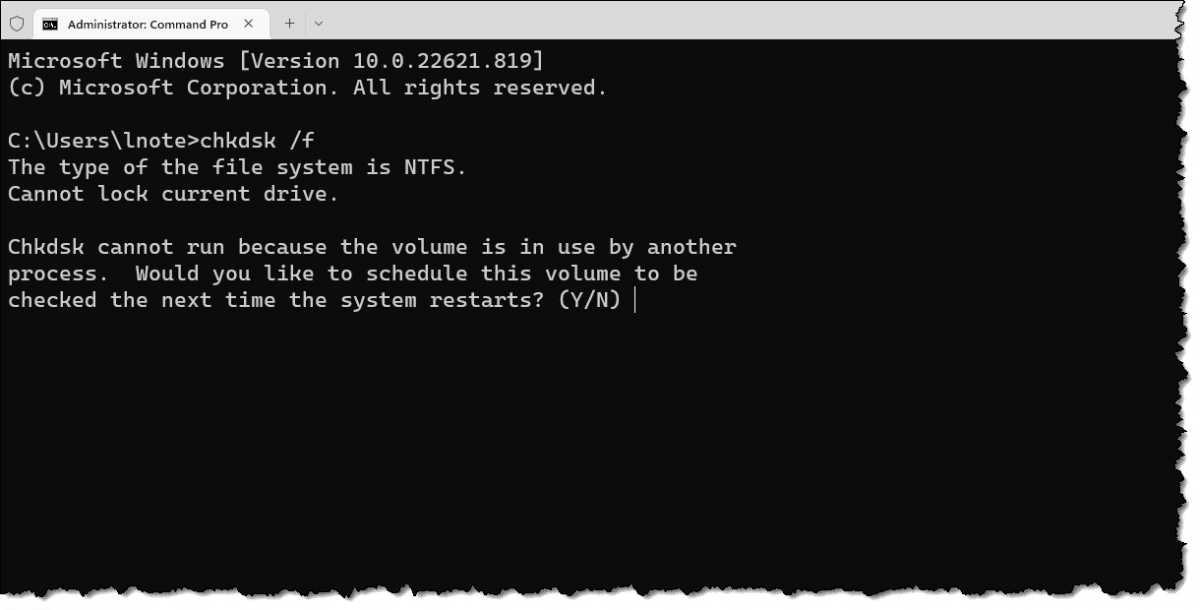
For a recent article on CHKDSK, I carefully timed taking a few screenshots of CHKDSK as it was running so I could capture the results. It turns out that was overkill. You don’t need to go to those lengths to get CHKDSK’s output. In fact, you can almost ignore what it displays on boot.
You can get the results later much more easily.
Become a Patron of Ask Leo! and go ad-free!

CHKDSK results after reboot
CHKDSK progress may be hidden when it runs on boot. After Windows comes back up, you’ll find the results in a WinInit entry of the Event Viewer’s Applications log.
CHKDSK on boot
As I mention in What Does “CHKDSK Cannot Run Because the Volume Is In Use by Another Process” Mean?, if CHKDSK has been instructed to attempt fixes or repairs, it needs exclusive access to the disk it’s checking. If that disk is your Windows drive (C:), CHKDSK can’t have exclusive access because Windows is using that drive to run your system.
The solution is to indicate that CHKDSK should run automatically before Windows runs the next time you reboot your machine.
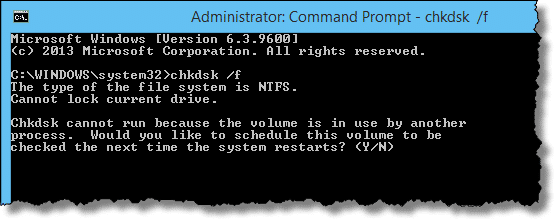
When you restart, CHKDSK is performed before Windows is loaded.
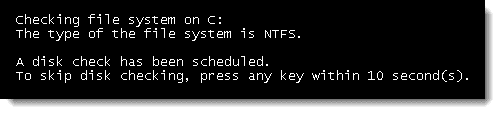
Prior to Windows 8, CHKDSK displays information as it progresses. In Windows 8 and later, the details are hidden behind a progress indicator.
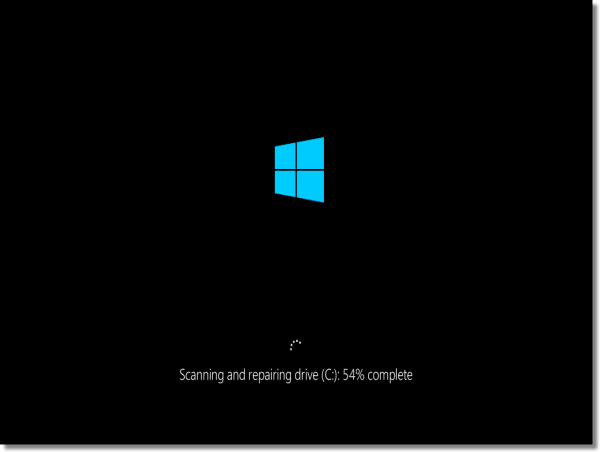
CHKDSK runs as it normally does, and when it completes, it reboots the system — which, of course, causes any progress or results that might have been displayed on-screen to disappear.
The Event Log
CHKDSK saves its results to the Event Log.
Now, as I’ve also mentioned before, the event log is a mess. It’s full of random and exceptionally geeky entries that barely have meaning to the people that put them there.
That’s not to say it’s a waste; it’s not. Sometimes that obscure and geeky information can be valuable, as we’re about to see. But most of the time, it’s so much noise.
Using event viewer to find CHKDSK results
After CHKDSK has run and your machine has rebooted, run the event viewer. Hold down the Windows key and press “R”, and type eventvwr into the resulting Run dialog.
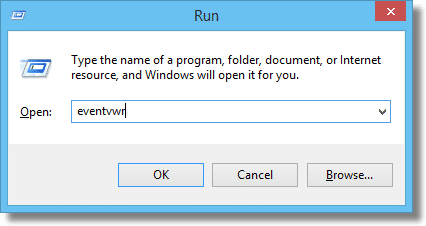
Click on OK and Event Viewer will run.
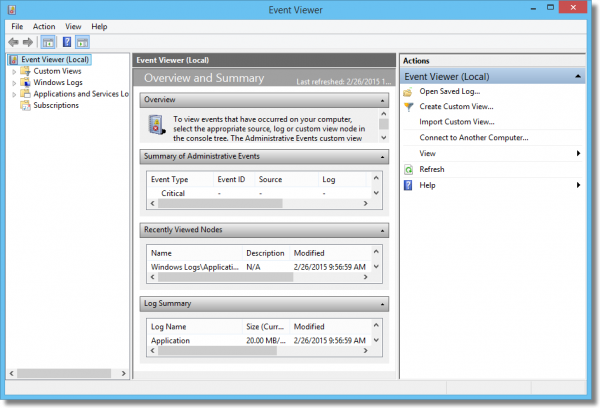
This is the Windows 8, 10 and 11 Event Viewer; Windows 7’s and Vista’s are similar, while Windows XP’s is much simpler. While the screenshots may be different, the general idea applies to all of them.
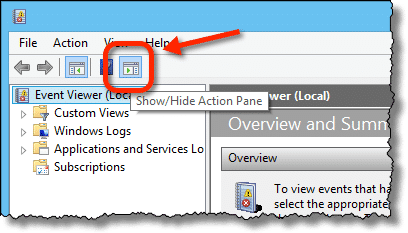
If the right-hand pane bothers you, as it does me, click on the “Show/Hide Action Pane” toolbar button to make it go away.
Expand the “Windows Logs” on the left (by clicking on the triangle to its left), and click on “Application” below it.
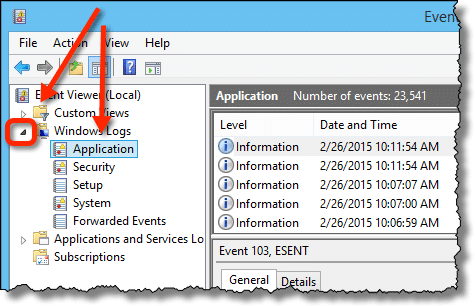
In the event log list that appears to the right, click on the first item. Then, one at a time, press the down-arrow key to see each successive event. You’re viewing them in reverse-chronological order (most recent first). There will be many that are basically incomprehensible; don’t worry about them. There may be several that display scary red “error” icons — ignore those too. They’re part of the normal mess that is the Event Viewer.
Eventually, you’ll come to an event with its Source listed as Wininit (Windows Initialization). The information displayed in the window below will look very familiar (there may be many other events from Wininit; we’re looking for the one that has CHKDSK information in the event information below the list).
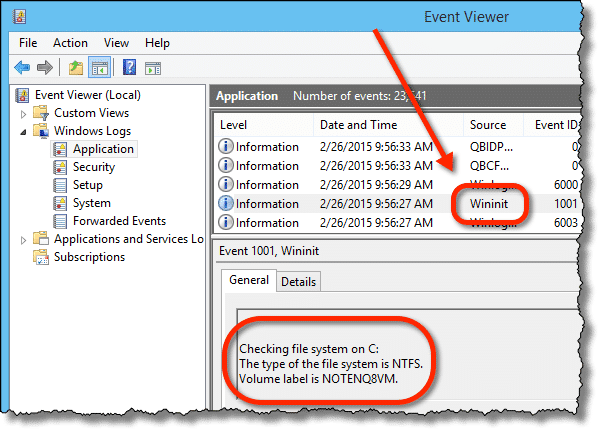
The text box within the “General” tab below the event-log listing is scrollable, and contains the entire text of the CHKDSK run that happened at boot time. You can scroll up and down to view the entire CHKDSK session.
An easier way to view the entire CHKDSK result is to click anywhere on the results text, type CTRL+A to select all, then CTRL+C to copy it all to the clipboard. Now run Notepad and paste the results there.
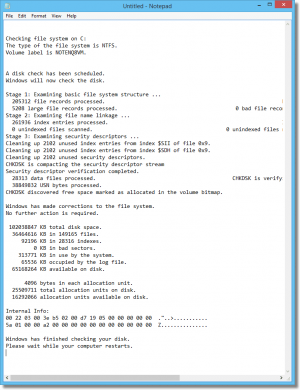
The formatting can sometimes be a little odd, but the results are exactly what you’d expect: the text generated by CHKDSK as it ran on boot. It’s all there for you to view at your leisure.
Do this
Don’t get frustrated or annoyed if it seems CHKDSK results are difficult to find. They are. 
But now you know where to look should you ever have the need.
Another good place to look is in your inbox, if you subscribe to Confident Computing. Less frustration and more confidence, solutions, answers, and tips in your inbox every week.
Podcast audio

Related Video


Take that your PC is running chkdsk on boot is an early warning. Your hard-disk is sick and will fail soon. Replace it before it dies completely.
Yes, there can be circumstances where a badly written program or even a virus can mess up your FAT that chkdsk scans for broken links, but the overwhelming experience with chkdsk is as I said, a forecast of failure.
Re: Take that your PC is running chkdsk on boot..hard-disk is sick and will fail soon.
That is not correct.
The OS may have the ‘dirty bit’ set for any number of reasons..some of them having absolutely nothing to do with hardware, and that bit being set will get chkdsk run on boot every time. Certainly it cannot be concluded that a system that runs chkdsk on every boot is absolutely headed toward imminent hardware failure.
Plenty of information available on the web as to the ‘dirty bit’, including how to clear it.
It’s not quite as good but much easier to open a command window and type…
CHKDSK > CHKDSK.TXT
Then when it’s finished open the file in notepad.
There’s a lot of “junk” in there because every time chkdsk writes to the screen there is a new line… but it saves rebooting and everything.
Lisa
10-Nov-2010
No matter what type of system I run check disk on it continually indicates that there is an error on multiple disks. I spent over two hours on the telephone with Microsoft and the support representative indicated that their machine did exactly the same thing.
Why does CHKDSK continually indicate that there are errors on the disk? And are they truly errors or is there a screwup in the Microsoft program?
10-Nov-2010
In past 12months I had series of run with CHKDSK. At the time I was running XPHomeEd.
A few times I had to re-install Windows. Things would run fine for a while and then CHKDSK would start all over again. Experienced this a few years earlier while running XPHomeEd had
similar episodes,but problem suddenly cured itself.Till recent events started again.I also run
XPPro. on other machines and there has never been any problems. So I formatted HD and a Clean installed XPRO on my guilty machine. This was a few weeks ago and so far there has no
further prompts about CHKDSK.
In my humble experience XP Home Ed. has a problem, going back multiple years. Ofcourse,
one must keep Firewall and Antivirus up-to-date
and not forgetting,” Windows Updates.”
Under Windows XP (I’m using Pro, can’t speak for other flavors of XP) the info for CHKDSK is stored in a file called “bootex.log” which is written (and, thereafter, appended to) on the main drive, normally “C:”. All you’ve gotta do is locate this file and open ‘er up in Notepad.
(N.B.: Certain third-party text editors won’t open this file properly — I’ve found TxEdit v5.5 by Gregory Braun to be notorious for this. Always use Notepad; it’s guaranteed to work.)
In Win XP Pro I found the results from my latest chkdsk in Event “Winlogon”. Thank you for a very helpfull site.