But it’s trying to help you!
How do I turn off automatic formatting in Microsoft Word?
Microsoft Word tries to correct common typing mistakes and guess the formatting you want based on what you’re typing.
While both activities look like automatic formatting, Word sees them in different ways. Fortunately, the options are gathered together, albeit somewhat hidden.
Become a Patron of Ask Leo! and go ad-free!

Turn off Automatic Formatting in Word
You’ll find a plethora of options to control automatic formatting in the “Proofing” section of Word Options. Click on File and then the Options item at the bottom left to get there.
Settings
Automatic formatting isn’t a single thing you turn on or off. It’s a collection of settings.
In Word, click the File menu and then Options at the lower left. Click on Proofing in the resulting left-hand pane. Click on AutoCorrect Options… near the top.
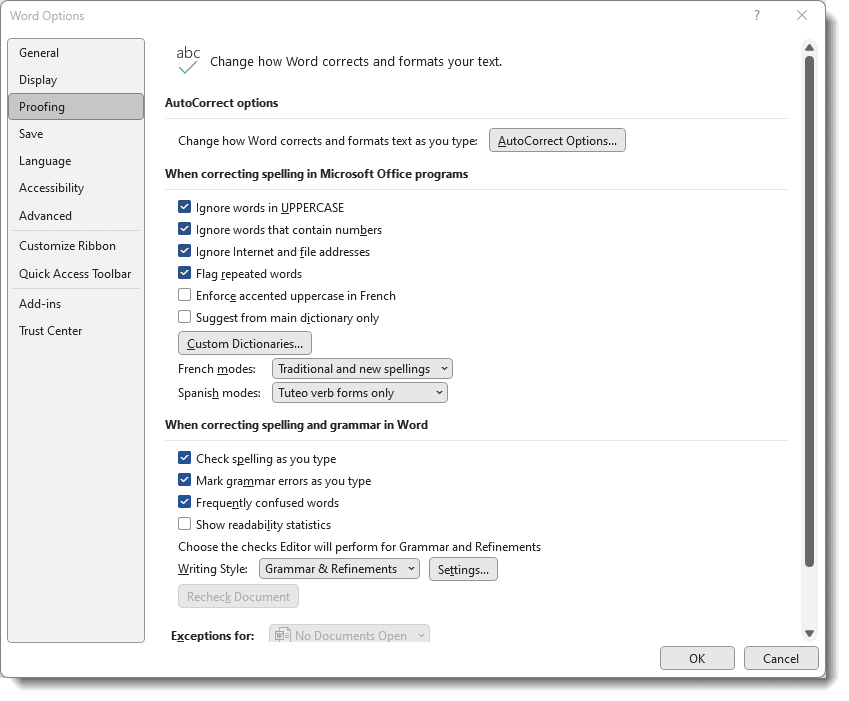
The AutoCorrect dialogue box has several tabs.
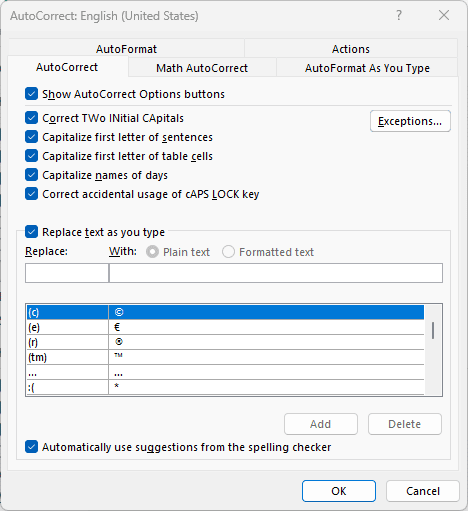
The tabs in this dialog organize Word’s various auto-correction and auto-formatting options.
- AutoCorrect looks for common typographical errors and fixes them for you. For example, a common error is to hold down the shift key just a little too long after starting a sentence, resulting in two capital letters instead of one. This is controlled by the Correct TWo INitial CApitals checkbox. The Replace text as you type list is a convenient way to define shortcuts for common or awkward entries. It comes pre-populated with conversions such replacing “(c)” with the copyright symbol: ©. You can define your own replacements as well.
- Math AutoCorrect is similar, defining several convenient-to-type shortcuts for common math symbols and allowing you to add more.
- AutoFormat As You Type applies formatting based on what Word thinks you’re attempting to do. For example, it replaces the typed sequence “1/2” with an actual fraction, ½. Settings here control automatically generating bulleted or numbered lists as well, which many people find either wonderful or incredibly annoying.
- AutoFormat is very much like Autoformat As You Type. Rather than applying formatting as you type, this option controls what formatting is applied when you use the AutoFormat command on the Quick Access Toolbar.
- Actions, when enabled, provide a list of additional commands on the right-click menu.
As you can see, Word has several ways to do things for you automatically. But thankfully, once you discover the settings, Word allows you to control if and what it attempts to do on your behalf.
Do this
Particularly if you’re a heavy Word user, it’s worth spending a few minutes reviewing the AutoCorrect options available. Once configured to your needs, it can save a lot of time and many keystrokes.
Be sure to subscribe to Confident Computing! Less frustration and more confidence, solutions, answers, and tips in your inbox every week.
Podcast audio

Related Video


lets say if i want to make changes in a doc.
for ie
i would like to change all the repeat fields to the sama at the same time.
Sorry there, Daniel, I don’t understand your question. -Leo
I have all auto-formatting and auto-correct turned off. I do not want Word to think for me because it usually is wrong. The problem I have is with styles. Word continually changes the style from normal to something else. This affects the font, font size, indentation, margins, etc… I want everything to be normal, I will make any changes from normal. How can I prevent Word from automatically changing the style?
is there a simple way to turn off ALL the features of auto correct, in one stroke? thanks
howcan i turn off the archive of intermessages on msn………this is no ones buisness but mine and need it not on there .l Iam running winodws xp
thank u where do i go to to find it again
deb
I have MS Word 2002. For some reason Word wants to format the entire document whenever I apply formatting to selected text. What is also strange is when I click the undo arrow button Word then appropriately formats the text that I wanted it to. It’s as if Word first formats the selected text and then proceeds on to format the entire document even when not commanded to do so. I’ve turned off all autoformatting options to no avail.
Any suggestions?
Thanks!
How come my text gets deleted when I space or put another letter before a word in a sentence?
You may have the “insert” function switched off and it is overwriting your text? Try hitting the “insert” button and see if it helps.
See if formating marks are on top or near key you type. They take out entire message
I have turned all the items off in automatic format. I am creating a document that has two fonts in it. Word is constantly shifting my Hebrew font to a Roman Times font and RT to Hebrew. I can reverse the change by hitting the undo automatic format.
FORMATTING PROBLEMS SOLVED: HAVE A LOOK AT THIS WEBSITE:
http://word.mvps.org/FAQs/Formatting/WholeDocumentReformatted.htm
Word seems to auto format 1/2 and 1/4 but not 1/8 or 1/16. How can I get it to do these other fractions as well? It looks really retarded to have 1/4 as a fraction but 1/8 not.
Help?
That’s because there are special characters for 1/2 and 1/4, but not for 1/8 or 1/16. There is nothing to auto replace with.
Actually there is a 1/8 (and others, but not 1/16), under insert/special characters. A lot of trouble to use, though.
Leo made that comment in 2005. They might not have 1/8 in the character set in more recent versions.
Using MS Word 2003 on a Windows XP machine – I paste from a HTML document in a browser into a blank word document. There is Auto numbering that takes place. THese numbers/letters did not exist in the original document. Butr some letters and numbers did exist. Word is treating “CArriage control line feeds” (enter button presses) as new numbers and letters. I don’t want these extras. Also I hit the enter key in a few spots and it still nuimbers/letters. I have the “as you type auto correct” turned off and everything. I can’t believe that I cannot turn off this “feature” and I’m a programmer!
Is this a problem because I’ve pasted from HTML?
Please help as this is absolutely killing me.
Reubin
I have “Capitalize First Letter of Sentences” under AutoCorrect options deselected in Microsoft Word, yet it still capitalizes first letter of each sentence automatically.
Yes, I’ve restarted, rebooted, etc. It’s been happening for months. Any suggestions?
Hi.
On Nov. 12, 2005, Francesco wanted to know how to get auto format to turn fractions such as 1/8 or 1/16 into the “auto formatted” version of 1/2 or 1/4.
You responded that this was a problem with “special characters.”
My problem is that I DON’T want 1/2 or 1/4 to become the “auto formatted” fractions because I place the Word files into Pagemaker Files and the auto formatted fractions sometimes turn into oddball characters. I just need 1/2 to look like I typed it.
Is there any way to “get rid of” those “special characters” that create the autoformatted fractions? I use the standard Times and Times New Roman fonts.
Thanks for any help you can provide.
Tools->AutoCorrect->AutoFormat as you Type -> uncheck “Fractions with fraction character”
Thanks for the advice. Unfortunately, I’m using Word v. X for Mac and “Fractions with fraction character” doesn’t appear under the “Autoformat as you type” heading.
Is there anything else I can do?
I have exactly the same problem (see below)! Word 2003 and Windows XP. This is driving me crazy. Do you have any ideas?
—-
[ I have “Capitalize First Letter of Sentences” under AutoCorrect options deselected in Microsoft Word, yet it still capitalizes first letter of each sentence automatically. ]
Leo – I am using Word 2004 v11.2 on a Mac. I have read your article; I have read all of the Microsoft Help articles; I have every auto-formatting option turned off… AND MICROSOFT WORD KEEPS ON AUTO-FORMATTING MY DOCUMENTS!!
It is especially evident when I am cutting and pasting.
I don’t want it! It’s driving me crazy, and slowing down my work considerably. I can’t believe I’m the only one with this problem.
Is this a major bug in Word 2004?
Please help!
When I receive (from someone else) a Word file that has fraction characters in it, the fraction displays on my screen as an underscore. Is there something that I can do to get it to display correctly in Word? If I cut-n-paste the text into Mail, the fraction displays correctly. I’m running Word X for Mac Service Release 1, on MacOS 10.4.5. Thanks!
Occaisionally when I highlight one line and click to add a bullet to this line, every line in the document has bulletts added to it.
To get rid of theunwanted bulletts, I click ‘undo’ however this can be time consuming and frustrating.
This does not just happen to bullett points, sometimes it is the footer of a document, which adds lines to itself, whils I am formatting the body of the doucment. These lines can be manually removed, but again this is frustrating and time consuming.
Any ideas, your assistance would be apreciated?
Thank you,
i turned off automatic numbering and cant turn it back on even though automatic numbering is checked. i even restored factory settings but still won’t list for me after i type 1. i have to type each
How do you do fractions in PageMaker7.0, for example 3/16?
I also have read everything there is and followed every instruction for turning of all automatic formatting and yet it still does happens and I absolutely hate it. It definitely interferes with my work – where I have to create documents with lots of different formats.
I, too, have all the AutoCorrect options deselected (turned off) and Word 2004 for Mac continues to make changes. In particular, I have deselected “Capitalize First Letter of Sentences” and Word continues to capitalize the first letter. Has anyone figured out how to work around this bug?
Hey guys!
I had the same problem with deselecting the Autocorrect options in Outlook — actually I deselected ALL of them and nothing worked..
Turns out it’s not an Outlook bug, really. It’s because in Tools/Options/Mail Format, “Use Microsoft Word 2003 to edit email messages” is selected – the Autocorrect options are coming from Word itself!
: ) Hope this helps! It fixed my problem when I deselected that.
I forgot to mention — you also should turn off “Use AutoCorrect when Word isn’t the main editor” under Tools/Options/Spelling. And any other option you don’t like. : )
I just want to turn ALL auto formatting off. With the exception of fractions and 1st, 2nd stufff.
This is TOTALLY FRUSTRATING!!!
Hi! Leo,
I can’t find where to turn off the auto formatting which creates the live web link
each time I type an email address in MS Word?
I am unable to copy and paste a group of friends
into another page without transferring the live web link effect.
Any ideas?
Thanks
Rich
I work with MS Office Word 2003. My problem is that once I turn off all of the Autocorrect options, after every reboot of my computer (and sometimes even after hibernation) all of the options I had deselected revert to their original state, and Microsoft Word once again autoformats everything until I turn off all the options again! This is insane! I have to reset the autocorrect options – as well as all the other options (General, Edit, Save, Spelling, etc.) – at least once every day! Is there some way to permanently freeze the settings? Or is there at least some way to save a template of such settings? The only savable templates I am aware of deal with toolbars and formatting but not with “preferences” as such. Any help would be greatly appreciated!
Thank you!,
Steve
What I think everyone’s looking for is the “automatically update style” feature.
“Choose “Format/Styles and formatting” from the menu. Then select the style you want to fix – it will appear, with a bunch of other styles, on the right side of the screen.
Right-click on each and choose “modify.” then de-select the box that says “Automatically update.” I did this with all the styles.
This fixed the bullet problem, and all other issues I was having with Word doing unexpected things “for” me.
Thanks Dan Georges for the following fix to Word’s auoformatting:
What I think everyone’s looking for is the “automatically update style” feature.
“Choose “Format/Styles and formatting” from the menu. Then select the style you want to fix – it will appear, with a bunch of other styles, on the right side of the screen.
Right-click on each and choose “modify.” then de-select the box that says “Automatically update.” I did this with all the styles.
This fixed the bullet problem, and all other issues I was having with Word doing unexpected things “for” me.
Thank you Dan for your post. I’ve been pulling my hair out for weeks trying to figure out why my bullets have been autoformatting the entire document everytime I created a new subset. Ctrl-Z was getting used more than save. Unchecking the “Automatically Update” fixed it. It was definitely not an intuitive fix.
Thanks to all who have posted on this topic. I am using Word 2004, V11.3 and the auto-format bug (feature?) has been driving me nuts. None of the messages posted here solved the problem, but they did get me to the point where I think I have figured it out. What I did was to select ‘format – style’, then ‘modify’, then unselect ‘automatically update’ and select ‘add to template’. . . No Response is needed.
Thank you so much! This was incredibly valuable conversation to resolve a frustrating problem. A note to Sherry – I didn’t know what this was called until I stopped doing Ctrl+Z and I went to the edit menu and saw that “Undo Automatically Update” was what I wanted . . . a good but frustrating learning curve.
leo –
How do I turn off formatting symbols in outlook 2007? I hit some combo of buttons and now with every new e-mail I get the formatting symbols.
Thanks
Ted
—–BEGIN PGP SIGNED MESSAGE—–
Hash: SHA1
When you edit a message, click on the icon in the ribbon that looks like a
backwards P. (I think. I actually haven’t used Outlook 2007 yet, but I know
that it uses Word as it’s editor exclusively.)
Leo
—–BEGIN PGP SIGNATURE—–
Version: GnuPG v1.4.7 (MingW32)
iD8DBQFG7xe2CMEe9B/8oqERAhHfAJ9XVqpdAjQIshtwoZ6p4CMsUOFEfACdEDUf
14ElLdS9va9x96PvTTwqJBc=
=2qAF
—–END PGP SIGNATURE—–
Hi,
I’m working on a manual at the moment with lots of chapters, figures, tables, etc etc.
My question is dealing with document map problems that are caused by ‘automatic reformating’ every time I open the document.
My problem comes when Word (2003 and 2007) automatically reformats the entire document and messes up a lot of my titles/subtitles- it assigns figures as subtitles (when they shouldn’t even be listed) in my document map and so forth.
Is there any way to permanently stop this from happening? I’ve tried deselecting all the boxes in Tools> AutoCorrect> AutoFormat, but they appear checked everytime I re-open the program.
any suggestions?
Can anyone tell me why after i uncheck the automatically update box in the modify style tab, that IT STILL DOES it! seriously it cannot be that hard, it really is driving me nuts, is there anything else i need to turn off? pelase help
Is there any way to PERMANENTLY disable ALL of the Microsoft “auto formattiong” system. How damned arrogant of Microsoft to introduce such a disruptive process with no means of effective escape.
I too am fed up the mess microsoft have made of word with all their crappy pre-emtive features.
Like the others I want to remove the date update feature but it does it even when the check box is clear. I really can’t be doing with the amount of time I have waste looking for solutions to things I don’t want. I just hate using word these days. Office 2007 is a nightmare. Bill Gates needs a big kick up the arse.
I tried everything suggested.
Even though all boxes are unchecked, automatic styles update turned off, it is STILL messing up my attempts to edit the document that was sent to me. If I make a change on page 13, that is supposed to be only on page 13, I go back and see that the same change appears all through the document. I have spent HOURS undoing and redoing and undoing again.
I’m probably going to start from scratch, typing 23 pages.
Please help!
When I got to “Modify Style”, I cannot de-select the box that says “Automatically update” because it is inactive! I’m on MS Word 2003
Leo did not read the complete question. The question was how to turn off Autoformat PERMANENTLY. I have fought and worked with this question for about a year and cannot find out how to turn it off permanently in normal.dot (the page that appears when you start a new document in Word).
—–BEGIN PGP SIGNED MESSAGE—–
Hash: SHA1
The method outlined in the article should turn it off
permanantly.
I understand that’s not happening for you, but that would
indicate some *other* kind of problem. Your settings are not
being retained. I don’t believe these settings are kept in
normal.dot, so I don’t believe that plays a part.
Unforutunately I don’t have an answer for your specific
situation.
Leo
—–BEGIN PGP SIGNATURE—–
Version: GnuPG v1.4.7 (MingW32)
iD8DBQFHvF8dCMEe9B/8oqERAgLQAJ9Jfs5egxbHPKpI6M8TkaIPAM3ucQCdGX13
5Fow0aIzbBa013sdqHqVCjo=
=m3F7
—–END PGP SIGNATURE—–
Thanks, Leo,
I guess my Word installation has a deep inside problem. I have unchecked all of the many AutoFormat boxes dozens of times in the past five years, but every time I open a new document (which starts with normal.dot) the checkmarks are back again. Oh well, I guess I will just have to uncheck all boxes every time I start a new document.
Thanks again, Lloyd
Thanks so much to Dan Georges for the solution on “styles” fix. I have been fighting a big document for a long time, and had deselected everything I could think of. Everytime I made one change it would go through the whole document and apply that one change (bold, bullet, etc.) to the whole document. Then, when I tired to Ctrl-Z it, it would say there were too many edits and would shut down. This fixed it and I can actually work with it now – I really appreciate it!
I’m editing one of my manuscripts, and need to have my chapter titles at the start of a new page. But every time I put pace between the previous chapter, and the next chapter (using the enter key) It puts my chapter titles at the bottom of the new page. It does this with every chapter and I cannot understand why.
If you are making changes regarding AutoCorrect and AutoFormat and they keep coming back every time you open MS Word, it could be that your normal.dot is not being saved or it could be that you are using Acrobat version 7 which has a glitch that affects these things. Try this – once you have made the changes you want, hold down your Shift key and simultaneously click on File and select Save All. Now close Word and then re-open and see if your changes are still there.
Please refer me to article by Dan Georges… I can’t find it. I’m in the same boat wit Pricilla and can’t find an oar.
Roger
Thanks so much to Dan Georges for the solution on “styles” fix. I have been fighting a big document for a long time, and had deselected everything I could think of. Everytime I made one change it would go through the whole document and apply that one change (bold, bullet, etc.) to the whole document. Then, when I tired to Ctrl-Z it, it would say there were too many edits and would shut down. This fixed it and I can actually work with it now – I really appreciate it!
Posted by: Priscilla Anderson at February 28, 2008 10:51 AM
If you are changing the program defaults (which change “Normal.dot” and these changes are lost every time you shut down, it is probably because you are on a work computer where you do not have “administrator privileges”. You need to request this change in status from your network administrator. If you do not have this, you will not be able to make and save changes. However, can import a copy of “Normal.dot” from another computer (even from an older copy of Word, in my case) and replace this file from OUTSIDE Word.
On my XP system, this is located at: C:Documents and SettingsMY_LOGON-NAMEApplication DataMicrosoftTemplates — but you must replace “MY_LOGON-NAME” above with your unique logon identity, since this will be different for everyone. This workaround method is a pain-in-the-butt, so you are much better getting admin privileges so you can make changes when needed, as there is a huge amount of other annoying stuff to fix also. Then, once you learn your way around you can create add additional buttons to make tasks easier, add menus to keep needed files handy, add keyboard Macros, and lot of other stuff. There is a huge hidden erector set if you want to take the time to learn to use it. For example, creating a macro mapped to Alt-V to do a
How do I stop Word from capitalizing the intial “c” in “cc:” on the carbon copy to line?
I can’t stop word from auto formatting items that I bold or center. I want to bold one line and the whole document ends up bold. This problem started in Office 2003, never had it in Office 2000. I have tried all the formatting toggles suggested above but it still does it. I have to undo the automatic style change to get what I want.
I have turned off all Auto Format and it is still all unchecked, which is fine, yet it still *bolds* my items when I put *stars* around them. Currently this only happens in Outlook, not Word docs, but it’s the same thing – both run off Word. The Microsoft website tells you if this keeps happening, to check “prompt for style updates” which I have done, and it still bolds anything with stars around it. No idea what else to do, no one seems to know. Like I say, actual Word docs are fine now, but Outlook still formats.
I was having the same problem of the styles automatically changing through the whole document whenever I made a change and have found the answer
In Microsoft Word, when I change the font style or paragraph style of a particular text string or paragraph, the entire document changes. I press Control Z to undo the global change, and only the desired change remains. I turned off all auto format options, but this still happens. How can I stop those global changes for occurring?
Everytime I try to insert a text box in my word document it puts in the strange characters how can I get rid of this because it also prints in my documents,
I had the same problem on OSX using Office 2004.
The problem happened suddenly where if I reformatted one line (not individual words), the whole doc went to that format until I pressed Ctrl-Z. The problem in my case was in the Styles.
Choose MENU: Format/Style…, Pick the Normal style and Press Modify. At the bottom of the dialogue box is a check box for “Automatically Update”. Switch this off. This check box should actually be labelled. “Autmotically Wreck Your Document”.
To make sure that you change your Template document Switch ON ‘Add to Template’
Then OK your way out.
Note this happens from time to time because I use Entourage which is the Mac version of Outlook. This program is an abomination. I regularly have to repair my database and whenever I do, I lose all of my preference in every office program and it seems to default to the most annoying set of choices imaginable. Good luck.
This is great for automatic formatting, but I want to get rid of the automatic date. When I want to type the full date (which is always) I press Enter to go to the next line, but of course that sets the automatic date in motion, and I get a second date – short version – next to the one I typed in. I can’t find any way of stopping this process, and the Help tells you how to do it, but not how to turn it off.
Re formatting being applied to a whole doc, yes, I too have that case where I apply a format to one word but the whole doc formats, then I have to undo, which leaves the change on the correct word. I live with it ;-)
I’m still Struggling! I have microsoft office & I want to turn off the annoying auto numbering.Unfortunately the “tools” option doesn’t have an “auto correct” option. Can you help?
open MS word, click open, select “document templates” in files of type. select the style you would like to change (e.g. Normal.dot). after opening the file, go to format>styles and formatting, click the dropdown menu on the style you want to change (eg. Normal), then select modify. in the pop-up, untick “automatically update”. click “ok”. then save the .dot file you opened. this should change the settings of the style you’re having a problem with.
I can’t seem to find “How to Turn Off Automatic Date” in Word…. Can you help please?? its driving me nuts..
Thank you Nikki. I have Microsoft 2003 and I had the same problem where the whole document would change even though I selected a specific text. I followed ur steps and unchecked the preserve button and the problem stopped. I really appretiate ur feedback.
Thank you, thank you, thank you David (Jan 11, 2009). I was going crazy having to ctrl-Z to undo auto formatting every time I reformatted a paragraph. Your fix did the trick!
Thanks David, your answer solved my problem. My document was automatically getting wrecked everytime I made a small formatting change.
David, I was howling abuse at my computer on a plane in India every time I hit an ^Z to undo the global effects of my formatting. My neighbors on the plane tried to avoid eye contact. You have made me human again.
The article works in Word 2003, but I can’t seem to turn off auto formatting (for example, turning a list into a numbered list) in Word 2007. Microsoft’s own instructions (use the office button and find Word Options) doesn’t work because there is no option from the Office Button called “Word Options”. This is why I end up doing everything in Notepad or Wordpad. MS absolutely ruined Word with the 2007 version.
19-Feb-2010
Why has Word capitalized my entire document? And how can I undo this (and no, my caps lock is not on!). Thanks!
When I oipen a 2003 word doc and even do a simple save as it goes into updating the fields automatically. When this happens it saves and screwes up my doc and TOC. How do you turn off automatic updating of fields? thanks
I’m typing a document in Word 2007 and all of a sudden it started indenting the NEXT line of a paragraph. I’ll be typing and get to the end of the line, spilling onto the next line with the same sentence and it’ll push it in like I’ve hit tab or have a large indent set up. I didn’t change any settings to make it do this. How do I fix it. It’s preventing me from finishing my document.
Writing my sentences and spilling onto the next
line and it does that automatically. Please help!
In Word 2010, it does not seem possible to turn of automatic formatting of styles, resulting in creating new styles.
How do I stop Word 2010 from creating new styles with formatting changes? I tried unchecking “Keep Track of Formatting” under Editing in the Advanced Options. Does not work.
In Word 2003 and 2007, Unchecking “Keep track of Formatting” does work fine.
But my main grouse is that my style list keeps getting populated with these unecessary styles.
Thanks
When I am typing in Microsoft Works Word Processor (something that is affiliated with Microsoft Word) I will make a mistake and realize it a few lines down. When I place my cursor where the mistake is, and hit the Backspace to delete it, and begin to type what should be there, it deletes the text following it, messing everything following the error up. How do I fix this? I believe it has something to do with AutoCorrect, because it will do this to me, stop randomly, and then continue at a different time, even when I didn’t change any settings. Please help! Thanks.
I was hoping this article would fix my problem; but it didn’t. I turned off everything in Autoformat and Autoformat While Typing but the follow issue persists. I’m working on numbered instructions with images and multiple paragraphs per numbered item. When I add a line and toggle the list formatting, the entire document ‘un-numbers’. I have to click undo to return the documents to its original state. Luckily, the formatting I intended also stays. I have to do this with every format I apply; center, numbers, bullets, color, etc. So I can apply new formatting but have to click Undo after each setting.
Rachel – It’s probably the ‘Insert’ key on your keyboard. It toggles from an insert function to a replace function when pressed.
Sorry to bother – my question is possibly not totally addressed to you, but nonetheless: Word will ALWAYS write “form” when I type from, it will always write “hiss taff” when I type “his staff”, it will always write “tob e” when I type to be – and there are dozens more of these things. And despite having ticked AutoCorrect to eliminate two initial capitals, it will not do that – or rather – it will only do it sometimes. Can you possibly help, please?
Regards, Juergen
In a nutshell – turning off AutoCorrect features DOES NOTHING, Word keeps on replacing my double dashes with a hyphen, etc., etc.
After a crash in word 2007 document(stop responding when I saved the file), it auto-formated my crashed document instead of opening a backup file when I re-opened it. All the format in the document are corrupted. Could anybody help me to fix it since my document is very large, it’s pretty hard to re-do the formatting line by line. Thank you for your help
Hi Leo,
I am having so many problems with a Word Doc that was created a few years back and now has to be updated and revamped. The first thing we needed to do was make it a fillable form, whih we did. However, it has all of these tables, for lack of a better word, that will not let me delete what appear to be bold underlines, and when filling in the boxes within these “tables” the typing appears to just run off the page???
Also, we created footnote for copyright prtection on each page and the typing iss running into the footer?
How can I stop all of this unwnated format stuff and just make it easy?
Best solution is to get a Apple Mac and learn to use Pages. You can import and export Word documents with very little risk to formatting. It does not try to guess what you want to do and is significantly better designed. Apple Stores do free training and you’ll soon realize that its deceptively simple design is more powerful and easy to use. You are welcome.
Both in MS Word and Outlook a very annoying “[TOB>] ” is added every time I begin to type… I then need to double back an erase this addition. This appears to happen when I am responding to document sent to me and I assume that it has to do with formating of that original document and default “handeling” format on my applications? Please advise on how to stop it.
22-Sep-2012
So I have to turn off the AutoFormat options, not once, but twice, first in the AutoFormat menu and then in the AutoFormat As You Type menu. Repeat after me: It’s the Micro$oft Multiverse, resistance is futile, prepare for assimilation…
Hi Leo, please help. I have followed your advice but I am still having trouble with the latest version of word. The normal word dot dot on my laptop has different configurations to a windows server, like font size, margins, paragraphs – all are different on both, even though I copied across the normal dot dot from the server
How do I get my laptop and server to run the same and mirror each other? Greg
Hi leo, I use msword 2003 to create books and sometimes without warning the font size in my document map is changed on me without my doing it. What is causing this to happen and how can i fix this problem?
Thank you
No matter what i do, create list styles from scratch and multi-level lists, i define all fonts and still when applying to a document it goes nuts on me. for example, all fonts and paragraph is defined as calibri 11, black, regular, when i apply level 1, it goes to size 16 blue. and so on for list 2 and 3 (difference variance but similarly no control. There are several areas where font can be applied, so it is confusing. I found atleast three places where i think i am putting the right controls in place, but nope, not happening. Also, when doing this always makes you choose to do it just for this document or future documents. I want this to be a default in my library so i select for future documents. Doesn’t save in my library. There is no add to library option. I have named it though does not appear anywhere. Applying just for thi doc yields no desired results as well. Microsoft is such a horrible implementation of list styles and multi-level lists been looking everywhere but only get high level instruction, nothing that answers these questions where i can actually execute. thank you!
Hi Leo.
After much frustration I got to your site.
All of the sudden my 3 dashes follow by enter that used to give me a line across the page just like I wanted in MS 2007 got me locked up above that line and I could not write anything below! (my next paragraph, actually bill details)
I found out about automatic formatting with that symbol that appears sometimes in the margin. That works great….But for the life of me how do you bring up that symbol when you need it? No one seems to mention it.
Going to right click on a misspelt word will show you that icon/symbol, but it has not the “on” “off” autoformat option! It only brings up that window you’d get going trough the whole process [Word Options>Proofing>Auto Correct Option… and Autoformat panel! There I can’t see any option to turn off or on this feature.
Most of the posts and helps entry I read tell you to use that process and as I just say it does not help me. All my boxes in that panel are checked, yet typing 3 dashes after a return and “Enter” just let me with 3 dashes, not a line across the page and my cursor underneath ready for the next entry as it used to be.
So now I’m not locked anymore in that paragraph but I can’t get that line until I find that switch again!
Thanks for any help on this.
Regards MM
I kind of found my own answer or part answer!
@ http://word.tips.net/T000622_Adding_Automatic_Lines.html
I found that it’s important to check the “border line” box in the Autocorrect > autocorrection> “Autoformat AS YOU TYPE”
But I did not find the way to bring up that Icon where you simply choose On or Off.
For my liking I found that if you type a known misspelt word: ie “dealy” , then to right click it will give you a drop down list with some spelling suggestions but also the option to autocorrect. Chooding that option will give another dropdown list that has at the bottom of it “AutoCorrect Option” and to click on it will give you that panel where you’ll see the tab “Autoformat AS YOU TYPE” with the box for the border line.
Possibly there is a smarter way to get that icon showing on the page when you need it but I could not find it.
PS Leo on your site I see a lot of questions but not so many answers, am I missing something?
I am so frustrated with Word and its autoformatting. Even when I ask it to insert text without formatting in the middle of a formatted list, it unnecessarily changes the indentation, but if I type the same text in by hand, it does not. What kind of mind produces this junk software?
Word changes the first letter in a sentence to upper case, even when I do not want it to. I have switched off almost all autoformat and autocorrect features, but nothing helps.
I have solved the problem in my previous question. If I go to spelling, and then to Options, then uncheck “Always suggest corrections”, then Word will stop changing the initial character of a sentence to upper case.
Hi Leo,
How are you?
I sure hope that you can help with this very frustrating problem. (I think, but am not certain, that this began after I upgraded this Dell laptop to Windows 13 (from 8 I think?)
As I type (and it happens randomly seemingly and it occurs in various apps (word docs, social media, etc) I’ll be typing along, and it will just start deleting my darn letters at the end of whatever word or the entire word quite . It has seemingly gotten progressively worse over time. (has been going on 4-6 months and 2 computer repair guys have not been able to figure this out).
Eeek! I am a writer and I need it to stop! Please help!
Thank you kindly,
Angela
Is this a problem you are having on a laptop? That often happens on a laptop if your hand inadvertently touches the track pad and selects a block of text. Solutions for that are to turn off the track pad (if your computer allows it) or tape a piece of thick paper over the track pad and use an external mouse.
Hi Leo,
I keep getting a word blank page that freezes my computer and after a while another window pops up in top left corner that is asking me which pictures do you want to copy? Then it starts spinning and after a while it gives me another screen with a folder showing a file name s1001.
It’s slowing down my work really bad!!!
Please help!
First, thank you for this service after all these years.
1. Please tell me how to stop an automatic file being created on the desktop and in my documents when I open any MS Word document, all of them begin with ~$
This does not happen every time I use Word.
2. Also, under the document properties should the boxes, File is ready for archiving and For fast searching, allow Indexing Service to index this file be checked?
3. I am using a old laptop that has Word 2003 that recently started auto converting my documents to Word 2007. I want to stop this from automatically
happening as now, some documents do not open which are resumes to get a job and buy a new computer.
1) You cannot. Word assumes you are editing the document, and this is a temporary file that is created as part of that process. It should be deleted when you close Word.
2) Totally up to you. If you use Windows built-in search allowing it to be indexed can speed things up a little. I don’t.
3) I’ve not heard of auto-conversion. That shouldn’t happen. I assume you mean .doc files are being saved as .docx – make sure that the correct format is selected when you Save-As.
Another thing about those temporary files beginning with ~$ created by Word, sometimes, Word gets interrupted and those files aren’t automatically deleted. If you find them, and Word is not open, then it is safe to delete those files.
Those would be available from the Department of Veterans’ Affairs.
http://www.va.gov/vaforms/form_detail.asp?FormNo=27-2008
I have used Office Word 2013 since it first came out, and I continue to spend more time trying to get it to allow me to do what i want to do than getting my work done. Office Word 2013 does worse than merely second guess WRONGLY what I want to write. It absolutely PREVENTS it.
I minored in English in university and I know how to enter correctly and indent Roman numerals, capital letters, numerals, lower case letters, parenthesized letters, and such. And Office Word 2013 has forced me to do them incorrectly up to now.
Not only can it not read my mind. It absolutely refuses to allow me to override anything it changes.
And THAT IS THE RUB!
Granted: There are advantages in using a word processing program that provides spell check, that provides the feature of highlighting and moving portions of a sentence, to improve clarity, that provides the feature of highlighting and dragging as , for example, when I wish to change the place of a paragraph in a numbered sequence. But overall Office Word 2013 blocks me from doing things that are correct, that it second guesses are not correct. And, when it does that — as it does frequently — and will not let me override its wrong guesses, it more than doubles the amount of manual labor I must do to try to find a work around to it.
As i write this, I am fighting against expressing myself in crude, insulting and and obscene language and phrases. No one would want to read what I really think and feel.
Let me try to say it politely and in good taste.
The stress and the inefficiency resulting from Office Word 2013’s attempts to correct something it does not grasp, or change something I do that is correct into something that is abundantly incorrect, is counter-productive for me, and well may be impacting my health, as well as my efficiency in getting my work done. And this increasingly makes it an object of my resentment and anger.
So turn off auto-correct in Word’s options.
How do I turn off the line return symbols that appear at the end of a line.
In Word 2016 and some older versions:
Click on the “Files” tab
Click “Options”
Click “Display”
Uncheck “Paragraph marks” and any other formatting characters you don’t want shown, even everything.
I guess I am getting too old, when young I could do almost everything, now I was not able to use word pad. I was trying to get a post to be aligned on the left side, and also on the right side, just like when one writes a regular letter. instead, I keep getting every line Indented it was a mess.
I had to go to note pad, finished in no time.
I am getting old
FWIW the term for aligned both right and left is “justified”, and should be one of the options for paragraph formatting.
Excellent help. Thank you…
Now, how can I turn off the AutoFormat in Headers (without turning off the Page Number) in order to hand-enter text L vs. R header text? *)
I am in a large recto-verso set-up with many ‘next page section breaks’ (and internal continuous breaks – changes from 1 to 2 and back to 1 columns).
*) Word seems all over the place: despite ‘link to prev’ turned off and several next page section breaks in between it populates headers towards the front of the doc (where it shouldn’t). The header/footer selections in Page Layout are unchecked too.
**) when I backtrack and check the v arrow to the right of the back arrow, I see “AutoFormat” pop up every time when Word goes rogue with my L or R or both headers.
Many thanks for your time and help in advance.
Complex formatting can be a nightmare in MS Word. It’s better to use a desktop publishing program. If you have MS 365^, it comes with Publisher which is an easy-to-use desktop publishing program. There’s also the free Scribus which is a bit harder to learn.
https://www.scribus.net/downloads/