Windows is trying to be helpful by protecting you from yourself.
Or perhaps it’s trying not to confuse you with too much data.
Or maybe it’s trying to protect itself from you.
Whatever … Windows is hiding that folder.
You and I, we know what we’re doing, so we’ll tell it to stop.
Become a Patron of Ask Leo! and go ad-free!
Hidden files and folders
Windows1 has a “hidden” attribute for files and/or folders. When a file is set to be hidden, many programs simply do not display its existence.
In Window’s defense, there are files and folders that generally shouldn’t be played with, or that may simply cause confusion. I can understand why Windows might elect to hide them by default.
On the other hand, sometimes we really do want to see them, as in this case.
Fortunately, for Windows Explorer at least, there’s a simple setting. And if Windows Explorer isn’t your thing … well, there’s always the Windows Command Prompt.
Viewing hidden files and folders in Windows File Explorer
Here’s a view of “C:\Users\LeoN” on my machine.
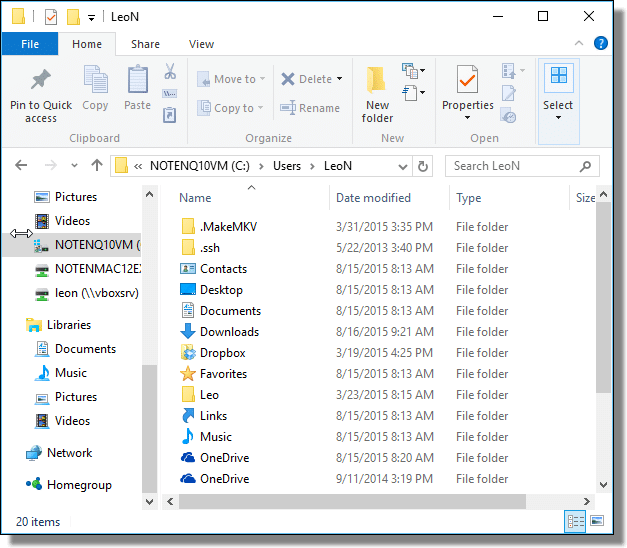
You’ll note there’s no AppData folder.
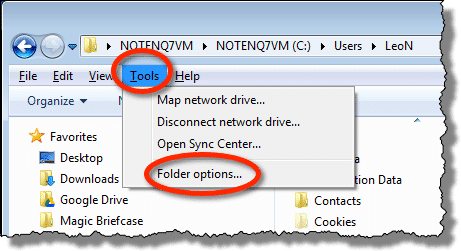
In Windows 7 and prior, click the Tools menu in Windows Explorer (if the menu isn’t visible, press the ALT key and it should appear), and click the Folder options… item.
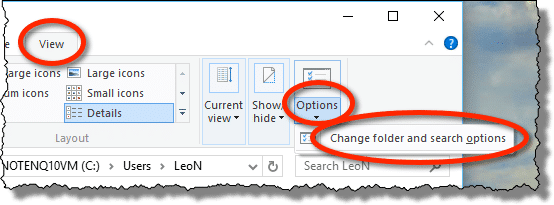
In Windows 8 and later, click the View menu, the Options button, and then the Change folder and search options item.
In the resulting dialog box, click the View tab.
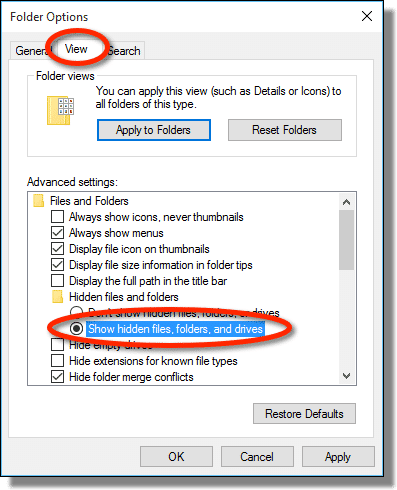
Change the setting to “Show hidden files, folders and drives”, and click OK.
If we go back to Windows File Explorer, lo and behold, there’s the missing folder.
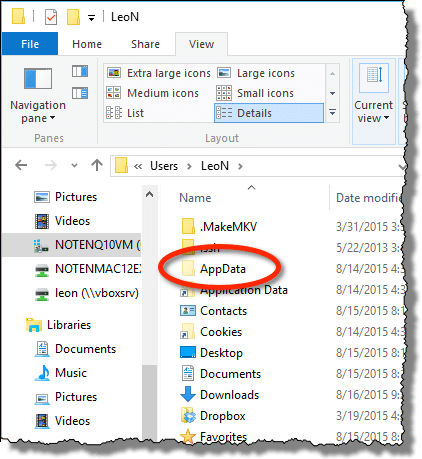
If you look closely, you can see that the folder icon for the AppData folder is slightly lighter than the others. That indicates that the folder is marked as hidden.
For the record, I always have “Show hidden files, folder and drives” set. I don’t feel I need Windows’ help to protect me from seeing files and folders on my machine.
The bottom line: now that you can see the AppData folder, you’ll be able to copy your Outlook.pst file into the “Local\Microsoft\Outlook” folder you should find within.
Viewing hidden files and folders in the Command Prompt
In Windows Command Prompt, use the “Dir” command to see the files in the current folder (also referred to as a directory).
Here’s the results of a “DIR” while in C:\Users\LeoN:
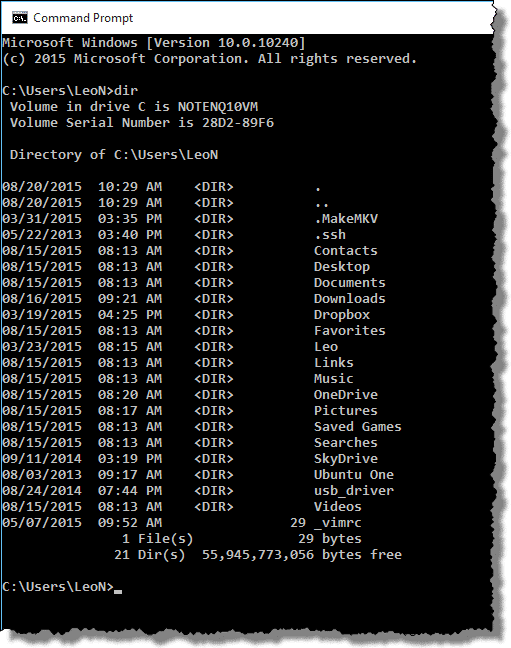
Once again, no AppData folder.
There is no simple setting to always make the Command Prompt show hidden files. Instead, we add an option to the DIR command to tell it to display only the hidden files: dir /A:H.
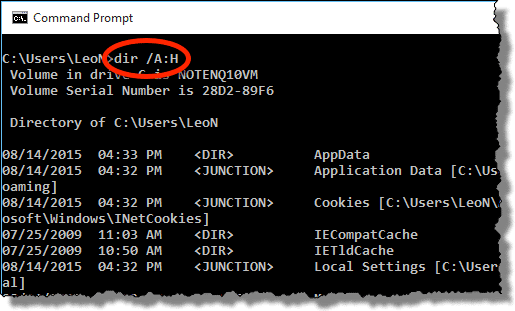
Now, the AppData folder displays at the top of the list.
By default, the Command Prompt will display all hidden files, including system files and so-called “protected operating system files” – hence, the “<JUNCTION>” items and “NTUSER.DAT”, the file containing the user-specific registry.
The result is the same as before: now that you can see the AppData folder if you’re command-line savvy, you can use command line tools to copy the file to the destination you need.
Do this
Subscribe to Confident Computing! Less frustration and more confidence, solutions, answers, and tips in your inbox every week.
I'll see you there!


In XP, you do not get the when using the DIR /A:H option.
Even if the folder is hidden, you can use the CD command to change to the hidden folder in DOS and it will work just fine and you can copy/delete files just fine. XCOPY can also copy files to a hidden folder. So, at least with DOS, it’s not really all that hidden.
On XP, some of those directories are marked “system” rather than “hidden”, so “/a:s” would be needed. Or, to list all directories, “dir /a:d”, which will show system and hidden directories. Finally, to list *everything*, simply use “/a”, and will will list everything, regardless of attribute.
Another option, if you know the path, is to simply type it into the address bar. So, using Leo’s example, at the point when “c:UsersLeoN” is shown, click within the address bar and append “AppData” and press Enter. Again, this only works if you already know the path.
And, while we’re on the subject of the “folder options / view” dialog, you should probably point out that the “hide extensions for known file types” should be unchecked. (Which you haven’t done on the system where you took the screenshot.)
@Ken B
The first link in the Additional Reading list explains how to show the extensions for known file types.
I was wondering if you could help me with an apple computer its an old one,but i see no reason to change ,(its 10 years old and no i cant afford another yet,but it still does all i need,)its a emac yeah its really old,how can i speed it up please,thanks in advance if you can help
I’m with showing hidden files/folders. I want to know what’s on my system.
Microsoft, in it’s infatile wisdom, thinks it knows what good for us.
In a XP CMD prompt, when I want to CD (Change Directory) to a SubDirectory, I often just type the key and the first letter of the SubDirectory I want to go to, then I use the Tab Key to TOGGLE through the names offered until I find the one I want to get to and then I press the Enter key.
Hidden Directories are shown when I use my procedure.
I also have set a Environmental Variable in XP –
DIRCMD=O:GNE/A/P
– to get a DIR to display the way “I” like it in this order:
1. SubDirectories listed in Alphabetical Order
2. File Names listed in Alphabetical Order
3. Same File Names with different Extensions listed in Alphabetical Order
4. All Files
5. Pause when the list fills the screen
Sometimes I will want to get a Directory listing Sorted by Date/Time Order, when I do I type DIR/OD , and the screen still Pauses for me whenever the listing is larger than one screenfull.
I have set the Environmental Variable DIRCMD=O:GNE/A/P on ALL my computers – MS-DOS 5.0, WIN9x, XP and Vista and it works on all of them at a command prompt.