Well, I can’t really say why that fixed your problem, since a reboot is also another way of flushing your DNS. In fact, it’s one of the many reasons tech support folks insist you reboot as the first step when investigating just about anything.
But you seem to indicate that a reboot actually didn’t help.
However, flushing the DNS cache can sometimes help, and it’s much faster than a reboot.
Become a Patron of Ask Leo! and go ad-free!
DNS
First, a quick review of what DNS is.
DNS is an acronym for the Domain Name System.
As you probably already know, every device on a network is identified by an IP (Internet Protocol) address. However, you and I rarely know or care what the IP addresses are; we use names instead, like “askleo.com”. DNS is what maps from names to IP addresses.
When your computer accesses a domain name for the first time, it performs what’s called a DNS request, which boils down to asking “Hey, what’s the IP address for ‘askleo.com’?” Your computer is querying a DNS server whose job it is to answer exactly those kinds of questions. “Found it: ‘askleo.com’ is ‘50.28.23.175’”.
 DNS Cache
Once your computer gets an answer, it’s allowed to remember it for a period of time. Typically, it’s a day or two, but it actually varies based on the specific domain. For as long as your computer remembers that “askleo.com” is “50.28.23.175”, it doesn’t have to ask anyone. Once the time expires, it’s required to ask again, just in case it’s changed.
The memory of all the DNS lookups your computer has performed is called the ‘DNS cache’.
Sometimes, for various reasons, the cache becomes corrupt or out of date, or, to use a technical term, “messed up”. The symptoms vary, but the most common is that you can’t get to some web sites in your browser.
That’s when flushing the DNS cache sometimes helps. It forces your computer to empty the cache and forget everything it knows about DNS entries that it’s looked up previously. It has to start asking the DNS server for new and up-to-date information as you reference domains by name thereafter.
In a Windows Command Prompt, that looks like this:
C:\> ipconfig /flushdns
Windows IP Configuration
Successfully flushed the DNS Resolver Cache.
C:\>
Now, as I said, rebooting your machine has the same effect. Your DNS cache is not preserved across a reboot.
Other DNS Caches
Your computer’s DNS cache is not the only cache involved.
If you look at your ip configuration in the Command Prompt, making sure to specify “ipconfig /all” to see all the configuration information, you’ll find a line like this:
DNS Servers . . . . . . . . . . . : 192.168.1.1
The IP address for the DNS server may well be the IP address of your router.
Many routers perform the DNS function for local networks. If they need to, they make the DNS request from your ISP’s DNS servers on your behalf.
This allows two things:
- Your router can look up machines on your local network that it already knows. It knows about them since it was the device that assigned them their IP addresses in the first place. And since machines on your local network are not known on the internet anyway, they would not show up in the internet’s DNS servers.
- Your router can cache DNS lookups. That means if you have more than one machine going to the same site, the first one might cause the router to have to look it up, but the second machine’s request for the same domain would already be in the router’s cache; the router wouldn’t need to do anything more than simply return the answer.
And yes, this is another reason why rebooting your router is a frequent diagnostic step: your router’s DNS cache can also become “messed up”. In fact, it happens more frequently than most people expect. And just like your PC, rebooting your router forces it to start over with an empty DNS cache.
But wait! There’s more!
DNS caching doesn’t end at your router.
In fact, there’s an entire hierarchy of DNS servers that work to spread the load of answering all these requests for domain-to-IP mapping made every time someone tries to go somewhere on the internet, and each of those servers has its own DNS cache. Your computer may ask your router’s DNS, your router may ask your ISP’s DNS, and your ISP may ask their provider’s DNS, all the way up to what are called the “root DNS servers”.
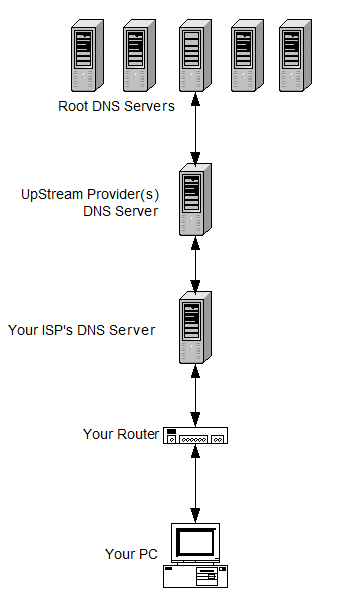
Each of these servers will cache the answers for the DNS lookups, so as to avoid having to repeatedly ask the next DNS server in the chain for the same information over and over again. (Note that in reality this is an oversimplification. The root DNS servers will actually redirect lookup requests to other DNS servers based on the top level domain – “.com”, “.org”, and so on – and each of them may also then redirect to the “authoritative” DNS server for the particular domain being requested.)
All that just to turn “askleo.com” into “50.28.23.175”. :-)
DNS is critical
As you can see, DNS is a critical component of how things are located on the internet. As a result, there are threats. Imagine what would happen if someone was able to change the DNS information in a cache, or on a server, maliciously. You might ask for “askleo.com” and get some other random IP address that would direct your browser to a malicious web site.
My site isn’t that high profile, but consider if someone were to do that for the entry for, say, “paypal.com”.
This concept of “DNS poisoning” is not new, and so far, the system has been fairly resilient, with only occasional issues. More commonly it’s malware on an infected computer that interferes with DNS, with the same misdirection as a result.
So, keep your machine safe and secure, and if you suspect a DNS-related issue, try the ipconfig trick.
Or you can just reboot your computer and your router, which is perhaps easier to remember.
Do this
Subscribe to Confident Computing! Less frustration and more confidence, solutions, answers, and tips in your inbox every week.
I'll see you there!


I scanned my pc with A-Squared (EMSI Software). Found the culprit and fixed the problem. Before that, I had Firefox3.0 installed. I enjoyed its speed. When I was backed to IE7, I encountered “time-out” error messages. Not to blame FF 3.0 though, but I just wonder.
I learned about performing this task a couple of years ago. I don’t recall exactly from who but I’m pretty sure it was through a Cnet TechRepublic post. They also specified to follow this procedure by typing in ipconfig /renew and running it directly after. Why is there no mention of that here. Is it not necassary to do that?
“ipconfig /renew” is unrelated to flushing your
DNS. /renew typically follows a /release. /release says “I release the
IP address you’ve given me, I don’t need it any more”, and /renew says “I’d
like a new IP address assigned to me please.” This is also often used
when troubleshooting, but for other types of problems.
-Leo
please i have 3 pc on a workgroup, i want to be able to monitor what is hapening on the pc from my own pc i.e to be able to know what others on the other pcs are doing without them knowing that, i mean for example if they are working on word or they are just lazing around with the pc while they are surpose to be working. i hope you will be clear with my post. please how do i go about it?
have agreat day!
my website is not shown in various isp in India
in the same place where i live why is that so
what i should do to show my website to my clients
I never found such a brilliant and effective explantion for DNS Flushing. I admire Leo for his extreme knowledge on computer.
4 1/2 years later & I say the same thing!! Since upgrading to Windows 10, I’ve had constant trouble with accessing websites. I also stumbled upon the “ipconfig /flushdns” solution & it works… over & over & over again… I hit another breaking point this evening & started my searches again. Finding Leo’s explanation has been just what I needed – leading me to new directions & renewed hope that I’ll resolve this problem for good. Here’s to hoping I figure out the source of the problem soon! (…before the neighbors call the authorities one night, complaining about the strange, smelly bonfire in my back yard …& they find me grinning over my melting pile of PCs, laptops, routers & cable modems…)
Rebooting won’t help if you are infected with some malware or virus. I currently have some form of the ‘google redirect’ virus which so far no one has been able to resolve (and I’m an IT guy and have been trying for more than a week now; calls to TrendMicro, web search, etc, all to no avail).
The ‘temporary’ fix is to flush my DNS cache after booting, which is a small annoyance compared to the rather huge annoyance of all my Google searches being redirected.
Very nice article on DNS. Enjoyed how it goes beyond a simple “here is the command so get at it” style you get everyone else.
@ jrj
I had an extremely nasty version of the google redirect virus myself. I suggest doing a hard reset on your router and manually configure your computer’s DNS to OpenDNS. That resolved my issue after about a month of redirects, drove me insane.
http://www.opendns.com/
Hope this helps
Just wanted to say Thanks for your concise and easy-to-follow explanation of DNS. Cheers!
I agree. I woke my computer to start browsing online and Safari said it couldn’t find Web sites. I was like, “What the…?” But my phone worked fine.
So I ran diagnostics on the Internet connection and it said things looked okay, but ISP info was unavailable. I didn’t really understand, but figured restarting fixes tons of issues, even with my phone. And yep, that worked.
All this just to say that your article was easy to follow and engaging to read. I really love your posts, and this one helped me to understand why restarting my laptop fixed my Web site routing issue. This site has been a great resource for me. I appreciate that it’s still being maintained.
for everyone whose posting about a redirect virus, each computer has something called a hosts file (windows systems) and if you make any changes in this, you can cause redirection. Your hosts file is a file on your computer that contains dns records for certain ip addresses and is only used to override internet hostnames or specify the computer to contact a certain server when that url is entered.
i know that being annoyed with typing in my routers ip address everytime i wanted to access it, i put this little line into my hosts file:
192.168.0.1 dsl
so that everytime i want to access my router, all i have to type in is dsl instead of the whole ip address.
if you are getting redirected the whole time, go to your hosts file located: C:WindowsSystem32driversetchosts (you can copy that into your address bar in my computer)
and make sure you only have the following in it:
# Copyright (c) 1993-2009 Microsoft Corp.
#
# This is a sample HOSTS file used by Microsoft TCP/IP for Windows.
#
# This file contains the mappings of IP addresses to host names. Each
# entry should be kept on an individual line. The IP address should
# be placed in the first column followed by the corresponding host name.
# The IP address and the host name should be separated by at least one
# space.
#
# Additionally, comments (such as these) may be inserted on individual
# lines or following the machine name denoted by a ‘#’ symbol.
#
# For example:
#
# 102.54.94.97 rhino.acme.com # source server
# 38.25.63.10 x.acme.com # x client host
# localhost name resolution is handled within DNS itself.
# 127.0.0.1 localhost
# ::1 localhost
127.0.0.1 localhost
if there is anything else in it (e.g a google url), you know that someone has accessed your hosts file and changed it. if this is the case, just copy the above back into your hosts file and it should fix the problem. (for your info: localhost refers to your computer and 127.0.0.1 is the ip for your computer so if you see any name referring to the ip 127.0.0.1, this means that instead of checking the web, it will check your computer for the files instead)
I hope this helps someone with any issues they may be having.
This is a nice article. i have one doubt though.
when i ping http://www.google.com i see the below one
Pinging www-infected.l.google.com [216.239.32.6] with 32 bytes of data:
when i ping http://www.microsoft.com it says host not found. but when opened in ie it still works
i have recently creatd a new domain http://www.unlocksoul.com i am trying to open the site but it doesnt open in my machine. it says file not found. but it opens up from my friends machine .
any idea how can i check the issue.
Thank you for the DNS article. You gave a lot of great information and it is explained well though I wonder what a corrupt DNS looks like? I picture the hosts file in windows and it seems pretty basic. I am sure there is more to it than corrupting a simple text (version) of a DNS list on a computer, router, etc.
We have had issues with a software upgrade where one resolution is to run iisreset.exe (IIS reset) and ipconfig /flushdns. I think that flushing the DNS isn’t likely to help as a repeated ‘temp’ fix because I can’t believe it can get corrupted that fast, especially since the software is used internally about 75% of the time and 25% accessed through the internet by our techs.
The software requires we use DotNet4 and we are running it on a hefty new server in a vmware configuration on W2k8r2 64bit which is more than the required system for this software. Even before the upgrade while on a different server, the software was having issues. The client side of the software ends up running slower and slower. I may not understand the process entirely but I think it may be due to memory usage or leaks from the software causing the software cache or pool to become full.
Also regarding the Google redirector virus comments. I saw a similar issue and I found that iexplore.exe was running under the svchost service which, from my experience, should not happen. iexplore.exe (Internet Explorer) should usually only show up running under a user’s name. It turned out there was a root kit piharb (or something like that) that was using iexplore.exe to connect to random websites as well as redirecting google links when they were right-clicked.
Thank you very much for the down-to-earth style, making information accessible to people trying to self-educate :).
I manually power off everything computer related at night including the router.
From what Leo wrote, I would guess the cache is cleared daily?
I have had instances of where I could not get to a web site in Firefox but could in IE (various versions).
That is usually happening later in the day where clutter could accumulate.
I did not receive the confirmation email for my subscription to the newsletter and my 10 reasons your computer is slow. I also tried it with my friends email address and still did not receive the confirmation email. I also checked my span social and promotions folders, nothing. Thank you
I’ll direct you to this article: https://newsletter.askleo.com/i-never-received-your-confirmation-message-please-subscribe-me/
I am a retired tech. I have solved numerous problems with – Ask Leo. Thanks
I have a very easy way to flush the DNS cache:
Create a new text file and enter this line:
ipconfig /flushdns
Save that file and rename it with something like Flush DNS.bat.
When you double click that file, the console will open, the command included will be run, and the console will close automaticaly.
For those remembering the old DOS days, a bat, for BATch processing, file is a file used to perform some system operations in an automated manner.
Alain
Thanks for your Batch file tip. I had forgotten all about those.
I had a short cut to the CMD prompt but your Batch file ideas works way better.
Still can’t find out why I have to clear the DNS cache so often though.
Sites that I have just been to 10 mins ago suddenly stop loading but it happens at such random times
I can’t find a reason why.
I’m going to try to remember this article the next time I have a problem. Every once in a while, I can’t seem to get to any website. I have found that logging into the router and going to the Status page and clicking the DHCP Renew button does the trick. But if I can create a little batch file to run ipconfig /flushdns, or /release or /renew and that fixes it, that would be so much faster (and easier for my wife and kids to remember).
I have cleared my concept when i read this article. thanks
in my offic 4 system one is server ..and 3 client igot one error massage “print spooler error “i wnt solutio clear this problum
If rebooting your computer and router doesn’t significantly improve your connection ability, contact your ISP and relate your problem giving specific addresses that are problematic and also tell them that you have rebooted both your computer and router.
Sometimes the file that your ISP will become corrupted. If they refresh their DNS file and the problem persists, press them to go up the “chain of servers” until the problem is found. I had a problem a while back where the problem was traced to the Gateway servers to Canada were out of date! This caused problems with connecting to European sites.
Hi leo
I have tried doing flushdns and rebooted the system. for a moment everything looked fine, i was able to access the sites . But with in no time the issue is back.
The message it show is
This site can’t be reached
“ndtv.com took too long to respond.
Try:
Checking the connection
Checking the proxy and the firewall
ERR_CONNECTION_TIMED_OUT”
Am i missing something here to do or you think my system has some malware
Your article was very interesting. Like the person you replied to I found that rebooting had no effect. I kept getting “connection interrupted: change of network detected” messages. But flushing dns put an immediate stop to this.
i hope this will help me because when i first bought my laptop i do post on craigslist without phone number verification but now anytime i post it take me to the phone verification but when i use my wife new laptop i can post without phone verification so i hope this help
Very interresting. I reboot computer and router, might try the ipconfig /flushdns , the txt file sounds neat cause you would have it whenever you want use it. Very informing artical and good replies.
I use Google DNS. I figure they would be the most up-to-date as they are scouring the entire Web constantly and constantly updating their DNS database. I might be wrong but it definitely can’t hurt. I don’t use my default ISP DNS because they may block what they consider inappropriate.