A world in which smaller can mean bigger. Really.

I often get questions relating to screen resolution and why things don’t look as expected.
Screen resolution seems like a simple thing. Most of the time it is.
And sometimes it’s not. In fact, it’s complex enough that I can honestly say “smaller is actually bigger” and mean it. Yes, making things smaller can make things bigger.
Become a Patron of Ask Leo! and go ad-free!

Screen resolution
Your display will be at its clearest if you let Windows use the full/maximum resolution available from your display screen. Use Windows “scaling” to make things larger if you need. There are other approaches to scaling and stretching, but they involve compromise and lower quality results.
Resolution
Your display (or monitor, or screen, or colloquially, “CRT”) is comprised of pixels — individual dots — arranged in a rectangle. Each pixel is one point, or dot, of light. Each dot can be set to light up as any of millions of different colors.
The dimensions of the rectangle of pixels on your screen is its maximum or “native” resolution. For example, a screen might be 1920 pixels wide by 1080 pixels high — a little over 2 million pixels. (You’ll find your screen’s native resolution in its documentation or specifications.)
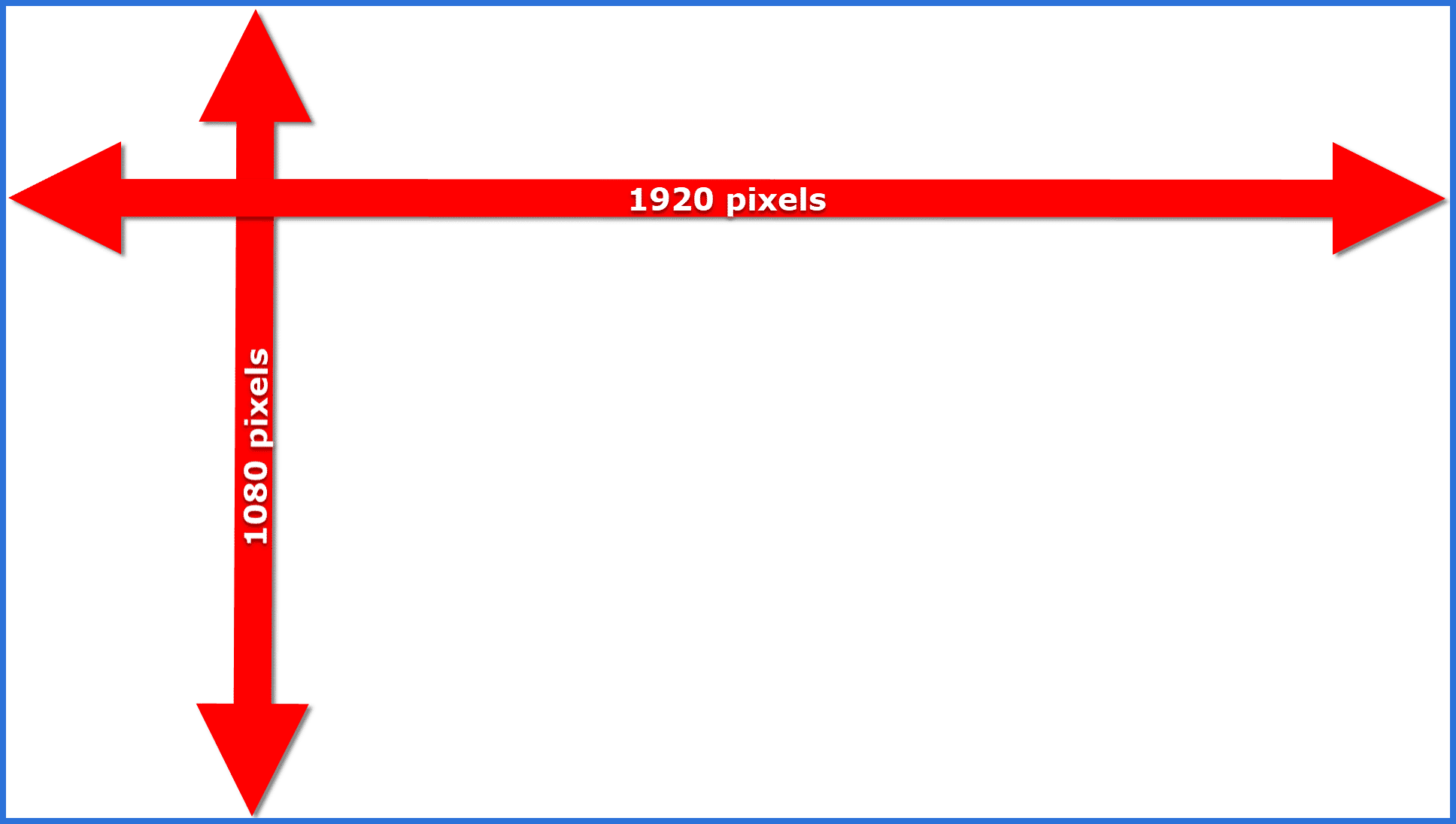
Windows lets you choose the screen resolution it puts out. This is independent of but limited to what your screen is capable of displaying.
For example, attempting to display something larger than 1920×1080 on a screen limited to 1920×1080 will probably result in no output at all. The screen would be incapable of displaying anything larger.1 The ideal setting is typically to set Windows to display at your screen’s maximum resolution.
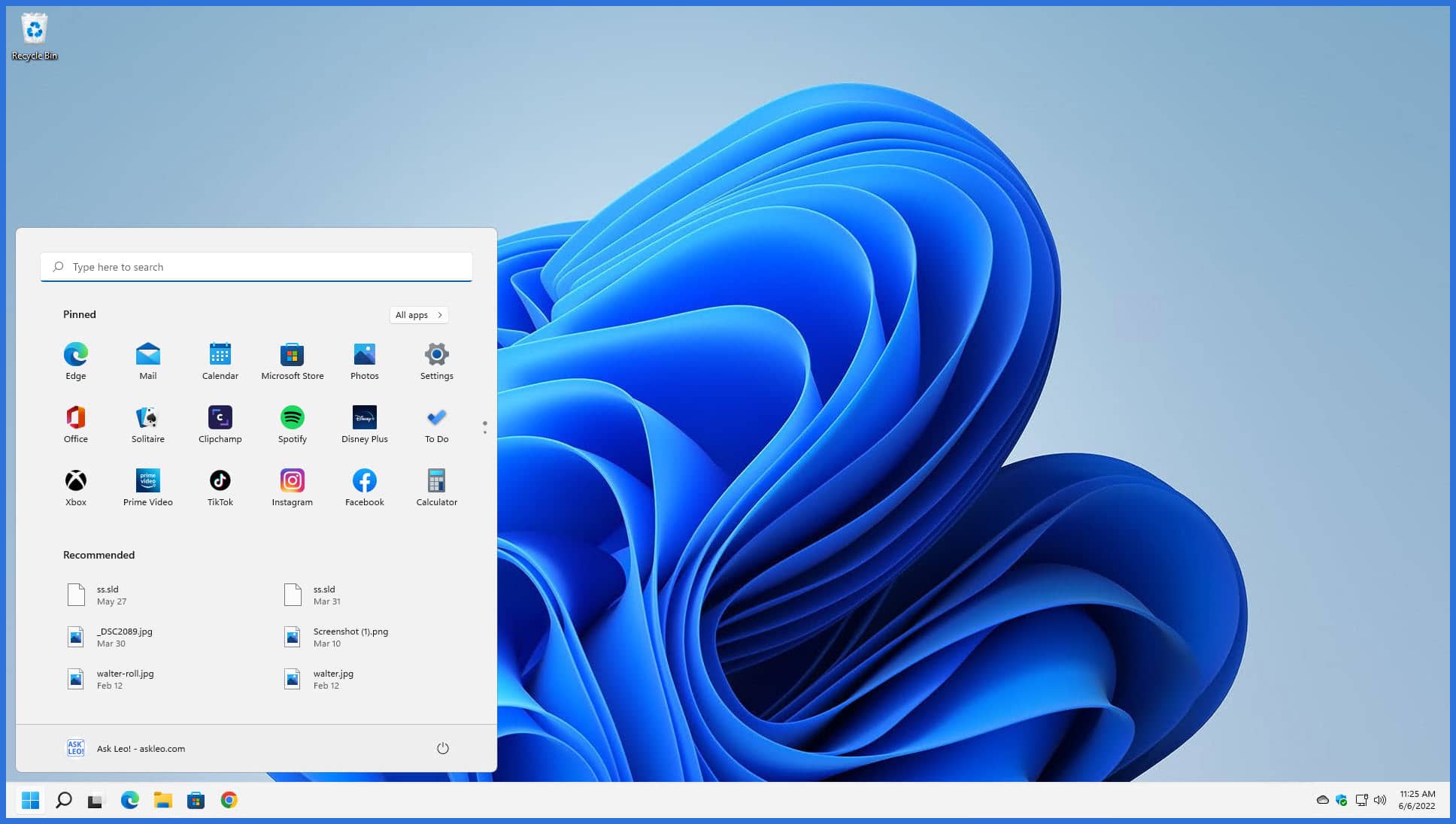
This is the ideal setting because, as we’ll see in a moment, there’s no scaling or stretching. Your screen has exactly one pixel at each point Windows is expecting there to be one. The screen’s physical characteristics match what Windows is attempting to output.
So far, we’ve seen that the ideal setting for most is to match your screen’s capabilities exactly and that if you try to display something larger, in terms of pixel count, you may get nothing at all.
What happens if you display something “smaller” in pixel count?
Scaling and stretching
I’ll use 1024×768 as my example.
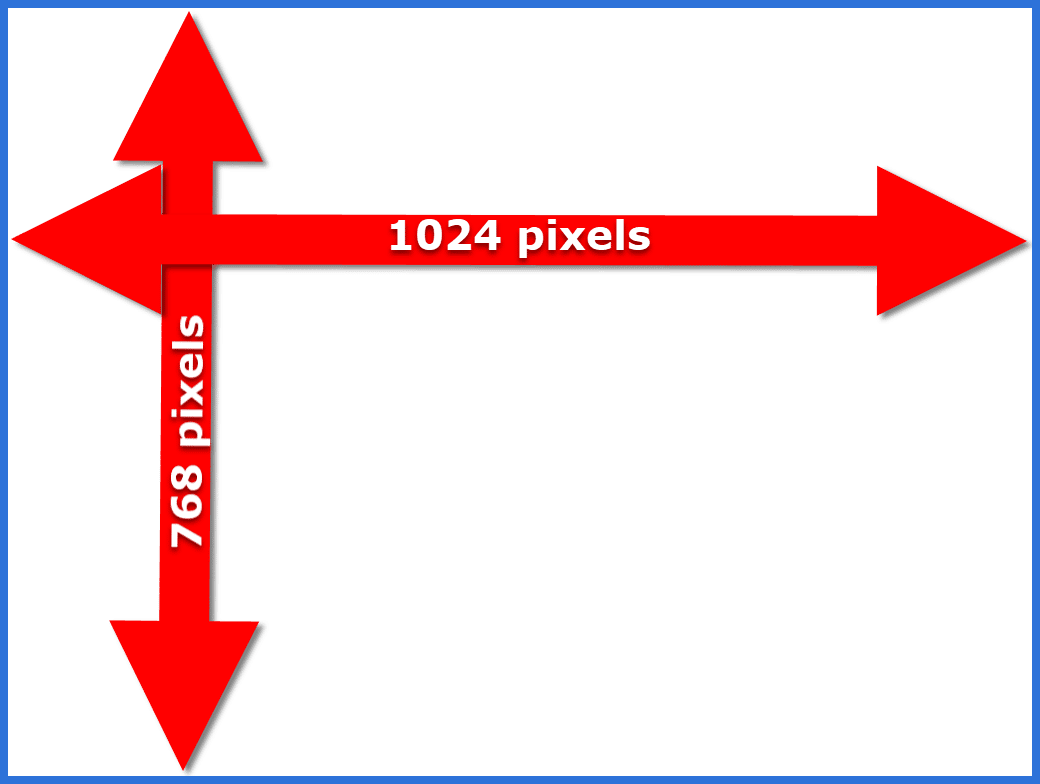
When you use Windows at this resolution, things get more cramped.
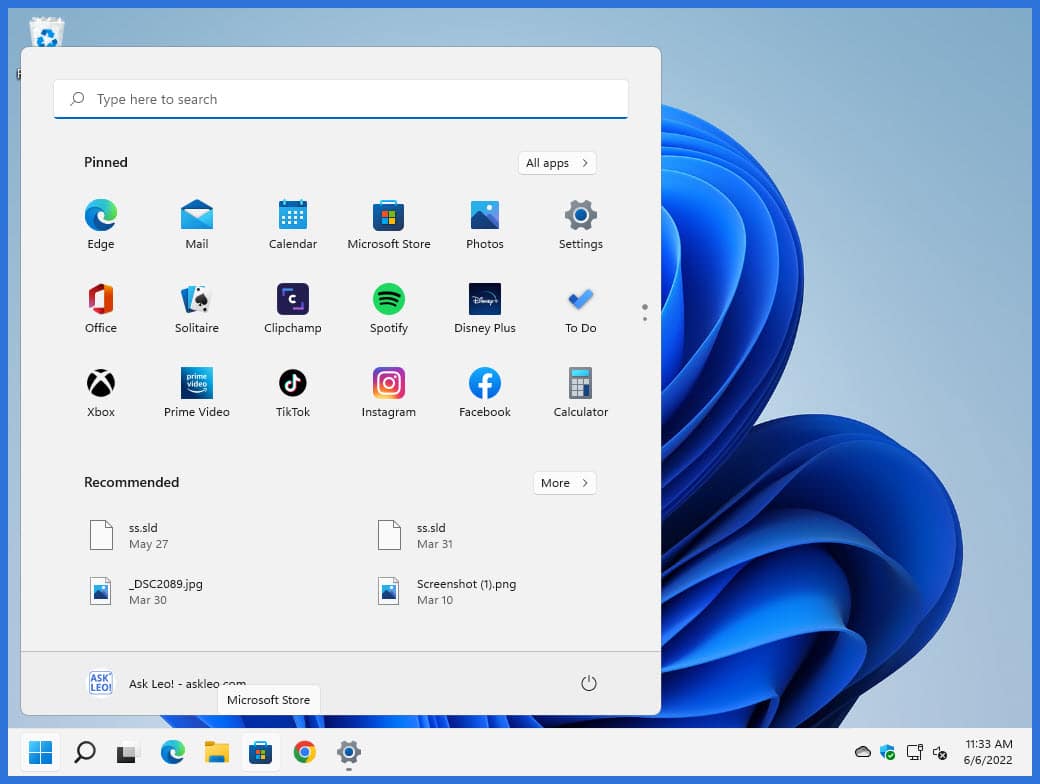
When you tell Windows to display a lower resolution screen, like 1024×768, on a screen capable of larger resolution, like 1920×1080, several things can happen. Depending on your video hardware, it may appear centered, scaled, or stretched.
Centered
The screen might display the 1024×768 screen centered within the 1920×1080 physical screen:
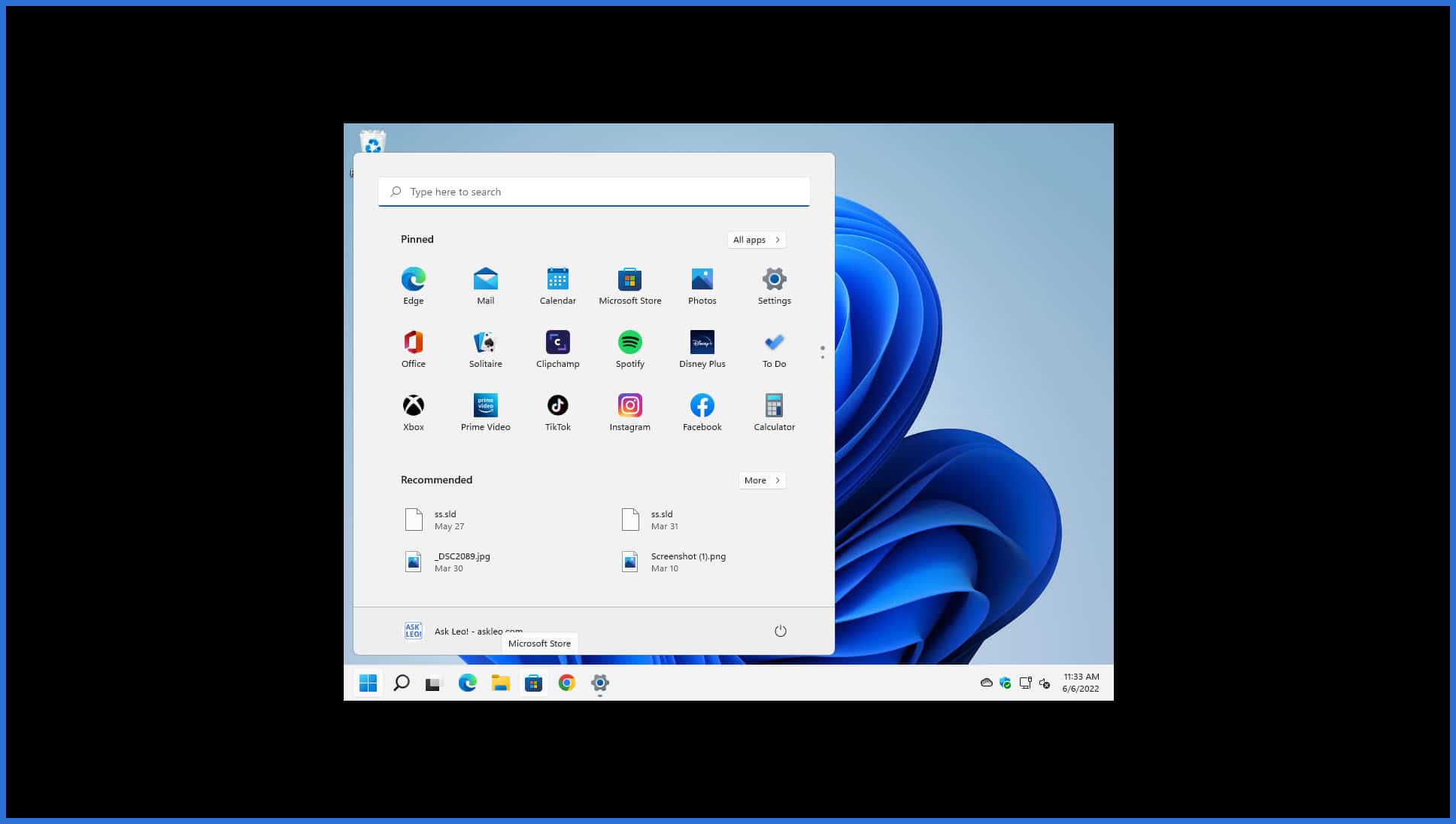
The display feels smaller since only a portion of the screen is being used.
This isn’t as common as it once was. It can still happen at boot time when Windows attempts to display an 800×600 screen2 on a screen typically much more capable.
Scaled
Here the screen scales the screen to fit the physical area but maintains the original ratio of height to width (the aspect ratio).
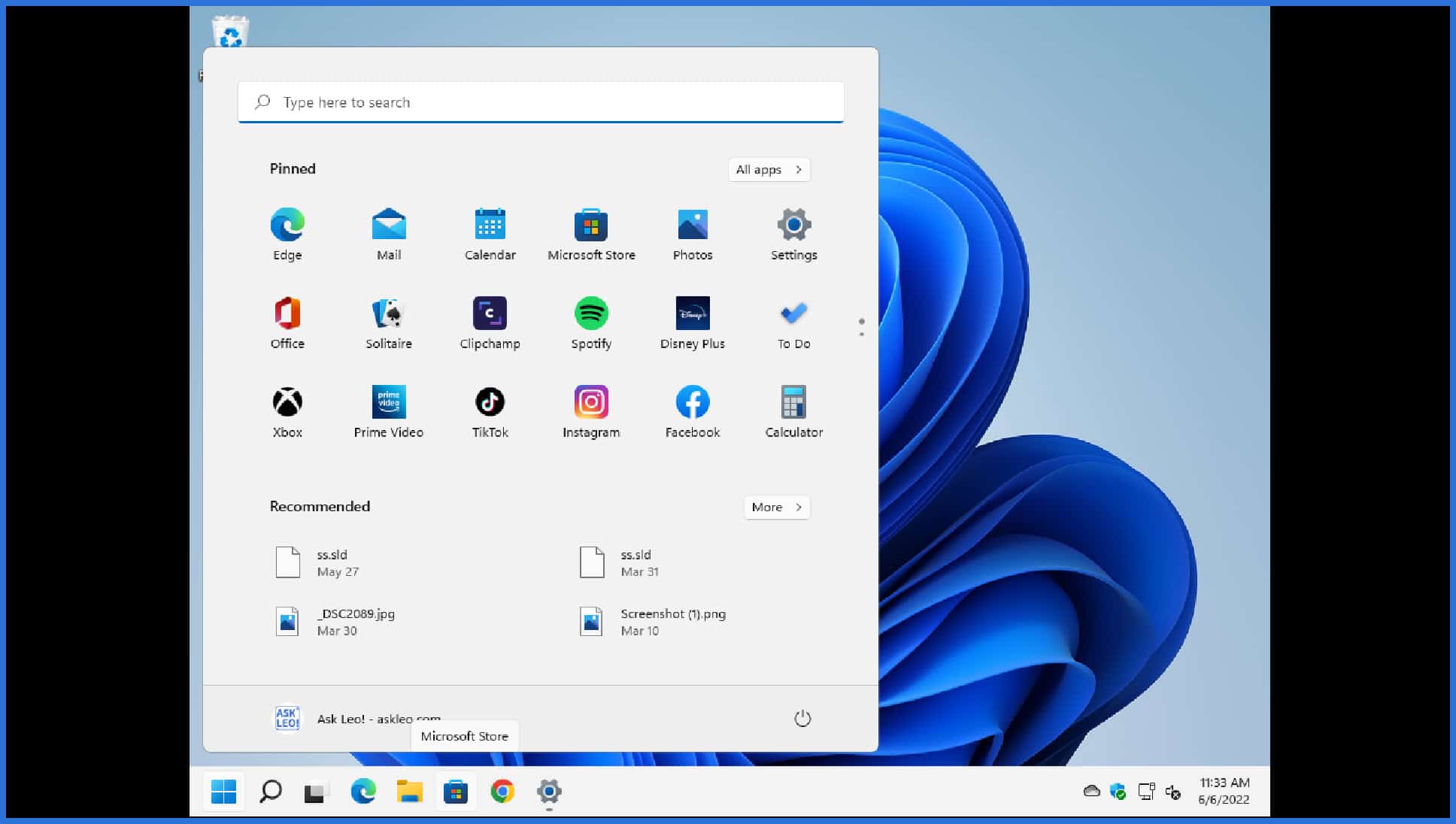
This is common behavior for screens asked to display a resolution less than their maximum.
What’s on the screen can seem fuzzy. The issue is that what should display as a single pixel on, say, an actual 1024×768 display, is now expanded into some portion of 1920×1080. Depending on the specifics and how you calculate it, this example attempts to stretch one pixel over about 2.4 pixels. Because partial pixels are impossible, fuzziness results.
Perhaps more remarkable, however, is that because the display scales the smaller image to fill a larger physical area, it appears larger. This is the part where I get to say — with a completely straight face — that making your screen resolution smaller might may make things appear bigger on your display, although fuzzier.
Stretch
The screen might stretch the 1024×768 display to fit the physical area without preserving the ratio of height to width.
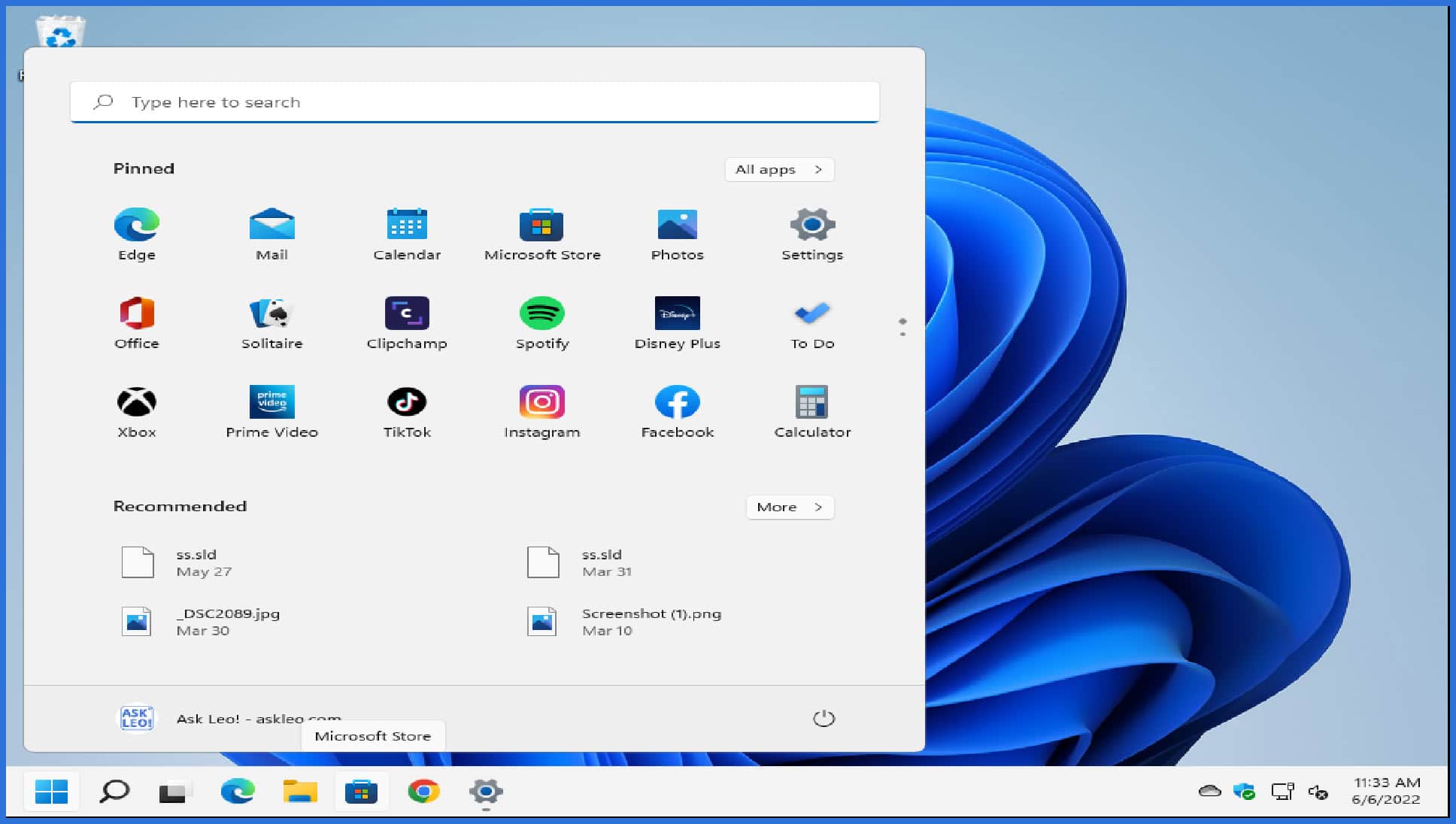
Everything looks ever so slightly horizontally elongated.
The display scales the image vertically, enlarging what was the 768 pixel height of the displayed screen to fit the 1080 pixel height of the screen. If you apply that same ratio (1080/768, or ~1.41) to the width, you have only 1440 pixels (1024 times 1.41) to fit on a display 1920 pixels wide. In the previous example, we simply centered the result, displaying black on either side. Here we’ve stretched that 1440 out to 1920 without changing the 1080 pixel height. The result is that while the image fills the entire display, it appears horizontally elongated.
And once again, things look fuzzy. Probably fuzzier than the previous example, because we’ve both scaled the pixels one way and then stretched them another.
Let Windows do the work
To get the best-looking display at the highest resolution and clarity, let Windows do the work.
Set the display resolution to match the maximum resolution of your actual screen. If your screen is capable of a maximum resolution of 1920×1080, set the display resolution to that. If it can handle something bigger, like 3840×2160, set it to that. Always match the display resolution to your screen’s capabilities, even if Windows “recommends” something different.
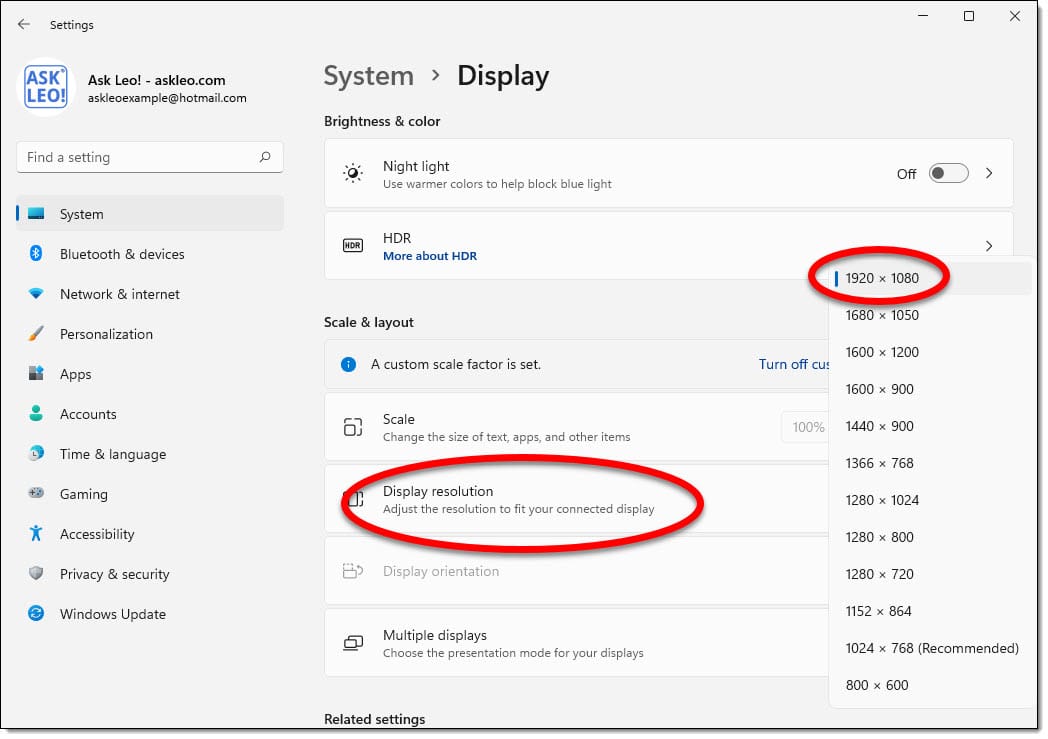
Adjust the size of what’s displayed by using Windows “Scale” setting.3

Scaling lets Windows make things larger (or smaller) for you using the full resolution available from your screen. The result will be as crisp and clear a display as your screen is capable of.
Both settings are in the Settings app. The easiest way to get to them is to right-click on an empty area of the desktop and click on Display Settings.
Do this
The bottom line is that “making things bigger” can mean:
- Letting the screen scale things for you, possibly not using the entire screen area and with possibly fuzzy results.
- Letting the screen stretch things for you, using the entire screen but with possibly fuzzy and elongated results.
- Letting Windows scale things for you by allowing it to use the full/highest resolution of your screen.
The last one will get you the best results in the long run.
For more best results, subscribe to Confident Computing! Less frustration and more confidence, solutions, answers, and tips in your inbox every week.
Podcast audio

Related Video


Footnotes & References
1: Your video card represents an additional limitation, but I’m explicitly ignoring it here. Most frequently it is more capable than your screen.
2: The minimum resolution required to run Windows.
3: In previous versions of Windows, this was the “DPI” setting, and was in Control Panel or the display drivers.


Interesting, but too complicated for me. I was looking for a way to make my screen images smaller. The window on my screen takes up too much space. There was no direction on where to go to improve a problem. I know, it’s a problem talking to folks at this level. But all of usdon’t fully understand computerese…but we’re trying. That’s why we read your stuff.
Let me start with a little background. Until about yen years ago all monitors had a width to height ratio of 4 to 3. Example, take 640 by 480 and divide both numbers by 160 and you get 4 and 3. Note: All CRTs were 4 by 3. Then, and I hate it but it is reality, the powers that be decide to make what is called widescreen monitors. That changed the width to height ratio to 16 by 9. Now if you decide both numbers by 3 you get 5.333 by 3. Side thought: that is the normal ratio now for flat screen TVs. Notice that if you divide both of those numbers (1920 and 1080) by 120 you get 1920/120 = 16 and 1080/120 = 9. I have been wearing glasses for 58 years and they still don’t correct my vision as much as I’d like them to – my vision is 20-25 which is legal for driving – I just can’t always read the street signs so I sympathize with you. For optimal performance you have to get video cards and monitors as if you were purchasing one item. The monitor has to always accept the best resolution that the video card has to offer. Otherwise you’re wasting money on your video card. Then there’s the problem of which ports you use. HDMI, which is digital, is the best. DVI is also digital is second best – it’s not a good choice. VGA, which is analog, is far and away the worst. This means that you have to buy a monitor and computer with HDMI ports and connect then with a cable with HDMI plugs. The cables can be very inexpensive. Don’t save too much money on them. $10 is okay, but you can get them for less than a dollar and suffer the consequences. Given the cost of video cards, computer, and monitors, saving $9 on a video cable is insanity. Right-click on an empty space on your desktop and you will see what resolution it’s set to. Usually it has one of it’s many choice marked off as “recommended”, but if your video card can’t produce that setting you will have to drop down to a lesser setting on the monitor by lowering the screen resolution. By the way, video cards also known as graphics cards can run quite hot safely.
I recently learned the hard way about the “fuzzyness” an LCD monitor has when it’s not in it’s “Native Resolution”. I’m the IT guy in our office and while I’m very computer oriented, I don’t know everything. I’ve always had old CRT monitors at home and that’s what we had in the office until it was time to purchase new workstations (and monitors). Of course, all new monitors are LCD now, but for someone that doesn’t know any better, they don’t change screen resolution like the old CRT’s do and this “fuzzyness” as Leo refers to it is a result of changing them from their “native resolution”. The 22″ wide screen monitors I chose were very LONG (1920 x 1080 native resolution)…that’s almost 2:1 so a 22″ measurement makes for a really short and really wide screen. My first thought was, “No Problem, just change the resolution so all the middle-aged adults (read: bad-eyes-people) in the office can see things because like Leo said, smaller is bigger. To my surprise, the “fuzzyness” was there. *SIGH* Trust me when I say that smaller is better than fuzzy too! Fuzzy = headaches after just a couple of hours.
Forutnately, windows has a DPI setting that can be changed to accomodate that, but it’s not the best option as very few programs (Windows and Office included) work in it at 100%. Our enterprise software is very bad at higher DPI because some clickable buttons in the windows aren’t always visible.
The lesson: Find out what the “Native Resolution” is and THAT’S what you’re stuck with…and trust me when I say that 1920 x 1080 SUCKS if you already have bad eyes. 1680 x 1050 is a MUCH better 22″ monitor (both are called “wide screen” but the resolution will probably only be found in the “tech specs” area of the web site you shop on).
I have 2 monitors.
Primary: ViewSonic VP920 1024×1280 Portrait
Secondary: Acer AL1716 1280×1024 Landscape – unfortunately, it cannot be rotated.
All play well together, EXCEPT if AOL is displayed on the Landscape monitor, it remains in Portrait width! And AOL is based on Internet Explorer which happily fills either screen. Puzzling and annoying.
Any ideas?
Ralph Kuhn: If you right-click anywhere on your windows desktop and select properties, a new window will open. On the settings tab in that window, you’ll see the “Screen Resolution” that Leo’s article is about. Be warned though, if you have an LCD monitor (aka, “flat panel”), it’s native resolution is it’s best setting…or else you’ll have to deal with the “fuzziness” that Leo discusses and it’s inherent headaches. Also, it sounds like you want to make the resolution bigger so that your windows will be smaller…which probably won’t be available too you as the Native Resolution is usually the biggest setting on these flat panel monitors (meaning, you won’t be able to slide that little slider any futher to the right to accomplish your goal).
HTH
Sometimes fullscreen apps work funny on widescreen LCDs. For example, one of the ones I play (a cheap budget game) will go halfway off the screen, rendering it unplayable unless you change the resolution to 800×600. I got fed up with it and found this little program called Res-o-Matic which will change the resolution when launching the program. Just thought I’d recommend it.
Also, my graphics card is supposed to have the display scaling for widescreens, to make it less stretchy. However, due to having the wrong kind of display cable (I don’t have a digital cable) the option doesn’t show up in the NVIDIA control panel. (Does anybody know how to enable it without getting a new cable?)
Followed your advice and bumped up my laptop to it’s optiaml res., despite my middle aged eyes. It looks so much clearer and of course there is so much more real estate. I’ll just have to be content using the ‘readers’, but because of the increased clarity you spoke of, the size issue was almost a wash! Thanks!
I setted up my computer screen to the largest option there is (I think it’s 1600×900 for my computer) and I ran a program. Then I shut down my computer when I finished using it. When I started my computer again, the screen resolution was changed the the minimun (I don’t remember what it is.) Why/How did this happen?
If you want your LCD display to be an acceptable, readable size when using the native resolution just go into Windows Display Properties->Appearance->Advanced and under Items click on each item that allows Font changes and choose a larger Font. You can experiment with this until you get the desired effect. You can also adjust Icon size and spacing, etc. while you are at it.
This technique worked wonders for me, now I have the size and screen fill of say a 1024x 768 resolution but with the clarity and sharpness of the monitor’s native resolution.
My wife has a problem with her vision. So when I set the resolution at 800 by 600 she is very comfortable with it.
The dot pitch, not the size of the screen in pixels, is what determines how large a given pattern of pixels will appear (when displayed 1:1) on the screen.
As Gabe pointed out, DPI should be a good solution to general scaling of the screen image, but can cause severe problems with programs that don’t handle it correctly. I normally run at ‘Large size (120 DPI)’, but occasionally have to switch to ‘Normal size (96 DPI)’ for this reason.
The ‘Appearance’ settings mentioned by dkg1 work well for some text such as menus, but not for others such as ‘Message Box’, as most programs ignore this setting.
Of course, the main text displayed by many programs such as browsers, Acrobat, and Word can be zoomed by settings within the program.
How do you tell if the “max res” is from the card(s) or the monitor on a laptop computer(with built-in screens)?
31-Mar-2010
@dkg1: The last time I tried it adjusting the Windows font size, I found that a lot of applications didn’t consider this in their testing/design. Thus, text was often truncated making some apps hard, annoying or impossible to use.
31-Mar-2010
Hi Leo,
Your articles are very helpfull in professional troubleshooting.. Looking forward for some tips on using Lotus Notes. I am new to this tool and have to understand it..
Looking for your help.. And hope you have a very good Holidays..
My monitor is a 24-inch Samsung with a 1920×1200 recommended screen resolution. That setting will not fill out the whole monitor screen and makes the fonts too small to read. I adjusted the resolution to 1024×768, and under
“Your display (or monitor, or screen, or colloquially, “CRT”) is comprised of pixels”
CRT? I haven’t seen a CRT in well over 10 years. You can’t even give them away anymore.
While CRT means something specific, I do still see people refer to their non-CRT screens as CRTs. Old habits.
Probably the same people who call a computer a CPU and a hard drive memory. ;-)
CRT = Cathode Ray Tube. A large sealed glass vacuum tube with very thick glass that was heavy. They were used in older TVs, RADAR screens, test equipment (think oscilloscopes), & any other place a display was needed. As Mark said they predate the LCD/LED flat screens used today but have gone the way of the dinosaur. They were very fragile & needed careful handling. They had a long neck in the back that had the cathode ray gun in it & if the neck cracked or got broken, the whole tube would implode violently sending glass shards everywhere. I was 20′ away when one imploded & still had tiny glass shards in my clothing & on my skin. I was luckily uninjured. I for one am glad they’re no longer used.