Balancing RAM, disk, and disks that looks like RAM.

You’re asking good questions and providing the right data from which to make some recommendations: thank you!
I’ve written about virtual memory a time or two already, and it seems like so much voodoo to many people. The same is true for figuring out what to do with it.
But if you’re trying to eke out a little more performance from your machine, it’s possible that a couple of settings might help.
Become a Patron of Ask Leo! and go ad-free!

Configuring virtual memory
Virtual memory only comes into play if your computer doesn’t have enough RAM to do what’s being asked of it. Configuring virtual memory settings is useful only if you find yourself in that situation. Doing less or adding RAM are more practical long-term solutions.
Swap file = Paging file = Virtual Memory (VM)
First, some terminology. Depending on who you ask, you might get different definitions for the terms swap file, paging file, and virtual memory. While technically different, for our discussions here they’re all equivalent.
The concept is simple: when Windows needs more RAM than your machine has installed, it can use disk instead. Things currently in RAM are “swapped out” — written to disk — to make room. When things written to disk are needed again later, they’re “swapped in” — read from disk.
Technically, a page is the unit of memory actually written to disk — say 512 or 2048 bytes at a time. As a verb, it also refers to the act of reading and writing to disk, making it synonymous with swap. We might say that the system is paging by writing and reading pages of memory to and from disk.
Finally, this whole concept of treating disk like memory is referred to as virtual memory.
RAM matters most
Virtual memory is a performance bottleneck only if your system has used up all available RAM.
That implies that there are two approaches to avoid the problem:
- Use less RAM, typically by running fewer programs simultaneously.
- Add more RAM if your computer is capable of expansion.
If your computer isn’t using all available memory, then tweaking your virtual memory settings won’t do much because it hasn’t really come into play. Put another way, if your system is running fast enough, then it’s likely your system isn’t using virtual memory much at all.
A quick way to see how much of your RAM is being used is to fire up Task Manager (right-click on an empty area in the taskbar and click on Task Manager). Click on the Performance tab; then click again on Memory. Look at the Available number.
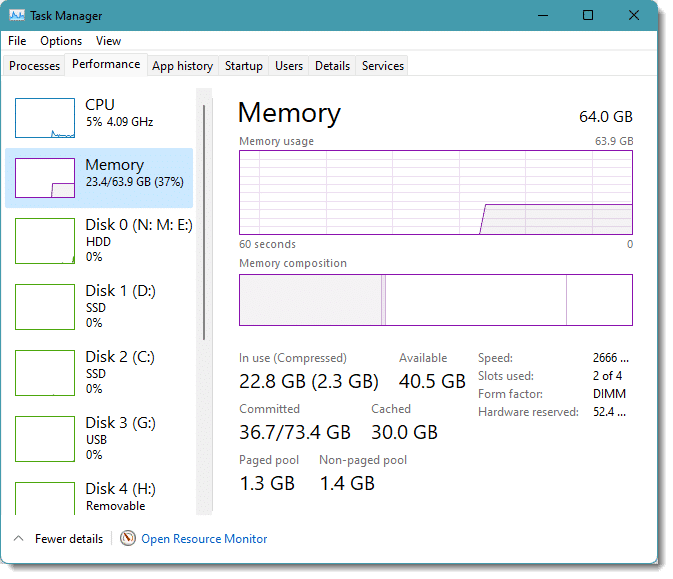
In the example above, I have over 40GB of available RAM. It’s extremely unlikely that virtual memory will come into play.
If you have little or no available/free physical memory — the “Available” number is small or zero — it’s likely that you’re using virtual memory.
Default settings
I’m not really sure where the “three times RAM” rule that you mention comes from, though I’ve heard it before. I’d say it rarely applies at all. As you point out, it’s machines with less RAM that need more virtual memory, whereas machines with sufficient RAM typically need less virtual memory, and indeed sometimes none.
Without knowing how a machine is used, I typically use Windows’ default setting: “Automatically manage paging file size for all drives”.
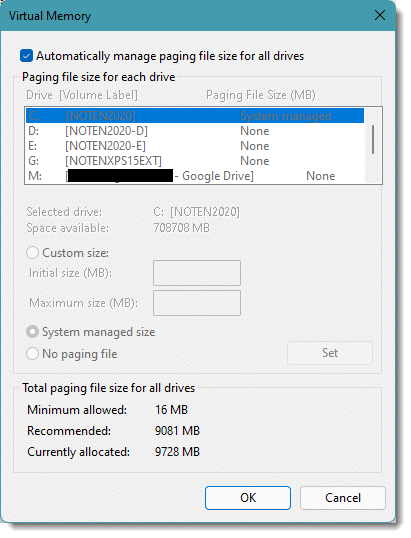
You can find this setting by right-clicking the Start menu and clicking on System, then Advanced System Settings (which may be on the right side of the screen), the Advanced tab, and the Settings… button in the Performance section, the Advanced tab in the resulting dialog, and finally the Change… button in the virtual memory section. (Whew!)
I figure Windows knows better than I do what makes sense for the system, so I rarely second guess it. What it does and how it does it doesn’t matter, either. The only thing I might keep an eye out for is the “Currently allocated” number. If that gets big — say over a quarter the size of your installed RAM — I know Windows has decided that virtual memory is needed. (Note that there will typically always be some allocation. In the example above, it’s 9728MB.)
No virtual memory
It’s perfectly valid to have no virtual memory at all as long as your computer has enough RAM for all the applications to work properly.
The advantage of not using any virtual memory is simply that it’s one less thing for Windows to manage and one less thing that consumes resources — even though with enough RAM, the resources allocated to virtual memory would be small. Most often I see virtual memory turned off (“No paging file” for every drive in the Virtual Memory configuration) to be able to delete the paging files from disk completely.
Separate partitions, no; separate drives, yes
Moving the virtual-memory paging file to a separate partition can help, but only if that partition is on a different hard disk than your system drive.
By placing the paging file on a partition on the same physical hard disk as your system, you’re forcing Windows to move the disk’s read/write head back and forth between partitions more frequently as it alternates between accessing the files on your C: drive and the paging file on the other partition.
If you have a separate physical hard disk available, then moving the paging file there can help distribute the load of accessing hard disks across the two physical drives.
Note that you cannot place a paging file on an external or removable drive. Not only would accidental removal cause problems, but external virtual memory would be excruciatingly slow because of the slower speed of the connection.
Defragment the paging file? Probably not
There are arguments for defragmenting the paging file and arguments that it’s a pointless exercise.
Defragmenting a file optimizes its layout on disk for sequential reading. This means having all the chunks of a file physically next to each other makes for less disk-head movement and faster reads. While this can benefit many, if not most, files, the paging file is a different beast — it’s accessed fairly randomly. As a result, whether it’s defragmented makes little performance impact. (And of course if it’s on an SSD, there’s no reason to defragment at all.)
The swap file isn’t heavily fragmented anyway, given that it’s usually created once, early on, and then accessed in place without change to its layout.
The free “page defrag” tool that Microsoft used to provide appears to have stopped working as of Windows 7, and never supported 64-bit Windows. There are alternative tools out there, but none I care to recommend.
The only other approach to defragmenting the paging file I’m aware of is to perform a system image (not clone) backup and then turn around and restore that backup. Most image backup tools work one file at a time, in sequence, so images are restored without fragmentation — including the paging file.
But it’s probably not worth the effort.
Do this
Subscribe to Confident Computing! Less frustration and more confidence, solutions, answers, and tips in your inbox every week.
I'll see you there!
Podcast audio

Related Video


The best way to defrag a swap file is to set it to 0, restart, set it back to whatever, restart. Nothing in it needs to be saved.
Hi, just a tip: you can also use Diskeeper Pro to defrag your paging file by running a boot-time defrag during which it defragments the paging and other system files. Apparently, this is the method Microsoft recommends. Anyways, even for normal defragging of your drives, diskeeper is a great program with lots of very useful performance and scheduling features that the Windows Disk Defragmenter unfortunately lacks.
—–BEGIN PGP SIGNED MESSAGE—–
Hash: SHA1
Dan: Not quite true. If there’s no contigous space available to hold the swap
file, it’ll be fragmented from the start. (It’s possible that even if there is
space somewhere that’s large enough the swap file may still be allocated
elsewhere and start out fragmented – though I’m not totally certain on this.)
Leo
—–BEGIN PGP SIGNATURE—–
Version: GnuPG v1.4.6 (MingW32)
iD8DBQFGez4BCMEe9B/8oqERAu+2AJ43+KS5PfmkwCBMiOZdSyXj6SQ7pwCfQZbI
4+Y0nBr5rVBCyzgtxfz3GsY=
=IGNx
—–END PGP SIGNATURE—–
I moved my swap file onto another drive over a year ago & have never had any problems with my setup. I have 768 ram & a 4 gig swap file on the FIRST partition on my second drive. By having it on the FIRST partition of a drive the seek time is quicker as the heads don’t have to travel as far to reach the partition.
My defrag play in w98 is to set the swap file to 0 in “safe mode”, defrag, re-set the swapfile to 500mb minimum with no maximum…this tends to put it at the end of the drive where frag doesn’t occur as quickly…am I wrong?
Win98?! Anyway, two things: I wouldn’t recommend no maximum — I’ve seen the swap file grow very large, and it never shrinks. Second, if you set a minimum and maximum swap file size and recreate it as you described, it will take pre-allocate as much contiguous space as possible, regardless of where that is physically. The only part(s) subject to fragmentation are 1) if you’re drive is already heavily fragmented when the swap file is created, and 2) the new parts of the swap file that get created when it grows if a maximum size hasn’t been defined. Whether it’s at the inner our outer portion of the platter has very little performance impact.
” Posted by: David Burlakoff at June 22, 2007 06:31 PM: I moved my swap file onto another drive over a year ago & have never had any problems with my setup. I have 768 ram & a 4 gig swap file on the FIRST partition on my second drive. By having it on the FIRST partition of a drive the seek time is quicker as the heads don’t have to travel as far to reach the partition.”
Thats a good suggestion. That is the setup I use too. I have 1 GB RAM and XP is installed on the first partition of drive 0, and my swap file is on the first partition (small one) on drive 1.
With hard drives as large as they are now, is there an advantage or disadvantage to setting up a swap file that equals with RAM the max memory your 32 bit system can handle (4 GB). Therefore your physical RAM and your static swap file would always equal 4096 MB’s (4 GB).
You need minimum 50Meg of Swap file for some programs to actually work properly.
You can also set Min and Max to the same value, reducing fragmentation of the swap file.
The swap file ideally should be placed on another drive (not another partition, just in case)
Even with high amounts of Ram (over 3Gig) you can still have a reasonable swap file (say 2Gig Min and Max)
No one seems to have a definitive guide on what amounts to place in the Swap File, as it depends on what you run.
:)
My pagefile setup?
1Gb RAM, 2Gb Pagefile in a separate FAT32 partition on the main 80Gb harddrive, which is otherwise NTFS (apart from three other small partitions).
Just a note: Putting it on a separate drive may help performance, but putting it in a separate partition on your main drive will gain you nothing – your main hard drive is still doing all the work, perhaps more because of the need to access the MBR every time…
This is for Coly Moore:
I put my SwapFile in a separate partition on the same drive for three reasons: (1) so it could be FAT32 instead of NTFS, and (2) to isolate it from the rest of the filesystem, since it is of a fixed size and has no reason to interact with it, and — most relevantly of all — (3) I have exactly ONE physical drive — which makes the placement of the SwapFile partition kind of a no-brainer. Like, “Duh?” :)
Me, whenever I fixed a machine I always set the swap file around 4 Gigs. It does improve the performance a lot and my customers are satisfied with it. But before I initiate it I always check if there is a lot of space on the Hard disk drive, if not I set it to 1 Gigs or 2. It depends on the available space on the Hard disk, I just use my common sense. Along with it I also tweak the Visual Effects, set it to Custom and unchecked everything except for the “use drop shadows for icons and visual styles”
It seems Windows 8 has both a page file and a swap file. According to what I’ve researched, one of for Windows the other for the Metro Apps. Any insight on this. If this is true, I’d like to be able to regain the disk space of the Metro swapfile as I never use the Metro Apps, not even on my Windows 8.1 tablet.
Quick and dirty method.
Copy an image file of the original HDD to the new HDD, Just like backing up your HDD.
This assumes you don’t want to make any changes from your old system.
If so, you can do them now.
Over the years, I’ve played with all variations of file size and location. I did see a performance boost in the right system, when I moved it to another physical disk. However, I never saw much point in defragging the file, nor much improvement.
There is a windows policy or a registry setting you can set to delete it when you shutdown your system. Many people worry about someone accessing the paging file and pulling passwords from it. This will also stop the paging file from becoming over fragmented.
https://support.microsoft.com/en-us/kb/314834
I agree with Leo, stick with the default in Windows. If one wants better performance, there is little to no gain to be obtained by playing with this. Putting the operating system on an SSD (Solid State Drive) will yield far better results performance-wise. I’ve been testing Windows 10 TP on a vintage Core 2 Duo E8400, 3 GHz equipped with 4 GB RAM, and it feels zippy alright on an 120 GB SSD. Even if the board is old, as long as it supports SATA 2.0 and up, the difference is astounding.
Isn’t a SSD just a higher end version of flash memory? Wouldn’t putting the virtual memory on a SSD cause it to die prematurely? For the low price of memory these days, I think increasing RAM if you can would be better than putting in on a SSD.
SSD is essentially a higher end flash memory. It’s not only much faster than low priced flash, but it’s high end enough to handle a swap file under normal conditions. Although I’d make sure I had enough RAM so that I’m not abusing the swap file.
I saw a wonderful article about flash memory. As an experiment, a guy assigned the virtual memory to a flash drive, and saw it fail completely over one evening.
But, as Mark said, SSD’s are much more robust.
One problem with assigning the swap file to a normal flash drive is that writing to a flash drive, in addition to the shorter lifespan, is that it’s much slower to write to than to a hard drive.
Dear Leo!
I suppose equipment with 8 GB of memory ram installed, will rarely have any difficulty. . .
There is a form of benchmark to compare whether there was improved performance after the change in the paging file?
Grateful!
until pagefile is eliminated we will need it what if we were to turn it off. down the line it might be needed and for me under windows vista it will not turn off.
I am unsure why my laptop displays Used Space of 25.3GB and Free Space of 2.54 when I have no files nor applications stored on it. The Disk Cleanup is not even helping. Right now it is not allowing me install office 2016 Pro Plus. Any idea how I can restore some space?
If you use any adobe software, you will have this problem, the solution is to delete all temp files in one of the adobe folders.
In her comment, she mentioned she had no software installed, so Adobe software is unlikely the problem. From the size of her HDD, I’d say that the Windows installation seems to be occupying most of her HDD.
Hello :)
I recently bought a Lenova Ideapad L340 with an AMD Ryzen 5 3500U with Radeon Vega Mobile Gfx 2.10 GHz and 8.00 GB RAM and a 1 TB hard drive. It’s my first AMD (as they used to not run so well) out of, say, 10 laptops, but I have read some cool reviews.
I know someone mentioned that one shouldn’t have a problem with 8 gb ram, but I did. My computer stalls to the point of almost not running (just like those darned 1995 windows machines would) and I even got the approximate “blue screen of death” where the background turned blue and the computer froze, eventually causing me to reboot.
Understand, though, that I am probably a “memory abuser” (Please don’t report me) because I am a grad student and might open, well 20 windows of reports, 4 word documents, 8 adobe documents, Excel, email, and something else (?) all at one time.
Now I am trying not be so abusive to my computer’s memory and am trying to close windows more frequency, but, after all, isn’t it Windows? It sort of spoils the fun if you can’t open what you want when you want, doesn’t it?
I finally found the partition on the hard drive and upped to memory to 9gig (don’t ask me why I tried 9, it was like 10x higher than the memory used by Windows), and WA NAH almost no memory problems !? I wonder why, but it was an intuition, because this used to help on earlier versions of Windows.
You think if I got up to 20 gig it would run any better?
I also use System Mechanic to fix low memory issues sometimes; maybe that’s stupid; any other suggestions?
So glad to find this forum, hope you can help :)
Installing more RAM and an SSD should make any system run faster. The best memory manager is Windows itself. Third party memory managers and boosters are at best, a wast of time and money and can even make things worse.
No matter what I want to do with my computer, if I find that I’m using virtual RAM, I opt for more memory because it’s relatively inexpensive these days and I have never found that tinkering with virtual RAM setting has any appreciable effect on performance.
Virtual memory is needed because the OS and many applications are designed to use it no matter how much RAM you have. If you were to disable virtual memory, the RAM would be used inefficiently and might adversely affect performance, but you’ll never know. You can’t appreciably perceive “performance” differences unless you’re operating at the two extreme ends of memory spectrum.