What to do when you can’t click on the controls you need.
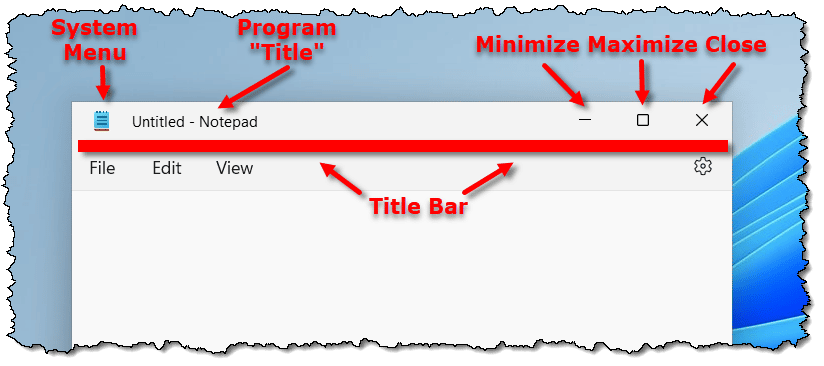
Every once in a while, for a variety of reasons, it’s possible for a window to get positioned so that its title bar (the bar across the top of the window with the program name as well as the Minimize, Maximize, and Restore buttons) is off the screen, impossible to see and impossible to click on with the mouse.
Almost as common are windows that scoot completely offscreen, sometimes as the result of multi-monitor shenanigans.
If you can’t reach the controls on a window’s title bar to move, manipulate, or otherwise deal with the application, you’re kind of out of luck… if you’re using a mouse.
It’s time for the keyboard interface.
Become a Patron of Ask Leo! and go ad-free!

Moving an off-screen window
Windows has a powerful keyboard interface that can be used for many, if not most, operations. You can move an off-screen window by making it active and typing ALT+Space to display the system menu. You can then choose Move and use the arrow keys to move the window into view.
The title bar
For our example, I’ll fire up Notepad. What I’m referring to when I talk about the title bar is shown at the top of the page.
Besides the “title” (or name) of the running program, the title bar also includes an icon for the System Menu on the far left, as well as the familiar Minimize, Maximize, and Close icons on the right.
System Menu? Yes, the application icon that appears on the far left is something you can click on.
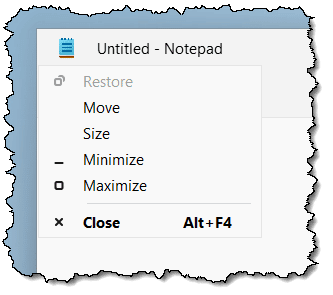
As you can see, there are the Minimize, Maximize, and Close commands, as well as a couple of others: Restore (inactive here, since the window is already in the “restored” state: neither minimize nor maximized), as well as Move and Size.
The last two will come in handy in just a moment.
Getting at the system menu without a mouse
If any portion of the application window is visible at all, you can click on it (to make it active) and then type ALT+spacebar (hold down ALT while typing the spacebar once, and then release both). Somewhere on your screen, you’ll get the system menu for the application.
If the window is not visible, click on its icon in the Windows taskbar to make it the currently active program and type ALT+spacebar.
Moving the window back
Click on the Move menu item. The mouse cursor changes to the “move” cursor.
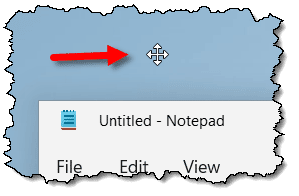
Now… let go of the mouse. 
The next step uses the keyboard.
Press any arrow key. Somewhere on the screen, you may see a partial outline of a window border. Ignore it. Alternately, your mouse cursor may disappear. Ignore that too. Or the window may simply pop into view.1
Now wiggle the mouse.

The window will appear, if it hasn’t already. Use the mouse to move it where you will. Click, and the window will be placed there.
Windows keyboard interface
It’s helpful to remember that Windows (and any well-designed Windows application) does not always require a mouse. There should be a way to do everything using just your keyboard. Things may be more difficult and/or unfamiliar with a keyboard, but they should still be possible.
ALT+spacebar is a key to basic window operations. Using it, you can minimize, maximize, and restore your window, but you can also move and resize it.
To move, as we did above, (which only works if your window is visible and not maximized), hit ALT+spacebar, type M for move, and then use the arrow keys to move the window around. Press Enter when done. You can move your window almost completely off the screen this way. To resize your window (again, only if your window is visible and not maximized), hit ALT+spacebar, type S for size, hit an arrow key that points to the edge of the window that you want to adjust, and then use that arrow key and its opposite to move that edge.
Most people realize CTRL+ESC is equivalent to pressing the Start menu. But most people don’t realize that the Start menu and taskbar have a keyboard interface as well.
Try this: press CTRL+ESC to bring up the Start menu. Now press ESC again to make it go away. This leaves the taskbar with focus (meaning it is the active program and keystrokes impact it). Depending on your layout and version of Windows, various sequences of Tab and arrow keys move you through all the elements of the taskbar. When you finally highlight something you want to activate, the Enter key usually does the trick.
Along the way, tabbing through the taskbar eventually makes your desktop become active. Arrow around through the various icons on the desktop and type Enter to activate the icon you want.
Here’s another handy keyboard shortcut: CTRL+SHIFT+F10 is often the same as right-clicking. While you’re arrowing around those desktop icons or the notification area, give it a try!
Do this
It’s worth being familiar with the basic keyboard interface for when you “lose” a window or for that day when your mouse gives up the ghost.
It’s also worth subscribing to Confident Computing, my weekly newsletter! Less frustration and more confidence, solutions, answers, and tips in your inbox every week.
Podcast audio

Related Video


Footnotes & References
1: I know, lots of alternatives, but this has changed a few times since Windows 7, 8, 10, and 11.


I’ve had this issue a number of times, and have to keep looking it up.
I’m glad Leo has covered it, so i can bookmark a source i trust.
It is not a fix in every case – I have twice ran into an issue where a popup tied to another window has appeared offscreen. The popup itself is not accessible separately, so none of these shortcuts work. I had to uninstall and reinstall the app in order to reset the popup to it’s default location. My takeaway from this is, never move a window off the screen it first appears in, you might not have access to that screen later.
I’m curious as to what causes this misbehavior in the first place. This issue has happened to me intermittently over several computers and Windows operating systems, but usually only with certain programs. Just when I think I have it fixed, I’ll open the program at a later date and there it is again. It’s maddening.
It is possible to set a grid of positions where a window will snap to when moved around. It can be set to virtually anything, even absurd values like 200 pixel. That grid is centred in the centre of the screen, not it’s top. That can easily cause a window to snap well above the top of the screen, or totally under it.
That’s something that I mistakenly did a few years back.
It’s possible that the move function may get accidentally enabled.
It’s also possible that a random glitch may cause a window to get relocated off screen.
Alt-Tab to make that window active. Atl-Space to activate it’s system menu. Type M. Use the arrow keys to move the window. In my experience, touching any of the arrow keys make that window immediately jump within the screen.
Another alternative: hold down Shift key and right click on icon in taskbar. Click Maximize in popup menu.
That’s essentially the same as pressing ALT+spacebar.
On the hidden window problem. Alternate solution
I see it when taking my work laptop home.
Work – 2K laptop, 4K monitor, 2K vertical monitor
Home – 2K laptop, 2K vertical monitor
Things from the 4K monitor move to the laptop at home, frequently with the top cut off.
Grab the bottom edge and pull to bottom of screen.
That brings the top onto the screen.
Grab an upper corner or edge and resize the window.
Grabbing the bottom corner or edge will also just resize the window.
Another useful article but in my experience it’s Shift + F10 that does the same as right clicking.
Hold down Alt and hit spacebar. Then, select “Restore”. If you have 2 screens, move the window to the other screen and you can maximize the window again. Otherwise just work in the smaller window. If you restart the computer the problem should go away (until next time that is).
Thank You!