Turning off the device is essentially the same as unplugging it, so the short answer is no, it’s not a safe alternative.
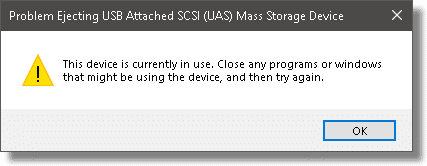
Sometimes, a USB device appears to be in use for no apparent reason and cannot be stopped. I’ll walk through some of the approaches you can take to removing the device while minimizing the risk of data loss.
Spoiler: pulling the plug or turning off the power aren’t on the list.
Become a Patron of Ask Leo! and go ad-free!
Common culprits
Here are a few things I check when I encounter this error (which is often).
Running programs
Sometimes the error message is spot-on: I’ll be running a program of some sort that happens to be in the process of accessing the external drive. Perhaps most embarrassing is discovering that the backup program I’ve explicitly instructed to access the drive to create a backup is accessing the drive.
Check for any programs you are running that might, in fact, be accessing that external drive.
File Explorer or Command Prompt
Next I check for any copies of Windows File Explorer or Windows Command Prompt that are open, displaying the contents of the drive, or have that drive set as the “current” drive.
This is by far the most common cause on my machine. I was doing something that involved examining or otherwise operating on the drive, and I failed to actually stop using it.
Simply closing whichever I find, or having it display something else that isn’t the removable device, instantly resolves the issue.
Use Process Explorer
Next, I’ll run Process Explorer, as outlined in Why Do I Get “device … cannot be stopped right now” Trying to Safely Remove My USB Drive?, and use it to see what application might have a file or “handle” open to something on the removable device.
Once I identify the application, I take action appropriate to that program — doing whatever makes sense in that application to stop it from using the external drive.
If it’s a system process, I might opt for the next option.
Patience
If I can, I’ll wait awhile.
Seriously: sometimes the process using the external drive will just disappear on its own. Common processes that fall into this category include the content indexing service, as well as Windows Defender or other anti-malware tools that scan the drive.
If you’ve ruled out everything else above, and can wait a few minutes, do so and try again. It works surprisingly often.
Shut ‘er down
Finally, I’ll shut down the machine.
This is the ultimate solution. Once the machine has been shut down, by definition it’s safe to remove anything you want.
But sometimes…
I’ll be honest.
Sometimes, I don’t follow my own advice. And because it’s so common for others to do the same, I want to explain the risks and what I do to minimize them.
If none of the steps (short of rebooting) have worked, I’ll wait a while, paying careful attention to disk activity. If the device has truly been idle for “awhile” — I’ll disconnect it anyway.
I need to be clear: if you follow my example, you may lose all the data on the device. Heck, in theory you may lose the USB device itself, though I’ve never heard of that happening.
It’s a risk I run because I’m impatient and don’t want to wait for a reboot. And usually it works.
But I’m also very well backed up. I would never take that inappropriate shortcut if the USB device held the only copy of something.
So, weighing all the risks, I sometimes break the rules. I include it here because there are times you are honestly in a hurry, or a reboot just isn’t in the cards for some reason.
I don’t recommend you do the same, though I realize that sometimes you will.
Do this
Subscribe to Confident Computing! Less frustration and more confidence, solutions, answers, and tips in your inbox every week.
I'll see you there!


When XP tells me my device cannot be stopped and to try later, I find that if I immediately right click the “safely remove hardware” icon and ask again, it will say it is safe to remove it. I view it as NOW it knows I want to shut it down and prepares it so I can. Wouldn’t this be considered the safe procedure?
No, this is not considered the safe procedure.. you should always turn off your your PC before hand.
Thanks for the honesty about not always following your own advice on what you “should” do. I have to admit that I, too, have unplugged the USB cable (*not* the power cable) on a device that simply wouldn’t allow me to “safely” remove it after failing to find what had it open.
But, I agree that it’s a last resort action, short of shutting down the computer itself, and know the possible consequences, and would never recommend doing it
Unlocker works for this situation:
http://ccollomb.free.fr/unlocker/
(I do not work for them nor am I associated, just enjoy their product).
Here’s what I do: If I have saved nothing to the drive (say, a USB thumb drive) and it was inserted only for reading of files, then I ignore this warning and pull the drive out anyways. (My theory is, I’ve saved no files to that drive, so I don’t care what Windows says.) If on the other hand, I have saved some files to that drive, then I get paranoid and pretty much follow Leo’s steps above; the reasoning is that **now** I want to help Windows flush buffers and update everything on that drive, so that all my files newly written to that thumb drive are not corrupted.
Leo,
Could you elaborate on this…
With a USB drive plugged in, if I go into Device Manager (right-click My Computer and select properties), expand disk drives, right-click the USB device and select properties, on the policies tab, there’s an option to “Optimize for quick removal”. Would you trust this as an I-never-need-to-safely-remove-my-device-again type of setting?
02-Dec-2009
i have installed this too called ‘unlocker’ which basically unlocks the files from processes. whenever i get this type of a message, the easiest thing to do is to right click on the usb drive and select ‘unlock’ from the menu.
Try right-clicking My Computer and selecting Properties, then switch to the System Restore tab. If System Restore is monitoring the external drive, disable it from this dialogue box. Then restart the PC, verify the external drive isn’t being monitored and then see if you can now remove it. It worked for me.
What about unchecking “enable write caching on the disk”? In My Computer right click the device, click properties, click the “hardware” tab, click properties, click the “policies” tab, make sure “enable write caching on the disk is unchecked.
This is for windows XP.
Above: “Try right-clicking My Computer and selecting Properties, then switch to the System Restore tab. If System Restore is monitoring the external drive, disable it from this dialogue box.” Once this is done, the drive is no longer being monitored and one can “Safely remove Hardware”. Unfortunately, as far as I know, if System Restore is enabled, there is no way to permanently (ie surviving reboots and unplugging/replugging drives) cancel system monitoring for any non-C drive. So, every time one plugs in a drive, one has to go thru the procedure above in quotes.
Instead of turning the computer completely off I have found it sufficient to simply Log Off a much quicker process. remove the drive and then log back on.
Hello Leo: Thanks for the advise on removing drives. I use a lot of naked drives and have tons of data to keep backed up. I hate it when I get the message about “remove later”. I have completely shut down the computer and removed the drive/s. This works great. I have never lost anything. If the data is important and you want to remove the drive shutting down becomes a great alternative for me. Thanks again. Stan
I unplug mine by putting my machine in stand by mode. Doing this turns off the MY Book activity light which tells me its off. Much faster than restarting everything.
02-Dec-2009
Another vote for Unlocker. Right click the drive in “My Computer,” choose Unlocker, and when it opens, select “Unlock all.” 99.5% success for me.
This works for me. . .
Open task manager.
Go to the Processes tab.
End Process “explorer.exe”.
All windows will definitely close including the task bar.
Select file on task manager.
Select “New task (Run)”
Type, explorer.exe then hit enter or ok.
Task bar will be back. Eject the device again (Safely remove hardware).
There is another way, posted on:
http://blogs.msdn.com/pandrew/archive/2007/01/15/unlocker-utility-for-ejecting-usb-drives.aspx
and the little program can be downloade from:
http://download.cnet.com/Unlocker/3000-2248_4-10493998.html
Hope it will some help
with respect
Berta Istvan (Stephen)
At times it could also be a case of the original application still locking the device. eg: if you were using a wordprocessor to edit a document directly on the USB drive, even after closing the document (but not the application itself) you may not be allowed to stop the device. If in doubt, close all open applications.
Another situation is where your device is being scanned by your anti-virus program. You can either stop the scan or wait until it finishes.
Hope this helps.
RikkU
unlocker always works for me. if it doesn’t, you haven’t given it enough time to close every process referencing data on the drive. Ending ‘explorer.exe’ process is just unnecessary.
in hardware properties also (right click device, properties).. some clicks later.. there should be an option to allow for safe removal anytime but you get no cache/indexing or something like that. good trade-off though.
Another quick thing I do is to “Unmount” the drive by removing/changing the assigned letter for that drive using the Disk Management Console (diskmgmt.msc). This forces the handles to be removed from the logical drive.
Go to My Computer (XP) or Computer (Vista). Right click the drive letter of the drive you want to remove. Left click Eject. Wait for the safe to remove message, then remove. Has worked so far for me.
I have been researching this for SIX months. I have NOt found an ideal solution for this.
1. we need a way to FORCE a dismount of the usb drive. These drives stay locked up just from activity of indexer, explorer, etc, things that may not be WRITING data, but just are LOOKING at the drive.
2. I will try UNLOCKER
3. process explorer is good, BUT there are processes that show up that I have NO CLUE what they are, and am hesitant to shut down those programs without knowing what they do
4. See Truecrypt (disk encryption program). If you start truecrypt, and MOUNT an encrypted drive, and then later try to UNMOUNT it, and something is inadvertently accessing that encrypted drive, truecypt has an option to FORCE dismount. THIS is what is needed for the usb drives.
Leo, KEEP UP the research on this topic, because it affects LOTs of people, and not being ableo to shut these down is a pain
nick
How is Unlocker working for you?
I can only backup the statement to never remove a USB devicejust like that. I wrecked a stick once doing that.
All my collegues always told me that it is unnecessary to shut down the device, “you can just pull it out, it doesn’t hurt”. So it did that once. The very next time I plugged the stick into a computer, it seemed fine, but after a some 10 seconds it disappeared from the drive list. No matter what I did, I couldn’t get it back.
The only way to see the stick again, was unplug it, wait a little (as if a capacitor had to discharge or so…) and then replug it. Again: it would be visible for a couple of seconds, and then disappear. The longer I waited before replugging it, the longer it would stay visible (hence my suspicion of a capacitor discharging), but never longer than 10 seconds or so. I managed to pull off all important data by copying it onto my hard drive during that few seconds (took me a couple of sessions), but by all practical means the stick has become unusable.
So I disconnect my sticks properly again, no matter what my collegues think of it…
Many people try to close a USB drive with a double RIGHT click which displays a box and ask you to select the device you wish to close, this doesn’t always work!!! A LEFT click will display the message ‘Safely Remove Hardware’…. one click on this does the trick!
Just wanted to say thanks for the information contained in the article and comments.Was trying to isolate a hard drive but still have easy access.
Unlocker among others,has provided that link,and removed possible mistakes.
Thanks
control panel/administrative tools/computer mgmt/disk mgmt – select disk to remove and choose ”offline”. you can remove it now by ”safe removal”.
I notice you did not mention the ‘Eject’ option by right clicking the drive in File Explorer. I have had this problem with no apparent reasons to not be able to remove flash drives I’ve plugged in. I have reasoned this in terms of not having rebooted the system for a while, which you do mention, but I find that using the eject option in File Explorer works okay. I get the ‘Safe to Remove Device’ prompt as if I had chosen to remove it via the taskbar. What are your thoughts to this?
Eject in File Explorer is the same as using the USB icon in the taskbar to safely remove.
Instead of a full shut down, what about just logging off and unplugging it from the log in screen? Or log off, log on, and then Safe to Remove icon?
It may not always work.
If a process at the System level is accessing the drive, then, that process is unaffected when you log off.
Some processes that can operate at this level :
Most anti-virus : The user interface is user level, but the engine itself runs at the system level.
Some “set and forget” defragmenter.
Dropbox,
Most backup applications.
If you are connected to a local network, some other computer on that network could be accessing the drive if it’s set as a shared resource.
Another possible case : Your system is set with multiple accounts and you have switched user instead of logging off and logged in with another account. A thing that you can do WITHOUT logging off. In this case, the current cession is locked but still active and can absolutely access your USB drive. You need to close the current cession, switch back to the original cession, then safely disconnect.
Log off typically doesn’t help, and more importantly — there’s no way to tell.
Hello All,
Another culprit seems to be a bug in service “Distributed Link Tracking Client”, which keeps the external drive “in use”,
when it effectively it should not.
Best Regards,
Iudith
If you are using Macrium to image your drive for a backup and the check the drive by accessing files on the USB drive Macrium mounts the backup image as a drive. You can not use the “safely remove…” command until you use Macrium to dismount the drive. (left clicking on the image produces a menu with the Macrium dismount command).
I use Axcrypt to protect data files saved on a USB flash drive. If Axcrypt is running, and the files on the flash drive are encrypted, the “safely remove…” will get the “can’t do” pop-up. Axcrypt has to be closed to get the OK to remove.
I don’t know why this is, since Task Manager does not show any applications running, but the fact remains that these steps seem to be necessary to get the go ahead to safely remove the USB media.
Better safe than sorry???
I messed with this for almost a year before I found the solution for Windows 10. Some Windows update or other culprit changed a setting in Device Manager. to fix the system not allowing safely remove for external drives, open Device Manager through Windows Search or the Control Panel, select Disk Drives, select and right click the external drive in question, select Properties. On the Policies tab, select Better Performance, but make sure the Enable Write caching box is NOT checked. My external drives can be ejected just fine since I disabled write caching, and the read/write speed may even be better.
Why hasn’t Microsoft fixed this decades-old issue with a message that says “X is accessing this device and must be exited before removal”?
I have found that waiting as suggested does work. I have also used putting the computer to sleep will for me work at other times, waking up is a lot less time then restarting the computer.
so do I have the computer up and running before I plug in my external hard/drive or vice versa which by the way I plug the external hard drive into my usb port? I don’t want to lose my files that I have on my external hard/drive. Also can I make another copy of my external hard drive for a back up if I purchase another external hard drive and is it quite technical to do this? I’m not very computer savvy. Thank-you.
It doesn’t matter much when you plug in the external drive, although I might wait till the computer is set up firs since there’s not much you can do with the drive until Windows is running.
Backing up an external hard drive is very simple and something everybody should be doing. All you have to do is plug in both the original and the backup drive and copy all of the files using File (Windows) Explorer from the old to the new drive.
I have this problem on my two XP desktops which i use for redundant backup, my Windows 7 home laptop and Windows 7 pro desktop. Often after I close MS Word or whichever program I was using, the message will say that my USB drive is still in use. I’m too ignorant of coding to use the DOS command prompt for anything, but I know how to access Task Manager. But when I click on Applications the program’s not shown to be in use. I have sometimes clicked on Processes, but is it safe to right click on what looks like an .exe or other major operational file of that program and then click Kill Process? And what if there is no .exe file shown there? How else to shut down the program? So I searched [windows 7 won’t unmount usb drive ] and found this https://www.pcworld.com/article/2927972/when-windows-refuses-to-eject-mass-storage-5-ways-to-safely-remove-a-usb-drive.html They recommend this app https://safelyremove.com/features.htm This seems to be the only app to actually offer safe and easy USB Drive unmounting, at least one recommended by a major computing magazine. The report was from four years ago but I can’t believe that it took that long for this kind of app to appear, as Windows users have had this USB drive error problem virtually forever-and there’s apparently no other trusted app that can do this. Should I go for this app? Or is there a simple and safe way to fix the problem via Task Manager?
Has anyone used this? https://support.microsoft.com/en-us/help/17614/windows-10-automatically-diagnose-and-fix-windows-usb-problems
Is it easy enough for dummies who can’t use the MS-DOS prompt and need to do it all in the Windows gui?
Leo, please reply about unlocker and/or other apps for dummies. Safe and foolproof?
Thanks.
I have no experience with unlocker, so I can’t say. I do know that Windows 10 is changing the default setting so this will become much less of a problem with future updates.
Okay, but I won’t want to replace my XP backup machines anytime soon, nor replace my two old Windows 7 laptops with Windows 10 laptops until late this year/early 2020-and after which Microsoft is ending Windows 7 support.
Can this be used in Windows or does it require a lot of MS DOS command coding? https://support.microsoft.com/en-us/help/17614/windows-10-automatically-diagnose-and-fix-windows-usb-problems
And if that download can be used by DOS dummies does it actually fix this Windows XP and 7 problem??
It’s a Windows program (no command line needed). It doesn’t claim to support XP. No way to know if it will fix a specific problem, but there’s no harm in trying it.
I’ve used Unlocker in the past, and in most cases, it did a good job of unlocking locked files that I wouldn’t otherwise be able to delete, rename or modify.
What about big hard drives that keep running even when you have turned the computer off (USB ports often remain live)?
Also, don’t fall for the trap of backing up on two external drives and then pulling them out one after the other because both of them got stuck in succession. I did that and got away with it on both (luckily).
If the computer is off, they’re safe to remove.