What happens next depends on how far it got.

Your computer locks up, crashes, stalls, or otherwise fails to completely boot up into Windows. That’s difficult since most all of our diagnostic tools require that Windows be running.
I’ll try to gather a little information about the type of problem you might be experiencing and look (at a very high level) at some resources you have available.
I’ll start at a “mostly” booting Windows and work backwards to a completely dead machine.
Become a Patron of Ask Leo! and go ad-free!

Computer won't boot
While not a complete list:
- Freezing after sign-in can be a sign of a corrupt profile, hard disk error, application error, or malware.
- Freezing before sign-in but after the Windows logo can be a problem with Windows itself, drivers, or malware.
- Freezing before the Windows logo but after BIOS messages typically indicates a problem with Windows, drivers, or hardware.
- “Operating system not found” usually means there’s a USB stick inserted that the system is attempting to boot from.
- Missing hard disks, BIOS beep codes, and complete silence or inactivity all tend to be hardware-related issues.
Freezing after sign-in
One of the last steps that Windows takes before being ready for use is to load the personal settings for the user signing in. That includes settings within the Windows registry, saved network connections, and the security settings for the account. This step involves a lot of different areas on the machine, so if it hangs, presents a blue screen, or is exceptionally slow, it could be for many reasons.
Things to check include disk space, physical errors on the disk, and network connectivity that might affect restoring those saved connections.
Another possibility is what’s called a corrupt profile. Your profile is the information Windows stores about your specific account. If that information is damaged, Windows can stall or present error messages without completing your sign-in. Solutions here include signing into a different account or possibly performing a repair or refresh install of Windows.
Freezing before sign-in
Any blue screen, hang, crash, or lock-up that happens after the Windows logo is displayed but before the sign-in screen is displayed is a problem with Windows itself. It could be anything from a bad device driver to damaged Windows files, malware, or even a hardware issue like a bad disk.
The best first step is to attempt to boot in what’s called Safe Mode. Safe Mode disables several operating system components, possibly avoiding the component that is causing the problem. Once in Safe Mode, you can try running the system file checker, your security software, and possibly get Windows updates. Microsoft has an article on how to enter safe mode.
Freezing before the Windows logo
If you can’t get into Safe Mode or your system hangs or crashes after any BIOS messages but before the Windows logo is displayed, then the next best approach is to boot from installation media. Then, instead of clicking on Install Now, choose “Repair your computer”.
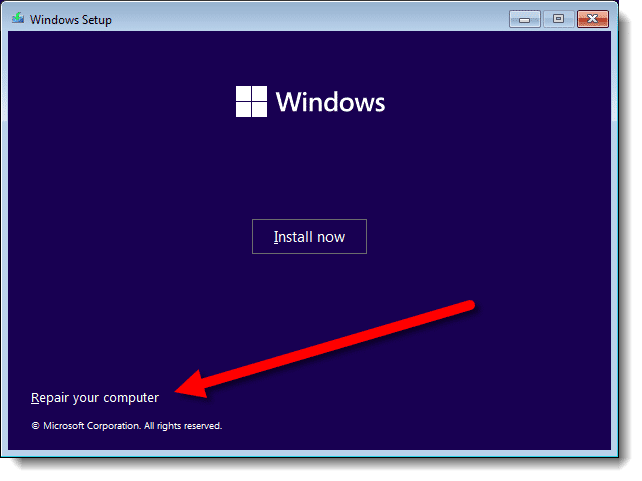
You can then use the command prompt option to run diagnostic and repair tools like the System File Checker.
Operating System? What Operating System?
One of the scarier messages is Operating System Not Found. It implies the operating system on your hard disk isn’t there anymore. Yikes!
Fortunately, it’s also one of the easiest scenarios to encounter, and even easier to fix.
This error message, 99% of the time, means you have a USB thumb drive inserted into the machine, and the machine is trying to boot from the thumb drive, not your hard disk.
That’s easily solved. Either remove the thumb drive (at least long enough to boot normally), or change the boot order in your system’s BIOS to boot from the hard disk first.
If that doesn’t resolve the issue, you can try booting from the installation media and use the Startup Repair option under “Repair your computer” as discussed above.
Hard Disk? What Hard Disk?
Things get a little scarier when your computer doesn’t even appear to have a hard disk. When software like Startup Repair doesn’t see that you have a hard disk in your machine, it’s not a good sign. In my experience, the most common cause of this is sudden and catastrophic hard disk failure. I hope you were backed up, as it’s likely time to replace it.
BIOS & POST
If your computer doesn’t even get so far as to try the hard disk, or if nothing is displayed on the screen, you probably have some type of hardware problem. For example, if the computer simply beeps a few times and then does nothing, that’s the POST (Power On Self Test) telling you something is wrong. It might not be able to display an error message, so it simply beeps in a pattern to tell you what it’s found. The patterns vary based on the brand of your computer or BIOS, but POST beep codes can often give a technician a quick idea of exactly what might be wrong.
And finally, if your computer does nothing at all when you turn on the power, obviously something is seriously wrong. In my experience, it’s typically the power supply that has failed; however, it’s also possible that critical components on the motherboard have failed or that a peripheral card has been inserted improperly or has failed in such a way as to prevent the rest of the system from working at all.
Do this
Computers and the operating systems that run them are complex. They can fail in a myriad of unique, interesting, frustrating, and ultimately complicated ways.
Hopefully, this overview will give you some guidance as to what to do when yours won’t boot.
Podcast audio

Related Video


One of my older computers stopped working after a power outage. It did nothing when power was applied. Attempted to do all the standard checks, but the computer appeared to be completely dead. Following a hint in one internet search, I removed the CMOS battery for a couple of minutes, then re-inserted the battery. Computer then booted up without problem.
My desktop PC simply refused to start a year or so ago. It was only about a year old (I built it myself). I tested the PSU with a jumper tester, and it appeared to work. I then got a PSU tester to check that the rails were delivering power. No trouble there either, so the issue had nothing to do with the PSU. I decided to get another motherboard to see if that was causing the issue. After installing the new board, the computer still did not power up (no indication of power getting to the motherboard at all, and when I tested the PSU, I also tested the cable that connected to the motherboard. I got a different power switch, but it did not make any difference, so I decided to get a different mid tower case. When I installed my hardware into the new case, everything worked as expected and I am writing this post from that box now.
I have another PSU as well as the motherboard, CPU, and a RAM stick from the ‘dead’ computer, and sometime soon I intend to get to work trying to find out what broke, and if it’s worth fixing. I suspect that the power switch on the case is the issue, but it could also be an issue with something on the motherboard. If I can get things working, I’ll have a box I can use as a server for my home Network.
Ernie
I purchase 2 re-conditioned desktop computers @ 2 years ago. One started acting up so I just let is sit, but now the one I use every day did something strange. I always turn the computer on and leave it on all day, I normally come back to it @ noon, then @ 3pm, then again after dinner @ 7 till maybe 10pm. The other day I walked in and my monitor was showing all kinds of graphic sections in different colors of browns and beige and sand colors. It is the computer, because after I shut it down and boot back up, it disappears. It that something with the video card? Other than that, I can’t imagine what is causing it. The other one did the same thing before I quit using it. Thanks.