You have options… hopefully.

I wanted to address this for one simple reason: a dead machine that has the only copy of important files is so common.
Too common.
I’ll look at the two most popular ways to recover your files — a software and a hardware option — but more importantly, I need to make sure everyone learns an important lesson from this situation.
Become a Patron of Ask Leo! and go ad-free!

Get files from a machine that won't boot
The most important thing you can do is prepare for this situation by backing up regularly. That way you can easily get the files you need from your most recent backup. Failing that, there are two approaches: boot from a Live CD or USB and use that operating system (often a Linux distro) to copy your files to a thumb drive; or place the hard disk of the unbootable machine into an external USB enclosure and connect it to a working machine.
The software option: boot from a Live CD
If your machine is so broken you can’t boot from the installed operating system, your priority becomes salvaging the data from the hard disk before reformatting and reinstalling the OS from scratch.
One approach is to use what’s called a Live CD, DVD, or USB image of an operating system. The term “Live” refers to the fact that these images boot and run entirely from the media on which they’re stored without requiring a hard disk or installation.
Many if not most Linux distributions can be used, and Linux Mint is a good distribution to for this. Using a different working machine, download an ISO image of the most recent version Mint and burn that to DVD or create a bootable USB drive.
Now boot your problematic machine from that media.
After Mint finishes booting, double-click on the “Computer” icon to open the Linux version of File Explorer, in which you’ll find icons representing the various drives known to the system, including your Windows hard drive.
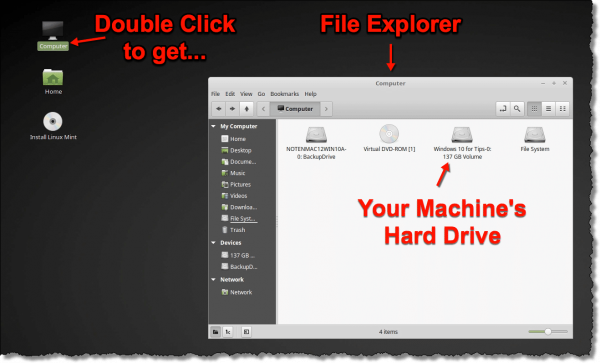
You’ll need to figure out which icon represents your hard drive. Typically, the name listed will include the drive’s label in Windows, or you can use the size of the drive to help identify which is which.
Double-click the drive to open it and examine its contents.
When mounting fails
With recent versions of Windows, or if a machine’s sudden crash brought you to this situation, the drive may be in a state that cannot be opened by default, resulting in an error message.
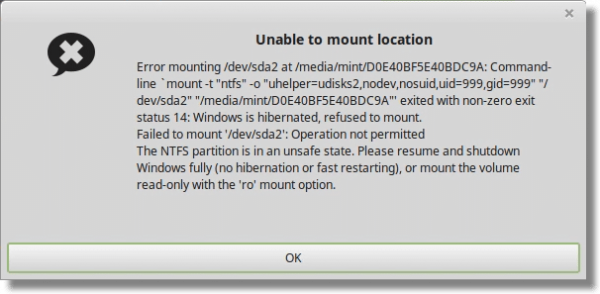
This error is suggesting you mount the drive “read-only”. Attempting to open the drive with both read and write access is failing. Honestly, for what we’re attempting, read-only is safer anyway, as it prevents us from making accidental changes to the drive.
Click OK to dismiss the error. Now click on the Mint Start menu (in the same lower-left corner as Windows), and under Accessories, click on Disks.
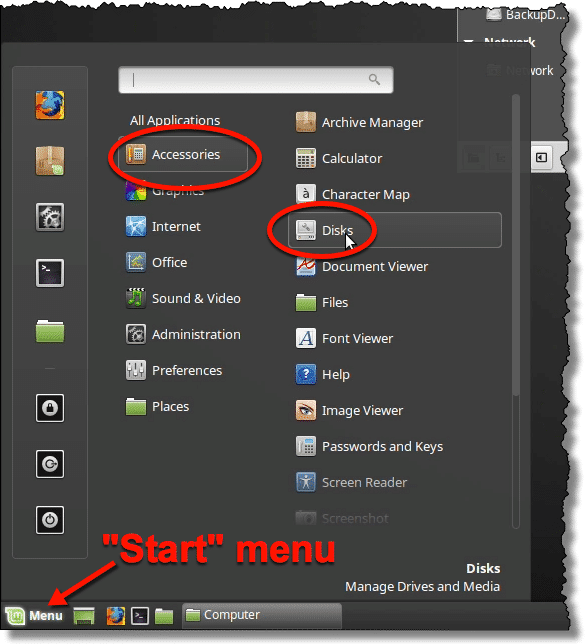
The Linux Disks utility is very much like Windows’ disk management tool. Click on the disk representing your Windows drive on the left — and if your drive has multiple partitions, click on the data partition (usually the largest) — and then on the options gear icon below it.
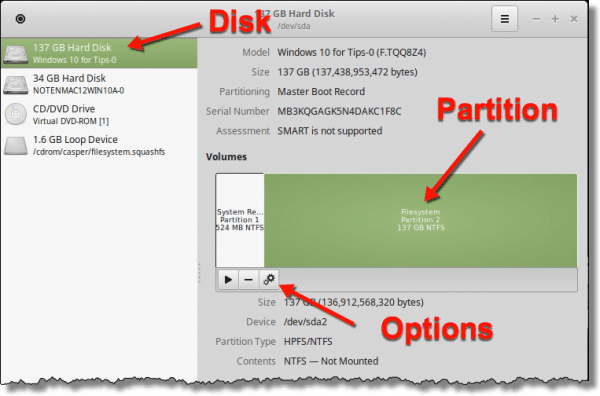
In the resulting drop-down menu (not shown) click on Edit Mount Options…
This will open a fairly scary-looking dialog with a lot of terminology and settings you probably won’t recognize. The good news is that for what we’re doing, none of it matters except for two very specific items.
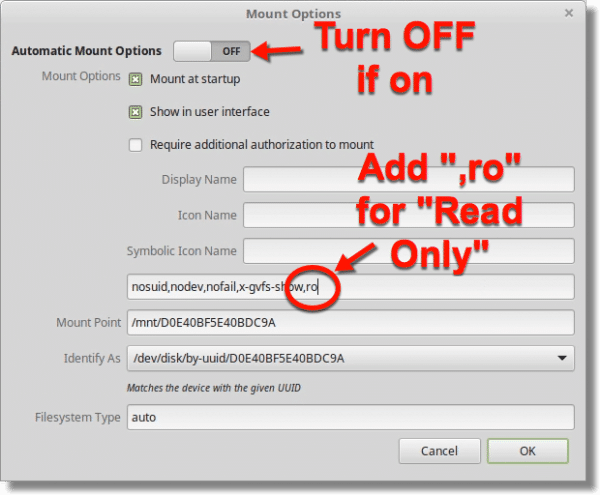
First, if Automatic Mount Options is turned on, turn it off. This should enable making changes below.
Second, add the string “,ro” (without the quotes) to the string of characters in the unlabeled text box above Mount Point. This adds the “read only” option.
Now click OK to save the options, and return to the disk management tool.
Click the arrow button to mount the drive.
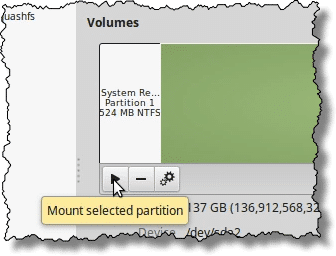
You can close the Disks tool (click the “x” in the window’s title bar in the upper right corner).
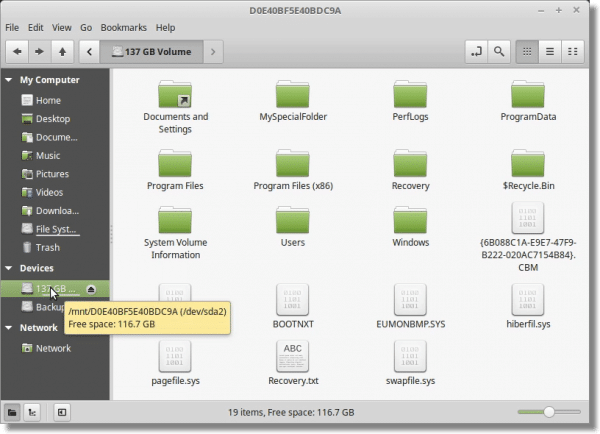
Now when you double-click the icon for your Windows drive, it should open and display the contents.
Insert flash drive
Now you need somewhere to copy your files. Insert a flash drive or other external drive into one of your computer’s USB ports. It may appear automatically within the Linux file explorer. If not, run the Disks utility again, and it should appear in the left-hand list. Click on it, and underneath the image of the partition(s) on the drive, click on the mount option.
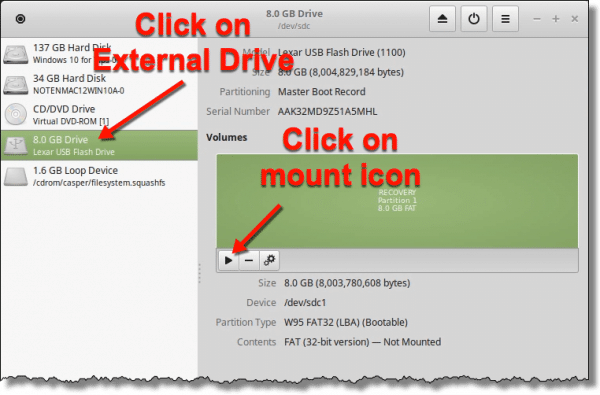
The drive will become visible in File Manager.
Navigating within the Linux File Manager is almost exactly like Windows File Explorer. Right-click for options like Copy/Paste or Open New Window, drag and drop to move files, double-click on folders to open them, and so on.
You can now explore your Windows drive for the files you want to recover. Drag and drop or copy and paste them to the external drive.
The hardware option: extract the disk
A second approach is to physically remove the hard disk and connect it to a different, working machine to extract its contents. Naturally, this all needs to be done carefully to avoid damaging the drive or the equipment around it.
Perhaps most convenient is to place the drive into an external USB enclosure so you can connect it to any machine with a USB port.
Once the disk is accessible, you should be able to access all the files you need.
A scenario for possible failure
I need to point out one scenario for which there is often no solution: the encrypted hard drive. Hard drives are encrypted specifically to prevent others from doing the very things we’ve done above.
A BitLocker-encrypted drive may be accessible if connected to another Windows machine, if you have the recovery key created when the drive was encrypted.
A VeraCrypt-encrypted drive may be accessible if connected to another machine that has VeraCrypt installed, and you know the password to mount it.
Regardless, whole-disk encryption can present additional hurdles beyond system failure that may or may not be insurmountable.
Do this
Learn this lesson: there’d be no risk of data loss if your data had been backed up.
I harp on backups a lot, but it really can save you from almost any failure.
If your data exists in only one place — for example, if it’s only on your computer’s hard drive — then it’s not backed up. You risk losing everything permanently and without warning.
Sometimes we can recover data using one of the approaches above, but you can’t count on that. A hard disk failure — and they definitely can and do fail — can render all the information on your hard disk unrecoverable by any means.
Not sure how to back up? Start here: How to Back Up Windows 10 (& 11).
Podcast audio

Related Video


I always go for the live CD approach , have you tried Hirens BootCD ? it can be used to transfer files make or restore backups , partitioning and even changing forgotten password .. what do you think of it Leo ?
16-Dec-2011
I’m sure you’ll get plenty of “what about [software x]” posts, but…
We often use BartPE for these situations. While I have been a Unix user since the 1980’s, BartPE has the advantage of being Windows XP, so it doesn’t “frighten” those who don’t like anything that doesn’t look or feel like MS-Windows.
http://www.nu2.nu/pebuilder/
This commenter recommends using a live Windows version. That’s a good suggestion, but don’t be afraid of Linux. Linux Mint is so Windows-like that people who have used XP will find that Mint Linux is more similar to XP that later versions of Windows are.
I had a similar problem recently. First, I and my wife started getting warnings that our version of installed Windows was illegal and not registered. Then my computer wouldn’t boot to windows. I started getting an error message with a link redirecting me to a solution which took me to a Microsoft site advertising Windows 7 and Microsoft Office. I Tried everything. I had backed up most of my files on another networked computer, my wife’s laptop :) I started getting the error message that my version of Windows was illegal or not registered every time I tried to do a repair or system restore from a previous time. Then another message came up saying that my license/registration number had been changed without administrator permissions. There was a link which said it would take me to a site to remedy the problem. The same link took me to a Microsoft site with an advertisement to purchase and install Windows 7 and Microsoft Office. After a few tries with the same results I put the original install disc in. I boot started from my original Dell Windows Vista disc. I re installed the program over the already installed program, not a new install, because the repair did not work. There is a feature which saves all of the folders and files to what is called Old Windows Files so that they can be recovered if I just install over the already installed version of Windows Vista instead of deleting the partition and doing a New Install. Once I had reinstalled the program, which took forever, I went straight to the registration. And yes, my number which requires an administration pass word had been changed??? I entered the number from the sticker on my computer to authenticate the program. I rebooted the computer and checked that the windows version had been authenticated and activated. That solved the problem. But I still had to spend three days reloading programs, updates, folders and files. I still wonder How did that number get changed without the administrators pass word is still a mystery. And why did the link which directed me to a solution take me to a Microsoft site and an ad for Windows 7 and Microsoft Office????? Makes me wonder who could possibly have accessed my computer, changed the number and put a link to Microsoft advertising…raises my suspicions about Microsoft since my wife had been getting the same warning for the past month that her version of windows was not legal or registered and she has Windows 7. I have BitDenfender Internet security installed on my computer and my wife has MacAfee installed on hers. Still scratching my head over this one and hoping it doesn’t happen again. Three or four days to reload my computer was frustrating and interfered with my online projects and activities. Any comments Leo on this experience?
“But my copy is legal!” – absolutely, but the tests indicate otherwise. That’s either a bug in the test (yes, absolutely that would be Microsoft’s fault), or something has happened on your machine to cause that test to fail. A failing test to Microsoft means exactly what it says – they honestly believe that the copy is illegal, even if it’s not. Once you correct the problem it validates properly.
There’s another, actually more likely cause here: malware. It’s very possible that wasn’t a Microsoft page at all (I’d need to see the exact URL to confirm). It’s unlikely that Microsoft would redirect you to a site selling both Windows and Office in order to correct a Windows problem. More likely malware – a form of scareware I’d say – was redirecting you to a bogus site trying to get you to either buy something from them or steal your credit card info.
17-Dec-2011
The Ultimate Boot cd IS… http://www.ultimatebootcd.com
Can easily backup files in an environment intuitive to Windows users, and I LOVE their system restore program which has worked for me on XP which wouldn’t boot.
Highly recommend
An alternative to those caught on the hop, as I was recently when visiting friends, and presented with the “Oh by the way, since you are here, we have porblem with our PC” routine. They had their original Windows XP disc, but half way through the repair the PC just went into a continous sycle of rebooting.
Not being forewarned I didn’t have my usual box of discs with me, but I did find a bootable of Acronis Director Suite, so I created a new partition on their hard drive and put a new install of Windows on it. Dirty solution, but it worked.
That’s way too complicated. I never back up. I regularly clone my driver, actually I keep a couple of copies. If my drive won’t boot I simply boot from a cloned disk, put the failed drive in another slot, and copy any files I need from the old drive. Once I get everything working I clone the failed drive as a backup. Usually takes only a few minutes.
Being a bit on the paranoid side, I would use the linux disk (or alternative) before attempting repair just in case something else goes terribly wrong during the process. Of course, I also have backups to an unattached external drive and online because I just don’t want to have to deal with losing everything!
Linux Mint (currently at version 10) has a user interface that won’t scare Windows users away. I have a couple of external drives, each with Linux Mint installed on a bootable partition. Select ‘Boot from USB’ at startup, and you’ll have full access to a ‘broken’ Windows partition in a minute. You can then recover files to the standard NTFS partition on the external drive.
The other thing to note is that your correspondent was lucky – they had warnings that they had a problem, which initially they could work around. So if anything like this ever happens to you, your only priority is to take a current, full, backup.
Copyright is interesting. There is of course the possibly of using a copyrighted work if it falls under the fair use section of law. It has to do with things like if the work is being used for educational purposes only, as such in a school classroom, number of copies, sometimes something is fair use if only a small part of the work considered insignificant in terms of the whole work which would not hurt the author’s intended use, and another part includes that the work in question would not profit the user and also would not impinge on the author’s ability to make profit on his/her work. You would have to look up Fair Use to get the actual wording of these things.
On a different note, our cars are made up of many thousands of parts, and are the result of a car company bringing all these parts together to make a car they designed. Imagine if cars were copyrighted objects. For example, the author of a copyrighted song expects to get a royalty every time his/her song is played commercially. What if your car/pickup truck was subject to the same type of requirement. You bought the vehicle but then every time you made money on a job using that vehicle you would have to pay GM, Toyota, whoever, a royalty because you were making a profit using a car they designed. Just a fun thought!
Fixing your car isn’t subject to copyright or probably more accurately patent law, but if you want make a component to replace the broken one, I don’t believe that would be allowed without permission. So the owner of the patent is compensated when the item is produced or sold. Laws concerning hardware are different from software (including music, video, written word, literal software etc), and the rules governing patents are different from the laws concerning copyright, but they are all legally protected in some way.
Hello Leo,
In following your steps, for me the “Edit Mount Options” in the dropdown menu isn’t clickable, it’s greyed out. Do you know a way around this? Thank you very much.
I haved used the Linus Live CD or USB on many computers to recover files. I also invested in External Hard Drives that do auto backup every day. That has saved my files a few times when my hard drived crashed and died. I also have an online storage site sync.com. i can set it to back up auotmatically or copy files directly to a folder from my computer. It is well worth the money to safely store and secure files.
Yes. Back up. If you have a recent backup of your machine, all this time spent on recovery wouldn’t be necessary. An ounce of prevention is better than a pound of cure.