Machines keep getting more and more powerful. As a result, we tend to have lots of things running at the same time. Combine that with Windows itself running lots of things on startup, and that taskbar at the bottom of your screen may be getting pretty crowded.
There’s hope. The taskbar is a surprisingly flexible application. We’ll look at some ways to manage taskbar space and get you a little more room, perhaps even making the taskbar a little more useful as we do so.
Become a Patron of Ask Leo! and go ad-free!
Note that while the examples used in this article are from Windows 10, the majority of the steps and concepts apply to most recent versions of Windows.
Locking and unlocking the taskbar
The taskbar can be locked to prevent accidental changes, and by default it often is. We’ll start by making sure it’s unlocked and ready to accept any changes we apply.
Right click on an empty area of the taskbar (or on the clock).
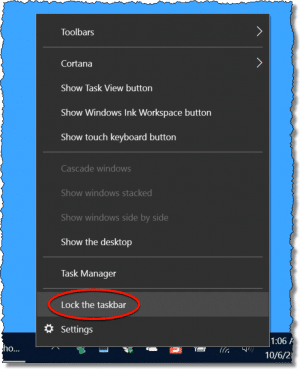
Make sure that “Lock the taskbar” is unchecked. When you’re done making changes, come back and re-lock it so you don’t change things accidentally later on.
The taskbar has three areas:
- On the left: the start button.
- In the center: the taskbar itself, showing all running applications.
- On the right: the “notification area” with the small icons and clock.
It’s the latter two we’ll configure to free up space.
Running applications take taskbar space
Right click on that empty area of the taskbar again, and click on Settings. This brings up a window with a number of useful items.
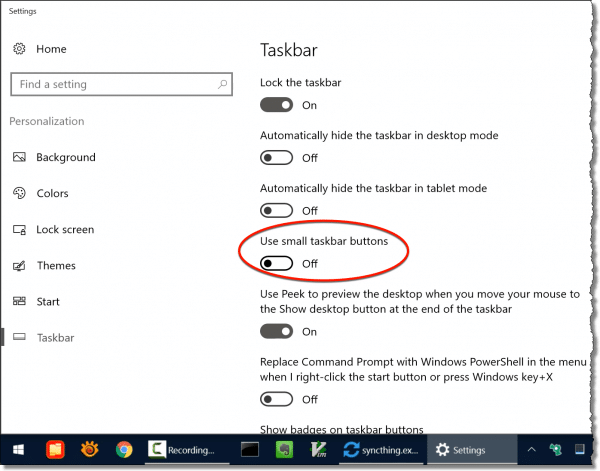
We’ll start with the “Use small taskbar buttons” item. Click that on, and the icons used for running applications become smaller.

Next, scroll down in the Settings application and look for the “Combine taskbar buttons” setting.
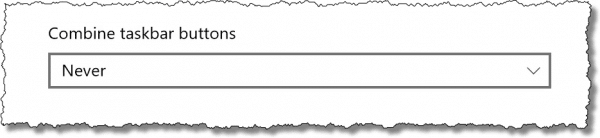
Click on the current setting and you’ll get a list of three options.
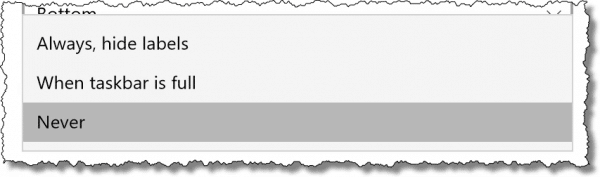
The basic idea is that if you run more than one copy of a program – say multiple command prompts, or have multiple documents open in programs like Excel or Word – you can either see each represented separately in the taskbar, or combined into a single button that, when clicked, lets you choose one to work on. Naturally, the single button takes less space. More to my liking, however, is the option “Always, hide labels”. This not only combines multiple copies of any running program, but also removes the text label included in the taskbar button.
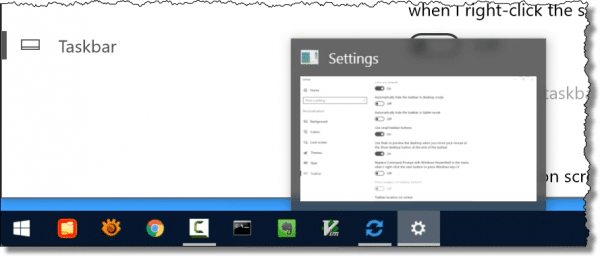
This takes up the least amount of space. If you’re unclear on what an icon in the taskbar represents, you can simply hover the mouse pointer over it, and a preview of the application, along with the text that would have been included in the taskbar, is shown.
Small icons, combined if necessary, use the smallest amount of real estate in this portion of the taskbar.
The notification area takes taskbar space
The notification area is divided into three areas, from left to right:
- Hidden status icons, displayed by clicking the “^” or “show hidden icons” icon
- The status icons you see that are always present
- System icons, like the speaker icon, clock, or action center
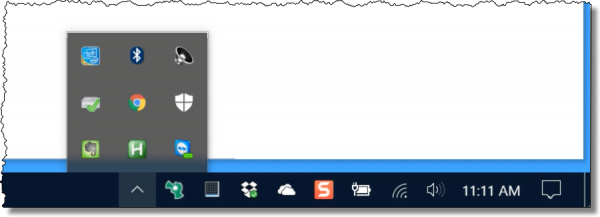
In the same Settings app we used above, scroll down to find two items under “Notification Area” that allow you to control what will be displayed there.
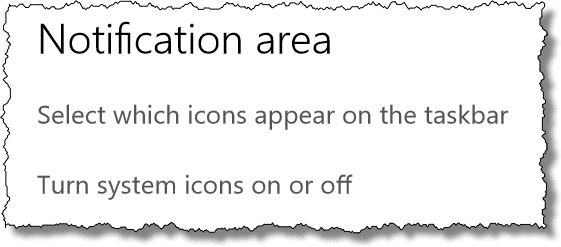
Click on “Select which icons appear on the taskbar”.
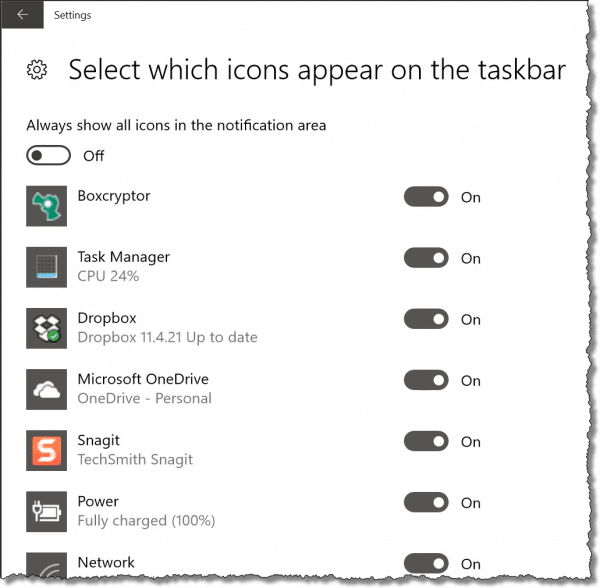
This will present a long list of items which can be displayed in the notification area, each of which you can turn “on” or “off”.
- On: when the program or service associated with the icon is running, the icon is displayed, always.
- Off: when the program or service associated with the icon is running, the icon is hidden, but can be viewed by clicking the “show hidden icons” item.
I find there are many things I rarely need to see, so I leave those set to “off”. On the other hand, there are a handful of icons I do find useful, such as my CPU usage (present when Task Manager is running), my Dropbox and OneDrive synchronization status, and so on. Those I mark “on”. I try to keep the number of icons set to “on” to the minimum I need, simply to save taskbar space.
Click on “Turn system icons on or off” for a similar list for the system icons area.
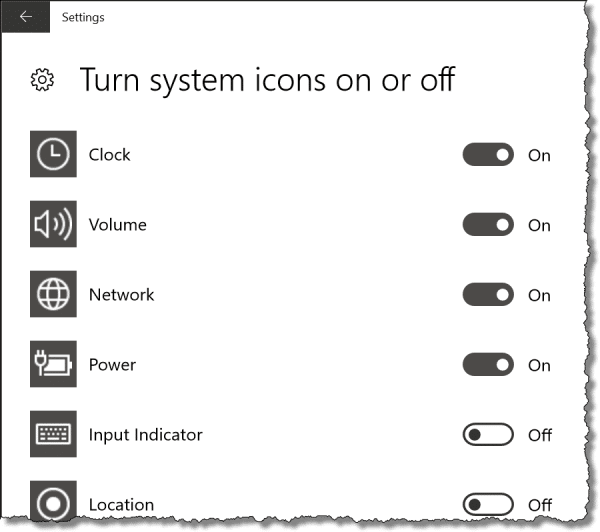
This lets you control exactly which of the available system icons are displayed on your taskbar. Once again, I tend to maintain a minimal set, but choose whatever makes sense for how you use your computer.
The taskbar itself
You can hide the taskbar completely.
Near the top of the setting page we’ve been using is an option to automatically hide the taskbar.
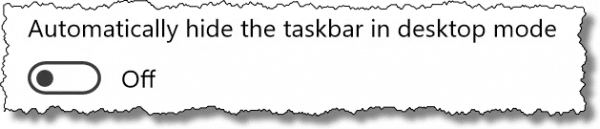
Turn that on, and the taskbar will slide down and disappear from your screen. To make it reappear, simply move the mouse to the bottom of the screen, and it’ll slide up and reappear for use.
For a long time I went back and forth on this feature, but of late have decided that the taskbar has enough useful information in it that I want it displayed all the time.
Most people don’t realize you can actually make the taskbar take up more room on your screen.
With the taskbar unlocked, as you move the mouse pointer over the top of the taskbar, you’ll see it change to a resize icon.
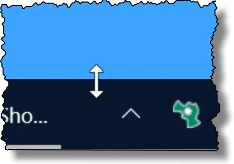
Click, hold, and drag up, and you’ll make the taskbar twice as high.

The start button will remain relatively unchanged, but the running programs icons, as well as the notification area icons, will now be presented in two rows rather than one.
In fact, you can keep pulling the taskbar up even higher, if you like, but I find that a single row works most of the time, though occasionally two rows can be useful.
And lastly, while I won’t show it here (as it’s covered in other articles), you can click-hold-and-drag the entire taskbar and attach it to either the top, bottom, right or left of your screen. (There’s also an option in the settings app to control this.) Since it’s easy to do this accidentally, I’ll also recommend one last step.
Lock it up when you’re done
I do recommend re-locking the taskbar when you’re done playing with it. Based on the questions I get, it appears it’s actually easy to make unintentional changes – like accidentally moving the taskbar to the side of your screen. Locking the taskbar will prevent those accidents from happening.
Do this
Subscribe to Confident Computing! Less frustration and more confidence, solutions, answers, and tips in your inbox every week.
I'll see you there!
Podcast audio

More for Patrons of Ask Leo!
Silver-level patrons have access to this related video from The Ask Leo! Video Library.
 Making Room on the Taskbar

Can’t fix the taskbar, which has migrated to the left side of the monitor, because it won’t unlock. When the screen comes up which would give the “unlock” choice, it is faded out and can’t be clicked on.
Does the account you’re logged in as have administrative priveleges? Might need to give it temporarily at least. I also found thus utility that might help: http://ask-leo.com/d-tbplus – caveat is that I have NOT tried it myself. I’d be interested in hearing if it works, though.
My taskbar icons are HUGE!!! They suddenly became big the last time I booted and I’m going crazy! Does anyone know how to resize taskbar icons? Help.
In Windows 7 right click the Taskbar and then left click Properties. Here you can change numerous taskbar attributes.
my operating system is XP and I have somehow changed my taskbar/toolbar to larger than I like. (no I didnt do it by unlocking taskbar and dragging it larger)It looks twice as large as it used to. I mean the icons are big and the date/clock is stack on each other. Any idea how I might have done this, and how to fix??
You can retrieve you original look for your icons by reapplying the default windows style under appearance in ‘Display Properties’. Worked a treat for me – bye bye chunky icons… :)
I appear to have “lost” the section of my “task bar” section of my task bar. I have (from the left of my screen) the start button, the quick launch, and the notification area on the right. What is missing is the section that actually shows what files and applications are actually running. Windows seems to think that these are in an area BELOW the bottom of my screen, but i cannot seem to change this, no matter how hard i try. A large Latte to the person who tells me how to fix this in simple english!
to clarify the previous question (sorrry),
– i can’t seem to find an answer in the article
– it is only the “taskbar” i.e. the section of the bottom of my screen that shows open folders and applications that is missing. the start button, the quick launch section and the notification area are all there. I can’t move the other sections to make way for this part of the taskbar. I have of course unlocked the taskbar. This happened when i was trying to resize the Google Desktop deskbar in the notification area.
This article may help: http://ask-leo.com/why_dont_running_programs_show_in_my_taskbar.html
My task bar has my desk top names in them. Between the start and icons to the time. (right side.) How do I get them out?
Thank you
I don’t really know what you mean by “desktop names”. Guessing: Try right clicking on the taskbar (in an unused area, clicking on “toolbars” and if “desktop” is checked, uncheck it.
My problem is the missing taskbar that appears just above the start button at the bottom of the screen. It shows when MSN has finished downloading etc. I don’t know how it stopped appearing. Thanks.
Andrea, i have the same problem, it happens when you accidently drag the top of your bar to either side of the creen – its liike a 1 in 100 case =)
in the meantime i have had luck in dragging it back down to the horizontal position.
dont let it drive you nuts, because i know it will lol =)
jb
My taskbar is on the right hand side of my screen and it wont stay in the position I want ti to. Every time I load windows its shifts it back to a narrower size even though it is locked. Any ideas. Thanks
What if the buttons on my taskbar have disappeared altogether, however the taskbar remains intact and the quick launch buttons also remain intact? How can I bring the buttons back?
They disappeared shortly after my son moved the taskbar to another part of the screen and I brought it back to the bottom.
Thanks!
Use a Win XP Pro O/S. The task bar was accidently maximized and now you can not minimize it to it’s original setting. The arrows appear that allow you to maximize or minimize the task bar but you can not make it small than two inches. I have right clicked and gone to properties thinking it was locked and it not not locked so what do I do?
If your taskbar icons become too big and fuzzy for whatever reason this is how you can restore them back to normal size:
Goto “Display Properties” click on “Appearance” and under “windows and buttons” drop down menu, choose “Windows Classic Style”
This will reset all icons back to default and you can customise accordingly if you wish.
Good luck!
My task bar doesn’t stay in the settings that I set it to. I make it two wide and when I boot up it goes back the normal size. what can I do to get it to stay?
Why can’t I kep my running applications on my task bar? And when they disappear how do I get them back to my taskbar? Thanks.
well my task bar from under the desktop, somehow switched to right side of the dekto and opens from the side, how do i make it go back to normal.
Mine was the same as Rob’s, it seems I accidentally dragged one of the two icons on the left of the task bar UNDER the other icon. In other words I was having two rows of icons on the left and Windows was simply accomodating them. I dragged one of the icons back to the same line as the other one and it went back to normal
i’ve tried all you listed on the task bar but all in vain. my problem is the task bar appears at the beginning when windows xp is loading once windows through with loading the task bar disappears plaese assist
Leo..please help me. My taskbar suddenly has appeared on the left side of my screen. I want it at the bottom of my screen as always. How do I position it at the bottom again? I’ve read your article and see no way to move the taskbar to the bottom of my screen. Thank you
—–BEGIN PGP SIGNED MESSAGE—–
Hash: SHA1
That’s this article:
http://ask-leo.com/how_do_i_move_my_windows_xp_taskbar_back_to_the_bottom_of_the_screen_video.html
Leo
—–BEGIN PGP SIGNATURE—–
Version: GnuPG v1.4.7 (MingW32)
iD8DBQFHKNbQCMEe9B/8oqERAg2sAJ41D47A8WFa2T2xIZuspz1y8s5usACcC79A
09e83bMJ7ZApySTQsdN249w=
=CpQU
—–END PGP SIGNATURE—–
iwould like to make my task bar its original size, can you help please.also i lost my home page due to a virus how do i restore it please help, thanks james
Answer was useless. I could not drag the bottom task bar up even with the bar unlocked.
I nedd a functional solution, please. My toolbars are way too samll and the text is micro, for aliens with super-vision. What idiots would design a computer with these specs and not have a simple fix. This is why IT people are NOT PROFESSIONALS, they are mercenaries, with few ethics/morals.
Leo
When I right click on a button I no longer get a menu box with options. Instead the buttons just light up or flash … I have no idea what the flashing means or how to navigate between buttons etc. Please help
my taskbar is gone,and when i click the right click button the properties button or the toolbar button is gone too… how do i fix my taskbar?
please help me…
i dont know anything about this computer….
Windows XP, taskbar TEXT too small, outlook just has an I for inbox, Explorer just has an E and so on, help please this is really bothering me.
@Pranav
If you read the article and follow what it says,it will solve your problem.
very useful information. I’ve been on windows for years & did not know all of this! Who reads manuals or instructions?
10-20-2016
Thanks, Leo. Your suggestions solved the taskbar icon problem that developed after the Windows 10 Anniversary update. It was a very minor tweak that solved the problem, but I couldn’t find it.
Again, Thanks !
Great how to article.
I would also suggest that people experiment with locating their taskbar on the left side of the screen (i.e. vertically) in lieu of the default bottom of the screen (horizontal) layout.
When monitors adopted the landscape confirguration everybody now uses, the vertical dimension (height) was reduced, making us all have to constantly scroll up and down to read documents and files, making the available height dimension much more valuable. But with exception of large wide spreadsheets, we rarely run out of horizontal space.
So one day I moved the task bar to the left vertical side of my monitor and although it was initially weird I discovered it increased the viewing area of the vast majority of the files and docs I use on a daily basis, with zero encroachment on the width of those same documents. I had gained much more practical and usable screen space.
Within a couple days I was used to it and have never gone back.
Even if you like displaying or pinning a lot of icons to the task bar, you can increase the taskbar width to create two columns of icons with no real loss of horizontal viewing area.
Well, this was just what I wanted. I am so much happier with my taskbar now. Thanks, Leo!
Hi Leo,
I used to widen the taskbar to 3 lines to include a lot of my programs. But thanks to Microsoft’s continually resetting the taskbar to 1 line after every (I mean EVERY )minor update which can occur 2-3 times a month I just gave up to the fact that they won’t really let you control the taskbar permanently (regardless of locking it)- so it forces me to keep trimming it to stay to 1 line. Annoying!
It sounds like a bug in the update. Unfortunately, all programs have bugs. It’s annoying, but fixing the Taskbar is a 10-30 second fix.