OK, I admit it, I’m a geek. And part of the reason I say that is because I actually have Process Explorer as an auto-start entry on my two primary machines. It runs automatically whenever I boot up. Not only do I find that I refer to it that often, but I’m just the kind of person who likes to know what’s going on inside his computer. You know, a geek.
Now, you may not need or even want to know what’s going on under the hood. Let’s face it, for most computer users you shouldn’t have to. Computers are supposed to “just work”, and you should never need to be bothered with things like processes or resource utilization or what not.
And we all know how well that’s working. 
This is where process explorer comes in. Process Explorer – or frequently just “procexp” – provides a window into the world of all the programs running on your computer, and offers up a level of detailed information that Task Manager could never hope to approach.
Become a Patron of Ask Leo! and go ad-free!
It’s difficult to begin to enumerate the types of things you can do with Process Explorer; it’s like a swiss-army knife of system utilities; it has many, many potential uses.
When you fire it up,you’ll get exactly what you might expect which is a list of the processes running on your machine:
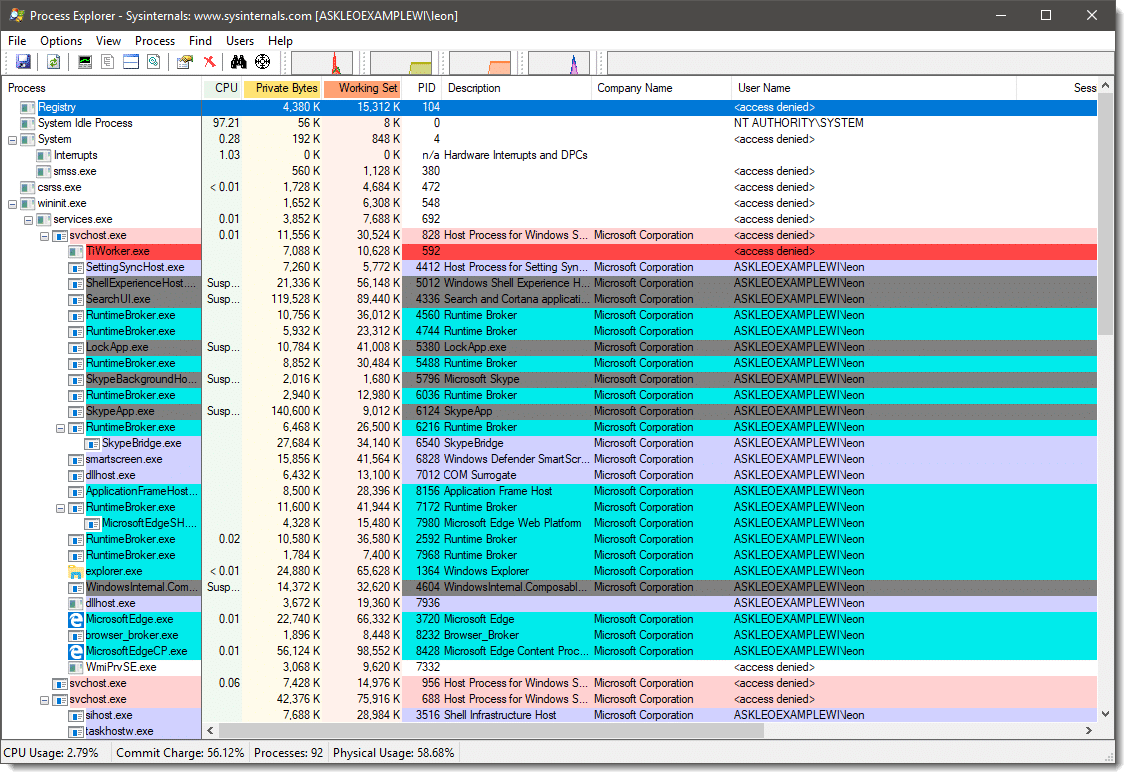
Unlike Task Manager, the list is complete and includes all tasks running on your system. The “hierarchical” view (click on the “Process” column header to change the view from alphabetical to hierarchical) shows which tasks were started by which other tasks, which can be a very interesting way to understand just how all these processes relate to each other.
Click on the “CPU” column header and the processes will be listed in order of who’s using the processor the most. This is perhaps the single most common use of procexp: to answer the question “who’s eating up all my CPU“?
Click on the “Working Set” column header and processes will be listed in order of physical memory used. As you might expect, this is perhaps the next most common use: to answer the question “who’s eating up all my memory?” (The “Virtual Size” column does the same but includes virtual memory – memory that may have been swapped to the system paging file and might not actually be physically in use.)
The Find function is a quick way to see, for example, what process happens to be using a file. Enter in a partial filename, and procexp will list all the processes that are referencing a handle (typically a file) that includes that name.
Process Explorer also lets you dive into individual processes for more information as well. Right click on any process and click on Properties for more details:
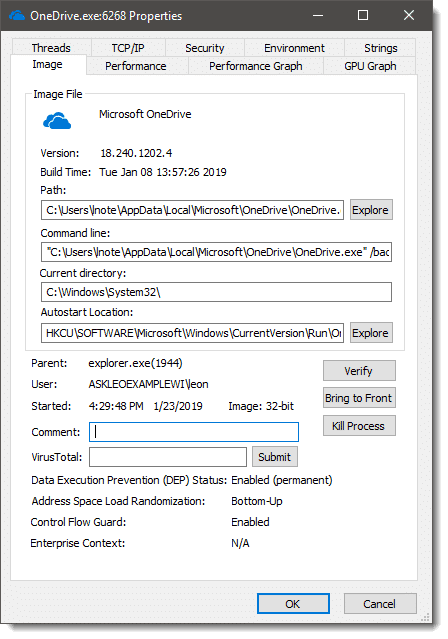
As you can see this view on a process, onedrive.exe in this case, shows a lot of additional information. Explore the various tabs on the dialog and you’ll be able to see its network usage, security attributes, the resource usage of the process, the command line used to initiate the process and even anything that looks like a readable string within the process image or memory space.
And even with everything I’ve just touched on, I’ve really only scratched the surface.
You’ll find that in many Ask Leo! answers one of the first steps I mention is to “download and run process explorer” because it’s just that useful. Even if you don’t have a problem to investigate, Process Explorer is worth downloading and … well … exploring. There’s a wealth of information available.
Process Explorer is a free download from Microsoft.
I recommend it.


Thanx for the good advice; I’ve gone and downloaded Process Explorer and noticed that you have yours installed as auto start and would like to do the same.If you think this is advisable for an ameteur to attempt such a task,feel free to say; also,do you recommend deleting Task Manager or would I still use it for anything?Thanx again for the tip!
Task manager cannot and should not be deleted. If nothing else Windows will get upset and try to restore it, annoy you about it, and so on.
-Leo
Hi Leo,
A short reaction and question from Netherlands, where you must have many relatives. I agree with your recommendations of Process explorer. A lot of the activities of the machine can be clarified by it. I say a lot and not all because it does not help me to understand why sometimes when my disk activity led is constantly red and my machine does not react on keystrokes, mouse movements etc. Then it seems it has started a business for itself and is not bothered by what I want. If the Led activity is caused by disk usage it isn’t explained by the processes that are running at that time and don’t seem to be Heavy users. Do you know of a monitor program that reports in real time which processes, files are causing these heavy disk activities?
K.reg Cees
-Leo
I guess this makes me a geek as well, (actually, i will proudly call myself a geek if asked) because i too like to see exactly what my computer’s doing (especially if whatever its doing is causing errors or *gasp* the blue screen of death comes up) Kudos to you for pointing out Process Explorer to the average user, who may not realize the value of having such a tool immediately.
Pocessor Explorer appears to be a very interesting program/application. I am certainly going to try it. Since subscribing to your subject material, I have picked a good few Tricks and Tips. Keep-up the good work, Leo, and thanks.
Thanks Leo for the great article :)
You can replace the Task Manager by Process Explorer by clicking Options -> Replace Task Manager. There’s no need to delete the task manager :) When you want to run Process Explorer you can press Ctrl + Shift + Esc
I, too, use Process Explorer and have it set to auto start at boot up. I found that, for some reason, one of my HP printer services (using svchost.exe) consumes upto 99% of my CPU at the end of the boot up. The ONLY resolution is to Kill the process (sometimes it restarts and needs to be killed two or three times before it gives up!). This process cannot be stopped with Task Manager. Without the autoload of PE at startup, my PC just hangs, useless, forcing a power off to restart. PE takes care of that painlessly. A great tool to have running all the time.
Hello Leo and all –
I have the same problem that Bruce and K.reg Cees have had above – constant red led, constant disk activity, no respose from mouse, Task Manager, not able to gain control of any processes or programs. Problem is, I have had Process Explorer(boot) running and it shows +-98% inactive!!! I am unable to see what is causing me the problem (using Admin. Tools Events etc. when I look at various categories).
Obviously something appears to be running outside of Windows XP Pro SP.3. Unfortunately I am unable to find and DESTROY it. I have Norton IS 2009(boot), along with Webroot Spy Sweeper and AV (both up to date and loaded at boot). I also have a NAT router with MAC ID active. I use the automatic UPDATE feature for Windows. All my tools and geek programs (I am proud to be called a geek :) show that I am 100% free of any nasties, and that my machine is sitting there doing NOTHING – which is obviously not true. I am also loosing more and more control on each use of my machine.
I will likely be forced to format C and reload Win. However, I will wait to do this until I can find out what is causing this (haunted?) behavior. Otherwise, I would think whatever this is, will again reInfect my computer and all my hard work will be for nothing.
Any help or directions would be greatly appreciated as I am now at a complete loss as to what to do, where to go look for help, and or what additional protection I should use or buy. I now have one computer owned by someone else. Another one going down this same path and this machine with little or nothing on it beside Windows, and various anti- programs and processes I have in place waiting for whatever to rear its ugly little face.
Thanks ahead of time for your help. I also am sorry for my rambling message – as I am afraid I am loosing my mind.
Tom
Use Process Explorer to look at things like I/O Bytes, or Virtual Size and you may get more information.
25-Apr-2009
I was looking at FileMon at MS and they had this the following note. Is there still a reason to use FileMon?
Note: FileMon and Regmon have been replaced by Process Monitor on versions of Windows starting with Windows 2000 SP4, Windows XP SP2, Windows Server 2003 SP1, and Windows Vista. Filemon and Regmon remain for legacy operating system support, including Windows 9x.
05-Aug-2009
I clicked the Microsoft link to download Process Explorer. Instead, went to a Verison site. Had to click on the Process Server link and was sent to another site, from which I could download the program. What’s up?
01-Apr-2010
I’ve used Process Explorer ever since I first heard of it a couple of years ago. But I have also found AnVir Task Manager Free useful, particularly for alerting me to any attempt by a program to add to my startups. It seems better tha ProcExp for some things, but that may be because I haven’t explored ProcExp enough.
Hi Leo.
Yeah Process Explorer is really cool, however one thing I don’t get and maybe you can help me here.. I used Filemon to see fileactivity realtime to debug eg. what a fileserver was doing eg. on the datadrive, however for the darn of me I can’t seem to get a similar view/function in Process Explorer (even though MS claim that Process Explorer can do all that Filemon could)… :-/ am I just missing the great picture or what?
25-Sep-2010
PE is great. As an advanced “newbie” I’m up to the challange of a steep learning curve to use this tool to its utmost. Leo’s site brought PE to my attention. THANKS.
Comments:
I’ve watched ” Breakout-WCL315, The Case of the Unexplained…. w/ Mark Russinovich” (1hr.21min). While it’s a bit advanced in some areas, it indicates what I’ll need to know to be more effective. The intermittent humor is great. As a “noob” to other noobs – take notes as you watch (yes, just like college). This vid plus Leo’s vids should get anyone up and ready to go.
Re: PE — When you see all that’s actually going on, past & present, inside a computer, a person can not help but to appreciate this complex technology — and in seconds. Wow!
a year or so ago, you published a tutorial on using Process Explorer. I downloaded and printed it. Since then that computer crashed and I no longer have it, nor can I find the paper copy. Is is still possible to obtain this download??
Many thanks for all you do for us.
@Barbara
Here’s the link to the tutorial on process explorer.
http://media.ask-leo.com/ebooks/introtoprocexp.pdf
one thing you didn`t mention task manager and process explorer both require one thing, when your looking at a file you have to know what your looking at. this is not amateur friendly. when i try to remove programs i don`t recognize i always get scared off by “YOU ARE ABOUT TO REMOVE”