As we saw with the Windows 10 roll-out awhile back, sometimes you can upgrade an operating system, and sometimes you can’t. The Windows 10 “upgrade” actually works only for Windows 7 and Windows 8.1. If you have any other edition of Windows, you could still install Windows 10 (assuming your hardware met its minimum requirements) – you just can’t do it as an upgrade to an existing installation.
As it turns out, what you do in that scenario is very, very similar to exactly what you do when you’re not “upgrading” at all.
It’s called a reformat and reinstall. I’ll walk you through it, noting how the new version of Windows might impact the steps along the way.
Become a Patron of Ask Leo! and go ad-free!
Step 1: Back up
That I start this process by backing up should come as no surprise.
It’s particularly important, however, when you’re about to make as major change as this. As we’ll see in a moment, an operating system change, even when it’s an upgrade to a different version of the same OS, is a massive change. With massive change comes risk, and you need to be prepared for failure.
Let’s face it: sometimes you simply won’t find out that the new operating system won’t meet your needs – either aesthetically, or technically, due to some lack of hardware support for your older system – until the upgrade is complete.
Hopefully you’ll never need it, but a complete image backup taken before you begin is your ultimate safety net. Should something go wrong and you decide to “undo” the upgrade, you can simply restore the image and carry on as if nothing happened.
Make sure to hang on to that backup image for a while.
Step 2: Reformat
Reformatting is nothing more than erasing everything on your system hard drive. Very technically, this step is optional, since you can elect to skip it and hope for the best.
While you could use a program like DBan to completely erase the disk1, it’s more practical to boot from your Windows installation media (DVD or USB) and let it do the work.
Current versions of the Windows setup program will ask you what type of installation you want to perform: Upgrade or Custom.
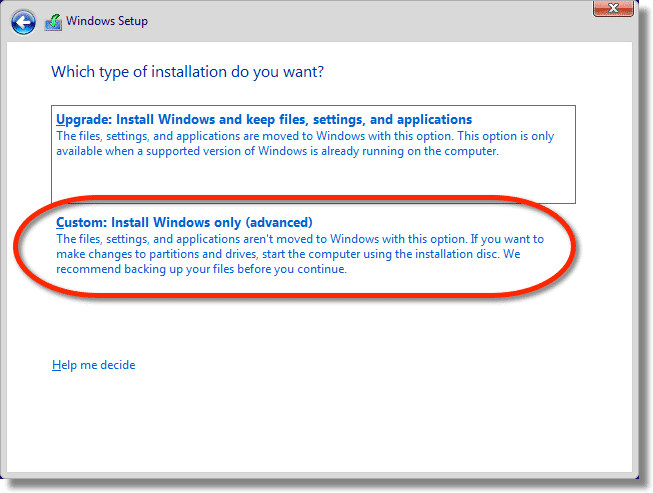
Choose Custom. On the next page, select the drive or partition to which Windows will be installed (often the only, or largest, or the “primary” partition on your hard drive).
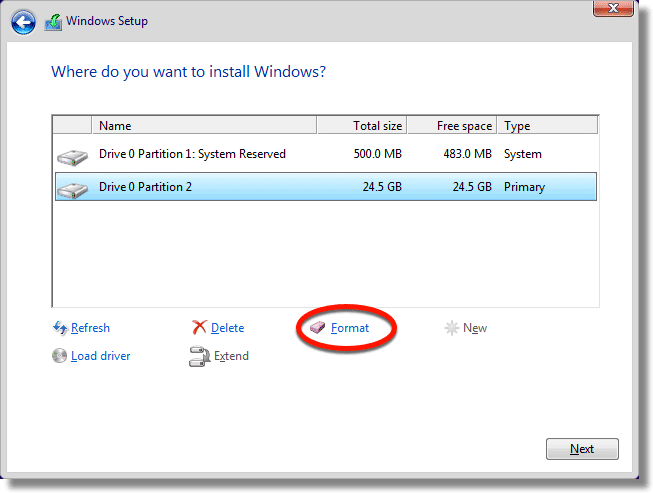
Select Format. This will erase everything on the selected target prior to installing Windows.
Step 3: Install Windows
Proceed with the rest of the Windows installation, selecting the options and settings appropriate for your specific situation.
Since we’re installing to a completely empty hard disk, this is what’s referred to as a “clean” install of Windows, or an installation “from scratch”.
When this step is complete, you’ll have a working copy of the new operating system ready to go.
Step 4: Install Applications
Next up, you’ll install the applications you want that didn’t come with Windows.
It’s rare that people install Windows without installing additional software of some sort. Be it your backup program, office applications, different web browsers, email programs or whatnot, these programs are added one installation at a time.
Since you’re installing these applications to a clean install of Windows, these installations are also considered to be “from scratch”. All of your customizations, settings, and as we’ll see in a moment, your data, need to be reapplied to these default installations.
Step 5: Restore Data
You’ve got your operating system running and reinstalled the applications you care about; now it’s time to restore your data. There are generally two ways to go about this:
- Restore the data from the backup image you took in step 1. How you do this will depend on what backup program you use, of course, but in general it’s often as simple as “mounting” the backup image, locating your files, and copying them to your computer’s hard disk.
or
- Copy the data from other locations. For example, if your data is kept in a cloud service like Dropbox, it might be enough to install Dropbox, which will copy your data from the cloud as it synchronizes your account. If you regularly keep copies of your data on other computers, hard drives, or thumb drives, these are also places from which you could copy it to your newly installed operating system.
Step 6: Back up again
Back your machine up again right now and keep it for a while. It represents a “clean” reinstall of your operating system, your applications, and your data. Should you ever need to go back to this point, rather than repeating steps 3, 4, and 5, you could simply restore this backup image and pick up from this point in time.
There’s actually an argument to take a backup image after step 3 (an image of a cleanly installed Windows), and again at step 4 (an image of a cleanly installed Windows and your cleanly installed applications), but that may be overkill. If you do only one, do it here, after you’ve installed and restored everything – Windows, your applications, and your data.
Step 7: Keep calm and carry on
Depending on the “distance” of your upgrade (Windows XP to Windows 10 is a much greater “distance” than, say, Windows 8 to Windows 10), you’ll encounter new features, wonder where things went, and generally feel a little lost and confused for a little while.
THAT’S OK.
In fact, please don’t let it upset you. I strongly recommend you reconcile yourself to the new version so you can move forward with the latest security updates, at least, and perhaps new features, for as long as possible as Windows continues to march forward.
If you can’t stand it, or (more likely) you find some kind of incompatibility between your hardware or the software you need to use and your new version of Windows, you have the backup image you started with to restore to. That way you can at least revert to something that was working, and decide what to do next in face of whatever new information you just gathered.
Bonus: it doesn’t have to be an upgrade, or even Windows
The steps I’ve outlined above work for moving to any new operating system. If you’re electing to move to Linux, for example, the steps are exactly the same (though the screen images of the set-up program will, of course, be different).
Similarly, if you’re just dealing with software rot, and want to reinstall the same version of Windows from scratch to get a clean start, the steps are also the same, right down to taking those backup images along the way.
We started by looking at this as an upgrade from one version of Windows to another, but regardless of where you’re starting from, or to what operating system or version you’re moving towards, a complete, clean “reformat and reinstall” is often the best solution to bring your machine to a known good state.
Do this
Subscribe to Confident Computing! Less frustration and more confidence, solutions, answers, and tips in your inbox every week.
I'll see you there!


(not a proceedure question) Confused here… so I’m installing W-10 . But will it be free, as it was in the beginning
when I installed it on another machine? Can it be “professional” version?
Windows 10 is no longer free.
If the PC had run Windows 10 previously, but you chose to return to your earlier Operating System, you are entitled to upgrade, since “digital rights” were logged into Microsoft’s servers. If not, and you wish to upgrade from Windows 7 or 8 – 8.1, it *can* be free by commencing the upgrade from https://www.microsoft.com/en-us/accessibility/windows10upgrade
Sorry William, but now you have to buy Windows 10. It’s a long shot, but you can download the MS ” media creation ” tool, make a thumb drive with Win 10 on it, then boot from it. When you get to the part where they ask for your key, just input your Win 7 or 8 key, and you might still get Win 10 for free. You can only get ” Win Pro ” if your current OS is a Pro version, unless of course, you go out and buy the Pro version at a retailer.
A shortcut for Step 4: A good place to start is to run the Ninite installer. It installs up to 100 of the most popular freeware programs of your choice in one go. Just click on the programs you want to install and the Ninite installer will install those automatically, and it will make sure no adware or PUPs are installed along the programs.
https://ninite.com/
I would suggest adding a Step Zero at the very beginning: Make sure you have access to the installation media for all the applications you’re going to want to reinstall in step 4. Go through your software CD/DVD collection or make sure the online download links still work before you reformat in step 2.
So what about the recovery partition? Doesn’t that have the previously OS stuff on there? Shouldn’t you just delete both these partitions first and hit Next and the install will suggest it will be making a small partition. I have seen that. This way you know that everything is clean and ready to go will all new stuff. What if I had a virus on the recover partition? If you delete the partitions then it automatically formats them anyhow before the install, right?
So what is the proper way to do this. I can’t believe that you did not complete all the info we need for this install. Why didn’t you say that we have to go out and get a copy of the DVD from a retailer? The people that read this may just go to their friends house and use that DVD to install.
Come on Leo be more specific. I don’t have all day to research this process. I would like to the info straight the first time not just a canned summary. Geee Whizz!
If you have a valid license, you can download Windows directly from Microsoft and install it. If you are using Windows 7 or later, you can download the appropriate version of Windows (the version corresponding to your current OS) for free from Microsoft and burn it to a DVD or create a bootable installation USB flash drive. It should register automatically if you have an eligible version installed.
https://askleo.com/where_can_i_download_windows/