It’s kinda like exercise.
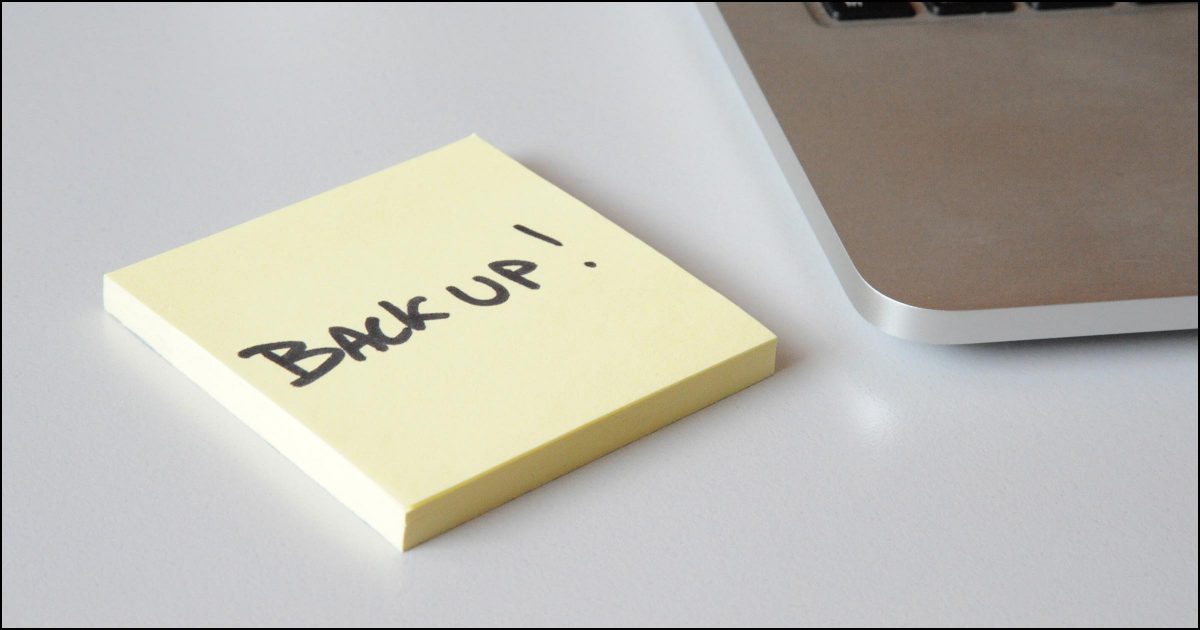

Backing up is kind of like eating healthier: everyone knows we should, and few of us actually do. Much like the heart attack victim who no longer binges on French fries, when it comes to backing up, the most religious are those who’ve been bitten hard by a failure in their past.
Asking what backup program to use is very much like asking, “What’s the best exercise program?”
The best program for exercise — or backup — is whichever one you’ll actually do. In order to choose what’s going to work best for you, there are several questions to ask. We’ll look at seven questions and my recommendations.
Become a Patron of Ask Leo! and go ad-free!

What backup program is best?
There are many questions to consider, but most important is selecting a backup strategy that will work for you. If you’re not sure, get an external drive and a copy of EaseUS Todo, and configure them to take image backups monthly and incremental backups daily. Consider adding online backups of some sort to the mix, and you’ll be well protected.
1. Do I want to put a lot of thought into this?
If this isn’t something you want to spend time learning about — and to be honest, most people don’t — then prepare to spend a little more money for some additional disk space and get a good dedicated backup program.
In addition to an external drive, you’ll need a backup program. Many external drives come with backup software of some sort; that’s sometimes a good place to start. Unfortunately, while the drive may be good, you don’t always know the quality of the free software included with it.
If, as I recommend, you elect to get backup software, there are many good choices. I personally use and recommend EaseUS Todo for most home users. (There are both paid and free versions.) Starting with Windows 7 (though apparently being de-emphasized in later versions of Windows 10), the backup program included with Windows appears also worthy of consideration.1
2. Am I comfortable re-installing my system?
This is a comfort-versus-space tradeoff.
If you’re okay with re-installing your system from scratch, meaning your operating system as well as all applications and customizations, and you can clearly identify what does and doesn’t need to be saved, you can save a lot of disk space by backing up only your data. This requires a great deal of diligence on your part, because anything you don’t specify to be backed up will be lost in the case of a catastrophic failure.
Either way, you need to make sure to use a technique — either home-brewed or in the form of a backup or automated copy program — to make sure this happens automatically. Relying on your memory to back up isn’t the best choice.
3. Is there another machine nearby?
You might not have to go out of your way to get additional hardware for backup purposes.
Hard disks are so large these days that simply having another machine on your local network with sufficient free space can be a quick and easy solution. Many backup programs allow you to back up across a network. Having two machines back each other up is a quick way to ensure that if either has a problem, your data is safe on the other.
This does mean you’ll have to set up your local network and enable file sharing on it — something that isn’t always the easiest to accomplish or maintain.
4. How valuable is what you’re doing?
What if your building, including your machines and all of their backups, was lost in a fire?
If the potential data loss just sent a shiver down your spine, you should consider offsite storage for your backups. That could mean periodically taking an external disk with your backups on it to some other location, or, if the sizes are small enough, backing up across the network to a server not in your home.
When my wife had a retail store, I had an external drive for backups at her store and another in our home, and would periodically swap the two. Each location then had “offsite” backup at the other.
In recent years, another approach might be even easier….
5. Might online backup be an option?
If the amount of data you’re backing up is manageable and your internet connection is relatively fast, an online backup system may be worth considering.
These programs back up your critical files to secure servers on the internet, giving you data and offsite backup at the same time. In addition, some services allow you to access your backed-up files from any machine connected to the internet. This approach is impractical for large backups (such as full image or complete system backups) due to upload speed and storage size limitations.
You might also consider services like Dropbox, OneDrive, Google Drive, and others. Data placed in folders managed by these services is automatically backed up to their servers (and to any other computers you install the software on, should you choose).
6. How important is incremental access?
How important is it that you be able to recover a file from a specific day — not a day before or after? If you simply back up all your files on top of previous versions, you’ll only have the most recent version. In many cases, that’s enough. In some cases, it’s not; for example, if you need to recover an older version of a file that becomes corrupt at some point.
7. What resources should I back up?
Have you thought about all your computers? All the drives therein? How about external hard drives you’re not using for backup? Do you have a website? Do you have a backup of it? What would happen if your ISP “lost” it? (It’s happened.) If you’re a small business, do you have databases that need backing up? Office machines belonging to everyone but no one? What about email? Your operating system?
My answers and one possible approach
These questions can seem overwhelming.
But I really, really want you to take action and ensure that your precious data is backed up somehow, somewhere. I hear often from people who have lost too much. It’s downright heartbreaking at times.
So here’s one possible approach that should work well for a large number of home and small business users.
- Equip each computer with an external drive. It should be at least four times as large as the amount of space currently used on the computer’s existing drive(s).
- Install an image backup program such as EaseUS Todo.
- Configure that program to take monthly full-image backups and daily incremental images.2
- Discard backups older than two months. (This can often be done automatically.)
- Install a data-sharing program such as DropBox, OneDrive, or similar, and store your data files in folders managed by the program for automatic offsite and cloud backup of the files you work on every day.
I’ll call this an 80% solution: something that will work well for most people. It won’t be exactly right for some, but it’s a start.
The bottom line for backing up is simple: just do it. Understand what you have and what you’re willing to invest in, but do something…
… before it’s too late.
Do this
Subscribe to Confident Computing! Less frustration and more confidence, solutions, answers, and tips in your inbox every week.
I'll see you there!
Podcast audio

Related Video


Footnotes & References
1: And, in fact, I’ve written books on using EaseUS Todo as well as Backing Up in Windows 10. More at the Ask Leo! Store.
2: I have various articles with basic details on each. Simply search Ask Leo! for the tool you want to try.


As a possible replacement for SyncFile consider Replicator from Karen Kenworthy (www.karenware.com). It also replicates a directory by examining the last modified date/time of each file and is also free (although Karen does appreciate donations). However, it has a Windows UI and can run in either unattended mode (using its own scheduler) or manually by setting up an icon on your Windows desktop that backs up one or multiple directories. The “tags” feature also provides a backup for the backup.
I have downloaded syncfile to compare the date and time-stamps of different files. I am finding that if I use it to compare files across time zones the time stamps differ therefore syncfile thinks they are different. Is there a setting to change the time-stamp cusion to a few hours or ignore the time itself and only compare date or date & size?
I ran into this problem all the time when I was backing up across different disk formats … an NTFS drive syncing with a FAT drive. The problem is that FAT doesn’t know about, or store, timezone or daylight savings time information. NTFS stores all timestamps internally as GMT, so cross-timezone compares should work. (My problem happened twice a year … when daylight saving time came and went).
Syncfile doesn’t do what you ask (60seconds is the maximum “really sloppy” time comparison). I’ll add to my to do list the ability to allow you to specify the amount of allowable difference as a parameter on the command line.
I copy my entire current XP NTFS partition to a second hard disc. As long as it’s partitoned first, (you can do this from within XP) , made active, and as large as my current C: partition (using Maxblast or any freeware to do this) it works fine. After copying, you must remove (disconnect) the original drive temporarily and boot from a floppy containing Fdisk. (i use a Win98 boot disk) It will say you have no valid c: drive because it doesn’t see the NTFS partition as valid. You then answer yes to use disc as large disk, and then run Fdisk/mbr. Remove the floppy, reboot, and it will boot to the XP backup drive, and you have an entire, activated, backup of your complete active hard disk for a fatal crash (they DO happen, and for no good reason) of your current one. I bought a 60 gig drive for $40 a month ago and keep it in my case without power cable attached just for this purpose. This could then be reversed to a new, larger drive if required. This was the only way to make it work with
I had a virus i couldn’t remove with spybot, adaware, avg, and trend micro so i restored my 2 week old XP backup and problem solved! Didn’t think i’d need it with those tools….
I like ABC Backup!
(http://www.abcbackup.com)
Cheers,
Lara
For a nice non-techie backup solution, I’m using the new Carbonite Online backup (www.carbonite.com). It’s $5/month with unlimited capacity. I have about 32GB backed up. Can’t beat the price. It takes awhile for the initial backup as my DSL only uploads at about 2GB/day, but now that it’s done, it just works away quietly in the background keeping the backup current. So far so good. Gotta check out their whacky web site if nothing else.
Hans
I have been using carbonite (www.carbonite.com for a month or so for backup and
it has been working flawlessly.
Carbonite hides this well within their FAQ:
To keep users with very high speed internet connections from hogging all our bandwidth and storage, we limit backups to .5GB per day once you have sent us 50GB of data. So if your initial backup is, say 40GB, the initial backup will go as fast as your Internet allows. If you add .5GB of new data each day, after 10 days you
If you want to back up your whole disk, and have equal room to spare, try
Norton Ghost
I don’t use it, because I don’t mind Reinstallation of almost everything.
But I’ve heard, it’s good!!!
Well,
C-yeh
Norton Ghost has been discontinued. I didn’t know this until I tried to restore my computer after a virus “bit me”. I was using Ghost 13 (the last version), which had no on-disk manual. Nor did Version 13 come with a printed manual It was when trying to find the online manual that I found none, and learned about end of support. So I went to Carbonite, which did not back up my Adobe Photoshop Elements catalog; the pictures were saved, but now months of work cataloging them is lost. Nearly everything else of value has been found on Carbonite.
Another advocate of Norton’s Ghost. Saved my bacon more times than I care to remember – requires a second hard drive ( cheap these days ) but just copy to my Pioneer DVD-RW toaster despite fiddling with the parametres.
This can be done easily with other burning software though so; 1 backup on the 2nd HDD and a a 2nd on a RW-DVD –
Love your site Leo! Okay, I downloaded back up files with Genie. Well recently I lost 2 files on my computer. Now with my back up CDs how do I get them back. Very sorry if this is a really dumb question! Thanks for your precious time. Patrick
I’m not at all familiar with Genie. You might need to contact the vendor’s site for support. I would expect the instructions to be part of the basic documentation, though.
how can I back up my media?
You should use an automatic online backup tool like Data Deposit Box… It’s not terribly expensive and you can back up as many PCs or servers as you like. Once you set it up, there is nothing to do.
Dear Leo:
How can I be sure that my backup program did a full back as instructed? thanks.
EB
Typically there’s a way to examine what files are included in a backup. Another recommended approach is to pick a file at random, and try to restore it.
I backup to an external hard drive every night using a batch file I wrote myself and WinRAR (rar.exe command line program) and GPG (to sign the backups). I keep the past 3 months backups so I can restore any file within that period which is perfect for what I want.
I have tried many other tools however I prefer to backup to a industry standard format and a RAR archive is perfect for this. For a few hundred bucks on the external drive and a few hours writing the batch file it has been a great backup solution for the past few years for me.
I tried Norton Ghost a few years ago and it required a second partition to do the image backup. But I would have had to reformat the drive to make the second partition, which would have destroyed the stuff I wanted to backup!
Recently I again wanted to try doing a image backup. The Norton Ghost site would not display the Ghost documentation to let me see if things had changed.
I checked out “Acronis True Image” on its site and the documentation is readable and understandable. I tried it and it runs easy and seems to work, I haven’t needed to restore yet.
Anyone have any experience with Acronis True Image?
Hi Leo…
Whilst I must agree that ’10 Quick Steps to Perfect Backups’ is perhaps worth the small outlay, it only mentions and recommends Retrospect 7.5 which at more than $100 bucks is, I think, a bit heavy weight.
Having researched further, I can see that things have moved on un petit peu, and have to consider the convergence of Vista…
With this in mind, I have found what appears to be a fairly new prog by the 2 Bright Sparks co http://www.2brightsparks.com/ namely SyncBackSE 4.1.3…
The 2 Bright sparks say somewhere in their blurb that they were fed up with Backup software not quite doing things the way they would do them, and so developed a program that would – I’m impressed! And this showed to my way of thinking that they knew what they were doing…!
I should like to ask if you or any readers know the program and have anything to say…?
Costs: SyncBack – Freeware
SyncbackSE – $30.00
Change for my Partitioning Prog…
Thanx in advance
Lou
There is an excellent FREE backup program called “driveimageXML”. http://www.runtime.org/dixml.htm
I’ve been using it for over a year and I have not been disappointed.
I recommend Norton Ghost 12. I also recommend that you ALWAYS back up to a separate drive. If your primary drive dies, so does your backup.. No point in that. With Norton Ghost 12, you can back up to a network computer (and recover from a network computer) using the windows software or the bootable CD (saved my butt so many times). I have 2 back up places, a different drive on the same PC, and a network drive on another PC. Works great and only takes minutes to do both!
This article makes reference to “10 Quick Steps to Perfect Backups”. However, the link to get a copy is “http://go.ask-leo.com/10qsback” which comes back with 404 error.
The site http://www.10quicksteps.com is currently inactive and says it will return shortly.
Is there another source for “10 Quick Steps to Perfect Backups”?
Thanks.
I Have been using Acronis 10 for a long time, and find it very good and easy to use, as a bonus it will back up your email in a separate file about 60 seconds. I use an external usb drive and internal drive for main back up. I use the external drive for a very good reason, I had a bad experience when my computer went mad and deleted my backup drive as well as my C:drive,
I did not think it possible to delete two separate drives but it did and I did not touch f/disk or format at all hence the external drive, when I am doing any thing like format etc I make sure that I turn it off.
Regards to all
Ron.
Karen Kenworthy’s Replicator program (for Windows) does everything I need for regular backups. As with all Karen’s programs it’s freeware and is available from her site at http://www.karenware.com The page for the Replicator can be found via the following TinyURL:
http://tinyurl.com/cnta
You can set up all the backup jobs you need, both large and small. It’s a very flexible program, and unless you really must create drive images I don’t see any need for another program.
Hi to all! I tried the Karen Kenworthy product and it was OK (her other stuff is pretty cool) but SynchBack SE is SUPERB! Bit complex, maybe, but defaults will get you 99% of the way there. Filter and schedule features optional and very helpful. We backup data partitions (drives) from multiple machines across a network to a central USB file repository. All local data is on drive d: and subsequent F G H etc. Meaning we do not back up the C: Windoze OS files to the network repository — that is another matter entirely because of registry issues. Possible solution might be Acronis Drive Image 10 on each local machine. Don’t know… Or a real OS like Unix: we’re thinking about it! Hey: Anything but Windoze: it IS time.
I recently tried and bought Acronis True Image 10 after many years of using Retrospect (anyone remember when Retrospect was called DiskFit?). My issues with Retrospect had to do with occasionally damaged backup files (Retrospect calls them “Catalog Files”).
However, Acronis TI 10 was a major disappoinment to me. It has some serious SLOW speed issues during incremental backups! It can take HOURS to incrementally backup and verify the smallest incremental changes!! The program verifies the entire backup and NOT just the changes. Go to the Acronis forum and see for yourself. This is a known problem and the developer claims to be working on a fix for a later version. Try the demo first and be 100% certain that this program will work for you!!!!! Acronis product support is as slow as their software and consists of generic advice.
I reluctantly went back to Retrospect and upgraded to the latest version ($49). I have been pleasantly surprised with the robustness of the program. Kudos to the new owners, EMC Insignia, for the improvements. Retrospect is back in my good graces! :)
I agree with your synopsis of Acronis, I purchased True Image 2013 and had nothing but problems
with it. I would not recommend Acronis to anyone.
Leo: Am a Senior and have had 1 crash in 3 yrs. I have foto files for 3000+ and the thought of losing all that work drives me crazy. I have bot CD’s to copy but don’t know how many fotos each will take. Is there a way to determine this so I don’t lose all my work? Many thanx for yr articles which I just stumbled across!
—–BEGIN PGP SIGNED MESSAGE—–
Hash: SHA1
It depends on how you burn things to CD, but the first thing to do is simple:
don’t delete them from your hard disk until you’re certain they’re all safely
on CDs. THAT means making sure you can see the pictures from those cds on
another computer.
If you use CD burning software it’ll tell you when you’ve put too many on the
CD before you burn it. Burn what will fit, keep track of what’s been burned and
repeat, using as many CDs as you need to back up all your pictures.
If you’re just using Windows Explorer to copy files, it’ll stop when the CD
runs out of room. Again, just keep track of what’s been copied, and use
multiple CDs to backup all your pictures.
Leo
—–BEGIN PGP SIGNATURE—–
Version: GnuPG v1.4.7 (MingW32)
iD8DBQFG7qTSCMEe9B/8oqERAmKiAJwIP+Vw744GbQ3s1WXzfmvIeaOmmACaAj8H
/pPzWaFFGR2uvJIunkCZ/3o=
=TPtl
—–END PGP SIGNATURE—–
If you have not tested the recovery or restore process of the backup system you are using, then you essentially DO NOT HAVE a backup. I have seen too many sad faces from people who diligently made backups, but the inevitable computer crash came, and they were not able to restore their backup data because it was in a proprietary format and they had no idea how to gain access to it. Windows NT Backup is the classic example of boneheaded backup formats. Also make sure that your backup process does not copy the user and security information of the NT, W2k, and XP files. I’ve seen users that stuck an extra hard disk in their computers to make copies of their important files, but the computer crashed, and of course the hard disk backup is not readable by any other computer except the one that just blew up (because of the NTFS file security features). The moral is: TEST your backup data in a separate computer.
Fortunately, most current backup programs store data in standard zipped format, or in uncompressed copies, and do not store the user security settings of each file.
SyncBack is my favorite backup program, but it is a full-featured program that does a lot more than just backup. Make sure you understand what your backup program is doing because it is easy for a newbie to overwrite or delete files they did not intend to lose.
Be exceedingly careful if you are using the built-in Windows file encryption feature for any of your files. Be sure you can restore and read the backup you made of any encrypted files on a different computer.
Hello, in backing up and the CD is full, how does it know where to start the next CD to finish the copying? I have Microsoft Word. Thanks, too bad you don’t live close to Minneapolis. I’m going poor, having the Best-Buy Geek squad over at 170.00 per visit. (Hour) Thanks, Doug!
Doug;
The answer to the question you asked depends on whether you are manually burning files to CD, or if you are using a backup program that knows how to use multiple CD’s for the backup medium. If you are using intelligent backup software, then you just tell it what to back up, ‘My Documents’ for example, and the software will tell you when to place blank CD’s in the tray, and do the burning automatically.
If you are just burning files to CD, then YOU have to select a group of files that will fit on the CD, keep track of which files have been backed up, and keep selecting groups of files until all the files you want backed up are finally on CD’s.
The problem here is that Backing up to multiple CD’s can be tiresome and inefficient. It is easy to lose track of where you are, and it is not easy to find files on your CD collection when you need to fetch a particular file.
I suggest you take stock of what you need to back up. If you have a static collection of files, say a set of digital images, that will fit on a few CD’s, then burning to CD’s will be sufficient. If your work documents add up to less than 15gb, then a flash stick of sufficient size will be work. If you have more to back up, then an external hard drive is your best bet. Either of these beats the pants off CD’s for routine backup needs, and the costs are less than one Geek Squad visit.
You only need to back up the files you create, such as your word documents. It is useless to back up all the other stuff on your computer such as the Windows operating system files and all the program files because you can’t use them or restore them.
Hope this helps.
—–BEGIN PGP SIGNED MESSAGE—–
Hash: SHA1
Douglas: you didn’t say *how* you’re backing up. But most
backup programs just handle that automatically.
Leo
—–BEGIN PGP SIGNATURE—–
Version: GnuPG v1.4.7 (MingW32)
iD8DBQFHeXdGCMEe9B/8oqERAuc/AJ4o6R8182BBVh/kjFHe5+q1msIQTwCfTVEk
78Q0avm/WOZBigtKioaUSoA=
=MZcr
—–END PGP SIGNATURE—–
It is far easier and more efficient to make an image of your OS partition with Acronis or Drive Image and to restore your drive with this back-up image when necessary.This is a quite fast and reliable method of restore and also protects and preserves settings,connections,and any installed programs.Further benefits can also be gained by saving an image of a “virgin install” and using it to “start fresh” if need be,as this is much faster than normal OS installs.I highly recommend use of these imaging methods for ALL computer owners and users.Making images of other partitions and data is also a very useful tool for complete backup and safety of your computer.You can save these image files on DVD,an external drive,on other drives or all for multiple backup with ease.Imaging as such will save you many hours and bring your systems back in a flash…Be sure to make an Bootable Recovery Disk and keep this in safe storage with your image disks.I have used Acronis for years on my clients computers with virtually no problems and have ALWAYS been able to fully restore completely with no loss of systems or data!!!
i think i will be a wise thing to have a backup copy of all your important data on a CD and also a backup copy in a portable memory stick(Pen drive).
Professor Asus’ comments (postd jan 4’08) were *so*helpful!! i just bought a simpletech external harddrive (320gb) and was checking out the data backup software that it came with (arcsoft total media backup & record). it has an seemingly easy interface but i was starting to get pretty frustrated trying to understand how to backup and what to backup. i looked up the Acronis True Image software that Prof Asus recommended and it sounds like exactly what i want. thanks! http://disk-imaging-software-review.toptenreviews.com/acronis-true-image-review.html
Dear, Leo
Can I and if so can I just backup windows updates? Is the NTBackup Backup/Restore that comes with windows ok for home backup? I have only one computer for home use Windows XP Home SP2.
Thanks,
Don
Leo, can I use the Internet via DSL, to copy data files from my laptop (Vista) to my desktop PC (WinXP-SP2) or vice-versa? Using what program?
I have mostly photos, under 1000.
Hi Leo.
I am looking for a backup software that can make a different daily backup of some selected data for a week and start after to overwrite the first once again. So that I could go a little back in the backup in case I lost some data. Could you advice me a product? Thanks a lot! Christian ;)
In reading this series of comments, I went to check my own software, PCCloneEx, since I had never really tried to restore anything with it. The program seems to work, but when it restores files it leaves them in a zipped format. I know I can simply unzip it, but are there back-up programs that will restore the file in its native format?
Thanks,
HG
-Leo
I have backed up my Windows XP and Office on a 16GB Flash Drive. If my hard drive fails, can I just boot from the Flash Drive, then copy all the backed-up files to the replacement drive? Or, will I need some interim step?
-Leo
Acronis only restores to the backed up computer. I want backup software that will backup to a new computer. If mine crashes I will purchase a new computer. What program should I use? Thanks. Jay
My recommendation for setting up a new computer is that you set it up … install everything for that computer on that computer. Then transfer data – perhaps using your backups. Most backup programs work fine for that.
05-Oct-2008
Restoring to a new computer seems to be like doing illegal copies of your OS.
But what if your hard disk crashes? I had to deal with that problem: I had a 80GB hd and it crashes. Hd I could buy was 200GB. Backup programs simply made a first partition but I loose 120GB. I had to reinstall all to be able to use the whole disk.
Is there a backup program able to do this tasks?
I recently bought Acronis, because of recommendations here, to use on my wife’s laptop, Vista OS, and the program comes back with a failure window every way we have tried to make a drive image whether onto a USB external drive, networked computer, or network drive. Acronis will make backups of e-mails and docs but it is very slow. Their support is not only slow but has been unable to provide a workable answer for image making failure and a password problem getting onto the network drive. They suggested using router password for the later.
I think I am going to trash Acronis and buy new Ghost program which (Version 9)has worked for years on my desktop computer. I do regular backups of data but want regular full drive images in case of drive failures, of wich I’ve had only three in twenty five years of computers. I probably should consider myself very lucky.
If I back up everything then am I not risking backing up, and then restoring, the bad stuff? Not just something catastrophic like a virus but all the registry crud that might be slowing me down?
(If I’m worried about a hard drive crash, or a fire, I would want to restore to everything exactly as it was.)
I suppose I should buy the program and try out the settings. Besides my data (and I can copy that easily enough) I’ll want various applications, and also various settings (I’ve got my start menu and my desktop just the way I like them.) How do I back up and restore the good while leaving the bad?
So if you need to restore an entire system, then that’s what you should expect, the entire system as of the time you took the backup. That’s the point.
Most all backups also allow you to restore individual files, so in cases where you don’t need to restore everything, you can pick and chose individual files to recover from your backup.
But if you’re trying to clean your system, other methods are much more appropriate.
31-Dec-2008
I don’t think Leo mentioned that often many external hard drives come with a backup function as well. Such as my mybook I got (by western digital) came with.
Leo, I am not real bright when it comes to computers.But, I do know that my computer XP has a virus that anit virus programs will not touch. And I also know that I have lots of stuff on my computer that is very important to my business. I also know that ’10 Quick Steps’ is not working.
Do you recommend any off site storage businesses?? I need to save MS Office and its files. HELP, and thanks for your time.
Because of a failing hard drive, I backed up my system using both Macrium Reflect and the backup tool in Windows XP Home onto a separate external hard drive.
My plan is to replace my laptop hard drive and use the (external) backup to restore the system back to it’s current state.
My question is, once I install the new blank hard drive, how do I get the system going again? That is, do I simply hook up the external HD with the backup on it, and hope the computer finds the backup files automatically?
Or do I need to install windows or something on the new internal HD first?
The problem here is that windows was preinstalled on my dell laptop, so i have no windows CD to work with.
Many thanks!
10-Feb-2009
Acronis only restores to the backed up computer. I want backup software that will backup to a new computer. If mine crashes I will purchase a new computer. What program should I use? Thanks. Jay
I’m not aware of a *backup* program that will do what you’re asking for. Moving software from one computer to another is typically way more complex than just putting the files from one computer onto another.
My recommendation for setting up a new computer is that you set it up … install everything for that computer on that computer. Then transfer data
– perhaps using your backups. Most backup programs work fine for that.
– Leo
True, but I’ve seen more than one disc-imaging program which is designed to be used on a regular basis, and which claims to permit a “bare-metal restore”…that is, restoration of the disc image to a new computer, in case of complete destruction of the first machine. Any experience with these?
Thank you for the advice above. I found it by looking on the internet for the answer to the problem I found when My backup failed because of the fat 32 problem. When I first read your advice, I thought that my computer’s hard drive was FAT 32. When I opened the command and inserted the request to reformat the internal hard drive I got a message saying that the drive was already NTFS. I then changed the command to drive E (which it was – an iomega hdd. I then got the message “The type of the file system is FAT 32. Enter current volume label for drive E:” I have no idea how to answer this. Simply putting in Iomega did not work> I would be grateful for any advice!! With thanks in advance
18-Mar-2009
To Victor (November 9, 2008):
What you need (in addition to the backup software) is a program that can extend the system partition of your HD onto the unused space. Partition Magic can do it for $$, EASEUS Partition Manager can do it for free (if you’re a home user).
I purchased a new 1.5 terabyte external hard drive, with the intent of backing up my extensive picture files created in Adobe Lightroom. I didn’t want to use the “mirror” approach – just want to back up the actual raw (.NEF) photo files and their sidecar (.XML) files. When comparing the original non-system internal hard drive (G:)to the new external hard drive (H:), there is a 134 GB difference (i.e., G > H). Should I be worried that something didn’t copy that should have? I can’t “see” the 134 GB when reviewing properties…
In my opinion a better strategy with respect to PC backups is to create a backup image immediately after the PC has been re-installed and configured to your preferences. This is, if you like, a ‘Clean System Image’ and may be made using Acronis TrueImage or Norton Ghost, whichever you prefer. I then use a program called Syncback SE (which is a free download) to back up the complete contents of the My Documents Folder on to second hard drive. For most people this takes care of the majority of information that is required to restore their PC with an absolute minimum of downtime. The only other two things are e-mails, which Acronis TrueImage can backup on a daily schedule, or, if you are using Outlook, it is a relatively simple operation to export (backup) the .pst file, also preferably to a second hard drive. Finally the web-browser bookmarks should also be exported if you change these regularly. Whilst Acronis will allow you to make ongoing incremental backups, the great advantage of restoring a ‘Clean System Image’ is that you are not re-creating the issues which may well have caused the initial system crash, and gets you back to a lean, mean, fighting machine.
“…USB/Firewire Maxtor”…
It came up with this web page:
Not Found
The requested object does not exist on this server. The link you followed is either outdated, inaccurate, or the server has been instructed not to let you have it. Please inform the site administrator of the referring page.
************************************************
“… Retrospect….” Seems to be a Mac program only. Poor Windows. >(~..^)
All this is splendid information in case you need to back up your computer and obviously, protect your data and all documents; however, I did see mentioned that if the additional hardware was not available a “nearby computer” could do the job as well.
I know that there are backup packages will allow you to backup across a network. What are these and how is it done using Acronis?
Thanks a million for your feedback!
30-Sep-2009
One thing I would love to have for my own system is a “restore inventory” i.e. a checklist like a pilot’s checklist on all steps to get all my settings, bookmarks, screen appearance etc. back in place for all of my applications. That’s a lot of work! Even for Dreamweaver, there is a huge amount of customizating I’ve done – replicating thatt isnever a favorite activity. Leo I would enjoy seeing an article on this and especially on how to backup and restore your WINDOWS settings; perhaps it could grow to a section about the same procedure for all major programs (I’d even be able to contribute for programs like firefox and dreamweaver). Thanks
I have purchased a new ACER AS5738Z Laptop but it only has a 250G SATA HDD. So I purchased a 500G SATA HDD for replacement. How can I copy everthing including the OS to the new drive??? ACER did NOT provide an image Backup of the drive.
I have a old hard disk of 2111mb, i want to creat a duplicate/ image hard disk with the same capacity or higher. and i want all my softare should be in working condition. i is having dos operating system, wheal alignment sofware is installed on it. please tell me how to make a duplicate hard disk for safety perpose.
Hi
I have recently discovered Backup4all http://www.backup4all.com/ and have purchased the lite version. It’s fantastic and backs up email and open files. I use the mirror option and ahve multiple versions on local and removeable which I store at work. Well worth a look.
Enjoy your site and appreciate the advise.
OC
Hi Leo,
I am a little puzzled why you haven’t given mention to the Seagate Replica backup service when addressing backup programs. According to the Seagate hype on the Replica, the device does everything but slice bread. I realize the Replica is an external HD rather than just a “backup program”, and perhaps that’s the reason you haven’t mentioned it. Please advise. Thank you
26-Nov-2009
If you just want to back-up files, as distinct from a full disc image, I came across this recently:
http://codessentials.com/products/yadisbackup.html
One-way only with no synchronisation other than anything altered on the source immediately gets mirrored at the destination (depending on the options) but can’t argue that for the price!
It really is a set-and-forget item and works well – oh, and it’s free.
Haven’t read all the comments, but has anyone talked about cloning their disk, ie, making a functional duplicate disk so that if the disk in your computer goes down, you put this one in and you are back in business as of the date you made the clone. Since we do daily data backups, this is a quick two-step to recover from any disk disaster. Of course if the computer disappears or the motherboard goes down that is another story. We use Casper and it is simple and effective.
We also back up to the internet and burn a DVD now and then. All this is not that much work and I consider it minimal for proper backup.
I already have ATI Home for my Windows XP Home. However, I am now moving to Linux – specifically Ubuntu. Acronis (I believe) has a “server” version that supposedly runs on Linux. Can you help me in this regard for Ubuntu? Or, do you have any additional resources to check for back-up software for Ubuntu? Many thanks.
Hi Leo,
I have a windows XP and regularly backup on a USB thumb drive which works just fine, no problems.
But recently I purchased a Seagate external hard drive for addithional backups. It had problems. It repeatedly caused my computer to freeze up.
My solution was simple…I formated the Seagate erasing all of their pre-programmed trinkets and now I can use it like any simple USB thumb drive. I backu two ways. #1. Using a briefcase. #2. I copy all my files to it according to date without a briefcase. That way if I lose one file I can go back to that date and bring it back into my main files.
I learnd the hard way a long time ago to back-up files.
Happy computing
I have Windows 7 on two systems, my new (main) PC and a Dell Latitude D610 laptop. I use the built in Windows backup, it’s easier than any Windows backup that I’ve ever used. I have a WD external drive to backup the newer one on, I also use DVD’s for that one. The older one, I backup using DVD’s only. I only use it when I cant get to my main one (when outdoors or traveling). On my new HP, if the absolute worst happens, I was given the chance to make recovery discs, and I did. Also, there’s a recovery partition on the hard drive, to access it, just push F11 at startup, and do a full recovery (for some reason, HP recommends this yearly). But whatever backup you use, by all means, USE IT! There are too many free ones available not to do so.
Enjoy your site and appreciate your advises.
I am using Urgent Backup: http://www.urgentbackup.com/
It’s portable and very lean application.
Hi Leo,
There is a backup that runs from windows. However there is problem when you do a full backup. After the backup image is created it requests you to insert a “floppy” disk although there is no floppy drive. The newer pc’s dont have floppy drives anymore and could this be addressed by someone at Microsoft. Ther are other software that can be used to backup the entire disk drive. Suppliers are flogging it as FREE and when this is downloaded and installed, they are requesting you to register and then purchase. This is an unethical advertising practise.
thanks
johnson
The built-in Windows Backup and Restore program that comes with Windows 7 works well. An excel file got corrupted, and it most recent backup was corrupted as well, but I was able to retrieve the version before that and all was well.
I notice that reviews of Acronis True Image on Amazon.com are either Jeckel or Hyde. Thirty percent give it 5 stars while fifty percent rate it as 1 star. Is there a problem with the new release?
I really enjoy your site – Bob
28-Apr-2010
Hi Leo!
Sure, Acronis is fine, but it is also expensive.
Personally, I’d advice to use free Macrium for monthly image backup and paid or free Handy Backup for backing up your files, docs, images and so on. That is my own backup strategy.
I have used Mozy, DataDepositBox and Verizon backups, and in every case, when I’ve had to recover my data, it has been incomplete. Sometimes, the folders are empty. Usually, the .exe files are missing, so I can’t run the programs in question.
I used Buffallo hard drive with back up installed.
Continually one has the message “your data is safe all backups in place”……or something like that ..I felt very secure …..all the lights twinkled for years ….fine until the hard drive in Buffallo crashed and lost everything.I use Google Docs and Photos uploaded . Its best not to have anything important saved on a pc or remote back up.
If you’re in a pinch and need immediate disk copy, partition copy, etc., look into MiniTool Partition Wizard Home Edition 6.0. It does everything you could possibly want or need for total disk management – except for automatic back-up. The user interface is intuitive and easy and uses “wizards” for common operations. It’s FREE and takes up less than 20mb.
http://www.partitionwizard.com/free-partition-manager.html
I have a Mac pro with I-5 Intel processor. Apple’s Time Machine will back up my data in Lion OS, however, what or how should I back up my w7 partition on my hard drive in Bootcamp? Do I need an external HD to do this on the w7 side?
Thanks, jw
The world of computer users is comprised of two different types of people:-
Those who have had a disk crash, and
Those who haven’t – yet.
Hi I had a virus and lost everything but fortunately I had backed up with Clickfree DVD Transformer, and it put everything back in its place, and so easy to use.
A wonderful program
Regards Bill Jones
I recently bought a Dell notebook with Windows 7. Windows 7 comes with an image backup program. It is simple and seems to work. I restored my computer after an unsuccessful program install, and it went fast and easy.
I previously used Acronis TrueImage for monthly image backups and the Windows 7 image backup is just as simple to use.
06-Dec-2011
Have you ever heard of the 3-2-1 backup method? I’m not sure if that is the proper name of it, but it goes something like this (from memory) —
3 separate backups
2 different mediums (e.g. a USB flash drive and a network external drive)
and 1 off-site backup.
If so, whats your thoughts on it?
12-Feb-2012
What I have is an HP Simple Save external Hard Drive. I don’t know if it has backup software in it, or if I still need to buy Macrium.
It didn’t back up my programmes and what I see on it is just a bunch of folders. Some of it is stuff I don’t even know if I need to put back on my computer. How do I get my computer to look the way it did before? For instance, everything that was on my desktop before it crashed is now just a folder called desktop. If I put it back on my computer I’ll just have a folder called desktop on my new desktop. I really don’t understand how to do the backups so I can just have my computer looking the way it did. I couldn’t find an article that showed how to do it.
I’ve been using Acronis Version 11 since 2008.
I decided to upgrade to the latest version. It seemed snazzier than Macrium, and the upgrade price is a few dollars cheaper.
Big mistake.
I got it installed, but it used 90% – 98% CPU, doing nothing.
So I decided to install the update. The update refused to install, with an MSI error, unexplained, of course.
I uninstalled, and even ran Acronis’s removal program. And I nosed around in the Registry for Acronis keys, but found none.
I reinstalled, and tried to install the update.
Then the update installation hung. Task Manager showed nothing running. After a couple of hours, I notified Acronis that I want a refund. (Always buy with a credit card, so that you can dispute the charge.)
This is a good article, though it is a bit dated now. The cost of remote backup, and the fact that most people now have a steady and fast connection to the internet really makes having the both local and online backup options. Our online backup is unlimited, so is Livedrive and Carbonite now. Mozy is still using the older pricing model and pricing with limitations. External hard drives are exactly that, hard drives and they do go bad so having a good online backup to complement ensures you don’t loose irreplaceable pictures and files.
Brad, I’m an older person, according to my desktop, when I last did a de-frag, I’ve used only 40% of capacity, (capacity – 121 GB, free space – 73.36 GB 60%)…..I have Windows XP Pro, 32 bit, How do I determine what to use as a back up device, I only have email, photos, music, websites, faves etc, and Word documents.
I an not a techie, but neither am I stupid, & I like learning new things. Also on a previous comment I saw a topic of partitions etc, what ate they & do I need to have that?
I was looking at the Clickfast, would that basic model do what I need & back up everything, then restore it all if I had a crash? I really need some basic help here, thanks so much in advance…
Kind regards
Sylvia
I partition my drive into operating system and data and use Crashplan to remotely back everything up. I also use Macrium Reflect to do an automated weekly image of the partitions required to restore Windows. However, since I am on a DSL connection I archive the images locally on two separate drives and do not try to run the huge image files through Crashplan. This method has proven its usefulness twice already; with minimal restoration needed for my desktop which is at most 6 days out of date. I keep the current image on the data partition and the current and prior images on an external drive.
the right backup software that is best for your data backup and disaster recovery – http://www.easeus.com/backup-software/
I like dropbox & ccloud, both seems to be the best online cloud storage.
https://www.dropbox.com/
https://www.ccloud.com/
https://backup.comodo.com
I use ccloud for about a year. I started up with 10GB For The First 90 Days.
Having had on-going problems with Apple mail, I added Gmail on my computer about a month ago. During this time I have encountered problems with security issues. three times. The first two times I contacted Gmail tech support and was told I needed to pay about $200 for having a technician take over my computer and fix all the issues. The problem has not been fixed as evidenced by new security issue today. Once again, using “high pressure tactics” they tried to convince me to again pay $200 for a fix which I refused to accept. The tenacious efforts to try getting my acceptance forced me to simply hang up and restart my computer to get rid of online connections with them.
I think that this is some kind of money making “scam” of Google that is costly and infuriating. Do you know of others who have experienced these difficulties in trying to make Gmail messages secure?
Wow be careful! That doesn’t sound like Gmail. Sounds more like you answered an advertisement that tried to look like Gmail and fell for their scam. If you let then access your computer then you should consider yourself hacked and your computer compromised. Please check out this article from Leo on how to clean your computer of malware:
There is no “Gmail tech support” to contact. Any that show up in search listings are typically scams. Important: it is not Google. These are people posing as Google to scam you out of money.
I use the fabulous Beyond Compare to back up all my data across four drives. So, I do not need my data backed up. I also do not use My Documents on C:, rather pointing it to a totally different partition. What I need is a software that backs up only, and only, my applications. Is there such a thing?
You can accomplish this with many backup programs as long as your data is on another partition from your system partition. Simply don’t allow the backups to include that/those data partition(s). All of the backup programs I’ve used can do that including Macrium Reflect, EaseUS Todo and Aomei Backupper.
No. There is no definition of what “my applications” might mean. They are spread out in many places, as well as the registry, and in ways that only each application defines.
Hi Leo – I want to use EaseUS TODO based on your recommendation. Is MacAfee included in the free version of EaseUS TODO? I don’t want it. Can I stop it from being installed? This is a deal breaker issue.
Thanks.
It’s always important to select the Advanced options when downloading anything and use the options to say no to any additional software you do not want.
Hi Leo,
Your favorite subject, Backup. I have a copy of Macrium Reflect Pro 5 5.3.7310 and was trying to use this before consider upgrading to version 6. My problem is I have 7 computers; 3 laptops, 2 desktops, 1 media server and 1 large storage server with 6 3TB (18TB) drives to use for backup and 3 3TB (9TB) drives for movie storage. I also have a WD 3TB standalone drive to backup the c Drive of the server. When I complete my setup, I should have a good safety net for backups.
I am having difficulty in setting this system up, does any of your backup books address the detailed setup of a system similar to what I’m trying to do? Or do you have any suggestions that I might pursue?
Thank you in advance for your response.
I have backed up an old computer to an external hard drive several years ago and have not looked at the back up since. I now find myself in need of a file on that hard drive but no longer remember which software I used for the back up. How can I get back into the files
You’d have to figure out what software was used. Probably by examining what’s on that hard disk and seeing if the files, file types, file names and whatever else can get you the clues you need to find out.
You can look at the extensions of the backup files. For example Macrium Reflect backup files have a .mrimg extension, EaseUs Todo uses .pbd, Acronis uses .tib.
If the file extension is something different, you can Google the extension and usually find out.
You should then be able to download the free or trial versions of those programs and open the backup files.
You talk about the importance of having previous versions of files backed up. Could you comment on how to back up files while retaining previous versions. In other words, how do you keep from backing up your files on top of previous versions which effectively deletes the previous version and therefore the previous version would not be recoverable.
I’m not aware of a good consumer level solution for this – perhaps someone else does. The closest I know of is that DropBox keeps overwritten versions for something like 30 days, so you can always go back that way.
I use what’s called a “source code control system” to do what you’re asking for – but it’s not a general purpose backup solution, and it requires manual steps that, in effect, say “OK, take a snapshot of this version”.
If you’re moderately fluent writing a batch file (yes, it’s still available on Win7 at least) you can do as I do and send each backup to a different folder on the backup drive. Use the batch file to cycle around some number of possibilities (in my case 5) before over writing an oldest backup. I don’t use this for disk image backups but for file only backups which use somewhat less space. After all you will need a lot of space for multiple copies. Using Robocopy as the backup program will cause only changed files to be copies and goes very fast normally.
If you’re using Windows 8 or 10, you already have the means to do exactly this: Windows File History.
http://www.howtogeek.com/74623/how-to-use-the-new-file-history-feature-in-windows-8/
I was curious of your opinion of SyncToy by Microsoft? this is not a full fledged backup program but does an excellent job at keeping files between a hard drive and backup source sync’d
SyncToy is excellent and, while not officially supported beyond Windows 7, can nonetheless be made to work with Windows 8/10. The only thing you need to be careful about with SyncToy – or any other syncing tool, for that matter – is that you don’t sync unintentional changes or deletions (you accidentally delete a file from device A, and automatically deleted from B too).
If you are looking for options to the Media Center, VLC Media Player is a good choice. And for burning CDs and DVDs, IMgBurn is good.
http://ask-leo.com/a_brief_overview_of_vlc.html
http://ask-leo.com/imgburn_free_cddvd_burning_tool.html
Some of the comments go way back in time here, so I am not sure that I am talking to people who are still around.
I use EaseUs for a while a few years back. It gave me some problems. Then I tried Macrium Reflect. The latter is not exactly obvious to any user, but I managed better than with EaseUs. So, I have stayed with Macrium. In my early days of backup plans I differentiated between “data” and “system”. Later I realized that in my home setup of about half dozen computers on the LAN I had no need to do “data” backup.
I now use only system image backups via Macrium Reflect. A full backup is large on the order of 160 GB, but it includes all of my computers with shared data via DropBox. This way when I back up my system, all of my computers’ data is backed up as well. Occasionally I back up the system image of other computers as necessary. There is no need for “data” backup because my system image backups have all that. Incremental backups over a month or so have daily and weekly, and monthly additions, so I can go back a year if I need to.
I love these tools!!!
I have Seagate 1.5 terra-bytes and I must not know how to use it because each backup I do fails. Do I need to install Seagate? It was a birthday gift and had no software with it. I made a repair disc for my new Envy windows 7 ultimate computer but I know that a good backup is very valuable. I know nothing about making partitions. Thanks Leo for all your advice to us that are still “newbies”.
There is nothing to install for Seagate unless it came with a backup program. I wouldn’t recommend using backup software which comes with an external drive, as it’s difficult to know whether it will work well or not. If you follow Leo’s recommendation and install the free version of Macrium Reflect or EaseUS Todo as described in this article, you should be able to start backing up successfully.
https://askleo.com/can-i-use-the-free-backup-software-that-came-with-my-external-drive/
I have been very bad at backing up, mainly because we have a laptop at our armchair and/or sofa. I know I will forget to connect and back up and thgere really is not anywhere to add a separate hard drive.
I did try this for a time, but it soon got full and was not intuitive what to delete and what to not.
Since then I have been looking for a one-click, or automatic option.
Several recommendations for
http://www.maplin.co.uk/p/wd-2tb-my-passport-wireless-portable-hard-drive-a94rq
With the caveat it could take some time, which does not worry me.
Has anyone any experience of this or similar device?
Thanks
If you have multiple devices to back up, a NAS could be your best option. Unlike USB hard drives, NAS connect directly to the router and can be accessed by any device on your network. I like ioSafe and Synology NAS (the ioSafe is basically a fireproof/waterproof Synology).
Hi Leo,
My EaseUS backup, when trying to do a “Mail Backup” of Outlook 2010 has a weird issue. I have two “accounts” in outlook. One of them (the one I use regularly) shows 2 “instances” of that account when I click the dropdown arrow of “Microsoft Outlook” (that the program brings up in order to choose which account to backup).
When I look under the dropdown for each of the two identical / DUPLICATE accounts (same name), all of the folders and subfolders are showing for BOTH of the then when you open each one (i.e. they appear to be exact duplicates).
My problem is that I don’t know which to choose and consequently don’t have confidence that my most recent, or all of my work is in “both” of them and whether it matters which I choose each time I return to back up Outlook. (If you think it doesn’t matter which one I choose, I guess I could live with the glitch)??
Leo, do you have any sense what’s going on here? I haven’t had much luck with contacts with EaseUS support in resolving it, or why it’s happening.
Otherwise, for the image backups it has been working fine.
Thanks for 600 great columns and your advice.
I have been using Ashampoo Backup 10 Pro for a couple of months now, since it replaced Ocster Backup. It is an excellent image/file backup program that automatically does incremental backups and deletes older backups (the number is at your discretion) on a rolling basis. I do an incremental image backup every night and keep the preceding 10, just in case I need a file or two, or to restore my entire system disk.
I use SynBack Free every day, to backup (mirror) all my data to 3 external drives. And I run McAfee Total Security. But I am aware that ransom-ware or a virus could still get into my computer and I haven’t yet got into the habit of disconnecting at least one of the external drives immediately after backing up to it, to keep it safe :-/ So I must try harder to remember to dot that!
As for disc images, I have never had much luck restoring from them! I used to create a custom refresh image and save one copy to my backup drive and another to C: Windows, as soon as I’d reset my computer and got all the Windows Updates installed. But quite often, I have not been able to get Windows to see it. I’ve recently created an image with Macrium Reflect. The trouble is that if my computer crashes and I need to restore from a third party image, I can never seem to get the UEFI to boot from the media I wish to use! Because when you go to choose a drive, there are so many options that sound the same that I never know which one to pick! If there were only one thing I could hate Microsoft for it would be secure boot, which effectively prevents most owners from booting from repair discs and the like unless they have a degree in computing!
I use Acronis True Image 2016, everyday I make a complete back-up of my physical hard drive in my laptop, Monday, Wednesday and Friday to external disc 1, Saturday, Sunday, Tuesday and Thursday to external disc 2 (Acronis has no every 48 hour option). Both external drives have the last 2 copies. Besides of that my most important data and photo’s are backed up in the cloud.
After the back-up is completed the external disc is disconnected and stored in a safe place (the two discs at different locations).
I think there isn’t very much more I can do to protect the contents of my laptop.
Beside of this I’ve the original DVD from ASUS and 4 copies of the restore-discs I made after the purchase of my laptop.
Leo,
Thanks for continually reminding me to back up . I mean this. But I’ve had a scare recently and feel the need to share the problems I hit.
I’m trying to install a SSD for my C: drive. Bear with me here.
As I run Win 7 64 bit with a dynamic disk, Acronis True Image and Easeus ToDo won’t produce system backups. I’ve used the built-in Win 7 backup program, but have never actually checked it by reinstalling from a backup. So I used the Win 7 reinstall media to try to install my win 7 to the SSD.
Fail.
Looks like my Win 7 backups have been faulty and I never knew it. But without a spare drive to attempt to reinstall to (I’m not about to try to reinstall to the good Win 7 drive in case I mess everything up) I’ve no way of checking my backups. Potential failure mechanism #1.
I’ve paid for an AOMEI backupper pro installation, and have made a backup on that. It verified, but when I tried to install that on the SSD, it failed. I checked the DVD drive but it passes all the tests I can throw at it (mostly, looking in “devices” inside Control Panel).
The only bit I’m happy about is that I take weekly backups of my “documents” and “downloads” folders on an external usb drive, so I’m safe there.
But I’d value your comments on how I can be *sure* that a system backup is, in fact, valid and useful. I’ve not found any so far.
Sorry if this sounds like a moan, it’s intended as a desperate cry for help.
Andrew
Here’s a good article from Leo on how to test backups: https://askleo.com/how-do-i-test-my-backups/
Is the disk you backed up larger than the SSD? If that’s the case, it’s possibly the reason that you can’t restore your system to it. Even if the used space on your system drive is smaller than the size of your SSD, it still might prevent the restore from working.
thanks for the reply, no, C: drive was 140 GB , SSD is 220 GB ;
I tried to use the same DVD that I installed from, an iso of Win7 64 bit, but it wouldn’t even run, although the DVD drive passes all the tests I can throw at it and reads other DVDs OK
AOMEI say their Backupper doesn’t support drives with 4096 bytes per sector – which is a bit rich, as I’ve been using it to backup from a 4096 bytes drive for about 5 months now – NOW they tell me ! Be warned …..
Between “dynamic drive” and ‘cloning to an SSD’ it seems that there aren’t any programs I can find that do both. I’m a bit stuck here.
Ray, thanks for replying
I used the DVD that I installed windows from, which has has worked on that machine, but now, nooooooo …..
DVD drive seems OK and does read other disks
SSD capacity 220 GB, old HDD capacity 140 GB
Easeus doesn’t seem to handle dynamic disks :(
oh, and, having just forked out for AOMEI backupper pro, apparently it doesn’t handle drives formatted to 4096 bytes , which is everything I have – wish I’d known this earlier :( :( :(
ANy comments very welcome, but with only 2 SATA connections in the computer I can’t load a program from DVD and also have the old system disk and the SSD powered.
I’m stuck !
I’m using Acronis True Image 2016 for cloud backup, but it’s exceedingly slow even though I have 2M byte/sec broadband. So I’m also using Macrium Reflect to maintain backup partition images with a USB hard drive. My question: Am I protected from a ransom encryption attack? Or might the local USB hard drive be vulnerable as well? Acronis’ cloud storage?
It depends on the ransomware, and how your backups are configured. It could all be vulnerable, but right now the majority (though not all) of ransomware impacts only files on your hard disk. If you’re accumulating backups with Macrium, say my recommended daily incremental approach, then you could restore files to a day prior to the ransomware doing its thing. Whether or not the cloud backup is impacted depends on the cloud backup. If a file is encrypted, and then backed up the cloud then if you have no way to get a previous version from the cloud the backed up file has been lost to the encryption.
Even though it’s relatively new, I like the idea of snapshot software. I liked Windows System Restore but an alternative that I can use that’s outside the OS is great. I was using Comodo Time Machine, but nowadays I use Rollback Rx. May not be for everyone, but I do enjoy the general speed and efficiency.
I need a program that tells me in advance of how many DVD’s that will be needed to perform backups.
Not sure which one? but I thought I did have one before.
Is there any good such one(s)?
Thanks to answers.
It’s the size of your backup divided by the capacity of a DVD (typically 4.7GB). But I seriously recommend NOT making large backups to DVD. It’s too error prone and labor intensive. Invest in an external hard drive instead.
I agree upcycling you data to the most recent technology periodically is a very good idea. I get new external HDs periodically as larger ones come out. I move my backed up data to them and the older drives serve as archival storage. I’m a firm believer in having backups of backups. And 5 years may be too long. As for cloud storage, it’s a great secondary storage. It should never be your main backup. I use OneDrive (Windows 365 subscription), mainly because it’s the one I started with, although my most important stuff is also on One Drive.
Some backups can take a very long time, 16 hours or more. What happens if the power goes out? Start over? Is there a way to resume?
I don’t believe there is any way to resume a backup operation. You’d have to start from scratch.
Depends entirely on the backup software being used. Generally the answer is start over.
“The bottom line for backing up is simple: just do it.” Truer words were never spoken.
Do people want to spend time learning about backup? The most of them don’t. But easier does not mean better, most likely, the exact opposite. I don’t guess that everybody should become a backup professional, but if you want to do something well you’ll have to understand the issue especially if we say about very important data.
As to me, I don’t do image backup every 2 days. I don’t do it at all :( For that an external drive is required and it should be kept in another place than my home. Where? At my parents home? But they live in another country. In my office? And I should not forget to take it every day (week, month) to do backup. Does anybody do that? I don’t. But I do a file backup. This is my personal data, my work documents and my photos and these are very important for me. I save it to the cloud service. Also I have an additional external drive but it is in my house too. In my case free 15 GB of Google Drive is enough. If you have Windows 365 you have 1 TB of OneDrive storage space. And no one ex.drive is required.
Software, which I use, is @MAX SyncUp. It allows encrypting the archived files to be saved in the cloud.
A backup kept at home is better than no backup. I keep my backups at home and I occasionally (not as often as I should) switch it out with another drive I keep at work.
Using Macrium reflect and my choices are Image or clone, also, just got a new computer… so which, in general is better for backups, image or clone and which is better for transferring files to new computer. The new hard drive is more than large enough to hold an entire image of the old drive, plus anything new. Would that be the best way to go, just restore an image to the new machine, then copy over the data files I need?
You don’t just restore an image to a new machine – that would attempt to restore the wrong version of windows as configured for the old machine. While you can use an image to transfer data (you can ignore clone for that purpose especially), it’s important to realize that it’s not a simple restore of yoru data. A restore restores EVERYTHING. More here: https://askleo.com/can_i_restore_an_image_backup_of_one_computer_onto_another_and_have_it_work/
Hello Leo,
Though this thread is old enough, I think that a related topic and/or discussion that deserves some attention would be one that tries to detail a little bit
the technical side of how exactly a backup software is working and how does it impact the OS.
I would like to specifically mention that after I installed the last free version of Macrium Reflect (V7) and performed an image backup,
my OS ( Windows 7 Pro 64 bit ) became completely messed up and the only solution was to reinstall Windows.
On the Macrium Reflect forum page there are lots of issues raised by many users, probably part of them being bugs,
which does not really encourage new users to make their first steps with such a complex software.
Without knowing exactly what is the footprint upon the OS of using a specialized backup software,
we cannot be sure what exactly we might expect as side-effects, as it indeed happened to me.
Also, maybe you can detail a little bit why do you always recommend another software that using the built-in backup utility that comes with the OS itself.
Maybe there exist other backup tools, which are maybe less complex, but might still serve a simple purpose like creating a full backup
with less risks for the OS ?
Thanks a lot in advance if you can add some more insight around this important topic.
Best Regards,
Iudith Mentzel
I can’t speak to the failures you experienced because I’ve not experienced anything like that, nor do I hear about such failures often at all.
Microsoft is discontinuing it’s built-in image backup program in future versions of Windows 10, so there’s that reason for moving away from it. Bottom line, though, it’s VERY difficult to know exactly what it’s doing, very inflexible, and just generally not robust enough for me to recommend. That being said it’s absolutely better than nothing at all, and I have several articles and a book on how to use it. https://askleo.com/backing-windows-10/
Macrium Reflect free doesn’t do incremental backups. Easeus Todo free does. Macrium Reflect free does differential backups which are also good but use more diskspace for the backups.
Most of the time, my incremental backups take about one minute.
This article was from many years and is still great and helpful with its info and comments, and I would like to share my info about my history with backup data. I started with Robocopy then Teracopy , then SecureCopy and finally using Gs RichCopy 360 to backup my data. Search all
I’ve used EaseUs ToDo for my system imaging for years, and would like to try using it for regular file/ folder backup now since my previous favorite file sync program switched to a subscription basis for the features I needed. How do I set up Todo to make a weekly full backup + daily incrementals? Many thanks!
I’ve actually not tried to do that, myself. I’ll look into it, though.
Very impressive site, thanks Leo ! I’d like to contribute so, as an example of strong backup routine, here is my own flavour :
First, even if I only have 1 hard drive on my PC, I always separate the system from the data : C:\Windows and D:\Documents. I also use a dual boot Linux+Windows system, Linux as a backup in case my Windows fails.
Second, I use the Rescuezilla freeware at boot from a thumb drive to backup all the partitions of my single drive containing my 2 systems (Linux and Win10) into one single image file. I exclude the data partitions because…
Third, for my data only, which is located on an encrypted partition, I use FreefileSync to copy all of it “as is” (I don’t zip nor change the folders architecture of all folders, documents, images, music, books, etc.) to an external hardware encrypted SSD drive (encryption is independant from any OS).
FreeFileSync manages incremental copy, of course.
Then, If a partition fails, I can restore the system. And if data is lost or victim of a virus/ransomware, I can restore it fast with Copy/Paste (once drive is bleached, of course).
AND, I also have a second encrypted external hard drive, in a second location, distant from my home. It is not updated as often, but on a regular basis.
And because all my external data is encrypted, if someone steal any of my drives of my computer, data cannot be decrypted.
I also backup part of my data in the cloud, but I don’t rely on this type of backup.
Problems:
Macrium – if I have not misunderstood the free edition will not be offered
Easeus – used, proved unreliable, on restore image the result was garbled and unusable
one should clearly distinguish ‘backup’ and ‘image’