It shouldn’t, of course. But it can.
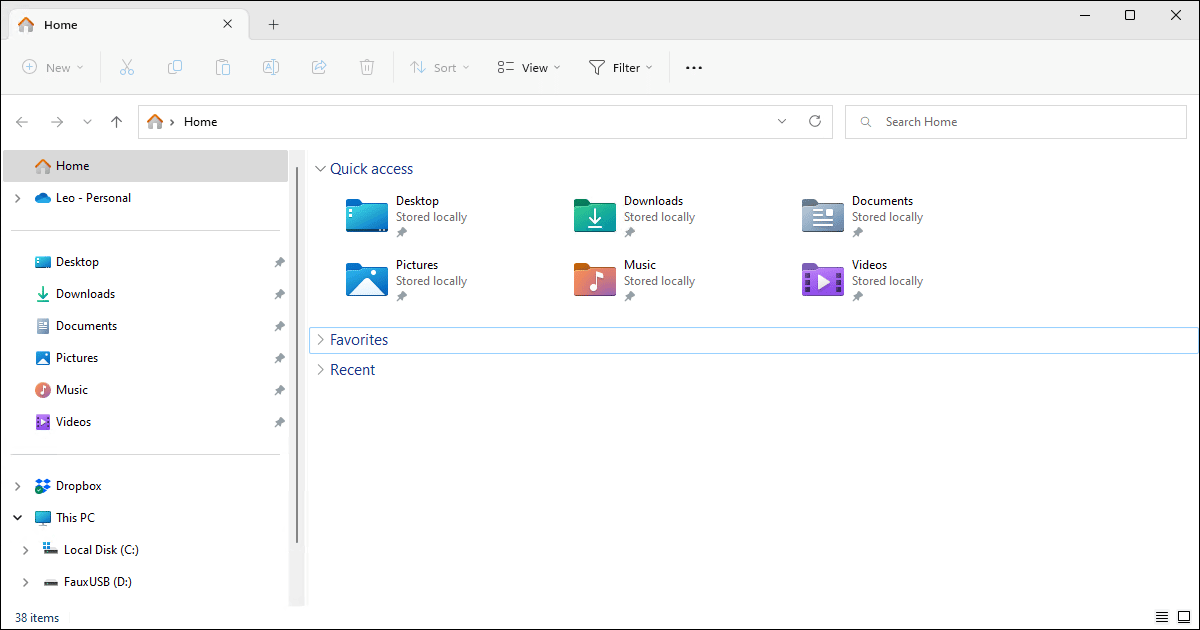
Windows Explorer (also known as File Explorer and Windows File Explorer) is a very special program. In many ways, it is Windows; it’s the program responsible for displaying the task bar, the Start menu, the task-switcher, and a fair amount more.
It’s also the program you use to browse around your hard disk to look at files and folders.
Become a Patron of Ask Leo! and go ad-free!

File explorer crashing
If Windows File Explorer crashes, you can restart it by opening Task Manager (CTRL+ALT+DEL) and running the program “explorer”. Explorer crashes are often the result of shell extensions, which you can enumerate and selectively disable using a tool called ShellExView.
When File Explorer crashes
You may have noticed that when Windows File Explorer dies, it often takes the Windows taskbar and Start menu with it. Those are displayed by Windows File Explorer.
Normally, when Windows File Explorer dies, other components of Windows should notice and start it up automatically again after a few seconds. That’s why you might see the taskbar disappear and then reappear.
Sometimes, that doesn’t happen. In that case, you can type CTRL+ALT+DEL and start Windows Task Manager. Then click the File menu followed by Run new task, or, in Windows 11, click the Run new task button.
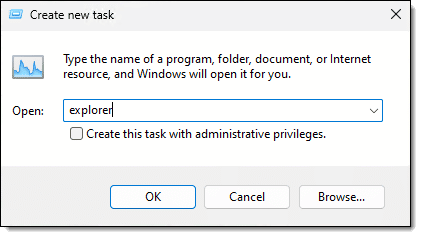
The new task to create is simply “explorer”. Running it should get your taskbar and Start menu back.
If, instead, running “explorer” starts a new Windows File Explorer window such as seen at the top of this article, then there was a copy already running.
Explorer add-ons
Very much like web browsers, Windows Explorer’s functionality can be extended by installing add-ons (more correctly referred to as “shell extensions” because Windows File Explorer is often called “the shell”, or primary user interface, to the operating system). Add-ons for Windows File Explorer are unrelated to browser add-ons, but the concept is very similar.
It’s not uncommon for shell extensions added to Window File Explorer by other software you install to cause issues.
Unfortunately, Windows doesn’t include an interface for viewing or managing these add-ons, so we need to grab a third-party tool.
ShellExView from NirSoft is a free utility for doing that.
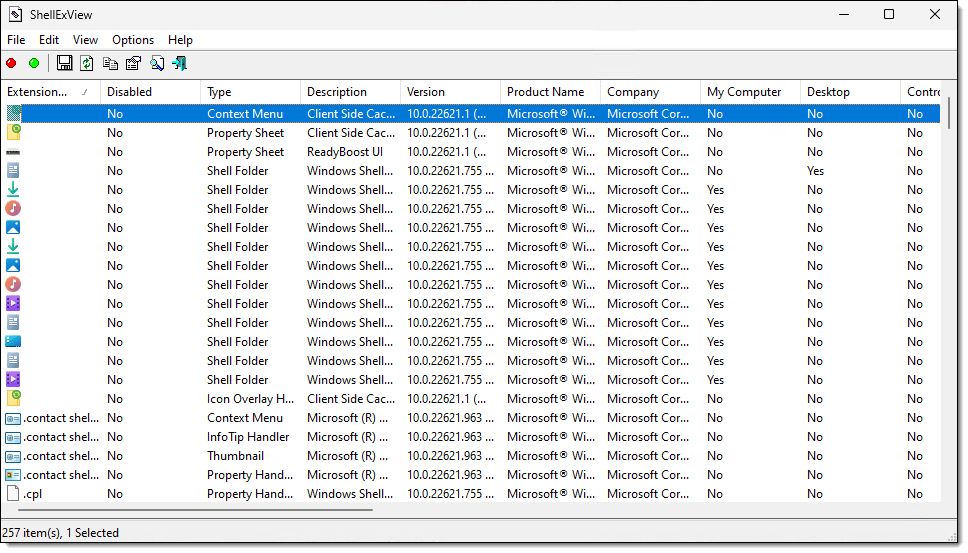
The first thing to note when running ShellExView is the sheer number of shell extensions: 257 on my machine alone.
This is normal, as Windows is responsible for most of them. It’s part of modularising the functionality Windows provides.
Identifying problematic shell extensions
Unfortunately, there’s no way to point at a shell extension and say, “This is the one that’s causing all the problems.” Instead, we need to look at what’s loaded and make a few semi-educated guesses. Then we’ll try disabling extensions we think may relate to the problem.
Before you begin, I strongly suggest you take a full backup of your system. Disabling shell extensions is generally safe, but we’re working with a very complex system here, and there are no guarantees. A full backup is your safety net in case something goes wrong.
You may need to widen the default ShellExView window to expose the Product Name column, and then widen that column to make it more readable by double-clicking its right divider in the column header. (There are many columns of information. Have a look at the rest while you’re at it to see what kinds of information are available.)
Click the Product Name column header to sort the extension list by product name.
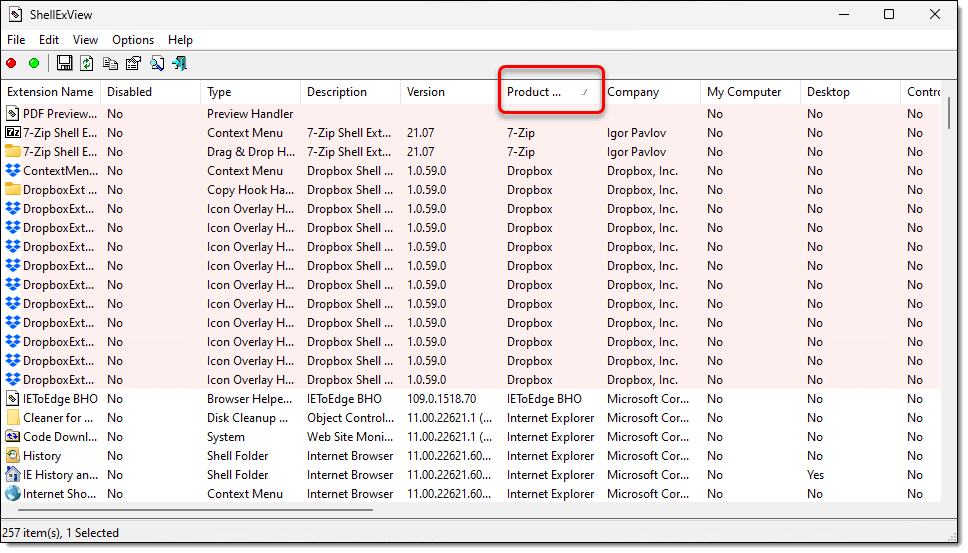
As you can see in this list, I have shell extensions from several applications, including 7-Zip, DropBox, and more.
Let’s make an initial assumption that the problem is likely not due to one of Microsoft’s own shell extensions. That cuts out all the items listing Microsoft Corporation as the company. To further cut down the number of things we need to consider, try these troubleshooting tips.
- Consider what you may have installed on your machine recently, particularly if the problem just started happening. Look for that product name, and if you see any associated shell extensions, right-click the item in the list and select Disable Selected Items.
- If the problem happens only when opening a folder containing a particular file type, look for the program that handles that file type. For example, if Windows File Explorer crashed every time I opened a folder containing a “.7z” file (that’s a file handled by 7-Zip), I would then disable the shell extensions associated with 7-Zip.
- If the problem happens when you open a file of a particular type, make sure it’s Windows File Explorer crashing and not the application handling that file. For example, if I experience a crash when opening a “.7z” file, it’s important to look carefully at the error message to determine whether explorer.exe or 7z.exe is crashing. If explorer.exe is crashing, look for shell extensions relating to that program and disable them. However, if it’s the program handling that file extension — 7z.exe in my example — then this article doesn’t apply, and you need to diagnose the issue with that application. (Typically, the first step is to reinstall it.)
- Often, things aren’t that clear. The crash may appear to happen randomly or under different circumstances than I’ve listed. Look for patterns that somehow relate the problem back to one of the shell extensions listed. Then try disabling those shell extensions to see if the problem resolves itself.
Disabling shell extensions is relatively safe, particularly for non-Microsoft Windows extensions. (You may need to reboot for the disabling to take effect.) Typically, all that happens is that you lose some functionality — often functionality you never knew existed or never used.
Do this
If disabling the shell extension causes the problem to go away, you can proceed in either of two ways:
- Diagnose, repair, or otherwise “fix” the program to which that shell extension belongs. Typically, the first step is a reinstall, but things can get more involved. At a minimum, you now have a direction to head and presumably could contact that software manufacturer’s support team for more specific help.
- Leave the shell extension disabled. As long as you don’t miss whatever functionality the extension provided, this is a valid approach. There’s only one drawback: if that product updates at some point, the update or reinstall process may re-enable the shell extension. If it works, fantastic. If not, you may need to go in and disable it again.
If disabling the shell extension does not resolve the issue that you’re dealing with, I recommend re-enabling it.
If disabling the shell extension causes more trouble or removes a feature you care about, then you face diagnosing or repairing the application associated with it.
If you’re interested in more help diagnosing computer problems, subscribe to Confident Computing! Less frustration and more confidence, solutions, answers, and tips in your inbox every week.
Podcast audio

Related Video


Hello .
Most of the Explorer crashing errors that i have encountered have been related to folders containing videos in them and it’s because of the windows inability to load videos thumbnails and it’s usually a codec error or an incomplete file , A quick fix would be viewing the “properties” of the folder and selecting to view it as a document to avoid thumbnails loading .
Good luck :)
Thanks Yamen!
Very timely! I have recently been plagued by lots of “Explorer Failures”. Was beginning to wonder if a total reinstall was in order…and If I was the only one affected. I would bet somewhere in the extensions is also the reason the Macrium backup software does not properly display the box in which you choose which drives to back up, etc. I see some poking and prodding is instore in the near future…
oh….and the good news, you don’t have to totally reboot windows when this happens, which often was the case in earlier versions of Windows. So, yes, it is annoying, but it could be (and has in the past) been much worse….
I’d say 2 things. First, I often like to look at the Windows event Logs–particularly the system log & the application log. It can be accessed by clicking Start > Run, then typing c:windowssystem32eventvwr.exe in the edit field. You might need to run the program as administrator. The application log will show you any errors that are occurring with a particular application, & the system log will show you system-wide errors, e.g., a failing hard drive or motherboard hdd controller (which can cause such behavior).
The 2nd thing I’d say is that some malware, i.e., a computer program often installed w/o your knowledge/consent, can cause this type of behavior as well. Sometimes the best way to diagnose that is to actually hook the hard drive in question to a USB enclosure & scan it, preferrably using a boot cd designed for that purpose so as not to risk infecting your operating system. I say that because some of the more sophisticated malware can do a good job of hiding from malware scanners while Windows is running. There are a variety of programs that can help point to the presence of malware, 1 being HijackThis, available from trendmicro.com. I would warn, however, that this does require some expertise, because an incorrect fix can cause Windows to crater spectacularly.
Anyway, hth.
Just about thought I had found the answer to a question I have been looking for over a year to fix.
I have xp pro on a dell 1100 w/2g memory. Windows search constantly crashes with a C++ error. It’s been near impossible to figure this out since it has happened with a loaded computer(full of my programs) and on a fully formatted new install of xp pro.
Leo you are The Man! I have been through the mill these last six months trying to diagnose the infamous Windows Explorer Crash-syndrome. I’ve tried literally eight so-called fixes found around the net world, all to no avail. Some ‘solutions’ were quite extensive, system-invasive and down-right dangerous for less savvy folks to attempt. I must admit (sorry!) that I had little hope for your diagnostic approach. Alas, out of sheer desperation before doing the dreaded ‘clean re-install’ of the OS, I sat down with a big mug o’ strong joe and had at it using ShellExView, following your lead.
Long story even longer; I opened ShellExView, clicked in the header column to show only NON-Microsoft files running (I had nine), mentally eliminated 7 that I new to be extremely stable and have been using for years. The remianing two were related and appeared to be ‘sketchy’ at best! They directed to a ‘cloud-based major mfg’s web-site, but showed zero size in ‘file size’ ?! Right-clicked each, chose the disable option, restarted and … holymoly! Windows Explorer working like it’s old, feature-challenged self, ha!
Mega-thanks Leo. I’m a long-time subscriber and plan to hit the ‘tip jar’ button and buy you a couple of lattes (though me thinks beer is more appropriate, eh?)
Leo,
Thanks for all the newsletters. They are very helpful. This one however threw me a bit as I clicked on ShellExView link and off it went, downloading the program. Then it stopped. AdAware had stopped the download, scanned the system and then removed any reference to IMSweet which was the program associated with ShellExView apparently. Is this an uncommon thing with IMSweet, or something new? Thank you.
21-Dec-2011
Very lucid. Makes non-tech people like me get the grasp of the issue. Thanks Leo.
Had this problem. Computer came with Mcafee security.
Installed Windows Security Essentials. Seemed to play together well until I started to get “Windows explorer stopped”. This happened at random times during random operations but mostly during boot up. After much exploration, stopped the real time protection for WSE haven’t had this problem in months. While you can run scans with more than one antivirus, don’t let them at the same time.
I’m not sure if this will be of help to another user, but I used to have issues when opening Explorer to a specific folder with media files in it. I eventually traced it back to a codec attempting to generate thumbnails for a corrupted video file.
I get intermittent Windows Explorer crashes. (I’m using Windows XP Home, SP3.) What I’m wondering however is, when explorer.exe crashes, is it possible that recent changes to the filesystem can be “lost”? That is, does explorer.exe store anything in RAM, which, subject to explorer.exe crashing, never actually gets written to the master file table?
08-Oct-2012
Leo you are Magic! I had this happening for the last month whenever I tried to open a folder from an external drive or CD, but only some folders not all & it was driving me nuts, I tried every fix I could find on the net & no-go. After reading this I d/l the shell viewer but the way you explain it made me think it was a 3rd party program, so copied 5 folders from different drives that were crashing explorer onto my desktop & they all opened & only had one file in common – PDF’s, right clicked one & choose programs to see what was associated with it, had Adobe Reader, Foxit & Infraview so removed them all & then checked the folders again on the external drives & they all opened with unknown files inside, reinstalled Adobe reader & all done & no more crashes! Big, Big thank you Leo, you explain stuff so well that even we none geeks can get a feel for how Windows works & at least start fault finding in the right direction.
This happens to me when ‘Windows Explorer’ is opened as a result of my right-clicking a picture thumbnail and selecting ‘Show in folder’.
My solution is to open Windows Explorer by depressing the ‘Windows’ key (logo) and then selecting ‘E’ – never had a problem when I do this.
Ah, my opening!
Glad you mentioned ShellExView which I have used myself. And “YES”, Windows Explorer frequently crashes for no apparent reason.
Now, about that company NirSoft: They also seem to be the authors of a set of very handy utility commands, one in particular, NirCmd.exe, offers a command line interface to do many useful things like setting the date/time on a file (I have looked at Windows PowerShell — a bazooka for a fly-swapper problem – no thanks!). I believe I have located a couple of annoying bugs (aka “features”) in NirCmd.exe but for the life of me I CAN NOT get anybody over there to acknowledge anything (e.g., that they even exist or are still in business). Feature #1: The setfiletime specification has to be in British units: dd-mm-yyyy, which means setting Windows to display in the same (UGH!) to get it to work — BTW: this is undocumented — and Feature #2 has to do with anomalies resetting date/time around the midnight wrap around (an hour off? – maybe it was due to daylight savings time — and is now “fixed” for six months :-))
Has anybody successfully rattled the the cage at NirSoft? Is anyone home? I am even willing to make a donation, in exchange for a pulse!!
Thx
–JCN
I have one notable ‘issue’ with windows explorer.
We use .STL files here. And although the file extension is associated with the right program (the little file icon shows correctly), .STL is also a system file extension – so any attempt by explorer to ‘preview’ the file ends in a crash.
I have to remember, and turn off previews, before I open the folder.
This may also happen with other extensions, i have noticed the preview function tends to be rather fickle.
mar 30 2020 – ok i listened to your explanation of the cause an effect an how to diagnose the shell handeler problem i used pirirsofts viewer program to locate programs i somewhat assumed were causing my shell handler crash prob these programs ended up not bieng the cause an had to go through alot of anoying stuff to reinstall them like my logi hd webcam program please let me know the typical programs that usually cause shell handeler to crash not interested in trying to figure out in a blind like way what programs i crudely think maybe cause my crash prob oh an if anyone wants the best respirators info to stay safe from covid19 email me ill send you a pdf you can share via your inbox as well as hard copy print up