What It Is, Why It Is, and What, if Anything, You Need Do
“Defragging” is short for de-fragmenting. It’s a process run on most hard drives to make accessing the files on that disk faster. In years past, it’s something you would do periodically, as files on the disk became more and more fragmented over time (hence, the term “defragmenting”).
So, what does it mean for a disk to be fragmented? Why does it get worse over time?
And is defragging something you need to worry about?
Become a Patron of Ask Leo! and go ad-free!

Defragging, do you need it?
- Fragmentation refers to the physical layout of data on a hard disk. Information that seems logically connected to us might be scattered across a hard disk.
- Defragmentation refers to the process of rearranging the files on disk so that all data is adjoined.
- Fragmentation is a side effect of normal disk usage, including file creation, growth, and deletion.
- If you’re running Windows 7 or later, or you have SSDs, you do not need to defrag manually.
Fragmentation
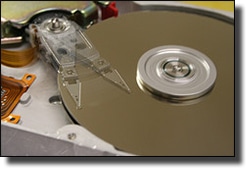 To you and me, a file on your disk is a single thing. You open it, you work on it, you save it. It’s a single entity. We might compare it to, say, a book.
To your computer, however, a file is a lot more like a bunch of pages in a book that it has to keep track of individually.
Imagine the pages of your book are randomly scattered throughout your house. You have a list of where each page is, so when you want to read your book, you go find page 1, then consult the list for page 2’s location and go find it, look up page 3, go find it, and so on and so on. In order to read your book in order, you’re racing around the house because the pages are scattered all over.
That’s a fragmented file. The sectors1 that make up the file are scattered all over the disk. The result is that when you access the file, Windows has to race all over the disk to retrieve the whole thing. That takes time.
Defragmentation
Defragmentation is nothing more than arranging all the pages/sectors together in order so they’re close to each other. In a perfectly defragmented disk, the sectors of each file would be in an orderly sequence one right after the other, just like the pages in a book.
Now, unlike the pages of a book strewn about your home, disk sectors are a little more limited in how they can be laid out. In order for the sectors of one file to be arranged in order, other files or fragments of files may have to be moved out of the way to make room.
In fact, that’s what a defragmenting tool spends most of its time doing: moving files around on the disk to make room so other files can be laid out in order.
It’s also one of the things that differentiates one disk defragmenting tool from another: some are simply better or more efficient at moving things around as little as possible, so as to be done as quickly as possible with a result that’s as acceptable as possible.
Why fragmentation happens
Fragmentation happens because files on the disk are constantly changing. They are created or deleted; they grow or shrink in size. And it all happens in a fairly random order.
For purposes of example, let’s say we have a very tiny disk that has exactly 12 sectors and no more.
On this disk, we’ve created three files: File 1, File 2 and File 3.

File 1 takes up two sectors, File 2 takes two, and File 3 takes up five sectors on the disk, leaving three sectors free at the end.
We now delete File 2.

As you can see, that leaves a “hole” of two empty sectors between the remaining Files 1 and 3.
Now, we’ll create a new file, File 4, which is four sectors long.

The only way to store File 4 is to split it into two fragments: two sectors in part (a) and two sectors in part (b).
It’s important to note that this all works just fine. Fragmented files are handled transparently by the operating system and the file system. The various fragments are all kept track of and located as needed. It’s just that in our silly little example above, if we want to read File 4 from end-to-end, we need to spend a little time “skipping over” File 3. If File 4 were in one contiguous set of sectors, the process would be a tiny bit faster.
Making that happen is what defragging is all about.2 Defragging would potentially move File 3 over two sectors, and move File 4’s (b) fragment to be adjacent to the (a) fragment, resulting in File 4 being contiguous.
But do I need to defrag?
Probably not.
In the past, the answer was a pretty clear “yes”, but things have changed.
- Solid State Drives (SSDs) should not be defragmented. The delays defragmenting seeks to reduce have to do with the hard disk’s read/write head physically spinning over magnetic material. Movement takes time. In SSDs, there is no movement, so there’s no practical advantage to sectors being logically adjacent. Solid state memory wears out the more you write to it, and not only does defragmenting write to the disk a lot, but the technologies used in flash-based drives to spread the wear and tear over the entire device also often hide the actual physical location — so sectors that might appear to be adjacent actually are not.3
- Windows versions 7 and later do it for you. There’s an automatically scheduled weekly task to defragment your hard disks. Once a week is just fine, and you need do nothing more.
So if either of those things are true — you have SSDs or you run Windows 7 or later — you need do nothing.
If, however, you’re running something earlier than Windows 7 or you suspect that the once-a-week schedule might not be enough, and you have a traditional hard drive, then manual defragmenting might be worth a shot.
Manually defragging
Manually defragging your hard disk is easy.
Start Windows Explorer (Windows Key + E, or right-click on My Computer and click Open), right-click on the drive you want to defrag, click Properties, click the Tools tab and then click Optimize.
That opens up “Optimize Drives”, also known as the Windows Disk Defragmenter:
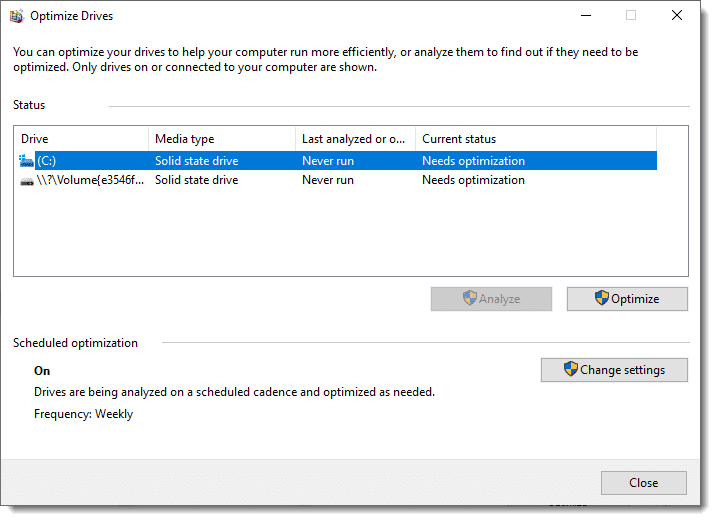
You can adjust your computer’s defragmentation schedule here. Note that my drives are listed as “Needs optimization”. Since they are listed as “Solid state drive”, this is technically incorrect. Scheduled optimization is turned on, so drives are being checked for any needed optimization weekly.
Using this tool, you can analyze the fragmentation of a drive or defragment the drive.
There are also third-party defragmenting tools that can be used. One example is Piriform’s Defraggler. Windows’ own tool is typically more than sufficient, but outside tools may provide more information or be able to perform a faster or more thorough defragmentation.
Do this
Subscribe to Confident Computing! Less frustration and more confidence, solutions, answers, and tips in your inbox every week.
I'll see you there!
Podcast audio

Related Video


Footnotes & References
1: Technically, the information is grouped in “clusters” of sectors rather than individual sectors. But for purposes of this discussion, the difference is immaterial.
2: It’s worth noting that, because of the small amount of free space left in our example, defragging may or may not be possible, depending on the tool used. While theoretically it should be possible by shuffling individual sectors around, most tools require enough free space to hold at least the largest file being defragmented.
3: Although I do recall reading an analysis that seemed to indicate that defragging an SSD did improve performance slightly. My recommendation remains don’t do it. To me, the risk of wearing it out sooner is too great compared with the small performance improvement that might (or might not) be had.


Performance and Maintenance is not in control panel in my Windows XP. Task scheduler is in Programs/Accessories/System Tools. The command c: >c:defrag.log 2>&1 did not work when saved as c:defragit.cmd and entered as a new task from the browse list. Do you have any other suggestions?
The full command to run is “defrag c: >c:defrag.log 2>&1”. (And yes, Task Scheduler shows up in different places depending on whether you’re using default, or “classic” start menu.)
If you do not defrage your PC, then what is the worst possible thing that can happen?
The computer will get slower and slower and slower…
I’m defragging my computer as I type this. But lately, I’ve been getting beaten up by dozens upon dozens of spyware and malware. I run Spybot – Search & Destroy and AdAware, but it seems everytime I scan again some of the same programs are there. Will defragging help me get rid of some of these programs? Will it affect their getting on my computer or their affect on it at all?
Defragging will help your computer run more efficiently, but will have no impact at all on spyware or virus infestations. For spyware particularly, the only real defense is, as you have been doing, running a spyware scanner periodically, and avoiding the sites and software that carry spyware when you can.
How large is the log file going to become that is being created giving the results of defrag?
Does this overwrite with each scheduled defrag or will it over time consume lots of space?
Excuse if this is a silly question, I’m a novice.
Thanks for a great article.
Actually in the example above, the file is created anew each time. Not sure how big it’ll get, but you can get an idea by running it once.
Along the lines of my earlier question about the size of the log file, is it possible to get it so it has a date stamp.
It reports the defrag was done, but I would like for it to post the date/time of the defrag.
BTW, this trick automated defrag perfectly and now reports 0% defrag. Thanks.
defrag will not, but you could add the following lines to the sequence:
date /t >>c:defrag.log
time /t >>c:defrag.log
The double greater-than signs cause the test to be appended to the log.
after i defragment i still have more then half thw bar in fragmented files,
File fragmentation
Total files = 131,712
Average file size = 624 KB
Total fragmented files = 3
Total excess fragments = 16,451
Average fragments per file = 1.12
yeah then theres,
Fragments File Size Files that cannot be defragmented
395 14.64 GB Documents and SettingsJakeLocal SettingsTemp~GLH0004.TMP
16,064 18.48 GB Documents and SettingsJakeLocal SettingsTemp~GLH0005.TMP
i dont know how to get rid of those can you please help me?
I would see what program might have those files open (this article: http://ask-leo.com/how_can_i_find_out_who_is_using_a_file_in_use.html) – if they’re not in use, since they are temp files, I’d probably just delete them.
Many, many moons ago I spoke with a tech who insisted does not *ever* need to be defragged and, more specifically, should *never* be defragged. I’ve defragged at least once a week for well over 10 years; I suppose he was wrong??
Well, I at least disagree with him! :-)
I defrag regularly (once a week). Seeme to make the system more “compact” every time I do it. Plus, it helps – it really does. Sunday is my “computer maintenance day” LOL. As for “Mary” who is still runnig 98 – time to upgrade to an OS from THIS century!
Do you have to re-load any software after you defrag your computer
Nope. Defragging is transparent to your installed software.
HI,
Can you defrag too many times? I notice that there seems to be and increase in fragmentted files if I repeatedly defrag.
Thanks.
—–BEGIN PGP SIGNED MESSAGE—–
Hash: SHA1
Other than wear and tear on your hard drive you can’t really defrag “too much”.
I now recommend once a week.
If you’re seeing more and more defragmented files, it’s typically a function of
how you use your machine and the effectiveness of the particular defragging
software you use.
Leo
—–BEGIN PGP SIGNATURE—–
Version: GnuPG v1.4.6 (MingW32)
iD8DBQFGV2vHCMEe9B/8oqERAstsAJ9K0x8cnQzXMua0FDBS0s9VjE6WrQCdH17O
l73QDzyaXsr7ki/9AGpDQPg=
=ykw1
—–END PGP SIGNATURE—–
Nice Article Leo.I’d like to compare fragmentation to a person running continuously to pick up different packets from different places, it would certainly make him whole lot more tired than if he were to go pick it up at once from a single point! I wonder why there is even a debate whether fragmentation affects systems or not.I cannot imagine servers performing at their best if this disease were to afflict them.
Hi Leo,
I find this article quite informative, I never knew that there is such an option available and I am the computer guy at my house. Anyway, I wanted to ask about the task scheduler, so let’s say I did everything like you said; would the computer simply turn itself on and perform the defrag?
—–BEGIN PGP SIGNED MESSAGE—–
Hash: SHA1
No, you must leave your computer turned on for scheduled
tasks to run.
Leo
—–BEGIN PGP SIGNATURE—–
Version: GnuPG v1.4.7 (MingW32)
iD8DBQFHlpmgCMEe9B/8oqERAheYAJ9wqFG8P+fBjt7Afvkgug+ew0rnzgCeJvbi
ftSIh/gGlmGHky2YnZ0X2pM=
=Xkxo
—–END PGP SIGNATURE—–
Wow, this is really informative. I don’t think I would have gotten a simpler explanation anywhere else. Now I think I will go and do some defragging. Thanks.
what an analagy about book being a harddrive
hi.. do we need to power on our pc if we schedule to defrag at night or early in the morning even if we’re away from our pc’s? thanks..
-Leo
hi LEO sir, really very beautifully written that even a layman like me can also understand.humbly saying sir i am very impressed.easy to understand means you have done a lot hardwork thanks a million sir.
Defragmentation is complete for: HP_PAVILION (C:)
Some files on this volume could not be defragmented.
Please check the defragmentation report for the list of these files can you tell me why this comes up and the defragmentation does not finish? Thank you
And for the record: it’s ok if some don’t. I wouldn’t worry about it.
22-Sep-2008
Couple of points of clarification.
Defrag CAN free up some space in 2 ways. But you shouldn’t count it happening, or expect much space to be freed up.
First, depending on how the fragmentation happened, each fragment could have “freespace” intended by the file system for growth. So when the file is defragged the only freespace left is at the end of the file.
The other way defrag can free up space is if there are many small unsed spots on the drive, the file system may not use them until they are “joined” together into a larger block of freespace.
On the question of locked files, the more “advanced” (than the stripped down defrag tool bundled with Win) defrag tools that can handle locked files. They perform defrag in several discrete steps. One of the later steps is to do a reboot and run a defrag BEFORE the OS and/or “startup” apps are loaded.
As well, when HD free space is less than 20% Windows can get twitchy. Strange, unexpected, things can happen such as defrag programs abending unexpectedly. It’s not as common a problem these days as it was when HD size was measured in MB not GB.
17-Jun-2009
I defragmented my drive and it improved the speed a lot. I used the trial version of Diskeeper09 which a friend suggested. Its really easy to use as its automatic.
I would seriously recommend the “Piriform Defraggler” for this, free to download and a really good programme, they also have a Ccleaner which cleans out spyware and generally makes your computer run faster, just google piriform if your interested, really good stuff!
My personal opinion is that defragging daily is way unnecessary…maybe monthly at most? Piriform’s Defraggler program is great. Just my 2 cents. :)
Leo, is it safe to defrag an encrypted portable hard drive? If it is safe, should the drive be un-encrypted first — before starting the defrag process? Thanks…
01-Aug-2010
is there anything else i can do to keep my computer running smoothly, i am having to pull an OLD sony vaio right now??
25-Oct-2011
@Edye
http://ask-leo.com/how_can_i_make_my_computer_run_faster.html
I’ve also found that in some cases you can get better performance by stopping unnecessary programs from starting up when you start your computer. Here’s an article with some advice on that.
http://ask-leo.com/how_do_i_determine_what_i_absolutely_need_to_load_at_startup.html
Great advice, but..
It is a bad habit to leave your computer on overnight. Not only does it harm the environment by unnecessarily draining electricity, you harm the computer by having it constantly powered on. Give your computer a break, and save yourself some money. Turn it OFF when you are not using it.
13-Nov-2011
Hi Leo
Good article and mostly good posts.
But instead of putting my 2 cents worth in (Europe now too!!).
I would like to ask one question which has intrigued me for some time now, as you have dealt more or less with this question before.
How can defragging, even once a week wear the HDD out more than the Head flying round like a maniac every time the computer is run. Just can’t visualize it !!!
26-Oct-2012
When I’m doing a lot of video editing I defrag at the end of the day. I use Auslogic’s defragger and it has a Turn Off Computer When Finished check box. I like to chop videos up and splice parts together to see what I can make and that scatters parts of files all over.
While Win 7 does have a built-in defragger, as did previous Windows versions, and it is by default set to run once a week, it is ABYSMALLY slow. For reasons that are obscure to me, it goes thru multiple “passes”; pass after pass after pass. . . A simple defrag can take an hour and impacts your computer’s performance if you’re doing something while it’s running. So I disabled it and installed Auslogics Disk Defrag, which does the same job that the Win 7 defragger does in about 3 minutes. I provide tech support to a dozen families, and do the same on their computers. In short, I recommend against using the Win 7 defragger and instead using the Auslogics product, which is free.
Two items,
1) re: powering off the PC, In 25 years repairing IBM mainframes, more bugs showed up at power on/off than during normal operations, probably due to power spikes in the associated hardware and disc spin up after the heads had sat a while. I leave mine (PC) on unless it’s going to be days till used.
2) My friends swear by defrag, and I know the principles well, but I have never seen XP, Vista, or W7 tell me to defrag when I check the status of the spindles, nor have I seen improvement if I did so anyways. Interesting subject ~
Oh, and I use defraggler (free) if I do –
Wow, OK, defragging… I can finally explain it to easirer my family and freinds, Thanks again for the continuing pearls of wisdom Leo !!!
While I agree totally with Leo that the average span for Degragging is 1 week, the in depth answer has to be along the lines of “How long is a piece of string” scenario.
Every user will be different, and most users will differ from time to time. Main factors are install/uninstall or even restoring an image backup.
Although all App’s that I have seen give some indication or guidance, I do myself stick to Defraggler (Piriform). When using this I just click Analise first. If the figures are low I do not defrag and therefore reduce HDD wear and tear. If the figures are high I do defrag and paradoxically also reduce HDD wear and tear. Whole thing just takes a little practice. When that done try out the advanced options. These to me speed up the comp. even more.
Luck All !!!
Isn’t this really old news, I thought everybody knew about defragging hard drives, since the days of MS-DOS. Use auslogics on demand defragger, no schedules for me. I never practiced the idea of leaving anything on when I am not using it and my hard drive is just fine(for now).
27-Oct-2012
Leo,
Your on-line information is excellent and very helpful to an old “DeePee-er” like me. (circa 1965-1999)
Question on your use of sectors below:
2: It’s worth noting that because of the small amount of free space left in our example, defragging may or may not be possible, depending on the tool used. While theoretically it should be possible by shuffling individual sectors around, most tools require enough free space to contain at least the largest file being defragmented.
I believe that you may have meant to say ” files shuffled”not sectors. Aren’t sectors physical characteristics of a disk (eg. 256KB) permanently arranged for data input? Thank you.
27-Oct-2012
@Dom
I believe when Leo said shuffling sectors around was referring to shuffling the contents of those sectors. Not an error, just another way of looking at it.
If Windows 7 runs defragging automatically once a week, does that mean that if you buy a solid state hard drive you should turn the automatic defragmenting off, if you can?
@Jack
Windows 7 and 8 turn off automatic defragging if they detect an SSD drive.
In the example picture of your Disk Defragmenter, when I open mine up like that, it always shows that my C drive is fragmented and that number keeps increasing, right now it’s at 34%. But I cannot analyze it or defrag it. Is there a reason for that happening? Should I be able to defrag the C drive? And why does it keep increasing like that? I’m afraid of what will happen when it gets fuller.
31-Oct-2012
The other drives defrag properly, whether with the automatic scheduling in Windows or if I do it manually, although they usually are never more than 2 to 5% fragmented. However, when I click on the C Drive, even to analyze it, nothing at all happens. The same for when I try to defrag it. And then the next time I look at that window, I see the percentage has usually risen by a couple points on the C drive. Should I be able to defrag the hard drive? How do I get that 34% to zero out again, or does it even matter?
I wonder about the process of disk fragmentation. I am constantly in need to defragment a disk. It seems a scam? I defragmented my disk, did some work, and 155,000 files were immediately fragmented. How are files written? It seems that it is not done in any coherent, intelligent way. Is it a Windows problem? Do ext3 disks suffer this problem? Are files written to the first available space, regardless of how many pieces they will be in, or are they written to the largest free space that will contain them? Do multi-core CPUs write multiple files at once, thus guaranteeing fragmentation? I use Adobe products, eg, Lightroom. that’s the program that left me with 150k fragmented files when I created many 1:1 preview files…
Hi Leo…
Great article and after reading I have a better sense of what “disc fragmentation” is all about. I have Wins 7-64 on my machine and at first was using the Wins Defrag Tool do it’s work but noticed that it would some times take to long and wouldn’t do a good job. That’s when I started using Piriform Defraggler. I use it about once very 6 to 8 weeks and it does an excellent job and usually brings down my fragmentation % to zero. It has many options and features which I consider as not necessary but still good to have since Windows OS has most of these options included also. Thanks for a great article and hope to hear from you soon.
Hi, Leo, I seem to have a severe problem with disc errors caught by two scans which I use. My computer started running badly about 3 wks ago. I’ve been ill and not been on it until last wk and find it’s all clogged up with problems. I have run Defrag in hopes of clearing it up and there is so much fragmented like I’ve never had before. Defrag is taking more than 12 hrs to run. I use Windows XP and have 42% Free Space at present. I’m used to defragging every week or less if no problems but lately twice a week. The reason I’m writing is because I’ve noticed strange file names and I want to know how that can happen. For example at 3% it was moving a file called ‘Juicing vs Blending’ and I noted a file shortly before that one that had ‘child _ trafficing’ in the name and the last time I defragged days before there were other words like ‘glamor’ or ‘makeup’ in a file name that didn’t make sense to me and I have no files with names like that. There are many many more but I didn’t note them. But I knew I’d never ever seen file names like these. They sound like names that come from the internet and I want to know if it’s possible that a computer can actually save something unbekownst to the user. I recall last week being on a website reading about the American Sniper and beside that story was a list of other available sites and one of them was on human or child trafficing (I didn’t go to it or open it) and stories about juicing are common and so I’m concerned about what’s happening with my computer and especially since in the past 3 weeks I’ve LOST 20% free space. Nothing much has been done on this computer, no downloads other than a virus/malware scanner (Webroot) and I need to know if you can offer any suggestions or things to check. Oh, I have run a SEARCH for the two file names I mentioned and each turned up nothing but I stopped the search after an hour. I hope you can help with at least one of these suggested problems.
Thank you!!
I’m not 100% sure if this is what’s happening in your case, but every page you view in a web browser is saved in the browser cache, a temporary folder which saves web pages you visited and in some cases the pages that are linked to from pages you visit. (See: http://en.wikipedia.org/wiki/Link_prefetching) This makes browsing faster as you don’t have to download the same page repeatedly.
This article explains what a browser cache is and how to clear it. I’m not necessarily recommending that you clear it, as most of the time it is harmless and can even save you a few seconds while surfing.
https://askleo.com/whats_a_browser_cache_how_do_i_clear_it_and_why_would_i_want_to/
Windows Vista SP2 also defrags weekly, by default.
As a photographer, I use editing tools which fragment the disk rapidly, and in a matter of a couple days, can noticeably slow performance. I could wait for the scheduled weekly defrag, but I’m not that patient. When it’s slow, I defrag, using my favorite defrag tool, MyDefrag. It takes longer than some I’ve tried, but leaves the machine quick like greased lightning.
1. As I ran defrag (Windows-10), it shows C:: and “System Reserved” and that last one, for weeks despite Defragging, still shows 7% fragmentation!! My C: drive is traditional Hard Drive (HHD) not SSD.
2. I changed my automatic Schedule, from the default Weekly to Daily, as I use my computers a lot. But I do not notice any difference!
3. Is there a SAFE WAY to defragment the “System Reserved”?
4. One comment referred to programs that run at Start up, which may not be needed unless the user runs them specifically when needed. How to identify them??
1. I would simply not worry, at all, about 7% fragmentation. Particularly on a “System Reserved” partition which isn’t used heavily or in any performance intensive way.
2. What were you expecting? Unless you do something that results in dramatic fragmentation in a short period of time (most of us do not), the difference between daily and weekly would not be noticable.
3. Only way I can think of is MAYBE use an imaging backup program to back it up and restore it. MAYBE. And to echo #1: SO not worth it.
4. Depends on the programs. There’s no simple rule.
I believe the reason you can’t defrag the System Reserved drive is because the files are in use at the time of the defrag and as Leo said, it doesn’t noticeably affect performance.
Why Won’t Some File Defrag?
I suspect that it’s not about being “in use”. I’m pretty sure system reserved partitions aren’t actually in use when windows is running. (Could be wrong, of course.) What I do see, though, are system reserved partitions with very little free space, and that could also prevent a defrag from completing.
How important is it for me to defragment all of my files?
Not. On a traditional hard disk LOTS of defragmented files can impact performance, but it’s not necessary to get them all 100%.