Obscure network connection problems.
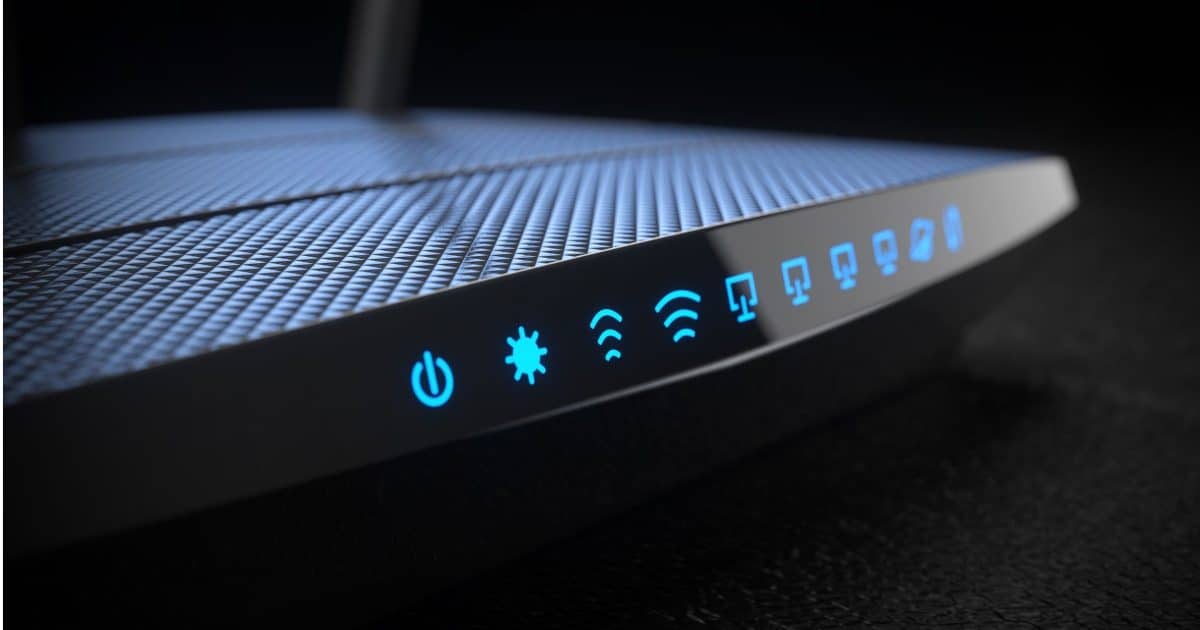
“Limited connectivity” happens when your computer can connect to the network . . . but can’t.
Not very helpful, I know, but accurate. Your computer was able to connect the network in one way, but was unable to complete the next step.
Become a Patron of Ask Leo! and go ad-free!

The limited connectivity issue
“Limited connectivity” happens when a computer can make an initial connection to a network, but gets no response to its request for an IP address and further connection information. With limited connectivity, the computer can’t really communicate with others on the network. Rebooting the router, which is responsible for the response, resolves the issue most often.
“Limited connectivity” happens when:
- Your computer detects a network is present. That means a network cable is plugged in or a wireless network exists.
- Your computer’s request for an IP address went unanswered.
It’s that last one that needs a little explanation.
IP addresses & DHCP
An IP — Internet Protocol — address is how your computer is located on its network.
Most computers are configured to get a “dynamic” IP address using DHCP. That means rather than permanently assigning a specific IP to the machine, it “asks” for an IP address when it connects to the network.
Dynamic IP addresses are simpler to configure and allow for IP addresses to be re-used when the machines they were assigned to are taken offline.
A DHCP request is very simple: your computer broadcasts to all the devices on its network,
“Would the DHCP server listening please give me an IP address?”
On each such network, there should be one device listening for the request — the DHCP server. It, then, responds with something like:
“Here ya go: you will be 192.168.1.4. By the way, when you want to talk to others on your network, here’s some more information, and when you want to send something to the internet, send it here.”
In other words, your computer gets both its IP address and instructions on how to talk to the rest of the world.
Your computer is ready to communicate with the world.
But what happens if no one responds?
DHCP failure
Your computer broadcasts,
“Would the DHCP server listening please give me an IP address?”
And there’s no response.
When that happens, the computer repeats the request a few times and then gives up.
When it gives up, it declares that you have “limited connectivity”.
Limited connectivity
Connectivity is “limited” because your computer will make up an IP address.
If you check the IP address on your machine and it starts with “169.” that’s a made-up IP address. Only your computer knows about it, which means no other computer knows how to contact yours. In addition, your computer doesn’t know how to communicate with anyone else.
“Limited connectivity” is so limited that in practice, it means no connectivity.There are scenarios where, if you know what you’re doing and you’re willing to jump through some hoops, you can force communication while you’re in this state by doing things like manually configuring TCP/IP settings on your network card. But it’s complex and is not a long-term solution at all.
So what do you do?
Fixing limited connectivity
DHCP is usually handled by your router, or in some cases, your broadband modem. If you have a single PC connected directly to the internet, it may also be handled by your ISP.
90% of the time, what you did is exactly right: reboot your router.
Sometimes routers just get confused and need to be rebooted. It’s silly, and in an ideal world shouldn’t be needed, but it is what it is.
Wireless access points — those which are not routers but simply provide the wireless connectivity to a wired network — can sometimes also hiccup and fail in such a way as to cause this problem. I believe it happens when the wireless side of the device keeps working while the wired connection is, for some reason, broken. Again, a reboot of the device typically clears this up.
In either case, it’s easiest to then reboot your computer(s) to force them to request new IP address assignments from the now-functioning router.
If the reboot resolves the problem but it reoccurs quickly, I would check with the manufacturer of that device to see if there is new firmware available for it. Even though we think of routers and access points as hardware, they are in fact small computers running software, and all software can have bugs. Sometimes those bugs don’t show up until something outside of the device changes.
If your firmware is up to date and the problem repeats frequently, I would try a new router or access point to see if that clears things up.
Do this
Subscribe to Confident Computing! Less frustration and more confidence, solutions, answers, and tips in your inbox every week.
I'll see you there!
Podcast audio

Related Video


You also get ‘limited connectivity’ if you connect to your router but do not imput a wep/wpa key or the wrong one.
Basicly you are connected to the router, but it doesnt want to know you without the correct key.
I had this experience in a public library’s hot-spot. I was assigned an IP and it is an open (no security) wireless connection. Yet, I got limited connection. May be the router was kaput like Leo says. My trouble was that whatever I did with my computer, I got the same IP and same “no connection”.
Ultimately I had to take the course Leo suggests as a short term solution – manually configure TCP/IP setting. I went on to assign myself an IP and got full connection pronto.
You have got to know your settings. Computer systems are still not ignorant friendly.
Wasn’t the Librarian of help?
I doubt you’ll get an answer. That comment is 14 years old.
Although I don’t usually get the “limited connectivity” errors, I find that some routers (I have a Speedtouch one) drops the wireless whilst keeping the ethernet somewhat active, though in this state the router is extremely slow, sometimes unresponsive and I usually either wait for it to reboot itself – though I still haven’t figured out how or why it does that – or just restart it manually.
We also get the “limited connectivity” when our ISP broadband feed isn’t working. Since Comcast and Insight swapped coverage areas in the Midwest this year, this has been happening while they do their maintenance.
I had Limited Connectivity for at least five months, I had to re-boot every time I looked at my computer, I tried everything I could read about,but then I put my computer in for a service as I needed help, they sorted it right away, it was my Panda Antivirus plus Firewall that was at fault, it was running but blocking use of the computer,Panda is now running perfect.hope this helps, JIM.
If you have Windows XP, from a command prompt enter “arp -a”. If you get a response like:
Interface: 192.168.1.77
Internet Address Physical Address Type
192.168.1.1 02-10-40-4c-3c-8c dynamic
then your computer is able to talk, at the lowest level, with the router. That’s a good thing.
In this example, the router is 192.168.1.1 and the computer where I entered the command is “Interface” or 192.168.1.77.
If you don’t see any IP addresses other than the Interface one on the first line, then the problem is likely hardware rather than software. Is a wire unplugged? Is the WiFi radio turned on? That sort of thing.
This should work with other OSs and other versions of Windows too as ARP is a TCP/IP thing rather than a Windows thing, but the command syntax may differ.
My internet connection was working one day and failed to connect the next day with limited connectivity. I tried everything I read from the web but was unable to resolve it. Fortunately, I check the list of install softwares/update and found that the last thing installed on the laptop was an antivirus update. When I uninstall the update, things started to work again.
Is there a checklist of things (even menial things) I can go through to overcome the limited connectivity?
I think I may have changed some settings to connect to a different network, and now that I’m home I can’t connect to the internet even though I have done before, and other computers still can.
I have checked the IP settings and have compared the settings to the other pcs but I’m not getting anywhere.
Is there a defaukt settings option on the connection options? That could possibly work.
I’m on vista too.
Limited no connectivity this so simple you need to contact your network provider to provide you for the following : the IP address, Submet mask, Default gateway, and pefereed DNS server number after you acquired all click START – NETWORK CONNECTIONS – PROPERTIES – on the Description uncheck the Notify me when this connection has limited or no connectivity and check the show Icon on notificationare when connected Then highlight the Internet Protocol(TCP/IP)tab -go to Properties – General tab, click Use the following IP address and input the number given by your network provider, Subnet mask, Default gateway and the tab Use the following DNS server addresses and then input Preferred DNS server number given by the network provider then press OK that will solve your problem
I have connected to the new modem i bought, the LAN icon says its connected to a network but its limited connectivity.The status of LAN shows that no packets are received by my laptop.I have checked pinging the modem, but its not working. How is it possible that LAN says its connected but the modem is not responding while i do the ping test in the command prompt.
what do you suggest?
Operating system is Vista Business.
Modem manufacturer is Seimens, Model no. SL2_141.
Regards,
Divjot.
Started getting this error message after a teenage visitor in our home downloaded games to one of our pcs. He had asked to check his email but once on the computer decided he wanted to do other things. We tried using AVG and other s/w to “clean” the PC. But, never were able to fix it using any of the suggestions we found on line.
Tried changing wireless adapter (USB to PCI) but never was able to get the error corrected. Called cable company & their technician couldn’t troubleshoot and resolve and they found no problem with the router/cable modem. So, last effort was to carry the pc to the vendor where it was purchaed & have their tech check it out. He found that Window XP was corrupt and re-installed. This kid had downloaded Win32Heurvirus onto the PC. We did switch to the PCI wireless card and have had no problems since reconnecting this computer to our wireless network. I did not see this solution on any of the sites where I researched this problem….hope it helps someone
I need some help on this one. I have a desktop (running XP) connected to a DSL modem and a laptop (running Vista) that is on a wireless connection. Everything has worked very well for the past year with no connection problems. Last week, I clicked on an automatic update for my Norton software (upgrade from version 2.0 to 3.0). The update worked fine and then prompted me to restart. The restart didn
thanks so much for the information!
i love the conversational style of your writing. it made this issue very easy to understand.
i just reset my router and wha-la! it works…
oh why aren’t all computer problems this easy to fix?!
I am trying to connect directly to an external drive via ethernet cable and experiencing a Limited Connectivity issue. I have tried using ipconfig at the command prompt to release and renew and it didn’t help. I have even changed cables, trying 8 different ones and problem still exists. Is it supposed to be Limited if plugged directly into the PC, by passing any router? I have tried all three of my PC’s and they all say Limited Connectivity with this external drive which i never had a problem with before. Do I need to use a cross over cable instead of a straight through? It should be able to connect to it without the use of a router.
I have a similar issue. I have a westell wireless router supplied by Verizon DSL. It works fine and has for years. I also have an airlink101 repeater so I can use my laptop in the back yard. My laptop ( Winxp sp3) has no problem connecting when in range of the westell router and all works fine. However, when it connects through the airlink I get limited connectivity. Now here’s the weird part. If I disable WEP all is fine, works great. But when I enable WEP it does not. I have reset the passphrase repeatedly on both routers to be sure they matched. Any Idea what may be causing this because I really do not care to run the wireless without security.???
14-Jul-2009
I am having trouble with the wireless network connection on my HP laptop. No matter where i’m tring to connecty I recieve the Limited connectivity problem. I tried connecting in several places where others can conect to the internet, and I keep recieving the problem.
I am unable to connected to he internet my computer say’s, ipv4=internet and ipv6=limited. I tried all types of fixes for it but still has a problem with “software loopback interface” what is that. how do i connected.
Thanks Leo. Your explanation about limited connectivity was very helpful. I am so happy to have found your website.
IN XP, IF I GET “LIMITED CONNECTIVITY” I GO TO CONTROL PANEL THEN NETWORK CONNECTIONS THEN IN LOCAL AREA CONN , RIGHT CLICK, DISABLE. THEN ENABLE, THEN ALL OK……. I WANT TO KNOW HOW TO FIX TO SAVE ME DOING ALL ABOVE.
hi leo i already have a bt broadband router that my son uses for his laptop using a wireless connection but the problem i have is that my computer shows limited connectivity when i try to connect. can you help as i think i may have missed something when i installed my bt software cd thanks any help is gratefuly appreciated
Hi Leo,
I’m getting limited connectivity on my Inspiron 1525 laptop for my Wireless connection, but there’s another computer in my house which has a perfectly good wireless connection and we’re both using the same router and everything, it’s just that the other computer isnt a Dell, and uses Windows XP, whereas I have Vista. Any insight would be appreciated.
Hi Leo,
I have a router which keeps gving me limited connectivity on all the 5 different PC’s which I have tried it on; hence I searched for the firmware update online and it was available for update, unfortunately I need to still access the router setup/admin in order update the firmware but still faced with the same limited connectivity issue. Is there another way to update the router firmware?
I hope this works because I have tryed evertying for the last few day’s and nothing has happened my internet only works when Im by my router when I’m away from it…it connects but has limited connectivity.
Alex, I’ve got the same exact problem. Two lap tops one running XP and the other Vista. Same network and the Vista connection is crap. Have you fix your problem. I need some help, I’m pulling my hair out trying to fix it.
Leo, I appear to have a similar issue as other postings, I’m trying to access via wi-fi a hot spot. (BT openzone) I have not had any issues previously in accessing this site but over the last couple of days I have not been able to connect with the messages limited connectivity and unable to repair dynamic IP address. Windows Vista is the operating system, any suggestions? – reboot has not worked
Could be your ISP disconnecting your router if you have had to many downloads, but don’t expect them to tell you that
Leo Sir,
I have desktop computer (A) with internet connected via Nokia mobile. ICS is enabled on this PC and it works as a host. PC A has nvidia network adapter installed. Another PC (B)which is client with Realtek8139 network adapter connects with the host (A) through cross cable and everything works fine (The internet and file sharing with all icons displaying such as network connection. Now when I connect this third PC (C) in place of (B) as client with same cross over cable and same realtek 8139 network adapter card there is limited connectivity on the client pc (C) and I’m unable to share file & folders and the internet, but host pc (A) show LAN connected with no sharing of folders. workgroup is same on each pc (A,B & C). I have tried the following on the third pc (C):
winsockfix utility, netsh commands, disconnected mobile and restarted after switching it off for 5 minutes. Third pc (C) shows no error in terms network card and cross cable and sending packets or frames (datagrams) but does not receive any from host, likewise host (A) is also sending but no receiving packets. Tried static ip on client (C)but to no avail. I’m turning nuts over this issue for the past one week. If someone could help out. Thanks a lot in advance. I have tried everything on the planet but still struggling.
sir,
ipconfig /release ipconfig /renew and i used this program winsock to reset ip
A little more detail is that the 169.xxx IP address which is called a local host address is in fact a temporary IP so that the computer can talk to the router in order to setup a secure connection(hopefully). Think of the 169.xxx as a temporary PIN that the router gives to the computer. Once that computer connects through DHCP the 169.xxx is released and can be used for another computer. I too occasionally have the limited connectivity and the only way I’ve been able to “fix” it is to reboot. What drives me nuts is that my teenager never has the problem with his computer, so I’m of the opinion it may have something to do with the network card in my laptop. It only happens 1 or 2 a month so not a big deal, just frustrating.
My desktops work fine and they are hardwired to the router. My laptop works fine with a wireless connection. My wife gave her newer laptop to our son and I have upgraded the ram,battery and hard drive in the old Toshiba. It is running a lot better but is giving me the limited connectivity message. I think it might be time to try to update the firmware. I am wondering if the wireless card, or chip or however they do it on the laptop is bad. Of course maybe a fw upgrade might bring it back to life.
Sir leo, one thing to add to the thread if all else is not working and u have a firewall (norton, comodo etc) installed and it has been accidentally set to block all. Your network will not be able to assign an ip to the pc and u will get the limited conectivity message. Very frustrating if u dont know it was turned to block all. Thought i would share just in case someone else encounters this issue.
Another relatively quick fix that has worked for me on XP (but is somewhat annoying) is to go to the settings:network connections: wireless network connections, choose “view wireless networks,” disconnect from the “limited connectivity” network and then reconnect. This has worked for me to get a good connection on a couple of different laptops in different Wi-Fi spots and should be a lot simpler than rebooting the router. I probably need to set the ip config etc. as suggested to eliminate the problem.
thank you sir …
I’ve solved the problem ….
problems:
My PC’s IP address = 192.168.1.100 (for LAN with cable)
and everytime i want to turn on wireless, always appears caption “Limited Connectivity” …
finally after I checked, it turns out by chance the wireless network router gives an IP on my PC = 192.168.1.100, This is what causes the “LIMITED CONNECTIVITY”
I ran into the problem of being unable to connect to the internet getting the “limited connectivity, unidentified network” message. The message further indicated I was connected to our wireless home network with limited connectivity but the end result was no internet access. The short answer to my solution was to unplug my CISCO router, plug it back in and the problem was solved.
Below is more information about my specific case. The problem arose on our laptop running Vista when it suddenly stopped connecting to the internet, getting the above messages about limited connectivity, unidentified network. At this same time, one of our TV’s that connected to Netflix via a Blu-ray player, also stopped connecting being unable to find the network. I was still able to connect to the internet using our desktop computer running Windows 7 64 bit (not a wireless connection), was still able to connect to Netflix on another TV and was still able to connect to our wireless network and the internet with an iPad.
Researching this issue on the internet, there were many possible causes and suggested solutions. None of those solutions worked for me and I’m just glad it just occurred to me to simply disconnect the router and then plug it back in. About a week prior to the issue, I had installed Norton Internet Security on the laptop and thought this may be the cause of the problem but uninstalling it did not resolve the problem. I have reinstalled NIS and it works fine since employing the solution that worked for me. Before finding my solution I also looked at our router firmware but it was up to date and determined that was not related to the problem. Also tried some of the other ideas related to internet connection properties but again none of those were related to the issue.
Not sure if my solution will work for others but it’s a pretty easy step to take when looking to resolve this problem.
Wow. thanks leo! this has happened at least 3 times to me now, and the first 2 times were very annoying since i didnt know how to fix it. now it’s fine. again, thanks!
I have been seeing the limited connectivity error message lately. I have a windows vista laptop with virgin mobile broadband to go usb drive stick. I restarted the computer and took out the usb, but it hasn’t fixed the problem. I’m going to try looking at the antivirus and firewall setings, but is there anything else you can suggest? Thanks!!! :)
Leo Sir,
Some one is using my broadband IP address, and when he or she use it I cant use my internet connection. When I change my IP to another one (ie. 177.19.8.28) and again the main IP (177.19.7.2) I can use internet connection for few seconds and then it again disconnected! I am sure that some one is using this connection. How I will be able to use my IP? Is there any software that can make my IP permanent……….
I am using tp-link router (TLWR841N)
thanks for reading all..
Please sir help me.
People can’t “use” your IP address unless they’re physically connected to your local network, so there’s something else going on here. Why do you say someone is using your IP address? What is it that makes you believe this is happening?
hi all.. got one pc at office that show limited and after following tips from u guys…the conn showing local only with unidentify network. problem is…my comp still cant access internet… im using fixed ip. 10.2.5.xxx. how to solve this…. some of my frend said tht the wall port is faulty. is it.?…i using win vista how to solve??
Cheron, your computer probably isn’t configured to be on the same subnet as your gateway(router, firewall, swtich).
Do some research on IPv4 subnetting and if you still don’t understand it, I would suggest not using static IP addresses as they can be a headache.
If your computer isn’t on the same subnet as the device it’s trying to talk to is, it won’t talk to it.
I’m running windows 8, and I have been having little to no problems since I started using the internet at my house, but last night I was listening to music and playing league of legends when my internet just suddenly cut out. I looked and it said limited connectivity, and I’d had problems that looked like this where my computer needed an update and if I put it off for too long it would restrict internet access. However, I have also been having this problem with my phone, which has NEVER happened before. Usually when we have problems like this restarting the router works just fine, but I have restarted my laptop and router twice already and nothing’s changed. It appears our modem is the problem as it’s affecting multiple devices with different OS’s, and I’ve been searching the internet on 3g for a solution, but currently it seems like the only solutions are “buy a new modem/adapter” or “somehow get a new IP address and make it standard for every device in the house”.
My sister is getting a limited connectivity error on her desktop. But, she has a program for her business that WILL connect to the internet. I haven’t gone over there yet. I will be reseting the router and checking the IPv4 settings (DNS, IP, etc). I’ll also check her firewall. Anything else I should be prepared to check?
I have a problem setting my usb internet mordem bt i once finished and recieved an email saying i must open it and finish the settings, the problem is i can’t find it i dont know where to look for it?
i want to make my wifi limited because it is costing me a lot … how do i limit it.
What you are really looking for is a way to track your usage. “Limited connectivity” means your computer can’t connect even though the service is good. If you want to limit your wifi use to save money then the first thing is to understand how it works. Here’s an article that will help you sort through that: http://ask-leo.com/how_does_what_i_do_on_my_computer_use_bandwidth.html
I have had experience this issue. And i reported it to my network provider,I’ve been experiencing this for 13 days now. They had it checked and changed my modem twice but still experiencing it. There are times i have internet connection but then it will become “limited connectivity”. I have no router, the service crew of my network provider told me that probably maybe my LAN card is malfunctioning so I had it replace it to a new one but still experiencing the same problem. On the third time they checked it they said they can’t see no problem with my modem so they said probably that my PCI clot is malfunctioning. Can you please help me with this. Thanks in advance.
Simplest thing to try first is to reboot the wireless router: unplug the wireless router *power* cord and after about 15 seconds plug it back in, wait a few seconds more and try to connect to your wireless signal again.
If no go then turn off the firewall, IF your antivirus includes one and try again.
If still no go then if possible connect your computer directly to your Modem with an Ethernet cable, thus bypassing the wireless router and see if you get internet OK. If you can then the problem could be (1) your wireless router is failing or (2) wireless router needs to be reset or (3) the computer’s wireless drivers need to be reinstalled. If other people/computers seem to be able to connect to the same wireless signal OK then you could hope for easy resolution by going to your computer manufacturer’s support site (using another computer if necessary) and downloading and reinstalling the wireless driver for your model of computer. In my experience, hidden malicious software is the usual culprit if a simple reboot of the router or re-installation of the driver doesn’t work. A much less common occurrence is that the computer’s wireless card is faulty.
I found this artticle equally important on solving the connection problem http://www.gigatricks.com/2016/04/how-resolve-limited-connectivity-error.html?m=1
I was just working on a client laptop with same symptoms. Someone set up static IP so where ever he connected, the router would reject it. Allow it to use DHCP instead resolved his problem.
Could the number of devices connected to the wifi cause ‘Limited Access’ even if they are switched off or in sleep mode?
We installed a new smart TV (Sony) and seem to be having Limited access problems since.
Rebooting seems to help most times.
I was wondering if adding another device is causing it (even if the TV is switched off) or should that just impact the speed?
Thanks
Generally no.
I just had my internet upgraded from, don’t laugh, 1.5 to 6. AT&T. Now I cannot connect to internet. It Is saying “limited connectivity “.
Before I did upgrade my internet was painfully slow as you can imagine. But I was able to get by.
I am not tech savvy at all. I have been struggling and fumbling with some of these fixes, but I have gotten no place.
I am so frustrated and wish I was smarter.
I’d recommend contacting your ISP.
What’s an isp?
Internet Service Provider. The people providing your connection to the internet.
Hi, nice article .
But as you say ,
Wireless access points, those which are not routers but simply provide the wireless connectivity to a wired network, can sometimes also hiccup and fail in such a way as to cause this problem. I believe it happens when the wireless side of the device keeps working while the wired connection is, for some reason,
This is the daily problem. Is there any fix, other than trouble shooting the router?
When you power on modem, the wifi gets first internet access, and when you log on to router, the internet light is cut and reestablishes after trouble shooting? Is it because, in giving ip fresh to the pc. If my dsl is on, the wifi gets first internet connection before i get pc , internet access. Strange, please
My problem is that we are using a wireless router in the office, the other colleagues are accessing the internet but only my HP laptop does the fanny issues of Limited Internet access, which means no internet, what can I do, but previously it was working all of a sudden this morning it stopped, why?
Curious ‘Resetting the Router’ to fix/restore connectivity issues.
This I ask:
If the power goes out … does this by happenstance RESET the router ?
My thinking is IF THIS IS SO – then I’m thinking I can plug the power cord to an TIMER, have all the tabs of the timer to ‘ON’ except one, which will be say 3AM. When the timer resumes power to the router – I would expect an refreshed router environment.
What you say to this ? Please guide either way.
Uninstalling ExpressVPN fixed my ‘Limited Connectivity’ issue immediately.
Cutting the power resets the router, in some cases, even more thoroughly than pressing a reset button, as a complete shutdown. My router can only be reset by unplugging it from the power source.
That being said, unless you are having connectivity problems, resetting the router is unnecessary.
Do you have any idea on why like- my internet can connect through LAN but our WAN is only working in one device- (my phone) I think it locked the IP and stuff to my phone only and it don’t give internet access to any other devices.
It can also connect to one desktop only and it is the desktop I use where the ethernet cord is directly connected from my desktop to our wifi
There’s no way for me to say without knowing exactly and completely how your network is structured. Sorry.
Ethernet doesn’t connect to WiFi. Ethernet is a wired connection, and WiFi is a wireless connection. Most consumer grade routers have both Ethernet and WiFi connections, but they are two different protocols built into one device.