I vote for appendage.
The super-short version is that it’s somewhat of a relic. If you see it, which is rare these days, then unless you know you have a specific need for it, just ignore it.
It’s highly unlikely you’ll ever have a specific need.
But because you’re curious…
Become a Patron of Ask Leo! and go ad-free!
Print to file
Here’s an example of the option we’re talking about:
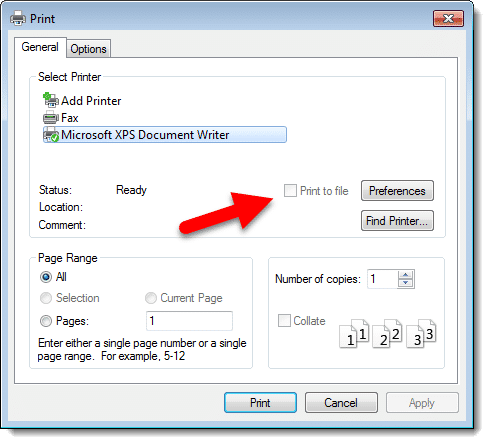
This option may appear in different locations on different print dialogs, or it may not appear at all. You’ll note that’s a Windows 7 style dialog; “Print to file” doesn’t appear on any of my Windows 10 installations. That’s a bit of a clue as to its current usefulness.
Printing at a high level
Printing is really a kind of conversion process.
When printing a webpage, the software involved “translates”, in a sense, the webpage that you see from its original HTML encoding into instructions specific to your printer1.
Each printer family, or sometimes even printer models, understand different sets of instructions. When an application prints, it communicates with the Windows printing interface, which in turn communicates with the driver for the printer you select, to translate the instructions into whatever language the printer understands.
The result is sent to the printer, which presumably prints what you wanted.
Printing to a file
When you select the “Print to file” option, the data in the last step (normally sent to the printer) is written to a file on your hard disk instead2. Typically, the output is saved as a “.prn” file.
One idea is that if printing in your application is a time-consuming or inconvenient process, you can click Print once and save the output of that print process using Print to file. Any time you need an additional printout, you simply copy it to the printer.
Copying a “.prn” file to the printer can be as simple as dragging and dropping the file onto the printer icon in Windows Explorer, or entering a copy command like “COPY FILENAME.PRN PRN” in a Windows Command Prompt.
Printing directly from the original isn’t typically that difficult these days, so there’s little need for printing to a file anymore.
And, in fact, there are a few reasons why you might not want to try it.
Problems with Print to file
Most printer drivers today just don’t support it; the option isn’t even present. Even if the checkbox is visible and checked, the printer driver may still not support it, resulting in errors at print time. Sometimes the errors persist across different printings, even those not using print-to-file.
More importantly, however, as you can see from the description of how it works, a file created using Print to file is not portable. It works only with the specific printer selected at the time it was created.
You cannot take a “.prn” file created by Print to file and expect it to work on any printer. At best, it’ll only work on printers that are compatible with yours — possibly only the same make and model.
What you probably really want
Print to PDF is a better solution, and its ubiquity is likely responsible for the demise of Print to file.
Print to PDF creates a PDF file, which stands for “Portable Document Format”. PDF files are not in any printer-specific format at all, but are optimized for display as if they had been printed.
PDF files are portable, not just from printer to printer, but from device to device. A PDF will display — and print — the same3 everywhere, on every platform.
Windows 10 and other modern operating systems now include Print to PDF by default.
Do this
Subscribe to Confident Computing! Less frustration and more confidence, solutions, answers, and tips in your inbox every week.
I'll see you there!
Podcast audio

Footnotes & References
1: Or printer-mimicking device like Print to PDF.
2: Actually, the instructions are generally written to a file anyway — this is the role of the print spooler, which marshals multiple applications all trying to print at the same time. While there may be differences in the details, “Print to file” can also be thought of as “Don’t send the spool file to the printer, and don’t delete it.”
3: In theory. I’m sure there are edge cases where the formatting may be incorrectly created or displayed, depending on the software creating the PDF or the software displaying it. The goal of PDF, however, is to be the same everywhere.


OMG! Thanks so much for the person who asked this question and thanks Leo, for choosing this question to answer. I have tried to find an answer to this and never came up w/ anything I could understand. Everytime I see it…I think what the heck does that mean? And it bug me that I never knew, but now I do. Thanks again!
>COPY FILENAME.PRN PRN
Does not work. You also need /B flag. I still could never even get that to work right, either.
Nowadays, as you say, just stick to printing to PDF and XPS and ignore the “print to file” option.
I’m not sure, but… perhaps “Print to file” is also useful when a given app is not available? For instance, you print a CorelDRAW “.cdr” file to file and take it on a USB thumb drive to another computer where CorelDRAW is not present, so you can – given all other stuff allow you to – print the .cdr file there?
To transfer a Corel Draw, Adobe Illustrator, Adobe In Design, or any proprietary graphics or desktop publishing file to another computer, the preferred method is to save it as (print to:) PDF format. That’s what PDF was created for.
To be clear that doesn’t transfer the original, editable, file with all its information. That only transfers a print-out, a rendering of the file. Two very different things.
That’s what I meant. PDF is the universal version of what Print to File creates. It’s totally cross platform where a .prn file only works in Windows.
I’m interested in this “Print to PDF” option. I don’t remember seeing that. Where is it available?
Also, what is “XPS”?
24-May-2011
Things have changed in Windows 10 and a third party PDF printer is no longer necessary. It is included in Windows 10.
Print to file or save to file is used quiet often to create a post script file, especially when using graphics applications that can then be opened or converted by using acrobat distiller to create a .pdf file. This type of file can contain all of the notes and information used to create the original file and is helpful when sending the file to another printer or service bureau. The original printer selected must use the post script language.
I use print to file when I run out of ink and my printer won’t work; I can print the file later. Also when I order online and want to keep a copy of the receipt, just print to file and when the order comes in okay, just delete the file. It’s maybe not the most useful little tool out there, but I wouldn’t go so far as to call it a relic since I do
still use it on a regular basis.
24-May-2011
Nick,
XPS is “XML Paper Specification”, which is basically (AFAICT) Microsoft’s attempt to replace PDF.
http://msdn.microsoft.com/en-us/windows/hardware/gg463373
The “Print” facilities to a PDF File such as CutePDF above, are extremely useful for creating files recording transactions such as Flight Ticket Receipts, Boarding Passes etc.
I do a fair amount of business flying (been “retired 12 years!); and this is an easy way of keeping track of costs, times etc, for submitting Expenses Claims at a later date.
Print to File is also used within accounting software to enable printing of reports to files of several types, usually text or spreadsheet files. In this case it has no printer codes and can be opened and reviewed or re-printed later. Most people now just print to pdf files for this purpose.
About 15 years ago I used Print-to-File frequently when setting up printers to print on preprinted forms. Looking at actual code sent to the printer – and a copy of the printers communication protocol – facilitated finding exactly what needed to be tweaked to get a correct output.
Now, I generally print both form and content at the same time onto blank paper.
I like CutePDF, but prefer doPDF. Maybe just because it’s the first one I used, and I trust it. Just another option. I run it on 64 bit.
I love these articles about the obsolete stuff. It is hard to believe that I have been playing with computers so long now that I get nostalgic about things like the memory of my old Panasonic dot matrix printer sounding like a grinding wheel sharpening an axe.
Oh no! The dinosaur DNA in me has finally appeared. Back in the good old bad old days, I worked on some of the early CAD systems that had very limited printing ability to more common printers (we typically used more specialised plotters such a couple of monolithic XEROX plan printers). Also, doing file transfers to many clients was impracticable as the files were too big to fit on one disk and inevitably, one of the spanned floppies would fail at the client’s. So, we used to create print files using the drivers available on the CAD software that matched available printers at our clients. That would fit on one floppy that could be stuck in the shirt pocket and hand delivered.
When .pdf software became available it was inevitable we’d go down that path and the internet was coming down the turnpike too.
These days engineering offices just email or ftp the files to the client and IF they want a hard copy, their CAD software has drivers for every printer under the sun.
Just one comment on the error message that you included. Every time I see a similar message, “An unknown error has occurred….”, it makes me wonder if there are any “A known error has occurred…” messages? If it was known, it couldn’t exactly be classified as an error, could it?
When one of Leo’s article is worthy of adding to my ‘tech info’ folder I just ‘print to file’ without the need to kill another tree by making an unnecessary hardcopy. John. :-)
28-May-2011
Printing to pdf (I use CutePDF) is also useful for:
1. Storing a web page, rather than having another folder created with all its files. (though it seems there are other ways of dealing with this)
2. Printing only one page of what might otherwise be more pages than one wants to.
Great answer. I always wondered what that was. But you’ve now piqued my curiosity about another item when you write, “Finally, a use for the “Microsoft XPS Document Writer”.” As I only have one printer connected, why do I see the “Document writer” listed as choice of printers? What is it and how do I use it?
02-Jun-2011
I think you’re a bit hard on print to file, Leo. I used it when i was printing many copies of a large document (like a book), for two main reasons.
1 – it takes PagePlus a relatively long time to perform the print
2 – setting all the print parameters (page range, even/odd, print quality, borderless, dup[lex, #copies) is easy to mess up
3 – (the THREE main reasons…) if I had the document open I sometimes made unintentional edits in the 2 days it took to print
Also – copy to PRN only works (for me) if my printer is connected to a parallel port, and dragging a PRN file to a printer icon also does not work for me. I just tried it again.
The only way I’ve found that works is to share the printer and use a DOS box to copy the PRN file to the share name of the printer. I’ve never tried to drag a PRN file to a shared printer.
A .prn file should be much smaller than a .PDF file. It can be used to circunvent driver shortcomings. The file contains the actual commands the printer supports and can be executed on an operating system which does not support the attached printer. For example, some recent printers do not have Windows 98 or Windows 2000 drivers. The printers can be “installed” in machines running those operating systems but using a “lesser” driver. For example, most LaserJet can be installed as “LaserJet III”. But then features of the later models will not be available. If a document is prepared in a machine with the correct driver for the printer then eMailed as .Prn to the machine that uses the “lesser” driver, it will print just as it would print in the source machine.
wasn`t able to go all the way but this was helpuf coz anytime I have a proble, printing would go to run net stop spooler and everything is erased and go back to start.Thanks
In Windows 3.1 days, I’d create in MS Word but couldn’t print. The computer I printed from didn’t have Word. I installed the printer driver on my computer and printed to file. I could then take the file on floppy disk to the other computer and print it using the copy command; although I found the binary copy (with the /b switch) was more reliable. Now I just print to PDF if I’m in that situation.
Microsoft has added “Print to PDF” as one of the printers in the print dialog box. I use it often. Before MS included that, I used a third party PDF printer like CutePDF.
I still have the “Print to file” checkbox in my print dialog in Windows 10. I’ve never once even tried it. It’s one of the least used features of Windows.
Now that Windows includes a PDF writer, they have a Print to File which actually works and is fully cross-platform and works on any printer. I was possible for years using third party .pdf printers but now it’s part of Windows and it’s time to drop .prn file creation.
Actually print to file DOES exist in Windows 10, it’s under the port settings. It’s also extremely useful for techs in the printer industry. I used it the other day to help identify the PCL command syntax operating the finisher on a Ricoh multi-function copier.
This feature is also very handy if you want to perform certain actions with the prints based on what was printed, e.g. turn that sales report into CSV and email it to Bob, add this order to a database and save it as an RTF in that folder, etc. Then you just make a program that reads this print file, instead of trying to make your own special printer driver.
Oh? So what’s up with that “Creative Commons” bit at the bottom of the page?
I’d chalk that up to a policy change since the original article which was published 9 1/2 years ago.