A picture really is worth a thousand words. Perhaps even more.

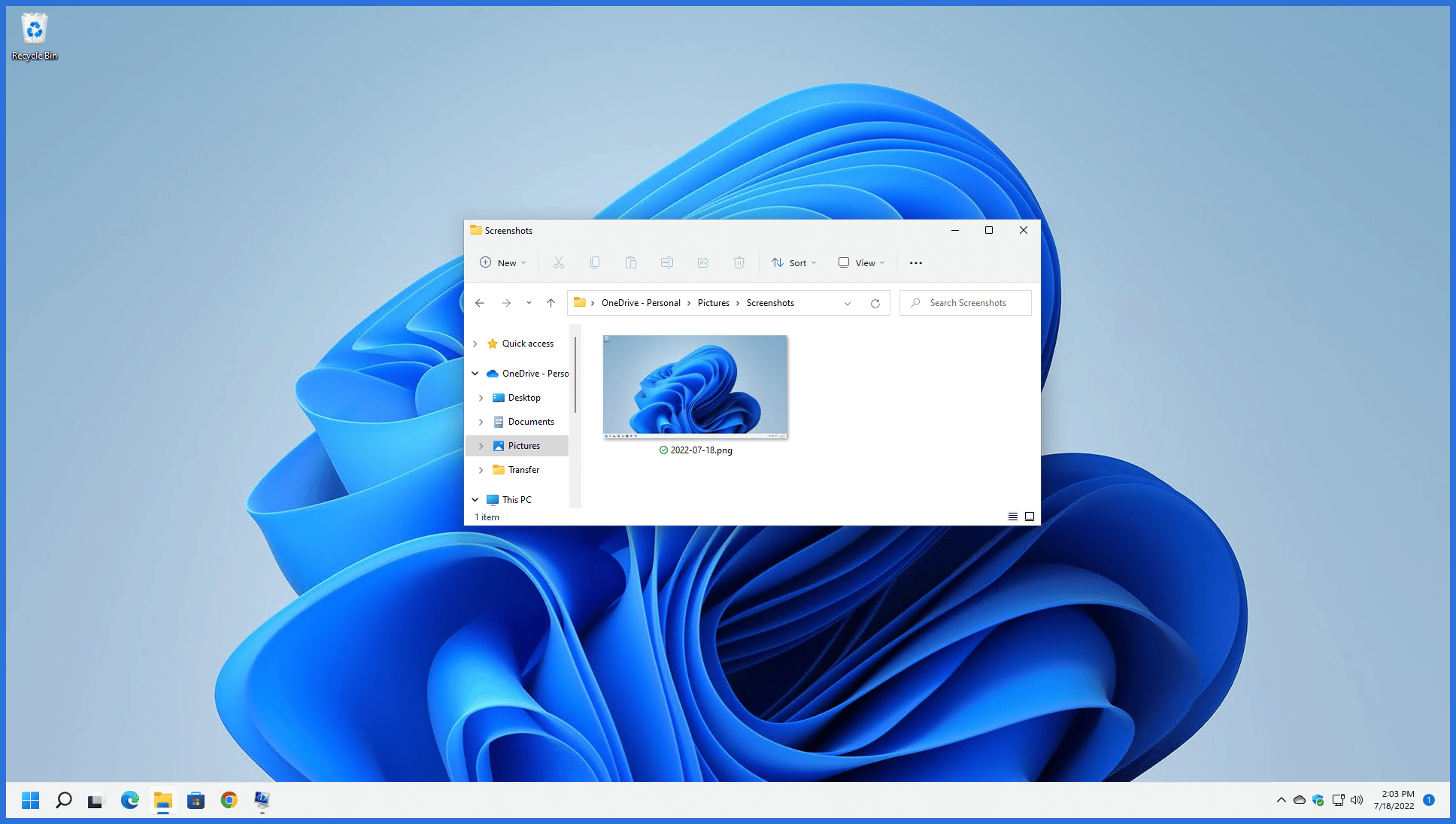
A screen shot, screenshot, or screen capture is a way to “take a picture” of your computer screen (or a portion thereof).
Let’s say you’re trying to explain a computer problem to a technical friend of yours, and you’re trying to describe what you see on the screen: the dialogs, buttons, messages, whatever. You’re not sure of the terms to use, and your friend is having a tough time understanding your description.
And of course, your friend insists that the exact wording of everything you see is incredibly important (and for the record, he’s right.)
So, send him a picture.
Become a Patron of Ask Leo! and go ad-free!

Taking screenshots
 +PrintScreen and ALT+PrintScreen are two quick ways to get screenshots, which are placed automatically in your Pictures\Screenshots folder. For a little more power and flexibility, including the ability to annotate your screenshots, run the Snipping tool.
Print Screen
The quickest way to take a screen shot is to press +PrintScreen, which takes a picture of your entire screen and saves it to the Screenshots folder.
Alternately (so to speak), press ALT+PrintScreen. This will take a picture of only the current application. For example, if you’re working in Microsoft Word, then ALT+PrintScreen creates only a picture of the Microsoft Word window, whereas +PrintScreen would include everything on the screen.
In Windows 11, PrintScreen will also leave a copy of the image in the clipboard so you can paste it into another program capable of operating with images if you’re so inclined. For example, you might paste the image into a WordPad document or an email.
The screenshots folder
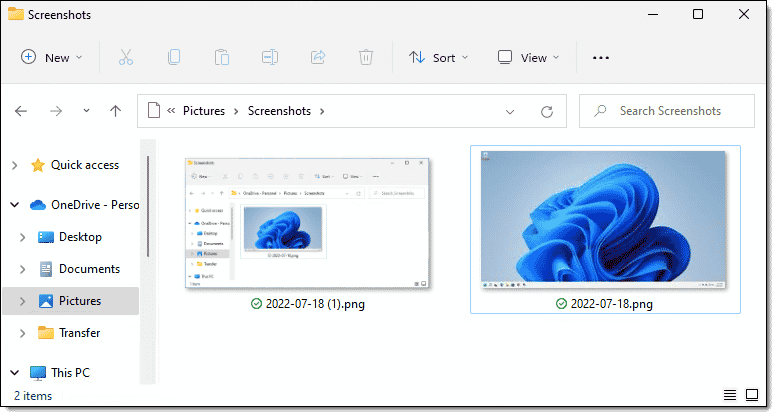
By default, the PrintScreen function places your images into a folder called Screenshots within your Pictures folder. Pictured above is my Screenshots folder with two screenshots:
- On the right, a screenshot of the entire computer screen captured with +PrintScreen.
- On the left, a screenshot of the Windows File Explorer window captured with ALT+Printscreen.
The first time you make a screenshot using this method, Windows may ask if you want to store your screenshots in OneDrive.
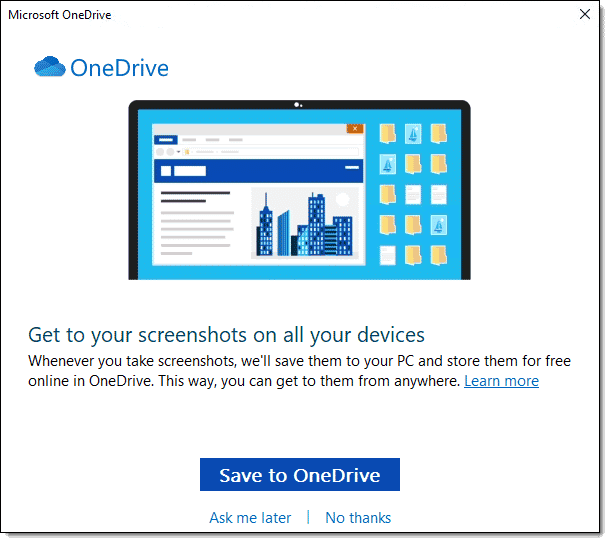
If you save to OneDrive, the Screenshots folder will be within the Pictures folder within OneDrive. In my examples above, that means “C:\users\<username>\OneDrive\Pictures\Screenshots”. If not, then the local folder is used outside of OneDrive: “C:\users\<username>\Pictures\Screenshots”.
Which you use is up to you. I find it convenient to have the screenshots replicated to my other machines enrolled in the same OneDrive account.
Snipping Tool
The Windows utility that allows us to take screenshots is called the Snipping Tool.
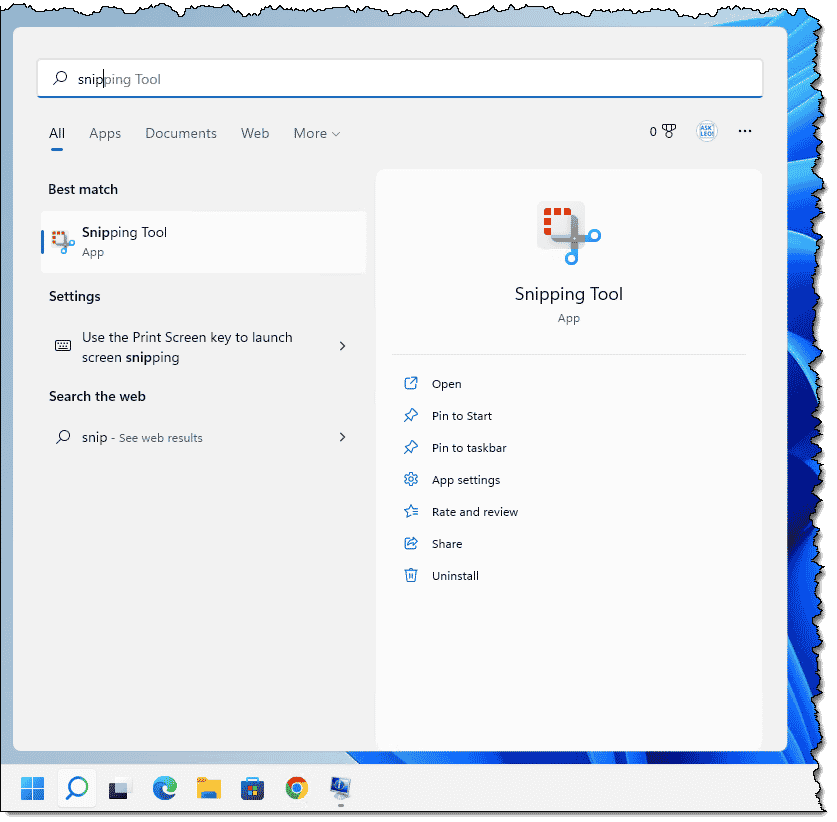
Click on the Start button and start typing “snip”. One of the first search results will be the Snipping Tool. Click on Snipping Tool to run it.
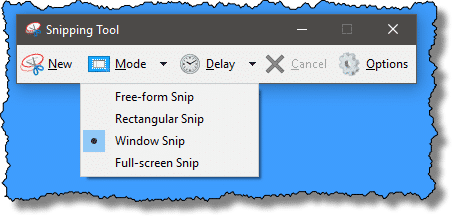
The tool has several modes, including Full-screen Snip (a picture of your entire computer screen), Window Snip (a picture of a specific window you designate), Rectangular Snip (a picture of an arbitrary rectangular area on the screen), or Free-form Snip (a picture of a shape you draw on the screen with your cursor). In the example below, I’ve selected Window Snip.
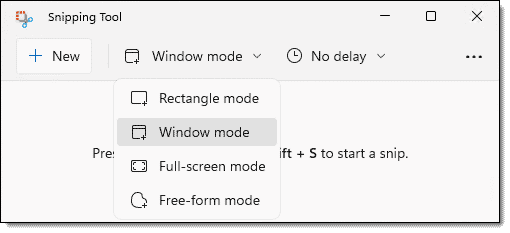
Next, click on New to begin the snip. The screen dims until I click on the window I want to capture. The Snipping Tool takes the picture and presents a notification.
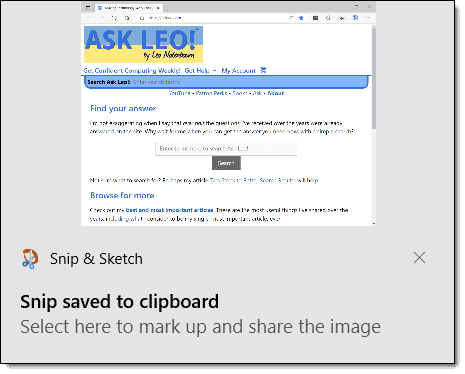
Click on “Select here to mark up and share the image” to edit or mark up the screenshot before saving it.
On a Mac?
Macintoshes have screen-shot capability as well. Check out How to take a screenshot out at Mac Help For Mom.
What I do
The Snipping Tool provides a basic yet powerful approach to getting screen captures. It’s free and included with every copy of Windows.
I use something else.
I use Snagit.
When run, Snagit replaces the PrtScn functionality with its own. It allows for full screen, partial screen, and even full scrolling-window capture, video capture, and a number of capture-time options. It also comes with a fairly powerful image editor that allows me to quickly add call-outs, arrows, and the fancy “torn edge” effect I use in many of my screenshots, including a couple of those shown above.
Most folks don’t need an additional screen capture utility.
That being said, if you take screenshots regularly (as I do), a more powerful tool with more options both in capture and annotation might well be a valuable addition, and Snagit is an excellent choice.
Do this
Hopefully, you see the value of screenshots by now.
You’re presented with a complex situation or a huge, long error message that you don’t want to re-type and want to show someone.
Run the Snipping Tool or press PrtScn, and you’re on your way to creating an image of the screen, with everything exactly as you see it.
Something else that’ll help? Subscribe to Confident Computing! Less frustration and more confidence, solutions, answers, and tips in your inbox every week.
Podcast audio

Related Video


If you take a screenshot to send to Ask Leo, send that picture file directly. Please don’t paste it into a Word document or .pdf before sending. It’s more work for you to send and more work for us to open and view them. And more importantly, since Word and .pdf documents can contain harmful macros, I won’t open them to view the screen shots. Send only .jpg or .png files.
hey, i did everything you said to do in your article but once i open paint or photoshop, you can’t click the paste button which means that it didn’t work. i don’t know what i’m doing wrong?
The most common problem I see is that PrntScrn sometimes is on a key with another function as well. Often in those cases you need to also press shift, Fn or FLock key to get it to work. Exactly what depends on exactly what keyboard you have.
RE: capturing a screen shot…
Leo,
When I open “Accessories” I do not have a “Paint” selection in the box. You mention “or equivalent” but I don’t know what program that might be. Can you set me straight? I have Windows XP Home Edition. Thanks.
There are lots of image editing programs out there. PaintShop Pro, Gimp, Adobe Photo Shop, and many more.
A great free program for doing screen captures is MWSnap from http://www.mirekw.com.
It allows you to capture all or selected part of screen. You can then print it directly, save the picture to a file, or copy/paste it to your word processor or whatever.
For best, easiest results, try Screenshot Captor from the Donation Coder Website (www.donationcoder.com). It has built in editing designed specially for screenshots and is registerware.
it’s really a good article for biginners. this works in many conditions, but still some does not work. for example, if someone need tocapture a screenshot of streaming video or a series of screenshots. sometime a screen demo tells more, there are many tools there can make this, such as DemoBuilder(easy to use and powerful, but only have a 256 color depth output), DemoCreator (a fresh man in this field, but a really good potential competitor of demobuilder), Captivate (maybe the most powerful one, but costful and a little complicated for biginners), Camtasia (powerful, but takes too much system resource).
DemoBuilder, http://www.demo-builder.com
DemoCreator, http://www.sameshow.com/demo-creator.html
Captivate, http://www.adobe.com/products/captivate/
Camtasia: http://www.techsmith.com
Fantastic article as a senior citizen with no computer training I often make elementary errors or find tutorials over complicated.This one was great
although I even managed to complicate by not opening a file in Photoshop and tried to paste it direct into the Programme.I hope this little aside helps other beginners
Richard
Such a basic function, and so easy to forget. Thanks for making it so easy to do, and for including so many details. I used Adobe PhotoShop to paste my screen shot into and got a perfect image. I was also able to paste it into a MS Photo Editor easily, but just as PhotoShop has easier to use functions in every other regard (like cropping, a basic), it is also easier for pasting a screen shot, since it automatically creates the canvas size in the same dimensions as the image. I have no idea how MS Photo Editor decides what size to make the canvas, but it is inconvenient if one does not know the exact size of the image to be pasted.
Anyway, thanks, Leo, for making this an easy task.
Everything Leo says about your Print Screen Key is a fact, but….instead of saving it right off in a “program”, paste it in an email and save it from there…(Aol email can also resize) and will automatically be saved as a Jpeg file. If u paste in your programs such as Paintshop Pro etc first…u also can crop it cause we very seldom want to save our whole screen. Then can email cropped and resized results…
Hi there,
PrtScn command is easy enough, but how about if you’re working on a program that works in DOS and covers the whole display? I PrtScn the display; hit the Windows key on the keyboard to go back to MsPaint, I hit ‘Ctrl+V’ and nothing happens, because there is nothing captured in the clipboard. Do you have a solution to this? Thanks by now.
—–BEGIN PGP SIGNED MESSAGE—–
Hash: SHA1
Try pressing ALT+Spacebar. For many DOS based programs that will actually
switch them into Windows mode where your printscreen will work just fine.
Doesn’t work for all, but does work for many.
Thanks,
Leo
—–BEGIN PGP SIGNATURE—–
Version: GnuPG v1.4.7 (MingW32)
iD8DBQFHcpWxCMEe9B/8oqERAtsqAKCNCRnVf4NuiGL2lGS0Lnt1eAqlaQCgg8zC
w93ub4lq2F2Yn5qPjoTicbI=
=s10n
—–END PGP SIGNATURE—–
hey everybody, i figured it out. try pressing f lock on your keyboard and then try it. it worked for me after fooling around with a few buttons. best wishes,
Tye.
Incidentally there is an easier way. To do this, use the http://www.magicscreenshot.com/ it can make a screenshot of any area of the desktop, and even sign a screenshot
I like Total Screen Recorder,which could record webcam video,desktop video and upload the video to youtube freely.It could record the video as long as you wish. Not like the other screen recorder, which just let you record one minute or with large watermark on the video.http://www.totalscreenrecorder.com/
PrntScrn button is not the best way, especially if taking screenshots is a part of work =)
There are dozens of good screen capture tools and web-sites in the net. As for me, I prefer programs, cause a site can lose a shot from the game and you’ll never restore it. My favourite one is SnapaShot, it’s small (no installation), quick and easy (you can work with only 2 buttons, if you hava Vista or Win 7). You can try a free version here: free screen capture software
The Windows 7 Snipping Tool is a nice included update of the PrintScreen method.
http://windows.microsoft.com/en-US/windows7/products/features/snipping-tool
I tried Snagit and loved it, but they want too much for it. I have used Snipit, but I also have PrintKeyPro.
There are just so many free screen captures out there. Almost all seem to work very well, so it must be an easy thing to do. I myself just usually use ScreenHunter. While not saying that this is necessarily the best, it certainly fulfills all my needs, quickly and easily. As to PrtSc it is cumbersome and a waste of time, not to mention no options.
I’ve been using the PrtSc/mspaint method for so long, I didn’t realize that Microsoft had added a new tool for this purpose. Thank you for the tip.
I don’t think the Windows Snipping Tool is in Vista. I believe it started in W7
12-Dec-2012
My favorite (free) screen capture program is MWSnap. So easy to use and the picture you capture can be saved, printed, or copied and pasted into a document. I use it all the time for preparing project submittal drawings. Works great for crafting projects as well.
I use IMTOOLPACK it’s free and will grab whatever portion you desire and allow you to print/save.
I use a powerful free (donationware) program called ScreenShotCaptor. It runs when you press PrintScreen and allows you to edit and annotate the screen before saving it or placing it in the clipboard. I don’t know it it’s as good as SnagIt, but it does the job for me.
I use screenprint32 in XP. It allows pretty much the same features as Snipping in 7 and activates from the printscreen button or any other key you select in the options.
In snipping you can’t use a shortcut key and is a hassle to go to programs or Start Menu for a quick capture.
I have placed Snipping in the launch bar as a workaround for a shortcut.
I have been using PrtScr in 7 and it defaults to the printscreen button as a shortcut.
However you have use the control key to drag a rectangle.
Wish I could meld all of them together.
I will give SnagIt a try. Appreciate being made aware of it.
Try out IrfanView – it’s the simplest way to capture an image & add text to it.
Love, love, love Snag It. From training documents to simple emails, it helps me tremendously both in the office and at home. The license even allows personal use for both a home and work PC. Highly recommended.
If you need to send information about a problem you’re having, you can use the Problem Steps Recorder in Windows 7 and Windows 8.
Type psr.exe in your search box and it will open the Problem Steps Recorder. Click Start Record at the top. Then you just do whatever you are having a problem with. It records every click you make as well as taking screen shots. When you’re finished, click Stop Record. You can then save the file or email it directly from the program.
I use the screen shot as a backup. I use screen shot to copy/paste my desktop, my add/remove programs, my program files, and I also go to start/programs and use screen shot to copy/paste all the programs that are on the desktop. I copy all of these in a backup folder with a word document in case I need to do a wipe and reinstall the operating system.
PicPick is a great, free graphics tool available from http://www.picpick.org/en/.
It includes, all in one “resident” utility:
– Screen Capture (portions, all, even scrolling)
– Color Picker (eyedropper to capture colors)
– Color Palette
– Magnifier
– Pixel Ruler (for measuring height/width)
– Protractor (for measuring angles)
– Crosshairs
– Whiteboard (for illustrating a point)
– Fairly sophisticated image editor
I’ve kept it handy for years. It’s a TSR you can load at Windows startup, so it’s always at the ready.
[Leo]: “After you’ve pressed PrtScn, fire up your favorite image editor or use the Paint program that comes with Windows by pressing Start, All Programs, Accessories, and then Paint. This places an image of the screen into the system clipboard.”
Or, START>ALL PGMS>ACCESSORIES>WORDPAD (not “Notepad”) then right-click and “Paste” at the cursor.
About Print Screen… On Windows 7 we always hit the FN button plus PRTSC button to capture the image. Then we open a Word document and hit Control-V to print the screen to a Word document where we can name and save it. Makes it easy to send it out in emails!
The one thing that annoys me about the Snipping Tool – tho’ I love it otherwise – is that I can’t paste directly into my AOL e-mail Compose page! Seems I have to paste it into Word, then make an attachment of the Word doc to send it to anyone. Any ideas, anyone, for an easier way?
Hmm…the copy & paste with snipping tool method works fine with Office Outlook email in Win 7. Can also drag the handles of the image to resize it in the email.
Thnx leo!!
U’ve been doing great, solved a lot of my issues wid my pc.. Jst commented to say a humble thanks
Cheers
:)
A Mac question…sort’a?
I have looked for this on the web, see quite a few ‘How-to’s’..but have yet to find one that actually works.
When using a Mac USB keyboard (used explicity because of touch preference by someone that types..FAST… for a living) on an XP machine..is there a key sequence that accomplishes a Windows ‘Prt Scrn’ function?
Oh..and no F13.
Thanks!!
I use Mwsnap which works good for me. With it you can frame what you want. Or do a full screen.
@Brad,
Here’s an article from Leo about what software he uses. One is a very cool tool that allows you to capture key-sequences and turn them into hot keys.
Autohotkey mouse and keyboard remapping macros and hotkeys
@ connie
An existing key sequence would be needed..no re-map program, script or other tool. The machine mentioned is on a secure network that will not allow users to ‘run’ anything.
Thanks, though.
If you find it cumbersome going through all those steps to get to the Windows Snipping Tool, there are a couple of ways of creating shortcuts to make it easier.
1. Right click on Snipping Tool under Accessories in the Program Menu (If you’re using Windows 8 with Classic Shell, it’s under Windows Accessories), click on the shortcut tab, and choose a shortcut combination. (Ctrl+F12 or Alt+F12 might be good choices)
2. Right click on the Snipping Tool under Accessories (or the Windows 8 tile menu after typing snip) and choose Pin to Task Bar.
In Windows 8 hitting windows key + print scrn puts a dot png copy of the screen into a folder in your pictures library. Maybe this is off the subject.
Is there a way to print something that is more than one screen full? I was trying to capture something that was spread across several screens. I just kept moving down the page taking screen shots. Kind of crude. Maybe that is a subject for another day.
I think Leo mentioned it in his recommendation of SnagIt. He said it will capture a scrolling window. Correct me if I’m wrong Leo (because I’ve never used it), but that says to me that I could use SnagIt to get a screen capture of this entire Firefox window from the question at the top to the last comment at the bottom and it would all be in one image file.
Utilities like SnagIt can do scrolling screen shots.
I might have past it, but nobody mention the little program (and is free) called ditto. It can save a picture about as fast as you can push the print screen button. http://ditto-cp.sourceforge.net/
Softoria Capture works well for me, both on XP and 7. It’s free, and after I’ve finished with it, I can exit the program, while leaving it available.
The one I use is WinSnap: version 1 is still available and free, and has a variety of colouring and shadowing options. One of my browsers, Fastpeak SlimBrowser, has screenshot commands built-in to the File menu. I also often use PrtScrn with Paint; I have read that Alt + PrtScrn only copies the working area of the window, but in my experience the whole window is copied whether or not Alt, Shift or Ctrl are pressed.
Use screen captures for removing all possible EXIF data from photos.
I suppose there are lots of different ways to do this. Personally, I often use the OneNote screen clip utility [hold down windows key and press s if you have OneNote running in the background]. Then copy it into one note and you can send it as a PDF attachment. You can also do annotations using the insert menu.
There is no way to print iTunes receipts out of your purchase history. You often receive receipts in your email, but they come one at a time, and as I have dozens of purchases I need to submit to my administration for reimbursement, one-at-a-time seemed ridiculous, and Apple is not faithful about sending a receipt email every time either. The Snipping tool– making a screenshot and copying it into a word document–perfect. Thanks!
I use Windows 7 and still prefer Print Screen and Alt+Print Screen. Maybe because it’s ingrained in me since Windows 3.1 or maybe because I don’t see the need of using another program to do something that is natively built into Windows. Of course I understand some people might not remember the key combination and so having a program might be helpful to those people.
If I remember correctly, there used to be a key combination you could press when you got a dialog box with an error message. You could then paste the error message into an email or a text or Word document, instead of having to type out the error message, if you were asking for help. I don’t remember what the key combination is. I wonder if it still works?
CTRL+C would do that for many “basic” error messages. Copies the text (only) to the clipboard. More here: http://askleo.com/can_i_avoid_retyping_error_messages_when_i_need_to_report_them/
Re: Screenshot?? Is there a way in Windows 7 to get back a snapshot/prtScr from your clipboard AFTER you have right clicked on something else and copied?? I had 2 pop up boxes save in print screen and I went into my email after that and copied an email and lost the first print screen on my clipboard HELP PLEASE I need the first file back??
You’d have to install a third party clipboard manager to save previous copies of your clipboard. I use Ditto which is free and does a pretty good job. It’s also available from the Microsoft Store.
I’m using Windows Vista. When using the Snipping tool it will not allow me to put the rectangular shape around the entire word document. As I drag it down it just stops and won’t scroll down to bottom of document. PLEASE HELP!! :(
Kelly
Thank you for sharing about screenshot methods other than PrtSc. Through this episode, I learned about Alt-PrtSc and the Snip tool.
I have often used Evernote’s Screenshot, to Skitch. However, it is quite clumsy. For one, it has them as PNG files, so when you paste them into Outlook, they show up as an attachment, rather than in the message. My workaround is reopening it in Paint, and copying to clipboard. The other clumsy aspect is it sometimes takes forever to save an annotation. Thought it does have nice arrows. I will try to use the Windows 7 Snip tool, which I easily found, as well as the Alt-PrtSc to just get that window, if needed
You said: “In Windows 11, PrintScreen will also leave a copy of the image in the clipboard” I’ve found that all versions of Windows from, at least, Vista and 7 also leave a copy of the image in the clipboard.
The Snipping Tool is great for most people and Snagit is a bit pricey for the casual user. I use Ashampoo Snap. It doesn’t have as many tools as Snagit, but it’s enough for me. The normal price is $25 but I got it when it was on sale for $9.99. I’ve found Ashampoo often has major price cut promotions.
A free solution for editing screenshots is to copy them to the clipboard using one of the methods Leo describes in this article and paste them into IrfanView. Other image editors will work for that, but I’ve found them all to be more work than necessary for editing most screenshots. IrfanView allows cropping, inserting lines, arrows and basic shapes like elipses etc.
I think it’s most important to memorize the keyboard shortcut for the snipping tool…
WIN KEY + SHIFT + S
Hope this helps
I want to take a screenshot of the whole browser with the whole webpage in a single screenshot, how to do it? Using Windows 10.
For example if I am taking a screenshot of this page, the top most would show the browser tabs, then the row with back, forward, refresh, url https://askleo.com/whats_a_screenshot_and_how_do_i_take_one/ , then the Ask Leo! logo and the whole page of content until the bottom most text “Additional information is available at https://askleo.com/creative-commons-license/.”
Thank you.
Snipping Tool works great as described in Leo’s article. The government Institute I worked at before retiring decided on a screen capture product named Greenshot. https://getgreenshot.org/ Decided on Greenshot because it is free.
Greenshot has more features than Snipping Tool. Although probably not as good as Snapit. e.g.: No video capture. I have not tried Snagit.
Leo, you wrote:
“The quickest way to take a screen shot is to press [the] Windows Key + PrintScreen…”
I can’t check, as I’m on my Amazon Fire tablet at the moment and not my PC, but I could swear that just pressing the “PrntScrn” (PrintScreen) button alone, is all that is needed to place an image of your current screen in the Windows clipboard. Are you sure that pressing the Windows key along with PrintScreen is required? (I’m using 64-bit Windows 7 Home Premium, if that makes any difference.)
The article is correct. The PrtScr key alone will copy all the visible windows to the clipboard. The Windows Logo Key + PrintScreen will also save it to a file in the Pictures\Screenshots folder
The Pictures\Screenshots folder???
I wasn’t even aware that there was any such a folder!!!
As Trevor Noah says, “If You Don’t Know, Now You Know”
Too bad the Windows Snipping Tool doesn’t allow you to copy more than one screen page at a time. If it did, I would use it to copy some of my emails from vendors (and paste into Excel), emails which are becoming increasingly difficult to print out correctly in the email program.
Some third party screen capture programs such as Snagit can do that.
Grrrr. Left and right carets do not show in my post, so I’ll re-post. I usually show keys by putting the key stroke between carets. Quotes usually would show what characters are typed.
I often used the “Print Screen” on my Windows 7 then paste it into Paint. It was a one-key press. I’m now on Windows 10 with a multimedia keyboard. I have to hold down the blue “Fn” key then press “Print Screen” (Without using the “Fn” key, the “Print Screen” key is an “Insert” key). I have searched several places, such as Microsoft, on how to lock the “Fn” key. It was something like Press “Esc” (which also shows a blue padlock with “Fn”) and the “Caps Lock” key. I still can not get “Print Screen” to work by pressing ONLY “Print Screen”. How can I lock the “Fn” functions, and later unlock the “Fn” functions if I need to?
Unfortunately, the process is different for different computers. That is a common problem with laptops which use the Fn key to assign different functions to keys. Most laptops allow you to recerse the way the Fn key works, but changing it is different for different computers.
I’ve been using Shift + PrtScn to screen capture for some time.
And Irfanview to edit. A good combo with ‘Paint’ facility.
Thanks for the info, as usual!
I sometimes do that. IrfanView is my favorite photo viewer and simple picture editor.
At the risk of sounding like a total newbie (which I’m not) where is the “Clipboard” ?
And thanks for the article. I have very often needed to know how to properly use the Printscreen function and struggle and have to google it.
The clipboard isn’t really a place. It’s internal to windows and you normally can’t access or see it directly. It holds whatever you “cut” or “copy” most recently. When you “paste” the contents of the clipboard are put wherever you paste.
In a way, with Windows 10 and 11, you can see the contents of the clipboard by pressing the Windows Icon key + V.
IF you have that feature enabled. It’s not on by default.
I was going to include a link to your article on that, but since it’s in Tip of the Day, the link would only work for Patrons. For any patrons reading this, you can do a search on Ask Leo! for “clipboard history”. For any non-patrons, become a Tip of the Day level patron and get tips like that one 4 times a week :-)
In Windows 11, when I press PrtScr key, it saves a copy of the screenshot to OneDrive. No need for any other key. I haven’t tried it in older versions of Windows ao I can’t say if it works on other versions of Windows.
When I take a screenshot, I simply press the PrintScreen key without the Windows Icon key ( )
)
Then I press CTRL+v into the email I’m composing.
If I only need a portion of the screen I paste it into a photo editor and crop it.
I find that the simplest method. All in a couple of clicks.