It depends on how you download. Typically they go into your “Downloads” or “My Documents” folder, so we’ll look at how best to check that.
But it’s also possible that they went into the same folder as the last download. We’ll look at why, and how to fix it as well.
There’s another place that downloads often end up that’s kind of dangerous, as it gets “cleaned up” every so often – meaning you could eventually lose your download. We’ll learn how to avoid that.
And we’ll look at how to find your file, regardless of where it landed.
Become a Patron of Ask Leo! and go ad-free!
An example file to download
First, here’s an example file for you to download.
This is a link to the PDF sample I make available for The Ask Leo! Guide to Routine Maintenance. It contains roughly the first 10% of that book, including its table of contents:
https://med.askleomedia.com/ebooks/routinemaintenance_toc.pdf
This example link shows the entire URL, but you’ll also see download links that look more readable:
Either will get you the same download.
Plain old click
When you click on a link, your browser may do several different things, depending on what the link points to. If it’s another web page, of course your browser will display it. If it’s something other than a web page (like a document or software, for instance) then the browser will, in all likelihood, offer to download it for you.
PDF files are kind of special. They’re not really web pages, but in most cases, web browsers display them as if they are. As a result, if you simply click on that link to the example PDF above, Internet Explorer may1 download the file, open it, and display it:

OK, so it downloaded to your computer … but where do these downloads go?
Well, like any page you download from the internet, your web browser downloads it to its cache. Yes, you can find it – I just searched for the filename on my hard disk and found it here:
C:\Users\LeoN\AppData\Local\Microsoft\Windows\INetCache\Low\IE\SSTJM638\routinemaintenance_toc.pdf
Not only is that not obvious and not friendly, it’s also not something you or I are ever expected to actually use. The thinking is that if you just click the link, all you want to do is read the contents without saving it. Eventually it’ll be removed from the browser cache, and if you want it again you’ll need to download it again.
Saving a PDF you view
Many PDF viewers embedded in browsers have an interesting feature: they allow you to save a copy without re-downloading.
For example, using Internet Explorer 11 with Adobe Reader 11 installed, if you move the mouse over the lower portion of the displayed document, a floating toolbar will appear:

There are several icons relating to PDF viewing, but the one I want to draw your attention to is at the far left: the disk icon. Click on that and you’ll get a “Save As…” dialog:
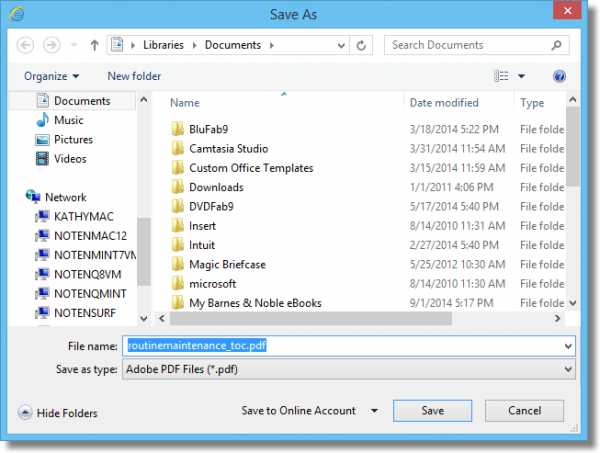
This will let you save a copy of the downloaded file to a location you specify.
The default location in this instance? Your Documents folder (or more correctly, your Documents Library), which is where we find the copy after clicking Save:
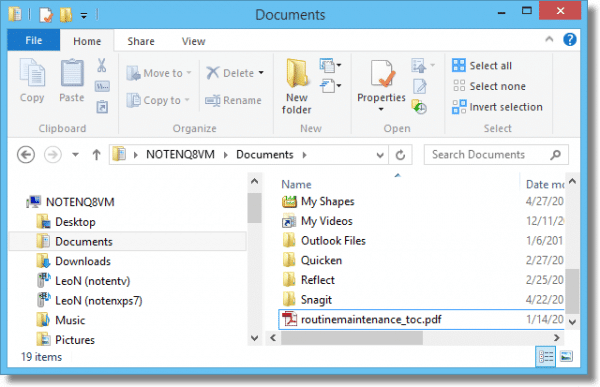
Now you have the PDF file where you can do what you will with it. Keep it there, and you won’t have to download it again.
Saving a file directly
Naturally, not all downloads are PDFs, so the option to save a copy while viewing it won’t always make sense.
Fortunately, there’s a way to avoid all that: just save the file directly from the start. The added benefit is that you control where the download goes from the start.
Right click on the link:
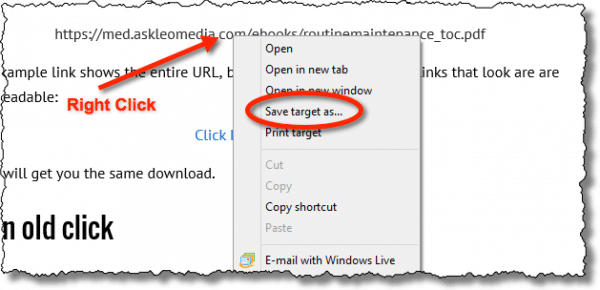 The pop-up menu will include an item “Save target as…”. In other browsers the exact words may differ; you may see “Save link as…” or “Download linked file as…” but the effect is the same: rather than simply trying to view whatever the link points to in the browser, you’re asking for it to be downloaded to your computer.
And here’s where things get weird.
The default save location
If you’ve never downloaded anything, or never downloaded anything since installing or perhaps even upgrading your browser, the location that resulting “Save As…” dialog box defaults to will probably make sense. In most cases, it’ll be the same “Documents” folder that we saw above.
However:
- If you’ve downloaded something before…
- and you selected a different download folder, directing the download to be placed in a specific folder of your own choosing…
- then the next time you download a file, the browser will probably default to that most recent location.
That’s why, when preparing this example, my default download location was something else entirely:
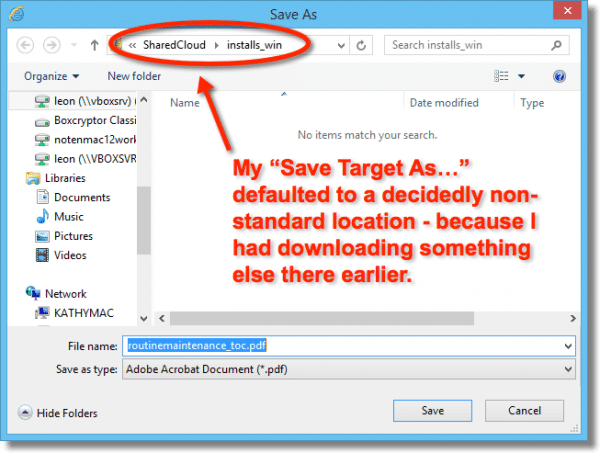
The solution is simple: select the folder you want before clicking on Save. But you do have to be watching and paying attention to the download location to know whether or not you need to do that.
Or you can simply do it every time. For example, clicking on the Documents library in the left hand pane of the Save As… dialog will set the download location in one click.
Set your own standard
Sometimes your browser, or your operating system, will actually have a “Downloads” folder that it uses for just this purpose. As long as you haven’t downloaded elsewhere, then your downloads will always go to this appropriately-named location.
Even if your system doesn’t do that, you can do it yourself. I find it a great way to organize my files.
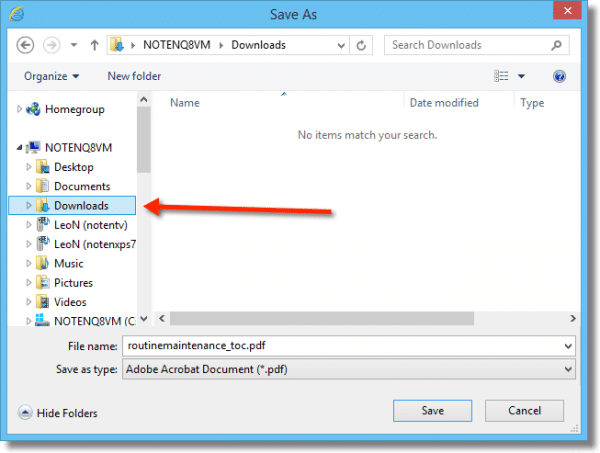
You can use the system-provided Downloads folder, if it exists, or you can use Windows Explorer (File Explorer in Windows 8 and beyond) to create a “Downloads” folder anywhere on your hard drive that you like, and then use that.
Once you download to that location, your browser will typically remember it for you next time.
The browser’s own download folder
Some web browsers either default to the system downloads folder more consistently, or they have their own. Fortunately, most have a quick way to open that default folder.
In Internet Explorer, that’s CTRL+J:
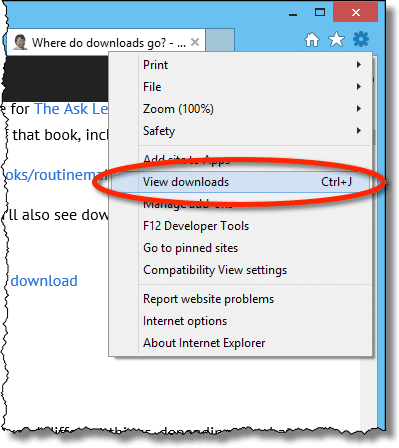
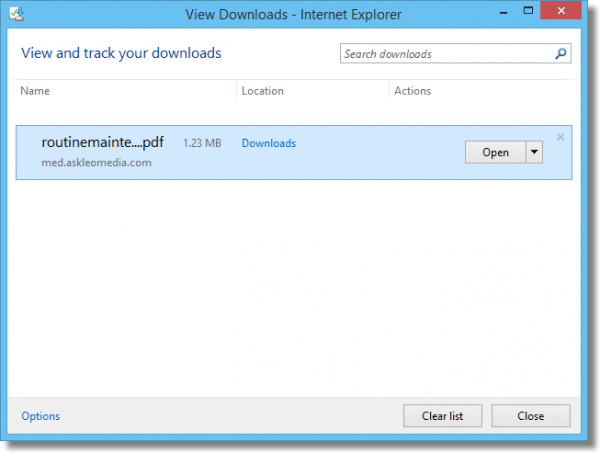
That will open a list of the files you’ve recently downloaded, and show you where they were placed:
When all else fails?
What if you still can’t find or figure out where your PDF ended up?
It’s time to search.
In Windows 8 at the tiled start screen … just start typing and the search interface will pop up:
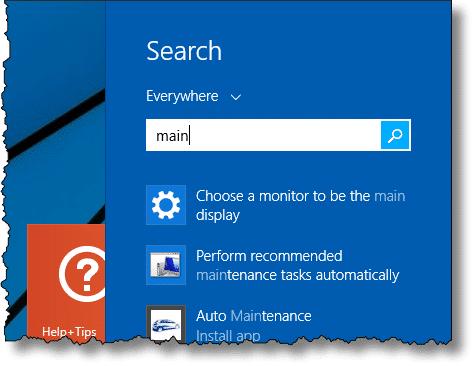 The download I’m looking for is “routinemaintenance_toc.pdf.” If I can’t recall the exact file name, I might start by typing “main” or “maint” – parts of the file name that I do remember. Windows will show me everything that matches.
The first thing to do is to narrow it down to files only. Click the little down arrow next to the word “Everywhere” and you’ll be given a menu of search options.
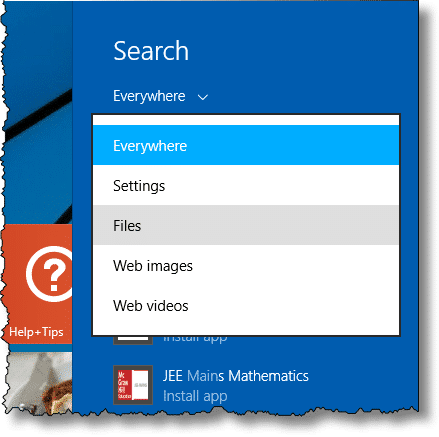
Click on Files to restrict the search to only files, and the results list will become a little more manageable. Keep typing letters of the filename until what you’re looking for shows up.
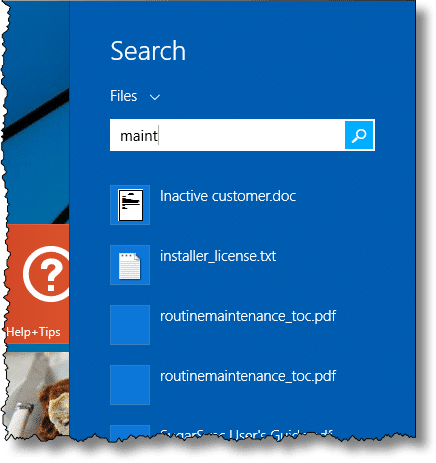
Once you see the file you’re looking for in the list, you can either click on it to open it directly, or right click on it and select Open file location to open the folder containing the file in File Explorer.
Do this
Subscribe to Confident Computing! Less frustration and more confidence, solutions, answers, and tips in your inbox every week.
I'll see you there!


Note that you don’t have to pull down the dropdown list for the directory tree to find the full path. Simply hover the mouse over the arrow, and a tooltip will pop up showing the full path. (This is quicker than opening the dropdown on systems with numerous network connections.)
Make a directory “Downloads” and put them all in it.
Safer still if you have more than one partition create a ‘Download’ on a partition as far away from C: as possible. That way if you need to reinstall on C: sometime you still have the downloads intact, useful if you haven’t backed up your downloads…. Haven’t tried downloading to a cd/dv/rw but is another option perhaps?
Interesting article. Thanks for the info. Question: The right half of your explorer window is divided into these different categories–Files, Drives, Devices, etc. How did you get this kind of a display? The right half of my Explorer window just shows the folders within the folder highlighted on the left. I searched through your previous Explorer questions/answers and couldn’t find an explanation for this.
Hi!
Typically, I specify the specific folder for ALL my downloads.
Occasionally, I am not allowed to make any choices, and it downloads automatically to a “temp” folder.
I recently was given 20 free downloadable music tracks by a magazine I subscribe to. When I looked for the files, they are NOT in the Temp Internet Folder, and I can’t find them in any other folder.
I can play these tracks only out of the “recent” tracks in my media player.
Then, I disconnected from the Internet, and they wouldn’t play. So, I suspect that even though I was told the were “downloading” onto my hard drive, I think they were not, and they are ONLY contained on a server.
Did I download them, or was I mislead into thinking that they would download?
Thanx!
cliff
YIP
I’m already familiar with all the techniques in this article. But I have a related question. I frequently download many files from the web in a session and save them to specific local or network folders from Internet Explorer (or from Microsoft Word or Acrobat, etc. if I open them first). How can I get either application to remember the last folder used in the Save As dialog? It defaults to My Documents every time and I have to relocate the folder over and over.
I’ve read the article and tried to print it out to no avail. I am just starting to understand my computer and your print outs are invaluable. Please, how can I download a file from My Documents to C Drive?
Ever since I can remember, I have created a folder called Downloads (c:downloads) and thats where everything goes from downloads, to pictures, to saved emails, and so on.
You might want to point out where other browsers download by default – Firefox uses the Desktop. I use the Opera browser and been using it so long I forget where they set up the default download folder. My is set for c:downloads…of course.
Everything stays there until I get a chance to save it to my CD-RWs.
http://hitanykey.webs.com/
A great way to find files you have downloaded is to use the “Everything” utility. It will start with a list of all files, then you type in whatever characters you are seeking, and the list will shrink to show only file names containing those characters.
i recently had ..clean my mac’ clean my mini mac
i don’t see any downloads / documents when i finally figured out where to go??
did i erase them ??huumm
Thank-you so Much for the hair-saving knowledge you’ve shared..!!! :)
Good tip for downloading pdf. Still have to search for files too often. Worse cases are “zip” files. Can you give me a method to open them? Keep up the good and much-needed advice; should be more advertised as first time I landed on your site simply because I didn’t know…Thanks, Lise
06-Mar-2012
I have a detailed technical question…
The article addresses where downloaded files end up, however they apparently are downloaded to a temporary place before being moved to the location mentioned in the article or specified by the user.
One can observe this when downloading a large file, say greater than 30 MB. First you get the usual dialog box asking where you wish to save the file to. Then the file downloads. Then a box pops up saying that the file is being copied to the destination that you selected.
If the downloaded file is small, this box doesn’t appear, or appears and disappears so quickly that you can’t see it. As I mentioned, if the downloaded file is large, then this coping takes a while (a few seconds) and you notice this copy occuring by the pop-up box.
Saving this first to a hidden location [it is in the temporary internet files\content.ie5 or so] makes sense in the case that the download is interrupted and the partial file which would appear to be downloaded is actually truncated, and corrupt. Thus, it makes sense that IE waits to copy the entire successfully downloaded file to the location that you specified originally.
However, suppose that you have 200 MB of free space on your disk, and you want to download a 150 MB file. This should work, but does not. The file may download successfully, leaving you with 50 MB free disk space. Then when IE tries to copy the 150 MB file that is already on your hard drive to the download location that you specified originally, it FAILS since there is no space left!
IE obviously should MOVE the file to your destination rather than copy, it which leaves 2 copies on the disk.
If you run into this situation, you can attempt to look through the CONTENT.IE5 areas to locate the file that was downloaded but not copied over to your desired destination. You can then work with the file, or MOVE (not copy if running out of disk space) it to a useful location. Note that the file name of this temporay file may be cryptic.
If you can’t find it, then you just wasted your 150 MB download bandwidth, as you’ll have to free up some space, and download the same thing again.
Note that for the power users, you can use something like wget to fetch a file outside of IE and avoid this problem if you have a URL. wget does not make a secondary copy.
OK, long winded background.
What I want to know is if there is some way to set IE to download DIRECTLY to my desired location without doing the temporary file save and buring twice the disk space as necessary ????
Thanks !!
03-May-2012
I used the everything utility to find that on Windows XP, IE8 saves the “temporary downloads” to a folder called “C:Documents and SettingsUsernameLocal SettingsTemporary Internet FilesContent.IE5CVLARQOKfilename.ext” with it’s real filename. Also the folder was _not_ the last modified folder in “C:Documents and SettingsUsernameLocal SettingsTemporary Internet FilesContent.IE5”.
My suggestion is use everything search (from voidtools) to find the file or search under the Content.IE5 folder.
I created a ‘downloads file’ ages ago, and that is where all my downloads go.
I think you meant “download directory” as we all did in module D.
IE and Firefox have an internet option to tell all downloads where to go. Personally, all my downloads go to desktop. Easy to find, and then after the download is processed I delete or save to the appropriate place.
Remember Leo, Most of the world still uses Windows 7.
When all else fails?
What if you still can’t find or figure out where your PDF ended up?
It’s time to search.
In Windows 8 at the tiled start screen … just start typing and the search interface will pop up:
Windows 7 has search as well – the start menu.
In terms of saving PDF files, the disk icon Leo mentions is sometimes greyed out and can’t be used to save the PDF. In that case, press and hold CTRL-SHIFT-S on your keyboard. You will then have the same “save” options that you get when the disk icon is functional.
Just like Bill Koenig I have set Firefox to download all files to my Desktop. I never use the IE browser. So there is no guesswork as where files have been downloaded. However before files are downloaded I have installed a Firefox addon “VTzilla” version 1.5 which scans all downloads using VirusTotal before they are download to your PC. If VirusTotal finds something nefarious you have the option to cancel the download. I even go two steps further. After the file is downloaded I scan it with both Avast Free and Malwarebytes Free. After all three scans I can then either install the program or move it to a folder of my choosing.
I’ve never understood why people have this problem. I use the setting in my browser (Firefox) to always ask me where to download a file to. When I set up a new computer I make my own top-level directory, and then make my own sub-directories under it as I go for whatever data category I need, Financial, Computer Notes, Media Files, Photos, etc., etc., and direct any download to the correct existing sub-directory or create a new one if needed. I never need to search on my computer for a download because I know it’s where I told it to put it. And as a side benefit, I can back up all my data by simply copying my top-level directory.
Hello Charles,
Your solution to downloading is perfect but, can you tell this newbie jnust how to create the ‘Top Level Directory’ and its ‘Sub-folders’ please.
Also, vcan this be done in all browsers including Safari on a Mac?
Leo I nearly consigned yuou and all yer works..to the forever dump. This article saved you. and a comment reminding ye that Windows 7 is still the most used. ( yes I hve 8 on netybook, tablet but not in my laptop here). The downloads article i found useful and (apart from the diversion in to w8 at which point it became incomprehensible UNTIL read that enlightening comment…but interim, I spen t bha;lfan hours trying to find your examples, to no avail. I am perhaps a somewhat better user than most oldies ( I am 78 and mostly self taught, and tolerably literate. But of late, your articles are more and more geeky and seem aimed at professional users who do lots and lots and lots of stuff tyhat I and many other leisure and home users wouldn’t dream of doing. Or need to do at all. FReally, what WE want from you is advice /direction about the simplest way to do things, using the set-ups of our computers, preferably doing it by using windows/manufacturer’ inbuilt facilities such as usinf f8 or whatever to clean tidy repair whatever. Your other articles in this issue, such as all those ramifications re backup , maybe ok for pros but my needs are simple so I backup by doing what HP * or whoever) says-ie put in a disc or a stick and take it from there . Your directions are at best far too omplicated and where would i lor millions like me, hver have or need all that pro stuff…my main use i to surf, find and process information and use the facilities for entertainment/social . Have you forgotten newbies and the University of Leo undergraduates are/ were your main source of new followers?
I imagine Leo will pipe in on this one, but the vast majority articles on Ask Leo! are answers to questions for non-geeky people. Unfortunately, the solution to many of these questions is a geeky fix. :(
It’s interesting. I get comments all the time like this, and they fall squarely into two camps:
1) Your explanations are too geeky.
2) Your explanations are too simplistic.
So … I do the best I can.
Non Geek Speaking-Using W-7 on desktop & W-8 on laptop. Is there a way to tell if a DOWNLOAD is no longer needed and can be removed from the drive? Thanks in advance. EJP
Not really. It depends ENTIRELY on the download itself and what it’s used for.
When I down load videos or any thing for that matter off the internet were will they be downloaded at and how do I find them???? Please help. Thank u!!!
That’s pretty much what the article you just commented on answers. Please read it.
I too have often wondered where all those downloads (commonly pdf’s) disappear to: after all, upon opening a download one very often discovers the content to be less useful than hoped for, and has no interest at all in keeping the data on the computer. But what happens with all those bits when the window is closed ?
And – if somehow they are stored – how do I get rid of them?
Leo’s article (which I found by coincidence) certainly gave some useful guidance. But also caused head-scratching. For example, he mentions that not only the browser has a downloads folder, but often so does the OS. He speaks of IE and Windows 8. And separate ‘Downloads and ‘Documents’ folders, which may be involved.
How software-specific are his tips? Not clear to me – a user of Firefox, under Vista.
I am not exactly a rank beginner, but would appreciate some further explanation. So here are some question points.
– In Firefox, when hovering the pointer over the download arrow, it reads: “display the progress of ongoing downloads”. ONGOING? How that? The downloading usually has been long finished.
– The file name which gets shown is usually singularly unclear as to the original title and content of the download. Example: ‘c.03847745.pdf’ stands for a file with a User Manual for a certain HP printer. If this is the name under which the file is stored, how can I ever hope to recognize that file in any download register?
– A right mouse-click on the file name reveals a menu that is not much of a help either: ‘Remove from History / Open containing File / Go to Download Page / Copy Download Link / Clear List ‘. What is all that? Removing from History I found to be more or less self explaining, but ‘Open containing file’ not. And if I click on ‘Clear List’, will then just the (whole/part of) list of the shown file of NAMES disappear – but the downloads themselves stay stored on the computer?
My great worry has always been that – once downloaded – unwanted files will stay on the computer, unnecessary taking up storage space.
Luckily here Leo seems to be able to put my mind to rest. Right in the beginning he writes: “The thinking is that if you just click the link, all you want to do is read the contents without saving it. Eventually it’ll be removed from the browser cache, and if you want it again you’ll need to download it again.”
AHA ! So, as long as I don’t actually command to ‘save’ such a download, nothing will be more-or-less permanently stored somewhere. Correct ? Great !
So far I mostly mentioned arrangements under Firefox. But what is the situation with downloads in the OS ? is the aforementioned ALWAYS what happens? Or does the need for a ‘save’-command sometimes get bypassed? Storing such download files anyway ?
The ‘Help and Support’-function of Windows Vista says about downloads: “When you use Internet Explorer to download a file from the Internet, you are usually asked where you want to store the file. If you don’t specify where you want the file to be stored, Internet Explorer will normally try to put a file in the most appropriate place. For example […]”
Terms like “Usually” and “normally” do not inspire much confidence in a 100% sure-fire way of finding stored [= saved, I suppose?] downloads.
NB: ‘Help and Support’ does not EXPLICITLY say that WITHOUT ‘save as…’ – command there is nothing getting stored !
I am looking forward for your expert explanation !
In most cases, the browser defaults to saving the files in the Windows download folder (not a guarantee, but it’s the first place to look).
One reason it tells you that the process is ongoing after it has reached 100%, because although the file is fully downloaded, it is waiting for verification that the downloaded file is undamaged and/or has been checked for viruses.
That terribly named file is the fault of the originating website. Some geeks have no imagination :-).
Remove from History – Means to remove the file from the list of downloaded files. It doesn’t remove the file from the computer
Open containing Folder (not file) – This is the one which answers the big question, “Where did my file go? Click on that, and it opens the folder where your file is located.
Go to Download Page – Takes you to the page where you downloaded the file from.
Copy Download Link – Places a copy of the url of the downloaded file (the web address of the download page) in the clipboard. Useful if you wnt to email the link to someone or post it in a forum or on Facebook.
Clear List – Same as remove from history, except it removes all of the files from the history list
Hello Mark,
Thanks for your useful clarifications.
To make absolutely sure I understand things right, just a few more questions:
1. As Leo wrote (and I quoted): …”if you just click the link, all you want to do is read the contents without saving it. Eventually it’ll be removed from the browser cache, and if you want it again you’ll need to download it again.” From this I concluded that if one does not actively commands to save it, the downloaded file will be erased from the computer whenever the browser’s cache gets emptied (upon switching off) or the space in it is needed for a new download and the data get written over. CORRECT ?
2. I rarely actively gave any order to ‘save’ a download. So – if I am correct ! Please confirm ! – these downloads which I see mentioned in Firefoxes list of historic downloads [‘Library’] are in fact only mentioned in name, NOT actually stored as files in any download folder on my computer.
In effect, when right-clicking at random on some file names in my download history list I see almost always only ‘Remove from History / Copy Download Link / Clear List ‘ highlighted (= active option), while ‘Open containing File / Go to Download Page’ are in pale grey (= inactive). Reading what you write about the function of these commands, I conclude that this confirms these downloads INDEED have NOT been saved. AM I CORRECT ?
3. BUT, on the other hand, your first sentence talks about a ‘default’ procedure, in which the browser usually downloads to the Windows download folder. PLEASE CLARIFY: do you mean that this might happen if I failed to command ‘save’, or just if I díd order to save – but did not / forgot to state a specific destination ?
I assume you meant the latter !
4. BUT: there seem to be downloads that bypass the need for actively commanding to save them, and get saved automatically. IS THIS CORRECT, or am I mistaken?
5. I mentioned the fact that downloads in the ‘download history’ file are often going under mysterious names that do not give clear information as to their content. “Terribly named”, as you agree, blaming this on the originating website.
PROBLEM: when such a download gets saved, and one checks a [any] download folder where this might have been / has been saved to, HOW can one [ readily !] recognize such a file for what it stands for? In the example I gave before (that manual for an HP printer) I would not have a clue what the file name refers to even when – by accidence – I happen to have stumbled right upon it. And there are probably loads and loads of such problematic file names to sift through…. Certainly in case one does not even remember whích folder to look in, this seems to me fraught with difficulties.
6. The last one [Phew! thanks for your patience !]: I mentioned I have many downloads named in my History Library. On just a few occasions I gave the order ‘Remove from History’, just to see what would happen – hoping this would remove any connected unnecessary downloaded material from my system.
There must be literally thousands by now; too many to check individually for the few that I dìd actually save. QUESTION: is there any command for removing all ’empty’ [mentioned, but not saved] historic downloads in one go, while KEEPING a list of those that were actually saved ? ‘Clear List’ does not help here.
Lea mentioned that ‘saved’ downloads can be found in several different places. Keeping in ‘History’ a list of downloads that were actually saved would mean having a handy starting list for searching. No use searching for files that have not been been saved and so are not in such a ‘cleaned’ History list !
I appreciate your help. Sorry for the frequent use of capitals, but that is just for making the main points easier to find. Not for shouting at you…
1: The browser’s cache is not emptied when you shut down. Some browsers have an option for that, I believe.
1a: Remember, Downloads are not always stored in the cache. Depending on the browser they may simply end up in your Downloads folder. It’s easy to find out: download something and see where it is.
2: The list of recent downloads does not necessarily mean that the downloads are actually still there. If you open the containing folder you can tell whether or not the download remains. Clearing the list does not necessarily remove the downloads. (Again, this varies from browser to browser, but in general it does not.) And again, this is easy to determine for your specific case by trying it out.
3: It depends on the browser, and can even depend on your previous actions with the browser. (In some browsers if you Save to a different location, the next download may go to that other location as well.) Again I encourage you to simply try it out.
4: Telling the browser where to place the download it 100% consistent and there are no question: the download is placed where you specify. If you’re at all confused or concerned, that’s what I recommend you do.
5: You cannot, other than by opening or otherwise examining the contents of downloaded file. If the file is poorly named, it’s VERY common to come back to it later and wonder what the heck it is. I do this all the time.
6: Not that I’m aware of. You can remove all from history, or you can manually remove one at a time.
I’m having a problem with my laptop. My laptops brand is ASUS and it comes with free source word. I haven’t used my laptop in a while and finally started to use it again. I tried to go into my documents and it would load for a bit then stop. I can’t get my documents to work on. Please if you have advice it would be grateful.
My concern is a a bit `geeky`. I have got caught up in the MSXML download/don`t download update 4 SP3 discussion. I finally managed to work out that I needed to download SP3 but Windows7 will not let me put it in the Windows SYSTEM file so it is in My Documents (which it offered to me so I jumped at it).
What I would like to know is, will the update function from there or should I try to move it into Windows SYSTEM folder ? or just give up the whole idea and hope for the best ! Quite a few of the programmes I download end up in DOWNLOADS but they don`t usually need Administrator Permissions advanced to allow the download. I don`t want to start on Permissions etc. but I am the administrator and presently, unwisely I know, have ownership of the whole C Drive which contains both My Documents, Downloads and Windows SYS folders. But Windows still wont let me put the update where it belongs.
Any thoughts on this ? I am an octogenarian (sounds much better than Senior Citizen which I LOATHE !) and am teaching myself as I go along – very cautiously.
You should never have to place anything into the SYSTEM folder yourself. The update should download and run from wherever it was downloaded.
I just zipped 7 photo and chose zip and email. but disappeared I don’t know where they went, there is nothing in my email to show that. Could you please help me how I can find it? Thank you
I learned NOTHING from this. Typical computer nerd talk and say nothing. I still cantfind my downloaded pdfs. You stink
I still dont know how i know when it is done downloading !!!!
That depends on the browser you use. In most cases CTRL+J will show you your downloads and current download status.