What to do if your hard disk is unexpectedly thrashing.

Thrashing — excessive disk activity — can happen for many reasons. The most common resource hogs are security tools, Windows Restore, or the system indexing service, if it’s enabled.
To find out what’s happening in your system, we’ll use a fairly powerful system monitoring tool called Procmon.
Become a Patron of Ask Leo! and go ad-free!

Disk Busy?
Using a free Windows Sysinternals Suite tool called Process Monitor, you can examine exactly what programs are accessing your disk and what files they’re reading and writing. With that information in hand, you can decide if the program(s) are expected or if you need to take action.
Process Monitor
Process Monitor, or simply Procmon, is a free tool included in the Windows SysInternals Suite from Microsoft. (Don’t confuse it with Process Explorer, a different tool in the suite I often recommend as well.) It’s a very sophisticated system monitoring tool that works by:
- Collecting data called “events”1 while your system runs, presumably while you’re experiencing whatever you’re attempting to understand.
- Allowing you to examine the individual events.
- Summarizing the event data in useful ways.
It’s that last feature we’ll focus on here.
Running Procmon
After installing the Sysinternals Suite, you’ll find Process Monitor in your “All apps” Start Menu.
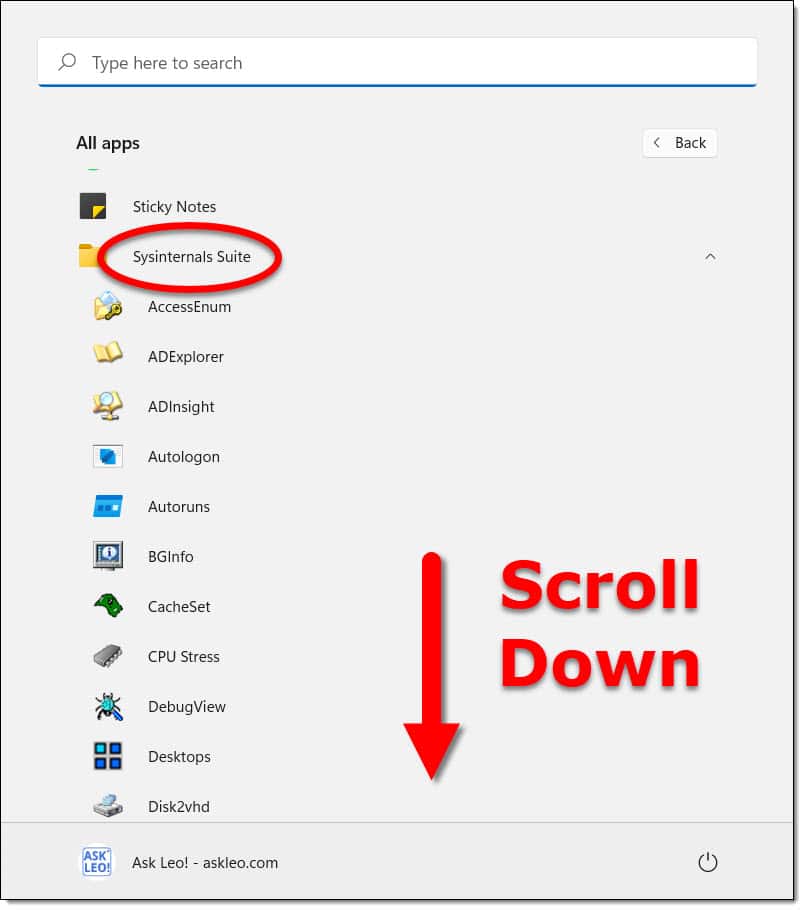
Since there are several Sysinternals tools, you’ll need to scroll down to locate Process Monitor.
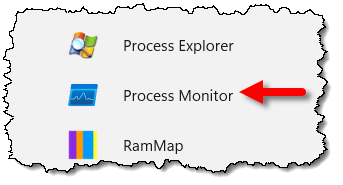
Click on it to run it.
You may be asked to confirm UAC. Click Yes. You may also be prompted with a “Process monitor filter” dialog saying you had filters on the last time you ran it. Ignore that for now; just click OK.
Process Monitor will start monitoring processes.
Monitoring processes
When you run Process Monitor, it’ll start recording things and displaying them in its windows. By default, it monitors a lot, and will probably surprise you with all the items scrolling by at a fast clip.

As long as the disk isn’t thrashing (it’s possible that it’s not even being hit at this point), it’s all quite normal. Let Process Monitor run.
As soon as you hear or see your hard disk thrashing when you think it shouldn’t be, let it run for a few more seconds and then press CTRL+E in Process Monitor to stop the capture.
If you like, you can scroll through the events to see what’s happening, but I have two better solutions.
Filter the results
Process Monitor has several ways to filter the results down to only the things you care about. One of the simplest is right on the toolbar.

Each button enables the display of a class of Process Monitor events. From left to right, they represent:
- Registry activity
- File System activity
- Networking activity
- Process activity
- Profiling events
The one we care about for our purposes here is “File System activity” because we want to know what’s hitting the disk so hard. Since all five are selected by default, click on the other filter buttons until only File System activity remains selected.

The list of events is filtered to show only disk activity. You can scroll up and down this list to see what programs are accessing your disk(s), and what files they’re reading or writing to.
In the example above, it’s all about “MsMpEng.exe” (Microsoft Malware Protection Engine), which is a component of Windows Security. In other words, it’s probably just the security software scanning files on my hard disk.
Summarize the results
Click the Tools menu and then the File Summary… item. This gives you a report of the file I/O activity (input/output operations) within the recorded data.
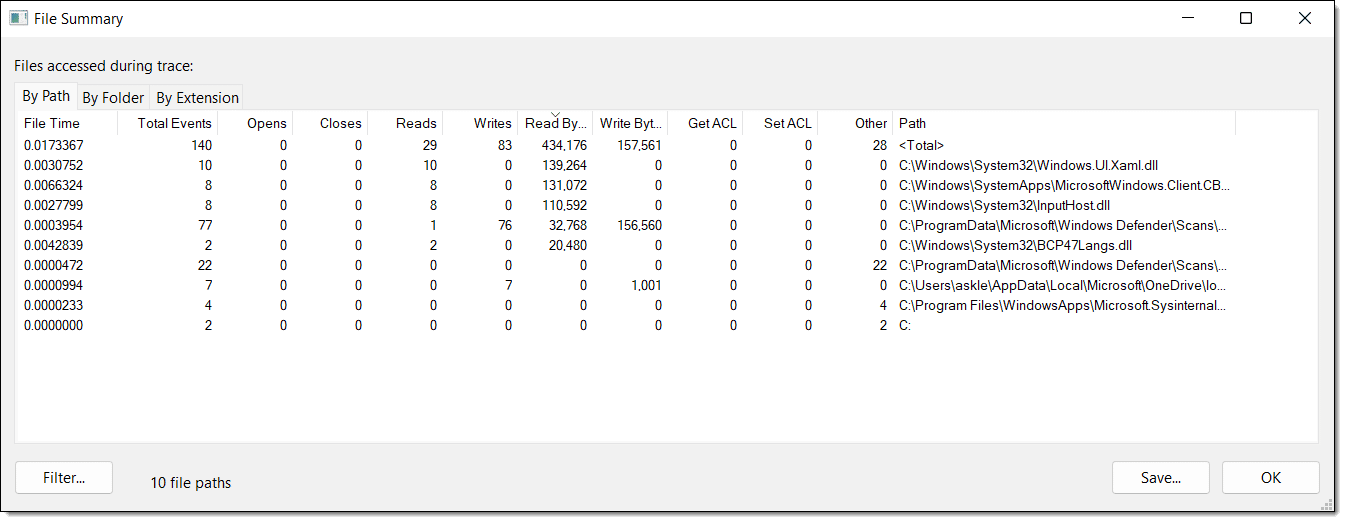
In the example above, I’ve made the window wider (by clicking and dragging its right edge), and made the “Path” column wider (by clicking and dragging its header’s right-hand divider).
The default is sorted by Total Events. You can sort by any of the other column headers in the File Summary dialog, so you can see which file took the most time, had the most reads or writes, or any of several other activities. I assume that a simple “Why is my disk thrashing?” analysis, the default “Total Events” is the best place to start.
In the example above, sorting by “Read Bytes” shows that several “.dll” were responsible for most of the disk-read activity for the duration of the recorded events. If I sort by “Write Bytes”, we see that a Windows Defender file is being written to.
It’s important to note that this summary is a summary of all recorded events. If your disk thrashing represents only the last few seconds of a large amount of data, a summary might not show it as clearly.
Do this
Whether you look at the activity by time, by filtering the results, or by the files being accessed in the summary, you can gather clues as to what might be responsible for the disk activity you’re seeing.
The next question is: is it expected? Is it the result of the system operating as it should, or is it a sign of a problem?
You may recognize a process — perhaps your anti-malware tools, perhaps the system indexing service, perhaps something else you recognize — and be able to say, “Oh, it’s that,” and take no further action.
You might also decide that whatever is running is unwanted, and work through the steps to turn it off or remove it. Exactly what those steps are, of course, depend on exactly who the culprit turns out to be.
In the meantime, you also now have a new tool in your tool belt: Process Monitor. Feel free to explore some of the other filters and information it can gather for you about your system and how it operates.
Feel free to also subscribe to Confident Computing! Less frustration and more confidence, solutions, answers, and tips in your inbox every week.
Podcast audio

Related Video


Footnotes & References
1: Unrelated to the Event Viewer. These are different “events”.


A *new* common cause is Windows XP’s System Restore. It monitors changes to a wide range of files and squirrels away restore information. This often looks like unexpected disk activity as it does so.
PC very slow, upto 3 mins opening or closing progs prog seems to “wash” down the screen, icons disappear leaving only background pic for 5-10 secs, then reappear); hardisk access light almost continuously on, etc.(1)Resorted to original config. using System Restore, but initial improvement, then back to SLOW;(2)Configured WinXP for best performance, with virtual memory set at 754 MB (min) and 1024 MB (max) as per suggestions of HP customer support;(3) Virus checks (Norton, AVG) are clean;(4) SpybotS&D and Ad-Aware cleaned adware/spyware and now show clean;(5) Used a RegCleaner to clean the system without alteration;(6)installed and enabled firewall (successively by Norton, WinXP and ZoneAlarm Pro);(7) at HP customer support’s suggestion, closed all startup progs except antivirus and firewall, used Disk Cleaner & Defrag, then restarted the pc. Even uninstalled some progs I didn’t use frequently, all to no avail; (8)HD capacity shows drive C is 29% free (9.7 GB) and drive D 15% free at 6
Only 128mb of ram under WinXP is likely to be one of your problems. Your swap file is consuming it all. Buy at least 512mb of ram, preferably 1gb to run XP. You likely have an onboard video card which is consuming 32mb of your system’s ram which is why only 96mb appears under Windows. Does your motherboard have an AGP port? If so, I’d recommend buying a videocard for it. Check whether the motherboard supports AGP 1x / 2x / 4x / or 8x and buy a compatible video card.
Your hard drive will thrash because you’ve told it to have 784mb minimum swap file. The access time to your hard drive is magnitudes slower than for your ram. Hence your system runs like a dog.
My Pc’s hard disk is still 85% full after all cleaning and removal of non-necessities. After defrag. there is not very much free space leftover either. I removed a bunch of media files and it seemed like I had less space after I erased them. How can I clean it up without compromising the programs and files that I have(which isn’t very many).Thanx for your help.
Have you emptied your recycle bin? This article may also help: http://ask-leo.com/how_can_i_tell_whats_taking_up_so_much_disk_space.html
Nicely done Leo. Systm restore was using a LOT of resources. All is quiet now…
Thanks,
P.
Hello Leo & Everyone
My hard disk has started thrashing whenever Outlook 2003 has been running on idle for a few minutes. If I close Outlook 2003 the disk stops thrashing.
I tried FileMon and captured the screen as soon as the thrashing started – it was full of the line “OUTLOOK.EXE:2144”
The machine is running Windows 2000 Pro with Service Pack 4. It has 1.5Gb of RAM and the hard drive is a 123Gb IBM. Can anyone help me?
Many thanks
Simon.
Actually, try letting it “thrash” for a while. Outlook compacts its PST file in the background at idle time. At some point the file will have been compacted, and the thrashing should stop. (And technically it’s not thrashing … unless it somehow impacts your ability to do other things.) Conversely you could force compaction and see if that makes the thrashing stop as well.
Hello Leo,
My laptop has been thrashing the HD, Also MS WORD won’t open and after it tries it leaves a rectangle of screen that does not repaint on the desktop also Norton Internet security 2006 does not open. I have phoned Symantec and run SYMNRT.exe and reinstalled Norton Internet security 2006 and reinstalled Norton Ghost 10 and reinstalled Word 2003 pro but I am right back at the starting point. Ctl Alt Del does not shut the computer down so I have to manually shut it down. The last time I restarted the laptop the screen was black so I manually shutdown again, after leaving the laptop shutdown for an hour I restarted it and it opened fine but the above problems are still there any help appreciated.
My laptop specs are
990 Megabytes Installed Memory, Slot ‘U5’ has 512 MB, Slot ‘U6’ has 512, Windows XP Professional Service Pack 2 (build 2600), 2.67 gigahertz Intel Pentium 4, 8 kilobyte primary memory, cache, 512 kilobyte secondary memory cache, 40.00 Gigabytes Usable Hard Drive Capacity, 26.93 Gigabytes Hard Drive Free Space, SiS M650 [Display adapter]Default Monitor,
I believe it is Norton Antivirus 2006 Autoupdate program that is stuck and is causing problems. Symantec who own the product won’t help find the answer without a 39.95 Euro charge and suggested I contact a local engineer to get my problem sorted. Any help appreciated…
If your machine is tweaked to perfection, and you have not disabled optimise hard drive on idle, and you have smallish clusters and or lots of data on your drives, defrag hangs.
Norton 2006, Outlook cleanup, Outlook Express Cleanup, Scheduled Disk Doctor defragmenting, Viruses and Spyware also do create the same disk slow scenario.
Personally, I disable deframgenting when idle, format my drives with 64K clusters (lose a bit of space but pickup loads of disk speed), and defrag via bat file on startup.
It’s a good idea to disable system restore on non essential drives. I actually don’t use it, as my OS is installed on a partition, and Documents and Settings and data files are on another, that is backed up. On system failure, I reinstall the OS and programs, do some registry tweaks, and point my data files to certain folders, and I’m back in business.
I’ve had so many problems with Windows on our network the past month. Viruses have been on the increase. I’m moving some machines over to Linux and running Windows in a virtual machine for certain applications. I will still however need a single Windows dedicated machine for certain software.
To stop thrashing hard drive in Windows XP, alter the setting of memory from the default (adjust for best performance of programs) to ‘adjust for best performance of system cache’. There are no bad side effects.
I ran process monitor on my wife’s computer because its HD keeps running even though I have shut off indexing and defrag. It has hundreds of entries where snippit is opened and closed. She doesn’t even know what snippit is. I do use it on my computer and have months ago on hers. Is it likely that there is some sort of key logging or similar spy process going on?
I had a similar problem. My hard drive would thrash constantly on a pretty fast Core i7 compy with 12Gig RAM. It was infuriating. I searched the intertubes and came across this thread. I tried what was suggested, but it didn’t fix my problem. I did fix my problem though.
It turns out my outlook.ost file was too big. I found out from Microsoft that you may experience issues with .ost files over 2Gig. Well, mine was over 19Gig!
I closed down Outlook. Then I just renamed the file outlook_bak20091216.ost. I then launched Outlook and it rebuilt the outlook.ost file from the Exchange server. My new outlook.ost file is under 1Gig. Better yet, no more hard drive thrashing.
My harddrive will start thrashing, and the screen goes blank. I can hear the processor cooling fan kick into high speed. This doesnt happen very often but it will do it at an idle or when im working. I am running xp with sp3. I do have spyware/virus programs. I am cut off from accessing the computer when this happens so I have no idea what is causing it or what happens as I have to pull the plug to stop it. I let it run for 10 mins one time to see if it would stop.
Any ideas where I should start? Will “filemon” record all activity even if I pull the plug?
Aside from doing the routine maintenance items; i.e. disk defrag, registry cleaning, deleting temp files, I recommend doing the this. Uninstall your Anti-virus program and reboot. If this doesn’t give you back a new computer high performance I would be shocked. Sure, it could be your hard drive going but what do you think causes most hard drive failures, misuse – drive thrashing, multiple PC restarts (power bumps) viruses and poor hard drive maintenance.
If you are using McAfee or Norton, especially the ones custom tailored for Verizon and Comcast like I was using you should gain back a stable PC if you uninstall them. I replaced Norton with Avira and I no longer have PC issues.
Leo,
I’ve downloaded the zip files for both Process Monitor and Process Explorer to my Downloads folder. After extracting, the exe files run from there just fine. This is nice for portability, as I can stick them on a USB drive and troubleshoot other PCs.
For my own PC (Win7 Home), I’d like to give them a more permanent home, and wonder what would be most logical. Program Files, Program Files (x86), Downloaded Program Files, system, System32, some other existing folder, or a Utilities folder I create myself? What do you do?
20-Nov-2011
My 4 year old HP laptop had a hard drive that was constantly running and causing even the simplest of things like opening/closing Chrome or just accessing the shut down menu to be a task you had to wait for… and we are talking about a wait anywhere from 30 seconds to 2 minutes. After reading this article last week, I downloaded the SysInternals Suite and followed the suggested guidelines, not really knowing what I was doing or looking at. Thanks to Leo’s advice, I discovered that the free OpenOffice suite I had was getting the 2nd highest amount of activity, even though it wasn’t open and/or being used. I eliminated the OpenOffice and the laptop is running better than it has in months. The hard drive is now quiet and what I would consider normal.
Open Office has a setting to have it start up with Windows. This can be turned off.
https://wiki.openoffice.org/wiki/Documentation/OOoAuthors_User_Manual/Getting_Started/Using_the_Quickstarter_under_Windows
Thanks. However, I didn’t use the OpenOffice Quickstarter icon nor was the program in my startup folder. The only items in my startup folder are few HP programs, McAfee and my Brother printer. I really only use the laptop to check email or pay bills…no games, no videos, no music, etc. I seldom used OpenOffice, but had it there in case I needed to type a letter or something from home, as I refuse to pay for MS Office on a yearly basis. With the program gone, litterally every function of my laptop has changed and returned to normal operating speeds unseen for nearly a year. The hard drive is completly silent. The SysInternals showed that there were over 12,000 events involving OpenOffice for the length of events I captured.
@Neal B., If you need a good free office suite (since you removed Open Office), I use Libre Office here, and even though it has an option to start with Windows, I never turn that ‘feature’ on. LibreOffice does not affect my computer’s performance at all, and I use the word processor nearly every day. Based on reviews I’ve seen it may be one of the most MS Office-compatible options available.
I have absolutely no affiliation with LibreOffice. I am simply a very satisfied user,
Ernie
Yes. Libre Office is great. For most people, Libre Office plus an email program like Thunderbird are a good replacement for MS Office. Libre Office does everything 99% of computer users need in an office suite. MS Office has a more bells and whistles and is a bit easier to use, but with a little learning (in a way, unlearning, because it looks a lot like MS Office 2003, it all becomes second nature. I only use MS Office because of the 5TB OneDrive storage which is a better deal that Dropbox. If it weren’t for the OneDrive storage, I’d be using Libre Office as my main office program.