The ISO format is a popular way to distribute large packages of files that would normally appear on a CD or DVD. The reason is simple: an ISO file is typically a bit-for-bit image of a CD or DVD.
There are several ways to get at the contents of an ISO file. The most common way is to burn the ISO’s content to an actual disc.
Become a Patron of Ask Leo! and go ad-free!
ISO Files
ISO files are typically exact copies of the data that would otherwise be placed onto a CD or DVD. There’s no compression performed, so an ISO file that contains the contents of a 640-megabyte CD would itself be 640 megabytes in size.
Normally, when we write data discs (CD, DVD, or Blu-ray), we might take a few files and drag and drop them into some burning software, or even use Windows itself. The software then creates the file system and lays out the files on the disk.
That doesn’t work when burning an ISO file. An ISO file can be thought of as containing a data disc, with files and file system already laid out.
You need to use a different technique to burn an ISO file to disc.
Use ImgBurn
While your computer may have come with software you might use to burn ISO files (or perhaps trial versions of burning software), I delete or ignore all of those and use ImgBurn instead.
ImgBurn is free software that handles all of the features you need to burn data, ISO, and even audio disks, easily and efficiently.
Download ImgBurn and install it, but be aware of two important thing as you do so.
ImgBurn gripe #1
The ImgBurn web site is full of advertisements, many of which boldly proclaim “Download”, as well as so-called “recommended” links that are also nothing more than advertisements for products that, in my opinion, you don’t need and are unrelated to the task at hand.
Click on the download link (currently in the upper left of the ImgBurn home page) to download ImgBurn.
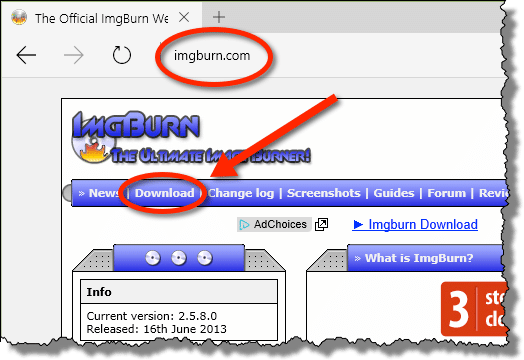
On the resulting page, ignore the ads and click on one of the mirror download links.
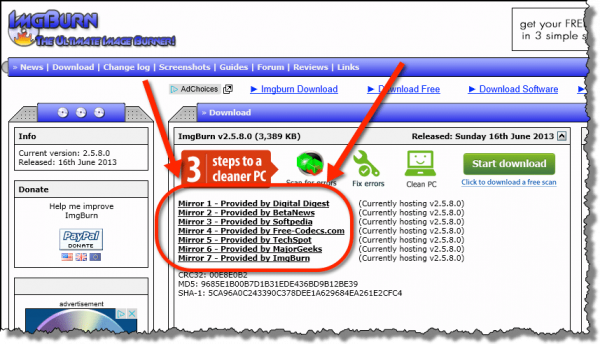
I typically use the “Provided by ImgBurn” link to download directly from the source.
Once downloaded, run the installer.
ImgBurn gripe #2
The bad news is that ImgBurn setup has foistware.
The good news is that it’s open and honest about it, and you can opt out.
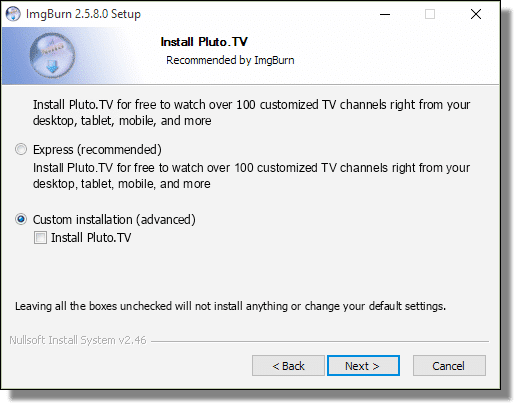
As you run ImgBurn setup, pay attention, and never accept the “Express” installation option. Instead, select “Custom installation“, and de-select whatever additional software is offered. You do not need this software as part of ImgBurn. You may see multiple offers, so you may need to do this more than once.
Burn ISO files using ImgBurn
Run ImgBurn.
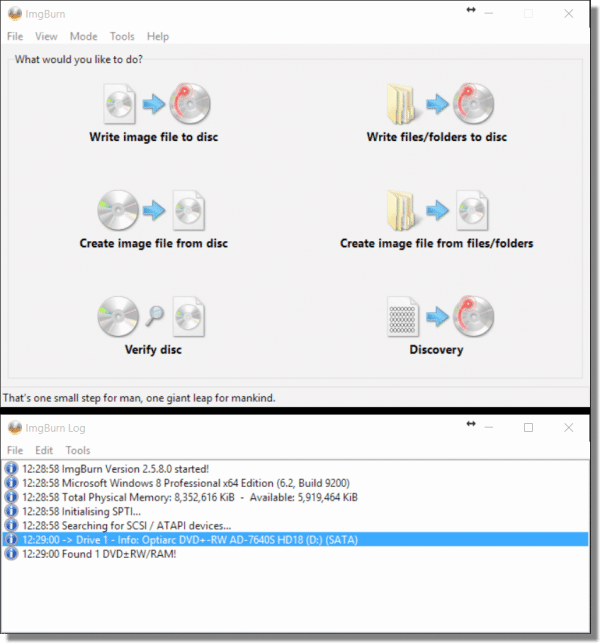
You may also see a second window that displays ImgBurns’s technical activity log. It’s safe to leave this open, but otherwise ignore it. unless something goes wrong. If that happens, the log will likely have clues as to what might be happening.
Click on Write image file to disc. This is the option that allows you to burn ISO files – image files – to a blank CD, DVD, or Blu-Ray disk.
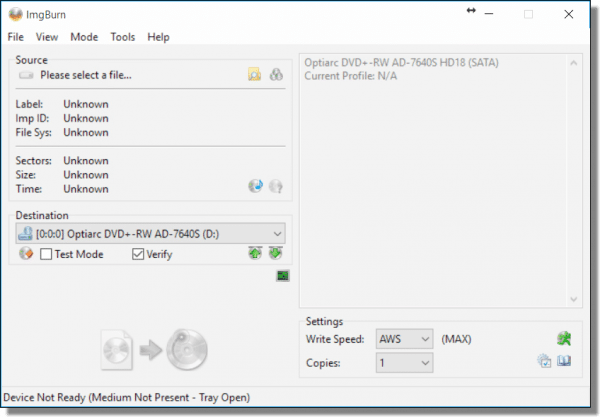
Click on the Select File button.
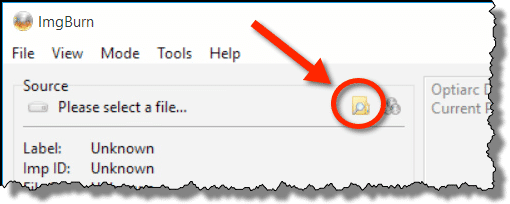
This opens a standard file selection dialog box. Select the ISO file that you wish to burn to disc. Once you’ve made your selection, you’ll return to ImgBurn with the file listed.
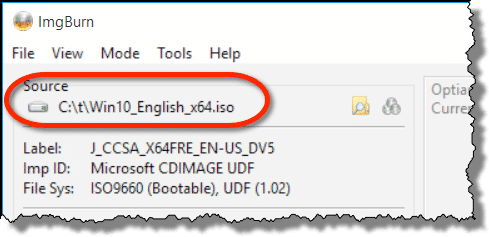
You can see that the status line at the bottom indicates that ImgBurn has determined that there is no blank disc in the CDR drive.
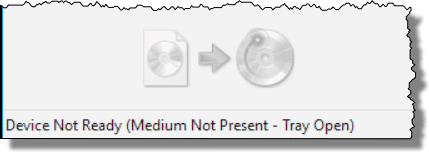
Insert a blank, writable disc to proceed. It’ll typically take a few seconds to recognize that the media is there. At this point, the status changes to “Ready”, and the action button is enabled. Click the action button.
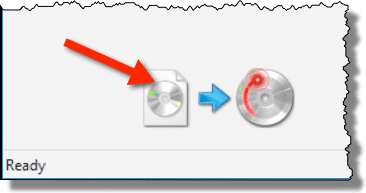
At this point, ImgBurn begins its work.
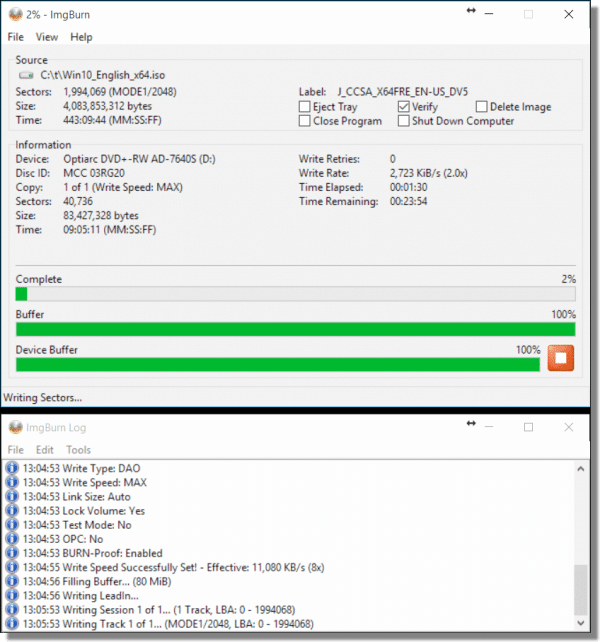
Once ImgBurn completes, you have your disc.
What happens next depends on what you have copied to the disc.
- You can open Windows Explorer and examine the contents of the disk, or copy individual files off, if you like.
- If it’s a product disk, perhaps there’ll be a Setup.exe or similar program in the root. You might run that to install the product.
- If it’s an operating system distribution, you might close Windows and reboot from the disc you’ve just created, to install or try out the operating system on it.
As I said, what happens next depends entirely on exactly what it is you’ve just burned to a disc.
Do this
Subscribe to Confident Computing! Less frustration and more confidence, solutions, answers, and tips in your inbox every week.
I'll see you there!


While burning ISO files to disk is certainly one way, I find the ability to ‘mount’ ISO files as a removable drive letter far more useful – especially when some of these ISO files are larger than the media they are supposed to have come from.
03-May-2011
I know how to BURN and image file. . . but how do you open and use it? Windows says no program is associated with it. Would be helpful if you added this to the explanation.
03-May-2011
@Don: As Leo said, “what happens next depends entirely on exactly what it is you’ve just burned to a disc.” You burn an ISO file to disc (CD or DVD), then use the disc as it was intended — no more need for the ISO file. If you eject and re-insert the burned disc, perhaps it will auto-run. If not, browse to the disc and run Setup.exe or its equivalent. The answer here will always go back to Leo’s last statement.
I’d like to suggest an even easier free program:
ISORecorder
http://isorecorder.alexfeinman.com/isorecorder.htm
Another approach is to use a software to ‘mount’ the ISO-file as a seperate disc letter. I use Daemon Tools lite, a free software that does the job exceptionally well. It is available here:
http://www.disc-tools.com/download/daemon
Using that software, you set up a drive letter (I use two of these and designated drives x: and y: for this purpose) and then, with an easy right-click, point to software to the ISO-file which then shows up as that drive. Hence, you don’t need to burn the file to a CD. In addition, you must not have discs lying around. I convert all my discs to ISO-files (or DVD-files) and store them on a hard disc and then mount them as needed.
n.b. Some discs have protection that don’t allow this, but that will be shown as you try.
Or you might try Virtual Clone Drive from
http://www.slysoft.com/en/virtual-clonedrive.html
Once an iso file is associated with VCD, double clicking on the iso file will mount it.
I’d like to second Tomas: with DaemonTools you don’t need to physically burn the disc. It lets you mount the “CD” as if it were physically present on your computer. One of the best “CD” tools that I’ve ever come across. And best of all: it’s free.
This helped me in a big way. Thanks a lot. Jerry
I really like ImgBurn. However, I discovered that jzip will unpack a iso file just like a zip file and put the disc files in a HDD folder. That will work if you just want to get at the files in the iso and don’t need it as a disc.
Leo recommends the “IMGBURN” site to download the ISO utility. It sucks. I tried it and was sure to opt out of the extra junk they offer – doesn’t matter as the site still attached an additional unwanted tool bar. The site also dropped off two infections – causing my Spyware program to engage and scan. Not worth the aggravation. I would look elsewhere for a ISO utility.
30-Oct-2012
Try http://www.freeisoburner.com, it’s a small (800K) standalone .exe that requires no installation.
I tried this, but it gave me an error every time. I’ve used this set of disks for other things, so It’s not the disk’s fault.
This is the error:
Failed to reserve track!
Reason: Cannot write medium – incompatible format.
i learned a lot of things about iso files and their usage with this awesome tutorial , i am very thankfullllllllllllllllllllllllllllllllllllllllllllllllllllllllllllllllllllllllllllllllllllllllllllllllllllllllllllllllllllllll to you
Followed your directions and I 2 am Thankful!!!!!!!!!!!!!!!!!!! 2 U for all your help!!!!!!!!!!!!!! It worked!!
I’m pretty sure that Windows has a built-in utility for burning ISOs. Definitely in Windows 8, and probably also in Windows 7.
You are right. In Windows 8 en 10 you can right-click an iso-file and than burn the image to a dvd. Works very easy.
Yup, ISO burning capability was present in Windows 7 too – which was released before this article seems to have been written. I’m actually very surprised and disappointed that Leo – who usually offers very solid advice – is pointing to an app/website that could easily result in incautious users’ PCs becoming compromised. I hope the article is either taken down or promptly rewritten.
Leo gave very explicit instructions on how to avoid the foistware. If you follow the instructions in the article you shouldn’t have any problems. As for Windows’ built in burner, it didn’t show up on my context (right click) menu. I had to click ‘Open with’ from the context menu and navigate to c:\windows\system23\isoburn.exe. I’m mentioning that for those who might be wondering where it is.
“Leo gave very explicit instructions on how to avoid the foistware.” – … and a much better way to avoid it is to avoid ImgBurn completely. Recommending that people use an adware-laden app rather than the easy-to-use – and, more importantly, completely safe – ISO burning app that’s included with every recent version of Windows is, frankly, irresponsible. The ImgBurn website and download mirrors are so confusing that an incautious or inexperienced user could easily end up downloading and installing something other than ImgBurn, and the installation process is also something that could sting the unwary.
“If you follow the instructions in the article you shouldn’t have any problems.” – “Shouldn’t have any problems” really isn’t good enough. Use the app included with Windows and you WILL NOT have any problems.
As I said, I’m very surprised and disappointed to see Leo make this recommendation and sincerely hope he’ll either take this article down or rewrite it.
“Leo gave very explicit instructions on how to avoid the foistware.” – I’ll add too that those (supposedly) very explicit instructions will not necessarily work. Sometimes, ImgBurn – as well as other apps that use OpenCandy et al – will not provide any opt out option whatsoever and, if an opt out option is provided, it may well be obfuscated. There’s a reason that many antivirus/malware products block the extras bundled with ImgBurn…
Strange. You don’t see the menu Disc Image Tools when you click on an iso-file? See: https://www.youtube.com/watch?v=nN5c-mVbFT0
Like I said, it wasn’t a problem. I just navigated to it in the c:\windows\system32 folder. Once I ran it, it appears in the context menu.
Yup, I see context menu options for Mount and Burn too (in Windows 10).
Hmmm. The ImgBurn gripes are not exactly confidence-inspiring and I’m somewhat surprised to see it recommended here – I certainly wouldn’t touch the program with a very long selfie stick. The recommendation is all the more surprising given that most people already have access to an app that’ll burn ISOs: Windows Disc Image Burn which is included with Windows 7, 8 and 10.
http://knowledge.seagate.com/articles/en_US/FAQ/201431en
Imgburn is also on ninite.com which is clean.
Yup, Ninite is currently the safest option for downloading free software. Websites such as SourceForge, Download.com, Softpedia, Snapfiles, etc. all include bundleware with their downloads and are best avoided. Software obtained directly from the website of the developer may not come with bundleware, but that can’t be counted on – as the ImgBurn website proves.
My favorite for several years has been http://www.passcape.com/passcape_iso_burner
It’s free, has no junk programs added, and is extremely easy to use. imho it is vastly superior to IMG.
I went to the product site to download based on Leo’s recommendation. I was a little surprised when Windows warned me it lacked certification. I have used Norton for years and it has never misled me, and this time it also came up with a problem in the download. One of the very few times it has recommended against download something, even with caution. A word from Leo might make me more comfortable, but for now I think I will avoid downloading it.
“But for now I think I will avoid downloading it.” That’s absolutely the best option. As mentioned in other comments, Windows 7, 8 and 10 all have built-in ISO burning capability, so you likely do not need this bundleware-laden app. As I said above, I’m both surprised and disappointed that Leo is recommending unsafe software such as ImgBurn.
Thank You, Thank You. I just read your article on ISO files. Thankfully I read the whole article first. I have a bad habit of using express instead of custom install. You save me a lot of hassle getting rid of garbage I did’t want or need. Clicked on your link and where you said to and 30 seconds later it was done. this is not the first time you have helped me out. You and your newsletter are much appreciate. I will have to thank Randy at This Is True for recommending your site.
Again Thanks Leo
Just goes to show us 72 year old seniors can still learn new tricks.
I downloaded ImgBurn from the website mirror per your instructions. My Security program scanned and deleted ImgBurn when I attempted to install it. Do you recommend any alternatives to ImgBurn?
Try installing ImgBurn with the Ninite installer. It automatically disallows any malicious adware which might come bundled with the programs they install.
https://ninite.com
Windows 7, 8 and 10 include an ISO burner so, if you’re running one them, you don’t need ImgBurn. Using the built-in app would be a much safer proposition.
Leo,
I think that you should mention the fact that Imgburn can also burn ISO files from one internal or external disc to another, any optical file to an internal or external disk.
I’ve used ImgBurn right from the start, was happy with it then and have only grown more so with subsequent releases. I’m pretty certain LightningUK would be glad to remove the ‘foistware’ from ImgBurn if a reasonable number of people clicked the link in the Donate box on the left side of the page and made even a modest contribution to reward his efforts. I notice this discussion has referred to the product as “free software”, so I’m guessing not too many have donated. The presence of foistware is just a case of cause and effect, then.
“The presence of foistware is just a case of cause and effect, then.” – Maybe, maybe not. But whatever the case, the app is best avoided. There’s plenty of no-cost – and clean – alternatives that work equally well. And, for people with basic ISO burning needs, the app built included with Windows is plenty good enough.
The Ninite installer installs ImgBurn and up to about 100 other freeware programs of your choice without the malicious adware which might come bundled with the programs they install.
https://ninite.com
I always had trouble with image burn, understanding it. Thanks for the clear explanation.
I would like to know how to use an ISO maker program as a disk imaging program to replace a ghosting program and their proprietary file formats.
Is there any limitation on the size an ISO can be?
What software would be best to boot with and then run the ISO software and burn the hard drive?
I used IMGBURN to burn the Windows 10 ISO file to DVD. However, when I look at the DVD, individual files are listed, not the ISO file. If I looke at the ISO DVD on an Apple MacBook Air, the same files are individually listed, not the 1 ISO file. I want to use this ISO to setup Windows 10 on the MacBook Air using Boot Camp. Boot Camp is looking for an ISO file.
I am really confused – any suggestions would be approeciated.
Thanks
That’s exactly what’s supposed to happen. When you burn a .iso file to a disc, it creates a bootable disc with all the files individually on the disc. You can now boot up with that DVD and install windows.
Does anyone know what I can use to create a self burning iso? I need to make a file that when clicked from a usb stick for instance will open and burn a dvd image onto a empty disc.
When you right click on the image file, you should see a menu call ‘Windows image burn’. Just click it. You can also easily use ImgBurn software.
I just wanted to say thanks for the info about ImgBurn. For some reason I have been unable to burn an ISO disk using what Windows 10 has, but this worked like a charm.
Thanks again,
Earl Moore
I can’t do nothing on my computer it goes to Pc-Administrator an for me to put in a password I don’t have a password please help