How you can find the culprit.


Disappearing disk space is a very common scenario.
Somehow, no matter how much we have, disk space never seems enough. As we collect pictures and programs (and the programs themselves collect data), more and more disk space is consumed. With so much happening on our computers these days, it’s difficult to understand what’s taking up space.
Fortunately, I can recommend a free tool that can give us some very helpful data.
Become a Patron of Ask Leo! and go ad-free!

Losing Disk Space
Using a tool like TreeSize Free will allow you to quickly examine the contents of your hard disk sorted by the amount of space being used, so as to identify what’s taking up so much space. It’s common to find something you didn’t realize was there that you don’t need anymore that can be quickly backed up and deleted. There may be other options depending on what you find.
TreeSize Free
TreeSize Free is a free tool that shows you what’s taking up all of the space on your machine. (A paid version is available with additional features, but for what we’re doing, the free version will suffice.)

Download TreeSize Free from the JAM Software page and install it.1
On completion of the installation, you’re given the option to run it, or run it as Administrator.
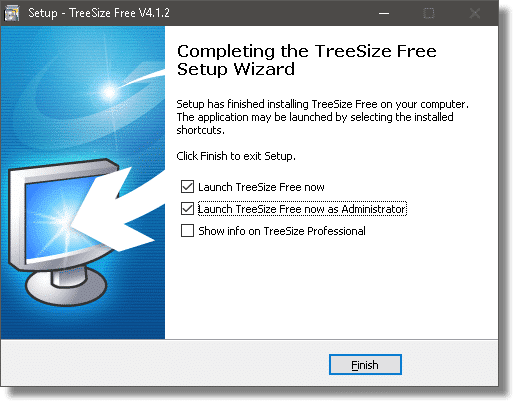
I recommend you run it as Administrator so TreeSize can access and return as much information as possible about your hard-disk usage.
As TreeSize scans your hard drive, it updates its display in real time.
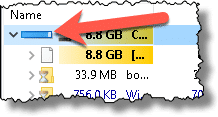
Once the small blue progress bar disappears, the results are complete.
A typical machine
This is the result of running TreeSize on C:\ of a basic Windows 10 installation.
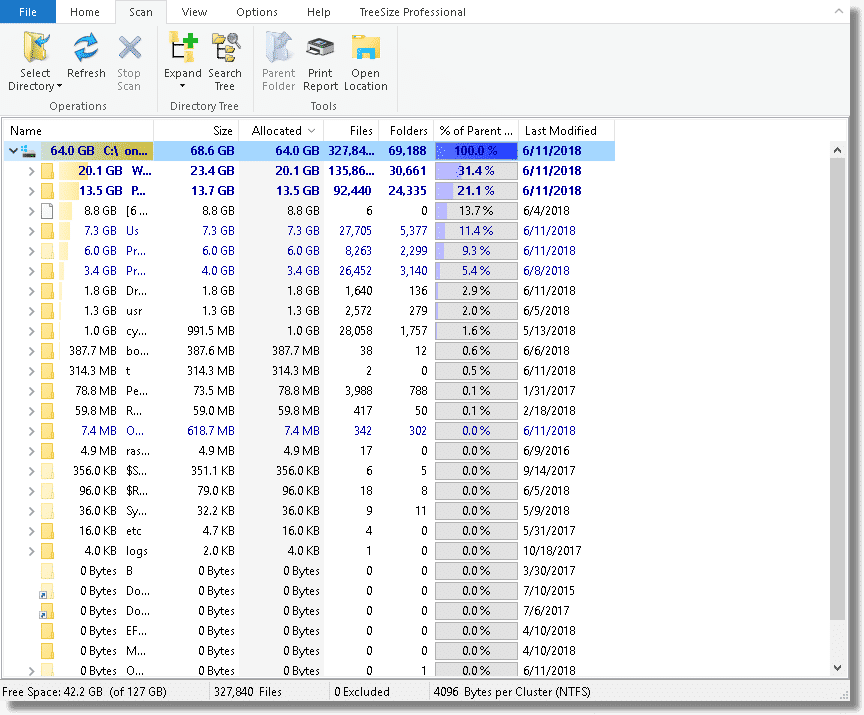
The primary information here is a list of all of the top-level folders on the C: drive with the amount of disk space they consume. It’s sorted by decreasing disk space, so the biggest space-consumers are at the top.
Not surprisingly, it shows that the “Windows” folder and everything it contains consumes the most space.
Digging deeper
You can see the contents of the next level of folders by clicking the small greater-than sign to the left of the folder name. Here’s the Windows folder expanded:

You can see right away that the “WinSxS” folder contains the most data of all the subfolders within C:\Windows. (This is normal, by the way.) You can also see the relative size of each of the other folders within Windows. If you want to drill down deeper, keep expanding subfolders.
TreeSize on user files
It’s useful to see what’s stored in your user account folders. In Windows, that means looking at the contents of “C:\Users\<login name>.” In my case, that’s C:\Users\lnote.
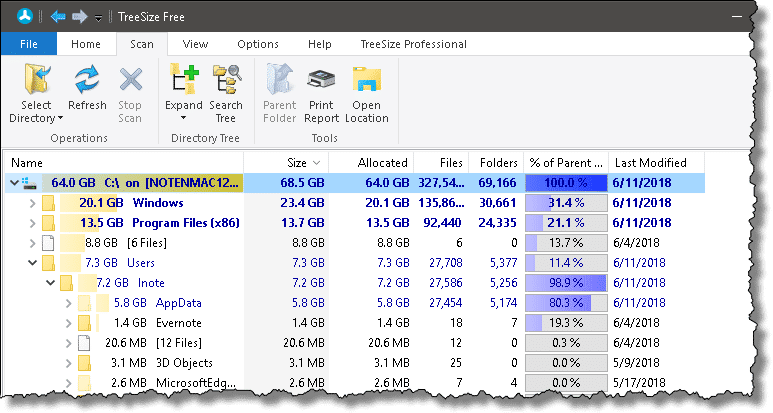
You can see that AppData and its contents take up the most space in my account, while the Evernote folder is next.
Your machine
Now, as to what’s eating up the disk space on your machine, there’s no way for me to know. However, using a tool like TreeSize, you should be able to see what’s taking up all that space and take appropriate action.
Aside: Disk space is not memory
People confuse these terms a lot, and it’s very important — particularly when asking for help — that the terms you use accurately reflect what you’re talking about. To oversimplify a little:
- Memory is the RAM (Random Access Memory) in which your programs and data reside when they are in use. When you turn your computer off, your memory is erased. To free up memory, run fewer programs at the same time.
- Disk space is about your hard drive, where data is stored permanently (or until you or a program explicitly erases it). To free up disk space, delete files.
Another good difference to note is size. My laptop, for example, has 16 gigabytes of memory, but a terabyte (1024 gigabytes) of disk space. Disk space on a machine is almost always much greater than its RAM.
Do this
Subscribe to Confident Computing! Less frustration and more confidence, solutions, answers, and tips in your inbox every week.
I'll see you there!
Podcast audio

Footnotes & References
1: Yes, this does make the ironic assumption that you have enough space to download and install the tool. Fortunately, it’s not large.


Hi guys,
Each time you install a new software oor uninstall or make changes to the computer, WINDOWS save all the modifications, so if something wrong happens later, you can be able to restore your system.
This option is called “SYSTEM RESTORE” (at least on VISTA).
And as default it can occupyed 10% of the HD. The only way to make this not happen is to delete these files stored by WINDOWS or just to deactivate the “SYSTEM RESTORE” .
If you want more informations just ask.
I once recovered a huge amount of disk space by clearing out dozens of old System Restore Points using the built-in Disk Cleanup app.
Then I set the system restore to only hold two generations of Restore files.
First of all I would not use CCleaner, or any ‘registry cleaner’, that’s not what the toot of the problem is truly about.
What I’m seeing here is that perhaps the person has forgotten that the installed programs themselves are going to be placed on the C: drive in Program Files, if not other places by default and even if you change that to the D: drive there is still going to be no space left at some point.
The logical answer is that a second hard drive should be installed. You can’t get around things like that, a physical drive only holds what it is rated for and no more (and compression is definitely not the answer as well). This can be an external drive as well as internal, you have to give the C: drive space.
Now, if I can make an assumption, I gather that your computer’s entire manufacturer’s system files and the OS are on C: and the D: drive partition is for your data.
If you can reinstall to a single partition and reload the manufacturer’s files that would be dandy.
The problem with limiting System Restore points so severely is that you have no idea when the problem was created and often have to go back much further than two points, which may be very recent so deleting too many would be detrimental to your recovery efforts. Always exhaust all restoration efforts and solve the problem first if you can before deciding what to eliminate. As I understand *I don’t use 10 at all* one of the 10 upgrades earlier this year was a nightmare for a lot of users and this kind of thing only reinforces what I’m saying.
System Restore is a form of BACKUP. We all know that backups are good.
CCLeaner is not, primarily, a registry cleaner. It’s a disk space cleaner – it’s a convenient way to remove some things that are taking up disk space. I recommend it often.
A second drive is one approach, but I wouldn’t consider it the logical answer. Clearing off what you don’t need is step one. Then perhaps replacing the existing drive with a larger one would generally be my next step, since the result involves less operational change over time.
System Restore is a very poor excuse for a backup, and should never really even be considered a backup, in my opinion. More: Why I Don’t Like System Restore.
REAL backups — image backups — are the solution to protect yourself from updates gone awry, and just about anything else.
Deleting excess old restore points is ok, but I wouldn’t deactivate it.
It is a very useful tool.
For instance, After Windows update ran recently, none of my web browsers worked.
I rolled back to the previous restore point and after rebooting, they all let me surf the web again.
Gowest,
Vista’s default is actually 15% and can be changed by using VSSADMIN command from a command line.
http://www.davescomputertips.com/Newsletters/20070801.php#4
I bet the original question was an XP installation. I would also bet there are quite a few MS Update files in the c:windows folder he could delete.
How about changing the amount of disk space the Recycle Bin uses? It’s default is 10% of your hard drive space. I change mine to about 2% because I rarely delete anything that I want to retrive.
On a small drive the extra space really helps.
It’s called “System Restore” on both Windows XP and on Vista. You can access the options to modify or disable it by right clicking “My Computer” and hitting properties or scrolling over to “System” in Control Panel.
for Vista: “System protection” should be on the list on the left (this opens the “System Protection” tab where System Restore resides).
XP: “System Restore” is also located as a tab.
I do recommend that you leave it enabled IF you dont have another backup solution (I recommend you get one), but it might be useful to you to lower the disk space reserved for System Restore properties.
I HIGHLY recommend Treesize.
http://www.jam-software.com/freeware/index.shtml
It simply does not get any easier than this program. There is a free version and a paid version. I use the free version. It also integrates a right click context menu entry while in explorer that allows you to easily view the disk space used for a selected folder. I have tried SpaceMonger and found its’ interface to be far too confusing.
Philip
Philip, I find that the free versions of computer cleanup softwares usually all don’t do more than just scan for the problems in your computer system, & when they do, they only show the results & sometimes will fix about a 4th of them. They don’t repair and or allow you to repair all of them! Thats why I try & stay away from those that are free. I mean, whats the point in having the free versions if you’re only gonna get the results & not full repairs! & I need something thats going to be on an annual renewal basis, not a monthly one that’ll fix everything.
Mona. TreeSize is not a “cleanup” tool (read the article), its an information tool to find out whats taking disk space, what you do after that is up to you. TreeSize doesn’t pretend to fix or repair anything. It is, however, a very useful exploratory tool.
CCleaner free is the best i have found to cleanup unwanted files.
dear leo and experienced users- treesize is very good in identifying thesispace eating files. but how do i know which files are safe do delete?
cc cleaner only clears small amounts of space while my c partition keeps getting fuller and fuller with no data saved there
any ideas what is usually safe to delete?
Here are a few article on which file are safe to delete:
http://ask-leo.com/is_it_safe_to_delete_this_file.html
http://ask-leo.com/is_it_safe_to_delete_duplicate_files.html
https://askleo.com/is-it-safe-to-delete-log-files/
https://askleo.com/can-delete-setup-files-ive-downloaded/
Mark’s pointed you at some relevant articles. There’s no way we can answer, really, since it depends on EXACTLY what files are taking up the space. That will vary from user to user, machine to machine.
One thing that can steadily consume disk space is cached Internet pages – easily cleared via the tools menu of your browser.
I have seen more than once (today for example) in running the JKDefrag utility actually reclaim free space on a gunked up server. I suspect its rebuilding stale directory tables that allocate space no longer in use.
Man, I have been working on this for weeks. I have been to just about every tech site on the net and I couldn’t find an answer. Where the heck was all my space going on my C partition on my Windows 2003? At one point, I was down to less than 30 megabytes! I deleted all the KB files, I searched and removed all the IIS files etc etc and the space just kept disappearing…..
I finally gave up trying to find someone else that could tell me what to do and went looking for myself.
The answer is so SIMPLE that only a tow truck driver could figure it out!!!! I am sure you will agree it would be very useful here.
Go to search / advanced options / select “files larger than 1 meg” leave all the other boxes blank and hit the start button.
Sort by size and there they were. WOOHOO! I had two, very old and no longer in use databases that had exceeded 6 gigs in size! They were backing up like clockwork every night even though they were no longer in use!
If you want to know where your space has gone too, go look at the files that are burning it up. Simple, to the point, to heck with all these other complicated fixes. Once you see what they are, you can easily solve the problem.
Big Bill aka “Skyforum”
Skyforum,
I guess I must be the truck driver because I can’t even understand your instructions! What do you mean by “Go to search / advanced options / select “files larger than 1 meg” leave all the other boxes blank and hit the start button.” Are you referring to the search that opens when you click the start button and says search programs and files? That does not allow you to click other options. Please be more specific where you go to do this. Where can I select files larger than 1 meg?
Basically go to your Windows file in your library and click on the magnifying glass in the search bar. A “search” tab will show up where you can look for size, type, etc.
hope this helps.
Space Monger is no longer free, but you can try it for 30 days. At this time the web site says $24.95 to buy.
-Leo
Try going into your email program, and from one of the drop-down menus, select ‘compress folders’.
If this works, then go into ‘options’ in your email program, and look for a place where you can set a size to ‘compress folders when it will save ___ kb on your hard drive’.
The link for SpaceMonger 1.4 no longer downloads the old free version…only the new one. Is there somewhere else I can get it?
29-Oct-2008
The link to SpaceMonger v1.4 DOES work, but it might not be obvious how to actually get it.
First, click on the SpaceMonger v1.4 link.
About 1/3 of the way down the page, there is another link that says “Download spcmn140.zip – Version 1.4.0 – Win95/98/NT/2K/XP”. Click on that.
This brings up a page titled “Download”, but at first all you see are buttons to download either version 2.1 or version 2.1.1.
But now click on the “Free Software” tab. This brings up a much larger list, but at the top of the list all you see is SpaceMonger PHP Scanner: version 1.5, 1.4, and so on.
Scroll almost all the way down to the bottom of the page. Aha! At last there is a button to download spcmn140.zip.
I too recommend the free version of TreeSize by Jam Software, particularly for its Windows Explorer column function.
Open a folder, select View, Details, then right-click an existing column & tick the TreeSize column option which displays the sizes of any contained files or subfolders. (Why Microsoft never thought to display sizes next to subfolders I’ve never known.)
thank you, thank you, thank you!
i’ve had a good nosey around most of the site, and your information is always fantastic.
i’m nothing short of useless with computers. i can just about manage to switch the things on, and watch as it capitulates infront of my very eyes… oh the joy!
i’m currently working on speeding things up, and this tool (along with the task manager on steriods (too true, btw)) has worked a treat. very easy to use, clear, precise. couldnt ask for much more! i’ve managed to find year-old obsolete software that was hogging up all my disk space!
again, thank you. great work :D
I really recommend WinDirStat for this kind of work – its a port of KDirStat for KDE. Anyone who’s used it will fall head over heels for the program – its fantastic.
If you use system restore delete all restore points except the latest one. This released 6 per-cent on my 20 gig C: partition.
I have noticed some programs squirrel away files within the ‘documents and settings’ directory tree. One program I used to use archived files within the ‘application data’ folder under my log-in – a place which regularly goes unnoticed because it’s not part of ‘My Documents’ or the original program’s directory. After deleting over 2Gb of backed-up files, I kept an eye on it…
in reference to:
“thank you, thank you, thank you!
i’ve had a good nosey around most of the site, and your information is always fantastic.
i’m nothing short of useless with computers. i can just about manage to switch the things on, and watch as it capitulates infront of my very eyes… oh the joy!
i’m currently working on speeding things up, and this tool (along with the task manager on steriods (too true, btw)) has worked a treat. very easy to use, clear, precise. couldnt ask for much more! i’ve managed to find year-old obsolete software that was hogging up all my disk space!
again, thank you. great work :D
Posted by: Matt at December 7, 2008 11:50 PM”
could you please state which tool you are refering to? I too am trying to speed things up & am not computer smart. Also,I don’t understand your comment “task mgr. on steroids”.
Hi this may help, I have just recovered 8 gb. of space just by removing older System Restore points.I had 15 restore points which I delated.[beware-you must create a good up to date point prior to cleaning out procedure]
I’ve used Report and although its great, I’ve had better luck with WheresTheFreeSpace. It is Modeled after a PC application that is very popular called wheresthefreespace (but its for Mac).
Spacemonger gives a holistic, visual representation of file usage on your disk. A single glance tells you where the disk hogs are.
The free version may not be currently maintained, but it still works. And it is still available.
The most comon cause of vanishing disk space are restore points (shadows). In Vista, those will take up to 15% of the volume space and in Win7 it is variable. To check this, run the following command in cmd:
VSSADMIN LIST SHADOWSTORAGE
The ALLOCATED number is the amount of space currently taken and the MAXIMUM number is the amount it will ultimately take.
As well as the treesize tool you mentioned there are various tools that are more graphical for people inclined that way. This page has links to 5 free tools:http://www.technize.com/5-free-tools-to-list-hard-drive-contents-graphically/
Another misconception. Checkdsk does not free up space, true … BUT if it finds problems it may create .CHK files from fragments. Browse those fragments to see if there is any content you want to save, then delete them all to FREE UP SPACE, yay!
This person is in serious trouble, a 30+ gb drive with only 500mb free is way to packed. Windows starts to get “nervous” when free space gets below 20%, it 6gb on this drive, and really starts to have problems when free space goes below 10%.
Why does MS not include folder sizes. It is a speed thing. The MS file system is not designed to store folder sizes, so it has to be recalculated every time. For folders that have many files and subfolders it can take a while, which makes people feel that “Explorer is slow”
Use the built in disk cleaner: http://techblissonline.com/run-windows-vista-disk-cleanup-tool-and-clean-all-junk-files/
There are also a lot of freeware tools that will help you free up space. CCleaner is at the top of my list. Followed by CCenhancer, an addon for CCleaner. I also use Free Windows Cleanup tool, Wisk Disk Cleaner.
There are also several free batch files that clean XP and Vista. You can download one from here: http://techblissonline.com/clean-cookiestemp-and-useless-files-with-windows-vista-system-junk-cleaner-batch-script/ . I like to customize it a little, ie comment out the cookies line (I prefer to be selective about which cookies I delete and keep) and I prefer not to constantly delete windows prefetch files. Every 6 months or so, maybe, but not weekly or monthly. I also like to pause the bat run and modify the cmd window before resuming running to expand the cmd window to fit across the full width of the screen (prevent wrapping to make reading easier) and increasing “height buffers” to over 1000 to keep all lines for review. I also have commented out the final “CLS” (Clear Screen) command so I can review what has been deleted.
Revo Uninstaller also has disk cleaner module.
As far as the specific question asked. Apparantly the user saves all this data on drive D (at least that’s what I get out of what he writes). My question would be: why save 5 GB’s worth of pictures (presumably from his camera) on C? Isn’t that “data”. Wouldn’t it be smart to save that on D? That would free up a significant amount of space on C. Most descent camera software allows the user to specify where downloaded pics are stored, so that’s just a setting somewhere…
David
If the user has one physical hard disk partitioned into two (C: and D:) and C: is short on space, perhaps he could take some space from D: and give it to C:. Repartitioning can be risky, if you don’t know what you are doing. There aren’t a lot of “on the fly” disk partitioning programs, but I have used the EASEUS partition manager very successfully. The home edition is free. Always backup, of course, before trying to re-partition. If space is tight on D: as well, perhaps he could add a 2nd physical hard drive (internal or external), move the data from D: to the new drive and then repartition to give C: the full physical disk. (Verify that the data got to the new hard drive first, of course). The first and easiest possible fix is to move his 5 gig of photos from C: to D:, as another person had commented. If that doesn’t help enough, then look at other options.
In my experience, one other thing that should be considered (which a lot of people don’t know) is that by saving lots of items to your desktop, it also saves it on the primary drive which could be in this case the low spaced drive. Also, doing a disk cleanup will more than often free up lots of space.
hello i inherited my brothers old laptop and it was completely full. after backing everything up i wanted off of it and deleting everything i know wouldn’t harm the computer its still pretty full. i did all of the regular things to free up space so i found this site and downloaded treesize. i think it must have had a virus at one time although i just got avast and ran it, it didn’t pick anything up. under treesize it says i have 62 gig in the installer tab under windows. i know that cant be right, but i dont have the disk a reboot and there are no restore points. what can i do to get rid of all that? the computer runs fine besides being so full. windows xp service pack 2, hp pavilion zv5000. any help would be appreciated.
@trevor123
Running a computer that is so full is certainly difficult. It
may be that reformatting and re-installing would be the best
choice. Here is an article about that:
I don’t have an installation CD for Windows XP, what if I need one?
Another good choice might be to switch to Ubuntu. It is a
powerful, and free, operating system which doesn’t use as much
resources as Windows and can bring life back to an old
computer.
Should I convert to Linux?
Ok, so downloaded treesize and see where all my hard drive space is going, however, now I need to know what I can safely delete. For instance, under users, I have 331 mb in Public and 39 MB in guest. I am the only user. Guest is not on, but still using space. 1472 mb in Roaming, do I need everything there?
17-Apr-2012
Dear Leo, from a couple of days ago, around 1gb suddenly disappeared from my drive C and my internet became very slow, not even 10% of the usual speed. Not actually the navigation, it seems to be a little bit slower only, but to load videos on the YouTube, for example, and to download things it’s very, very slow. I was wondering what could be causing this and thought about virus, so I scanned it (XP) with some programs but it seems that there’s no virus, then I used the TreeSize and found that most of space is being used by a strange unindentified stuff that is C:Windowssystem32*.* with more than 370mb [2091 files], what is that? When I go to the folder even with the options adjusted to exhibit everything, I cannot find it. Also, the C:Windowsassembly has more than 420mb of which more than 208 is due to a folder named NativeImages_v2.0(…) and almost 170mb due to another folder like that, NativeImages_v4.0(…) and both filled more with Temp. Cold that be the problem here or is it normal? Could I delete those temp files from those folders? Also, Microsoft.NET has almost 340mb and ie8updates more than 150mb. Driver Cache has more than 100mb too. Apart from that I don’t know where those 1gb were taken up. System Volume Information has a fold with a restore_{A388…[and many numbers]… that is almost 200mb. I really don’t have a clue about what could I delete, and if what is taking up that 1gb is what is causing internet connection to be slower too and what to delete or to do. If you could at least give me some tip based on what I explained here, it could be very useful, otherwise I’ll have to send it to be fixed as with this speed is almost impossible to navigate. Could it have been caused by some virus caught when I was checking my email? Suddenly around 1gb disappeared and the internet became very slow at the same time. Well, thank you in advance for any possible help. All the best!
PS: Also, I forgot to mention something important: When I noticed what happened, I tried to use the clean disk, then it had around 1gb there to be erased, but during the process it asked for the XP install CD and I don’t have it, so I had to choose the option to revert the process, it accused that original files were being substituted for non-certified files, then as I had not the install CD I had to revert the operation during the process, as I didn’t know if letting it be changed until the end could cause some bigger problem. And I used some tools and some viruses were removed, but now there’s nothing being identified any more and the the download speed is very slow again and that 1gb still being used.
Whenever you install a windows update, files are saved in case you want to uninstall the update. In the case of a service pack this can amount to a large chunk of disk space. If you want to free up this space you can run DISM.EXE. I have bundled DISM in a CMD file with the options you need. Caution – this, in effect, freezes your computer at the current state. Once you run FREEZE.CMD you will be unable to uninstall any service packs installed up to that point (this will not affect any updates applied after running FREEZE.CMD). You need to run it from a command shell with Administrative access. Don’t do anything else while it is running and don’t panic if it takes many minutes to run. You might want to check how much free space you have before and after just to see how much space is released. Copy the following lines into the file FREEZE.CMD
::Remove service pack uninstall files
::Must be run with Admin rights
DISM /online /Cleanup-Image /SpSuperseded
Leo, TreeSizeFree is so easy and quick to use. Now at last I can find out what is taking up all my disk space and safely get rid of what I don’t need or want. Thanks ever so much and have a swell week my friends- Jack/keimanzero Campbelltown PA.
I recommend Space Sniffer – it’s free and excellent, get it from here:
http://www.uderzo.it/main_products/space_sniffer/
It recently showed me that Norton Internet Security (Symantec) was hogging 146GB!!!
http://i137.photobucket.com/albums/q235/darkdoo/space1.jpg
I’ve used Space Monger for years and agree with the above. The best replacement for I could find for it is Space Sniffer. Seems to be equally as good as Space Monger and is still freeware.
I use WinDirStat. This displays a visual representation of your hard drive space. (With or without free space). It also has optional windows that list in tree mode or by file type. Neat little program.
I’ve seen temp or tmp folders with thousands of tiny files — but they still take a cluster. It feels good to delete them. They also slow down some operations.
Windows Update files also can build up over time, and have no value after a couple of months.
I once recovered 5GB of disk space when I located and deleted all the Picasa original files.
I think this article should have an addendum to it. It appears to be covering WinXP type issues with bloated HD’s (based on the beginning of the comments in 2007).
Todays Windows Vista-7-8 all have the HD eating maniac called WinSxS. For instance, my laptop has Win 7, and currently has 16GB dedicated to the WinSxS folder. WinSxS is a very complicated folder today, and everyone should be advised to NOT delete anything unless they know exactly what they are doing. Just a heads up.
Leo,
I also do not use hibernate, but hiberfil.sys takes up 6.33 GB. I’m using Win 8, and cannot find anyplace to disable it. Where was the setting in Win 7? Win 8 may have it in the same place.
I, too, have a Reserve.tmp (C:\Windows\WinSxS) that takes up 3.00GB. Is there a setting to reduce that? Someone else mentioned it, but did not get a response to their question.
The biggest “hog” (10.5 GB) is CustomRefresh.wim (C:\Refreshimage) that hasn’t been modified since I installed Win 8 in December. Can you shed any light on what that is and if it would be safe to delete it?
I found these using Win 8’s search feature. Since I have more than one HD, I selected the one I wanted (C:\), clicked on the Search box to bring up the search tools, and selected Size – Gigantic. There’s also an option for 0 sized files (which always brings up a bunch of empty folders). Unfortunately, the results are by date modified, with the newest at the top. This may be helpful in deleting old files, but not in finding what’s taking up the most space.
@ Old Man
the way to remove hiberfil.sys is with an administrator command prompt
find command prompt where ever it’s hidden in win 8
right click it & select run as administrator
at the administrator command prompt
type or paste the following
powercfg.exe /hibernate off
this will delete the hibernation file (hiberfil.sys) and turn off hibernation
Thank you. I got the same information from the MS forums, except it showed -h instead of /hibernate. I guess either will work.
I also got answers to my other two questions.
CustomRefresh.wim (C:\Refreshimage) is where Win 8’s Refresh looks. It should be updated frequently in case the user needs to refresh Win 8. See: http://support.microsoft.com/kb/2748351?wa=wsignin1.0
Reserve.tmp (C:\Windows\WinSxS) is where Windows stores updates. See: http://support.microsoft.com/kb/2795190/en-us. Although the article is not for Win 8, it provides a good description.
Hope this information is helpful to others.
This is the tool I’ve been looking for! Thank you, Leo, for the link to the tool and for you excellent (as always) description of how it works.
Thank you! I only had about 250gb left of my 1.8tb, turns out i had another account with over 600gb of unused stuff. Thank you very much!
Leo. Great article. One question: Why did you write, “In this case, that’s actually a discovery for me because this machine will never use hibernate.”? I saw nothing in the original question that stated the user does not use hibernate.
Leo is writing about discovering the hibernation file, because he found it on his machine when he ran TreeSize. Basically he’s saying that in the process of running TreeSize for this article, he found a large file that he could get rid of himself.
Can Tree Size Free be safely used on Windows XP? Thank you
Yes.
Hi Leo,
Is there a way to track what’s eating disc space by date? My computer was down to under a gb, so I moved a podcast folder’s contents to an external drive, freeing up over 30gb. Then, in a couple days, I found I was down to 2gb, with no indication where all the space I’d freed up went to.
Not easily. Basically running a tool like TreeSize periodically and noting the differences or what’s taking up space now would be my approach.
TreeSize Free has columns for both Last Modified and Created as well as showing the number and size of files. My own hiberfil.sys is currently at 6.4Gb. With around 1Gb clear and falling on a 60Gb SSD C drive, as I never use hibernate it will be deleted when I can find time to check my backups and then do it carefully.
You can’t delete the hiberfil.sys directly. The easiest way to do it is to open the Command Prompt (cmd.exe) as administrator and type the command –
powercfg.exe /hibernate off
That will disable hibernation and delete the hiberfil.sys.
This article explains how to run the Command Prompt as administrator:
https://askleo.com/chkdsk_what_is_it_and_how_do_i_run_it/
I run sw that resets my C disk every boot to remove anything that managed to install itself during the prior boot. There is a special mode to use if you wish to make a permanent C disk change. All my user data lives on the D disk, whose contents remain updated when they are changed. Most “basic” apps live on C, most “new” apps get installed on D.
Running XP Home SP3, after 3 years of use, my C disk has only 12GB of files. Just one data point for you. Thanks for the columns.
Another free visual space management tool I’d recommend, is Windows Directory Statistics. I set it up as a non-default action for Drive and Directory (File Folder), but if you do this, note that the behavior of Vista and later will show System32 instead of all C: if you right-click the C: drive and click “Statistics”. It’s tempting to add just once as an action to Folder, but less good as that will offer “Statistics” for namespace objects such as Control Panel, Computer etc. where behavior will be undefined. Also note that the tool shows and lets you delete anything, so take care!
I was shocked by how my new laptop churned out 647GB of temporary files, which took up more than 90% of my hard drive.. Turns out it was a log file created by microsoft office which is kind of weird. Tree Size really saved me. Thanks a lot for the recommendation.
i want to buy a new computer, delete all bloat ware, install photoshop, nikon view, and lightrrom.. and then SEND outlook mail, downloads, liberies etc.. to a second physical drive. then ill make an image of C: so i can periodically reinstall the os and programs with no regard to outlook etc… does this make sense? HOW DO i redirect outlook, down loads etc… ? in other word i want to head off the problems above at the pass. am i off in my thinking?
Redirecting downloads is a function of the program which is downloading the file. With most browsers and some other programs can change the default download location in settings, and in some cases, you can specify the location when you download and the browser defaults to the last location used. With any programs which don’t allow this, you might have to manually move from the default download locations to your desired location periodically, although that should be a rare occurrence.
As for Outlook, the process of changing the default location of the .pst file differs from version to version.
As my pc plus two hard drives seem to have given up the ghost I have had to resort to my prehistoric Acer Aspire. I am sure my question is pertinent to this thread and it is as follows:-
Being desperately short of space on Acer(C) at 604 Mb BUT having 31.5 Gb free on Acerdata(D)
is there any way I can take this free space and add it to the main drive C:\ please?
BaliRob,
Here is an article on how to remove a partition in Windows 7. If your operating system is XP you can also search the site for information on that:
http://ask-leo.com/how_do_i_remove_a_partition_in_windows_7.html
It’s also possible to use an external hard drive to give you some more operating room for programs and data. It can be a bit tricky, and here’s an article to help you with that:
http://ask-leo.com/can_i_install_programs_on_an_external_drive.html
OMGosh! when I started this I had 99% used on my D Drive, found 3 years worth of back ups on there which I deleted now have 30% used on my D Drive so a whole 70% free space !!!!! have done a more recent backup now & computer feels alot happier,
thank you Leo
Wow. That’s all I can say. Wow. Until I found this site/article I just kept losing disc space for at least the last 6 months. I’d lost 30G over the last month alone, when I hadn’t even been on the computer –had used my tablet exclusively. The battery was even close to dead. Then, I made it to this site (got here thru a Google search), followed your instructions, and went from 39G free space to almost 110! Discovered an old program, Azureus (Vuze), which I’d downloaded in 2009 and had UNINSTALLED long ago, was still stealing all my space in the Users folder. I investigated further to make sure it was safe to get rid of the Azureus folder, which it was, and there reappeared a nice chunk of free disc space! I can’t thank you enough. You helped this lady whose former husband once said “You know just enough about computers to be dangerous.” Well, we got things fixed! Even after my paid internet tech support couldn’t figure it out months ago! Thanks a million!
I have an external hard disk with capacity 465 gb..but lately i have been running so short of memory like yesterday it was 20 gb and now it is 2 gb…i selected all files and folder and found that they are only holding 101 gb of memory…what about the rest 364gb? Where is it going? Help please
Memory and Disk space are two different things. What is it that’s leading you to believe that you’re out of memory?
I have a legacy Vista home basic, SP2 with a 69.7 GB NTFS “C:” partition. The C:windows folder is 22.6 GB of which WINSXS is 14.6 GB. The C:Users\APPData\Local\Microsoft folder is 35.1 GB ! This seems inordinate to me since the machine only has a few basic programs where C:Program Files = 2.45 GB.
There is only about 1.1 GB of free disk space which keeps contracting with every use until I do a cleanup that will give about 1.64 BG free.
The machine often runs out of disk space during simple browsing. Data, music, etc is on a “D:” partition already.
Can the C:Users\APPData\Local\Microsoft folder which it won’t open, be trimmed down, compressed, or something to free up disk space ?
I’d explore what’s in that folder in more detail first. I’d expect to be able to open it when logged in as Administrator, or with an account that has Administrative privileges. If not, then I’d go so far as to boot from a Linux live CD to at least poke around within it. I’m extremely reluctant to advise you do anything to it without first understanding what it is (I don’t know) or the potential side effects (I also don’t know). I suppose you may be able to enable Windows Disk Compression (right click on it and in properties click on “Compress Contents to Save Space”), but I’m not sure how much, if anything, that’ll get you.
WinDirStat also works well. Furthermore, it represents every file graphically and assigns colours to each file type. You are also able to highlight several files in each folder. And, no, this isn’t advertising.
https://windirstat.info/
I have a problem with my hard disk. i have a bitlocker local disk D, and at that time my window crush i was about to format only C drive but as it say that i have to unlock first the drive D, so by mistake i try to unlock but i could not unlock. then i did not format. i start again the window but when i look at my D Drive all my Files loss and some window files appear in local Disk D almost like 199 mb. then the next time i format my C drive and the Drive loss so at this time i creat new volume with the letter K, So now can you tell me how to get back my important file from my loss local disk D. i tried so many file recovery but it does not work, some file come in the form of swif and zip.
Based on a recent TreeSize Free scan, SysPart is using a large chunk of my disk space. I notice it isn’t showing in the results in the example above from your computer Leo. What is this and how can I recover some of this space?
I found this on that: https://superuser.com/questions/475822/syspart-hidden-folder-in-windows-7 – short answer: back it up for safety, but you may be able to delete it.
Hi Leo. I have discovered a large hiberfil.sys file on my desktop SSD after running TreeSize. You wrote “this machine will never use hibernate. Disabling that feature allows me to delete hiberfil.sys and free up two gigabytes.”
My computer doesn’t have hibernate as an option but it does go to sleep. I found a page on Microsoft’s site where they have a tool to disable Hibernate. Is this how to disable it? (If you want to see that page, this is the link http://support.microsoft.com/en-us/kb/920730)
I just don’t see anywhere in my Control Panel to disable Hibernate myself since it doesn’t seem to be enabled (and since it’s not, I’m puzzled that I have a hiberfil.sys file).
Thanks,
Teresa
I installed TreeSize a few weeks ago but still can’t really tell what is going on with the over consumption of space. I have Windows 10 build 10240 with all updates as of 8/19/2015. I found out that most of the space I’m loosing is in a place called “System Volume Information” which currently has 109Gigs allocated and when I expand this folder all I see is a bunch of files that keep getting created every 2 or 3 days (one of them is 21Gig).
As far as I know I have already disabled any automatic system backups but this is still going on and it started ever since I installed the Technical Windows 10 Previews. Any ideas on what else to do will be greatly appreciated.
Just found out what the big files are (system restore points) and after some digging, I found out how to delete them from Windows 10. Actually not much different than Windows 7 but just a matter of some time to getting used to the new system.
Thanks anyway.
I gotta say ” Thanks for this program Leo “. I was completely confused, because I had only 3.67 gigs left free out of 914. Initially, I thought that, it was because of the large number of me games that I downloaded from internet. But, even in that moment I couldn’t understand, how 10 games with high graphichs could eat so much space of the C disc. I deleted all the games and only 140 Gigs were available. I downloaded your tool and it indicated that, 704 Gigs were taken by a simple Cometa readme file. Afterwards, I deleted it too and 802 Gigs became available. Unbelievable. isn’t it? Anyway, the problem is solved. So, thank you.
I was also puzzled that free hard drive space kept changing every day. I needed to export many PPTX files to video (MP4 and WMV). Sometimes, PowerPoint 2013 exported and sometimes it would just hang! So, In the last 2 days, I deleted many excess programs, but disk space kept changing anyway. Incredible! After reading the above comments. I used TreeSize Free on my hard drive. Results were – Drive: C:\ Size: 938,905.7 MB Used: 763,823.5 MB Free: 175,082.2 MB. Windows Explorer showed 171 GB Free.
I removed the Restore Points. After the results showed 256 GB free up from 171 GB previously! Amazing! Thanks Leo!
Nice link. System restore was already off but when i set hibernate off then it save 2 GB. It’s a great idea.
Thanks,
Ajay
SYSTEM VOLUME INFORMATION & WINDOWS>WINSXS problems:
I have a 238GB SSD and clean installed a WIN 7 Ulimua and many other softwares. I recently scanned the SSD with the TreeSize Free and found it was almost full—-only 24G left !!!!
I go through the Tree Size and find the Windows>winsxs took away 15.7GB, in which the folders contains over hundreds files with size from 5K to 50MB
Can any experts tell me what these files for and can I delete them all?
Thanks a lot
David Ho
from Hong Kong
– Assuming you have a fully updated systemand you don’t want to remove any of these updates, you should run the build-in “Disk Clean Up” tool. It has an option called “Clean system files”.
– Since say late 2014 the build-in Disk Clean Up tool has the capability to reduce the size of the infamous “C:\Windows\winsxs” folder that can easily occupy over 10 GB of diskspace.
tweaking.com/forums/index.php/topic,4643.0.html
– If the computer user has installed A LOT OF updates over the years then the folder “C:\Windows\SoftwareDistribution\Download” can contain A LOT OF files. I once saw this folder containing over 1 GB in old obsolete files.
– And the files in that “C:\Windows\SoftwareDistribution\Download” can be deleted without any harm.
– Ooops. Weblink was wrong.
http://www.tweaking.com/forums/index.php/topic,4643.0.html
I found so many files in system volume information, Should I delete them all? The names of those files is not systematic.
System Volume Information is where Windows stores System Restore Points. Windows won’t let you delete them even if you are running in Administrator mode. If you want to delete Restore Points of disable the creation of Restore Points open the Control Panel, open System, click on System Protection, click the Configure button. From there you can delete Restore Points or completely disable System Protection aka System Restore.
Here are a couple of articles to help you decide whether or not you might want to do this:
https://askleo.com/backup-restore-registry-using-system-restore/
https://askleo.com/why_i_dont_like_system_restore/
No. System Volume Information is used by Windows to manage the data on your drive. Use the tool listed in the article to see what else is using up a lot of space. Use the disk cleanup utility, to start, to free up disk space.
Can I just start by saying thank you so much?! I just used this program after reading above, and boy oh boy. I had only 2 gb remaining of 900gb. (A lot is in games) And by going through my files with TreeSize, I was able to track down and delete over 200gb of useless junk. THANK YOU!
Am I supposed to use ccleaner or treesize free?
Treesize will show you what’s taking up space. You can then choose to take action depending on the results.
CCleaner can be used to clean up a variety of things that CCleaner knows about.
Thank you, thank you… disabled hibernation on Windows 7 Professional = 7.8 gig
Is TreeSize available for MAC? If not, it would be nice to mention that at the beginning of your article.
Since its inception, Ask Leo! has been a site giving advice and help for Windows users. Except for a few general type questions, articles on Ask Leo! don’t apply to Macs. You can probably find something similar for Mac by googling it.
I prefer Folder Size
It’s graphical and easy to understand to non technical users
“Folder Size FREEWARE will analyze your hard drives and display the file sizes and folder sizes so that you can easily check the distribution of your disk space. The application will display the sizes of the folders and files and also the percentage of the total disk size that they occupy. The neat report can be sorted in order to identify the largest folders and the largest files. You can easily figure out which files or folders have filled up your drive space as Folder Size will also scan the sizes of all the subfolders. The application can scan your entire hard drive in minutes due to its optimized scan algorithms and list details on the tree size and file sizes. The progressive scan will let you continue the scan from the point of interruption.
Besides scanning an entire hard drive Folder Size can also scan a single folder in order to save time. This tool will help you to easily cleanup your disk by listing all the file sizes and folder sizes in a neat report.
Folder Size can list backup folders, system folders and also the system volume information folder – all missing disk space will be revealed instantly.”
when i ran treesize at the bottom of the window it says, free space: 115 GB (of 148 GB).
is my hard drive almost empty? i`m only using 33 GB of space?
From my experience, Treesize is accurate so unless something unusual is happening, you are using very little of your hard drive.
Thanks Mark, you da man!
That’s what it implies, yes.
Not specific to discussion of Treesize but on disc space… these days its easier to Buy several “sticks” and simply backup space consuming things like Pictures onto them (and perhaps burn onto a Dvd)
That way your pictures folder only holds the most recent ones..one can subdivide sticks into “family” “vacation” etc Picture sticks And if your TV supports it well you can always put up a slide show on that for visitors ;)
Same with Documents.. only keep on HDD those use often…. others that are kept for archival etc can go into sticks
That will save some GB’s of space right there
With 32gb sticks relatively inexpensive…
Instead of “sticks” ie. USB flash drives, I’d go with USB hard drives. The price per GB is much lower and they are much less likely to go belly up. I have a computer with a 256 GB SSD. I only have the files I’m actually working on. All of my photos, videos and music are on my external drives (a few backup copies of each). Flash drives are great for file transfer when you can’t network, but I don’t use them for anything else.
The latest comments about disk size is an issue I’m fighting right now. With all the talk about ssd for “system” and “big” data drives. Back-up the “d” drive and all is well. Caved in and bought a 128 ssd with a 1tb hard drive.
I’m thinking that was a mistake. How do split up the “c” drive? Most of the “system” files can’t be easily separated. And with storage creep as noted above, “c” cannot hold it all.
Now what? Got me. No idea and VERY little info available.
Refer to https://askleo.com/how-do-i-clean-up-after-windows-update/ for where your disk space goes. At least Windows is just one culprit. Every application that you have on your computer is constantly downloading stuff and storing it on your drive. I would suggest a conspiracy between drive manufactures and application makers, but the real fact is that the software development industry has become lazy, bloated and inefficient. Every new piece of software (or web page) is slower than the previous, takes up more storage, and uses more memory because that’s easier (and cheaper) to do. Developers expect that hardware will take care of their sloppy work. Exhibit One: Windows OS.
To keep your machine clean and efficient, you must really pay attention to what goes onto your machine and what it does when it’s there. No tool that tells you file sizes (after the fact) can fix that. As has been suggested here, create another partition or get a different drive to store your personal files, such as pictures and videos. In fact, you can also install software, especially games, on a separate partition to partially isolate the OS on the C:\ drive and have better view of what’s going on – is it you or is it the OS hogging your space? Other space hogs:
– If you are a follower of Leo, you probably have a few entire drive images forgotten somewhere on your drive.
– If you use an email client, such as Outlook, it’s database file can grow to a ridiculous size – clean it up and compact the database.
– A good chunk of your drive may be taken up with the swap space (e.g. pagefile or swapfile), but don’t fool with this unless you know what you’re doing.
– Virtually every application that you install on your machine creates log files, some of them with no limits. You don’t need this just. If you can limit or disable logging, do so – see next item.
– Every application you install keeps its installation files. In effect, this doubles the size of an application on your drive. Get the installation files off your drive into an archive storage.
– No matter which anti-malware software you use, these keep VAST amounts of data and logs. They keep every web page you ever visited. We’re talking 100’s of megabytes.
– Another big chunk of drive space is taken up with the recovery partition. This keeps on growing without bound with every Windows update, but you can’t do much about it (or you could, but shouldn’t).
– If you have hibernation or sleep activated, these generate big files. In my experience these features never really worked reliably in any Windows version.
– When you download stuff from the internet you likely have no idea where they are stored. Don’t let applications and your browser download to anywhere. Create a download folder, ideally on a different drive, and keep track of what’s downloaded and what size it is (because a month later you’ll forget what that was and be afraid to delete it).
– Remember that both One Drive and Google Drive may save files locally.
– With all the updating going on, the system generates file fragments (on magnetic drives), which eventually starts amounting to some significant wasted space. Don’t depend on the Windows automatic defragmentation (it may or may not occur and it’s selective). Use something like Deflaggler when you’re not using your computer.
Several good points. A few corrections, though:
I don’t know about every anti-virus software, but my AVAST certainly keeps an SQLite database file of URLs and directory paths! My file is 100 megs. Some people report it’s in the gig range. This can be deleted, but AVAST will re-create it. AVAST does check URLs browsed to see if they are safe. Maybe it keeps them to send to the mothership.
I had an issue with several PCs (bought from an OEM) that ran completely out of disk space.
These were work PCs and had little or no ‘user’ data on them.
Someone suggested TreeSize, and it did indeed find the issue – some database or data log had corrupted, and was saving copies of itself several times a day, until the hundreds of copies used all available space.
I fixed the problem, and managed to get all of my space back :)
I just want to say THANK YOU THANK YOU THANK YOU! This TreeSize Free program has told me what my computer seemingly could not: who the space offenders are. Now that I have isolated the problem I can delete those files or move them to my external hard drive. Thank you so much!