CCleaner‘s been around a long time, and with good reason: it provides several valuable and useful functions.
Several of CCleaner’s functions may duplicate tools you already have, but its primary claim to fame is its ability to clean up files, history, and other things from your computer you might not need or want to keep around. With the arrival of Windows 10, CCleaner is also positioned to provide a function that can’t easily be found elsewhere.
Become a Patron of Ask Leo! and go ad-free!
First, about that name
Let’s do some full disclosure on that name.
CCleaner started out years ago as “Crap Cleaner” – its focus was on cleaning temporary files left behind by many applications. It’s since matured into much, much more.
Part of that maturation was apparently sanitizing the program’s name somewhat.
Those of us who’ve been around for awhile still think of it by its original name.
Downloading CCleaner
Download CCleaner from the official site at Piriform. Download the free version and decline all offers of the trial or Pro version1.
You may be directed to a third-party download site to actually get the file. That’s OK, since you were directed there by the official source.
Run the installer, taking care to always explore “custom” or “advanced” options. To date, I’ve never found PUPs or other unexpected items in Piriform software, but caution is always advised, and is an important habit to develop.
File cleaner
Start CCleaner and you’ll begin in its Cleaner section, which shows you the various types of Windows components and file types it can clean.
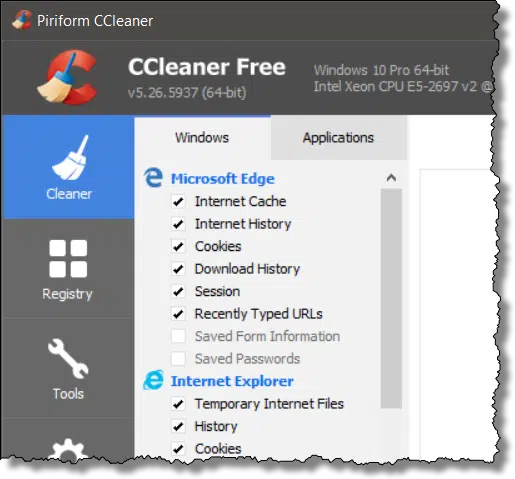
One of the things that distinguishes CCleaner from Windows’ own disk-cleaning tool is that CCleaner is aware of many popular non-Microsoft applications that also need cleaning. Click the Applications tab and you’ll get a long list of programs, both Microsoft and non-Microsoft, that CCleaner knows about.
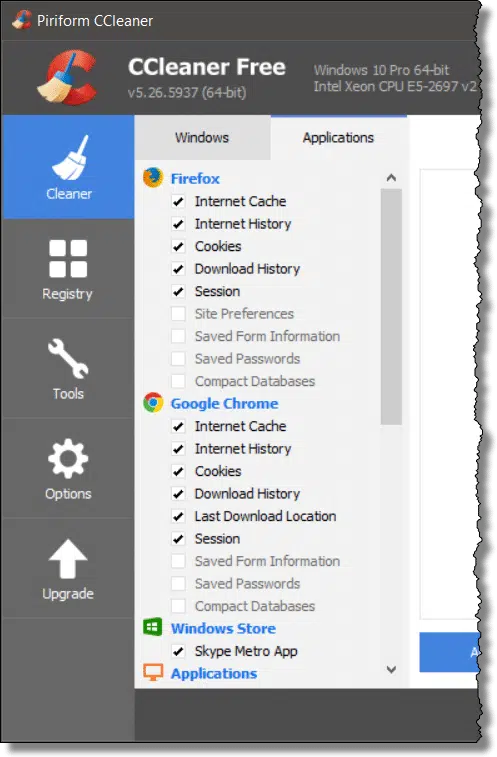
In both cases, you can scroll through and select or de-select which items you would like CCleaner to clean. (The default selections are a fine place to start if you’re not sure.)
When first using the tool, the next step is to click Analyze, which simply examines your system for cleaning opportunities.
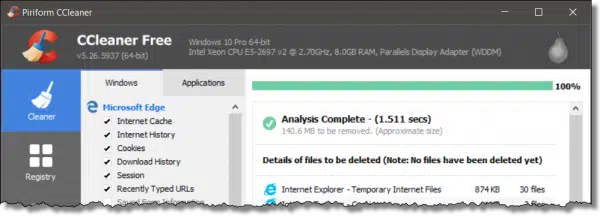
Here, you can see that, when run on my system, CCleaner would free up a little over 140 megabytes of space.Your results may vary dramatically, depending on how you use your machine, how recently you ran CCleaner, and a wide variety of other conditions that can impact the number of clean-able files on your system.
Ramifications of cleaning files
For the most part, the files CCleaner proposes to delete are indeed safe to delete.
But it’s important to realize that there may be ramifications. Some examples:
- Deleting cookies may require that you re-log-in to sites that had previously remembered you.
- Deleting history, be it in a browser or other applications, naturally means that the history feature will no longer have the entries that are deleted.
- Deleting temporary internet files may slightly slow down your subsequent initial visits to the websites that you visit frequently.
- … and so on.
It’s worth browsing the list of items that CCleaner proposes to delete. If you’re unsure, go back and uncheck the corresponding item so CCleaner doesn’t delete it.
As for me, I tend to run with the default selection.
When you’re ready, click the Run Cleaner button and CCleaner will do its thing2.
Registry Cleaner
As you may already know, I’m not a huge fan of registry cleaners. In general, the risk is too high and the benefits are typically miniscule. Unless there’s a specific problem you’re attempting to solve, I suggest not using a general purpose registry cleaner … ever.
That being said, if you are fighting a specific problem, or you just feel you must, CCleaner’s registry cleaner is a reasonable choice.
On the far left of the CCleaner interface, click on Registry, and then click on Scan for Issues.
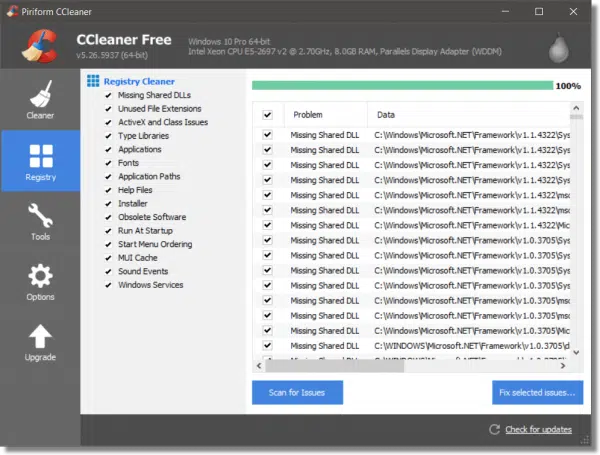
Note: After you scan for issues, there will always be “issues”. Even on my machine – which is working just great – CCleaner listed over 1,400 “issues” it would clean up for me, if allowed. The majority of these are completely benign.
If you’re planning to actually perform registry cleaning, back up your computer first. Take a system image backup using your backup program of choice. Playing with the registry can be dangerous; at its worst, it can leave your system unstable or even unbootable. It’s rare, particularly when using a well-behaved tool like CCleaner, but it’s still possible.
To clean the registry, click on Fix selected issues…..
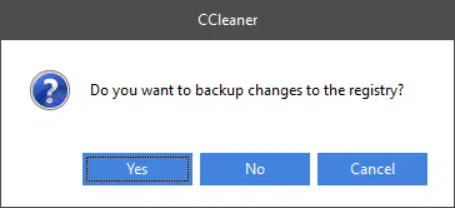
CCleaner will prompt you to back up the changes it’s about to make to the registry. While this might seem redundant after having taken a full system image backup, it’s small, fast, and can be a more convenient way to recover from the majority of possible problems that might result from the cleaning.
After saving the backup, CCleaner will proceed to clean each issue it finds.
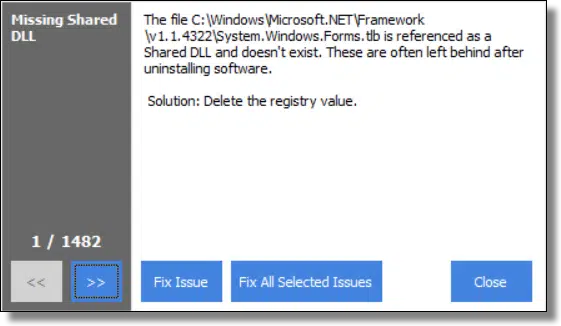
As you might imagine, it’s unrealistic to examine each one of the 1,400 changes CCleaner proposes, much less understand the ramifications of each. The most common action here is to click on Fix All Selected Issues.
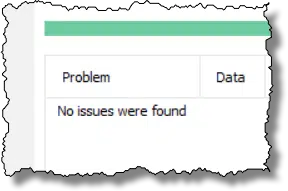
As it turns out, fixing registry issues can expose new issues. It can be helpful to repeat the “Scan for Issues” and then “Fix selected issues…”. In my example, I ran it three times before no new issues were found.
At the risk of repeating myself, I do not believe that regular registry cleaning is generally needed or particularly beneficial. When weighed against the risk of a registry-cleaning operation that may cause more problems thanit solves, I advise simply not doing it at all.
Uninstall
With the arrival of Windows 10, another of CCleaner’s additional tools has become significantly more useful.
One the left-hand menu, click on Tools, and then at the top of the adjacent list, click on Uninstall.
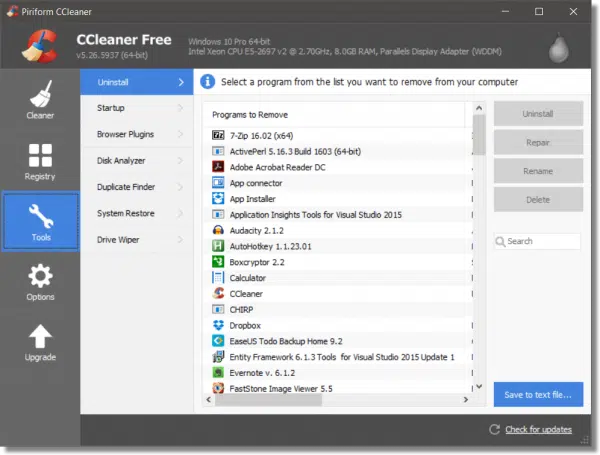
This will present a list of software on your system that CCleaner can uninstall.
What’s unique about Windows 10 is that this list includes many apps that don’t have an obvious uninstall mechanism elsewhere. As a result, CCleaner provides the easiest, and perhaps the only, approach to removing unwanted apps.
Caution: make sure you really don’t need an app before removing it. One example might be the MS Store app. While you might not care to have it around, it may become the conduit for official software that you later desire. After uninstalling an application that has no clear uninstall option elsewhere, there’s typically no obvious way to reinstall it, short of a refresh of the entire Windows 10 installation.
Additional tools
CCleaner includes several other tools.
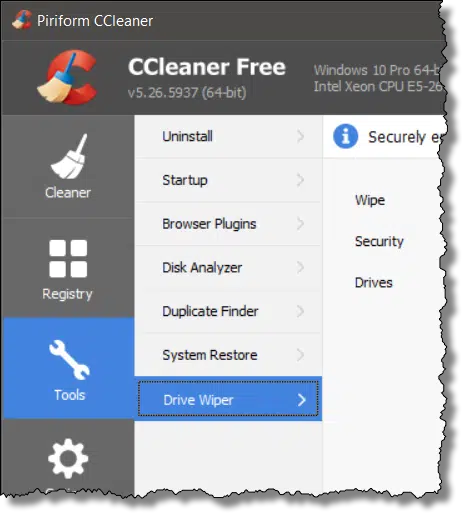
- Startup: an interface for managing programs that start automatically when you boot your computer or log in, as well as Internet Explorer add-ons.
- Browser Plugins: an interface to manage the plugins and extensions installed in your web browsers.
- Disk Analyzer: a utility to summarize the types of files stored on a hard disk.
- Duplicate Finder: a utility to locate duplicate files.3
- System Restore: an interface to manage Windows Restore Points.
- Drive Wiper: a utility that can securely wipe the free space on your disk, or, in fact, wipe an entire hard drive.
Most of these tools duplicate other tools I recommend, but they can be convenient if you already have CCleaner installed and don’t want to grab yet another tool.
Running CCleaner automatically
It’s a tad advanced, so I won’t get into all the details here, but CCleaner can be configured to run automatically when Windows starts, or scheduled using Windows Task Scheduler.
If you run CCleaner once, it is configured by default to save the settings that you select into an .ini file. You can then run or schedule the command:
"C:\Program Files\CCleaner\CCleaner64.exe" /AUTO
(use CCleaner.exe for 32-bit systems) and it will automatically run and perform the cleaning operation.
Next steps
CCleaner is a free download from Piriform, the makers of another tool I often recommend: Recuva.
Download CCleaner, run the Analyze function, and see what you see. It may become a useful cleanup utility to keep in your toolbox.
It’s in mine.
I recommend it.
Do this
Subscribe to Confident Computing! Less frustration and more confidence, solutions, answers, and tips in your inbox every week.
I'll see you there!


Reading Dan Ullman’s comment I did a search.
I came up with a Firefox add-on Click&Clean.
CNet’s comments:-
“If you’re a Firefox user, and a fan of CCleaner, we highly recommend this free extension for easy access.”
– CNET editor’s –
Agree totally with this assessment. Click and Clean only addresses cleaning the browser into which it is installed, while CCleaner does a per-user (global for the paid version) cleanup. Different focus.
I’ve tried CC Cleaner and Glary Utilities. They are both great tools that provide a program that every computer should have to clean up and maintain the system. A must. I’m decided on Glary Utilities for no specific reason. If curious, http://www.glarysoft.com
10-Jan-2012
I use cCleaner all the time, it has some very useful functions. The removal of programs works better than the one built into Windows, it digs deeper into the registry. The item startup function is nice too.
I’ve used the registry cleaner portion on many occasions and never had a problem. I install and test alot of freeware, apps & software and find that my system tends to bog down after time and do notice a difference in speed to launch certain programs much faster after running the reg. cleaner. J.
So, is it safe to say that CCleaner actually “deletes” files when you state that they “clean” those same files????… when I think of cleaning clothes, I don’t throw them out (or delete them)….I get to keep them and they are clean and are no longer “dirty”….please explain again your difference in “deleting” files that CCleaner deletes and those files that CCleaner “cleans”…… if I “clean” files they are in fact not deleted, but cleaned up….if I “delete” files, they’re gone, zilch, nada, don’t exist anymore……..thanks!..nl
13-Jan-2012
Leo,
CCleaner is not free and cost $24.95 year.
Eddie
13-Jan-2012
Eddie, CCleaner has a free version and a couple of paid versions. You can download the free version from Piriform or File Hippo.
@NL
Interesting analogy. But, it seems like what CCleaner means by cleaning, is to clean your computer by removing deleted file from your recycle bin and deleting temporary files. However, there are some files which are cleaned and not deleted, such as the browser index files and if you run the registry cleaner, the registry file.
@Eddie
If you look closely at the Piriform site, there is a free version which has most of the functionality of the paid version.
Hello, I am using CCleaner for years without any problems. W7, 64bit machine. Of course, disk cleaner must be used for empty space only. If you clean entire disk, all the data are gone, including valuable files.
Yes, CCleaner is very effective at wiping the disk or portions of it (applicable only to spinning-platter dives, not SSD or other solid state storage). And as with any wiping utility, you must be very careful to limit wiping to only those areas you really want gone.
You can use CCleaner to wipe the free space on an SSD. Just be sure to set it to one pass. Several writes on an SSD will make it wear out sooner. And on an SSD one pass wiping is equally effective.
Definitely free and definitely great! Imho of course :). been using this for more years than I like to think about and its always the first program back on my machine after a reinstall. (Besides Avast of course) Don’t forget to add CCenhancer. It adds many more browser’s and applications to clean and is a very small download. Anyway, Mr. Leo is right as usual about the registry cleaner included, if you must do it…… Ccleaners is the “safest” I’ve seen. Try this people, its worth the (very small) effort.
CCCleaner is no dobut an excellent free program.My only problem is trying to make it compatable with my “Windows Essentials Security “.I am aware there may be a solution but I need guidance on that end of things..Truly.Rob
In answer to “Rob” re using Ccleaner with Microsoft Security Essentials (MSE):
I’ve been using both together for years, with Windows 32 & 64 bit, and never had any problems. Are you using the correct 32/64 bit version of MSE?
There are Defender Logs which get erased if you leave CCleaner at all-defaults. Some people like to keep these Logs.
I too have elected to use Glary Utilities over CCleaner, for the sole reason that I had Glary Utilities first. Both are excellent FREE products, and have almost identical interfaces. However, Glary now offers a File Encryption and File Un-Encryption as part of it’s utility.
Just thought I mention this, and….that it has worked with Firefox w/o any problems [but never use the Firefox “option” for clean-up. FF has it’s own tools for this purpose]
Piriform’s CCleaner (and their other utilities as well) is an excellent tool that every technician should have in their “toolkit”. I’ve been using it for many years and it’s proven time and again to be a safe, efficient way to eliminate much of the garbage that tends to build up on Windows systems with each use.
What’s especially helpful, is using it in an environment with applications and/or add-ins used by MS Office to enhance usability of their software. Windows, unfortunately, tends to miss cleaning up after itself and can end up crippling a system. I actually encountered a system with over 40GB of system temp files alone!
If you run MS Office, especially in a corporate environment, it’s also especially important to keep your Temporary Internet Files folder (and its visible and invisible folders) cleaned out regularly.
However, even the most trustworthy and useful tool can be destructive in the wrong hands. As Leo so often suggests, whenever possible, make a backup BEFORE you use any tool to “fix” a system.
Jonathan
When it comes to “Free Applications”, you get what you pay for. I don’t like spending money any more than everyone else, but I found that regace works much better to clean the crap out of my registry, and it has several other nice features. Cleaning my registry is just the biggest item. Optimizing my internet, and clearing my browser history were bonus’s that Really made my purchase worth the money I spent. Don’t have to believe me, try it yourself.
I have a policy to never clean the registry unless there is a problem , doing so can cause more trouble than you bargain for, best to backup if you must clean the registry .
I use CCleaner but am annoyed by the fact that it does not delete my Chrome history. Anyone know how to make that happen? Though I haven’t used it in probably a year or so.
CCleaner does clean Chrome history, but you have to close the browser in order for it to be able to clean the Browser’s history, cache etc.
Try it now. It does for me. (Or did when I last looked.)
Tried again. It did NOT clear my Chrome history. I just downloaded the latest CCleaner, v5.27.5976 (64-bit). Chrome was closed. On Applications, Internet History was. While it did clear the Download history, didn’t clear the website history. When I go into Chrome History, it has my history going back for days.
Meant to say Internet History “was checked”
Samir,
I don’t use Chrome anymore, the worst system I used. It installs PUP,s, the last time I used Malwarebytes it showed 21 PUP,s on my computer. When I run Avast Safe Zone or Internet Explorer on Malwarebytes I don’t have any PUP,s ever.
I used CCleaner and now I can’t load my email it says a DLL is missing, Iv tried redownloading the necessary files and the DLL is still missing
You’d have to tell us exactly HOW you read your email (web? program? what browser or program?) and exactly WHAT DLL is missing.
was using windows live mail that came with windows security essentials it says it cant start because MSVCR110.dll is missing and i need to download the programme again. I googled what to do and it said it said windows live mail is part of windows essentials I am running windows 10 and am up to date with it. I triedlooking for the dlland thats when i found out it comes with security essentials. Might have been windows live essentials not security essentials either way at the time i tried what it advised.
Windows Live Essentials was retired some years ago. It is not part of Windows 10. Windows 10 uses Outlook.com.
Outlook.com is the online replacement for Hotmail. It’s accessed through the browser, and not as a mail app through Windows 10. Windows 10 has an app called “Mail.”
Leo –
In the section on using CCleaner as a registry cleaner, you indicate that “CCleaner will prompt you to back up the changes it’s about to make to the registry.” Is CCleaner merely creating a Windows restore point? If the answer is no, then how do we access the CCleaner backup when we need to recover from a problem caused by its cleaning of the registry?
Thanks…
It is not a Windows restore point. CCleaner creates a .reg file which contains the information to undo the changes made by CCleaner.The file has a name similar to cc_20170216_141621.reg (where the numbers are the date and time of the backup) and is found in the Documents folder. When the .reg file is double clicked, it should reverse all of the changes made by CCleaner.
I have used ccleaner every day i use my pc for many years without any problems. I occasionally clean the registry and have never needed to use the backup.
On one or two occasions, the registry clean was a bit to aggressive and as a result, ive needed to reinstall a program, but this is very rare indeed.
Ccleaner is a must have prog for every system, in fact i even use their android version on my phone.
“On one or two occasions, the registry clean was a bit to aggressive and as a result, ive needed to reinstall a program” – So, why do it at all? There is no benefit whatsoever to cleaning the registry. None. Zero. It does nothing – absolutely nothing – to improve performance and nor does it fix problems. That said, as you’ve discovered, it can and does cause problems (sometimes serious problems that can render a machine unbootable).
@Ray Smith I think your comment is a bit too strong. A registry full of garbage has about the same potential of creating a problem as an over-cleaned registry. I have heard many warnings about registry cleaning, but I have never run into anyone who rendered his computer unbootable through running ccleaner. The potential is there, I suppose. But I might fall down the steps and break my neck too. I suspect that the odds of the latter happening are greater than the former. I can’t stand a cluttered PC. But I also hate having to reset my online banking, etc. so I make sure that it doesn’t clean the cookies I depend on.
“A registry full of garbage has about the same potential of creating a problem as an over-cleaned registry. ” – No, it doesn’t. Not even close. You’re far, far, far more likely to encounter a problem if you clean the registry than if you never clean it.
“I have heard many warnings about registry cleaning, but I have never run into anyone who rendered his computer unbootable through running ccleaner. ” – I have. On numerous occasions. Google something like “registry cleaner broke my computer” and you’ll find plenty of example. You’ll also see examples of registry cleaners breaking things in the comments here, but you’ll not see examples of registry cleaners fixing things or improving performance – and that’s because they don’t.
I run FireFox. Do you agree with the comments that suggest using CCleaner with FireFox can cause problems or is that not a problem?
Thanks.
I use both and have never had or heard of anyone having a problem related to the combination of programs.
I’ve never experienced such. Also depends on what people consider to be a “problem”. Clearing cookies, for example, will force you to re-login to various sites, but that’s not unique to FireFox and simply a side effect of how cookies work.
I’ve used both programs over the years (CC and Glary) with reasonable but not dramatic success. There is a pro version of CC – I know this cos I’ve got it and it gives real time cleaning of browser history. That is actually a nuisance and I’ve abandoned it.
The best program I’ve come across for uninstalling software is RevoUninstaller – indeed the pro version can be carried from job to job on a usb stick but the free version also works very well.
I agree with Leo’s comments with regard to registry cleaners!
Also along the lines of Revo Uninstaller is Geek Uninstaller. Revo used not to clean up after 64-bit programs for free. Geek Uninstaller has always worked as well with 64-bits as with 32-bits areas of Windows. Fro most folks, either one is fine.
CCleaner will also remove the garbage left behind when you search Amazon AND your choices show up in Google right after that.
Sometimes it will be there when opening a page at another web site and not just limited to Google.
Make sure your browser(s) are all closed before running CCleaner plus Thunderbird if using that program.
I use both Ccleaner and Glary – both are GREAT programs and do exactly what they claim.
I agree that reg.cleaning is often not necessary for most of us, but I occasionally use it – and no harm so far !
Looks like these 2 programs (CCleaner & Glary) have been run..into the ground! Have used both for many years, call it luck or both programs have continued to do what they were designed for. Talked to a local teck, who he and his crew are responsible for taking care of over 400 high school computers and his recommendation is: “never mess with the registery”, unless you have a prime reason! Using this advice, my 2008 computer is still running WIN10 to date.
I’ve used C Cleaner for years after every Internet session. However I avoid registry cleaners after using one (not C Cleaner) which messed up my system and required a reinstall of Windows. That was several years ago and since then I only take out specific registry keys that I feel pretty confident can go as they relate to programs I no longer have. To do that I use the feature of copying the registry key; I copy it to a named file I have on the Desktop. For ever reg key I delete I have a specific backup for that key. In the event of a problem I can add back a key at a time instead of having to undo all of the removals. I’ve never had to add a key back in but the backups have been there just in case. A support person once told me that reg keys take up only 1 kb of space which is minimal. Since I don’t know what the “issues” the C Cleaner reg cleaner finds pertain to, I never run the cleaner. And have not had any more major system issues on my desktop.
It’s simpler just to let CCleaner make a .REG file of all the current values it intends to remove or change. Then they can all be rolled back in one operation.
To further clarify, you can just let CCleaner make one change at a time, making the .REG File each time. Having never run into a problem with the CCleaner Registry Cleaner, I have never had to go through such a complex process of troubleshooting.
Just to clarify what Rc means by creating a .reg file. That is created when you allow CCleaner answer yes to “Do you want to backup changes to the registry” after clicking on “Fix issues” It will ask you to save it with a name similar to cc_20170213_200318.reg where the numbers are the date and time.
I, myself, have never fixed a problem with a registry cleaner. However I have had occasional anecdotal reports from credible sources.
I agree with Leo’s warning about the unpredictability of Registry Cleaners. I downloaded CCleaner, ran it and it duly freed up 1.45GB. Fine.
Then – just to see what it did – I ran the registry clean feature. After that, cold booting to Password prompt took 2 minutes 30 seconds instead of 17 seconds. Hmm, not the desired outcome.
Now, I dared to run the registry cleaner only because yesterday I’d taken a full image backup with Macrium Reflect. I ran the restore (which took only 4 minutes because it pulls back just the stuff that’s changed) and now my reboot is back to 17 seconds. Lessons? 1) leave the registry cleaner alone, 2) make sure you have a fresh image backup before you tinker around.
All good, but how do you set the “defaults” back to default if you had changed them, without reinstalling the program, I was not able to find a simple way to do that.
Duplicate Finder: a utility to locate duplicate files.
When running this can I remove all the files that it finds or would I be also removing original files? I have quite a few that come up. Didn’t know this existed.
Thanks,
Ron
Removing duplicates can be VERY dangerous. I would NEVER EVER say you should blindly remove anything it says is a duplicate. Some files (pictures, for example) might be fine, but which one of the duplicates should be removed? Only YOU should know. When it comes to system files you can render your system unbootable if the wrong file is deleted. When it comes to duplicates I would leave well enough alone, and enlist the help of someone knowledgeable if you’re actually facing a problem you know is caused by duplicate files.
Hi. Thanks for an informative article. Is there a way of seeing a log of CCleaner scan history with dates? I use the free version. If this is not a feature of the programme, is there any other way I can use windows to check when scans have been run?
Not that I’m aware of.
There is something about DUPLICATE FILES that I can’t recall. Some operation will always lay down a duplicate file for whatever reason HELP.
It’s generally not a good idea to remove duplicate system or program files.
https://askleo.com/why-are-there-duplicate-files-on-my-computer/
http://ask-leo.com/is_it_safe_to_delete_duplicate_files.html
https://askleo.com/do-i-need-so-many-copies-of-the-microsoft-visual-c-runtime/
The trusted product “CCleaner” hacked; what do we do?
popular PC-cleaning software used by over 130 million people put users at risk after hackers were able to insert malware into legitimate downloads. Piriform’s CCleaner, owned by antivirus provider Avast, was found to be hosting a “multi-stage malware payload” that could install ransomware or keyloggers and further infect target computers on command.
https://www.engadget.com/2017/09/18/piriform-ccleaner-hacked-malware-downloads/
If you’re running 64-bit Windows, you weren’t affected. Installing the latest version of CCleaner should undo the damage.
https://www.bleepingcomputer.com/news/security/ccleaner-compromised-to-distribute-malware-for-almost-a-month/
http://ask-leo.com/64bit_and_32bit_which_do_you_want_which_do_you_have_.html
What do we do? Update to the latest (fixed) version, and run up-to-date anti-malware scans. That’s what I’m doing anyway.
How do I put the CC icon on my windows 7 desktop?
Right-click on an empty area on the desktop, click New and then Shortcut. Then browse to the location of the program you want to create a shortcut to which in this case would be c:\Program Files\CCleaner\ccleaner.exe or c:\Program Files\CCleaner\ccleaner64.exe (the 64 bit version if you have a 64 bit machine. http://ask-leo.com/64bit_and_32bit_which_do_you_want_which_do_you_have_.html). Or, in most cases, you can copy and paste the address from this comment and have it work.
I have a huge problem and can’t find a support person to talk to….I used my crap cleaner yesterday, I use it almost daily, normally there are 100-300 mbs to be deleted after I run “analyze”, then I run the cleaner. Yesterday I ran analyze and over 9,000 mbs popped up….I’ve lost all my folders on outlook express and can’t find them….I’m an insurance agent and those files are very important. After I ran analyze and saw the 9,000 mbs ready to be deleted, I stopped and did not run the cleaner, but my folders are gone from outlook….I’ve run into a brick wall….I’m afraid to run the cleaner and permanently lose everything….how can I cancel the analyze process on my CCleaner and hopefully restore those folders??
Do not run the cleaner.
Something is very wrong, but I have no way of knowing exactly what. In your shoes I’d probably revert to my most recent daily backup of the machine. If you don’t have a daily backup to revert to it might be time to have a technician look and see what happened. (Outlook Express? You’re still running XP? That, too, is inviting problems like this, I’m afraid.)
Just posted about the problem I have with the lost folders….what would happen if I uninstall my ccleaner with the now 9,700 mbs still showing under analyze? Would the lost folders be deleted along with the ccleaner and then be really lost??
Analyze does nothing but collect & report information. Uninstalling CCleaner won’t help, but shouldn’t harm either.
I must say that the worst infection I’ve ever received occurred when I downloaded a “latest” version of CC Cleaner. Malwarebytes removed most but not all, and I had to take it to a technician, who told me to always use the “custom” version and only select what was absolutely necessary.
Actual malware would only result if you downloaded from somewhere other than the official site.
PUPs, on the other hand, can happen and your technician is correct: always choose custom.
Why are you still recommending this and not warning people off?
CCleaner now has a habit of drive-by installing AVAST, without any warning (even though they claim it does ask, it doesn’t – and the install is unstoppable).
AVAST then craps all over your system; you have to use AVAST’s own (probably untrustworthy) remover to get rid of it – which involves safe mode & reboot. Nothing else works. And you can’t get support for it as a non-customer who never wanted the crap in the first place.
And it still leaves crap all over your registry.
AVAST anti-virus itself is far from recommended nowadays.
Also known to install Chrome or variant thereof.
Plus it potentially phones home with ‘telemetry’.
And of course it famously infected everyone with a trojan through abject carelessness.
And AVAST leaves a database of your private browsing.
All this after CCleaner was bought over by AVAST in 2017.
Some of these things probably break EU law, GDPR.
In short, now is time to ditch Ccleaner/AVAST and write to your MEP to complain about their practices.
https://malwaretips.com/threads/you-might-want-to-read-up-on-the-latest-ccleaner-update-before-installing-it.85646/
I continue to recommend it because it still does useful things that I’ve not found in other tools.
Yes, they made some horrifically poor decisions with the silent install of Avast, and I will forever look at them with suspicion, but they backed away from that, as well as forcing auto-updates and proactive system monitoring. I recently installed CCleaner on a demo machine, and it was very well behaved, and up-front about the offer of an Avast install.
I’m a big fan of CCleaner, but something to note if you decide to purchase (which I did). It is an ANNUAL SUBSCRIPTION. After the year is up, if you don’t re-purchase, you will be incessantly reminded to do so with a large red popup box. I let it ride for two months and got the popup reminder (which you cannot avoid if CCleaner is running) about twice per day. There are only two ways to cure (which I confirmed with the support team): re-purchase, or uninstall and reinstall.
Just an FYI as it is not obvious that it is an annual purchase. I’d pay $10/yr, but not $24.95 for a product that functions exactly the same as the free version.
Hi
I bought the professional version but unable to run it successfully because it is asking for 16-21 hrs to complete. For official use we have to run this on many systems in a very short time. Is there a solution that can help
Leo. You Said “What’s unique about Windows 10 is that this list includes many apps that don’t have an obvious uninstall mechanism elsewhere. As a result, CCleaner provides the easiest, and perhaps the only, approach to removing unwanted apps.”
I find that the program Revo Uninstaller Pro 4.2 will do the same thing. But it does it one better. When uninstalling an App, it will first backup the registry and then create a restore point. I don’t think CCleaer does that. CCleaner is free whereas Revo Uninstaller is a paid program.
Leo also recommends Revo Uninstaller. CCleaner only asks you if you want to back up the registry if you run their registry cleanup.
I wouldn’t come close using CCleaner if they are still part of Avast. Had a heck of an argument with Avast auto-charging me after I had already opted-out of their software. I was charged a full year after I completed an uninstall. The CC company used for their service finally agreed for a refund, but it took months….never again. I’m still interested in something like CCleaner and currently using win 10 build 19043, thanks for the comments very informative.