The case of the missing taskbar.
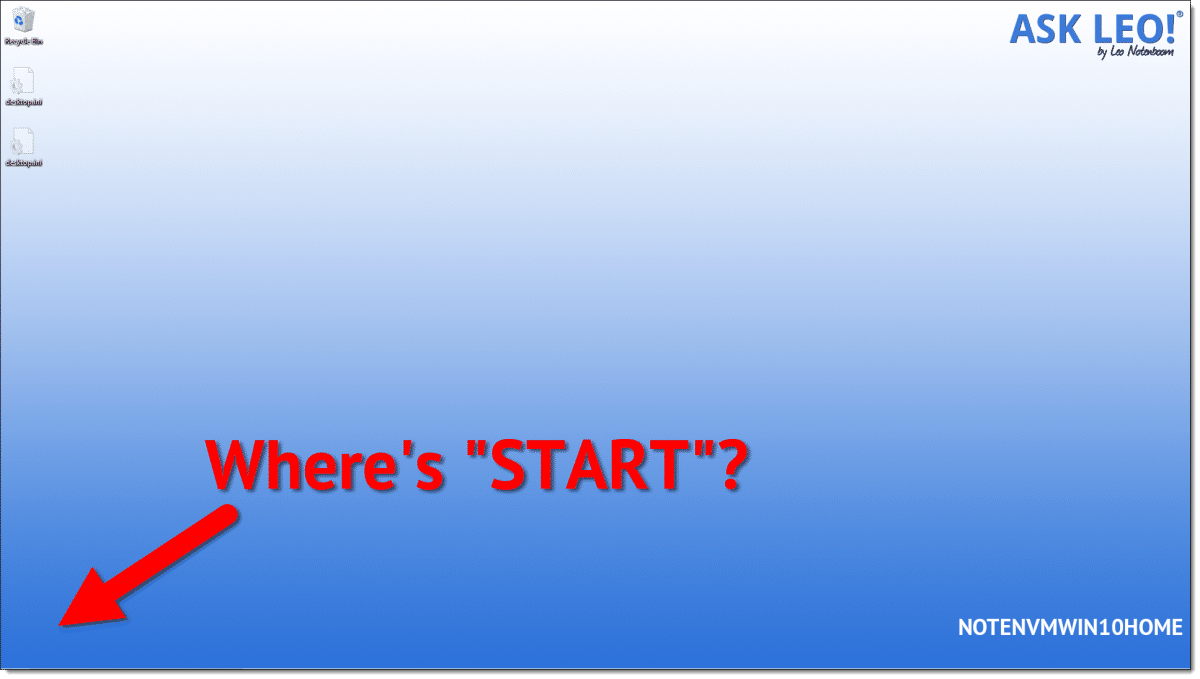
There are a couple of different ways the taskbar can disappear (or appear to disappear).
Naturally, the solutions are different, as are the workarounds.
Become a Patron of Ask Leo! and go ad-free!

Missing Taskbar
Press CTRL+ESC to bring up the taskbar if it’s hiding or in an unexpected location. If that works, use Taskbar settings to reconfigure the taskbar so you can see it. If that doesn’t work, use Task Manager to run “explorer.exe”. If that doesn’t work, check for malware and possibly corrupted system files. If none of this resolves the issue, you may need to refresh or reset Windows.
It’s hiding
Press CTRL+ESC. If your taskbar magically reappears, then it’s probably simply been resized too small, repositioned somewhere you didn’t expect, or perhaps beneath another application that is running full-screen on your computer.
The workaround? Press CTRL+ESC to access the taskbar.
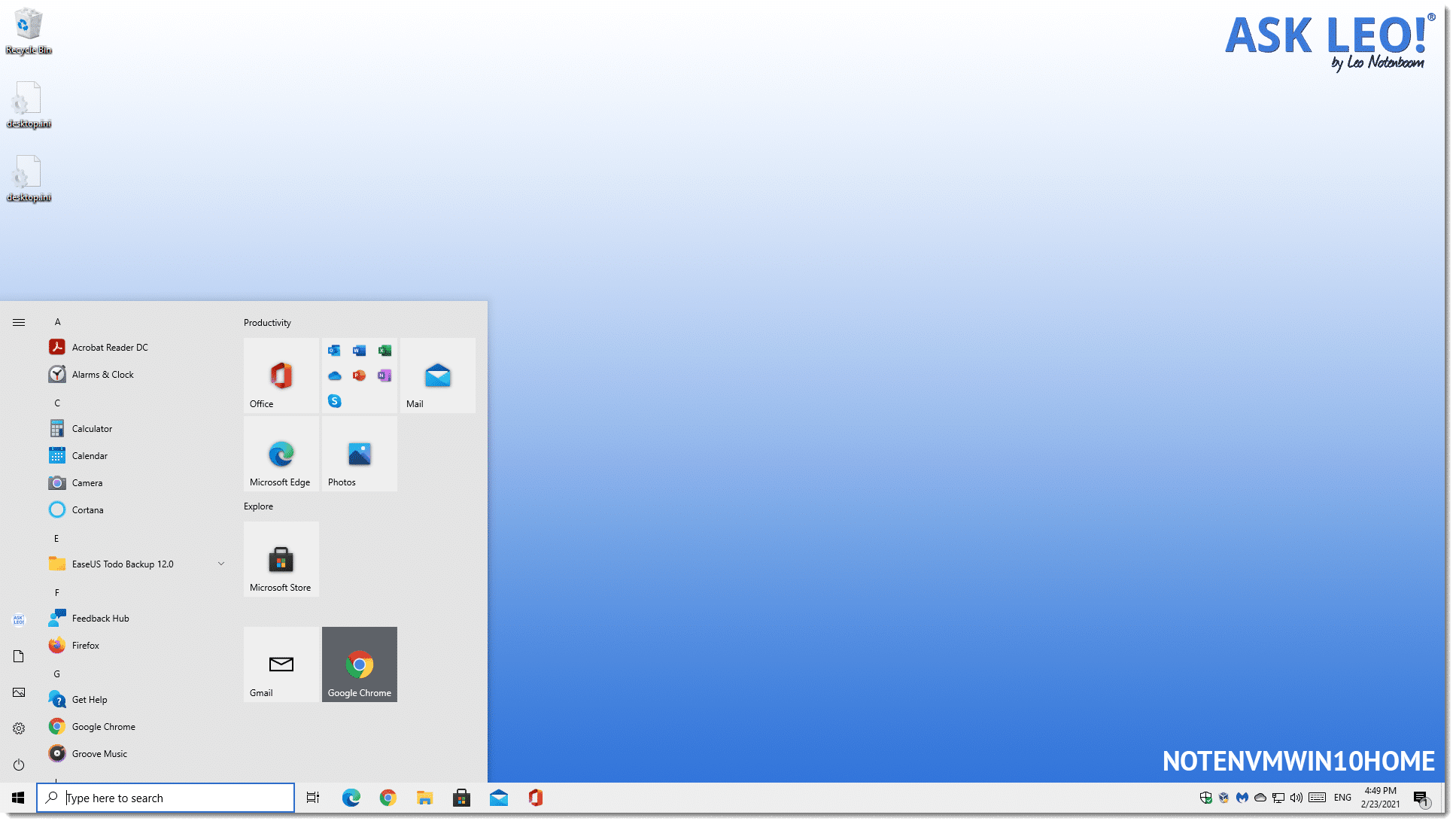
The article “How to Manage Taskbar Space” includes a short video showing the settings you can change to make it behave the way you want, and/or the approach to making it “big enough” once again.
It’s not running
If CTRL+ESC didn’t bring it back, then the program that displays the taskbar probably isn’t running. That program is often called the “Windows Shell,” but it’s really “explorer.exe.” It displays the taskbar but also responds to the CTRL+ESC sequence. If it’s not running then it’s not around to do either of those things.
The workaround: press CTRL+ALT+DEL, which brings up a menu of options.
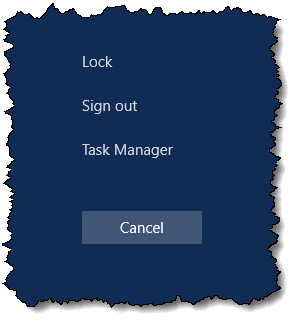
Click on Task Manager. In Task Manager, if the File menu is not shown, click on “More details” near the bottom. Then, on the File menu, select Run New Task. Type in “explorer” and press OK.
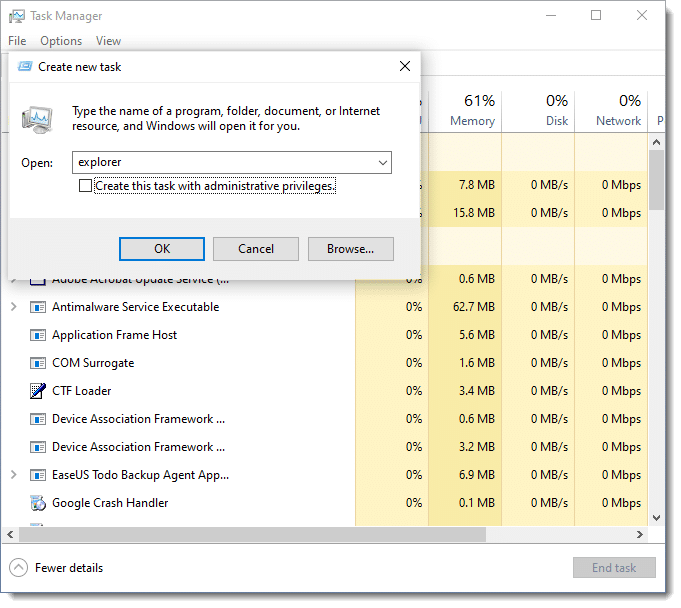
That should restart Explorer and re-display your taskbar.
If it does not, we need to explore other approaches to fixing it.
Fixing a missing Explorer
If you don’t have a Start menu from which to run programs, you can use the Task Manager’s File, New Task (Run…) to run the programs we need.
As always, I strongly recommend you back up before attempting any of these approaches. If you have no way of running your backup program, you can use the technique outlined in How to Back Up a Machine that Won’t Boot.
My first recommendation is to run an up-to-date anti-malware scan. If you use Microsoft’s built-in security, you can run:
%ProgramFiles%\Windows Defender\MpCmdRun.exe -Scan -ScanType 2
to run a scan. (More options for the MpCmdRun command can be found here.)
Next, I would run the system file checker as outlined in this article: What Is the System File Checker, and How Do I Run It? That will check for missing or damaged files in Windows and repair or replace them if possible.
Next, I would attempt a refresh of Windows 10 using one of the techniques outlined in Refreshing Windows 10 Without a Reinstall or Reset.
Finally, you may be faced with re-installing or resetting Windows. How Do I Reset Windows 10? has the details.
Windows 8
OK, OK. Windows 8. Windows 8 is … special.
The default view is not to have a taskbar, and even when you do, there may not be a Start button. The simplest solution is to install the free Open Shell.
Do this
Subscribe to Confident Computing! Less frustration and more confidence, solutions, answers, and tips in your inbox every week.
I'll see you there!
Podcast audio

Related Video


it helps to end explorer before you restart it using taskmanager
An update on what hasn’t helped. Everything I’ve tried has not helped – still no task bar, no start menu, can’t get to Control Panel functions so operating via Task Manager only and cumbersome switching between programs. I’m almost used to it. Can’t launch and hold Windows Explorer so had to download an Win Explorer substitute program just to move files with. Oh, the pain of it all.
I have – run virus checks, registry clean/repair via several programs, spybot/malware cleaners, the SFC routine mentioned here and today a “repair reinstall” from my orignal WIN XP PRO CD.
Guess what? Still no task bar, start menu, etc. And I lost some functions I had before the repair install.
The only thing left is a full Install which will wipe out my existing programs and data. I have them backed up on a 200 gig external drive so that should be preserved.
I have not read anybody with a successful fix to this problem yet. The Repair Reinstall and SFC both sounded promising to me but they didn’t effect a fix. Could there be a hardware problem on my HP? I assumed it was a corrupted Win Sys file but the reinstall should have taken care of that.
Anybody??
Dick W.
Last update – at least from me. I did a full reinstall of Win XP Pro from the original CD and that brought back the task bar, start button, clock everything except all programs and Win updates. It’s a long road to rebuild – start with Windows Update so you get the service packs and umpteen other “Critical Updates”. The move files back from the backup disk and cull the progams and reinstall those. I’m moving the program folders back but downloading new versions or clean download and letting the Install Wizard install them as if for the first time except in some cases specialized items I might have had set up will be intact from the archived folder. Have to reinstall the printer and any other peripherals that aren’t simple plug n play types.
Big pain but the computer is functional again. Stil feel there’s a simpler fix out there and still interested in a better answer than the big kahuna of a total reformat/reinstall.
dick in kc
If your taskbar comes back and then disappears, it is likely set to “auto-hide” right-click (right mouse button) on the taskbar and select properties. Then, uncheck the auto-hide feature. The one thing I have seen take out explorer.exe and be pretty much unrepairable was when google desktop was manually removed. I did a system restore to before google desktop was removed and it fixed it on one computer, another computer remained broken.
If it is still possible to access the task manager through Ctrl-Alt-Del while in normal or safe mode, then you can try to run the regedit command, and then check for this entry
HKLMSOFTWAREMicrosoftWindows NTCurrentVersionWinlogonShell the value data should be “Explorer.exe”. If it is not, then change it, or else if you don’t have that value name, create it. After that, restart. Hope it will help.
Steve
I seem to have a worse problem here. I’m not sure if my comp is infected by a virus but I do not seem to have a desktop (only has the background image in the computer) no start bar and windows explorer could not open. The problem seemed to occur after I cancelled an installation of google desktop.
this solution worked. THANKS SO MUCH.
HKLMSOFTWAREMicrosoftWindows NTCurrentVersionWinlogonShell the value data should be “Explorer.exe
Greetings from Devon Leo .
I have a blue line along the bottom of the screen and no Start button or clock.
If I place my mouse pointer on the blue line I get the correct double arrow but I cannot click and drag to expand the line to show these items.
If I right click on the blue line I get a menu with ‘Toolbars’ at the top. If I click on an item like ‘Quick Launch’ I can then click and drag the blue line up to show the Start button the clock and Quick launch stuff etc.
However none of the tasks for open windows show up on the blue bar. If I minimise a window it vanishes – only to be found again by typing Alt Tab. I have tried the Task Manager and restarted exporer. I’m a bit dubious about messing with the registry.
Any ideas?
Thanks – Dennis
You may want this article: http://ask-leo.com/why_dont_running_programs_show_in_my_taskbar.html
We were having the same problem and removing Google Desktop did the trick. After logging in, press ctrl-alt-del and select Task Manager. Click File-> New Task and type “appwiz.cpl”. This will bring up add/remove programs. Select Google Desktop and click remove. You may see some information pop ups. Keeping clicking ok untill the app is removed. Restart your computer and your start bar and icons should be back.
Hello. I’m having somewhat of the same problem. My taskbar is “painted over” with beige, no start button. I tried fixing the registry, yet I cant start -> run anything because when I do press the windows button on the keyboard, I can only access “All Programs”. I can’t ctrl + alt + del and every time I try and open something it says “This application has failed to start because the application configuration is incorrect. Reinstalling the application may fix this problem.” I can’t reinstall anything , because when I do click on the .exe to install it, that same message pops up. Has anyone had this problem before? Thanks a lot
I’m running XP Pro. My taskbar/Start button ceases to respond only after I open MyDocuments or any other folder that resides in MyDocuments. I can still see the taskbar, and its ‘frozen’ in its last state. I’ve run 3 different antivirus programs, 2 spyware and 2 adware programs with nothing showing up. Windows-Esc does nothing, opening task manager and running a ‘new’ instance of explorer again does nothing. As long as I don’t open MyDocuments everything works fine.
Hi, All.
It’s not that my task bar does’t appear: it’s that the windows/programs I minimise don’t appear on the task bar. They “shrink to vanish” only not to appear on the bar. CTRL+TAB allows me to call any of the open programs to appear, but I can’t do the same by clicking on a mininised icon because they’re not showing! I can’t find any help on this. Any ideas? Win XP SP2.
That’s this article: http://ask-leo.com/why_dont_running_programs_show_in_my_taskbar.html
if you cant figure out wat happend to your taskbar, but you can open up START with either the windows logo key, or ctrl + esc , then right click the empty space right above where it syas start then go to properties..Click on the Taskbar option on the top left.. Change any of the settings such as Auto-hide the taskbar.. then apply.. By changing an option for the Taskbar, you re-enable the taskbar
We have read and tried most of the above information, pressing ctrl-esc, have also done the alt-ctrl-delete and gone into the New Task (run) and typed explore, also typed in cmd….each time it come up with the my documents folder. I have tried to do a virus scan, I cannot get into explore7 or get into my incredimail email. I can though send and receive email through hotmail and am able to type in WLM where my friend and I have been trying to troubleshoot this problem. I did momentarily turn of the wireless fios, in logging into other user the task bar and start menu are there but none functional as I was going to try and do a system restore from there…everything that has been tried just seems to fail. Any ideas would be appreciated.
I have an Dell Optiplex 745 with two Dell 1907FP color monitors running Windows XP. I can see the icons in the Desktop window but the Start Button and Task Bar are missing. The two monitors are connected via one adapter card. Tried Ctrl + Esc keys, does not work. Have also tried most of your advice above, but also not working. Tks for any advice.
If using Task Manager’s File, New Task (Run…) to start “explorer” results in a Windows Explorer window being created, then you likely already have explorer.exe running. You should then kill it via Task Manager, then try the trick again and this time it should restore your taskbar and start menu (albeit any Windows Explorer windows you had open before you lost the taskbar/start menu will now be gone.
i have same thing iv tried everythink i know i hav e a trojan but dunno how long iv had it for and my toolbar and start button have been gone for a week now i have to run things thru windows task mangaer .When i type in the C:WINDOWSexplorer.exe or explorer the toolbar and start button re-apear but then go again str8 after so i dunno what to do pleaseee help i wanna aviod doing a re-covary 🙁
Taskbar Repair Tool.
http://www.kellys-korner-xp.com/taskbarplus!.htm
home to a bunch of excellent scripts I have used on more than one occasion to get me out of a tight jam….These are vb or wsh scripts so no installation, and you can check out the source just incase you’re worried. For the majority of you, I would recommend the top script – ‘Taskbar is Missing’, or if your apps are missing on the taskbar, the 3rd option ‘minimized programs missing’…And don’t spend ages trying to click on the drop downs – it’s a screenshot of the full app – the links are underneath to some of the scripts contained within the full application, which is only $5 and well worth it.
hope this helps
TASK BAR MISSING FIXED
i tried this
1. go to START BAR
2. right click and go to PROPERTIES
3. click the CLASSIC START MENU— click apply
you have classic start menu now… the start bar shoul be ok now.
then do steps 1 and 2 but this time select START MENU and apply to revert back to your xp start bar menu.
hope this helps.
Last week for some reason my task bar, start menu and icons all disappeared, all that was on my screen when I signed on was my desktop wallpaper. I tried to do a right click and nothing came up, the only way I was able to go online was through the task manager. As you can imagine, it took me a lot longer to get to programs through the task manager. I ran my anti-virus scan and there were no viruses detected. I tried to bring up the explorer.exe but it was gone. I searched for several days online for ideas and tried everything that was suggested but nothing worked. I was scared to do a Windows XP repair with my CD because I was afraid all my files on my computer would be gone. After about a week of trying to find something that worked, I finally just did the Windows XP repair with my Windows XP CD. After the repair was done I logged back on and EVERYTHING WAS REPAIRED AND EVEN ALL OF MY FILES WERE STILL THERE! I had to update Windows XP all over again. Now my computer is finally working and I didn’t have to send my computer some where and pay $$$$ to fix it. I would suggest doing the Windows XP repair with your Windows XP CD, it’s worth it! But use the Windows XP CD repair only if you have tried everything else that was suggested. GOOD LUCK!
i recently had this problem after purchasing a graphics card, your graphics card can be set as having two monitors, so go into your graphics or display and make sure its set to one monitor.
What worked for me was running control.exe (control panel) then clicking on Taskbar and Start Menu.
What I found is Lock the taskbar was checked.
When I unchecked it, I could see the very edge of the taskbar at the botton of the screen.
I could then find and drag the resize arrow to make the taskbar bigger and presto, the full taskbar is back.
We just had the same problem as Jon, our new graphics card was set to 2 monitors. We had to go into the display (right click on the desktop, properties and settings). You may have a 1 2 and 3 showing up, this is for each monitor, 1 should look normal, with any other numbers greyed out. If 2 is not greyed out this could be your problem. Click on 2 and make sure that extend my windows desktop to this monitor is not checked. Voila.
as i logged into my user the only thing i could see was my wallpaper and NO ICONS OR TASKBAR, now i have to use the task manager which takes a long time to open programs and i cantopen certain programmes…
TRY TO SEARCH EXPLORER.EXE..IF YOU FOUND ONE DOUBLE CLICK ON IT AND EVERYTHING SHOWS UP…
Thanks to all…
For anyone who needs step by step instructions on how to fix your missing taskbar.
1. Press ctl alt delete and task manager comes up
2. Click onto applications and click > New task
3. Type regedit and press ok
4. Click HKEY_LOCAL_MACHINE
CLick SOFTWARE
Click Microsoft
Click Windows NT
Click CurrentVersion
CLick Winlogon
5. Now look for the entry SHELL
6. If it is not there you will need to create it, to do this right click on winlogon and click “new” > Key
7. Type the name SHELL and press enter
8. Now on the right hand side double click on the (default) this brings up a box where you can type the words explorer.exe
8. Press ok and then exit regedit
9. Restart your computer.
10. Now your back in business!
HKLMSOFTWAREMicrosoftWindows NTCurrentVersionWinlogonShell
Explorer.exe
Taskbar and Desktop missing (not interactive):
As stated try to run ‘explorer’ or ‘explorer.exe’ with the taskmanager (Ctrl+Alt+Del) -> File > New Task (Run…).
Sometimes the explorer.exe is not fully crashed. Then just another file explorer will show up but the taskbar will still be missing.
In that case you may have to kill the process ‘explorer.exe’ in the ‘Processes’-tab of the taskmanager first and then run it again as described above.
The problem described here is just a crashed explorer. This solution will not help when experiencing permanent desktop problems (e.g. just set invisible or serious problems). It is a quick fix to access all running programs (especially programs iconified to the tray), saving all the data and then doing a proper reboot.
Greets
I have a big problem. When I boot my PC, no taskbar appears. When I press Ctrl+Alt+Del and run a new task “explorer”, the desktop and all the icons appear for 3-5 seconds and then the explorer process ends and everything disappears. This happens every time I run explorer.exe Without it, I can’t do many things… I also noticed a svchost error message appearing sometimes. I have checked my PC with NOD antivirus. A few viruses/trojans were discovered and succesfuly deleted. I have also used SpyBot Search and Destroy to remove spyware. But this hasn’t helped at all 🙁 I have read that updating my WinXP is also recommended, but I have no idea how to update without the explorer.exe process running. I have WinXP Pro with SP2 installed. I want to avoid reinstalling it as it takes a lot of work and I do not have the install CD. What should I do? Please, help me
IMPORTANT: If you encounter this problem, and it still shows after a restart you may have to End Task the explorer.exe, then New Task (Run) Explorer. It seem that sometimes the file is running, but errors. I noticed that some people mentioned trying it, but they did not make sure the old process was stopped before trying to start it again. If you don’t end the old process, a new one will not start, or will start with the same error.
I haven’t read where anyone has tried system restore on the missing task bar. I can’t say that this will work, but it’s worth a try. Make sure you oare in safe mode. Otherwise, not all things may be restored.
To the person that has lost their printer icon. Have you tried, start, programs, my compouter, printers and fax, view my printer. When the printer icon appears, drag it to the desktop.
On an older computer with W98SE, this “file, new, run” fix isn’t available. But I was able to fix the problem by minimizing an open window and watching the direction it moves in as it minimizes. I dragged the cursor over to that side and sure enough the task bar reappeared and could be repositioned at the bottom. Phew!
This has been happening for little over a week. When I turn on my laptop, everything’s fine. My toolbar is there, it’s all good. Then, when it’s all booted up, the toolbar disappears. I’ve tried everything. I tried the task manager thing, but nothing happened. I don’t want to restart windows, because I’ll lose all my files. It’s so annoying! I can maneuver alright, I can use ctrl+tab to switch from window to window and the windows logo button to access my start key, but I never know what time it is and the tab trick gets annoying.
I can’t tell you how good it is to type in “where did my start button go on vista” and actually find you there to help. Many thanks I’ve bookmarked you and bought you your favorite drink.
oh man thanks for the help. We had a virus so we ran anti-virus and when we did it all dissapeared as did the icons. Its bheen a month and this is the only place i found the answer. just typing explorer in worked. thanks
Leo’s recipe for how to get the task bar back is nearly correct. At first I got the same result as
“Posted by: Asif at March 9, 2009 3:46 PM” in that an explorer window opened showing My Documents. Then I kept looking through my google hits page and found an article at Windows Annoyances that said I needed to close all visible Explorer windows first. So I did Alt-Tab enough times to get to each explorer window and closed them all. Then when I tried Leo’s recipe, it worked 🙂
Apparently when explorer.exe starts up, it checks to see if another instance of itself is running already. If not, it turns itself into a taskbar window at the bottom of the screen, otherwise it opens an ordinary explorer window displaying My Documents. Clever behaviour in a program, but confusing for us humans.
Thanks Leo, perhaps you could add “close any open explorer windows” to your recipe.
Jim
THANK YOU SOO SOOO SOOOOO MUCH! I must abmit I don’t really know much about computers,but through trial and error i’ve been teaching myself. When I got on and couldn’t find my taskbar nor did I see my icons,I thought i’d lost my computer! lol Your site made it easy and simple to follow and I got it! Thanks!
None of your suggestions worked, but it was a learning experience trying them. I finally got fed up that under normal bootup I had no mouse or keyboard control. Ctrl-Esc and Ctrl-Alt-Del did nothing. I got so fed up after multiple reinstalls, etc., that I shook the mouse violently. And then from the edge of the screen, the mouse pointer appeared. Was this computer setup with 2 monitors? This computer had been hooked up to two monitors at some point under the local administrator profile, although not for years under the current user’s profile. Safe mode was coming up fine, but the extended desktop was on and the monitors were switched. I moved my test monitor to the other monitor port and there was my desktop. Back in business!
Thank you Thank you Thank you! My task bar disappeared on Sunday and I have gone through every program, document, and internet assist site that I could find! I finally stumbled upon this site and am so relieved!!! The “explorer” program was not running and I would have never have known that without your help!!!
One could also try pressing CTRL+ALT+DEL to fire up the Task Manager, look for explorer.exe under the processes tab, if it is there, click on it, and then click on end process, then click on File in the menu, click on New Task (Run…), type in explorer and click on OK.
Thanks so much for your assistance I had no idea how i could bring my taskbar back and the situation was getting out of hand until i consulted with your website. Ctrl+Esc did not work for me but the explorer on the task manager did the magic. Thanks
Also, very rare, but make sure that it doens’t think 2 monitors are installed, and your task bar is on the other monitor. Right click on the Desktop>Properties>Settings tab>right click #2 Monitor and make sure Attached is not checked.
i also got stuck with this problem just 2 months ago and i was shock to read the article here and other sites… i did all the help this and other site offered but to no avail.
i wish this simple comments of mine do a little favor on your problem.
here it is… just remove the software that change the appearance of your computer like Inspirat XP or any docks…. reboot then your start button will be there again.
OK,
I had something similar just now. After minimizing an individual window inside of Adobe Acrobat that was stretched across two unequal sized screens, the whole program window disappeared as well. It was not closed (I could ALT-Tab it). The Taskbar disappeared as wel.
The only thing that worked was the Task Manager (CTRL-ALT-DEL) and stopping Explorer, then File > New Task . “explorer”. Popped back up.
Unusual error, but what can I say….
HEY GUYS LISTEN
THIS IS WHAT YOU DO IF THE EXPLORER THING MENTIONED ABOVE DOES NOT WORK…PRess Control/Alt/Delete and bring up the window. Then go to the Processes and scroll down….until u see ‘explorer.exe’
click it and then press ‘end process’.
THEN go to New task (Run…) in the File menu and type in explorer.exe…It will come now.
check to be sure you are only on one screen and not two togle + – on your monitor if it shows up
with no icons its on dual screens
go to screen resolutions and highlight 1 screen
and uncheck boxes accordingly
I lost my taskbar and discovered by clicking on “tools” on the command bar at the top of the screen that I had inadvertently checked “full screen”. When I unchecked it, the task bar came back.
The cause of this problem for me was the computer thinking I had two monitors installed. I believe that this happened because I had used a utility that created multiple virtual desktops. To correct the problems I went to Desktop->Properties->Settings Tab and selected the monitor that I did NOT want in the drop list and unchecked “Extend my windows desktop onto this monitor”. This page was very helpful to me in identifying the problem.
If you have two screens, you might accidentally drag your taskbar into the other screen. To get it back
1. go to C:WINDOWSsystem32configsystemprofileStart MenuProgramsAccessoriesAccessibility.
2. Open Magnifier.EXE.
3. Then, put your mouse’s cursor into the other screen, lock then unlock the taskbar, and then you can drag your taskbar back.
(If you have your other screen on then you can skip step one and two)
I’ve found another solution to the taskbar/desktop problem:
Click Ctrl-Alt-Delete
Click on Task Manager
Click on File -> New Task (Run…)
Explorer
Click on OK
Navigate to C:Documents and SettingsAll UsersStart MenuProgramsAccessoriesSystem Tools
Double click to load System Restore
Select “Restore my computer to an earlier time”
Select a date when your computer was working
Follow the instuctions and your system will reboot without problems.
Thank you, it worked for me.
One could also try pressing CTRL+ALT+DEL to fire up the Task Manager, look for explorer.exe under the processes tab, if it is there, click on it, and then click on end process, then click on File in the menu, click on New Task (Run…), type in explorer and click on OK.
Posted by: Richie at July 27, 2009 12:37 AM
Hi, I’ve got a problem that looks like this.
Whenever i maximize a screen, the task bar disappears. So i have to make the screen smaller again to see it. Its like if the task bar is “behind” the programs i have open.
Any button i can press ect. to fix this?
Hi,
i downloaded a media file about a week ago and had to ask for a codec file, I have AVG running and nothing was alerted, however I seem to have picked up a virus which has completely taken away my desktop icons and toolbar.
I have to use Task manager to do anything and I have scanned the computer umpteen times, the AVG finds items but cant do anything with them, including a file called a.exe and msa.exe. it also highlights issues with globalroot files?
Im at a loss, any help much appreciated.
thanks very much all
Who ever wrote that, thank u , everythink is workin now…XXX
HEY GUYS LISTEN
THIS IS WHAT YOU DO IF THE EXPLORER THING MENTIONED ABOVE DOES NOT WORK…PRess Control/Alt/Delete and bring up the window. Then go to the Processes and scroll down….until u see ‘explorer.exe’
click it and then press ‘end process’.
THEN go to New task (Run…) in the File menu and type in explorer.exe…It will come now.
My task bar+icons went missing after I installed Panda Antivirus 2009, here’s how I fixed it:
windows-button+r, wrote regedit in the Run… box, navigated to HKEY_LOCAL_MACHINE, Software, Microsoft, Windows, CurrentVersion, Run. Made a new string there named explorer, with the value of C:Windowsexplorer.exe
I tried all the above… no avail. Ours was a different kind of problem. The kids like to play online games and need the “full screen” option. Maybe yours changed by accident or by the gamers in your family. Go to TOOLS (up on the browser) and DESELECT full screen. Voila!
I have fought the missing task bar for months, tried everything! Finally got it fixed, go to the following website:
http://www.kellys-korner-xp.com/taskbarplus!.htm
Something to add to your list of things to try.
For me the Ctrl+Esc didn’t work.
Neither did Task Manager -> File -> New Task -> cmd (it started up an Explorer window).
After closing the Explorer that I just started I noticed in my task list (which was sorted by task name) that there was still an Explorer running. With very little to loose I killed it, and than started another Explorer, and I got my Task bar back!
Just had a histerical call from a user about this. He said his task bar was missing but he was on dual monitors and his second monitor which had his taskbar was turned off.
Sometimes it’s Windows shell playing up. Check out this article – it explains how to fix it: http://www.fileinspect.com/fileinfo/explorer-exe/
I just installed the latest updates using Windows 7 and this is happening every time my PC goes to sleep.
It worked for me to end and restart explorer in the task manager, but hopefully they’ll push out another update to correct it.
Help…the CTRL-ESC fix works to make my task bar visible again, however, it is ONLY “temporary” as it disappears again once I make the next click…WHY?
The taskbar IS visible on my Windows home page…any thoughts on how I can ensure that the taskbar REMAINS visible at all times and within ALl applications????
Thanks.
I did ctrl+alt+del and when I typed in “exporer” it will send me to “My Documents.” Does it mean,there is a virus or spyware on the computer?Should I try to do a scan?Any idea why it does this?Thanks for your help.God bless you in these End of Days.
My Documents is an Explorer window, so it is behaving correctly.
Press Ctrl+Esc. Select “Settings / Control Panel” Select and open the “Task and Start Menu”. Uncheck (or) Check the “Auto-hide the taskbar” – the reason is you just want to change the switch in the registry so the taskbar will appear. Once it does you can then change this switch back to whatever you like.
I tried the articles way of trying to fix it, although, when I read the comments, someone mentioned that the computer might think 2 monitors are installed, and the task bar is on the other monitor. But that it’s very rare. Lol Though that was my problem. Silly not-so-technology-savvy-parents.
Thanks guys. :))
Wow! I have been messing with this computer I just reimaged for about an hour and a half. The problem started after I installed the video card driver and service pack 2. I thought it was a problem with the install. I installed SP3 and still no Task Bar. I tried the SFC fix but still no Task Bar. I read the comments and saw that it might think there are two monitors. That was it ;?) Thanks Sigourney…for making me feel like a noob.
What if both my taskbar and my task manager both wont work when i click ctrl + alt + del task manager wont pop up i know how to get my taskbar back but i dont know how to enable my task manager! PLEASE HELP 🙁
my problem was also the two monitors issue. A month of hassel for a one minute fix.
Please add this soultion to your page please.
I thought my taskbar and start all disappeared because I changed my resolution, but that wsn’t it. Someone had clicked FULL SCREEN and that was it. I went to TOOLS… and unchecked Full Screen. Shaazam! 🙂
Didn’t read through all 120+ comments, but I just had this problem and it was due to the display being setup as a dual monitor station. Went into control panel, display, settings, and then highlighted a second monitor that was listed. From there I unchecked the box that said something like “Extend desktop display to this monitor”. Clicked ok and the taskbar appeared. Hope this helps someone!
For a week I had a similar problem with both my task bar and desktop icons disappearing. Everything was ok operating in Safe Mode.
Not sure if the same for others but my problem was that in display properties multiple displays was selected but make this main display not selected. It appears, I am not sure what was triggering it, that the task bar and icons were being directed to a non existent alternative display.
The Start button remains, but my taskbar disappears when the screen goes to sleep. I’ll try both these fixes next time and see what works. The pop-up that appeared while I was looking at your article was not expected or appreciated, but the info is. Thanks.
A followup to my previous comment.
I am running Windows 7.
CTRL+ESC gave me the Start Menu, which is nice but not helpful in this instance. My Start Button remains.
CTRL+ALT+DEL gives me a page where ai can choose to start the Task Manager.
I do, and check for explorer.exe. It is running.
If I select explorer.exe and “end task,” I can then restart explorer.exe and my taskbar reappears. I suspect that it moves to the background and is behind my screen background.
This ought to be an easy fix, but no such option appears when I right click, as would be reasonable. However, sooner or later I will find it, because I know it exists. “Keep background always in back” would work, as would “keep taskbar always on top.”
I had the same issue on my laptop. I found and tried a lot of suggestions myself. Once sudden, I hit the keys “WINDOWS sign” & “D” that displays my task manager bar again. Then, I just restarted my laptop that worked out well. I checked my desktop full keyboard that turn out to be correct keys for that issue.
Hi, can some1 PLEEAASSSEE help?? My tool bar that sits at the top of screen that has my “Bookmarks” in it has dissapeared & cant seem to fix it, I just managed to get My “Start” menu back using the actions posted on here…Ctrl/Alt/esc. thank-U in advance 🙂
Okay so, I turn my computer on and it’s taking very long to log in and when it does, the taskbar is missing.
That was the first time it ever happened.
And then I went into Safe mode, did a few scans got 7 viruses, deleted those.
It worked fine for 2 more days.. now, I’m missing my taskbar AGAIN.. and this time I searched for viruses, there were 0 threats.
What do I do? I can’t do a SFC if I don’t have a taskbar.
PLEASE, I really need help..
30-Sep-2010
F11 (full screen) got pushed by my toddler and made the taskbar disappear when in IE mode, push it again and taskbar returns….
was this useful?
I have OS Windows 7, Browser Internet Explorer 8. I went to delete some start up programs that I don’t need, and when I completed and finished, I found that I had no Task Bar and no Start Menu ! What do I do to reinstall both the Start Menu and Taskbar with all my Programs that I lost? Urgent, this has never happened before. I can’t access almost anything except for my Favorites! Please help!
Thank You
Peter Mundreon
I tried everything as well and nothing seemed to work, i tried the start task manager and even that would not show up. Is there anything else i can do to get my menu bar back, cause now i am not able to use my p.c 🙁
i discovered this by pure luck. it’s as though my taskbar had moved onto another screen next to my pc screen “to the right”. move the curser to the bottom of the screen slide along to the right to just off screen, left click and drag it back. thats how i got mine back. hope it works for you.
This Is what I did. First Start Task manager. Then Click Processes And Find explorer.exe. Right click it and click end process. Then go to file new task and type explorer.exe and the taskbar shold appear.
My bar and those desktop icons were disappeared due to a virus or something . and i dont know how to get it back . i tried right clicking on my desktop and nothing happened . and everytime i login to my computer , only a document file will appear . and thats how i access through files and everything in that document . if i cancel it , i would need to restart my computer again so that it would appear , and sometimes it wouldnt . and i need help solving this asap , thanks.
There was a comment here that totally helped me since the methods explained did not work and pressing CTRL+ESC did not help either. If you have Vista go to Personlize > Display Settings > then click the 2nd monitor > uncheck the box that says “extend the desktop onto this monitor” > press OK. This fixed my problem. Hope it helps!
update answer (i hope so)
THIS TIME ,REALLY – REALLY 100% WORK SOLUTION
did someone knews,
that this problem’s occur’s/happen only in single user administrator account only?
i knew it, because i have 2 user administrator account and one standard user account
and i have tested it repeatedly
the next clue is: search the programs that using local settigns
then the answer is: go back the time , what program’s are you install in past
and finally i found my answer for my question
“why my taskbar is missing after/during turn off monitor,sleep “
this program’s i have install is not compatible with win7 “polar clock screen saver”
,maybe someone can found better and quality answer than mine.
thx microsoft for make OS better than before
I was cleaning my keyboard and suddenly the task bar and tabs all disappeared, and a window I had open was showing full screen. I discovered I had hit the F11 button, and pressing F11 again brought everything back to normal, so you may want to try pressing F11 if your task bar disappears.
@Christian
When the Task Manager is disabled, it’s usually the symptom of a virus.
http://ask-leo.com/why_is_my_task_manager_disabled_and_how_do_i_fix_it.html
Had problem with no start menu.
Two bits that helped.
I did not have the run option in TaskManager so created a new shortcut. cmd this created a simple cmd.exe that opened a CMD window to allow me to run programs.
I stopped Explorer process, then started it again but typing explorer in my cmd window.
I still have lots of problems to sort but making a little progress.
The Taskbar with the Start button might be hidden somewhere and you can’t see it on your monitor. But if the Taskbar went missing due to virus infection, its difficult to restore it. The virus will also block upgrade installation. The final option is to format your hard drive containing the OS and re-install a fresh one.
Ok, so earlier this week my open icons on my task bar when I rolled my mouse over them showed little boxes so I could get a quick visual glance at what was open in that program. About Wednesday, that changed on me and when I scroll over them, they just give a list of the open programs. I must have done some keyboard shortcut. How do I get the little pictures back? Thanks!
The Taskbar with the Start button might be hidden somewhere and you can’t see it on your monitor. But if the Taskbar went missing due to virus infection, its difficult to restore it. The virus will also block upgrade installation to repair the Operating System. First preferred option would be to connect your hard drive to another computer as Slave Drive and scan it for virus infection. The final option is to format your hard drive containing the OS and re-install a fresh one. Never connect to the net or use removeable drives without installing a good antivirus or internet security. No point in taking risks.
Excellent, thanks very much. In my case, the explorer.exe process was still showing in Task Manager, but there must have been something wrong with it… so I used End Process to stop it, then your New Task tip to start “explorer”, which worked perfectly. Thanks again.
thanks a lot…..i am recover my start menu by using ur tips…actually my explorer was not working..i am useing ur step and goto task manager and started a new task by run command and type explorer…and my start menu was appear…….thanksssssss
Hi Leo, I tried everything I can to follow your advice here but not seems working on my computer. Ctrl+esc is not working if I press it. Ctrl+alt+delete seems it work but when I run explorer are nothing happen. I can’t run anti-virus because VMI is popping up and the program are not showing. What else should I do?
Thanks,
Julius
06-Jun-2012
thank you very very much i have searching the web for 7 hours on how to get my task bar back my 5 year old son managed to get the task manager up and end the explorer through the end progress buttom thank you very much very helpfull and apresiated
Thank you so much Leo. It was fixed in less than 30 seconds!!! I’m reposting this link on my company’s FB account- Ziglus. Last week my computer got some malware and it was a nightmare. I thought that it was back!! Thanks again. HB
I just installed Firefox last night. My tool bar across the top is gone, the File Menu that lists Save, send, print, etc is missing. need that. no task bar on the bottom
@Arl,
Just hold down the Alt key for a second and it will pop up. Seems odd to have it hidden that way until you get used to it. Then you’ll be really glad that it’s not taking up valuable screen space.
type ‘explorer’ in run command. The task bar will reappear.
Thanks for the fix, I’ve been hard resetting my computer to fix it previously and this was a huge help. My explorer kept crashing and leaving me without a start button or any windows. By running the task manager and starting the new task “explorer” solves it.
hey, same problem here, but you can use the task manager to open programs (new task..) so you can try using your computer like this
I had an not responding explorer.exe, especially if your taskmanager temporarily disappears when clicking something, you have the same problem as me. here’s how to fix it:
1. Run cmd.exe, its located at C:\Windows\System32\cmd.exe
2.Type Start wmic (i sadly can’t seem to find wmic location, thats why i do it like this, but its the only command prompt capable of fixing this problem)
3. in Wmic, type this exact sentence: Process where name=”explorer.exe” call terminate
4.when it asks if you want to execute it, type Y and hit enter.
5. normally, explorer.exe should automatically be re-started and the bar will appear again, should this not happen type this sentence: process call create “explorer.exe”
6. When it asks if you want to execute, type Y and hit enter.
7. bar fixed.
I understand it was a simple task, and even as someone who knows my way around an OS, this is absolutely the only solution that actually solved anything for me, whether it was from Microsoft, or users. I wanted to thank you for the help, even though this is an old answer, and it worked on Windows 8 for me. Although all of the icons across my multiple monitors were collectively moved to my main monitor, which I will have to re-organize, the solution worked nonetheless, and I have no problem re-organizing my icons if it means I can use an essential piece of this “broken” operating system. Maybe if Microsoft had a decent support team, I wouldn’t have to look on third party websites for simple solutions.
Thank you very much,
Chaz
This should work, but another easier way could be:
ctrl+shift+esc select the processes tab and end the explorer.exe process. After you have ended the explorer.exe process restart the explorer.exe process again by going to file – new task (run) – typing in explore.exe and clicking out. This should bring up the taskbar also.
I suddenly started getting the same problem about two days ago. When I start my laptop the taskbar is there, but as soon as I start IE 11, it goes totally full screen and covers everything. CTRL+ESC works just as if you hit the Windows key on the keyboard and the taskbar reappears, but as soon as you go back to IE 11, it disappears again. Someone said to do a “System Restore” which I suppose may work. I figured the problem was in IE 11. Tried looking for some settings but found nothing relevant. Decided to just hit the maximize button so I could grab and drag the edges of the four sides of the window. Dragged them to the best fit and exited IE 11. Restarted IE11 and it did not smother the taskbar anymore. Hope this helps.
When I lose everything like that all I do is tap the F11 key once. Everything comes back instantly. I don’t know why everyone else uses all these steps to accomplish this.
I have spent several hours trying to get my toolbar,taskbar,Start button,et., back.All I had was a blank white page….and,also no desktop showing…then, after a while a Google search box opened in centre of the page which is how I found YOU-LEO!
I have been writing down anything that might work….from your instructions at the top! and included several from the comment section.Have been writing since about 5:30a.m. this morning.I was afraid to let your page go(without having all the info at hand) in case,I could not return to it!
Had tried CTRL+ESC everything came back but disappeared as fast,the first time I clicked the mouse.
So,I was scrolling back through to see if I missed something AND I had ! when my scroller went on a ride….. I missed the fix by Cheryl Carroll to TAP F11
Therefore,since I was readying to leave your site and try some more complicated(for me) fixes, I TAPPED F11 one time And everything is back & Funny thing is I’m still on your page, Leo !
Sorry, for being so long winded but I would like to thank you,Leo,and all the people who took the time to add their own solutions in your comment section. Am so glad I found you.Now,I will make sure that You do not disappear on me,too!Favorited.
Lynda
thanks for the re-starting explorer work around invaluable information simple precise and clear after
mine went walkabout will be sure to bookmark you for future ref regards keep up the good work !
Thank you! I was trying to end all unnecessary programs in order to make my 3d rendering go faster and I accidentally told task manager to end start button/explorer because I thought explorer referred to internet explorer, not windows explorer. Good lesson in much needed computer literacy!
Thank you for your “comprehensive” explanation. IT DID NOT WORK!
So, to add another solution I will start with the fact that I have two monitors, but the one the right was OFF. Somebody moved the taskbar on the right side. There is no way to see the taskbar. CTRL=ESC did not work , starting explorer did not work, so I am SO THANKFUL for not re-installing windows.
Please next time do not provide “comprehensive” approaches, but say simply: “From my experience…”
When I start up my computer I have my task bar but over time the clock disappears, and when I open the start menu the items don’t show up until I run my mouse over where they should be, do I have a virus or is there a setting on my computer to fix this?
That actually sounds like a video driver problem. I’d start by making sure you have the latest drivers for whatever video card you have installed on that machine.
I made my windows taskbar dissappear like this: I wanted to record a gameplay of a game, but the taskbar was in the way, so I gave the order to let the taskbar automatically dissappear in the corner. It would only appear if you go to that corner with your mouse and it slides back into vision. After the recording, I tried to access it but it didn’t. I got 2 monitors and it appeared to be on the 2nd monitor desktop but still I couldn’t access it. It was blocked for some reason. That lead me to this page but there was no sollution for my problem. Eventually I did ALT+CTRL+DEL to pop up the taskmanager and disabled the proces of explorer and after that I put it in the RUN >> EXPLORER and the blockage was over and immediatly I dragged it back to my 1st desktop. Everything is back to normal. So if somebody had this problem which I just described in my best english possible, there is a sollution even for that! So don’t reinstall windows again which is a pain and a waste (mostly time). Greetings, Vantazzy!
after virus scan, computer ask me to restart for removing threat i did it but unfortunately now i can’t log on when i try to access to my computer it ask user name and password after enter the user name and password it log on but after a few second automatically log off without showing icon on the screen plz help me how can i fix this problem
Sounds like the malware damaged your windows installation. You can try rebooting in safe mode and running the System File Checker, or perhaps you’ll need to perform an Repair Reinstall of Windows.
Hi
Have you ever had multiple monitors set up on that computer? It sounds like the Taskbar may have been moved to a monitor that is no longer connected.
Right click an empty spot on the Desktop and select Screen Resolution.
If you see the Multiple Displays options there, select the drop down menu and click the Show Desktop only on 1 option. Click Apply/OK.
Thank you so much Leo hugs 🙂 Thanks to your skills I just got my taskbar back and all is well now. I also bookmarked you and signed up for your newletters, Thank you for sharing you skills with us all, much appreciated 🙂
As it turned out, while i was trying to ‘end task’ google chrome on my task manager, i had also ‘end task’ explorer, causing my task bar and start menu to close. Thank you soo much Leo!
Thanks a lot. i was playing with cmd and All of a sudden my start menu has gone. Your solution has help me a lot.
Thanks a bunch. God bless you buddy. Again thanks a bunch!!!! – Leo
Regards,
Anam
Just fixed on my win7 laptop. Found the fix fairly easy. The taskbar was missing and whenever i ran start explorer.exe in cmd i got the file manager.
1.start the task manager and go to pocesses
2.end explorer.exe
3. THEN run start explorer.exe in cmd
hope it helps
I’d follow the recommendations in this article:
How do I remove PUPs, foistware, drive-bys, toolbars, and other annoying things I never wanted?
Try reading these two articles – you may find your answer there:
http://ask-leo.com/revo_uninstaller_uninstall_things_that_wont.html
http://ask-leo.com/how_do_i_get_rid_of_toolbars_in_my_browser.html
For those who used the task manager solution without success, run the task manager again and click on the “Processes” tab. Find “exlorer.exe” from the list under that tab and kill that process first before running a new process of explorer.exe. This should make your taskbar appear again.
This happened to be – the taskbar disappeared on an Alienware Windows 8 computer a week after I got it when an automatic update was made. I simply went to the white desktop button at the bottom left of the computer screen, clicked it once. When the Windows screen came up that lists all the programs and apps, I went to the icon that looks like a little magnifying glass (the search tool) and wrote: explorer.exe. The screen turned green, then my taskbar reappeared.
I had this issue when I installed a dual monitor video card in my Optiplex 745.
I fixed it by changing the 4th entry in the screen resolution dialogue for Multiple Displays so that it had the Show desktop only on 1 selected. The taskbar was in the second monitor – which I had not installed yet 🙁
This worked! I was so worried when everything on my desktop disappeared, I rebooted my computer, even after waiting over an hour to restart it, it still hadn’t come back up! I managed to bring up Google chrome through the task manager, but I still couldn’t fix my problem! So I goggled, “my toolbar disappeared” and I opened up this page, realizing the title made it so it seemed this was exactly what I needed. I was so relieved when I realized, all I had done was accidentally closed out the program on task manager when I was trying to kill an unresponsive page. I was glad to have it fixed, I rate this article 5 stars and recommend it to anyone who likes to play around with their settings.
Look again, when you press cntrl+alt+dlt, you will see a screen pop up with different buttons. Select the one that says “Task Manager” (see diagram above) then continue following the instructions.
Hi Leo,
Hello from the Island of Malta in Europe. BTW: I listen to your podcast while driving along with the network of podcasts.
Was searching for a solution.
What I did to solve the problem in Windows 8 (was connected via remote desktop), was to
1) Open Task Manager
2) Find Windows Explorer
3) Select Restart.
And the Taskbar appeared again.
I also found the following link useful. It explains how to use CTRL + ALT + DELETE while using Remote Desktop.
http://stevenharman.net/how-to-ctrl–alt–del-in-remote-desktop
Answer: CTRL + ALT + END.
Thanks
Thank You, Thank You, Thank You, Thank You!
Seriously. I was just about to fly out to give a presentation and all my desktop icons and my taskbar vanished. Luckily still had a web browser open and found your suggestion via a google search. Hit crtl+alt+del followed by running “explorer” as a new task. Instantly fixed everything! Huzzah! Heading to airport with full intention of nominating you for sainthood, sir. 😉 Thank you so much!!!!
Not sure if this will help anyone but my granddaughter was banging on my daughters windows 7 laptop keyboard and her task bar completely disappeared .
I tried to no avail, all the above. But when I restarted the laptop and her login came up I noticed her user name and the change user button. So having clicked her user name before and the task bar was still missing I decided to hit the change user button and low and behold her desktop came up task bar, start menu and all.
wow! I restarded windows explorer and it just came back with the things that were pinned to it still pinned to it
the author doesn`t mention if others use his computer. someone may have simply auto hidden the taskbar. put the cursor as far down as it goes and see if the taskbar pops up. if not right click on a blank area in the desk top and click properties and see if the settings have been change.
Thank you! Windows Explorer in Win 10 Pro hung. I opened task manager and ended it with the intention of running it manually, but the Start button and task bar disappeared. No way to run Explorer manually came to mind. A search quickly turned up this page and your solution worked perfectly.
I was using windows 7 home premium and now I cannot access anything except task manager and windows key does not work
I was installing a win 11 skin pack when this happened and all the commands don’t work but I can access chrome through task manager
explorer.exe does not work and restarting didn’t either also right-clicking did not work on the home screen so it cannot be refreshed what should I do
You installed a Windows 11 thing on Windows 7? Yikes. I’d probably either restore from an image backup taken prior to that, or reinstall Windows from scratch.
Thanks mate, you have saved a college student with deadlines fast approaching!
Wow! Thank you Leo! I’ve had this happen several times on several PCs and usually the start button and task bar came back on it’s own (whenever it decided to) on occasions I found switching users accelerated the process. In this case restarting Explorer from the Task Manager worked perfectly.
At one time when this happened the Window manager stopped working as well and Task Manager was hidden behind another Window. I changed a setting to make sure that Task Manager came on top of other Windows. Although in most cases that probably isn’t necessary and may be the default behavior.
Leoooo!!!
You. Saved. Me.
Ctrl + Alt + Delete. Run task, explorer. Bam. Tray came back.
May the floss be with you. Live long and flopper, my son.