Fingers might point elsewhere.

I get a lot of pushback from people who are absolutely convinced the System Idle Process is somehow evil and must be eradicated simply because their computer is slow and “System Idle Process” is at the top of the CPU usage list.
They are wrong.
System idle is benign. The CPU has to do something 100% of the time. When it has nothing to do for you or the system, it’s assigned the idle task to while away the time. It’s the CPU equivalent of twiddling your thumbs, waiting for something to do.
So why is your system slow as a tortoise?
Here’s a hint: there’s more to your computer than just a CPU.
Become a Patron of Ask Leo! and go ad-free!

If the System Idle Process is using most of your CPU resources, that means your CPU is readily available for other tasks, and not the source of any slowdown. More likely are out-of-RAM situations, where Windows has started to exercise the disk heavily, using the swap or paging files. The CPU is idle while it waits for the slower disk activity. There are other possibilities as well, but if the CPU is spending most of its time in System Idle Process, then the CPU is not the source of any slowdown.
CPU
The CPU, or Central Processing Unit, is often referred to as the “brain” of your computer. It runs programs, which are sequences of instructions causing it to perform calculations, and generally tells the rest of the computer what to do.
We often place a lot of importance on the speed of our CPU. A faster CPU performs those instructions faster and gets us faster results. Similarly, if we run too many programs at once, all making demands on the CPU, the system gets slow. The CPU simply can’t execute those instructions fast enough to keep up with everything we’re asking of it.
That’s so common, in fact, that whenever a system slows down, people automatically assume it the CPU must be overloaded — even if the Task Manager shows that the CPU is spending most of its time doing absolutely nothing.
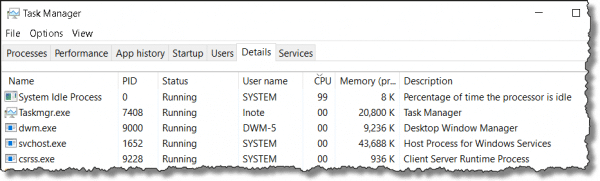
I’ll put it as clearly as I can: if the CPU is mostly idle — spending the majority of its time in the “System Idle Process” — then the CPU is not slowing your system down. The System Idle Process is not “hogging” your machine. It just isn’t.
Fine, so it’s not the System Idle Process; then what the heck is it?
It can be many, many things, almost all related to your hardware.
RAM
By far, the most common culprit is your disk. If your disk drive is continuously active while the CPU is idling, then whatever is using the disk is likely to be making your system slow.
The CPU is idle because it’s spending most of its time waiting for the disk!
The most common cause of a thrashing disk is not having enough RAM for all the programs you’re trying to run.
When programs request more RAM than your system has, Windows uses what’s called “virtual memory” to satisfy the request. Through a complex process, it uses your hard disk in the form of a “swap” or “paging” file to make it look like your machine has more RAM than it really does.
As fast as they are, hard disks — even SSDs — are slow compared to RAM. That means these disk accesses take time — sometimes noticeable time. In fact, if there’s enough virtual memory activity, your system can slow to a crawl as all the software attempting to run causes memory to be swapped in and out repeatedly.
The solution depends on your situation, of course.
- Don’t run as many programs at the same time.
- Don’t run as many programs that require a lot of memory.
- Don’t do things that require a lot of memory — perhaps editing a huge picture or video, for example.
- Keep your software up-to-date to get fixes for freshly discovered “memory leaks”.
- Consider adding RAM, if your system supports it.
The CPU is innocent
While hard-disk thrashing is perhaps the most common scenario to lead to this symptom, it’s certainly not the only one. It could be your network, for example, as whatever you’re doing waits (and waits and waits) for information to be downloaded over a slow connection.
Hardware problems can also be an occasional cause. Sometimes devices can fail in such a way that they’re continually signaling they need something. The system screeches to a slowdown trying to satisfy the need — even though the request is in error.
The bottom line is that you can stop blaming the System Idle Process for hogging your machine — it’s not. In fact, if it looks like it is — if the System Idle Process is using lots of CPU while you experience a performance problem — that’s a clear sign to look somewhere else for the source of your computer’s troubles.
(I hate to have to say this, but experience shows what will happen now. Comments to this article that continue to insist that the SIP is the problem will be deleted. You clearly didn’t read the article.)
Do this
Subscribe to Confident Computing! Less frustration and more confidence, solutions, answers, and tips in your inbox every week.
I'll see you there!
Podcast audio

Related Video


Yet again, Leo has the answers.
I use a free program that monitors my memory useage, and it gives me a nice readout in the taskbar of unused physical memory in Mb.
I have noticed that this figure drops very low on some occations (I have seen it as low as 6) and if below around 150 my laptop slows down and even sometimes freezes for anything up to a minute while my HD light is on continuously. And yes, CPU is twiddling it’s digital thumbs (I minimize Task manager to moniter exactly that).
Then there are people who say that there’s something wrong if the CPU usage ever gets to 100%. (ie: some program is “broken” and “hogging the CPU”.) They can’t grasp the concept of “CPU-bound computation”, and the report generator’s sorting routine is not “stealing” the CPU away from anything else. It’s simply using up the otherwise-idle time.
On a separate-but-related question, when the CPU is not at 100%, but the system is dragging its feet and the HD light is on nearly continuously, is there a way to find out what process is causing the disk thrashing? (It’s not caused by over-swapping in my case, as there is still physical memory available.) I have Process Explorer, but I can’t seem to find a “sort by who’s using the HD most” type of option.
Thanks.
To answer the inevitable “why?” I fire up Process Monitor which will show all disk activity right down the level of what objects are being accessed. More here: I have constant disk activity, and I don’t know why. How can I tell what program is doing it? – the only problem is that to do this Process Monitor can itself eat up resources and affect the problem, particularly if that problem is swap/memory and not application activity related.
12-Jun-2010
Ken: You might be able to use the I/O graph to see what process is reading/writing most bytes to disk. If it’s the system it’s probably paging, or it might be a driver that’s used when you’re writing to disk (I’m thinking about the TrueCrypt driver, when you copy something the system uses that to encrypt things on the fly).
You can also add columns to monitor the reads and writes for each program: view>select columns…>process performance>i/o delta reads/writes. I’m not sure what the I/O other would be for, maybe Leo can explain.
I use Anvir’s task manager to keep track of the CPU, disk read and writes, RAM and connectivity. By mousing over its icons in the taskbar I can see what programs are eating up which resources.
What I’ve found is that when my machine slows down it is most often due to one of two culprits:my security software updating or wuauclt.exe. I’ve recently changed security software from McAfee to Norton its gotten a little better, but not by a lot.
Great article, Leo! I find it funny that people think that the computer is somehow monitoring this process called “System Idle Process” rather than just displaying a value there that equals 100 minus The Total CPU Usage of All The Processes.
Leo,
Thanks for the follow-up. I’ve got procmon downloaded and ready to go the next time it happens.
I think it’s time to buy you another latte…
Not only the disks, but also the network can serve as a source of slow response… and then there is the dreaded “lock contention” (all sorts of reasons) that can serve as another source (ok, we went geeky internals there… bygones…). The nice(?) thing about this is that all of these can (and do! ;-) occur in all operating systems. ;-)
Absolutely great article for people not using Windows 7 :). In windows 7, in the taskmanager when clicking processes from all users, the SIP is described as percentage of the time the CPU is idle. That imho underlines once again how well Win7 is put together.
When you hear hard drive thrashing , check the processes, [ R click bottom task bar, L click on task bar menu ]
The noisy culprit is usually indicated my high CPU usage.
Check that your “virtual memory” settings are correct{do a Google search for directions} and do normal sruff like disk clean and defrag ..it all helps.
jp
18-Jun-2010
It might be useful to point out to people worried about System Idle CPU usage that, by MS logic, the figure seems to mean % of idle not usage. If you look at the next tab in Task Manager, “Performance”, a “System Idle Process” of say 98 will show 2% CPU usage.
“The CPU has to do something 100% of the time”
as a project, I proved the same thing with DOS,
that the processor never idle doing absolutely nothing
it’s always doing something
I loaded the DOS 6.20 command.com into a debugger and it showed a tiny 4 or 5 instruction loop that just looped waiting for input at the C:
Leo, I inherited a computer with XP Home. Occasionally after start up it would not respond. I would try to open a folder or a file and the hourglass would appear and then nothing. Waits of up to five minutes and nothing. A reboot would usually fix that except that many times the computer had to be crashed since not even Task Manager would respond. The malevolent spirit that had the computer enthralled simply kept the computer hostage. I did all the checking of running processes to determine their origin and killed everything that was unnecessary to run the basic machine. No change. I did a reinstall of the OS plus service packs but did not format the drive so as to retain as much of the data as possible. No change. Finally I formatted the hard drive reinstalled OS and service packs and problem gone. The only conclusion I came to was that an OCR program listed in the ADD/REMOVE programs could not be uninstalled and I could not find folders, start up entries or whatever for the program. There was also no evidence of that program in Task Manager. My guess is that it had been damaged / removed incorrectly and left some piece of dross that gummed up the OS. As a standard practice I now use Revo Uninstaller in the most brutal mode and also CCleaner to check for left over entries.
Yes this issue can occure if you are running too much software simultaneously.
so only run the once you need at that particular time and close the rest.
then check your startup programs and disable the ones you don’t need at startup and this should speed up your system
Seriously Jacob? You apparently did not read this article at all. So by your reasoning, your SIP (system idle process) should be at 0% while you are doing something on your PC. If this were the truth, this would mean that your cpu would have no time to do anything but that single process /program you are working with therefore not allowing it to “think” about anything else and become extremely slow. Also, even though you may not be working on your PC, your cpu is constantly working regardless. If it weren’t your computer wouldn’t function at all.
Here, let me put this into easy terms for you:
Take your brain for example. If you are just sitting in one spot motionless, doing nothing, does your brain stop? No it is still working. If you are sleeping does it stop? No, otherwise you would cease to live. However it allows you to multitask and function on a daily basis (no offense to people that have a hard time walking and chewing bubble gum).
Now take your brain and throw 10 simultaneous tasks at it at once. Your brain is now very far from idle but you still exist and breath even though you don’t have the time to even think about it.
Now how is this idle at 100% bad? It’s not. It basically means it has some down time to sit and do almost nothing at all. Do some more reading and educate yourself please.
~~~~Ross~~~~
Hi Leo, thanks for your numerous explanations of the SIP non-process. I think you’ve hit many good points, however, I did a lot of staring at my Processes in Task Manager this afternoon, and I noticed that some of my intensive (Excel) process never got > 25% of my CPU’s attention. I remember a long time ago, years, that some of my larger Excel files used to get 100% of my CPU time in the crunch. Kind of like a governor plate in NASCAR, something appears to limit my CPU’s dedication to processes. Is there some other invisible hand that makes my CPU “lazy and undedicated” to the important tasks at hand, and how do I give it motivation to “change”. ;-)
14-Oct-2012
The biggest problem really are the inadequate tools provided in every edition of Windows to quickly find what the wait event is.
Anyone that regularly uses a unix/linux machine will know what I mean.
top
NMON
will tell you instantly where your wait event is.
If on a server somewhere without a bunch of additional tools… resorting to vmstat, sar, iostat, and the whole array of vendor dependent commands you see in AIX and Solaris… just to name 2… is also not a bad solution (tho you do need some knowledge to use them).
But like Leo says… it’s almost always memory and swapping. Windows is terrible at managing it.
Just a week ago I noticed an much intensive CPU usage for SIP. I also compacted old files, so, maybe, it takes much longer to encode back those files and use them for daily usage… It seriously slows computer even to the state that even typing gets glitchy or mouse moves in chunks… I was even considering a virus of some “disturbing” manner, because this is just
Usually it is Windows installing some update in the background. It likes to do this when I have something important on the go, and it doesn’t ask for permission, or even tell me it is doing it.
I had a persistent slowdown problem where the CPU was mostly idle but my disk usage was maxed out for 15-20 minutes at a stretch. The problem was quickly traced to my Trend Micro Anti Virus. Even though it was scheduled for a full scan only once a week and a quick scan daily, it appeared to be doing a full scan several times daily. After several go-rounds with the TM tech team (with only temporary relief) I uninstalled TM and went with Windows Defender. I have had no trouble with the disk since.
To be fair to TM, I had this problem on only one of four computers in my house.
A lot of people today are using video intensive programs. If you do not have an adequate video driver (an associated RAM), then just refreshing and/or loading graphics can take a lot time and seem to slow things down.
Many times, when people think their computer is slow, it’s the Internet connection that’s slow. So many people use their computer almost exclusively for Internet related activities, browsing, streaming, email, downloading etc. Those are more dependent on their Interned speed than their CPU speed. Another factor which can affect speed negatively is not having enough RAM.
Not enough RAM causes the computer so offload some of the contents of RAM to the disk swap file. I’ve found that adding RAM and replacing the system drive for an SSD can yield an amazing boost. I have an 11-year-old laptop that runs very well after I installed an SSD as the system drive.
I also revived a dying turtle desktop by getting a new graphic card which took a lot of the strain off the CPU when using graphic intensive programs such as video editing and gaming.